The Teaming feature in GovDash helps you manage teaming partnerships for your government contracting opportunities. It provides a centralized hub to track workshare, manage agreements, collect data from partners, and evaluate their fit for specific opportunities.
Accessing Teaming
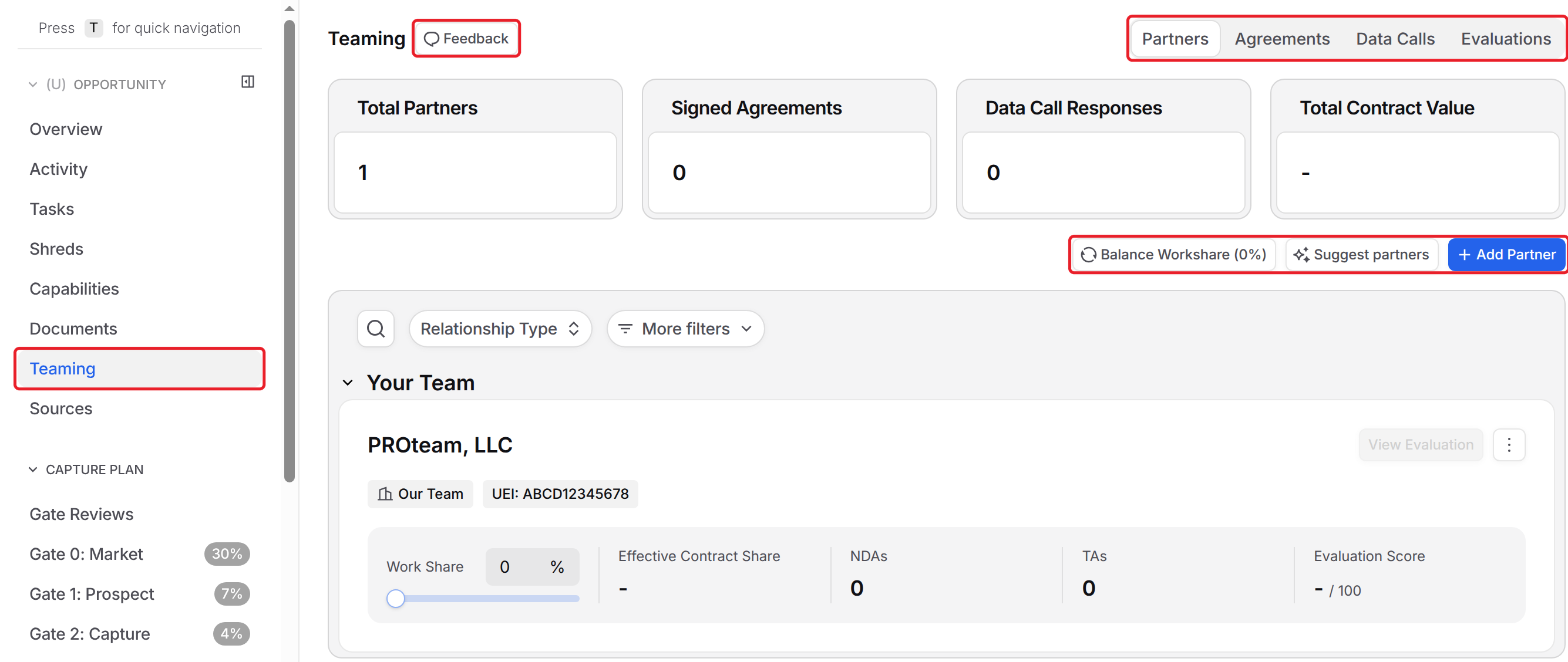
To access Teaming, navigate to any opportunity and select the Teaming tab. The interface is organized into four tabs: Partners, Agreements, Data Calls, and Evaluations. A Feedback button at the top lets you share suggestions for improving the experience.
Partners Tab
The Partners tab is your central hub for managing all teaming partners associated with an opportunity.
Dashboard Overview
Four summary cards appear at the top showing key metrics:
Card | Description |
|---|---|
Total Partners | Number of partners added to this opportunity |
Signed Agreements | Partners with signed NDAs or TAs |
Data Call Responses | Partners who have responded to data calls |
Total Contract Value | Estimated value of the opportunity |
Clicking any card filters the partner list by that criteria.
Adding Partners
Click Add Partner to open the Add Partners dialog, where you can search for companies in your Data Library. Select one or more companies and assign each a relationship type (Prime or Subcontractor). If a partner doesn't exist yet, the Create New Company option lets you add them directly to the list.
Not sure who to team with? Click Suggest partners, then Generate suggestions. Dash reviews the opportunity requirements and suggests potential partners from your Data Library, each with a fit rating. Click Add as... to add a suggestion as a partner, or dismiss the ones you don't need. Generating suggestions requires permission to edit Capture and view companies.
Partner Cards
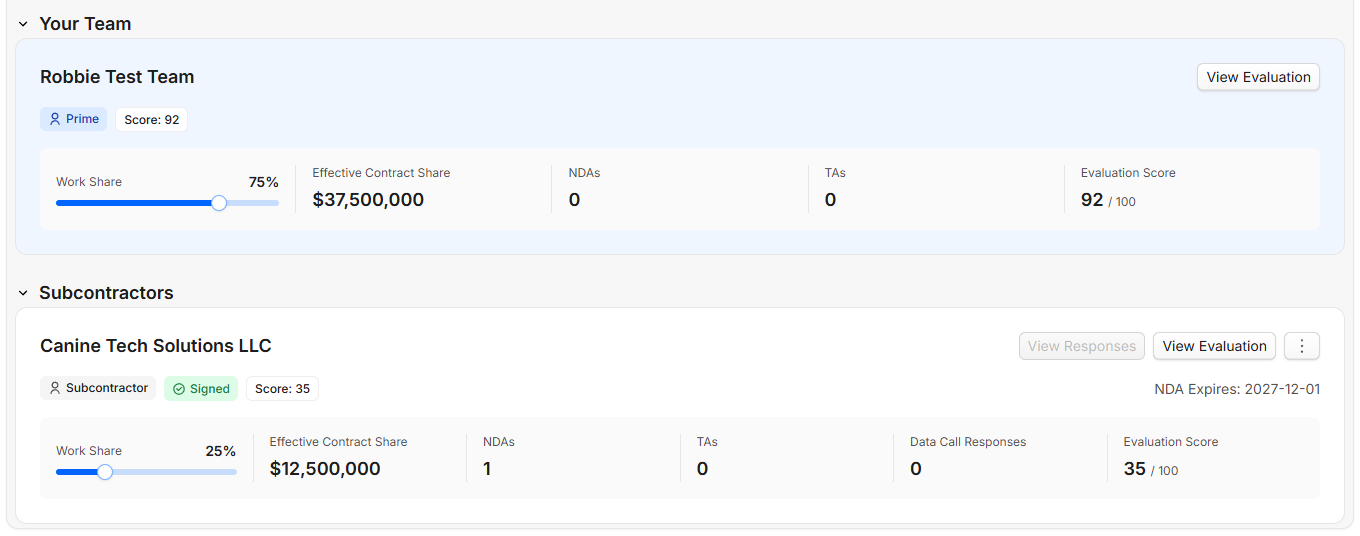
Each partner appears as a card displaying their name, relationship type (shown as an editable badge), and status indicators. Green badges show signed NDAs or completed data calls, while a score badge reflects their evaluation score. NDA/TA agreement expiration dates appear when applicable.
Work Share Management
At the bottom of each partner card, you'll find workshare controls. Use the slider to allocate a percentage of work (0 to 100%), and the system automatically calculates the effective contract share based on the total opportunity value. Summary metrics show counts for NDAs, Teaming Agreements, Data Call Responses, and the Evaluation Score.
The Balance Workshare button shows your current total, for example Balance Workshare (75%). If work shares don't total 100%, click it and choose equal distribution (split evenly) or proportional distribution (scale existing shares to total 100%).
Partner Actions
Each card provides buttons to View Responses (data call submissions) and View Evaluation. The more menu (⋮) allows you to remove a partner from the opportunity.
Filtering
Filter partners by Relationship Type, or click More filters to filter by NDA Status or Data Call Status. Partners are automatically grouped by relationship type for easy scanning.
Agreements Tab
This tab tracks Non-Disclosure Agreements (NDAs) and Teaming Agreements with your partners.
Dashboard Overview
Card | Description |
|---|---|
Total Agreements | All agreements for this opportunity |
Pending Agreements | Awaiting signature |
Signed Agreements | Fully executed agreements |
Expired Agreements | Past expiration date |
Creating and Managing Agreements
Click New Agreement(s) to select partners and choose the agreement type (NDA or Teaming Agreement). You can create agreements for multiple partners at once. Once you send the agreement, this will be emailed to the recipient you’ve selected. Within the received email, your recipient will be able to access the agreement via a link that is restricted by email and a one-time-email code where they can then download, sign, and then re-upload the agreement.
Once received, it will be viewable within the Agreements tab, where you can choose to approve the response.
.png)
Agreement Cards
Each agreement card shows the partner name, contact person and their position, along with status badges (Signed, Pending, Expired, or Cancelled) and type badges (Standard NDA or Teaming Agreement).
.png)
Progress Stepper
A visual timeline tracks each agreement through four milestones: Created, Sent, Signed, and Expires. Click incomplete steps to take action. Sending the agreement opens a dialog to choose a contact person and optionally attach documents. Marking as signed lets you set the date and upload the executed document.
Agreement Actions
The dropdown menu provides options to send/resend the agreement, view details, edit the contact or type, attach the original document, or delete the agreement. Each card also includes a Note section for internal comments.
.png)
Filtering
Filter by Status, Type, or specific Partner.
Data Calls Tab
Data Calls let you collect structured information from teaming partners, such as capability statements, past performance, technical qualifications, and more.
Dashboard Overview
Card | Description |
|---|---|
Total Data Calls | Number of data calls created |
Active | Currently accepting responses |
Completed | Closed or past due date |
Total Responses | Number of partner responses received |
Creating and Sending Data Calls
Click Create Data Call, choose a template (Create Custom Data Call to start from a blank form, or Past Performance for a pre-configured three-reference template), then enter a descriptive Data Call Name and click Create. You'll be redirected to the form builder to design your questions. Once ready, send the data call by clicking Publish and entering recipient emails, setting a due date, and optionally configuring response limits and email notifications. You can also optionally preview your form before sending by clicking Preview.
.png)
Creating Data Calls with Dash
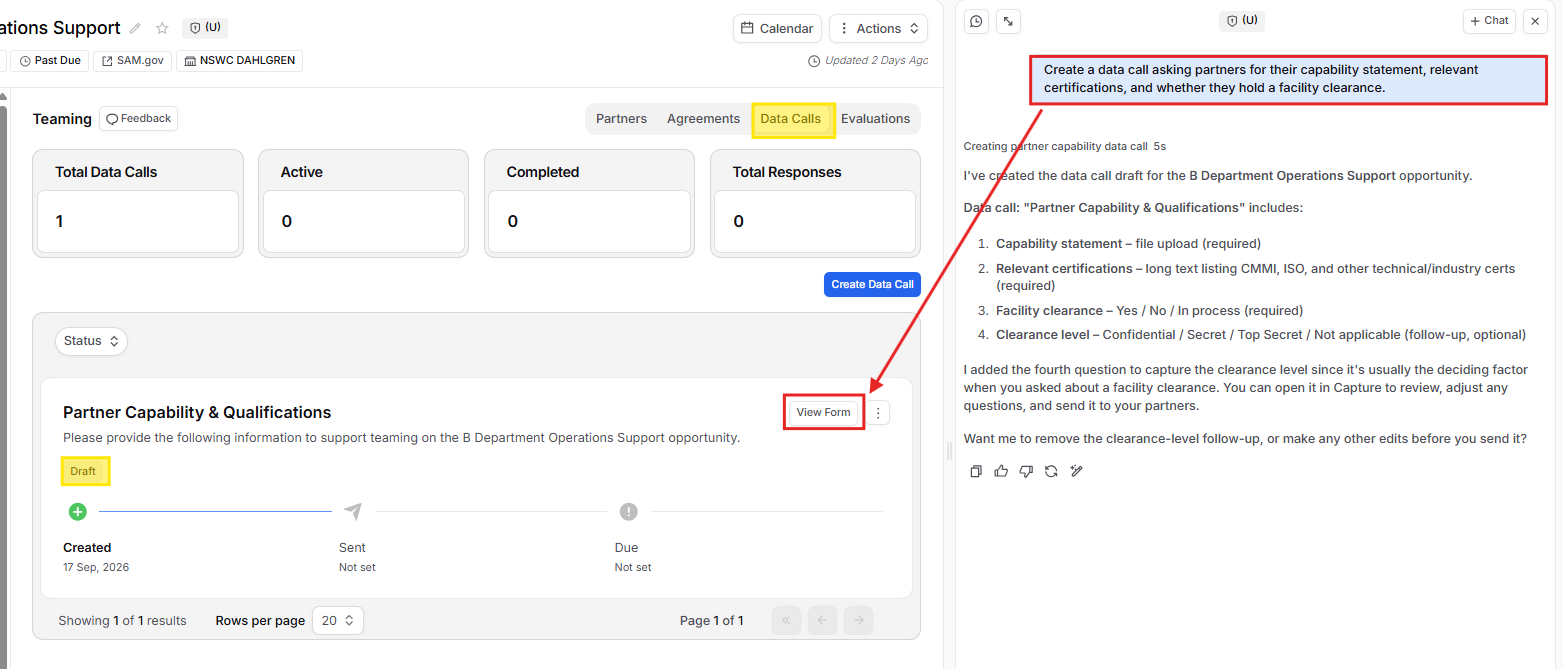
Don't want to build the questions yourself? Dash can design and create data calls for you. Open Dash while you're on any page of the opportunity (for example, the Teaming tab) so the opportunity is attached to your conversation, make sure Capture is enabled as a source, and describe what you need from your partners. For example:
"Create a data call asking partners for their capability statement, relevant certifications, and whether they hold a facility clearance."
"Set up a past performance data call for this opportunity."
Dash will design the questions and answer formats (short text, long text, number, single or multi-select, date, yes/no, or file upload), mark any required questions, and create the data call as a Draft on this opportunity. If you ask for past performance, Dash uses the standard Past Performance template with three reference sections. While it works, you'll see a Creating data call status in the chat, followed by Created data call when it's finished.
The new data call appears right away in the Data Calls tab. From there, click View Form to review or tweak the questions in the form builder, and send it to your partners with Publish just like any other data call.
Data Call Cards
Each card displays the title, description, and status badge (Draft, Active, or Completed). A progress stepper shows the timeline from creation through sending to the due date. Click the due date to adjust it after sending.
Managing Data Calls
Use View Form to open the form builder, or Responses to see submissions (the button shows a count badge). The dropdown menu lets you update sending settings or close the data call to new responses.
Evaluations Tab
The Evaluations tab helps you assess and score teaming partners based on their capabilities, past performance, and fit for the opportunity.
Dashboard Overview
Card | Description |
|---|---|
Total Evaluations | Number of partners |
Completed | Finished evaluations with scores |
In Progress | Currently being evaluated |
Average Score | Mean score across all evaluated partners |
Auto-Evaluate with AI
GovDash can automatically evaluate partners using AI. Click Auto-Evaluate, select which partners to assess (up to 25 at once), and the system analyzes their capabilities, past performance relevance, opportunity alignment, and teaming readiness. A progress bar tracks the evaluation as it runs.
Manual Evaluations
Click New Evaluation to create your own assessment. Enter a score (0 to 100), choose a recommendation level (Highly Recommended, Recommended, or Not Recommended), and document strengths and areas for improvement. Notes support markdown formatting.
Evaluation Cards
Each partner's card shows their name, who performed the evaluation (GovDash for AI or team member name), completion date, and status. Recommendation badges appear in green (Highly Recommended), blue (Recommended), or red (Not Recommended). A score bar visualizes the 0 to 100 rating.
Evaluations display Strengths (green panel) and Areas for Improvement (yellow panel). Each point may include a Sources button to view the evidence used by our system.
.png)
Evaluation Actions
Edit your own manual evaluations, create additional assessments, or click Details to view all evaluations for a partner in a side panel. This is useful for comparing AI and manual assessments over time.
Providing Feedback
Click the Feedback button at the top of the teaming page to share suggestions about interface confusion, missing features, performance issues, data accuracy concerns, or other improvements.
FAQ
Who can open the agreement or data call links I send?
Only the email addresses you send them to. Recipients confirm their email with a one-time code before they can open an agreement.
How many partners can I auto-evaluate at once?
Up to 25. Click Auto-Evaluate and select the partners to assess.
What if my work shares don't add up to 100%?
Click Balance Workshare and choose to split work evenly or scale the existing shares to total 100%.
Why can't I generate suggested partners?
Generating suggestions requires permission to edit Capture and view companies. Ask your team admin to update your role.