The Activity and Tasks pages of a Pipeline opportunity let your team communicate, review updates and track work in one place.
Accessing Activity and Tasks
Open an opportunity from your Pipeline, then select Activity or Tasks in the left menu.
Using Activity
The Activity page has two panels:
Audit Log: tracks updates to the opportunity, such as phase changes and added documents. Click Export to download the audit log as an Excel file.
Notes: lets your team leave comments, attach documents and mention team members.
Every entry shows who did the work. Entries created by a person show that person's name and avatar, entries created by Dash show Dash, and entries created by a Dash Agent show the agent's name.
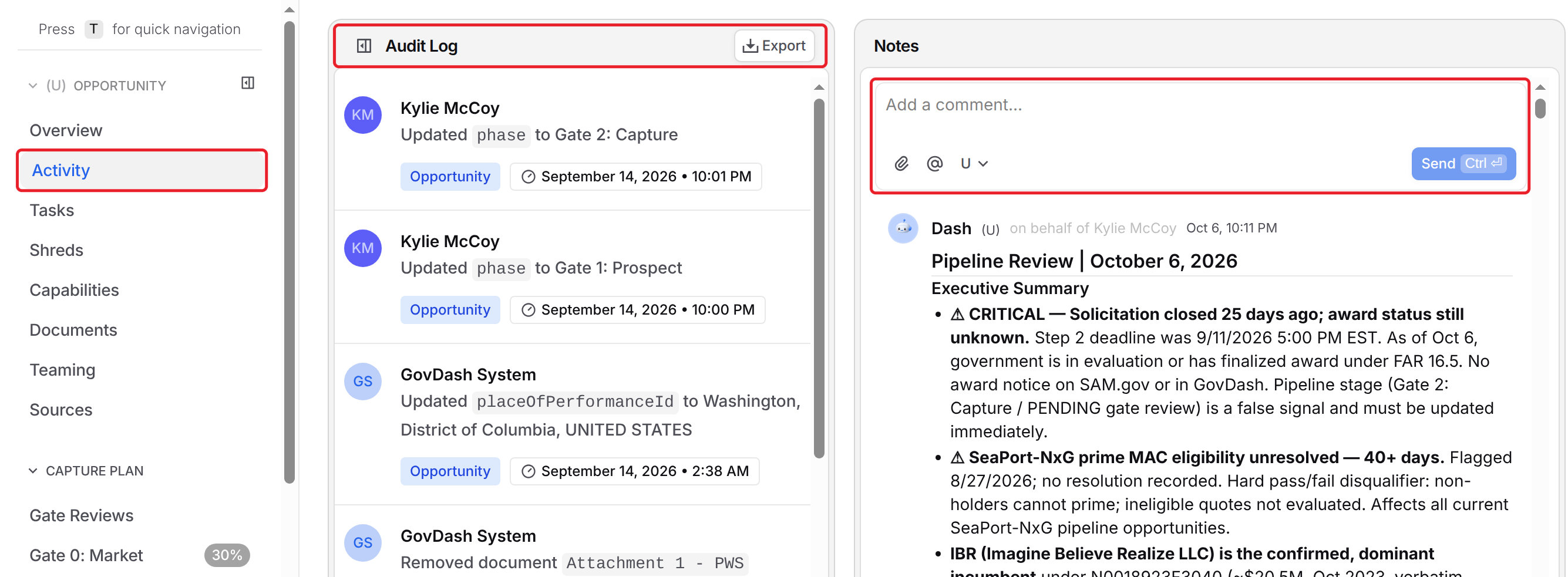
Attaching Documents
Documents attached to comments do not get added to Solicitation Documents or the Data Library. To use a document elsewhere in GovDash, upload it there too.
Working with Comments
When you write a comment, you can attach documents and @mention team members.
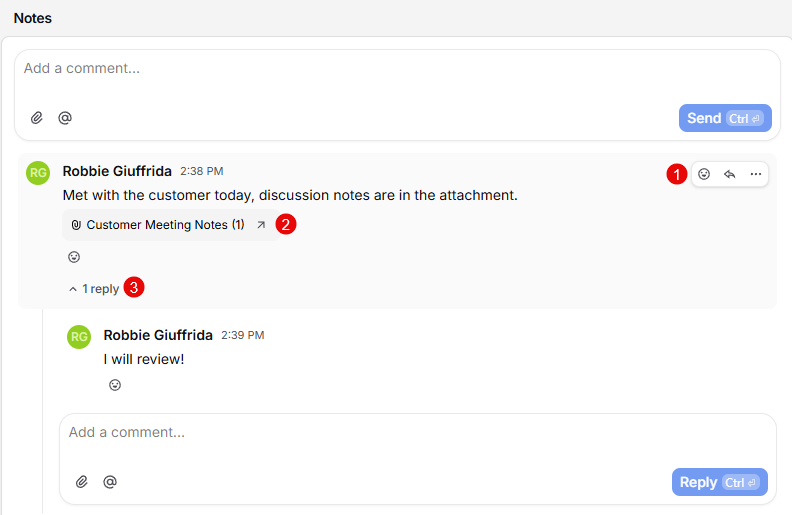
Hover over a comment to react, reply or open its ⋯ (more) menu, where you can pin, edit or delete it (1). You can also open attached documents (2) and view replies (3).
Deleting Comments
You can always delete your own comments, and you can also delete any comment left by Dash or one of your Dash Agents. Open the comment's ⋯ menu and select Delete. Comments written by other team members can only be edited or deleted by their author.
Creating and Managing Capture Tasks
The Tasks page shows the tasks for this opportunity:
New Task: create a task for this opportunity.
Apply Template: choose a task template and click Apply to create all of its tasks at once. Only templates for capture opportunities appear.
Filters, Sorted by and Customize: find tasks and change how they're shown. Under Customize, turn on the Created By column to see whether each task was created by a teammate, by Dash, or by one of your Dash Agents.
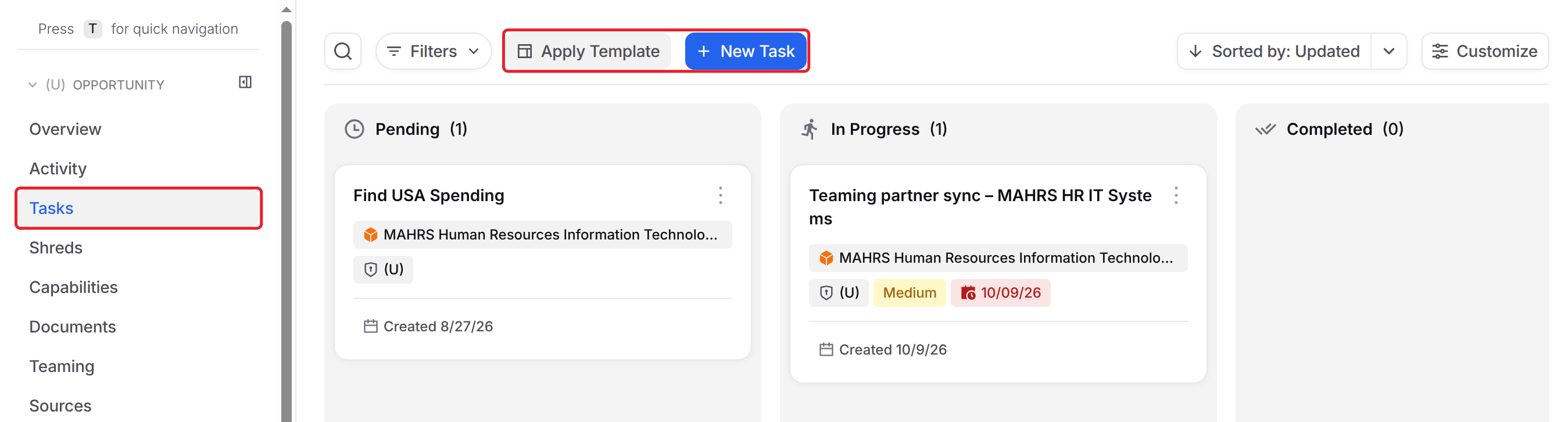
Click a task to open it. From there you can update its details, add subtasks, comment, and review its activity. To learn more, see Creating and Managing Tasks and Customizing Tasks.
FAQ
Are documents attached to comments added to Solicitation Documents?
No. Documents attached to comments stay with the comment. Upload them to Solicitation Documents or the Data Library if you want to use them there.
Can I delete a teammate's comment?
No. Only the author can edit or delete a comment. You can delete your own comments and any comment left by Dash or your Dash Agents.
Why don't I see my task template?
Only templates set up for capture opportunities appear in Apply Template. See Customizing Tasks to create one.