Overview
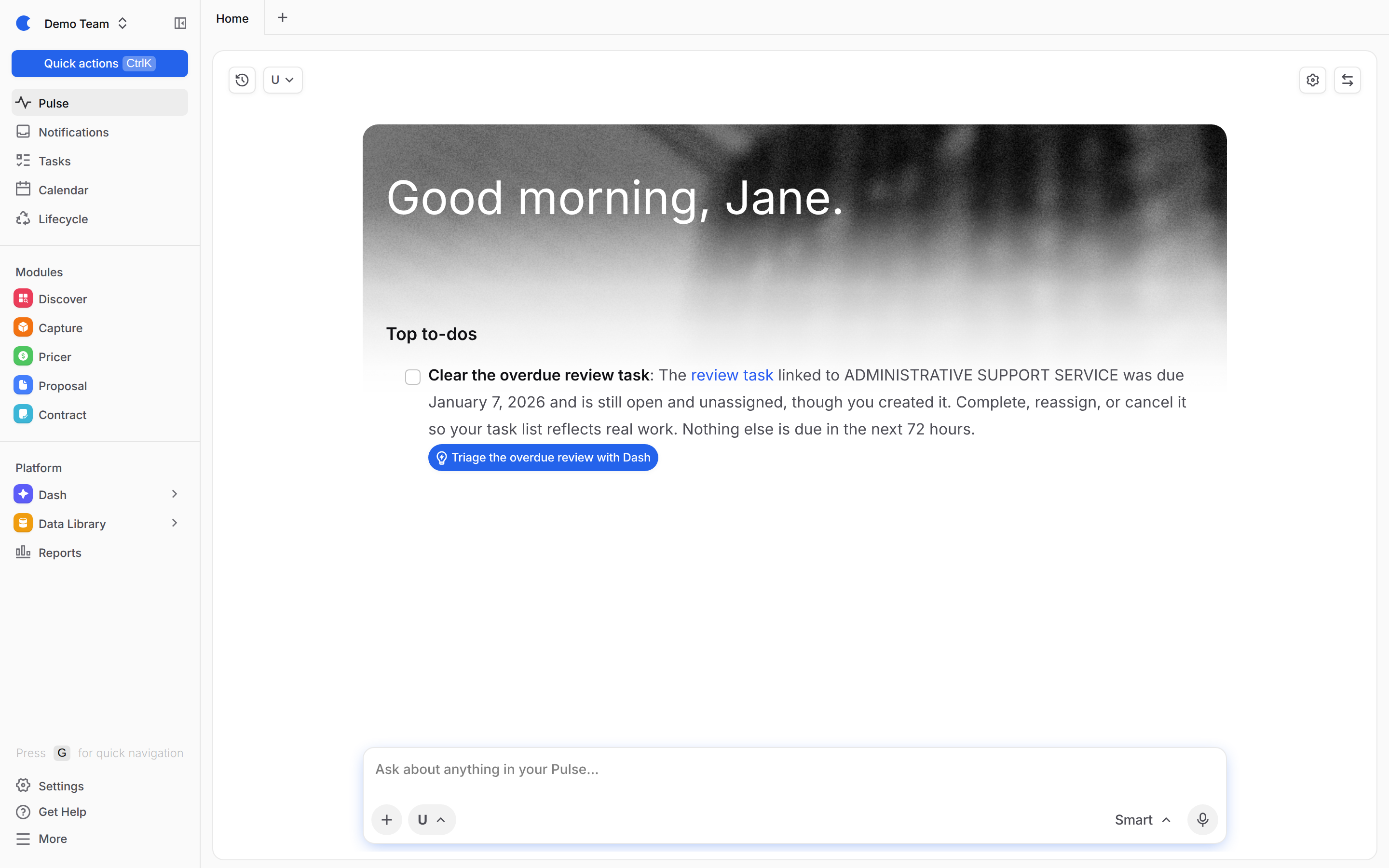
Dash Pulse is your daily brief from Dash. Each morning, Dash looks across your tasks, calendar, opportunities and proposals, plus any Dash Connectors you have set up, and writes a short brief on your Home page with what needs your attention today.
To open your brief, click Pulse in the left hand navigation menu.
Reading Your Pulse
If your Pulse for today is not ready yet, click Prepare my Pulse. You will see Preparing your Pulse while Dash works. After that, Dash prepares a fresh Pulse for you each morning.
Your Pulse can include these sections. Dash only shows a section when it has something to report:
Top to-dos: the two to four things that need you most, such as work someone is waiting on or a response date coming up. Check them off as you go.
New updates: news from your connected apps and changes to your work since you last checked in.
Day overview: today's meetings, tasks due today and open time for focused work.
Names of opportunities, tasks, documents, companies and people link straight to their page in GovDash. Items from a connected app, such as an email or a Slack thread, include a link such as Read in Gmail so you can open them where they live.
Editing Your Pulse
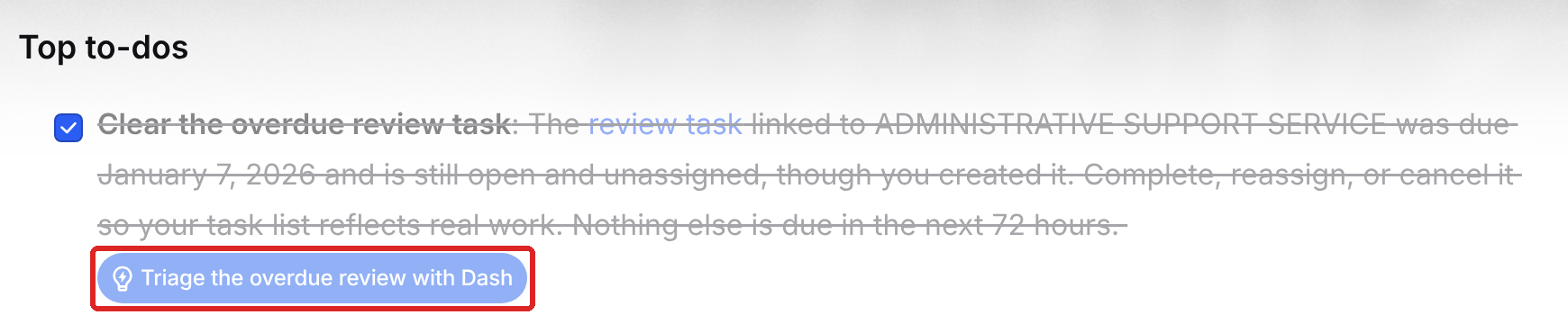
Your Pulse is yours to work in. Click anywhere in the brief to add notes, change the text or check off to-dos. Your changes save automatically.
Don't need an item? Hover over it and click the thumbs down (Not helpful). Add an optional comment, then click Submit and remove to take it out of your brief, or Submit to send your feedback and keep the item.

Rating Your Pulse
Let Dash know how your Pulse did. Your feedback helps Dash make future Pulses more useful, and you can rate today's Pulse or any past Pulse.
Scroll to the bottom of your brief and click Rate this Pulse.
Choose a rating from 1 (Very Poor) to 5 (Excellent).
Add an optional comment about what worked well or what could be better.
Click Submit. The button now shows your rating. Click it any time to change your rating, or click Clear to remove it.
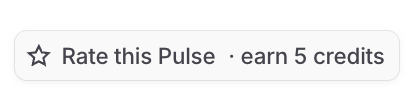
Earn 5 credits for your feedback!
Until you've claimed them, the button reads Rate this Pulse · earn 5 credits. Write a detailed comment and the button changes to Submit and claim 5 credits. Each member can earn Pulse feedback credits once. Learn more in our Credit-Based Billing article.
Getting Help from Dash
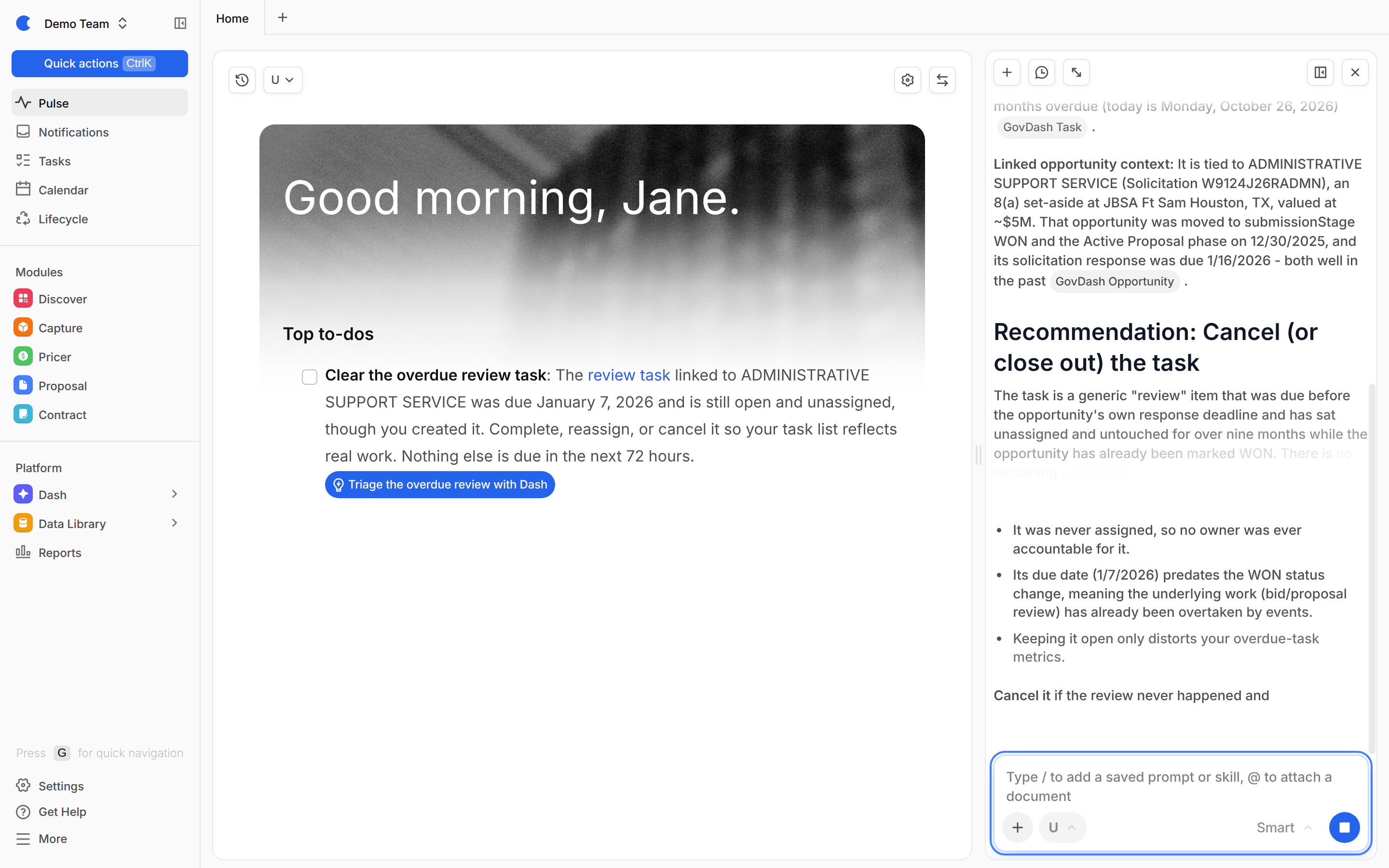
Most to-dos and updates end with a button such as Draft the reply with Dash. Click it and Dash starts a chat with that item already attached. When the item belongs to an opportunity or proposal, GovDash opens that page with Dash beside it.
You can also ask Dash anything about your brief. Type in the Ask about anything in your Pulse… box at the bottom of the page and press Enter. Dash opens in the sidebar with your Pulse attached.
Want more in your Pulse?
Connect apps such as Gmail, Slack or Google Drive so Dash can include them in your brief. Check out our Using Dash Connectors article to learn more.
Pulse Controls
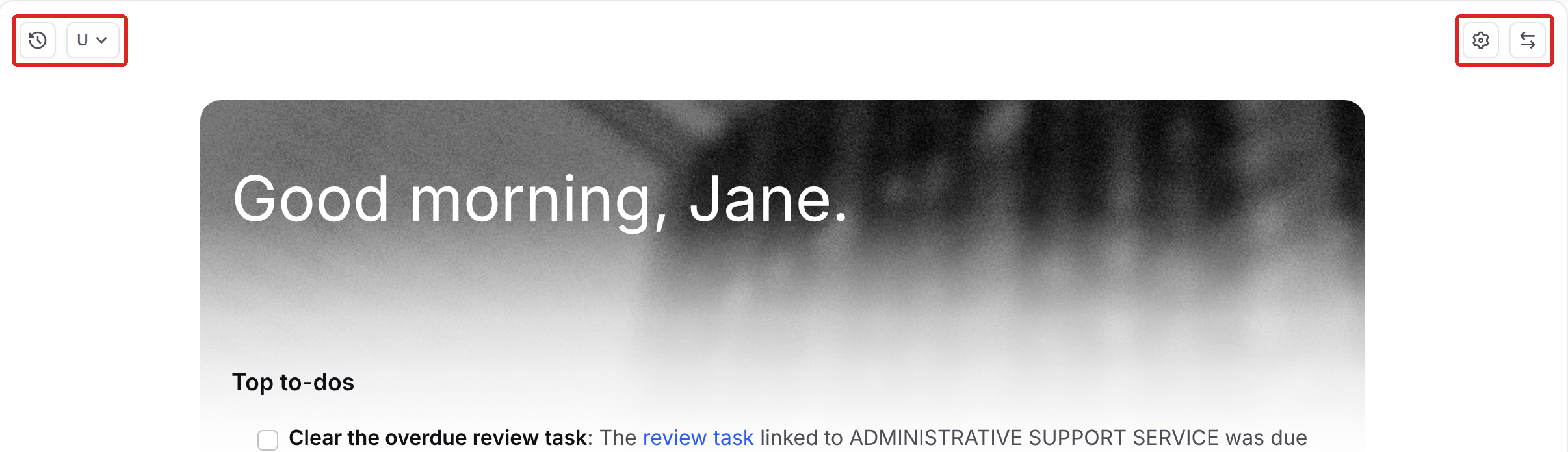
Use the buttons at the top of your Pulse:
Control | What it does |
|---|---|
Show chat history (clock icon) | Opens a panel with your Chat History and Pulse History. Pick a date under Pulse History to reread a past Pulse. |
Classification badge (for example, U) | Shows the classification of this Pulse. You can raise it, but you can't lower it below the level Dash set. |
Pulse settings (gear icon) | Opens your Pulse settings. |
Show Classic (arrows icon) | Switches your Home page back to the classic Dashboard. Click Show Pulse to come back. |


Pulse Settings
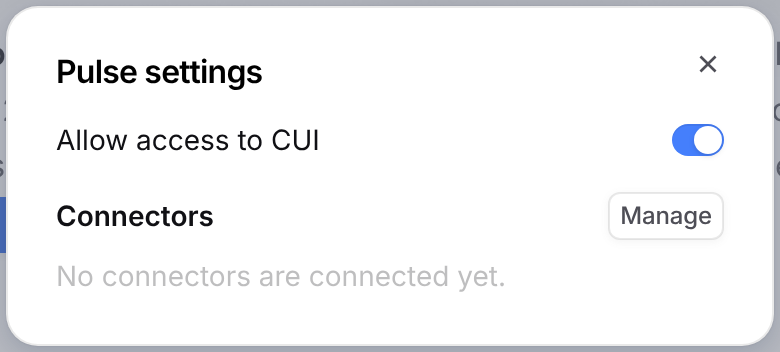
Click Pulse settings to choose what Dash can use in your Pulse. These settings only apply to you.
Allow access to CUI: lets Dash include CUI in your Pulse. Turn it off to keep your Pulse unclassified. You can only turn this on if you have CUI access.
Connectors: turn each connected app on or off for your Pulse. Click Manage to connect or manage your Dash Connectors.
FAQ
When is my Pulse ready each day?
Dash prepares your Pulse early each morning in your team's time zone, so it is waiting when you start your day. If you have not opened your Pulse in about five days, Dash pauses your daily Pulse until you come back. Just open Pulse and click Prepare my Pulse.
Can I go back to the classic Dashboard?
Yes! Click Show Classic in the top right of your Pulse. This only changes your own Home page, and Dash stops preparing your daily Pulse until you click Show Pulse again.
Why doesn't my Pulse mention my email or Slack?
Dash only reads apps you have connected and turned on in Pulse settings. Click Manage in Pulse settings to connect them, or check out our Using Dash Connectors article.
Why can't I type in the box at the bottom of my Pulse?
If your Pulse is marked at a higher classification than you can use in Dash chats, follow up questions are turned off for that Pulse to keep your data protected.