Dash Connectors give Dash access to tools from the external services you already work in: Slack, Google Drive, GitHub, Linear, HubSpot, Microsoft services, and more. Once connected, Dash can pull from those tools the same way it uses your internal GovDash sources, so you can ask one question and get an answer that spans your proposal data, your CRM, and your team’s conversations.
How To Guide
If you’re a team admin looking to make connectors available to your team, see our Dash Connectors Setup Guide.
Important: Connectors and CUI
When Dash uses a connector, requests leave the GovDash authorization boundary and go to the external provider. Connectors never work with CUI, Dash will not send CUI to a connector, and connectors are not available in CUI contexts.
Connect a connector
Before Dash can use a service like Slack or Google Drive, you need to connect your account:
Open Dash’s context menu (+ symbol) and go to the Connectors menu.
Find the connector you want to use and click Connect.
A sign-in popup opens for that provider. Sign in and approve the requested permissions.
Close the popup. Your Dash tab updates automatically and shows the connector as connected.
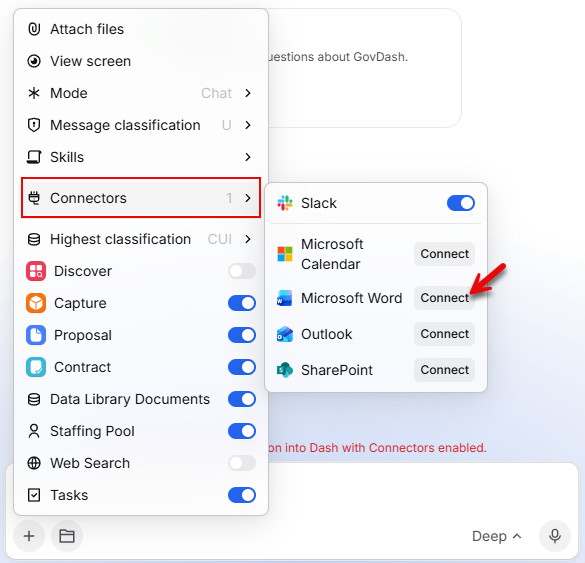
You'll only see providers your team admin has enabled, so if the menu says no connectors are available, you can request one (see Request a connector your team hasn't enabled below). You connect with your own account, which means Dash can only see what you can see in that tool. If sign-in fails, just close the popup and try again.
Custom connectors, the ones your team built or subscribes to, work differently: there’s no sign-in at all. They appear in the same Connectors menu, and you simply toggle them on.
Request a connector your team hasn't enabled
Only the connectors your admins have enabled show up in Dash. If the provider you need isn't there yet, you can ask for it in one click, no email required.
Open Settings, then go to Dash and scroll to Connectors.
Find the provider you need in the connectors list. Providers your team hasn't enabled show a Request button instead of Connect.
Click Request. The button changes to Requested, which confirms your team's admins have been notified.
A few things to know:
You only need to ask once. A connector you've already requested keeps showing Requested, so you can't accidentally ping your admins twice for the same tool.
Providers marked Coming soon can't be requested yet, because they aren't available in GovDash for any team.
Nothing changes for you until an admin enables the provider. Once they do, the row switches back to Connect and you can sign in with your own account.
What your admins see
If you can enable connectors for your team (the Manage Team Integrations permission), requests come to you in two places:
On the connector itself. Each provider your team hasn't enabled shows a blue badge with the number of teammates who have asked for it, for example 4 team requests, right in Settings → Dash → Connectors. It's a quick read on demand before you decide what to turn on.
In a request digest. GovDash sends a Connector Request Digest notification summarizing the connectors your team has asked you to turn on, with a link straight to your Dash settings. It goes to teammates who can actually enable connectors, and you control whether you receive it by email, in the app, or not at all from your notification preferences.
Ready to turn a requested connector on?
Enabling a provider takes a single click. Check out our support article here: Dash Connectors Setup Guide.
Choose which connectors are active
You’re always in control of what Dash can reach. In the Connectors menu, toggle each connector on or off just like you select your other sources. The GovDash web app, the browser extension, and the Office add-ins each remember their own defaults, so you can keep Slack on in the web app but off in Word. Changing your selection inside an existing conversation updates that conversation too, and if you turn everything off, connectors stay off until you say otherwise.
Use connectors in Dash conversations
Once a connector is active, it works exactly like Dash’s other source toggles; connectors and GovDash sources are designed to feel interchangeable. There’s no special syntax. Just ask, and Dash decides when to reach into the connected tool.
Not sure what a connector can do? Ask Dash directly (“What can you do with Slack?” or “What tools do you have from HubSpot?”) and it will list the actions it can take with that provider, from searching messages to reading files to updating records.
Use connectors in Agents
Connectors are also available in Dash Agents. When you create an agent, your connected connectors appear right alongside your other sources:
Create a new agent (for example, Create from scratch).
In the sources section, select the connectors the agent should use. They’re listed in line with your internal GovDash sources.
Write your instructions and create the agent.
An agent with the Slack connector selected and the instruction “Tell me about recent messages from Slack” will pull from your workspace every time it runs, which makes it useful for a standing brief on what your capture team discussed overnight.
Getting the most out of connectors
Connectors earn their keep when you combine them with your GovDash data in a single ask.
Data calls are a natural fit: instead of scrolling channels, ask Dash to search Slack for what the team said about the Army logistics recompete and summarize the open questions.
On the BD side, Dash can check HubSpot for your contacts at the prime on an opportunity and draft the outreach note in the same breath.
Want to review before anything goes out? With the Gmail connector, ask Dash to save it as a draft and it will place the email in your Gmail Drafts folder instead of sending it, so you can edit and send it yourself. This also works in agents, for example a scheduled agent that drafts a weekly status email for you to review.
When proposal inputs live outside GovDash, like a capability statement in Google Drive, Dash can fetch them and put them to work against your draft, whether that’s comparing the capability statement to the technical approach or turning recent commits into a past-performance-style writeup.
The same combinations work in standing agents: pair a connector with internal sources for something like a weekly brief that reads Slack and your GovDash pipeline together.
A few habits help. Name the tool in your prompt (“from Slack,” “in HubSpot”) when you want Dash to use a specific connector, and keep only the connectors you actually use toggled on. And remember, Dash acts as you: it can only reach channels, files, and records your own account can access.
Troubleshooting
General
You don’t see the Connectors menu: Dash Connectors may not be enabled for your team yet. Ask your team admin or GovDash point of contact.
A provider you expect is missing: a team admin needs to enable it first.
Sign-in fails: close the popup and click Connect again. If it keeps failing, contact GovDash support.
You see “Reconnect required”: your session with that provider expired. Click to reconnect and sign in again.
A conversation stopped using a connector: check that the connector is still toggled on, and that it wasn’t disabled or deleted by a team admin.
Microsoft Connector Troubleshooting
Microsoft connectors (Outlook, Microsoft Calendar, Microsoft Teams, Word, and SharePoint) depend on a few setup steps in your organization's Microsoft tenant, and your organization's Conditional Access policies also have to allow the sign-in. If something is missing, Microsoft refuses the connection and GovDash shows you the reason:
"Microsoft 365 Work IQ is not set up in your Microsoft tenant yet. Ask your Microsoft administrator to enable the Work IQ tools for your tenant, then try again." Your Microsoft administrator needs to turn on the Work IQ tools for your tenant. Once they have, click Connect again.
"Your Microsoft administrator needs to approve GovDash's access to Microsoft 365 Work IQ before you can connect this connector." Your Microsoft administrator needs to grant GovDash consent for Work IQ. Once approved, click Connect again.
"A Microsoft 365 Copilot license is required to connect this Microsoft connector. Ask your Microsoft administrator to assign you a Copilot license, then try again." Microsoft connectors require a Microsoft 365 Copilot license on your account.
"Access to Microsoft is forbidden because the device you're logged in with is not compliant. Sign in from a company-managed device that meets your IT requirements, or contact your Microsoft administrator." Your organization only allows Microsoft sign-in from devices that meet its compliance requirements (for example, devices enrolled in your company's device management). Switch to a company-managed device and click Connect again. Reconnecting from the same device won't help until it meets the policy.
"Access to Microsoft is forbidden because the device you're logged in with is not domain-joined. Sign in from a company-managed device that meets your IT requirements, or contact your Microsoft administrator." Your organization requires a domain-joined device for Microsoft sign-in. Sign in from a device joined to your company's domain, or ask your Microsoft administrator for help.
"Access to Microsoft is forbidden because the device you're logged in with is not workplace-joined. Sign in from a company-managed device that meets your IT requirements, or contact your Microsoft administrator." Your organization requires a workplace-joined (registered) device for Microsoft sign-in. Register your device with your organization or use one that already is, then click Connect again.
"Access to Microsoft is forbidden by your organization's Conditional Access policy. Sign in from a device and network that meet your IT requirements, or contact your Microsoft administrator." A Conditional Access rule other than device state blocked the sign-in, for example a location, network, or app restriction. Try again from an approved device and network (such as your company VPN), or contact your Microsoft administrator to find out which policy applies.
"Failed to connect" on its own means GovDash couldn't identify the reason. Close the popup, try once more, and contact GovDash support if it keeps happening.
Blocked by a device or Conditional Access policy? These messages come from your organization's Microsoft security settings, not from GovDash, and reconnecting your Microsoft account won't clear them. The fix is to sign in from a device and network that satisfy the policy, or to ask your Microsoft administrator to adjust it.
Are you the administrator? Tenant-side setup for Microsoft connectors is covered in our Dash Connectors Setup Guide and Microsoft SharePoint Integration Setup articles.