Overview
Dash creates finished artifacts for you (such as Word documents, Excel workbooks, PowerPoint decks, and PDFs, and images) right inside a chat. Describe what you need in plain language and Dash builds it, then hands it back in the conversation ready to download.
It works in both directions. You can ask Dash to build an artifact from scratch, or from a response it has already given you. You can also upload one of your own documents and have Dash fill it out, returning it in the same format with your original layout intact. Dash also edits the files you already have: merge, split, rotate, or watermark a PDF, pull the text and tables out of it, or fill in a PDF form.
Every artifact Dash creates is saved to your Artifacts library, so you can find it again later without digging back through old chats. When an artifact is ready to share, ask Dash to publish it to an opportunity, contract, proposal, or your Data Library, and Dash puts a copy right where your team needs it.
Generating an Artifact
Open Dash and describe what you want. You can do this in a new chat, or at any point in a conversation you are already having.
Make me a PowerPoint slide deck about our capabilities
Create a PowerPoint kick-off deck for this opportunity utilizing our capture plan
Put this response in a Word doc
Build me a spreadsheet comparing these three contract vehicles
Turn this into a one-page PDF I can send to a teaming partner
Create an image of our organization chart
As Dash works, it reports each step in the chat. When it finishes, the artifact appears as a card showing its name and size, with a download button on the right.
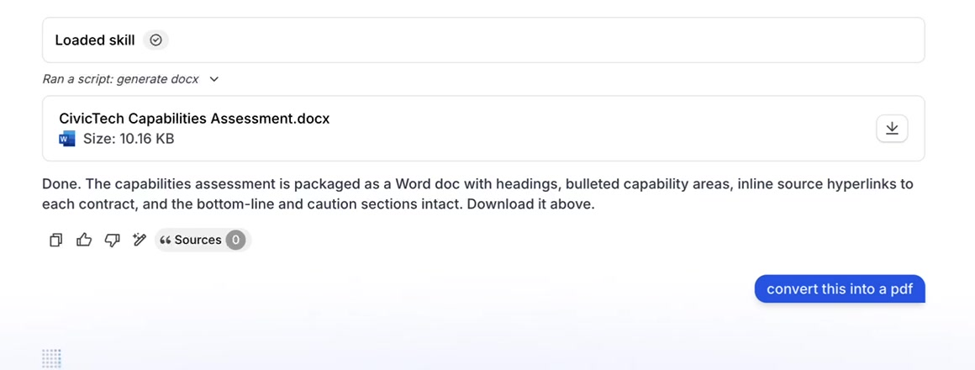
Because Dash already has the context of your conversation, you do not need to restate anything. If Dash has just given you a capabilities summary, "put that in a Word doc" is enough, the headings, bullets, and source hyperlinks from the response carry straight into the document.
Formatting Tips
Tell Dash what you want the artifact to look like. It responds to direction on length, structure, and style: "five slides," "keep it to one page," "add a summary table at the top."
Filling Out Your Own Templates
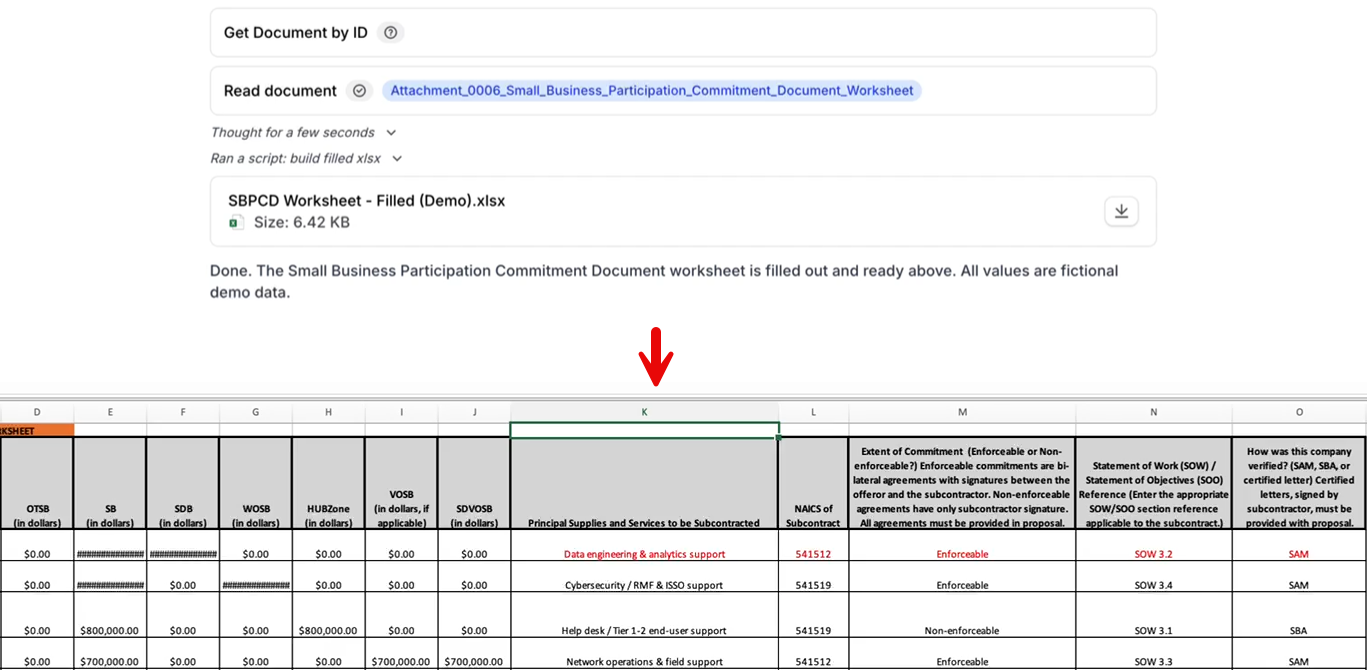
When you have a form, worksheet, or template that needs completing, upload it and ask Dash to fill it in. Dash reads it, works out its structure, and fills it in place, so what comes back is your document, with your formatting, formulas, and layout preserved.
In the Dash chat box, click + and attach your template from your device, your Data Library, or SharePoint.
Ask Dash to fill it out, and give it any direction it needs on what belongs where.
Download the completed artifact from the chat.
Dash handles multi-tab workbooks and will tell you which tab it is filling before it starts. Formulas, cell formatting, merged cells, and layout in the original stay as they were.
PDF Files and Forms
PDF forms work the same way. If the form has fillable fields, Dash completes them in place. If it is a scanned or flat PDF with no fillable fields, Dash reads the layout of the page, writes your answers into the right spots, and checks the placement before returning the file, so you get a finished, filled-in form either way.
Government forms rarely arrive tidy, so Dash handles both kinds.
In the Dash chat box, click + and attach the form.
Ask Dash to fill it out, and tell it anything it cannot know on its own, a contract value, a point of contact, which boxes to check.
Dash works out whether the form has fillable fields. If it does, Dash completes those fields directly, including checkboxes, radio buttons, and dropdowns.
If the form is scanned or flat, with no fillable fields, Dash reads the layout of the page instead, writes your answers into the right positions, and checks the placement before it finishes.
Combining, Splitting, and Rearranging
Ask Dash to reshape a PDF and it will hand back the finished file:
Merge several PDFs into a single document, in the order you want
Split one PDF into separate files, or pull out a page range
Rotate pages that came in sideways or upside down
Add a watermark, such as DRAFT or your company name
Protect the finished PDF with a password
If Dash rebuilds it instead of filling in yours
Just say so! Something like "I want it filled out in the same format I sent it in" will prompt Dash to go back to your original and fill that one instead.
Converting Between Formats
Once an artifact exists in your conversation, you can ask Dash to convert it. "Convert this into a PDF" returns the same document in PDF form. The converted artifact is added to the conversation and to your Artifacts library alongside the original, so you keep both.
Publishing an Artifact
Once Dash has built something worth keeping, you can ask it to publish the artifact to the record where it belongs. Dash figures out the destination, shows it to you in a card, and waits for your go-ahead. Nothing is copied until you click Publish.
Publishing makes a copy. The original artifact stays in your conversation and in your Artifacts library, so you can keep refining it or publish it somewhere else later.
Where Dash Can Publish
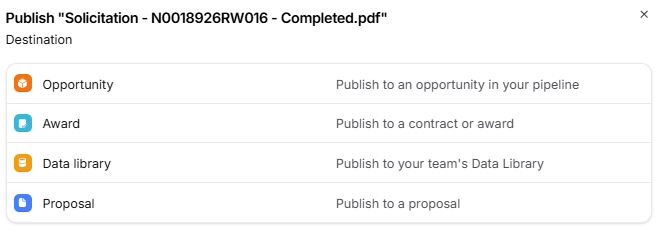
An opportunity — as a Solicitation document (alongside the government's attachments) or a Focus document
A contract — into the contract record's documents
A proposal — into the proposal's documents
Your Data Library — into Documents, or attached to a specific Person, Company, or Agency record
Asking Dash to Publish
Create the artifact as usual, or continue in a chat where Dash has already created one.
Tell Dash where it should go, for example "Publish this deck to the opportunity as a focus document" or "Add this PDF to the ACME Corp company record in our Data Library." If you are already chatting from an opportunity, contract, or proposal page, "publish this here" is enough.
Dash replies with a Publish document card. The card explains that publishing copies the document into that destination and that the original stays in the conversation. For an opportunity, a badge shows whether the file will land in Solicitation documents or Focus documents.
Click Publish to [destination name] to confirm. The button carries the icon of the destination (Capture, Contract, Proposal, or Data Library) and names the record, so you can see exactly where the file is headed before you commit.
Dash reports Document published, and the card updates to Published to [destination name]. Open that record and you will find the file in its documents.
Not the right place? Click Cancel instead. The card shows Did not publish the document, nothing is copied, and Dash will not suggest that same destination again for that document. You can always ask again with a different destination.
Publishing a File You Attached
Publishing is not limited to artifacts Dash created. If you attached a file to the chat from your device, your Data Library, or SharePoint, you can ask Dash to publish that file too, and the same Publish document card appears for you to confirm.
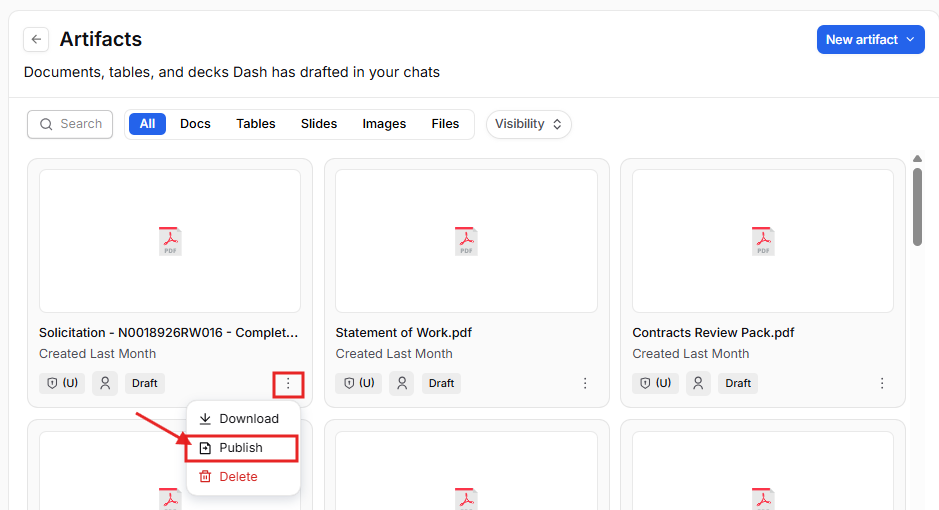
Prefer to publish from the Artifacts library? You can also publish without asking Dash. In your Artifacts library, open an artifact's actions menu and choose Publish to pick a destination yourself. Only the artifact's owner can publish it.
Publishing from Slack or Microsoft Teams: Publishing needs your confirmation in the GovDash app. If you ask Dash to publish while chatting in Slack or Teams, Dash will let you know that the action is not supported in chat yet and ask you to continue the conversation in GovDash.
Finding Your Artifacts In the conversation
Every chat keeps a running list of the artifacts created in it. Click the Artifacts button in the top left of the chat window to open the panel, where you will see each artifact from that thread with its own download button.
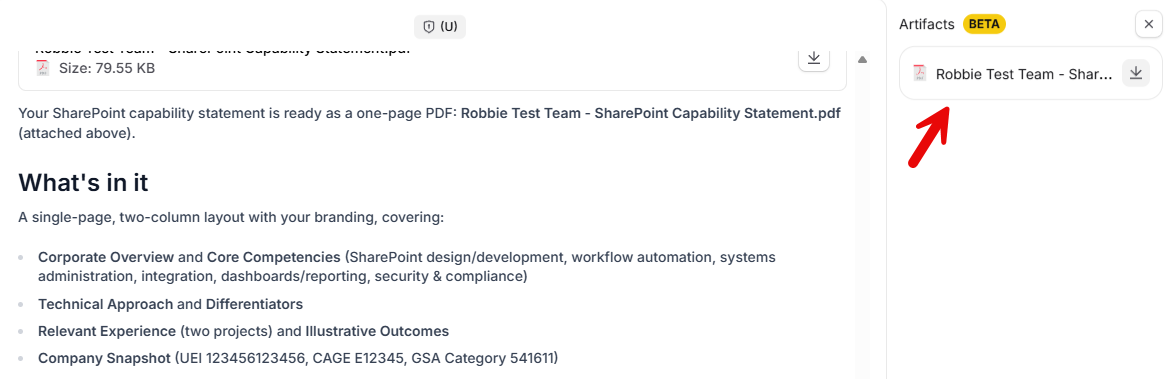
The Artifacts panel, showing every artifact created in the current conversation.
Artifacts Library
For everything across all of your chats, hover over Dash in the left navigation and then Artifacts.
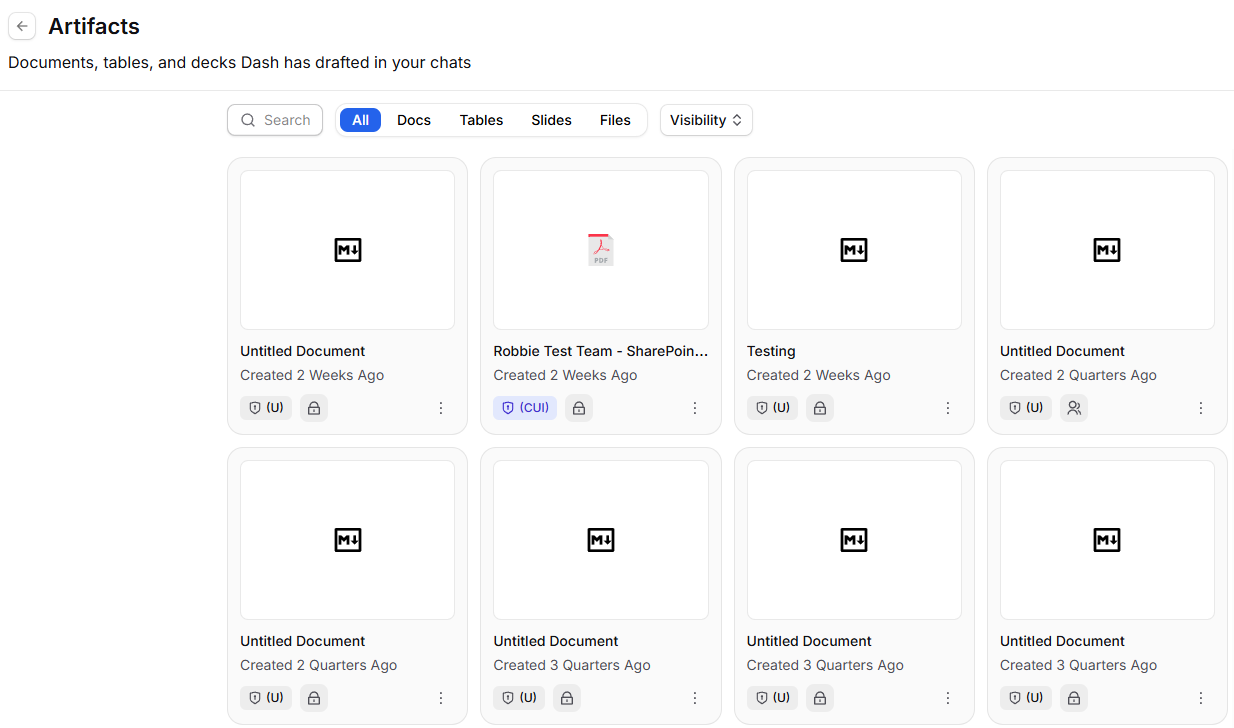
The Artifacts library collects every artifact Dash has created for you.
The library shows your artifacts newest first. Each card shows the name, when it was created, its classification marking, and its visibility. Use the tabs to filter by type:
All — everything
Docs — Word documents, PDFs, and custom documents
Tables — Excel workbooks
Slides — PowerPoint decks
Files — images, archives, and anything else
You can also search by name, filter by visibility, and change how many results appear per page.
Classification
Artifacts inherit the classification of the chat that created them. An artifact generated in a CUI conversation is marked (CUI); one generated in an Unclassified conversation is marked (U). You will see the marking on each card in the Artifacts library.
If you upload a CUI document into an Unclassified chat, Dash switches the whole conversation to CUI automatically, and any artifact it generates from that point forward is marked accordingly. For more on how classification works, see Using Dash.
Artifacts and Custom Documents
Both produce Word documents, and each is better at a different job.
Ask Dash for an artifact when... | Use Custom Documents when... |
|---|---|
You want something finished quickly, in any format | You are writing long-form narrative content |
You need Excel or PowerPoint, not just Word | You want the canvas editor to revise and iterate |
You are filling out a form or template someone sent you | You need your company’s saved Word template applied |
You want to convert between formats | You want your team to collaborate on the draft |
The two work well together. Draft in Custom Documents when you need the template and the editor, and ask Dash for an artifact in Chat when you need a specific format fast.
Example Prompts
Documents
Put this response in a Word doc.
Write a two-page white paper on our cyber past performance and give it to me as a PDF.
Convert this into a PDF.
Spreadsheets
Fill out the attached Small Business Participation worksheet using a $10M contract value.
Build me a spreadsheet of every task order on this IDIQ with its ceiling value.
Fill this in using the same format I sent it in.
Presentations
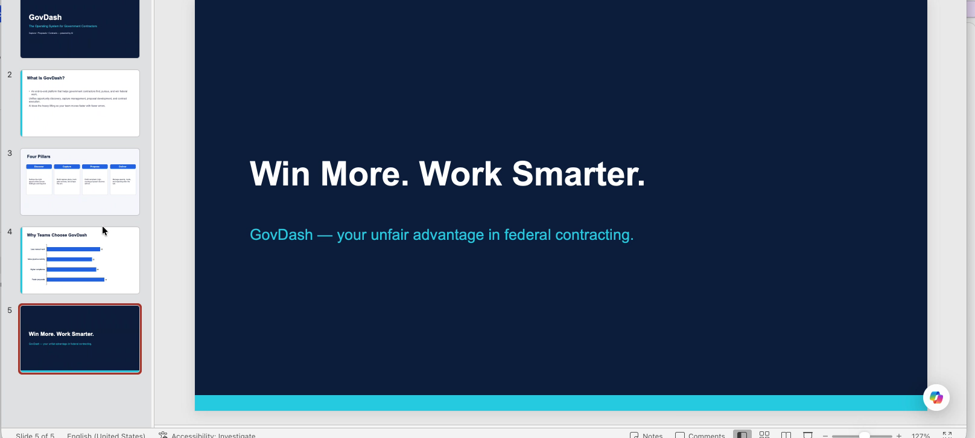
Make me a five-slide overview of our capabilities.
Turn this capture summary into a deck for the pipeline review.
PDFs
Merge these three PDFs into one file, in the order I attached them.
Split this solicitation PDF so Section L and Section M are their own files.
Pull the pricing tables out of this PDF and give them to me as a spreadsheet.
Fill out this attached rep and cert form using our company information.
Rotate the scanned pages in this PDF so they are all right-side up, and add a DRAFT watermark.
Images
Draw a simple icon of a satellite for our capability statement.
Create a 16:9 banner image of a modern government operations center.
Illustrate a portrait-orientation cover graphic for this white paper.
Create a SWOT analysis graphic for this opportunity.
FAQ
How does Dash ensure the original layout of my document is preserved when filling out templates?
Dash reads the structure of your uploaded document and fills it in while maintaining the original formatting, formulas, and layout.
Can I request Dash to create multiple types of artifacts in one conversation?
Yes, you can ask Dash to create different types of artifacts, such as Word documents, Excel spreadsheets, and PowerPoint presentations, all within the same chat.
What happens to the artifacts created in a chat after the conversation ends?
All artifacts created during a chat are saved to your Artifacts library for easy access later.
Is it possible to convert an existing artifact into a different format?
Yes, you can request Dash to convert an artifact into another format, such as turning a Word document into a PDF.
How can I find all the artifacts I have created across different chats?
You can access your Artifacts library by hovering over Dash in the left navigation, where all your artifacts are organized and displayed.
Can Dash put an artifact on an opportunity, contract, or proposal for me?
Yes. Ask Dash to publish the artifact and tell it where it should go. Dash shows a card naming the destination; click Publish to that destination to confirm, or Cancel to keep the artifact in the conversation only. Publishing copies the document, so the original stays in your chat and Artifacts library.