Overview
Dash is your ever present GovDash companion that is always available to help. It can provide you with summaries of opportunities and solicitations, details on your past performance, create documents like capability statements, draft emails, and even answer your questions about how to use GovDash features!
Accessing Dash
To access the Dash, click the blue-starry icon in the bottom right of GovDash. This is accessible on every page within GovDash!

Chatting with Dash
Type your question or request in the chat box. Dash can use your Data Library, Contract, solicitation package documents, and more, so the sky is the limit on what Dash can do for you.
You can ask Dash to summarize opportunities, provide key insight into task area requirements and your capabilities to perform them, help you answer data calls by pulling from your past performance, create capability statements, and much more.
Documents
Chat is also where you create documents. Ask Dash for the document you need (a capability statement, a white paper, a management approach volume, a market research report) and include roughly how long it should be. For longer documents, Dash spends more time analyzing your selected sources, and a progress bar shows the current status of your request.
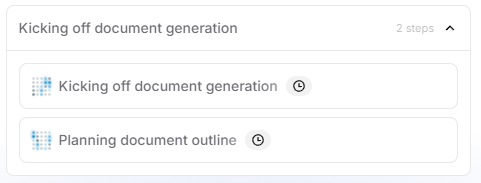
You can freely exit the chat window or navigate elsewhere in GovDash and Dash will continue to work in the background on your request. Once finished, you will receive a notification within the application as well as an email once it’s ready. You can also find the documents Dash creates in Artifacts on the Dash page.
GovDash Help Center
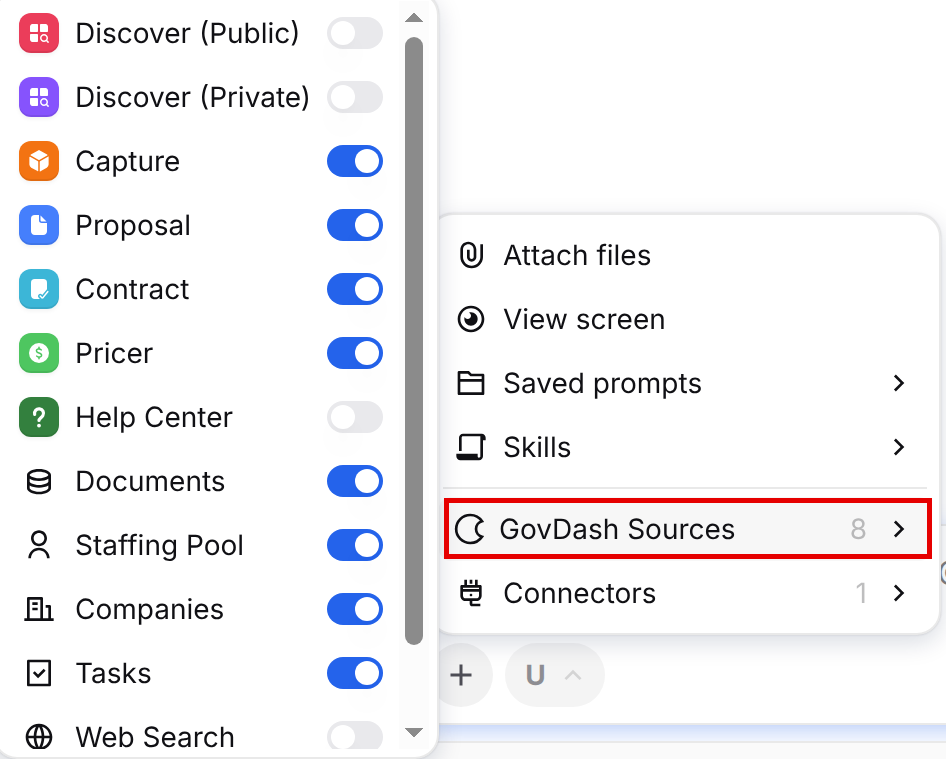
Have a question about how to use GovDash? Ask Dash. It answers from the GovDash Help Center. To make sure Dash checks the Help Center, turn on Help Center under + > GovDash Sources. If it’s off, Dash will ask to turn it on when your question needs it.
Using Dash with Chat Classifications
Dash conversations are classified as either (U) Unclassified or (CUI) Controlled Unclassified Information, and Dash’s behavior changes based on that classification.
How Classification Works in Dash
Unclassified (U) chats
Dash will not use CUI data in Unclassified conversations.
Only Unclassified content is available as context.
CUI chats
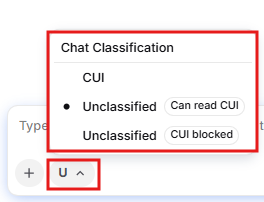
You can mark a chat as CUI yourself using the classification switcher in the chat box (see below), or Dash will automatically switch the conversation classification to CUI when you upload a CUI document to Dash or include CUI content as context.
Once a chat is CUI, the entire chat is treated as CUI and handled accordingly. It cannot be switched back to Unclassified.
This automatic switching helps ensure sensitive information is properly protected without requiring manual reclassification mid-conversation. If you already know a chat will involve CUI, set it to CUI before you start so nothing sensitive is pasted into an Unclassified chat.
Important Note Regarding Classification
Your team is responsible for properly marking your data in GovDash. Correct classification ensures that sensitive information is handled appropriately and that properly labeled, sensitive data is protected on the GovDash platform.
Setting the Chat Classification
Every Dash chat shows its current classification as a small pill next to the + button in the chat box: U for Unclassified or CUI for Controlled Unclassified Information. Hover over it and you'll see Conversation classification.
To change it:
Click the U / CUI pill in the chat box. The Chat Classification menu opens.
Choose one of the options:
CUI: the conversation can contain CUI, and Dash can search CUI sources.
Unclassified (Can read CUI): the conversation starts Unclassified, but Dash can search CUI sources and may raise the classification to CUI if it uses them.
Unclassified (CUI blocked): the conversation stays Unclassified, and Dash cannot search CUI sources.
The pill updates to reflect your choice, and you can start typing.
A few things to know:
In a new chat, your selection is applied when you send your first message. Dash also remembers the option you picked as the default for new chats on this device.
Once a chat contains CUI, the Unclassified options are greyed out with the note This chat contains CUI. A CUI chat cannot be switched back to Unclassified.
If your team only works with Unclassified data, the pill shows U and cannot be changed.
Dash Controls
Attaching Documents
By default, Dash will utilize all of the context it needs within GovDash like your Data Library, Contract, the current page, and our guides to best meet the need. You can control the context by uploading specific documents from your Data Library, your device, or documents from SharePoint to limit the context to just those documents. You can also attach images (screenshots, charts, diagrams, or photos) from your device, and Dash will read them alongside your documents.
Attaching Images
Dash can read images as well as documents. Attach a screenshot of a solicitation page, a chart, an org diagram, or a photo of a whiteboard, and Dash will look at it when answering your question.
There are a few ways to add an image to a chat:
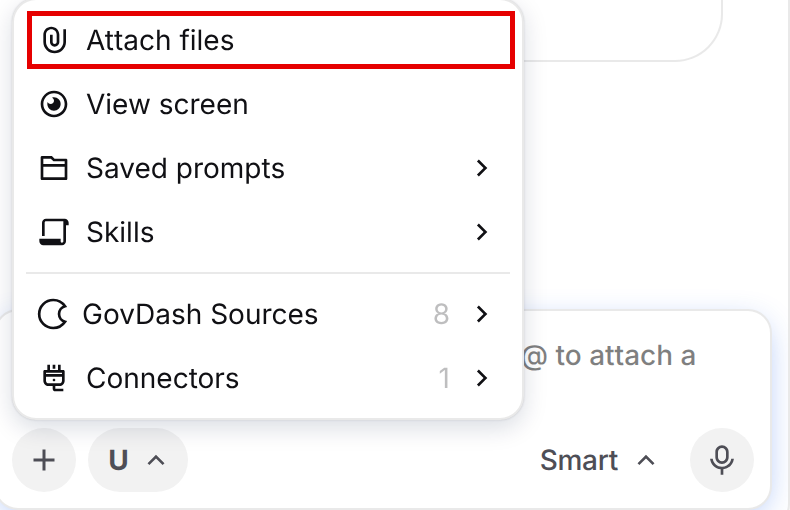
Click the + button in the chat box and choose Attach files, then select an image from your device.
Click the + button and choose View screen to capture what is currently on your screen and attach it to the chat.
Drag and drop an image file onto the chat, or paste an image directly into the message box.
You will be asked to confirm the classification of the image before it is attached. Once attached, the image appears as a thumbnail above your message.
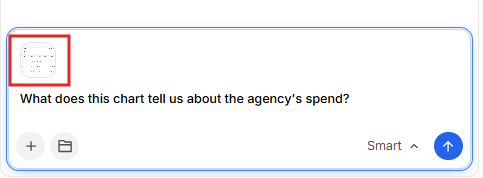
Ask Dash about the image the same way you would ask about a document, for example "Summarize the requirements shown in this screenshot" or "What does this chart tell us about the agency's spend?". Dash reads the image, answers, and cites it. Any image Dash relied on appears in the Sources panel with an image icon.
Adjusting Sources
Click + > GovDash Sources to choose which parts of GovDash Dash can use, such as Capture, Proposal, Contract, Documents, Staffing Pool, the Help Center, and Web Search. Turning off sources you don’t need keeps Dash focused on the right information.
Changing Response Sources
Once you’ve received your response from Dash, you can use the Try again .png) button to adjust sources (whether to remove sources Dash had referenced, or add additional sources) and provide a follow-up prompt/feedback to Dash and try the prompt again.
button to adjust sources (whether to remove sources Dash had referenced, or add additional sources) and provide a follow-up prompt/feedback to Dash and try the prompt again.
.png)
Response Style
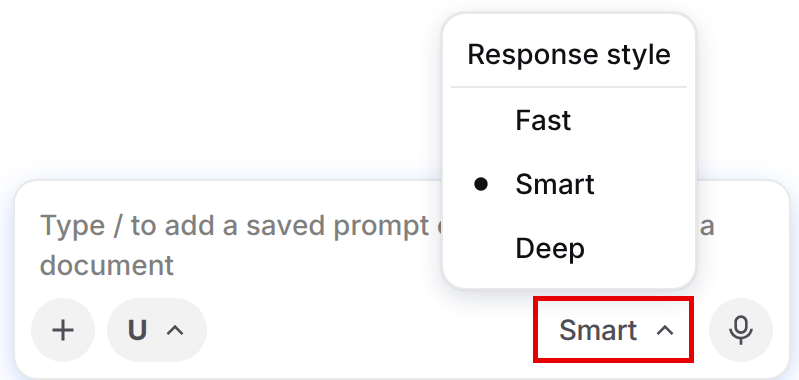
Click the Smart button next to the microphone to choose a response style: Fast for quick answers to simple tasks, Smart (the default) for most work, or Deep for more thorough answers to complex work. Deep takes longer. Each chat keeps the response style you picked for it, even after you reload the page or come back to the chat later. Every new chat starts on Smart.
@ Chat Context
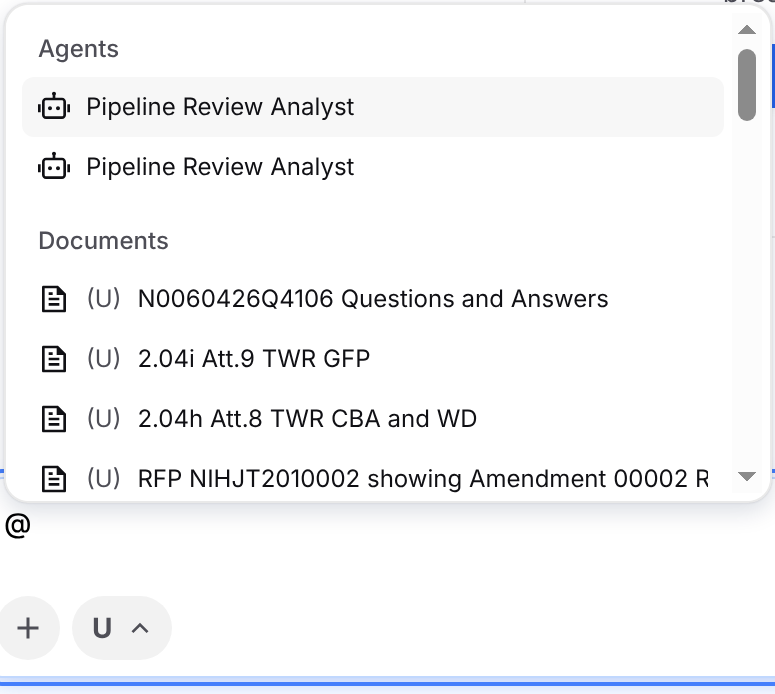
Using the @ symbol in the Dash chat, you can quickly add context to your chat by referencing tags, documents, opportunities/proposals, key personnel, and more. This makes it very convenient to add context to your chats without having to search for the records/documents within GovDash to add to your chat.
Using Dash in Text Fields
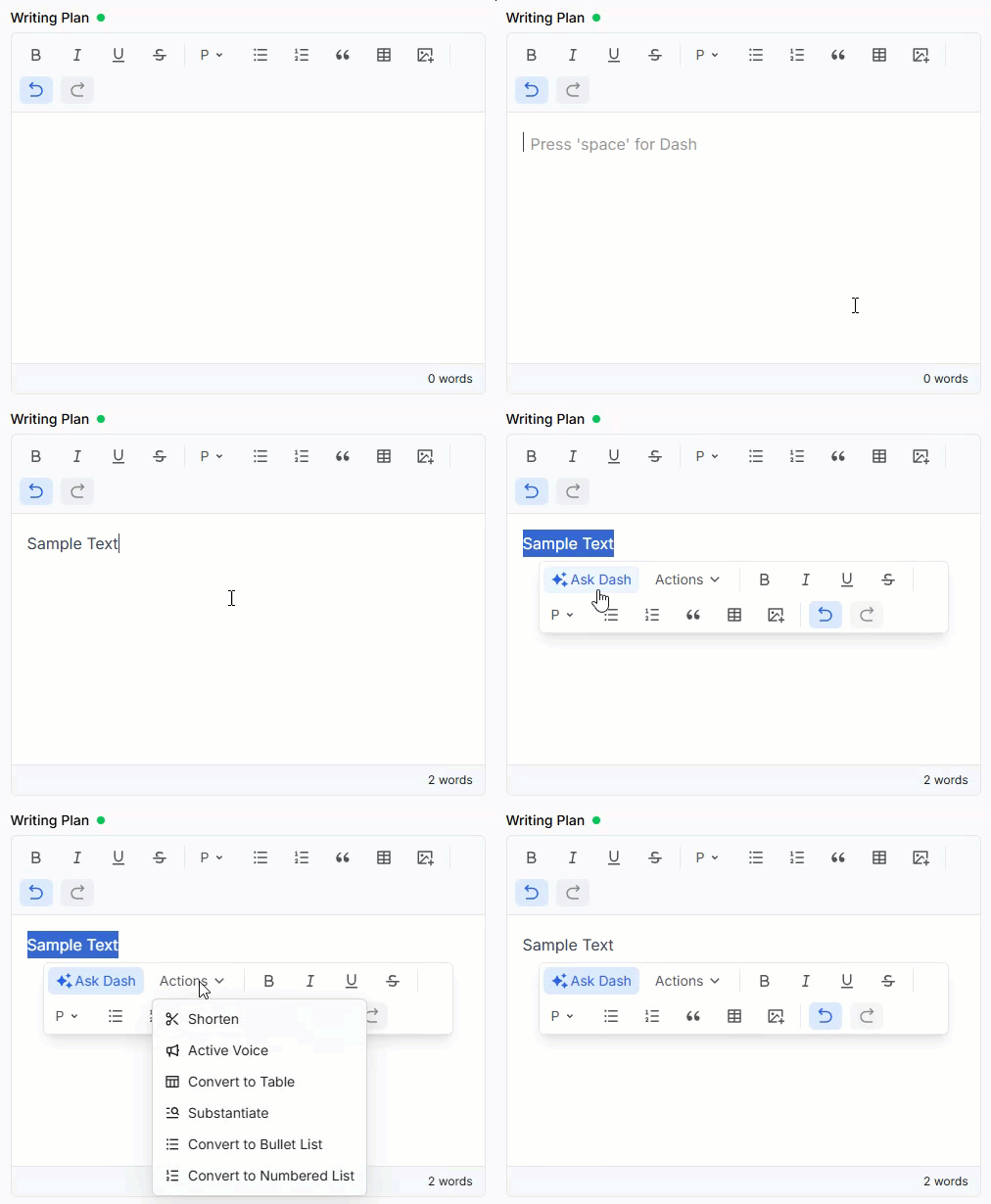
Within any of the rich text editor fields, you can press your space bar to open Dash right within the text field. This allows you to use Dash to help you create writing plans, fill out capture/solution questions, or edit section content directly within GovDash in your annotated outline.
You can also highlight text within the field to have Dash help make adjustments, or even use Word Assistant-style Power Actions like substantiation, active voice, shorten, and more.
Web Search
Dash can also search the web. Click + > GovDash Sources and turn on Web Search, then send your request. Starting your request with “Using the web” helps make sure Dash checks the web.
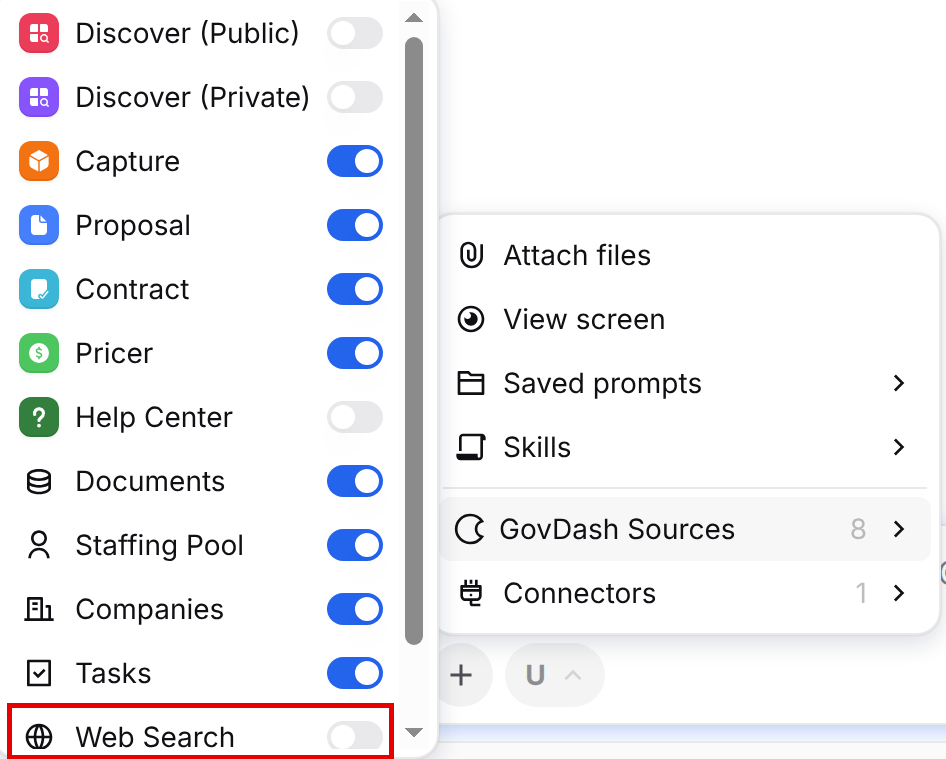
You can ask Dash things like:
Using the web, what’s the latest on USDA contract trends?
Using the web, who won the last DHS cyber award?
Using the web, what are the active recompetes for NIH?
Dash will provide sources via links that you can click throughout the response that will take you directly to the source.

CUI and Web Search
Web Search sends your searches outside GovDash, so it isn’t available in CUI chats.
Don’t paste CUI into a chat that uses Web Search. GovDash can’t check text you type or paste.
Disabling Web Search
To turn off web search for your whole team, go to Settings > Dash and click Disable Web Search under Web Searching. This removes Web Search from Dash for everyone on your team.

Dash Subagents
For bigger requests, like comparing several opportunities, researching a few agencies at once, or pulling details from many documents, Dash can split the work into smaller pieces and hand each piece to a subagent. A subagent is a helper that Dash starts on its own to work through one part of your request. It uses the same sources and connectors you've enabled in the chat, works independently, and reports a concise result back to Dash, which then combines everything into a single answer for you.
You don't need to turn anything on. Dash decides when a request is large enough to benefit from delegating, and it can run several subagents at the same time so you get your answer faster.
When Dash delegates part of your request, a small card appears in the chat for each subagent. While the subagent is working, the card shows an animated indicator next to the task Dash handed off.
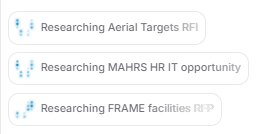
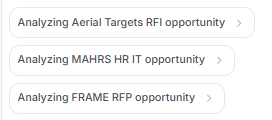
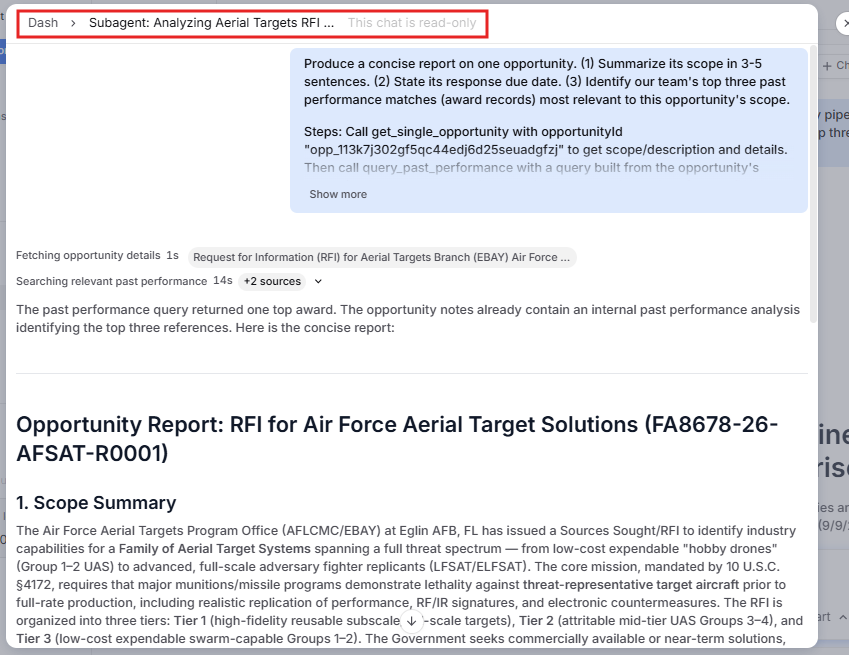
After it runs, you can click the subagent card to open a read-only view of that subagent's work.
Dash Memories
Dash can remember important facts and preferences about you from one session to the next, such as your role, the agencies you support, and how you like your work formatted, so you stop re-explaining yourself every time you start a chat. Memory is automatic and personal to you, and you can review, edit, or remove anything Dash has stored from Settings > Dash > Memory. To learn more, see our support article for Dash Memories.
Dash Skills
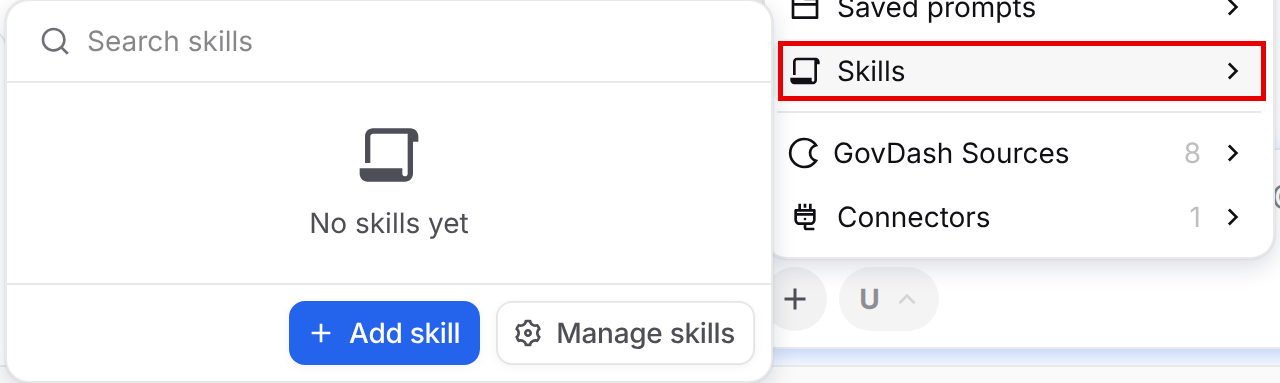
A Skill is a reusable, saved playbook that teaches Dash how you run a specific task, like a compliance review or a go/no-go assessment. Define the steps once and Dash follows them the same way every time, instead of re-explaining the process in each chat. To learn more, see our support article for Dash Skills.
Checking Sources/Citations
While using Dash, you can highlight any text/response generated by Dash and check the sources that were used to generate it. This is especially helpful if you’re trying to decipher where Dash is getting information about a specific response in order to either update or remove the source document.
.png)
By selecting Check sources, a slide out window will appear that has your highlighted text and any citations/sources that were used to generate that text. Images you attached to the chat appear here too, marked with an image icon, whenever Dash used them to produce the response.
Canvas Mode
If you need to quickly generate documents, Dash has you covered.
For example, you can utilize Dash to generate a capability statement based on the current opportunity you’re looking at in your Pipeline. By simply being on the same page and asking the assistant to create a capability statement, it has full reference of the current opportunity on the page, Contract, and your Data Library to quickly create the document within seconds.
For any reply that Dash gives you, you can click the Edit in canvas button to bring that reply right into the GovDash canvas editor.
.png)
When you’re already working in the canvas, the same button reads Insert, so you can add Dash’s reply right into your document.
Once you’re ready to export your document, simply click .png) in the top right hand corner of the editor to export the document in your company’s template! You can then use our Word Assistant to make even more improvements.
in the top right hand corner of the editor to export the document in your company’s template! You can then use our Word Assistant to make even more improvements.
Learn more about Word Assistant
Want to learn more about how the Word Assistant can help you improve your custom documents and proposals? Check out our guide here!
Utilizing Dash for Outline Editing and Insights
Using Dash within your outline allows you to get deeper insights into your outline sections, compliance requirements, creating and editing outline sections, and more.
Simply open Dash within your outline and you can begin asking Dash questions like:
Add a Table of Contents section under Volume I
Perform a compliance crosswalk of my outline and highlight any missing sections
Adjust the page target of [Section Name Here] to 5
Remove all Glossary sections from my outline
Dash is able to review the solicitation package to do tasks like double checking your outline, answering questions about why specific sections were included, and explaining the structure and requirements. You can speak to Dash like you would a teammate!
When asking Dash to make specific changes to your outline, you’ll be able to confirm and verify the change before it’s actually made.
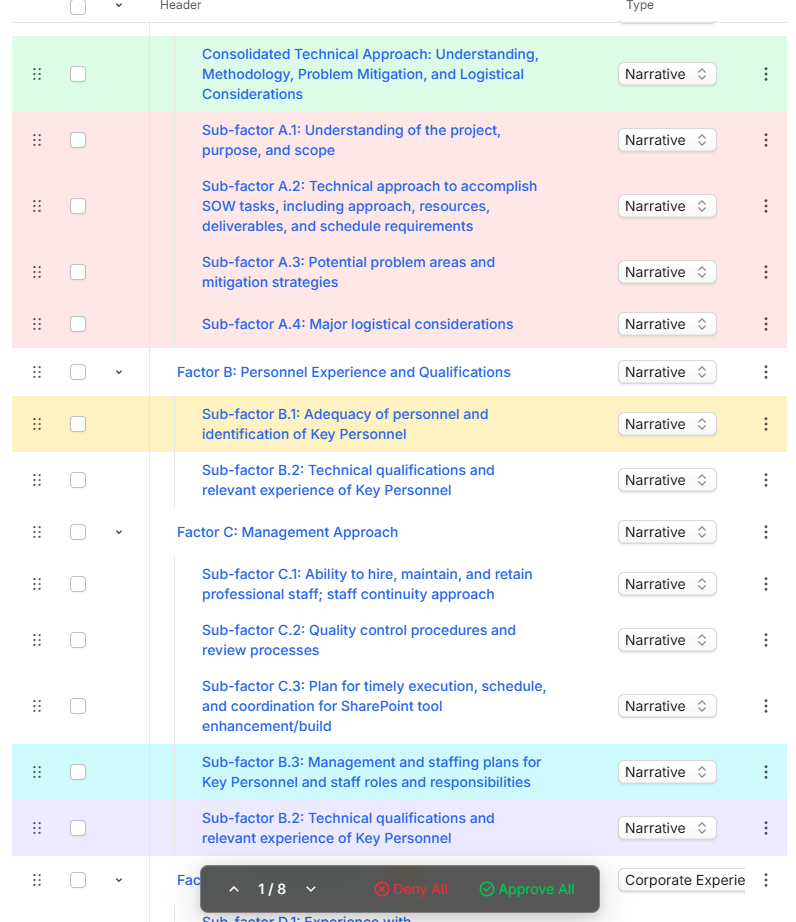
Visual indicators make every change traceable:
Green: New sections
Yellow: Edited sections
Cyan: Moved (while retaining all citations and changes made to the section) sections
Violet: Copied (while retaining all citations and changes made to the section) sections
Red: Deleted sections
Navigating GovDash with Dash
Dash can take you to other pages in GovDash so you don't have to hunt for them. Ask Dash where something lives (or simply ask to be taken there) and Dash will offer to open the right page for you.
Ask Dash things like:
Where do I manage my saved searches?
Take me to my proposals.
Open my Data Library.
Confirming where you go
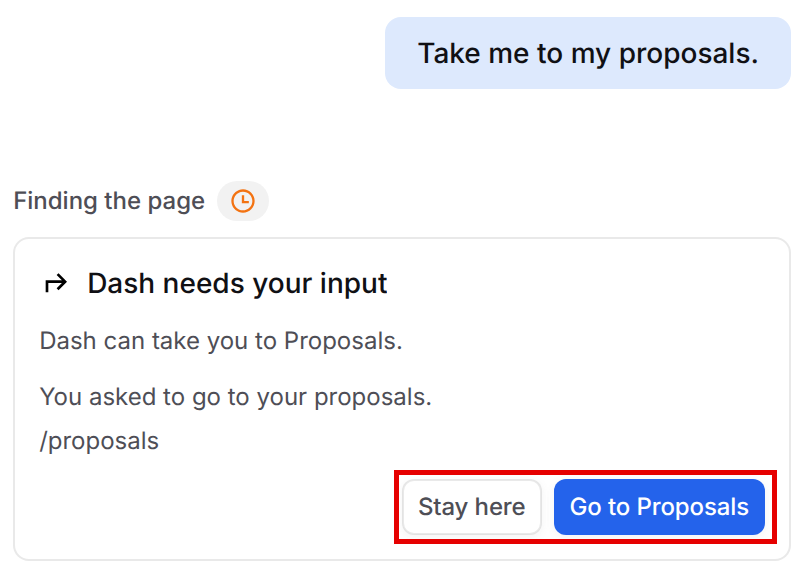
When Dash has a page in mind, a Dash needs your input card appears in the chat that reads Dash can take you to <page name>., along with a short reason and the page's in-app address. Dash never moves you on its own, you decide:
Click Go to <page name> to open the page. Dash brings you there right away, and your chat stays available.
Click Stay here to remain on the current page. Dash will keep helping you where you are and won't suggest that same page again in the conversation.
Dash only offers pages that actually exist in GovDash, and it can only take you to pages you already have access to. Navigation never changes your permissions.
New to GovDash?
Turn on the Help Center source so Dash can answer your question from the GovDash Help Center and then take you to the page it described.
Note
Page navigation is available when you use Dash inside the GovDash web app. It isn't offered in Dash for Slack, the Dash browser extension, or Dash in Microsoft 365 (Word, Excel, and PowerPoint).
Chat History
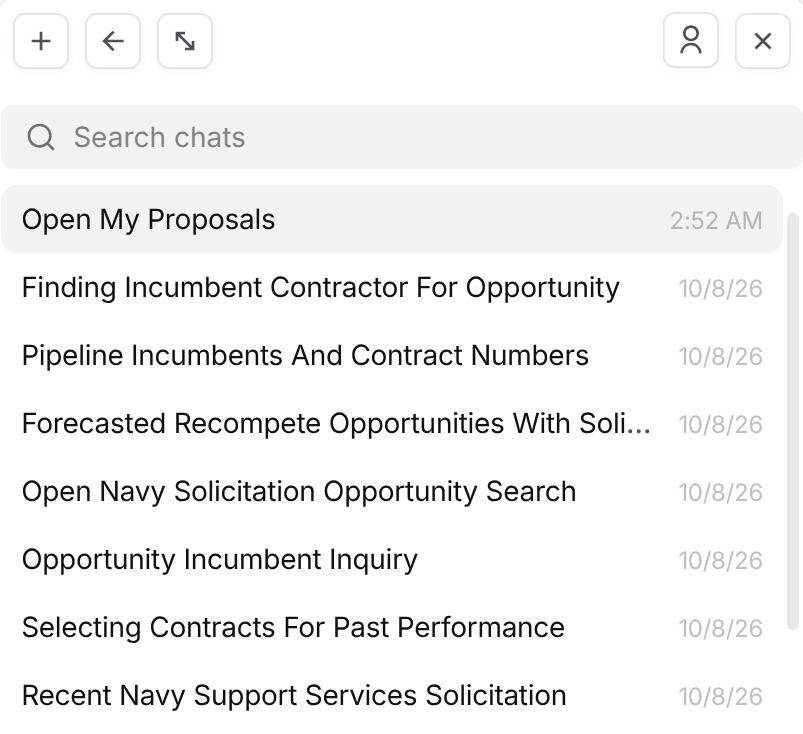
Dash keeps a record of your conversations, questions, and requests. At any time, you can pull up your previous chats using the .png) icon, which will be displayed in chronological order. To restore a previous session, click on the name of the session. You can also rename and delete sessions using the three-dot menu on the right.
icon, which will be displayed in chronological order. To restore a previous session, click on the name of the session. You can also rename and delete sessions using the three-dot menu on the right.
Chat History only lists chats you started yourself. A chat a teammate shared with you does not appear here; open it from the link they sent you instead.
Use Search chats at the top of the list to find a chat by name.
Starting New Chats
At any point you can start a new chat by clicking the + icon in the top left of the chat window. Your current chat moves to your chat history.

Sharing a Chat with Your Team
Every Dash chat is private to you when you start it. When a conversation is worth handing to a teammate, whether it is a research thread, a draft, or the files Dash produced along the way, you can share it with your entire team straight from the chat header.
Sharing a chat
Open the chat you want to share. In the top-right of the chat header, next to the Generated files button, you will see the share button. While the chat is private it shows a single-person icon, and hovering over it reads Share: Personal.
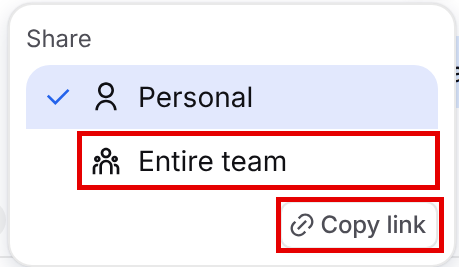
Click the share button. A small Share menu opens with two options: Personal and Entire team.
Choose Entire team. The icon switches to a team icon and the tooltip now reads Share: Entire team. Everyone on your team can now open this chat.
Click the share button again and choose Copy link. The button briefly changes to Link copied. Paste the link into an email, a Slack or Teams message, or wherever your team works.
Any files Dash generated in the chat (Word documents, spreadsheets, presentations, PDFs, and images) are shared along with it, so your teammates can open them from the chat’s Generated files panel or from their own Artifacts library.
What your teammates see
A teammate who opens a shared chat can read the entire conversation, including Dash’s replies, sources, and generated files, but the chat stays yours. Teammates do not see a message box, so only you can keep the conversation going. If Dash is waiting on an answer from you, teammates see a Waiting for the thread owner to respond note in place of the question.
Shared chats do not appear in your teammates’ Chat history, which only lists chats they started themselves. They reach your shared chat through the link you send them.
Who can share a chat?
Only the person who started a chat can change who it is shared with. Dash cannot share a chat on your behalf, and teammates who can read a shared chat cannot re-share it or change its access.
FAQ
How can I access Dash within GovDash?
You can access Dash by clicking the blue-starry icon located in the bottom right corner of any page within GovDash.
What types of documents can Dash help me create?
Dash can assist in creating capability statements, drafting emails, white papers, solicitation responses focused on your capabilities such as RFIs, and generating various other documents based on your needs.
How do I get Dash to answer questions about using GovDash?
Dash answers from the GovDash Help Center. Turn on Help Center under + > GovDash Sources. If you need help from a person, click Get Help in the bottom left of GovDash.
Can I view the history of my interactions with Dash?
Yes, Dash maintains a complete record of your previous chats, which you can access at any time.
How do I make a Dash chat CUI before I paste anything sensitive?
Click the U pill next to the + button in the chat box and choose CUI. The pill switches to CUI, and everything in that conversation is handled as CUI from your first message onward.
What is a subagent in Dash?
When a request is large, Dash may hand parts of it to subagents, helpers that each work through one piece of the task and report back to Dash. You'll see a card in the chat for each one.
What visual indicators does Dash use to show changes made to my outline?
Dash uses color-coded indicators: green for new sections, yellow for edited sections, cyan for moved sections, violet for copied sections, and red for deleted sections.
Can I share a Dash chat with a teammate?
Yes. Open the chat, click the share button in the top-right of the chat header, choose Entire team, and click Copy link. Anyone on your team who opens the link can read the conversation and its generated files. Only the person who started the chat can share it.