Creating and Managing Custom Prompts
Custom prompts, also called saved prompts, let you save instructions you use often so you can reuse them in any Dash chat.
Creating Prompts in Dash
There are two ways to create a custom prompt while you chat with Dash:
From a message you already sent: Right click the message in the chat and choose Save prompt. The Create prompt window opens with your message filled in. Add a title, adjust the prompt if needed, and select Create.
.png)
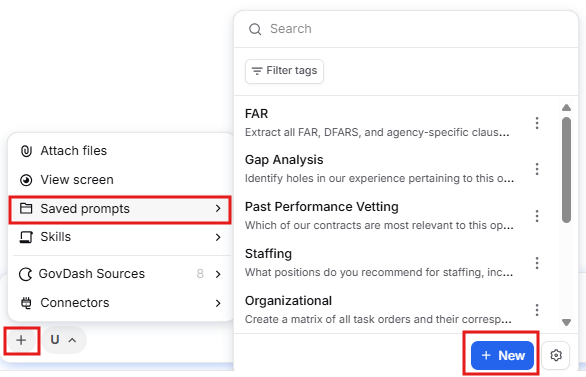
From the Saved prompts menu: Select the + button in the Dash chat box, choose Saved prompts, and select New. Enter a title and your prompt, then select Create.
Creating Prompts on the Custom Prompts Page
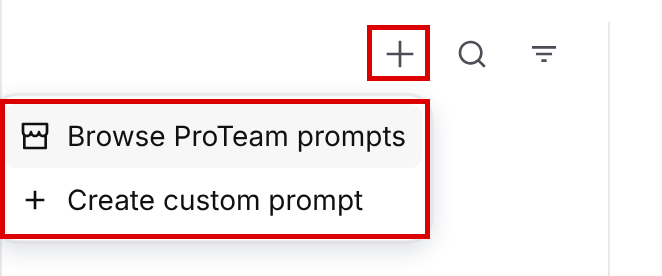
Open Dash in the left navigation and select Custom Prompts. You can also select the gear icon at the bottom of the Saved prompts menu in a Dash chat. Then select the + button above your prompt list and choose Create custom prompt.
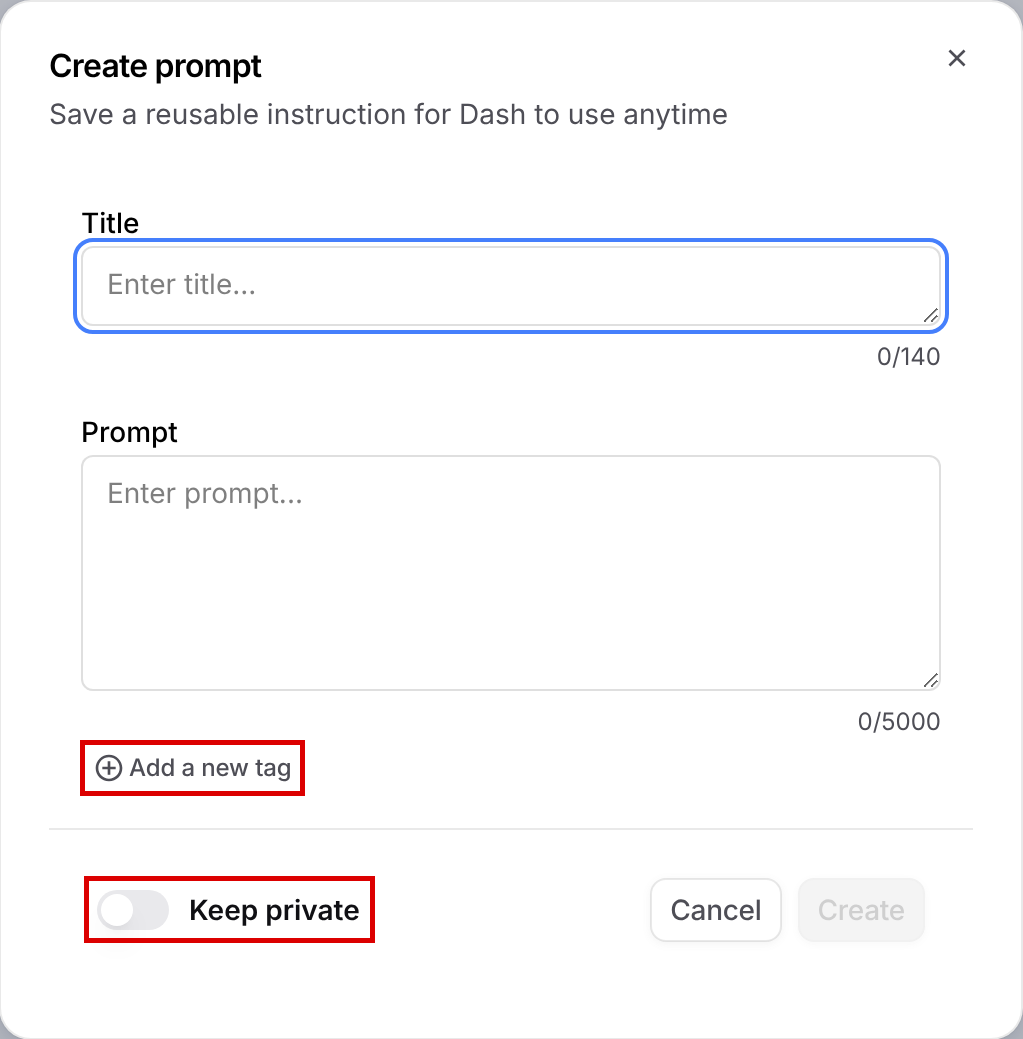
In the Create prompt window, enter a Title (up to 140 characters) and your Prompt (up to 5,000 characters), then select Create.
Add a new tag: add tags so you can filter your prompts later. See Tagging Prompts below.
Keep private: turn this on if only you should see the prompt. Leave it off to share the prompt with your team.
To change a prompt later, select it in the list on the Custom Prompts page, then open its ... menu. From there you can choose Edit custom prompt, Manage prompt tags, or Delete custom prompt.
ProTeam Recommended Prompts
GovDash provides ProTeam Recommended Prompts, which are curated and tested by our ProTeam Account Managers. These prompts span many workflows from capture to delivery, so we highly recommend giving them a try.
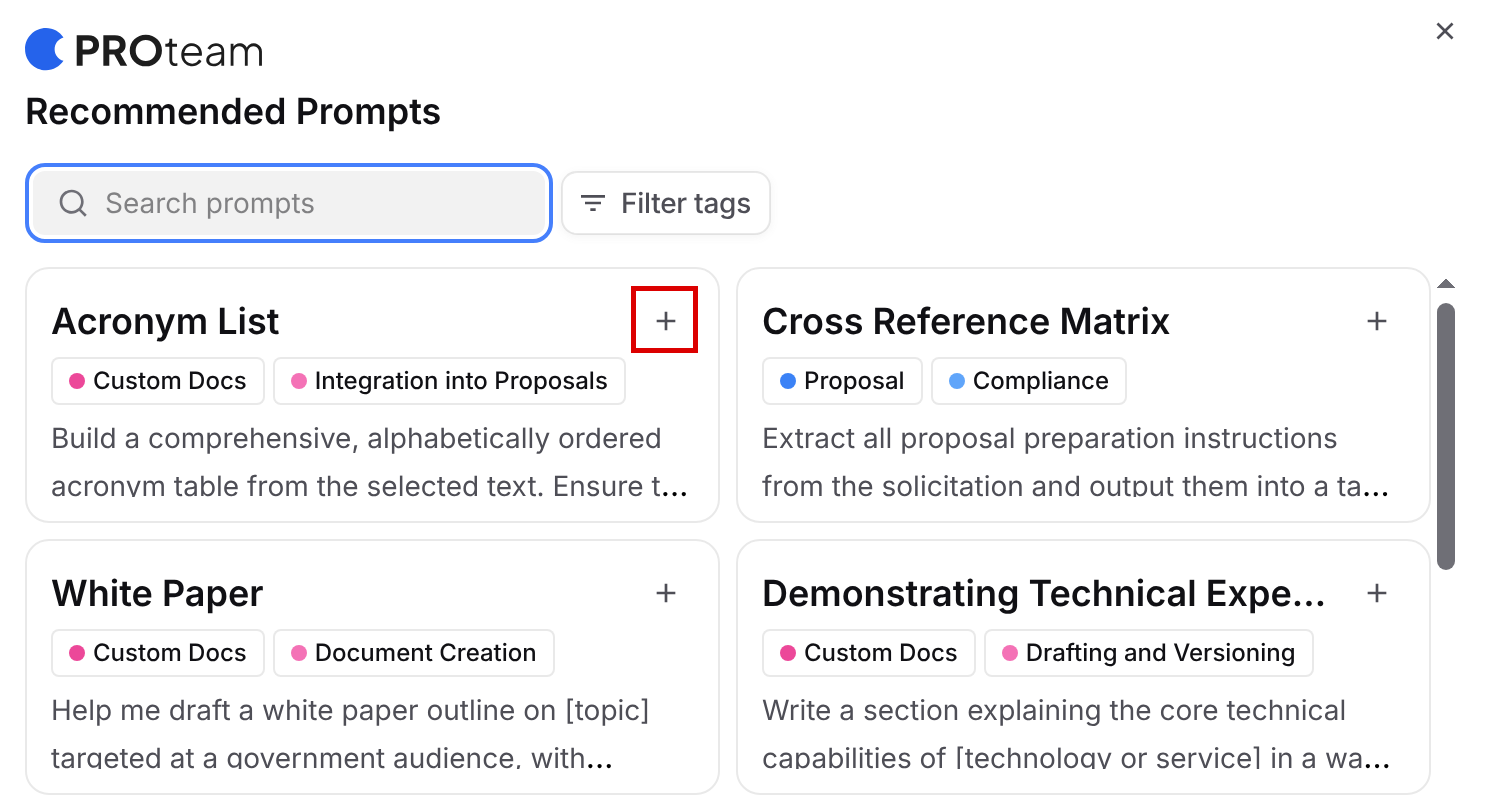
On the Custom Prompts page, select the + button and choose Browse ProTeam prompts. Use Search prompts or Filter tags to find a prompt, then select the + on its card to add it to your library. Each card is tagged with the area of GovDash and the workflow it is meant for. Prompts you add from ProTeam are always shared with your team.
Tagging Prompts
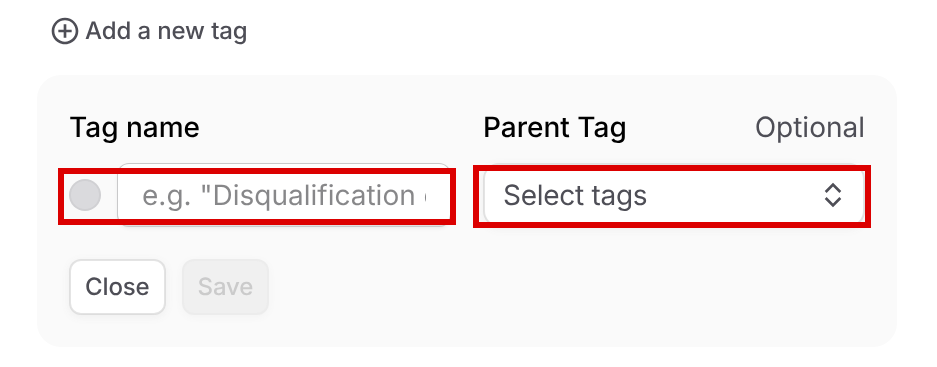
Tags group your prompts so you can find them quickly. In the Create prompt window, or when you edit a prompt, select Add a new tag. Pick an existing tag, or select Create new tag:
Enter a Tag name.
Select the circle next to the name to choose a color.
Optionally, choose a Parent Tag to nest the new tag under another tag.
Select Save.
To delete tags you no longer need, open any prompt’s ... menu on the Custom Prompts page and select Manage prompt tags.
Using Custom Prompts
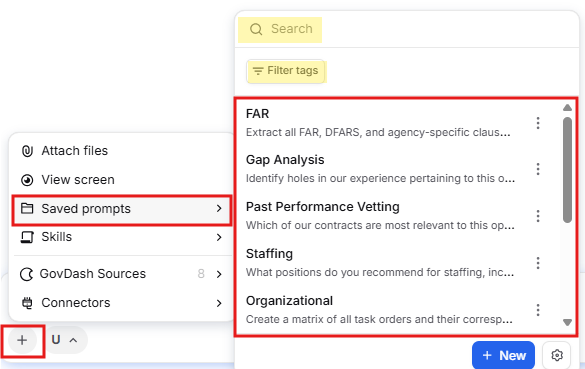
In a Dash chat, select the + button in the chat box and choose Saved prompts. Use Search or Filter tags to narrow the list, then select a prompt. Dash fills the chat box with the prompt so you can adjust it before you send it.
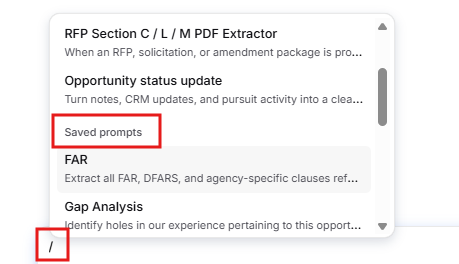
You can also type / in the Dash chat box to search your Skills and saved prompts together. Use the Up and Down arrow keys and press Enter, or click a prompt, to add it to your message.
Don't see your prompt?
The menu only shows prompts in your library. If you have no prompts or Skills yet, the menu reads No saved prompts or skills yet. Use the steps above to create your first prompt.