Overview
Dash in Microsoft Office is an add-in tool that integrates GovDash capabilities directly within Microsoft Word, PowerPoint, and Excel. In PowerPoint, Dash helps you create, rewrite, and refine slide-ready content without leaving your presentation, whether you're drafting an orals deck, tightening win-theme bullets for an agency briefing, or rewriting a slide for a different audience. It's a quick way to turn rough content into something that's ready to drop onto a slide.
Before you begin
If you haven't already installed the Dash Microsoft Office add-in, please see our Dash Office Add-in Deployment Guide for assistance.
Opening Dash in Microsoft PowerPoint
Getting started with Dash in PowerPoint takes just a few clicks:
Open a presentation in Microsoft PowerPoint.
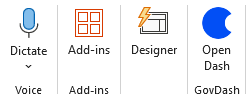
From the PowerPoint Home tab, open the GovDash add-in.
Sign in to GovDash if prompted.
Select the text box on your slide that you'd like Dash to work with, or highlight existing text inside it.
Type your request into the chat window and let Dash do the rest.
How to Use Dash in Microsoft PowerPoint
Dash in PowerPoint is built for the kinds of writing that slow down deck work: outlining a new section, rewriting a slide for a different audience, and getting bullets into the tight, parallel form that reads well on screen. Below are the main ways you can put Dash to work.
Outline and Generate Slide Content
Starting from a blank slide is often the hardest part of building a deck. Whether you're sketching out an oral presentation, putting together an agency briefing, or pulling together a quick capture readout, Dash can give you a working draft to react to.
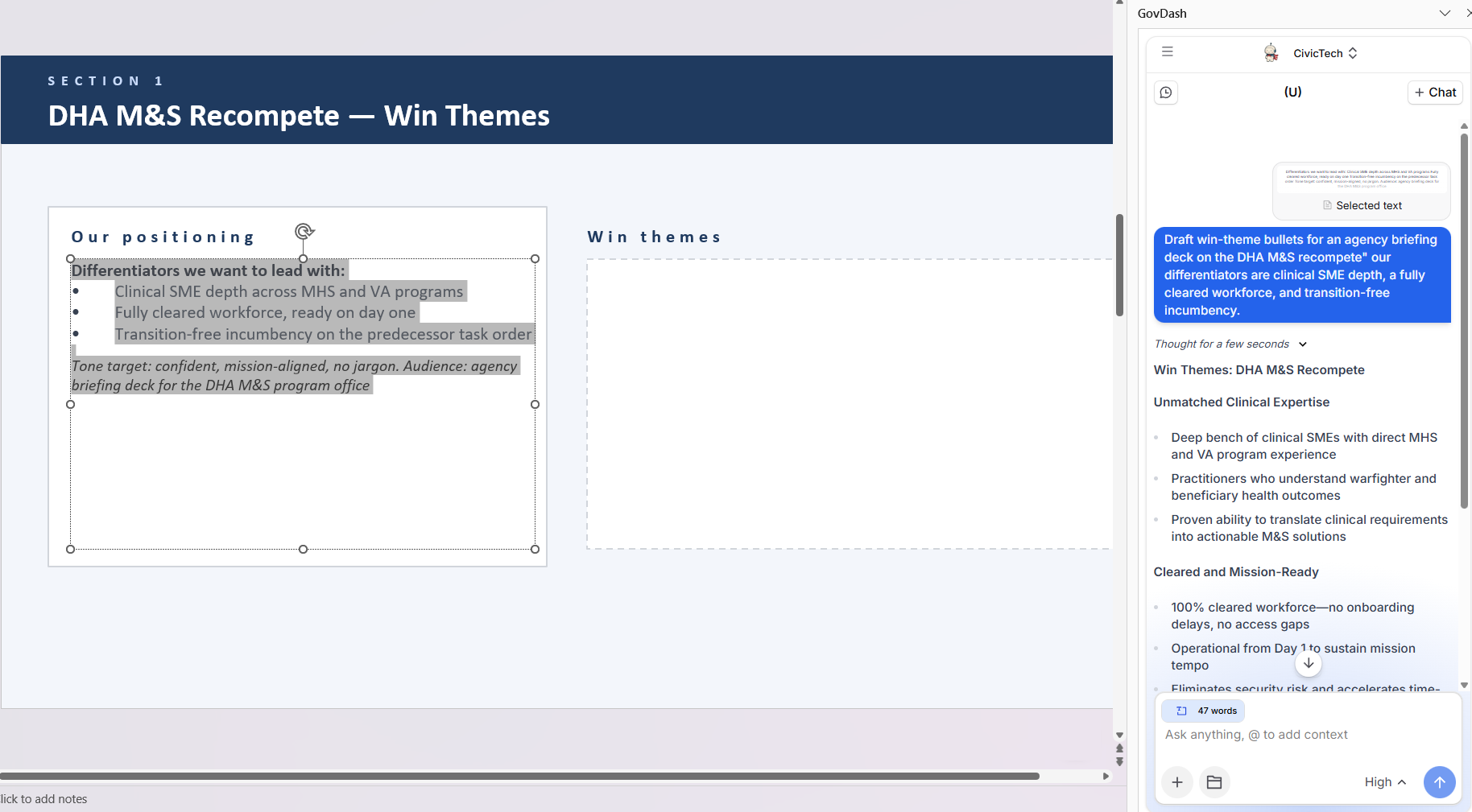
Select the text box where the new content should live, then describe the slide or section you'd like Dash to draft. For multi-slide requests, Dash will organize the response by slide so you can move each section into the right place.
Example prompts
Create a 5-slide oral presentation outline for our capture plan on the upcoming Army TIDE BPA, with sections for solution overview, past performance, key personnel, transition approach, and risk.
Draft win-theme bullets for an agency briefing deck on the DHA M&S recompete: our differentiators are clinical SME depth, a fully cleared workforce, and transition-free incumbency.
Generate a title-slide tagline and three opening-slide bullets for our SBIR Phase II pitch to AFWERX.
Dash will return the draft directly in the chat window. You can refine or change something about the response by sending a follow up message, asking it to add a slide, change the order, tighten the language, or focus on a specific theme. Once you're happy with the results, use the Insert button to drop the content into your selected text box, or the Copy button to copy it to your clipboard.
Rewrite Slide Content for an Audience
The same content rarely lands the same way with every audience. A slide that works for a technical evaluator may be the wrong fit for a contracting officer or an executive sponsor. Dash can rewrite the slide you've selected to match who's actually in the room.
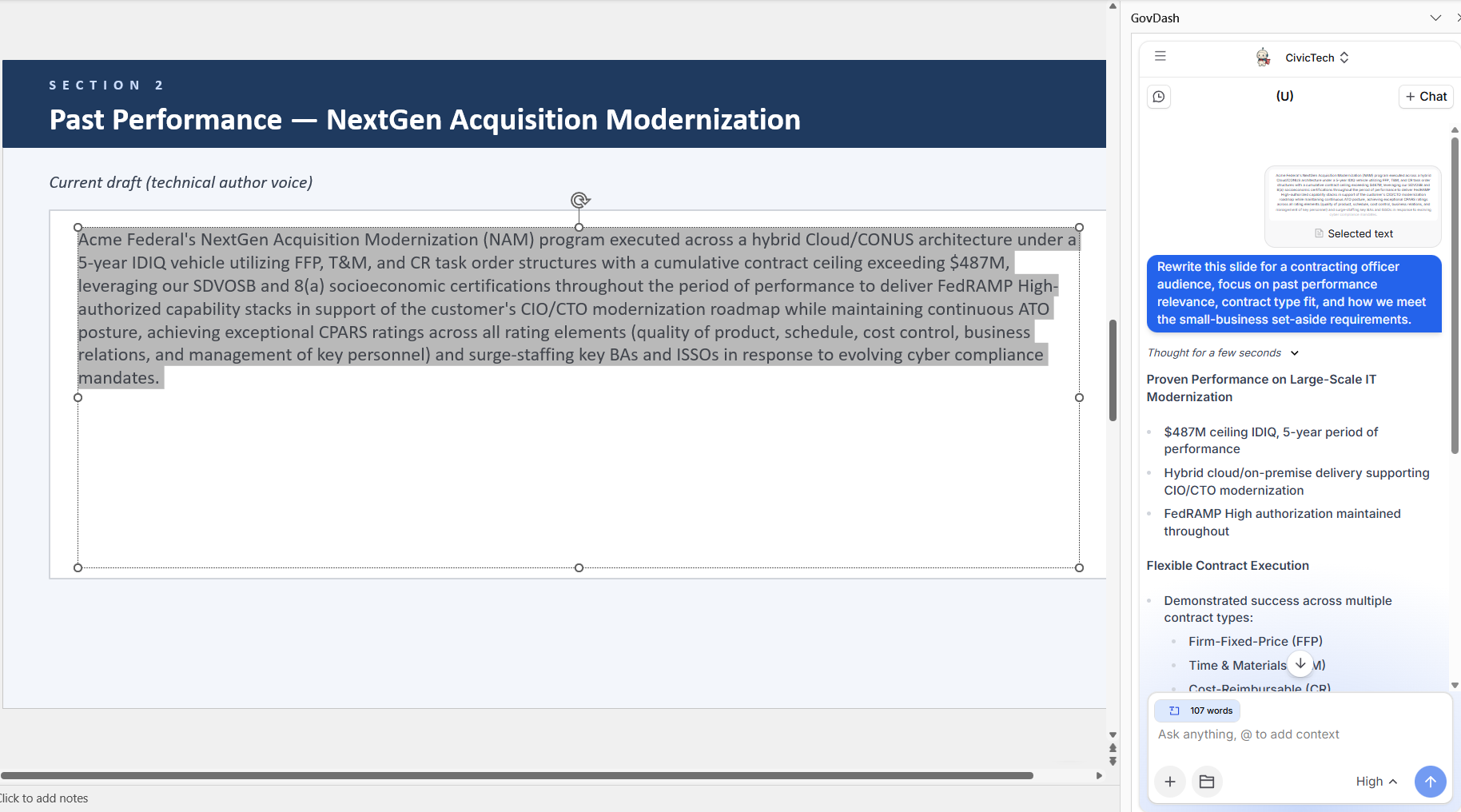
Highlight the slide text you want to adapt, and tell Dash who the new audience is and what you want them to take away.
Example prompts
Rewrite this slide for a contracting officer audience, focus on past performance relevance, contract type fit, and how we meet the small-business set-aside requirements.
Rewrite this technical approach slide so a program director without a deep technical background can follow it in a 20-minute orals readout.
Tighten this slide for an executive sponsor, strip the jargon and keep only what matters for the go/no-go decision.
Review the rewritten slide and ask Dash to adjust further as needed, shifting the tone, swapping in different proof points, or trimming the bullet count. When the slide reads the way you want, insert it into your selected text box and continue editing in PowerPoint.
Tighten and Restructure Bullets
On a slide, words are at a premium. Dense paragraphs need to become tight bullets, and bullets that feel uneven need to land in parallel form. Dash can take the text you've already drafted and rework it into something that reads cleanly at slide distance.
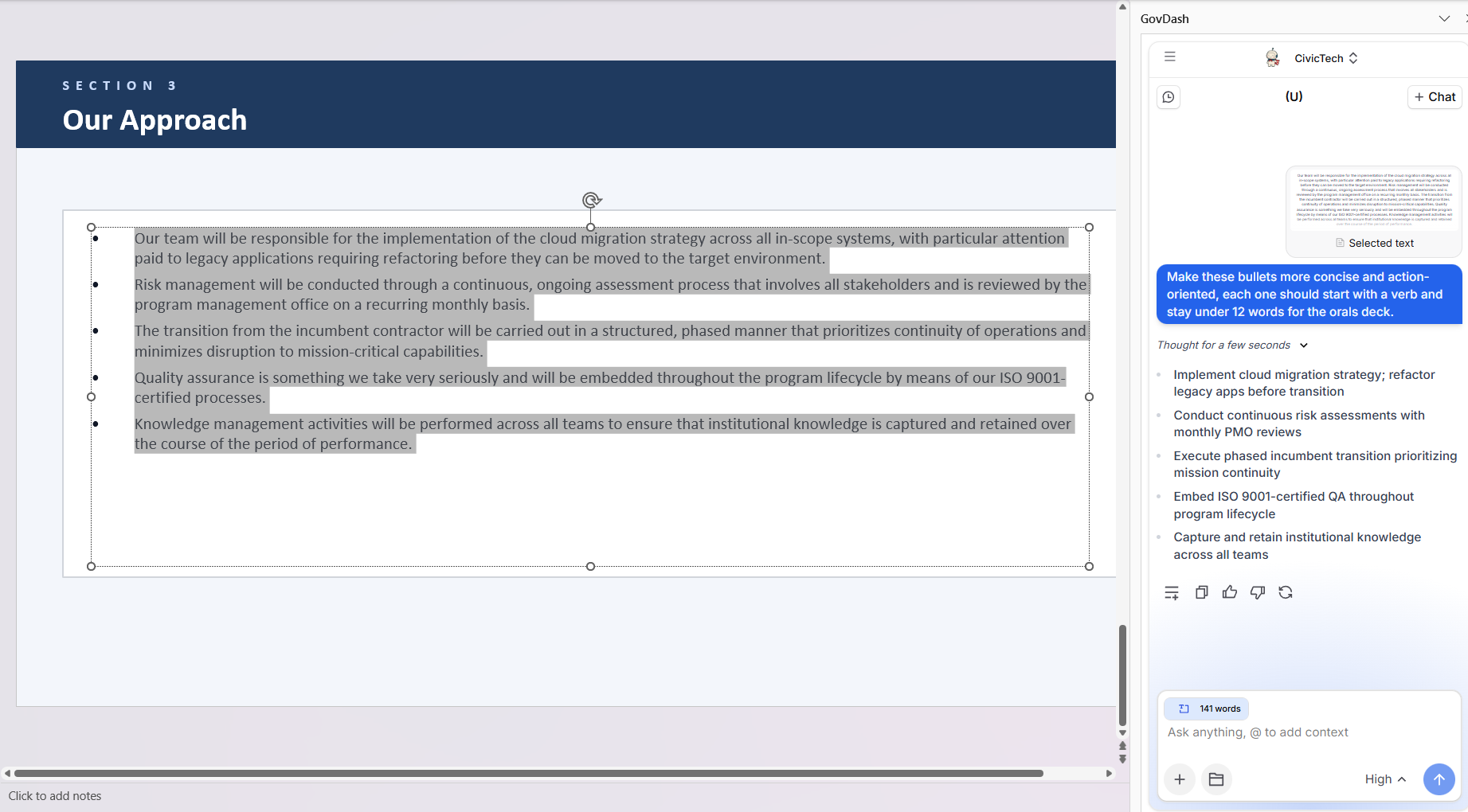
Highlight the text or bullets you want to clean up, and tell Dash what you're going for, such as shorter, more parallel, more action-oriented, or restructured into a specific flow.
Example prompts
Turn this paragraph into three executive-summary bullets that fit on a single slide for the post-award kickoff.
Make these bullets more concise and action-oriented, each one should start with a verb and stay under 12 words for the orals deck.
Restructure these bullets into a problem / approach / outcome flow we can use on the solution overview slide.
Dash will return the tightened version for review. You can keep iterating in the chat, asking it to merge bullets, change the order, or hold the line at a specific word count, before inserting the cleaned-up text back into your selected text box.
Attaching Documents
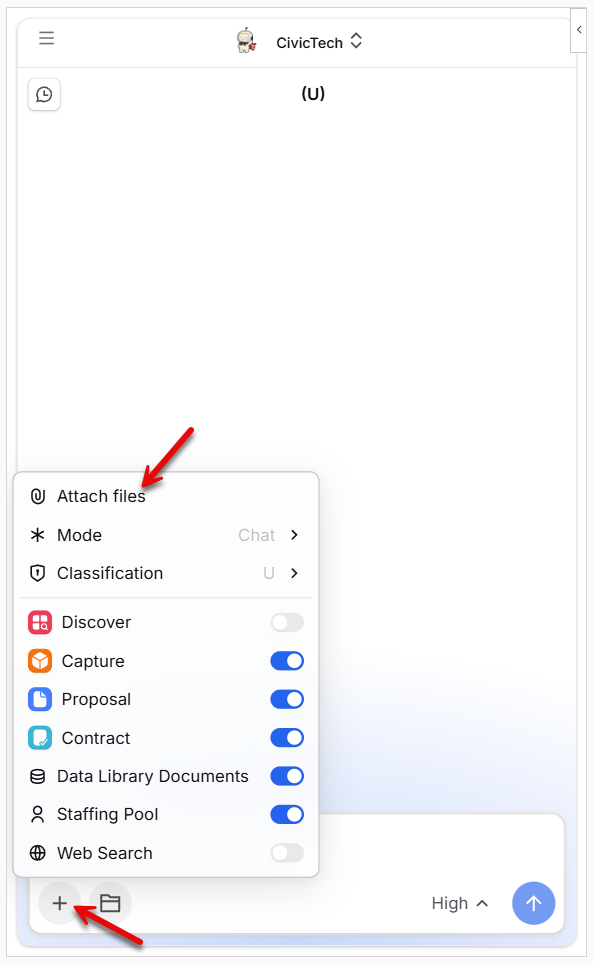
You can attach documents to any of your requests by clicking the file upload/attachment option within the chat window. You can attach any document that's within your Data Library in GovDash, SharePoint, or upload directly from your device.
Dash will reference the attached document when creating a response to your request. This is a great way to give Dash more context, such as a solicitation, a capture plan, or a past deck, without having to paste it into the chat.
Linking to GovDash
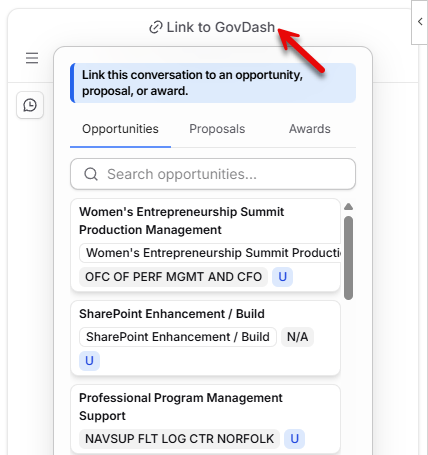
Utilizing the Link to GovDash menu at the top of the chat, you are able to directly link Capture opportunities, Proposal responses, and Contract awards to the chat. Dash will reference the connected resource when providing you responses to your queries, making it quick and easy to create artifacts for use in your presentations without having to provide direct context in the chat or upload documents.
Tips for the Best Results
A few habits will help you get the most out of Dash in PowerPoint:
Select your text box before you ask. When you've selected a text box, or highlighted text inside one, Dash uses it as the basis for its response, and inserts the result right back into that box. If you don't have something selected, you can still get a draft in the chat to copy from.
Set up your slides first. Dash drafts content into the slide you're on. If you'd like a multi-slide section, add the new slides in PowerPoint first and let Dash fill each one in.
Use the Slide 1, Slide 2 cues. When a request covers multiple slides, Dash organizes the response with Slide 1, Slide 2, and so on. Copy each labeled section into the slide where it belongs.
Apply formatting after inserting. Dash inserts text using the formatting on the slide, fonts, colors, sizing, and layout adjustments should be applied in PowerPoint after the content is in place.
Use PowerPoint's built-in tools for visuals. For shapes, images, layouts, charts, and speaker notes, continue using PowerPoint's native features. Dash is focused on the words on your slides, the outlines, the bullets, and the messaging.
Iterate in the chat. If the first response isn't quite right, send a follow up message in the same conversation. Ask Dash to reframe, retitle, or rewrite for a different angle, just like you would in any other Dash chat.
FAQ
What is Dash in PowerPoint?
Dash in PowerPoint is part of the Dash in Microsoft Office add-in. It brings GovDash directly into your presentation so you can outline new sections, rewrite slides for different audiences, and tighten bullets without leaving PowerPoint.
How do I install the Dash in Microsoft Office add-in?
If you haven't already installed the Dash in Microsoft Office add-in, please refer to our Dash Office Add-in Deployment Guide for assistance.
How do I give Dash context from my slide?
Before sending your request, select the text box on your slide, or highlight the existing text inside it, that you'd like Dash to use as context. Dash will base its response on what you've selected. For requests that need a broader reference, like a solicitation or a past deck, you can also attach a document from your Data Library, SharePoint, or your device.
Can Dash help me build a multi-slide section?
Yes. When a request covers more than one slide, Dash returns the content organized by slide, labeled Slide 1, Slide 2, and so on, so you can move each section into the slide where it belongs. Add the slides you need in PowerPoint first, and Dash will give you the words to drop into each one.
Can I insert Dash's response directly into my slide?
Yes. When you have a text box selected, you can insert Dash's response directly into it. You can always use the Copy button instead if you'd rather paste the content somewhere specific yourself.
Can I attach documents to my requests?
Yes. You can attach documents to any of your requests by clicking the file upload/attachment option within the chat window. You can attach a document from your Data Library in GovDash, SharePoint, or upload directly from your device.