Overview
Dash in Microsoft Office is an add-in tool that integrates GovDash capabilities directly within Microsoft Word, PowerPoint, and Excel. In Excel, Dash helps you generate, rewrite, analyze, and structure spreadsheet content without leaving your workbook, whether you're building a pricing table, organizing a teaming roster, or pulling insights from a tracking sheet. It's a quick way to turn the data already in front of you into something cleaner, more consistent, and ready to use.
Before you begin
If you haven't already installed the Dash Microsoft Office add-in, please see our Dash Office Add-in Deployment Guide for assistance.
Opening Dash in Microsoft Excel
Getting started with Dash in Excel takes just a few clicks:
Open a workbook in Microsoft Excel.
From the Excel Home tab, open the Dash add-in.
Sign in to GovDash if prompted.
Select the cell, range, or table you'd like Dash to work with.
Type your request into the chat window and let Dash do the rest.
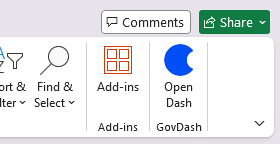
How to Use Dash in Microsoft Excel
Dash in Excel is built around the kinds of tasks you actually run into when working in a spreadsheet: pulling insights from data, building formulas, structuring information into tables, and tightening up cell content. Below are the main ways you can put Dash to work.
Summarize and Analyze Spreadsheet Data
Spreadsheets often hold more information than they let on. Whether you're reviewing a pricing model, a compliance tracker, or a list of past performance contracts, Dash can quickly pull out the highlights so you don't have to scan row by row.
To use this feature, select the range or table you'd like Dash to look at, then ask it to summarize, analyze, or pull out specific insights from the data.
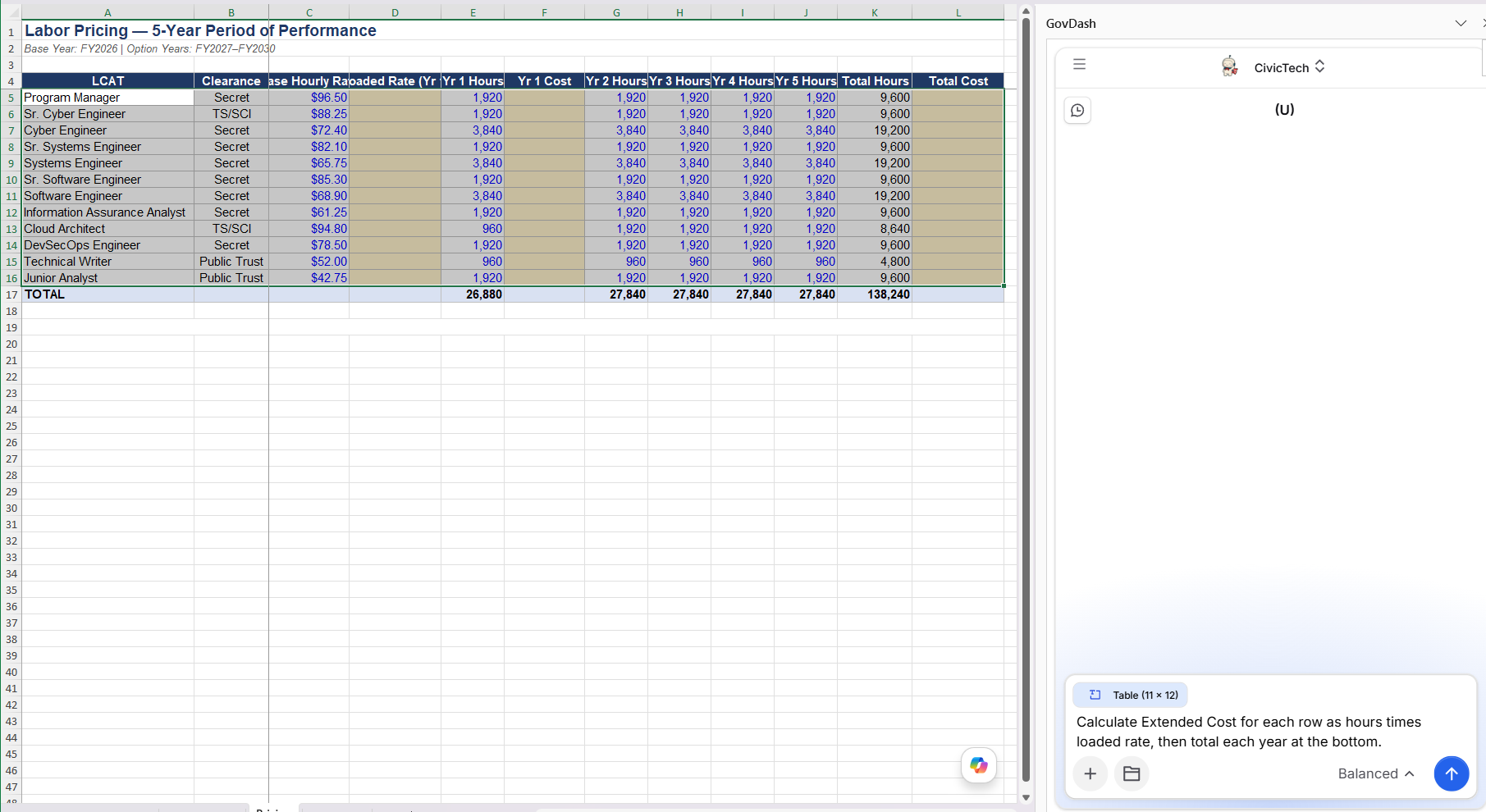
Example prompts
Summarize this past performance table into three key takeaways I can use as talking points for the relevant experience section of our proposal.
Look at this BOE staffing breakdown and tell me which labor categories are driving the most cost so I know what to flag for our pricing review.
Review this compliance matrix and call out any requirements where the response column is still blank or marked TBD
Dash will return the analysis directly in the chat window. You can refine or change something about the response by sending a follow up message, such as asking it to focus on a specific column, narrow in on a date range, or reformat the takeaways into a bulleted list. Once you're happy with the results, use the Insert button to drop them into your worksheet, or the Copy button to copy them to your clipboard.
Generate Excel Formulas
Formulas are where a lot of the heavy lifting happens in a pricing workbook, BOE, or deliverable tracker, and they're also where small mistakes can be costly. Dash can write the formula for you based on the data you've selected, using the right cell references for your sheet.
Select the range or table that the formula should reference, then describe what you want the formula to do. Dash will return a ready-to-use Excel formula rather than a one-time calculated value, so it stays accurate as your numbers change.
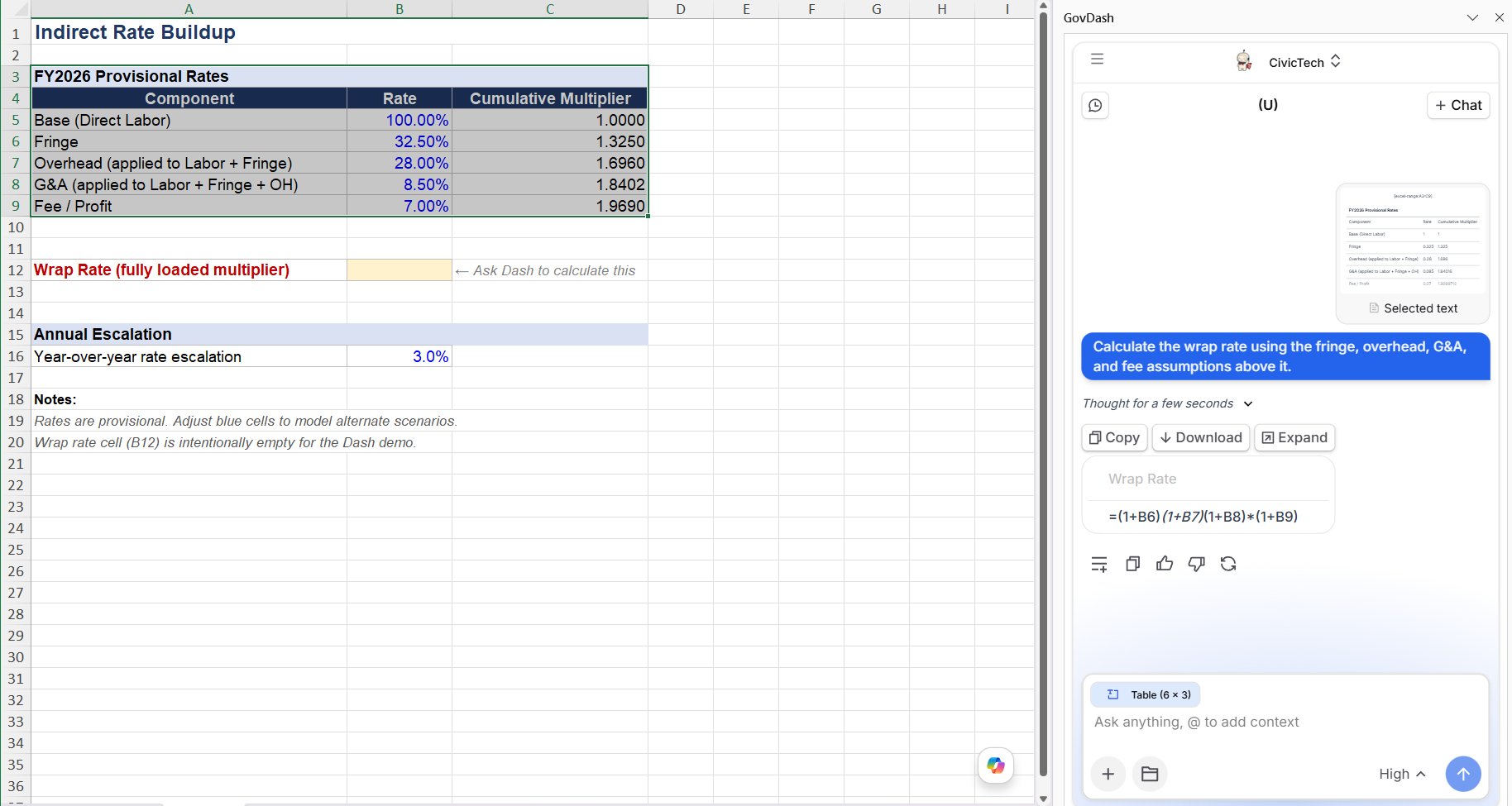
Example prompts
In the Total column, create a formula that multiplies the loaded labor rate by the hours for each line item on this pricing sheet.
Add a formula to this CDRL tracker that flags any deliverable where the due date is within 30 days so I can see what needs attention this week.
Write a formula that calculates the fully burdened cost per FTE across this BOE using the rate column and the hours column.
Once Dash returns the formula, you can insert it directly into the selected cell or copy it for use elsewhere in your workbook. You can also ask follow up questions—for example, adjusting the threshold, applying the formula to a different column, or wrapping it in additional logic.
Convert Content into Tables
Raw data doesn't always come in neat, column-aligned shape. Maybe you've pasted in a list of vendors from an email, or you have pricing information sitting in a single block of text. Dash can take that content and structure it into a clean Excel table that's ready to use.
Select the cells that contain the content you want to structure, then ask Dash to turn it into a table. When the request calls for structured data, Dash returns a table that can be inserted back into your workbook across cells.
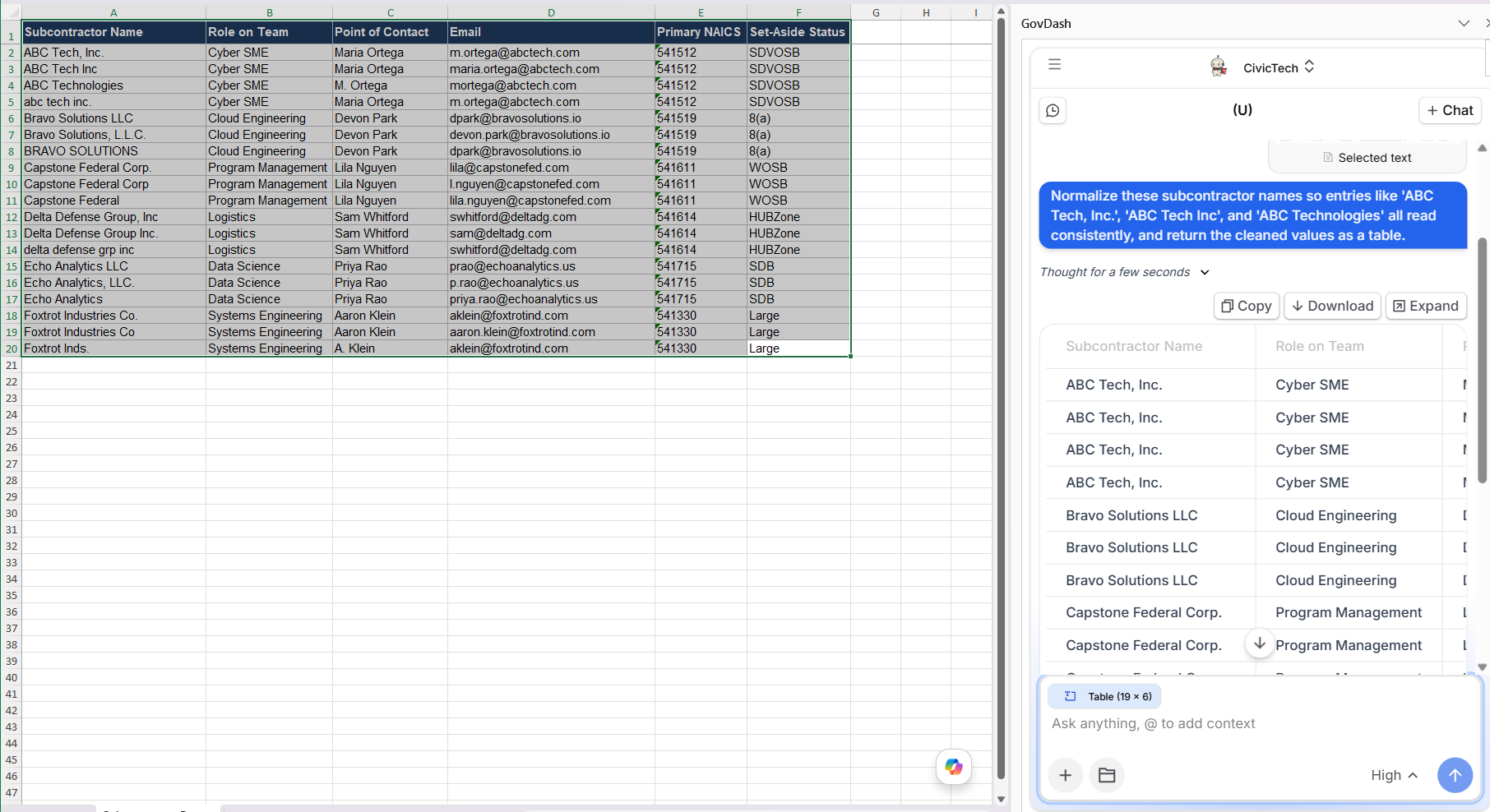
Example prompts
I pasted in pricing data from a subcontractor quote, turn it into a clean Excel table with columns for labor category, hours, and loaded rate.
Normalize these subcontractor names so entries like 'ABC Tech, Inc.', 'ABC Tech Inc', and 'ABC Technologies' all read consistently, and return the cleaned values as a table.
Take this block of teaming partner contact information and organize it into a table with columns for company, point of contact, role, and email.
Review the table Dash returns and refine it as needed, for example, asking Dash to add a column, change the order, or split a field into two. When the table is ready, insert it into your selected range and continue building from there.
Rewrite and Standardize Cell Content
Consistency matters in proposal workbooks. Labor category descriptions, role names, and similar text fields often need to follow the same style and tone across hundreds of rows. Dash can rewrite the cells you've selected so the language reads consistently and reflects what you actually mean.
Highlight the cells you want to clean up, and tell Dash what kind of rewrite you're after: more concise, more consistent, more formal, or aligned to a specific style.
Example prompts
Rewrite these labor category descriptions so each one follows the same structure, role focus, required experience, and key responsibilities, and uses parallel language across the column.
Rewrite these past performance summaries so each entry opens with the customer name and follows the same tone, we're submitting these as a single attachment and they need to read as one voice.
Tighten these CDRL deliverable descriptions so each entry stays under 200 characters and reads in active voice.
Dash will return the rewritten text for review. You can refine the response further, asking it to keep certain phrasing, match a specific format, or shorten the entries, before inserting the cleaned-up values back into your selected range.
Attaching Documents
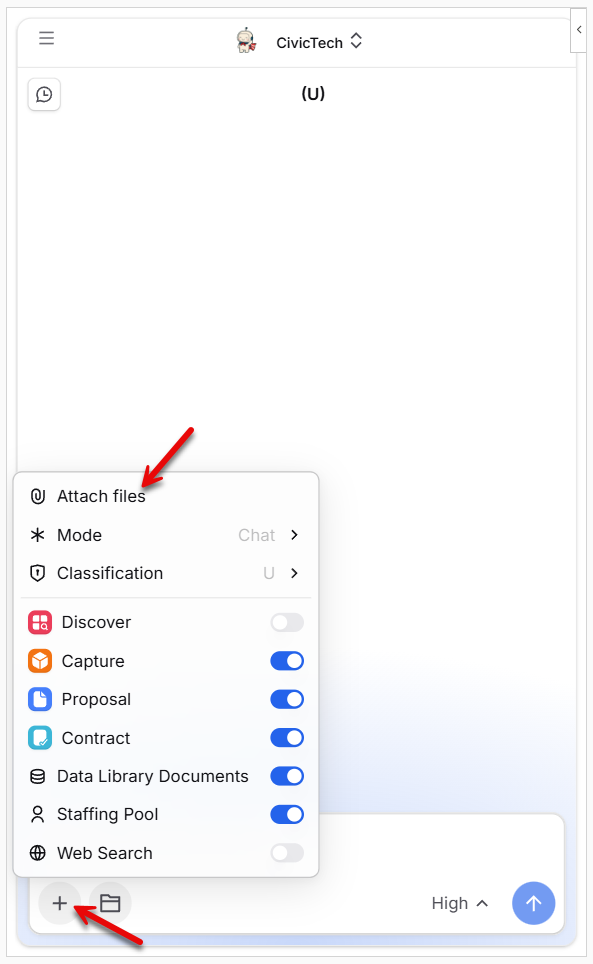
You can attach documents to any of your requests by clicking the file upload/attachment button within the chat window. You can attach any document that's within your Data Library in GovDash, SharePoint, or upload directly from your device.
Dash will reference the attached document when creating a response to your request. This is a great way to give Dash more context (such as a solicitation, a pricing reference, or a past proposal) without having to paste it into the chat.
Linking to GovDash
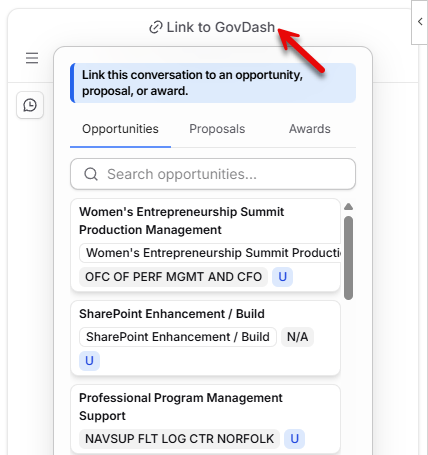
Utilizing the Link to GovDash menu at the top of the chat, you are able to directly link Capture opportunities, Proposal responses, and Contract awards to the chat. Dash will reference the connected resource when providing you responses to your queries, making it quick and easy to create artifacts for use in your spreadsheets without having to provide direct context in the chat or upload documents.
Tips for the Best Results
A few habits will help you get the most out of Dash in Excel:
Select your context before you ask. When you highlight a cell, range, or table before sending your message, Dash uses that as the basis for its response, formulas will use the right cell references, and analyses will be grounded in the data you actually care about.
Narrow large datasets. If you're working with a very large range, consider narrowing your selection or summarizing the most relevant rows first. A focused selection produces sharper, faster results.
Apply formatting after inserting. Dash inserts content as values into your selected cells. Colors, borders, conditional formatting, and other rich formatting should be applied in Excel after the content is in place.
Work within your current worksheet. Dash works in the worksheet you're currently in. If you'd like the output to live somewhere else, create the new worksheet in Excel first, then ask Dash to populate it.
Use Excel's built-in tools for charts and automations. For charts, PivotTables, slicers, and macros, continue using Excel's native features. Dash is focused on the content of your cells, the analysis, the structure, and the formulas.
Iterate in the chat. If the first response isn't quite right, send a follow up message in the same conversation. Ask Dash to reformat, refocus, or refine, just like you would in any other Dash chat.
FAQ
What is Dash in Excel?
Dash in Excel is part of the Dash in Microsoft Office add-in. It brings GovDash directly into your workbook so you can summarize data, generate formulas, structure content into tables, and rewrite cells without leaving Excel.
How do I install the Dash in Microsoft Office add-in?
If you haven't already installed the Dash in Microsoft Office add-in, please refer to our Dash Office Add-in Deployment Guide for assistance.
How do I give Dash context from my spreadsheet?
Before sending your request, select the cell, range, or table you'd like Dash to use as context. Dash will base its response on what you've highlighted. For requests that need a broader reference, like a solicitation or a pricing benchmark, you can also attach a document from your Data Library or your device.
Can I use Dash to generate Excel formulas?
Yes. When a request is best answered with a calculation that should stay live as your data changes, Dash returns an Excel formula rather than a one-time value. The formula will use the cell references from the range you selected so you can insert it and keep working.
Can I insert Dash's response directly into my workbook?
Yes. When Dash returns a single value or piece of text, you can insert it into the selected cell. When Dash returns structured data, the response can be inserted as a table across cells. You can always use the Copy button instead if you'd rather place the content somewhere specific yourself.
Can I attach documents to my requests?
Yes. You can attach documents to any of your requests by clicking the file upload/attachment button within the chat window. You can attach a document from your Data Library in GovDash, SharePoint, or upload directly from your device.