Using Dash in Slack/GovSlack
Once your GovDash administrator has connected your Slack or GovSlack workspace, you can link your account and start asking Dash questions right from a thread. This article walks you through linking, using Dash, and unlinking when you’re done.
Slack/GovSlack Integration Setup Guide
If you’re an administrator looking to connect a workspace or manage classification settings, please see our integration setup guide here.
What Does Dash in Slack Do?
After linking your account, you can mention Dash in any channel thread where the GovDash app is present. You only need that first mention: once Dash is in a thread, it follows the conversation and answers your follow-up messages without being tagged again.
Dash sees the thread context and responds based on the same team, role, and classification settings you have inside GovDash. It can pull from the same source categories you’d use with Dash inside GovDash: Data Library, Proposal, Contract, Capture, and Discover.
When Dash creates an image for you, it uploads the image straight into the thread as a file attachment, so you can view, download, and share it without leaving Slack.
Dash works the same way in both Slack and GovSlack, with one small difference: in GovSlack, the full response posts at once instead of streaming in word by word.
Before you start…
You’ll need:
A GovDash account on the team your workspace is connected to.
An administrator on your team to have already connected the Slack or GovSlack workspace.
If you’re not sure whether your workspace is connected, use the /govdash-link command in Slack.
In most cases you won't need to link anything yourself: if the email on your Slack profile matches your GovDash email, GovDash links your accounts automatically the first time you mention Dash (see Automatic account linking below).
Add Dash to a Slack Channel
In order to access Dash from a Slack channel, it must be added first. You can quickly add Dash to a Slack channel by typing @Dash within the channel and selecting Add to Channel from the pop-up.
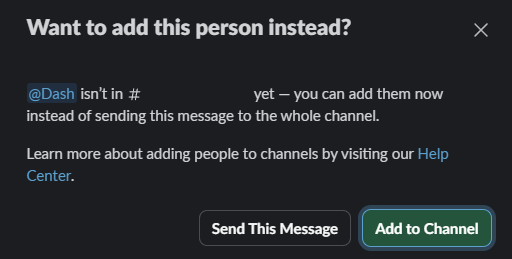
The first time Dash is added to a channel, it posts a short greeting so everyone knows it is available and how to start: “Dash is available in this channel. Tag @Dash to begin.” Dash only posts this once per channel.
Before Linking Your Account…
Dash must be added to the Slack channel you are attempting to use it in. Please ensure Dash has been added to a channel before @Dash orusing the
/govdash-linkcommand.
Link your Slack or GovSlack account
Automatic account linking
The first time you mention @Dash in a connected channel, GovDash looks at the email address on your Slack or GovSlack profile. If it matches the email of an active GovDash account that is an active member of the team the workspace is connected to, GovDash links your accounts on the spot and Dash answers your message right away.
Automatic links use the classification level set on the connected workspace. You can review or change your link at any time under Settings > Configurations > Integrations, just like a link you created yourself.
Automatic linking won't happen, and Dash will send you a link to connect manually instead, when:
Your Slack email doesn't match the email on your GovDash account.
Your GovDash account isn't an active member of the team the workspace is connected to.
Your Slack identity is already linked to a different GovDash account (GovDash never reassigns an existing link).
Your workspace was connected to GovDash before automatic linking was available. Ask your administrator to disconnect and reconnect the workspace so Slack grants GovDash permission to read profile email addresses.
In any of those cases, follow the manual steps below.
Link your account manually
Connecting your Slack account to GovDash is a very easy process, and you only need to do it once.
In the connected Slack or GovSlack workspace and connected channel, type
/govdash-linkin the connected channel and send it.Dash will send you a private link. Open it to continue.
Sign in to GovDash if you’re not already signed in.
Review the details Dash shows you:
Slack workspace ID
Slack workspace name
Your Slack user ID
Your Slack display name
If everything looks right, confirm the link. This completes the setup process.
Important Information Regarding Setup
The link expires after five minutes. If you wait too long, just run
/govdash-linkagain.Don’t share the link. It’s tied to your account.
If GovDash warns you the link belongs to a different GovDash team, switch teams in GovDash before you confirm.
If you don’t recognize the workspace or user details on the confirmation screen, cancel and reach out to your administrator.
Using Dash in Slack
Once your account is linked, using Dash is just a matter of tagging it in a thread. Find a channel where GovDash is installed, start a thread or reply in an existing one, and mention @Dash with your question. Dash verifies your account, team, and classification settings behind the scenes, then responds right there in the thread.
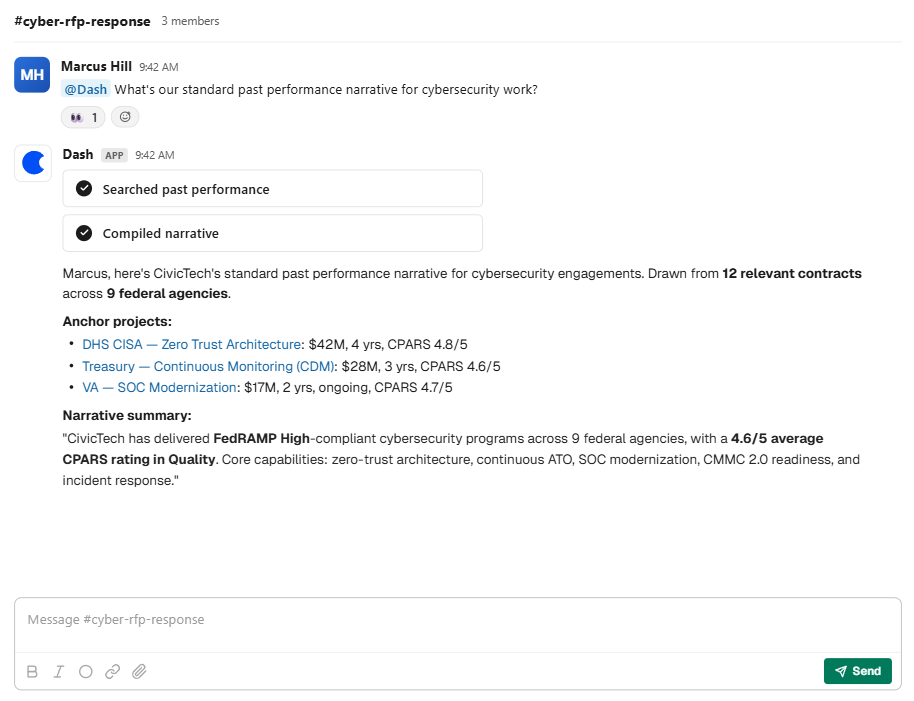
Dash uses the thread you’re in for context, so make sure the messages that matter to your question are part of it. If you haven't linked your account yet, just tag Dash directly. When your Slack email matches your GovDash email on the connected team, GovDash links your accounts automatically and Dash answers right away. Otherwise, Dash sends you a link to get connected. That link opens the integration settings of the GovDash team the workspace belongs to, so you land in the right place even if you are a member of several teams. GovDash switches you over and confirms the switch with a short notice.
Direct messages to Dash aren’t supported right now, so we recommend to use Dash inside channel threads. And if you’re on GovSlack, you’ll notice Dash waits until the full response is ready before posting it rather than streaming it in word by word.
Follow-ups without re-tagging Dash
After Dash replies in a thread, it stays with the conversation. Ask your next question as a normal reply and Dash answers it — no @mention required. Dash checks each new message against the recent thread history and only replies when the message is clearly meant for it, so your side conversations with teammates stay uninterrupted. If Dash stays quiet on something you did want it to handle, just tag @Dash again.
Choose where Dash can respond
Admins control how far this reaches with the Can Respond To setting on each connected workspace. Open Settings → Configurations → Integrations, find your Slack, GovSlack, or Microsoft Teams workspace, and pick one of:
Subscribed threads (default) — Dash replies in direct messages and in threads where it has been mentioned, and decides when thread follow-ups need a response.
All channel messages — Dash also evaluates every message in channels it has been added to and decides on its own whether to respond, no mention required.
Changing the setting takes effect right away for everyone on the team. You need the Manage Team Integrations permission to change it; without it, the setting is visible but read-only.
Unlink your Slack/GovSlack account
If you want to disconnect your Slack identity from GovDash:
Open GovDash.
Go to Settings > Configurations > Integrations.
Find your Slack/GovSlack account link status.
Select Unlink.
After you unlink, Dash will no longer respond to your mentions from that Slack/GovSlack identity until you link again.
What GovDash sees from your workspace
When you use Dash in a thread, GovDash receives:
The text of the thread and the names of message authors, so Dash has the context for your question.
Your Slack or GovSlack user ID, so GovDash can confirm you’re a linked user.
GovDash doesn’t crawl your workspace or read messages outside the threads where you invoke Dash. It only sees events when you actively use the integration.
Dash Prompt Examples
For helpful examples on what Dash is capable of doing within the integration, please see the suggestions below:
ROM Opportunity Creation
Create a new ROM opportunity for a Department of Defense IT modernization effort supporting cloud migration and cybersecurity compliance. Assign me as the proposal manager and set a due date for this Friday.
Workload & Prioritization
Which opportunities should we prioritize this week based on due dates, value, and activity?
What work can I realistically complete today based on my current assignments and deadlines?
What should I focus on today?
Give me a snapshot of all my active responsibilities. OR What work do I currently own in GovDash?
What needs attention before EOD?
Generate a complete summary of everything currently assigned to me across the platform, broken out by section, including Opportunity Roles, Proposal Outline Sections, Contract Tasks, and any other assigned work, with due dates, statuses, related opportunities or contracts, priorities, and relevant details.
Activity Summaries & Updates
Generate an executive summary of my active GovDash workload.
What changed since yesterday?
What’s the most urgent work across the platform right now?
Proposals
Where are we at risk from a compliance perspective across active proposals?
Risk & Bottlenecks
What are the biggest bottlenecks across my active opportunities?
What opportunities am I most at risk of missing deadlines on?
Which proposals need my attention today based on due dates, blockers, or incomplete work?
Contracts
What contracts are missing required documentation?
FAQ
Dash didn’t respond when I mentioned it
Check that you’re in a channel where GovDash is installed and that you’ve linked your account. If you just linked, try again in a new thread.
Dash says I need to link my account
Use the /govdash-link command in Slack and follow the link Dash sends you.
Dash answered me but I never linked my account
Your Slack email matched your GovDash email on the connected team, so GovDash linked your accounts automatically. You can view, adjust, or unlink it under Settings > Configurations > Integrations.
Dash says the workspace isn’t connected
Ask your GovDash administrator to connect Slack or GovSlack from GovDash integration settings.
My link expired
Use the /govdash-link command in Slack again. Links are valid for five minutes.
The confirmation screen shows a different GovDash team
Switch to the correct team in GovDash, then re-open the link or use the /govdash-link command in Slack again.