Setting up the Slack and GovSlack integration
Connect a Slack or GovSlack workspace to GovDash so your team can mention Dash from a thread and get assistant responses that respect your GovDash permissions and classification controls.
How To Guide
If you’re an end user looking to link your account and use Dash, please see our Using Dash in Slack article here.
Overview
The Slack and GovSlack integrations let authorized users invoke Dash from a workspace conversation. A user mentions Dash in a supported thread, GovDash gathers the surrounding thread context, and Dash responds using the same team, role, and classification controls applied inside the GovDash application.
The integration is event-driven. GovDash does not crawl your workspace. It receives events only when a user interacts with Dash directly.
Slack and GovSlack are connected through separate paths. Slack routes through slack.com; GovSlack routes through slack-gov.com. Each uses its own OAuth credentials, webhook endpoint, and signing secret.
How the integration works
A team administrator connects a Slack or GovSlack workspace from GovDash integration settings.
The administrator confirms they are authorized and that the workspace can securely handle CUI.
Slack or GovSlack walks the administrator through OAuth. GovDash stores the installation record and an encrypted bot token.
Dash is added to a Slack channel that end users are expecting to interact with Dash in.
Each end user's Slack or GovSlack identity is linked to their GovDash account. This happens automatically the first time they mention Dash if their Slack profile email matches an active member of your GovDash team; otherwise they link manually with the Slack command
/govdash-link.A linked user @ mentions Dash in a supported channel thread.
GovDash verifies the workspace, user link, team membership, and classification, then runs Dash and posts the response back to the thread.
Before You Connect…
Confirm you have GovDash permission to manage team integrations.
Confirm you have the Slack or GovSlack authority to install apps in the target workspace.
Confirm the target workspace is the one your GovDash team intends to use.
Confirm the workspace is approved by your organization to store, process, and transmit CUI.
Connect a Slack or GovSlack workspace
Login to GovDash.
Go to Settings > Configurations > Apps & Extensions.
Select Connect Slack or Connect GovSlack based on your workspace.
Review the CUI acknowledgement.
Confirm that you are authorized and that the workspace can handle CUI.
Complete the Slack or GovSlack OAuth flow. Slack will display the permissions GovDash is requesting; review and approve.
Return to GovDash and confirm the workspace shows as connected.
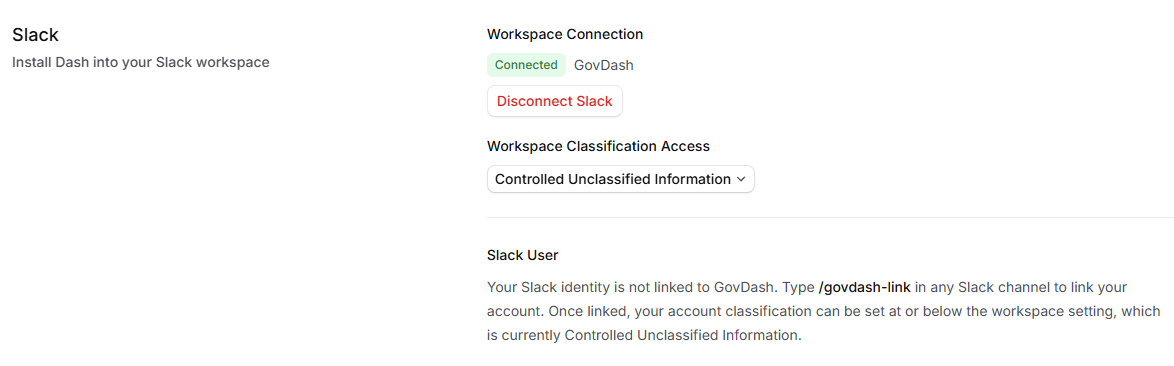
If the connection fails, return to integration settings and restart. OAuth state expires after five minutes, so close any stale authorization page and re-launch from GovDash.
Connected your workspace before automatic account linking was available?
Automatic linking needs permission to read Slack profile email addresses, which Slack only grants during installation. To turn it on for an existing workspace, disconnect the workspace (see Disconnect a workspace below) and connect it again, approving the updated permissions. Until then, teammates simply see the manual
/govdash-linkprompt.
Add Dash to a Slack Channel
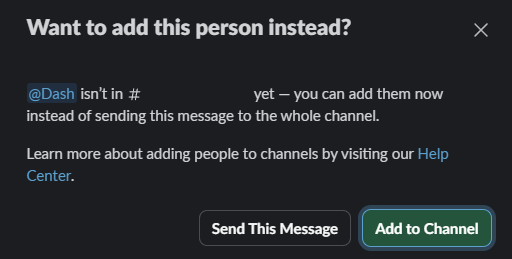
In order to access Dash from a Slack channel, it must be added first. You can quickly add Dash to a Slack channel by typing @Dash within the channel and selecting Add to Channel from the pop-up.
Manage workspace classification
The workspace classification sets the ceiling for what Dash can use when responding in that workspace. In the current rollout, this is constrained to CUI. As additional classifications become available, set the workspace classification to the highest level your organization has approved for the connected workspace.
If you lower the workspace classification, GovDash automatically updates any active user links that exceed the new limit. If a user tries to set their user-link classification above the workspace classification, the update is rejected.
Disconnect a workspace
Open GovDash.
Go to Settings > Configurations > Apps & Extensions.
Select the disconnect option under the connected Slack or GovSlack integration.
When you disconnect, GovDash revokes the bot token with the provider, marks all associated user links as revoked, and records the event. See Revoking access under Security architecture for the full sequence.
GovSlack-specific behavior
GovSlack uses the same security model as Slack, with separate credentials, endpoints, and API domain handling:
OAuth and API calls route through slack-gov.com.
Webhook signature validation uses the GovSlack signing secret.
Installations are stored separately using a distinct provider value.
GovSlack responses post all at once instead of streaming. GovDash waits for Dash to finish and then posts the full response, because streamed responses can produce empty messages in GovSlack. This changes how the response is delivered but not the authorization or classification checks.