Overview
The Dash Browser Extension brings Dash directly into your browsing workflow. When you open a page, whether it’s a procurement listing, agency page, a resume, or company profile, Dash can instantly read the content and help you turn it into an opportunity.
Installation
Navigate to the Chrome Web Store and search for GovDash Sidebar (or by clicking this link) using either Google Chrome or Microsoft Edge.
Click Add to Chrome (or Get in Edge).
When prompted, click Add Extension.
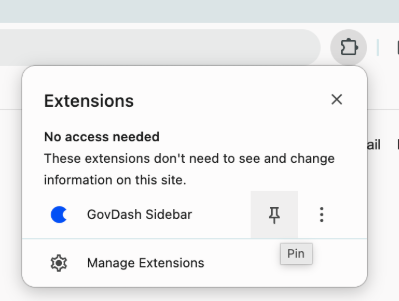
After the extension is installed, we recommend pinning it to your to your extension toolbar. From the extension
 menu, select the pin icon next to the GovDash Sidebar extension to pin it for quick access.
Within the Integrations Settings page in GovDash under Apps & Extensions, ensure the Enable Dash in Your Browser toggle is enabled (admin permissions required).
Opening the Extension
Select the GovDash Sidebar icon from your extension toolbar.
Select the Sign in with GovDash button to be brought to your GovDash sign-in options.
After signing in, you will see the familiar Dash side panel.
Using Dash on Any Webpage
Once you're signed in, Dash is available on every webpage you visit. All of the capabilities you know from Dash in the GovDash platform and Dash in Microsoft Office are available in the browser extension, with one important addition: Dash can use the current page as context.
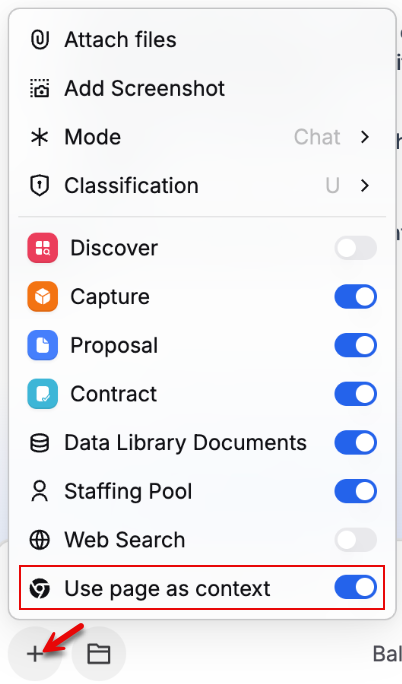
When page context is enabled, Dash reads the content of your currently open tab and factors it into its response. This allows you to ask questions about what's in front of you, pull in details from the page to create new opportunities, and connect what you're seeing to your GovDash data without having to copy, paste, or re-describe anything.
You can toggle page context on or off at any time using the Source menu in the sidebar. When enabled, Dash will indicate that the current page is being used as a source in its response.
Using Page Context
Page context works on any webpage, including SAM.gov, GSA eBuy, state procurement portals, USASpending, agency websites, and emails. Dash reads the visible content of the page, so if you need to expand a section or scroll to load more detail, do that before asking your question.
Asking Dash a Question
Dash works just like the version inside the GovDash platform. Type your question into the input field at the bottom of the sidebar and press Enter. Dash will respond directly in the panel, grounded in your pipeline, proposals, contracts, and BD data.
You can ask Dash anything you would normally ask within GovDash, including:
Pipeline summaries and status updates
Proposal progress and outstanding reviews
Past performance and contract history
Contact and relationship information
New state and federal opportunity searches
Pipeline Queries
Dash provides the same pipeline intelligence you get inside the GovDash platform, accessible from any tab. You can ask for summaries of your active pipeline, drill into the status of a specific opportunity, or check stage-level movement without leaving your current workflow.
Example questions you can ask:
"What's in my pipeline for next month?"
"Which opportunities are in the Proposal stage right now?"
"Give me a status update on the Navy cybersecurity opportunity"
"Which of my opportunities haven't been touched in the last 30 days?"
Dash will return pipeline records with links back to the full opportunity page in GovDash for deeper review.
Discovering New Opportunities
Dash can surface relevant state and federal opportunities directly from the sidebar. Ask Dash what's new in your target space, and it will return matches based on your team's pipeline profile and past bids.
Example questions:
"Show me recent Air Force opportunities under $5M"
"Any new opportunities in Texas this week that fit our capabilities?"
"Find IDIQ opportunities related to cybersecurity"
Each result includes the solicitation details and a direct link. From there, you can add the opportunity to your pipeline with a single action.
Adding Opportunities to Your Pipeline
When you're viewing an opportunity on a portal like SAM.gov, federal, or state procurement sites, you can add it to your GovDash Pipeline without switching tabs or manual entry. Simply ask Dash:
"Please add this opportunity to my Pipeline."
The opportunity is created in GovDash immediately and will appear in your Pipeline the next time you open the platform. You must still upload any associated documents to the opportunity yourself in GovDash.
Using Page Context
When page context is enabled, Dash automatically pulls the solicitation title, agency, due date, and other available details directly from the page you're viewing, so the fields are populated for you. You can review and edit any of these before confirming.
Account and Agency Context
Dash has full access to your team's current Pipeline, Data Library, and past performance, so you can pull relevant context at the moment you need it most, whether you're on an agency website, reviewing a procurement portal, or reading an email.
You can ask Dash for:
Prior bids your team has submitted to a specific agency
Contacts you have at a particular organization
Relationship notes and engagement history
Past performance contracts relevant to the page you're viewing
For example, while viewing an agency's contract opportunities page, you might ask: "Have we ever bid on anything with this agency before?" Dash will return your history with that agency, including wins, losses, and key contacts.
Session Persistence
The Dash sidebar stays open as you navigate between tabs and pages. Once opened, it remains available until you close it, so your conversation context and any results you've pulled up stay with you as you move through your workflow.
To close the sidebar, click the X in the top right of the panel, or click the Dash extension icon in your browser toolbar again to toggle it off.
Extension Settings
The extension has settings which can be managed in the settings page, under Workspace -> Configurations -> Integrations, under the “Dash Integrations” category. There are two main controls:
Enable Chrome Extension - This enables or disables access to the extension for your team. When disabled, if a user tries to log in to the extension, they will not be able to proceed.
Extension Assistant Consent - This is the same as the “Word Assistant Consent” setting, which requires the user to affirm that they will not mishandle classified information while using the extension.