Dash Memories
Dash can now remember important facts and preferences about you from one session to the next. Instead of re-explaining your role, the agencies you support, or how you like your writing formatted every time you start a chat, Dash carries that context forward automatically, so every response is tailored to you from the very first message.
How memory works
Three things make Dash's memory useful:
Automatic. There is no setup. Dash writes memories as you work, learning from your conversations and the feedback you give. You do not have to configure anything.
Personal. Your memories are scoped to you and are never shared with your team. What Dash learns about how you work stays private to your account.
Cited and editable. Every memory is sourced, so you can see where it came from, and you stay in control. When Dash uses a memory to shape a response, it cites that memory so you understand why it answered the way it did. You can change or remove any memory at any time.
What Dash remembers
Memory is for durable facts and preferences: the things that rarely change and that you would otherwise repeat in every chat. For example:
Your role, the agencies you support, and your company background
Writing and formatting preferences (for example, a preferred tone or cadence, or words you never want used)
Domain terminology and acronyms specific to your organization
Source preferences you want Dash to apply consistently
Memory holds key facts, not documents. It complements, but does not replace, the context Dash already pulls from your Data Library, Contract, and solicitation packages.
Creating, updating, and removing memories in chat
You can manage memory just by talking to Dash:
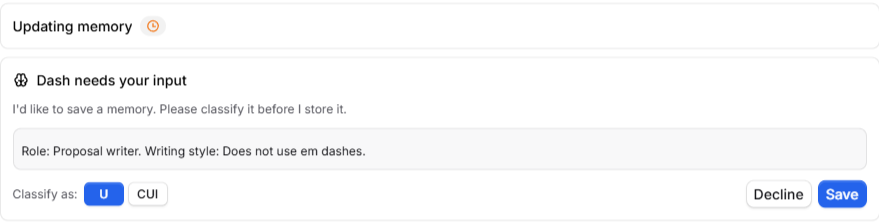
Ask Dash to remember something (for example, “Remember that I support USAF, Navy, and SOCOM”) and it will save it for next time.
Keep it current. When a memory becomes outdated or contradicts something new you tell it, Dash offers to update or delete that memory so your saved context stays accurate.
Remove anything. You can ask Dash to forget or change a memory at any point. Dash always checks with you first, so nothing is removed until you confirm it.
Managing memory in Settings
You can view and manage everything Dash has stored from the Dash settings page. Open Settings, select Dash, and scroll to Memory. From there you can:
Memory: turn Dash's ability to remember context from your chats on or off.
Search and reference chats: allow Dash to search your past chats for relevant details and pull them into the current conversation when they help.
Skill editing & creation: allow Dash to create and improve Skills on its own as it learns your process. (See Dash Skills below.)
Manage Memories: open the full list of what Dash remembers.
Import Memory: bring in memory from another AI provider (see below).
The Memories page
Select Manage memories to open the Memories page. It lists the preferences, communication style, conventions, and other things Dash has learned about you.
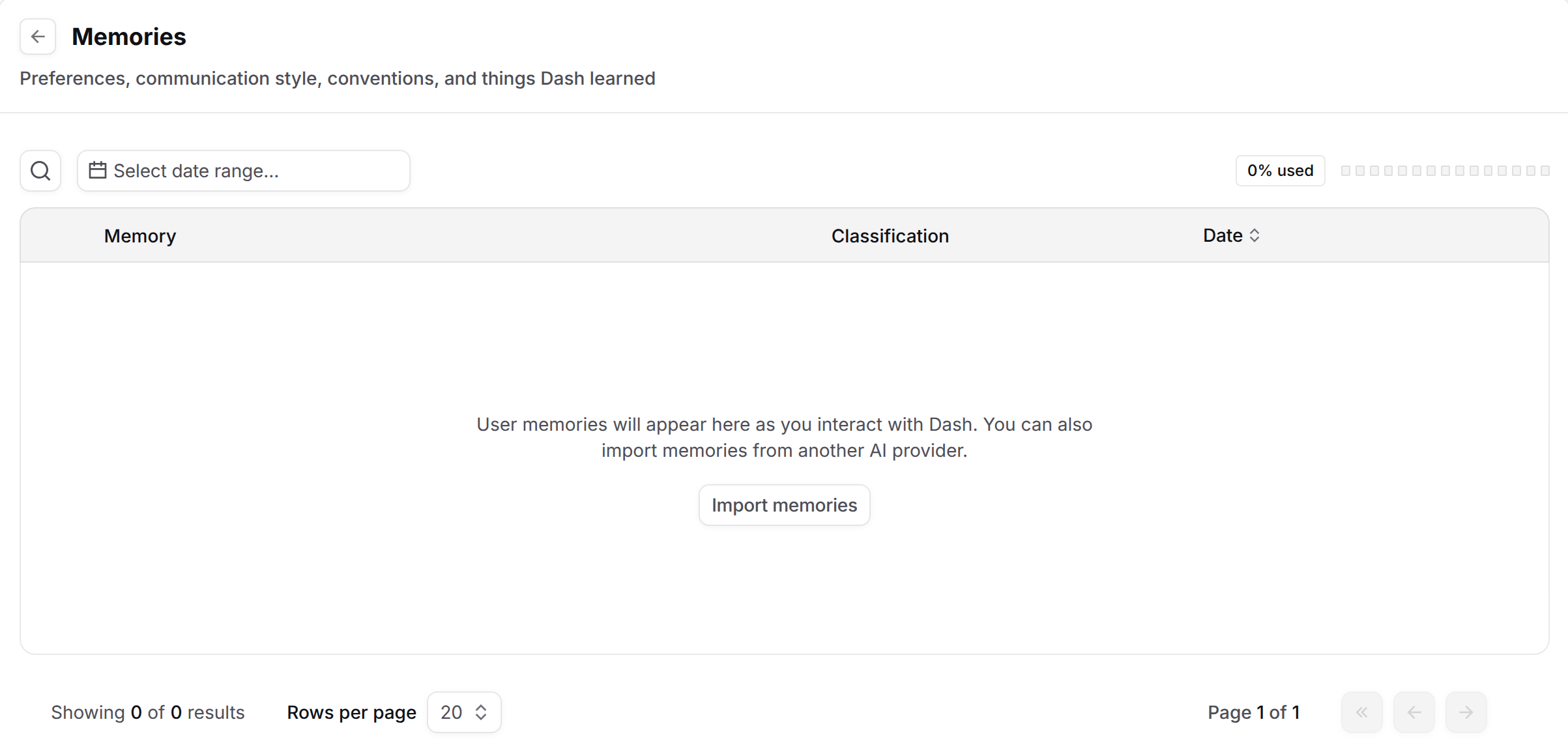
Each memory shows its text, its classification (U or CUI), and the date it was added. Use the search icon or Select date range to find a memory, and select memories to delete them. The % used indicator at the top right shows how much of your memory capacity is in use. If the page is empty, select Import memories to bring in memory from another AI provider.
Importing memory from another AI provider
If you already use another AI assistant such as Claude or ChatGPT, you can bring that context into Dash:
In Settings > Dash, find Import Memory and select Start Import.
Select Copy and paste the prompt into a chat with your other AI provider. The prompt asks that assistant to export your stored memories and learned context, preserving your instructions and preferences as written, organized by category.
Paste the results back into the import window and select Add to memory.
Dash folds the imported preferences and instructions into your memory, so you do not have to start from scratch.
Memory and classification
Like the rest of Dash, memories respect GovDash's classification model. Each memory carries a classification of (U) Unclassified or (CUI) Controlled Unclassified Information, and CUI memories are handled with the same protections applied elsewhere in Dash. As always, your team is responsible for properly marking data in GovDash.
Dash Skills
A Skill is a reusable, saved playbook that teaches Dash how you run a specific task. Where memory captures who you are, a Skill captures how you work: your compliance review steps, your section structure, your go/no-go checklist. You define the procedure once, and Dash runs it the same way every time you ask, instead of you re-explaining it in each chat.
Memory vs. Skills: what's the difference?
A quick way to keep them straight: memory learns who you are, and Skills learn how you work. In practice the two work together. Memory shapes the voice and facts of a response, while a Skill drives the process behind it.
Memory | Skills | |
What it is | Factual knowledge. What things are. e.g. "Never use em dashes." Your role, agencies, company background, working preferences. | Procedural knowledge. How to do things. Your compliance process, your section structure, your color-review checklist. |
When it's used | Always, every session. Injected automatically so Dash never re-learns who you are. | On demand, only when relevant. Dash recognizes the task and pulls the matching skill into context. |
How it's created | Automatically, as you work | You or your team, explicitly. Defined precisely so it runs the same way for every person on your team. |
Scope | Personal only. Tied to you. Never visible to the team. | Personal or team. You decide who else can run it. |
Size | Compact. Key facts only. A handful of stable facts Dash carries everywhere. | Can be large. Hundreds of lines. Detailed enough to enforce a full SOP. |
What makes a good Skill
Saved, not a one-off. A Skill lives in your workspace and is callable whenever you need it, rather than a prompt you paste once and lose.
Reusable. It runs the same way every time, so your output stays consistent.
Evolving. A Skill can be refined over time. With your permission, Dash proposes improvements as it learns your process, and you approve the changes.
Creating a Skill
Where to start: think about the task you explain to Dash most often. If you find yourself retyping the same instructions more than a few times a week, that is a strong candidate for a Skill.
To create one:
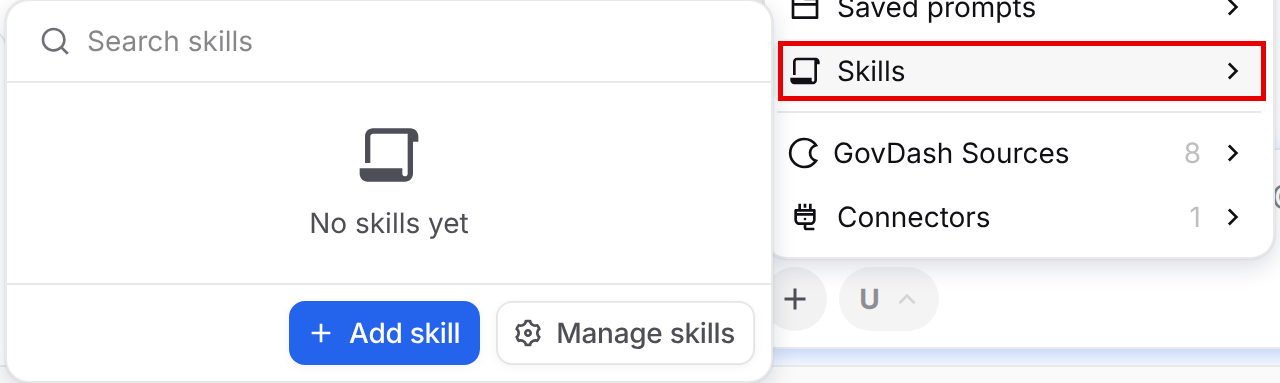
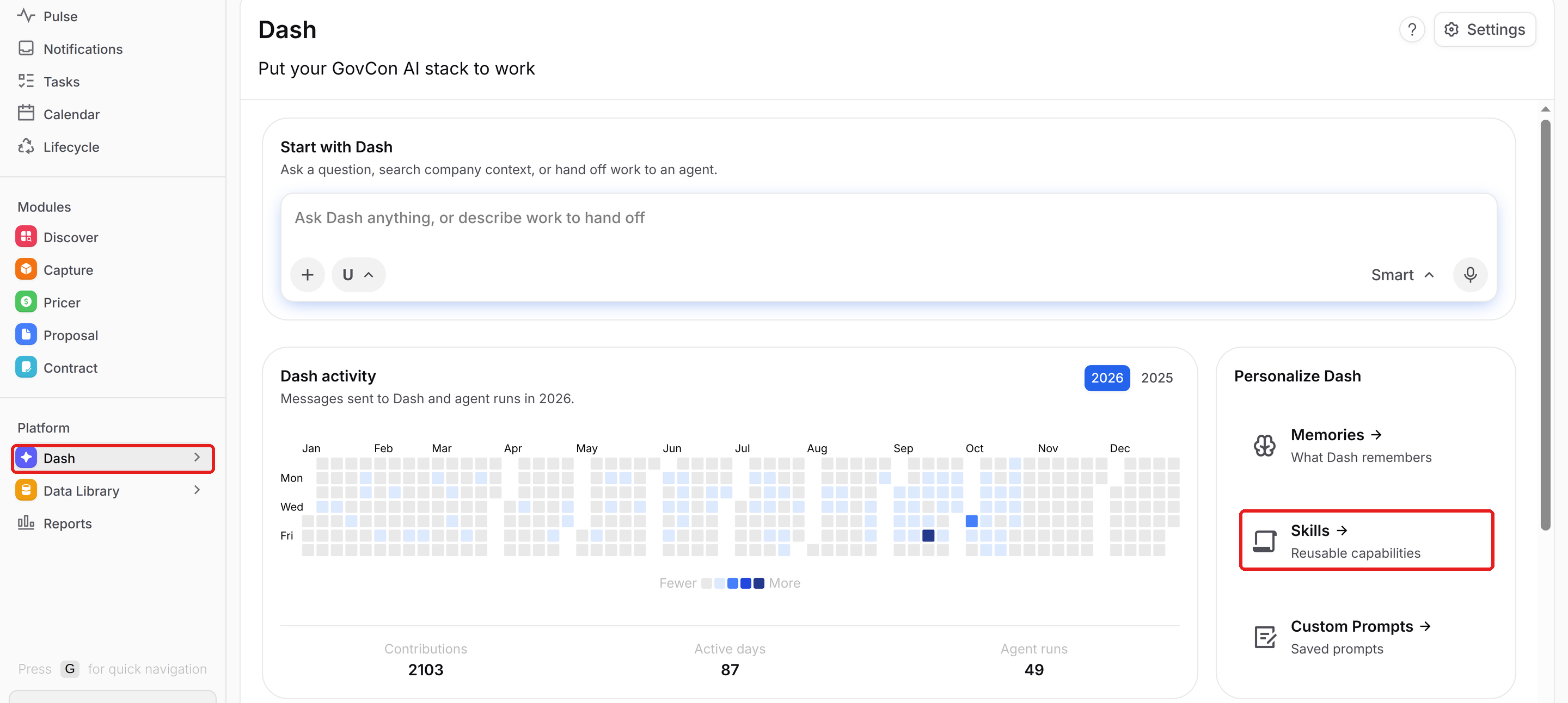
In the Dash chat box, select +, then Skills, then Add skill. You can also select Dash in the left navigation, select Skills under Personalize Dash, then select the + button and choose Create skill.
Fill in the fields:
Skill name: a short, recognizable name (for example, “Compliance checker”).
Description: what the Skill does and when to use it. This is how Dash recognizes when to apply it, so be specific. Example: “Run our standard compliance review on a draft volume. Flag every ‘shall, will, must’ in PWS order, match each to its response section, and grade gaps as showstopper, major, or minor.”
Instructions: the step-by-step procedure Dash should follow, for example: extract every ‘shall, will, must’ from the PWS; match each requirement to a response section; classify gap severity (showstopper, major, or minor); and render the findings in your report template.
Template file (optional): attach one supporting document the Skill should work from, such as a report shell, pricing workbook, briefing deck, or checklist. Drag the file into the Template file area or select it to browse, then set its classification with the picker beside the file name. Dash opens this file whenever it runs the Skill.
Set the options under Settings:
Keep private: keep the Skill visible only to you, or share with the team by toggling this off.
Classification: set the Skill to U or CUI. If you attach a CUI template file, the Skill is set to CUI for you and the picker is locked.
Select Create.
Managing Skills
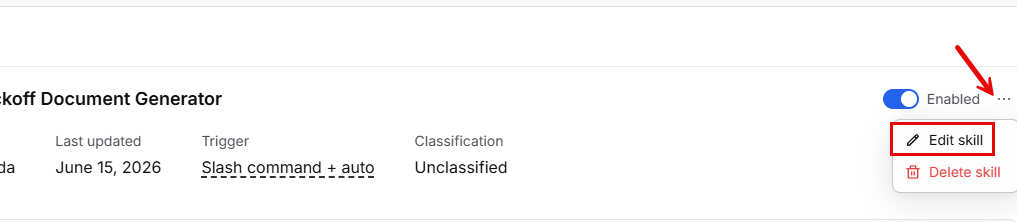
From the Skills page (select Dash in the left navigation, then Skills under Personalize Dash), you can view all Personal and Team Skills, create, manage, and edit skills. If you need to make manual changes to a skill, select the three-dot menu on the skill view page and select Edit skill.
Letting Dash build and refine Skills
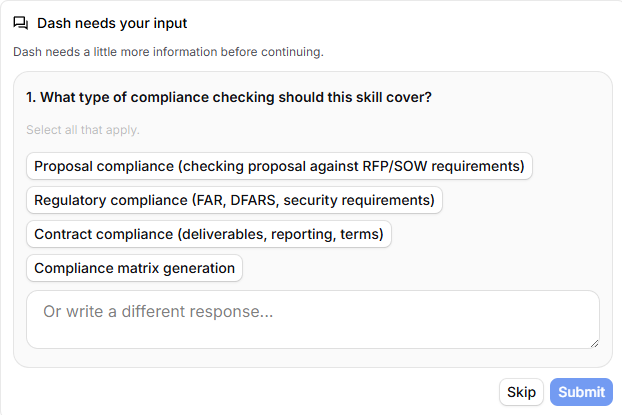
You do not have to write every Skill by hand. When Skill editing & creation is enabled (Settings > Dash), Dash can create, update, and improve its own Skills as it learns how you work, for example by turning a process you walk it through repeatedly into a reusable Skill. Dash proposes these changes and you approve them, so nothing is saved without your say-so. You can turn this off at any time if you would rather author Skills yourself.
Running a Skill
Once a Skill exists, Dash can use it two ways:
On demand: invoke it yourself when you want it (for example, with a slash command, or from the Dash menu).
Automatically: when Dash recognizes that your request matches a Skill, it pulls that Skill into context and follows it.
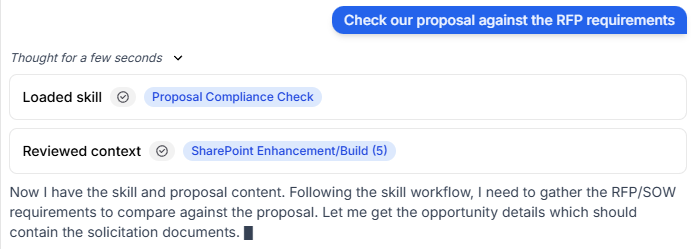
Either way, every run reflects both your Skills and your memory, so the output matches your process and your preferences at the same time.
Recommended Skills to start with
New workspaces come with our PROTeam Skills already installed as Team Skills, so you can start using them right away. You can also browse the full PROTeam catalog and install more Skills at any time (see the steps below). If you want to add your own, these are common, high-value Skills for GovCon teams:
Style guide: your house writing rules (tone, cadence, and prohibited words) applied to every Dash output.
Go / No-Go analysis: a structured pursuit assessment against your bid criteria that returns a recommendation with reasoning.
Compliance review: the checklist you run on every RFP section before submission, flagging gaps by severity.
Opportunity brief: a one-page brief from a SAM.gov listing or RFP summary, for pipeline meetings and quick reads on new requirements.
The goal is simple: one Skill, written once, means your whole process runs consistently every time, and you stop re-explaining it.
Browsing PROTeam Skills
Select Dash in the left navigation, then select Skills under Personalize Dash. You can also open the Dash chat box, select +, hover over Skills, and select Manage skills.
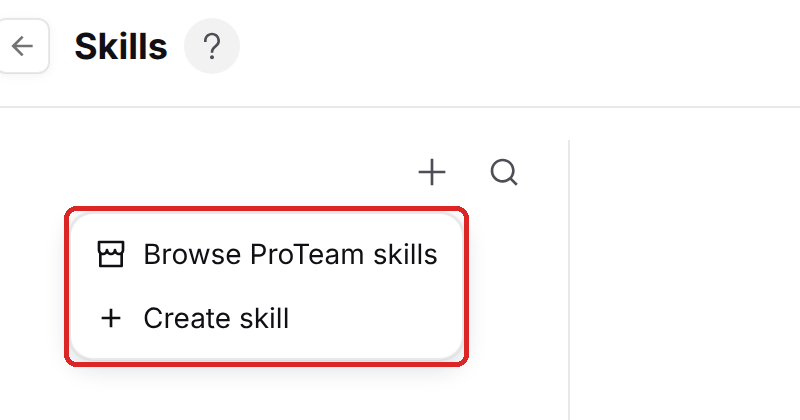
Select the + button at the top of the Skills list, then select Browse ProTeam skills. The PROTeam Recommended Skills window opens with a card for each Skill and a short description.
Select a card to preview the Skill: its description, the date it was last updated, and the full instructions Dash will follow. Select the back arrow to return to the list.
Select Install in the preview, or the + on the card, to add the Skill. Installed Skills show a green check (or an Installed badge in the preview).
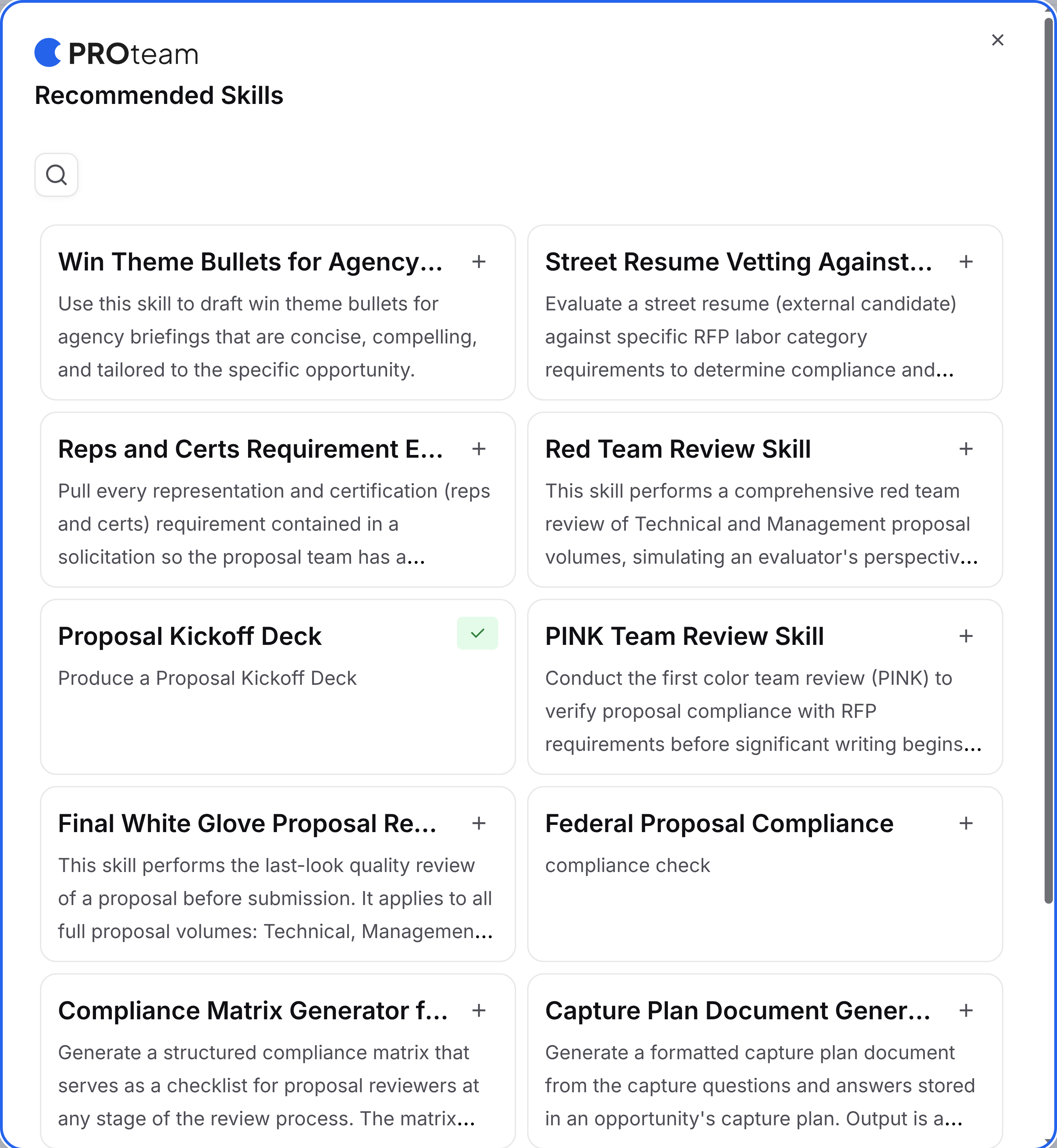
Installed PROTeam Skills are added to your Personal Skills, so only you can see them at first. To share one with your team, open it, select the three-dot menu, choose Edit skill, and turn off Keep private.
FAQ
Do I need to set up Memory?
No, but you can ask Dash to add something to Memory at any time. Memory works automatically as you use Dash. You can review and manage what it has stored at any time in Settings > Dash.
Can my teammates see my Memories or Skills?
Memories are personal to your account, but Skills can be personal or shared with the team based on your preference.
Will Dash change my Skills without asking?
No. When Dash proposes creating or updating a Skill, you approve the change first. You can also turn off Skill editing & creation in Settings > Dash.
How is CUI handled in Memory and Skills?
Memories and Skills each carry a classification (U or CUI), and CUI content is protected consistent with the rest of Dash. Your team is responsible for marking data correctly.