Looking for Information on Credits?
Agents cost credits to run in GovDash. To learn more about how to purchase credits, how to monitor credit spend, or limit usage of credits, please see our support article here.
Working with Dash Agents
Dash Agents let you save a task once so it runs again on its own: on a schedule, when something changes in GovDash, or whenever you start it. This guide explains what an agent is, when it runs, and what it can use, walks through setting one up, and ends with a few examples to start from.
What is an Agent?
Instead of asking Dash to do the same task by hand each time, you can create an agent to do that task for you. The agent then runs on its own, uses the GovDash data you choose, and writes its output back to the right record, so the finished work is waiting for you instead of sitting on your to-do list.
Everything an agent does happens inside GovDash, on data that already lives there, and only with the access you grant it.
Prompt, skill, or agent
GovDash gives you three ways to get work done with Dash, and they build on each other. The right choice depends on whether you are doing something once, reusing a method, or running a whole task on its own.
Approach | What it is | Best when |
|---|---|---|
Prompt: One-off | A single request you type to Dash in the moment. Dash answers once, right there in the conversation. | You need a quick answer and don't plan to repeat it. |
Skill: Reusable Method | A saved set of instructions Dash can follow on demand, so you get a consistent result each time you call it. | You repeat the same method but still kick it off yourself. |
Agent: Runs on its own | A skill plus a trigger and scoped sources. It runs the whole task on a schedule, on an event, or on demand, then writes its output back to the record. | You want the work to happen on its own, again and again. |
The simple way to remember it: a prompt does it once, a skill saves how to do it, and an agent runs it for you on its own.
When an agent runs
You decide when an agent starts, and you can combine these.
On a schedule — Dash runs the agent at a set time, such as every morning, every Monday, or any custom schedule.
When something happens — Dash watches for an update and runs the agent then. Triggers include a new opportunity being added, an opportunity changing stage, a proposal being created, a document being uploaded, or a contract award being tracked.
Manually — you start the agent when you need it. Another agent can also call it as a step in a larger workflow.
What an agent can use
An agent can only read the sources and take the actions you allow, which keeps every agent scoped to the access you grant. Available sources include Discover, Capture, Proposal, Contract, Data Library Documents, Staffing Pool, Web Search, and Creating documents.
Most agents finish by writing their output back to the related record, so the result lands exactly where your team will look for it, whether that be a Capture opportunity, a Proposal, or a Custom Document.
How to set up an agent
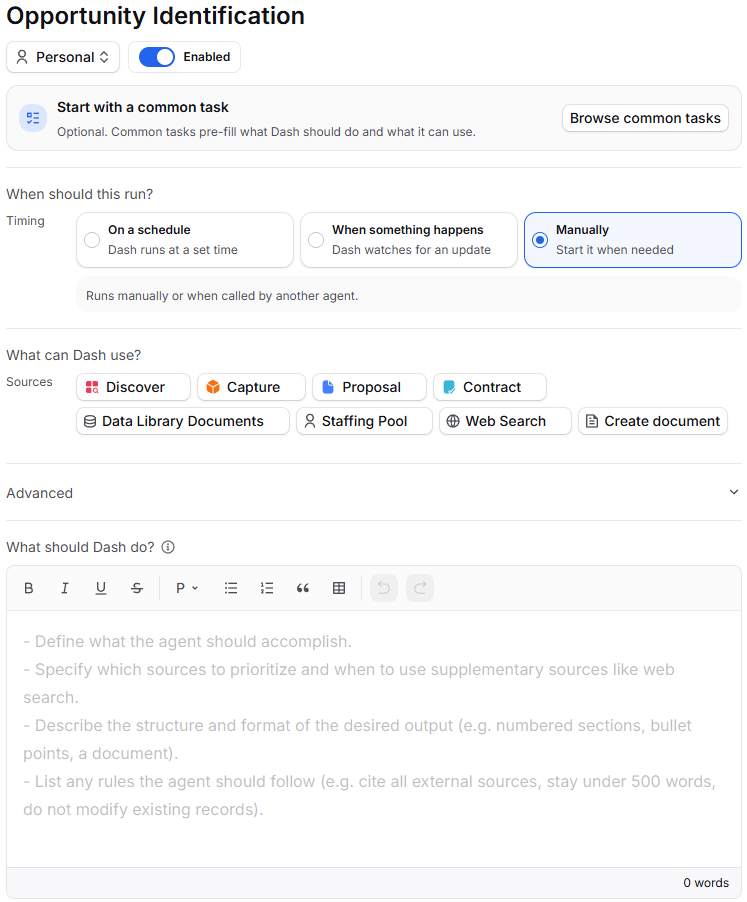
You don't need any technical setup. Open the Agents tab, then either describe the task in plain language using the Dash box, choose Browse common tasks to start from a pre-built task, or select Create one from scratch, which walks you through the following steps:
Name it and set visibility — give it a clear name and choose Personal so only you see it, or Entire team for everyone. Make sure it is Enabled.
Choose when it runs — under When should this run?, pick a schedule, an event, or manual start. For events, you can choose more than one to be the trigger.
Choose what Dash can use — under What can Dash use?, select the sources and actions the agent is allowed to use.
Write the instructions — under What should Dash do?, describe what to accomplish, which sources to prioritize, the output format, and any rules (for example, cite external sources, stay under 500 words, or do not modify existing records). This is where you tell the agent what it’s supposed to do, where, and how.
Advanced Options/Sub-agents — You can optionally let your agent use another agent to accomplish a task. For example, if you have a well defined agent that kicks off new opportunities added to your Pipeline, you can utilize that in an agent that helps source those opportunities instead of redefining the process in a second agent.
Create the agent — select Create agent. Your agent is ready to run, test, or adjust at any time.
After you create it
GovDash gives you a short summary of what the agent does and a couple of next steps. We recommend you start here.
Test it first — run the agent manually using the Start button from the Agents dashboard on an existing opportunity or record to see how it performs before you rely on it.
Configure it as needed — adjust the instructions, triggers, or allowed sources any time from the agent's Configure screen.
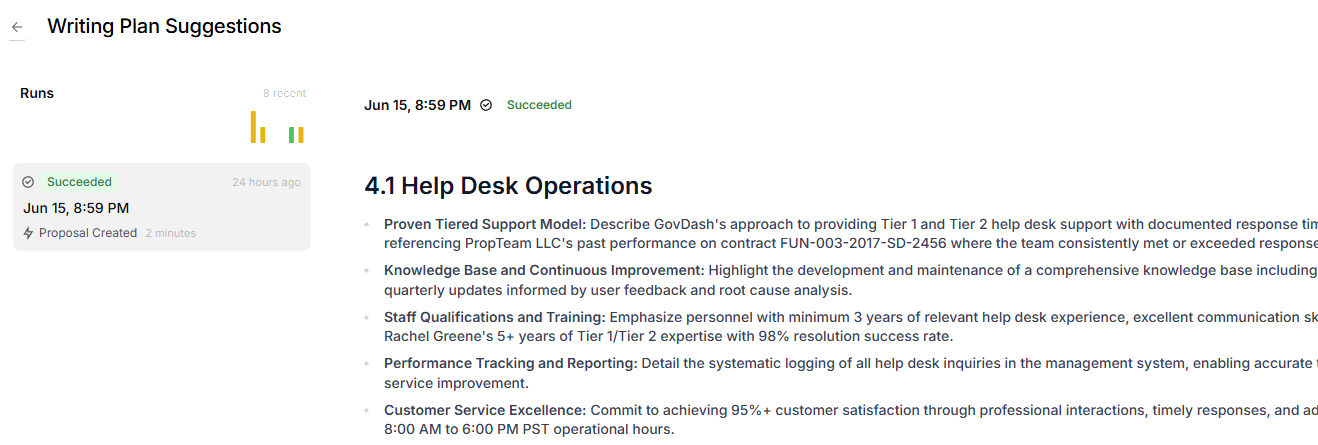
Track its work — every run is logged. On the Agents page you can see saved workflows, work in progress, and work completed, so you always know what your agents have done.
Tip
Test an agent on a couple of records first, then make small changes based on the results you see. This is the fastest way to get an agent you trust with your process.
Chatting with an agent about a run
Every agent run is a conversation. Once a run has finished, you can talk to the agent about what it did, ask for another pass at the output, give it the information it was waiting on, or have it update its own setup, all without leaving the run.
Opening the chat
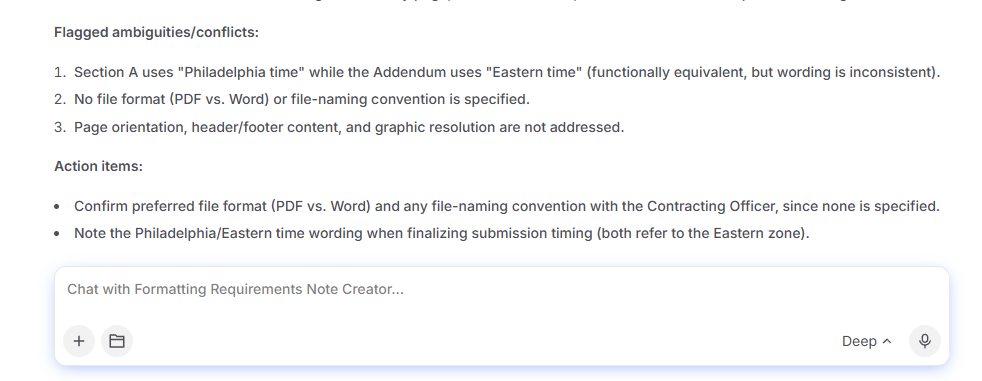
Select your agent from the list, and then choose a run from the agent's run history. The run's transcript opens, with Started by at the top so you can see who or what kicked it off.
Type your message in the Chat with <agent name>… box at the bottom of the run and send it. The agent replies in the same conversation, in character as your agent, using the same sources and actions you granted it.
Started a run and want to chat now? The chat box appears as soon as the run has finished. While a run is still Queued or Running, follow along in the transcript and chat with the agent once it wraps up.
Team-Agent Runs
Runs of an Entire team agent can be opened by anyone on your team. Only the person who started the run can send messages in that conversation; everyone else can read along. Runs of a Personal agent stay private to you.
Refine the output
If a run didn't land the way you hoped, say so in the chat: tell the agent what to change, what to prioritize, or what to leave alone, for example, "Focus on the incumbent's recent awards and keep the summary under 300 words." The agent keeps the context of the run it just completed, and it has the same sources and actions as that run, so it can pick up the work and revise it rather than starting from scratch.
Unblock a run that needs attention
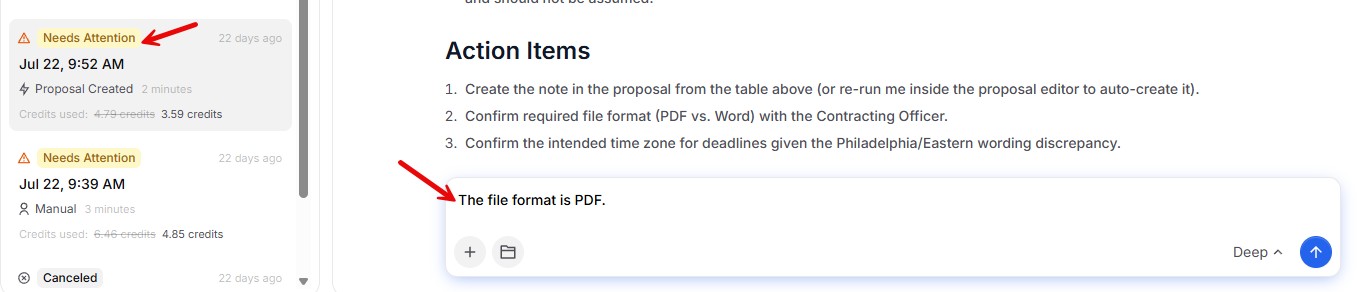
When an agent needs a decision or more information to keep going, it ends the run as Needs Attention and explains what it needs. Answer it in the chat: approve the approach, choose between options, or supply the missing detail, and the agent continues the task from there. Once the follow-up completes the work, the run updates to Succeeded.
Ask the agent to update itself
You can also ask the agent to change its own configuration, its name, its instructions and goal, when it runs, and the sources and actions it may use. Describe the change in the chat, and the agent will propose it and ask for your approval first: "I'd like to update my configuration. Would you like to apply those changes now?" Select Update Agent to apply the change, or decline to leave the agent exactly as it is.
Examples to start from
These are agents teams set up most often, grouped by lifecycle stage. Each lists when it runs and what it uses, build any of them from scratch, or look for a template under PROteam Agents. If your team doesn’t have any agents set up, GovDash will show you a recommended list from this pool.
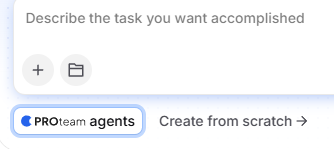
Here are some examples of what Dash Agents can accomplish:
Teaming Partner Recommendations: Who to Approach and Why: Translates gaps and pursuit posture into a concrete partner profile, checks existing relationships first, researches new candidates with a strict evidence standard, and delivers a ranked shortlist with cautions.
Prime/Sub Strategy Recommendation: How We Should Pursue: Weighs eligibility, position strength, and capacity to deliver a direct recommendation on pursuing as prime or positioning as a subcontractor, with conditions for success.
Consolidated Gap Report: What We Lack and How to Close It: Synthesizes prior analysis and company data into a consolidated gap assessment across capability, past performance, compliance, key personnel, and scale, with severity ratings and mitigation paths. Feeds the bid/no-bid discussion.
Past Performance Relevancy Analysis: Best References and Coverage Map: Reviews all documents in the contract inventory (contracts active in the last five years), ranks past performance by size, scope, and complexity relevance, and maps task area coverage with links to each record.
Competitive Landscape Analysis: Incumbent and Likely Bidder Identification: Mines the opportunity record for competitive intelligence, then researches the web to identify the incumbent and likely bidders with a strict evidence standard.
Pipeline Intake Screen: Bid Stoppers and Risk Flags: Scans any opportunity entering the pipeline for showstoppers, incumbent or wired-bid signals, and past performance constraints, then posts a flag report to the record.
Proposal Template Formatting Requirements: Extracts proposal submission and formatting requirements (fonts, margins, spacing, file naming, packaging, deadlines) from solicitation documents, records them as a checklist note on the pursuit, recommends the most compliant cover letter template, and creates a task for any requirements the template does not cover.
Try it Yourself - Opportunity First-Look Example
To show how an example becomes an agent, here is New opportunity first-look as you'd type it under What should Dash do?
AGENT INSTRUCTION
When a new opportunity is added to the pipeline, research the issuing agency, the likely incumbent, and recent related awards. Use Web Search for external context, and use the Contract and Data Library sources for our relevant past performance. Summarize how the opportunity fits our experience, list three reasons to pursue and three risks, and give an initial go / no-go lean. Save the findings to the opportunity record. Cite all external sources and stay under 600 words.
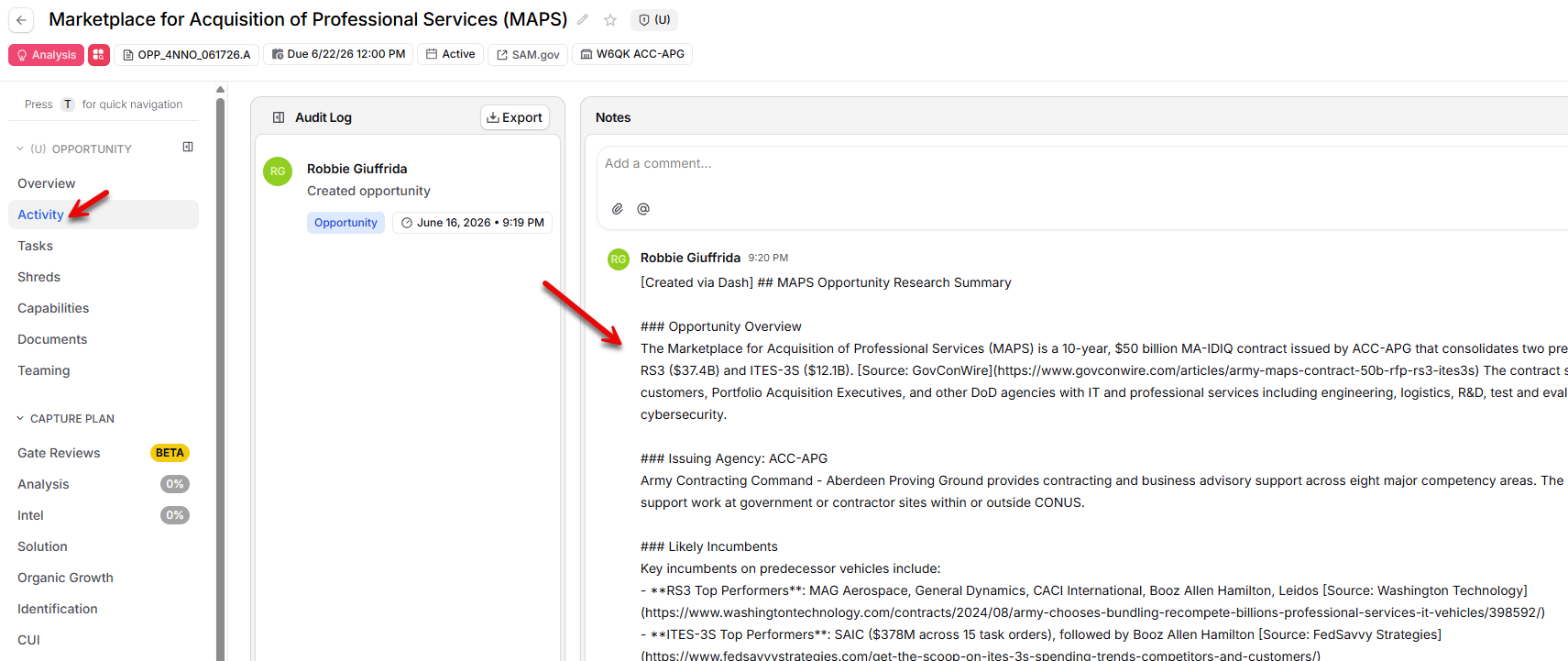
Set its trigger to Opportunity Created and turn on Capture, Contract, Data Library Documents, and Web Search. Once you add a new opportunity to your Pipeline, this will start the process and save the results to the Activity tab in your opportunity.
FAQ
Do I need to know how to code to build an agent?
No. You describe the task in plain language and choose a few options. Dash builds the agent with you.
Can an agent see data I don't have access to?
No. An agent only uses the sources and actions you allow when you set it up. It works within the access you grant.
Can my whole team use the same agent?
Yes. Set the agent to Entire team and it becomes available to everyone on your team, and its runs can be read by everyone on the team too. Set it to Personal to keep it to yourself.
How do I know what an agent did?
Every run is logged and every output is written back to the right record. You can review the full history of any agent at any time from the Agents page and selecting your agent from the list.
Can I change an agent after I create it?
Yes. Open the agent and select Configure to change its instructions, triggers, or sources whenever you need to.
Why can't I create, run, or change an agent?
Your role may not include the matching Agents permission. Agents have separate Read, Run, Create, Edit, and Delete permissions, so you might be able to view an agent but not run or configure it. Ask an Admin to update your role under Settings > Access & Permissions > Roles. Learn more in our Roles & Permissions article.