The GovWin integration allows you to connect GovDash to GovWin so you can import GovWin opportunities directly into your Capture pipeline. Imported opportunities include key details, documents, and ongoing updates from GovWin.
Setup
GovWin Integration Requirements
In order to successfully connect the GovWin integration in GovDash, please ensure you have:
An active GovWin IQ subscription
GovWin Web Services API* access enabled
GovWin Web Services API credentials
Admin-level role in GovDash
The ability to login to GovWin with a username and password (not just SSO)
*The GovWin Web Services API is a separate, paid add-on for your GovWin account. Please contact your GovWin representative for more information on costs and enabling the feature.
Create GovWin API Credentials
To connect GovDash to GovWin, you’ll first need to generate GovWin API credentials.
Log into GovWin and set up an API account following GovWin’s platform documentation. Once your API account is created, make note of your Client ID and Client Secret, as these will be required during setup in GovDash.
Creating Your GovWin Web Services API Credentials
Contact GovWin: Contact your GovWin Customer Success Manager (CSM) to enable the GovWin Web Services API for your account.
Access Web Services Administration: Log in to your GovWin IQ account, click your profile icon, and select Integrations > Web Services Administration.
Generate Credentials: Click "Enable New Application," enter a name (e.g., "GovDash Integration"), and select "GovWin IQ Webservices API" to generate a Client ID and Client Secret.
Secure Credentials: Save the generated Client ID and Client Secret in a secure location.
Create Dedicated Webservices Account (Optional): You can use an existing GovWin user account for the integration, or create a new user specifically for the integration. Many teams choose to create a dedicated integration user so the connection is not tied to an individual employee, but either option works.
Connect GovWin to GovDash
Next, log into GovDash and navigate to Settings > Configurations > Integrations. Scroll down to the GovWin section and click Connect GovWin.
In the dialog box, enter your GovWin Client ID and Client Secret, along with the username and password for the GovWin user account you want the integration to use. Then click Submit.
Once connected successfully, you will see a green Healthy status badge under GovWin. At that point, your GovWin integration is active and ready to use.
How to Use
Import Opportunities
Once the integration is set up, you can import GovWin opportunities into GovDash in two different ways:
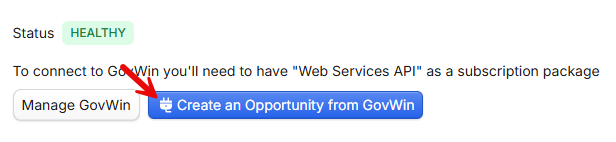
From the Integrations page, click Create Opportunity from GovWin
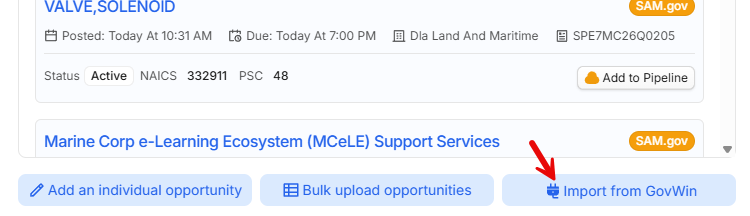
From the Capture dashboard or pipeline, click + Opportunity, then select Import from GovWin
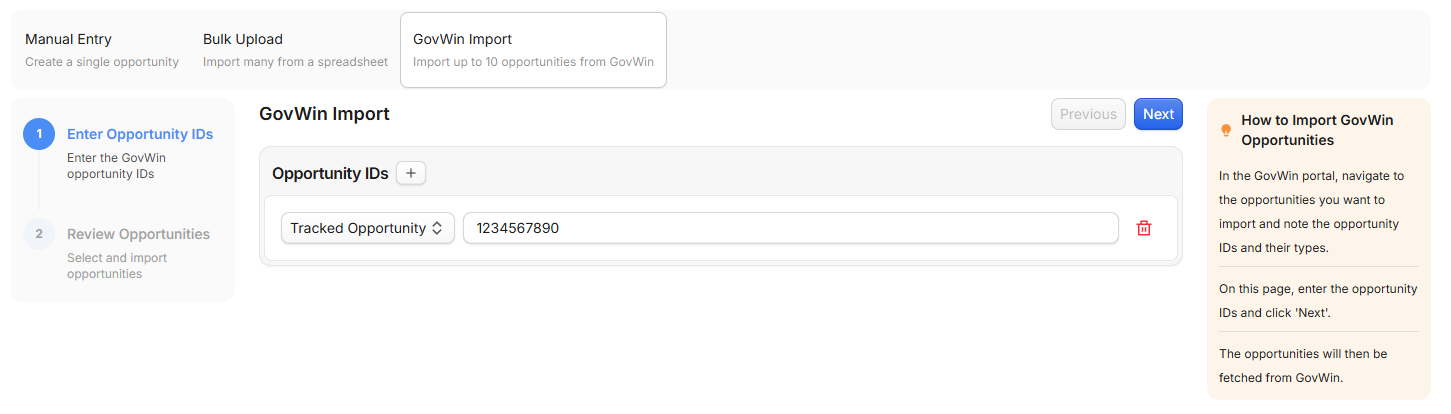
After selecting GovWin import, GovDash will prompt you to enter the Opportunity IDs for the opportunities you want to bring in. These IDs can be found directly in GovWin on the opportunity page under the field labeled “Opportunity ID” near the top of the page.
You can enter up to 10 Opportunity IDs at a time.
GovWin Data Types Supported
GovDash is able to import the following data types from GovWin at this time:
Tracked Opportunity (OPP####)
Opportunity Manager opportunities (TOP####)
Task Order Opportunities (TOONS) (TNS####)
Bid Notifications / Lead Alerts (BID####)
SAM Notices (FBO####)
Other Procurement Notices (APFS, SBIR, etc.) (OPN####)
After clicking Next, you’ll see a review screen showing the opportunities you entered. Each opportunity will be displayed with its key details, and you can expand the Description and Analyst Notes dropdowns to view additional information. Use the checkboxes on the left to select which opportunities you want to import.
Once you’ve selected at least one opportunity, click Add to Pipeline. GovDash will retrieve the opportunity details, documents, and related information from GovWin and create the opportunity in your Capture pipeline.
After Import
Once imported, the opportunity behaves like any other opportunity in GovDash. You can open it from your pipeline to view details, associated documents, and additional context.
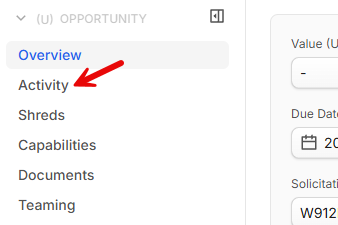
GovDash will also bring in GovWin Analyst Notes. When an opportunity is first imported, GovDash pulls the latest available Analyst Note and displays it in the Activity tab. Going forward, GovDash checks GovWin four times per day, and any updates (including new Analyst Notes) will be reflected automatically in the opportunity.
Important Information Regarding Analyst Notes
Please note that Analyst Notes from before the opportunity was imported are not available due to limitations in the GovWin API.
Ongoing Updates
Opportunities imported from GovWin will continue syncing automatically. If an opportunity is originally sourced from SAM.gov, it will also receive updates the same way other SAM.gov sourced opportunities do in GovDash.
FAQ
Will each user need their own GovWin login?
No. The integration runs off a single GovWin account login, whichever account was used during setup. If desired, your team can create a dedicated GovWin user specifically for the integration.
Can I upload a list of GovWin opportunities instead of entering 10 at a time?
Yes. This functionality is available through GovDash’s Bulk Upload feature.
How often does GovDash sync with GovWin?
Currently, GovWin syncs to GovDash four times per day.
Is there an alternative to the standard GovWin API for integration?
No. GovDash's current integration uses the GovWin API only — no alternative methods are supported.
Can I manually add a GovWin Opportunity ID to an opportunity?
Currently, GovWin IDs are associated only with opportunities created through the GovWin integration. If you would like to store the GovWin ID separately, we recommend using a Custom Field.
What types of GovWin opportunities or data can I import using the integration?
GovDash is able to import the following data types from GovWin at this time:
Tracked Opportunity (OPP####)
Opportunity Manager opportunities (TOP####)
Task Order Opportunities (TOONS) (TNS####)
Bid Notifications / Lead Alerts (BID####)
SAM Notices (FBO####)
Other Procurement Notices (APFS, SBIR, etc.) (OPN####)
Will all Analyst Notes sync over, or only the most recent?
When an opportunity is first imported, GovDash pulls in only the most recent Analyst Note available. After that, GovDash checks GovWin four times per day and logs updates going forward.
This is because the GovWin API only provides access to the latest Analyst Note at the time of retrieval.
Can we show the GovWin Opportunity ID directly on the opportunity page?
The Source field labeled “GovWin” is a clickable link to the original opportunity page in GovWin, and the Opportunity ID is included in that URL.
If you would like the Opportunity ID displayed as a dedicated field in GovDash, we recommend adding a Custom Field.
Will GovWin updates override my manual data?
Yes, currently. GovWin uses the same update logic as SAM.gov opportunities within your Pipeline — synced updates will overwrite manual entries.
Can I link/combine a GovWin opportunity with an existing SAM.gov opportunity?
Not yet. Connecting solicitations from different sources into one opportunity is planned.
Can I use the same GovWin Client ID across multiple GovDash teams?
No. Each GovDash team requires a separate GovWin Client ID. Use the GovWin's admin page to generate multiple Client IDs, and reach out to GovWin support for additional assistance with this step.
Why does the source sometimes show as SAM.gov instead of GovWin?
In some cases, GovWin reports that the underlying solicitation is sourced from SAM.gov. In the Review Opportunities screen, GovDash displays the source URL reported by GovWin.
Once the opportunity is imported into your Capture pipeline, it will still show as Sourced from GovWin at the top of the opportunity page.
Can one opportunity track multiple sources (GovWin, SAM.gov, etc.)?
At this time, GovDash does not support tracking and comparing multiple sources side-by-side on the same opportunity. Improvements to opportunity source tracking are being explored as part of broader Capture enhancements.
Why did my GovWin integration disconnect?
GovWin API passwords must be updated every six months, and GovWin does not send expiration notifications. If the password is not updated, the integration will disconnect and stop syncing.
We strongly recommend setting a recurring reminder to update the GovWin password before it expires.