Please Note
This guide is for users to get the Dash add-in set up in their Office apps. If your organization controls your Microsoft/Microsoft 365 access and account, please have your IT administrators follow this guide to allow you to install the add-on in your Microsoft Word, PowerPoint, and Excel applications.
Supported Versions
The Dash add-in supports the following desktop versions of Microsoft Word, PowerPoint, and Excel.
Microsoft Office 2016 (Retail)
Microsoft Office 2019 (Retail)
Microsoft Office 2021 (Retail/Volume-Licensed)
Microsoft 365 (Desktop)
Installing Through GovDash
Installing the Dash add-in in your supported Microsoft Office applications only takes a few steps, and the steps are the same for both Windows and macOS. Dash is currently supported in Microsoft Word, PowerPoint, and Excel.
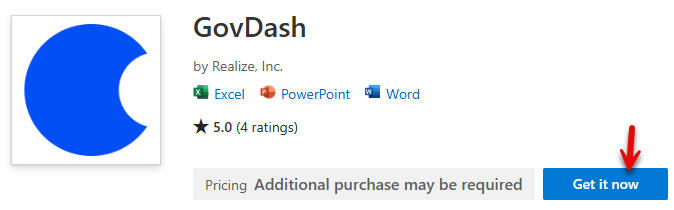
Access the add-in page on Microsoft’s online add-in store: https://marketplace.microsoft.com/en-us/product/WA200006048?tab=Overview
Click the blue Get it now button. If you are not currently signed in with a 365 or Microsoft account, you will be prompted to sign in before you can continue with the installation.
Click the Open in Word button to continue the installation of the add-in. This will automatically open your Microsoft Word application.
After the Microsoft Word applications opens, the GovDash Word Assistant will appear on the right-hand side and prompt you to login to your GovDash account. Complete the login process, and you'll be good to go to start using the Word Assistant.
Installing Through Your Office Applications
You can also install the Word Assistant add-in directly through Microsoft Word, PowerPoint, or Excel using the Add-ins button.
Open your Microsoft Office application (Word/PowerPoint/Excel), and click Add-ins in the top right of the application/ribbon.
Search for GovDash within the search bar.
Click Add next to the GovDash search result, as shown below.
.png "image(86).png")
If you can’t find Add-ins
Depending on your version of Microsoft Word/PowerPoint/Excel, the Add-ins button may also be located under the Developers tab. If you're not seeing the Developers tab and your add-ins button is not displayed as it is in the picture above, please see Microsoft's support article for enabling the Developers tab.
Dash Settings
Accessing Settings
To access your Dash in Office settings, navigate to Settings in GovDash, and then Dash within the Settings menu. You can also access using this direct link.
Word Assistant Consent
By enabling this setting, this will show an acceptance message each time the Word Assistant is opened within a Word document requiring consent from team members to use the Word Assistant within the document they have opened. This acts as a confirmation layer to ensure the Word Assistant isn’t being opened within documents unintentionally.
.png)
Web Search
You may optionally enable or disable the ability for the Word Assistant to be able to search the web as a source of information using the Web Searching toggle.
FAQ
What if my Microsoft account is controlled by my organization?
If your organization controls your Microsoft/Microsoft 365 access and account, please have your IT administrators follow this guide.
Which versions of Microsoft Word are supported by the GovDash Word Assistant?
The GovDash Word Assistant add-in supports Microsoft Office 2016, 2019, 2021, and Microsoft 365 versions of Microsoft Word.
Can I install the Word Assistant directly through Microsoft Word?
Yes, you can install the Word Assistant add-in directly through Microsoft Word.
What should I do if I can't find the Add-ins button in Microsoft Word?
If you can’t find the Add-ins button, it may be located under the Developers tab. You may need to enable the Developers tab as per Microsoft's support article.
What information does the Word Assistant have access to within the document that it’s opened in?
The Word Assistant does not have access to any document that is open without a user specifically selecting text within the document with the add-in open. This selected text gets used/processed in conjunction with a prompt sent using the Word Assistant, but it does not have access, nor does it process the document in its entirety.