Overview
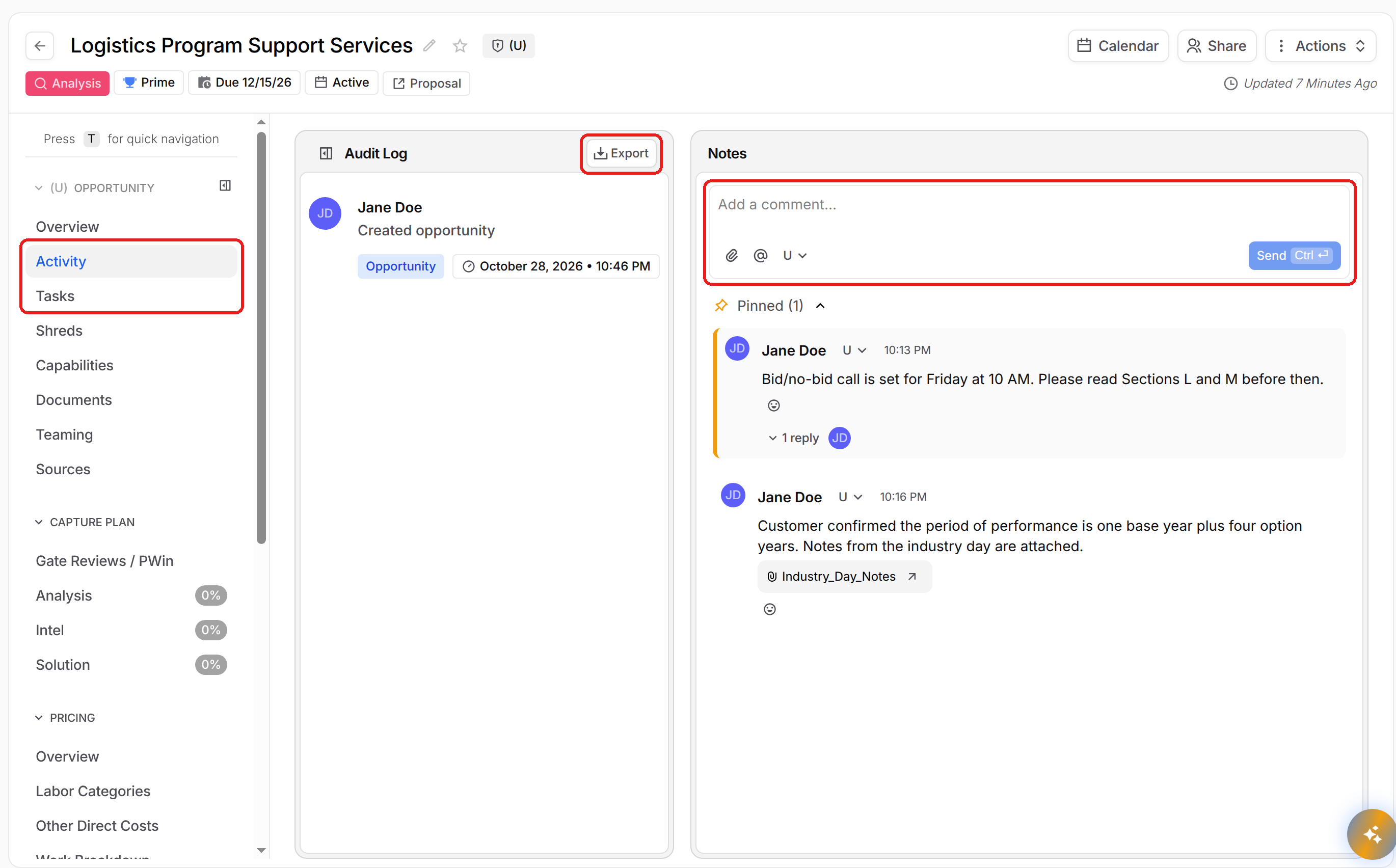
The Activity and Tasks tabs keep your team's updates, notes and work for an opportunity in one place. Activity shows the opportunity's Audit Log and your team's Notes. Tasks shows the opportunity's to-dos, grouped by status.
Click through the interactive walkthrough below to see how it works, or follow the steps below.
Opening Activity and Tasks
Open an opportunity from your Pipeline, then select Activity or Tasks under OPPORTUNITY in the side panel.
Reviewing the Audit Log
The Audit Log lists every change to the opportunity, with who made it and when. Entries made by a person show that person's name and avatar. Entries made by Dash show Dash, and entries made by a Dash Agent show the agent's name.
Select Export to download the log.
Posting Notes
Use Notes to share updates with everyone working on the opportunity. Type in Add a comment... and select Send. Before you send, you can:
Mention a teammate: select the @ button, then pick a name.
Attach documents: select the paperclip, choose your files and select Continue. Set a classification for each file, then select Confirm.
Set the classification: use the U menu to mark the note's classification.
Documents attached to a note stay with the note. Select one to open it.
Working with notes
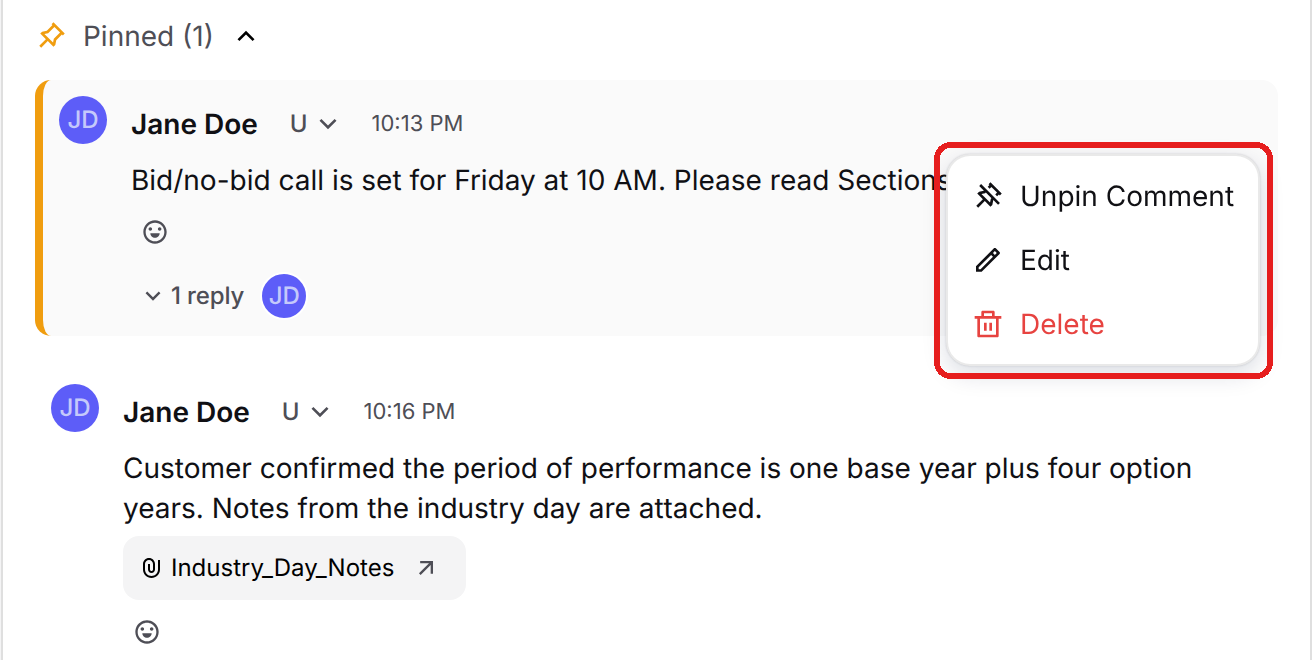
Hover over a note to react with an emoji or select Reply to start a thread. Open the note's menu to:
Pin Comment: keep the note at the top under Pinned. Select Unpin Comment to remove it.
Edit or Delete your own note.
You can also ask Dash to post or delete a note for you, for example "Add a note to this opportunity reminding the team that questions are due Friday" or "Delete the note you just posted." Dash can delete the same notes you can: your own and any left by Dash or your Dash Agents.
Adding Tasks
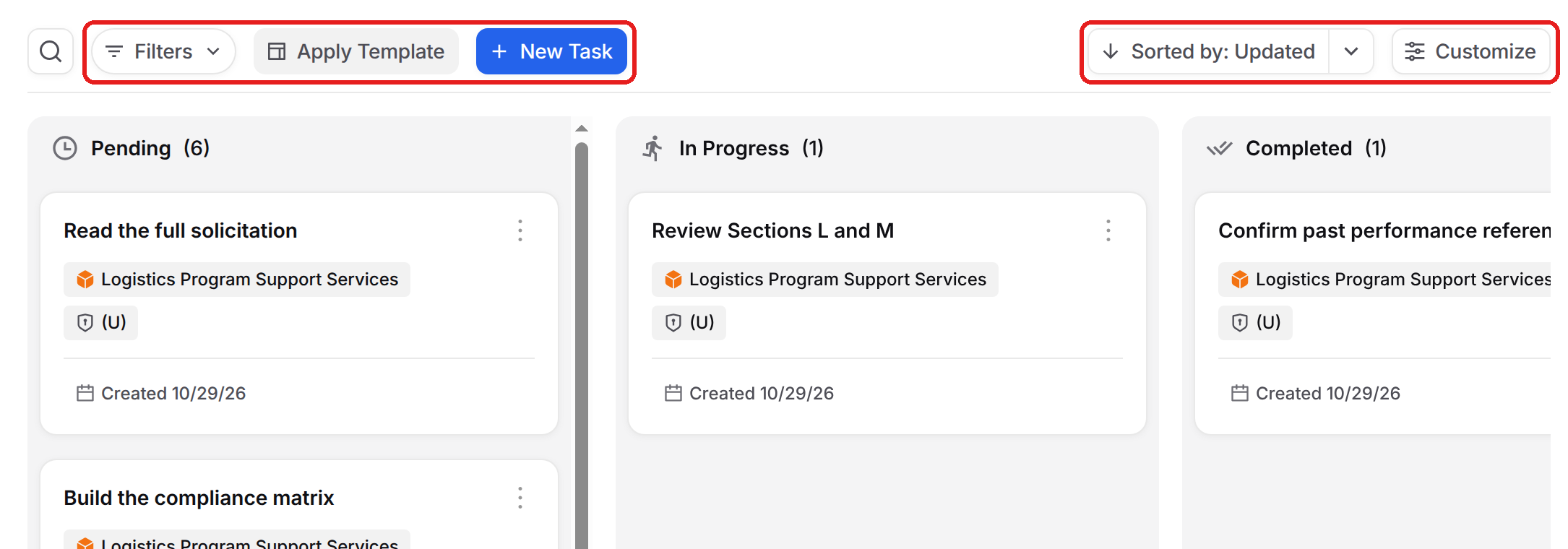
The Tasks tab shows every task for the opportunity in Pending, In Progress and Completed columns. Tasks you add here are linked to the opportunity automatically.
Creating a task
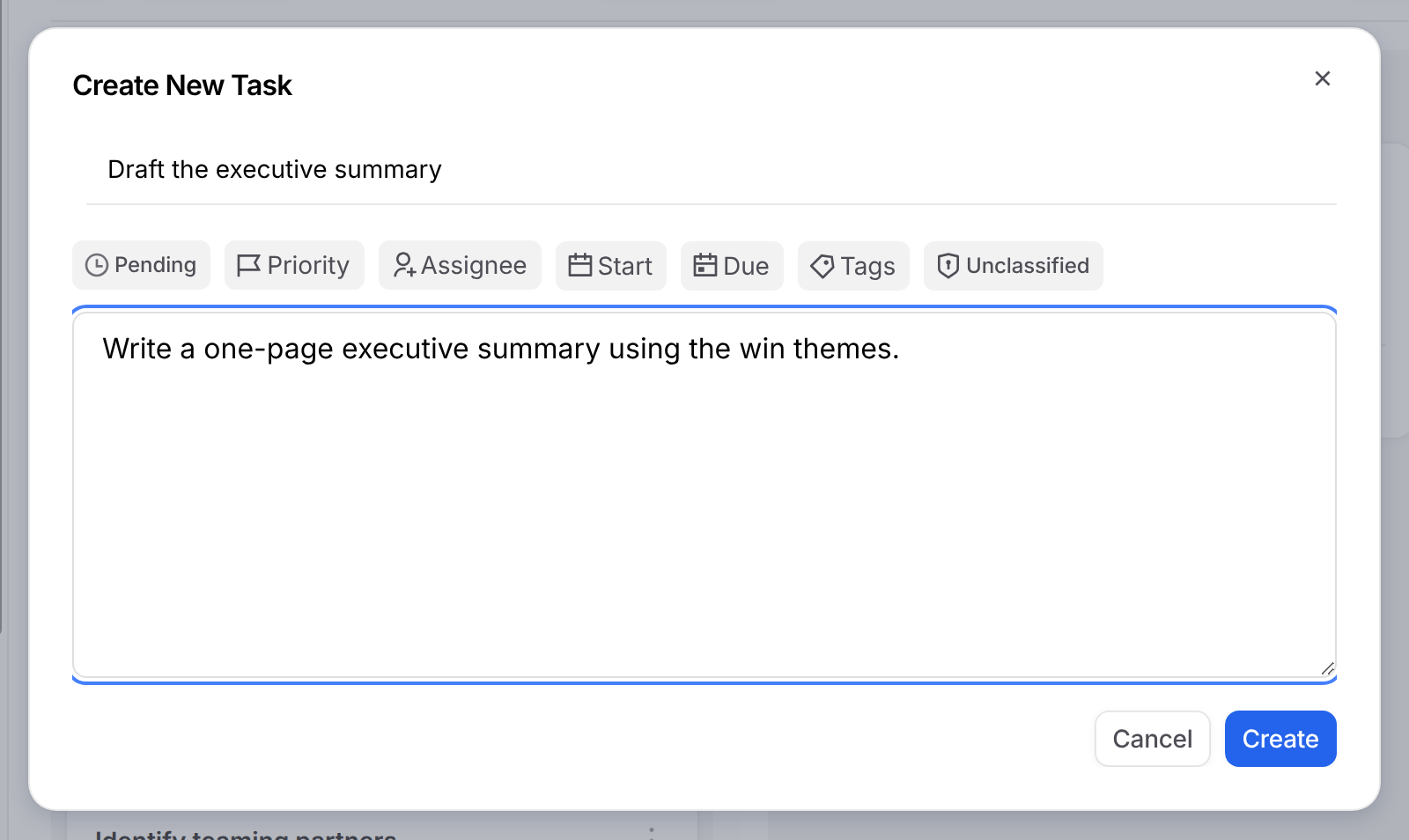
Select New Task.
Enter a title and description.
Use the buttons to set the status, Priority, Assignee, Start and Due dates, Tags and classification.
Select Create.
Applying a task template
Templates add a standard set of tasks in one step, for example the tasks your team does at the start of every capture.
Select Apply Template.
Choose a template.
Select Apply. Every task in the template is added to the opportunity.
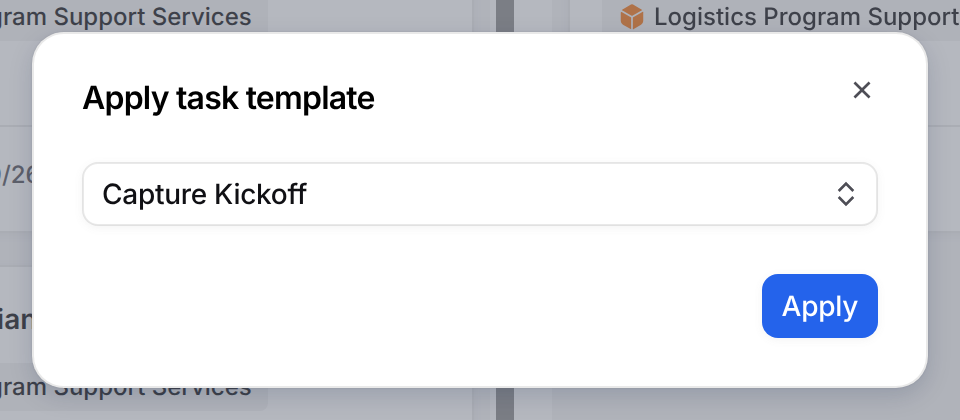
Only templates set up for capture opportunities appear here. Admins create templates in Settings under Tasks. See Customizing Tasks.
Filtering, Sorting and Customizing Tasks
Filters: narrow the list by Status, Assignee, Created By, Priority, Date Due, Classification or Tags.
Sorted by: change the order of the tasks.
Customize: switch between the Kanban, Expandable and Gantt layouts, choose which status columns show and turn Show Subtasks and the Preview Panel on or off.
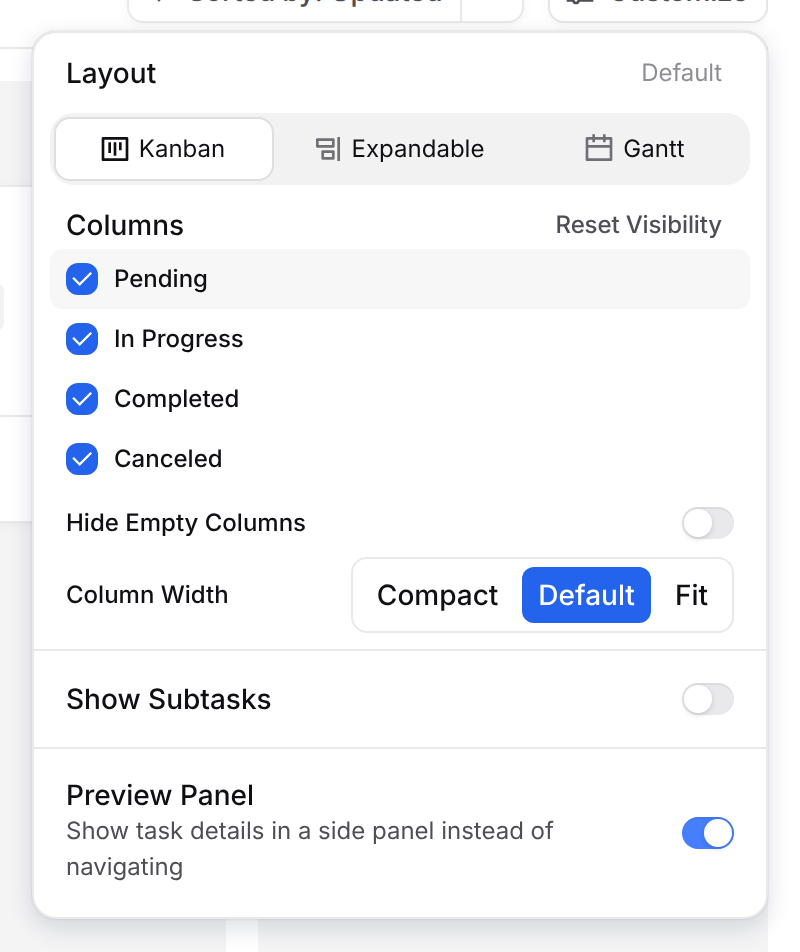
In the Expandable layout, Customize also lets you pick columns. Turn on Created By to see whether each task was created by a teammate, by Dash or by one of your Dash Agents.
Working on a Task
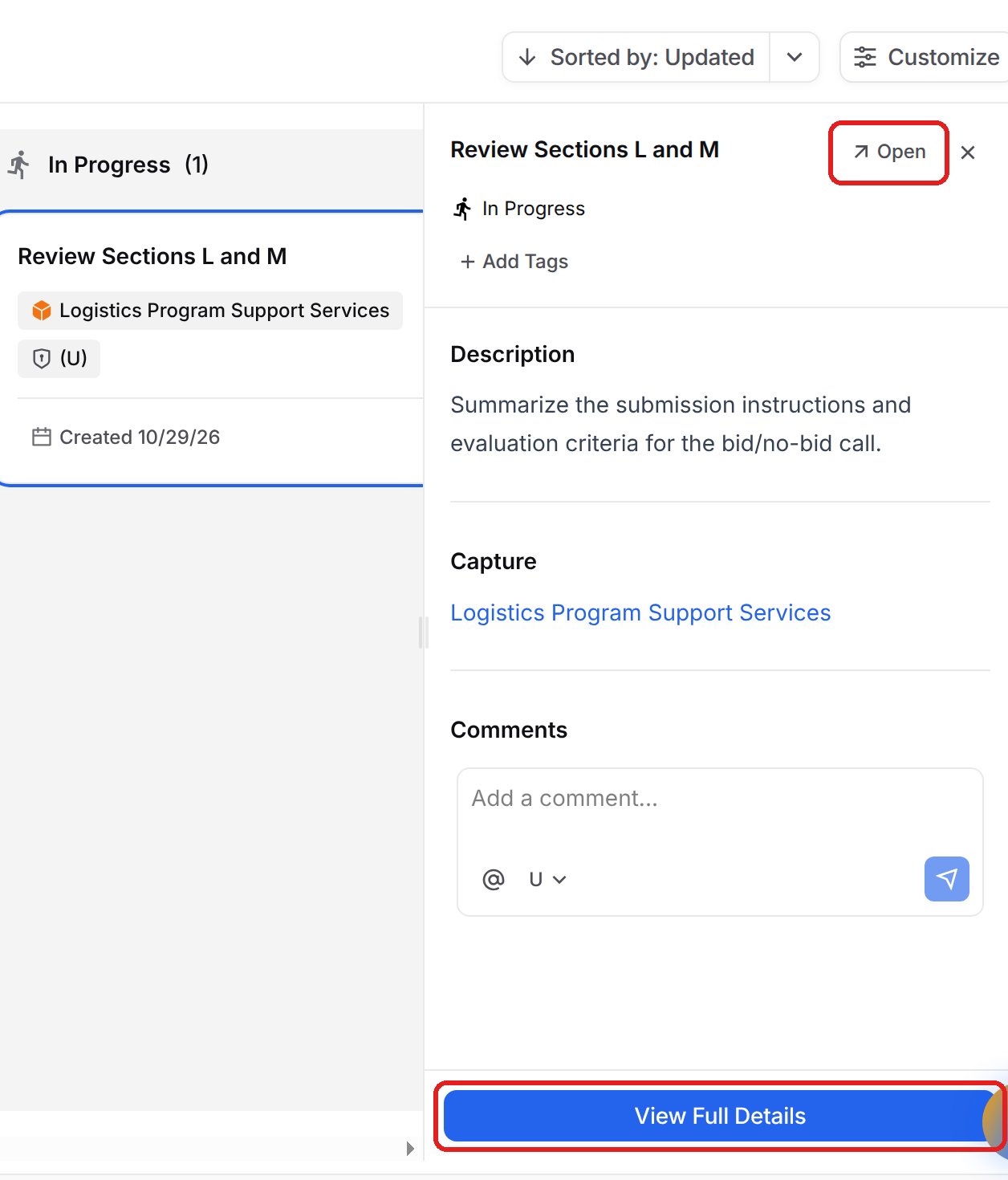
Select a task to open it in the preview panel, where you can add tags and comments. Select View Full Details or Open to go to the full task page.
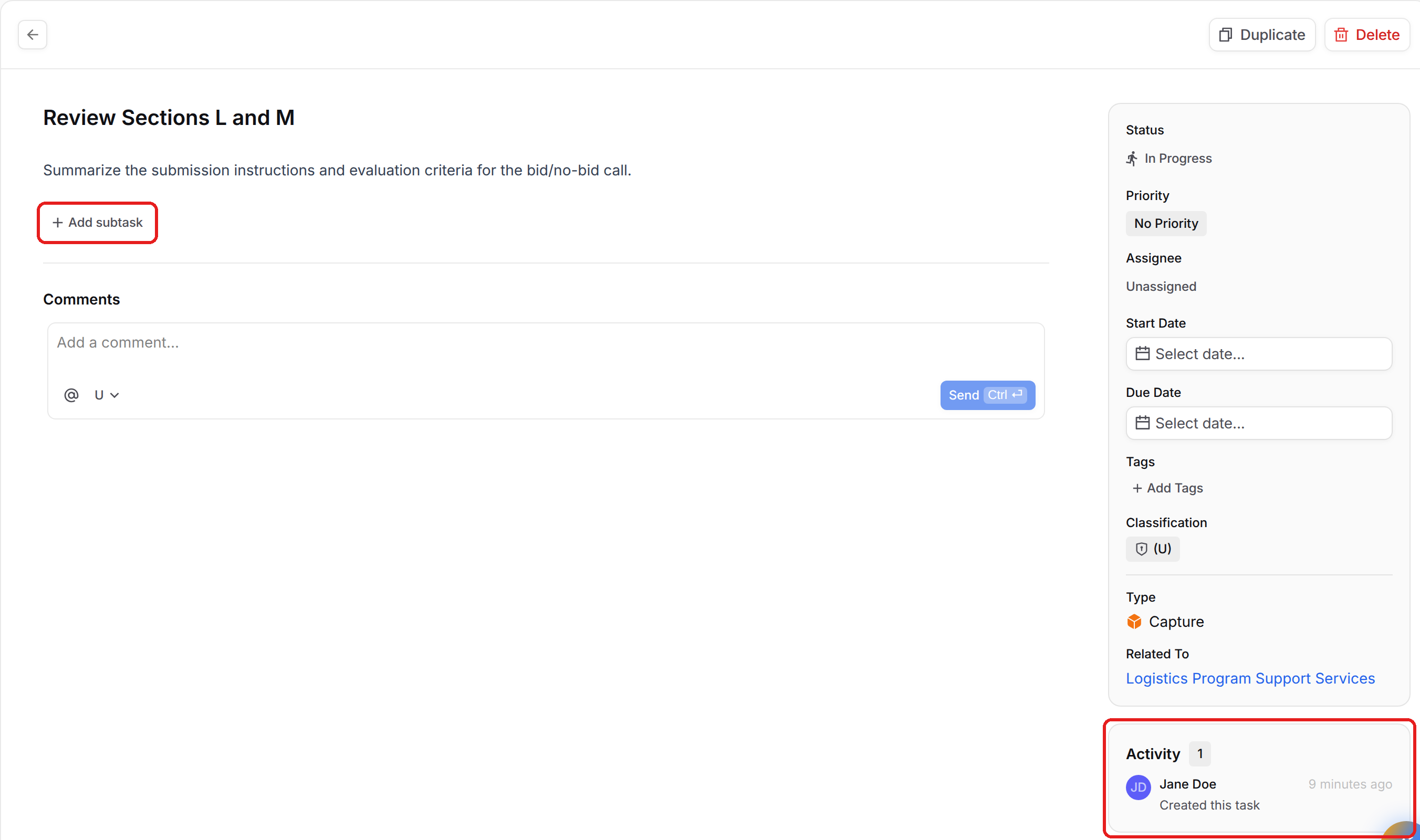
On the full task page you can:
Edit the title and description, and select Add subtask to break the work down.
Update the Status, Priority, Assignee, Start Date, Due Date, Tags and Classification on the right.
Leave Comments for your team, and see the task's history under Activity.
Select Duplicate to copy the task or Delete to remove it.
For more about tasks across GovDash, see Creating and Managing Tasks and Customizing Tasks.
FAQ
Are documents attached to comments added to Solicitation Documents?
No. Documents attached to comments stay with the comment. Upload them on the Documents tab or in the Data Library if you want to use them there.
Can I delete a teammate's comment?
No. Only the author can edit or delete a comment. You can delete your own comments and any comment left by Dash or your Dash Agents.
Why don't I see my task template?
Only templates set up for capture opportunities appear in Apply Template. See Customizing Tasks to create one.