Overview
Calendar Sync brings the meetings from your work calendar into the GovDash Calendar, so you can see them next to your opportunity deadlines, task due dates, and team events in one place. Each person connects their own calendar, and the events you bring in are private to you unless a GovDash teammate is invited to them.
You can sync the following calendars with GovDash:
Calendar | What syncs | Sync options |
|---|---|---|
Google Calendar | Your primary Google Calendar | Read-only or two-way |
Before you start
You need access to Calendar in GovDash. If you don't see the calendar settings described below, ask your GovDash administrator.
Each person connects their own calendar. Connecting your calendar doesn't add anyone else's events.
Your connection belongs to the GovDash team you're in when you connect. If you're on more than one team, connect in each team where you want to see your events.
To let GovDash make changes in your calendar (two-way sync), you need permission to create, edit, or delete calendar events in GovDash.
Google Calendar
Connect Google Calendar
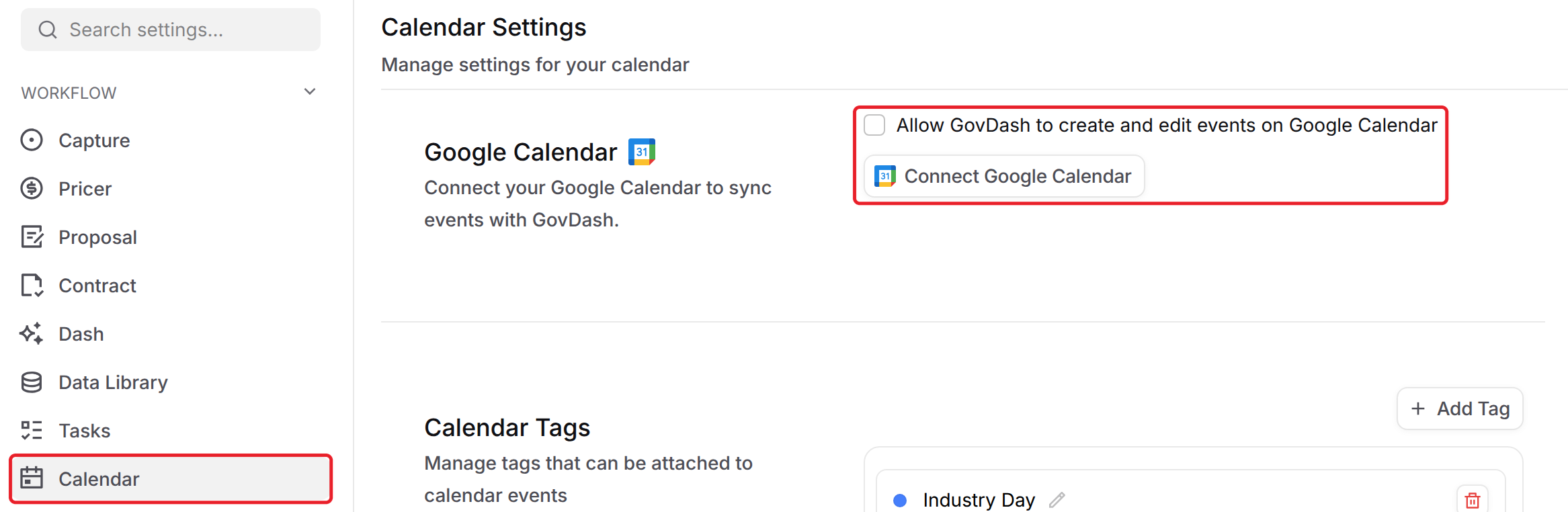
Open Calendar, then select the settings icon in the Calendar toolbar. You can also go to Settings and select Calendar.

In the Google Calendar section, choose how you want to sync. Leave Allow GovDash to create and edit events on Google Calendar unchecked for read-only sync, or check it for two-way sync. See the next section for the difference.
Select Connect Google Calendar.
Sign in to your Google account and allow GovDash to access your calendar.
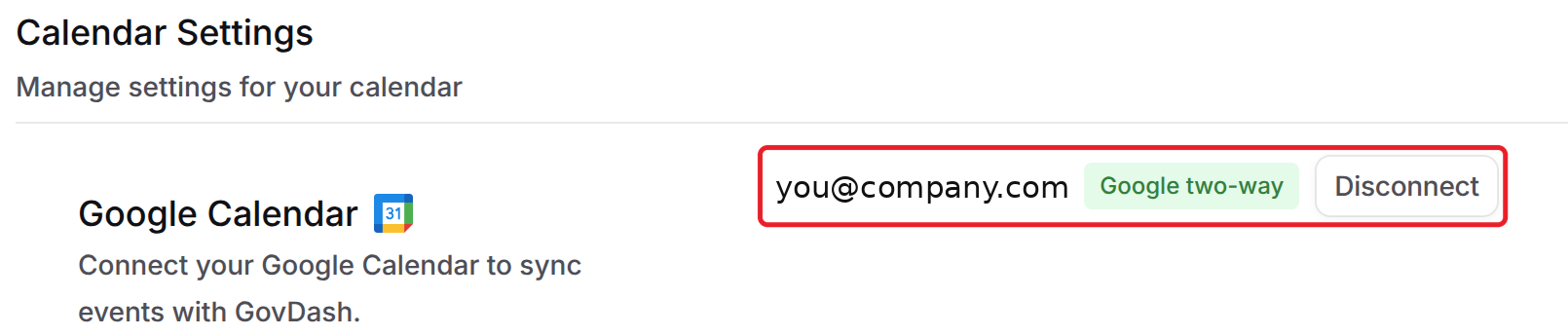
GovDash returns you to Calendar Settings and shows Google Calendar connected. The Google Calendar section now shows your Google email and either Google two-way or Google read-only.
You can also connect from Settings > Apps & Extensions.
Read-only and two-way sync
Read-only | Two-way | |
|---|---|---|
Your Google events show in GovDash | Yes | Yes |
Changes you make in GovDash to a Google event are saved to Google | No | Yes |
Deleting a Google event in GovDash deletes it in Google | No | Yes |
Events you create in GovDash are added to Google | No | No |
To switch between read-only and two-way, disconnect Google Calendar, then connect again with Allow GovDash to create and edit events on Google Calendar checked or unchecked.
How Google events appear in GovDash
What syncs: Events from your primary Google Calendar, starting one year back. Other calendars in your Google account, such as secondary or shared calendars, don't sync.
When it syncs: GovDash syncs each time you open the Calendar page. Syncing Google Calendar shows in the toolbar while it runs.
Who can see them: Google events come into GovDash as Private and Unclassified. Only you and GovDash teammates invited to the event can see them. If you change an event's visibility or classification in GovDash, your change is kept the next time GovDash syncs.
Organizer and guests: The organizer and guest list come from Google.
Responses: Google events don't show responses or the Yes, Maybe, and No buttons in GovDash. Respond to the invitation in Google Calendar.
Canceled events: When an event is canceled or deleted in Google, GovDash removes it the next time it syncs.
Edit Google events in GovDash
With two-way sync, when you edit a Google event in GovDash (for example, its title, time, location, or description) or delete it, the change is saved to Google Calendar too. GovDash doesn't email your guests about these changes.
You can't change the guests on a Google event in GovDash. Add or remove guests in Google Calendar.
Events with a classification other than Unclassified are never sent to Google.
Events you create in GovDash stay in GovDash and aren't added to Google Calendar.
With read-only sync, changes you make in GovDash aren't sent to Google. If the event later changes in Google, the Google version replaces your GovDash changes the next time GovDash syncs.
Disconnect Google Calendar
Go to Settings and select Calendar.
In the Google Calendar section, select Disconnect.
GovDash shows Google Calendar disconnected. Your Google events no longer show in GovDash, and nothing changes in your Google Calendar.
Troubleshooting
What you see | What to do |
|---|---|
Google Calendar connection failed with Google Calendar access was not granted. Allow calendar permissions and try again. | Connect again, and allow calendar access when Google asks. |
Google rejected the connection. Please try again. | Connect again. If it keeps happening, contact GovDash support. |
Google Calendar didn't sync. GovDash events are unchanged. | Refresh the Calendar page to sync again. Your GovDash events aren't affected. |
You don't see Allow GovDash to create and edit events on Google Calendar | You need permission to create, edit, or delete calendar events. Ask your GovDash administrator. |
A Google event is missing in GovDash | Make sure the event is on your primary Google Calendar and is less than a year old, then open the Calendar page again to sync. |
FAQ
Can my teammates see my Google events?
Only if they're invited to the event. Google events come into GovDash as Private, so only you and invited GovDash teammates can see them.
Does GovDash email my guests when I change a Google event?
No. Changes you make in GovDash with two-way sync are saved to Google without emailing your guests.
Do events I create in GovDash show up in Google Calendar?
No. Events you create in GovDash stay in GovDash. Two-way sync only updates events that came from Google.
Can I connect more than one Google account?
You can connect one Google account in each GovDash team. Connecting a different account replaces the one that's connected.