Overview
The Google Drive integration lets you bring documents from Google Drive into GovDash without downloading and re-uploading them. Once you're connected, a Google Drive tab appears anywhere you attach documents in GovDash, including the Data Library, opportunity solicitation packages, capture questions, proposal drafts, contracts and deliverables, teaming agreements, and comment attachments.
GovDash requests read-only access to Google Drive. It never creates, edits, moves, or deletes anything in your Drive.
How the integration works
Everyone connects their own Google account. GovDash doesn't use a shared service account. Every request GovDash makes to Google Drive runs as the person importing, so Google enforces the same file permissions you already have in Drive. If you can't open a file in Drive, GovDash can't either.
Admins approve locations, and members import from them. A team admin chooses which folders, shared drives, or individual files the team can import from. Members only ever see the approved locations their own Google account can already access.
Before you begin
Any GovDash user can connect their own Google account. Approving locations for your team requires the Manage Team Integrations permission in your assigned role. For more on roles, see Roles & Permissions.
If your organization restricts third-party apps in Google Workspace, a Google Workspace admin may need to allow GovDash before anyone can connect. See Google Workspace admin approval below.
Setup
Setup happens in three stages. An admin connects their Google account and approves locations for the team, each teammate connects their own Google account, and then everyone imports from the Google Drive tab.
Step 1: Connect your Google account
Open Settings in GovDash and go to Integrations.
Scroll to the Google Drive section and click Connect Google Drive.
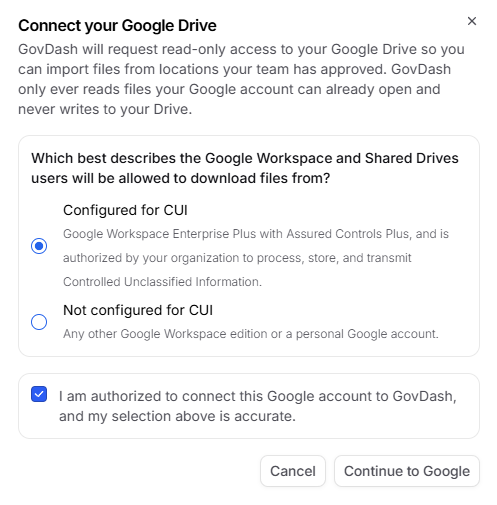
In the dialog that appears, select the option that best describes the Google Workspace your account belongs to:
Configured for CUI: your organization runs Google Workspace Enterprise Plus with the Assured Controls Plus add-on and has set it up to handle Controlled Unclassified Information.
Not configured for CUI: any other Google Workspace edition, or a personal Google account.
Either selection lets you connect. GovDash records your answer for compliance purposes. See Google Workspace and CUI below for details.
Check the box confirming you're authorized to connect the account and that your selection is accurate, then click Continue to Google.
Sign in with the Google account you use for Drive and approve the requested permissions. Google will show that GovDash is asking to see and download your Google Drive files, along with your basic profile information.
You'll return to GovDash with your account listed under Google Drive, along with the CUI selection you made in step 3.
Requested permissions
Requested scope | How GovDash uses it |
|---|---|
drive.readonly | Browse, search, and download files your Google account can access. GovDash uses this to show your team's approved locations and import the files you select, and to let admins browse Drive when approving locations. It cannot create, edit, move, or delete anything in Drive. |
openid | Sign you in with your Google account. |
Show the email address of the connected account in GovDash. | |
profile | Show your name on the connected account in GovDash. |
Google Workspace admin approval
Some organizations restrict which third-party apps can access Google Workspace data. If Google shows an error such as "This app is blocked" or "Admin approval required" during sign-in, a Google Workspace super admin needs to allow GovDash in the Google Admin console under Security > Access and data control > API controls > Manage Third-Party App Access.
GovDash requests the drive.readonly, openid, email, and profile scopes.
Step 2: Approve locations for your team
This step requires the Manage Team Integrations permission and only needs to be done once per team.
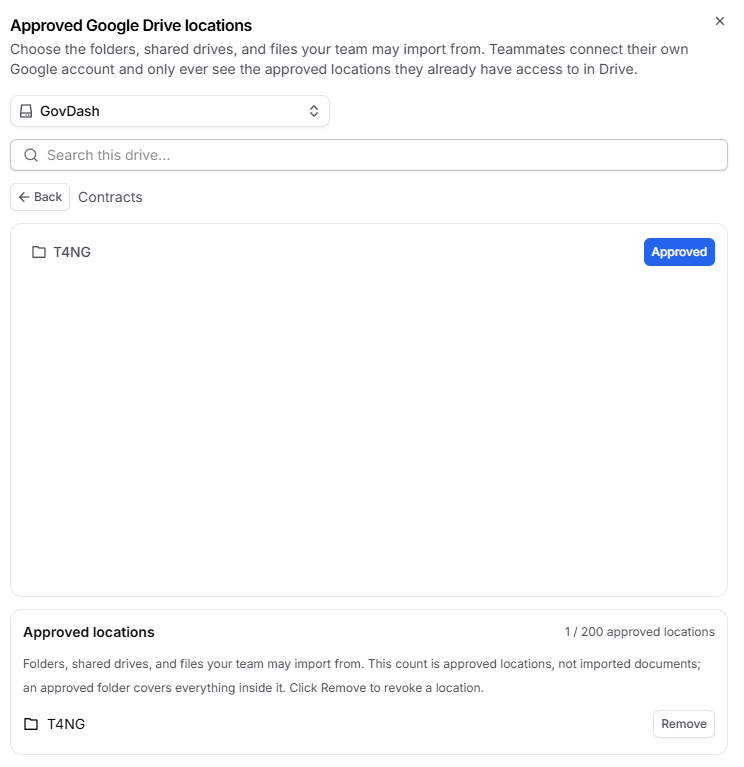
Under Settings > Integrations > Google Drive, click Manage approved locations.
Use the drive selector to switch between My Drive and any shared drives your Google account can see.
Browse or search for the folders and files you want teammates to import from, then click Approve (or Approve folder). While viewing the root of a shared drive, you can also click Approve entire drive.
Everything approved for the team appears in the Approved locations list at the bottom, along with a count of approved locations against the 200-location limit. Click Remove next to any location to revoke it.
Key Approval Information
Approving a folder or shared drive covers everything inside it, including files added later, so there's no need to approve individual files within it.
A team can approve up to 200 locations. The count reflects approved locations, not imported documents. If you reach the limit, approve a parent folder instead of its contents.
Approvals belong to the team, not the admin who made them. If that admin leaves or disconnects their Google account, the approvals stay in place.
Approving a location doesn't grant anyone access in Google. Teammates still only see approved locations their own Google account can open.
Step 3: Teammates connect their own Google accounts
Everyone who wants to import from Google Drive connects their own Google account. Teammates don't need the Manage Team Integrations permission to connect their account. There are two ways to connect:
From Settings > Integrations, following Step 1 above.
From any upload dialog in GovDash. Click the Google Drive tab, then click Connect Google Drive. Once the connection completes, you'll land in the Data Library, and the Google Drive tab is ready to use everywhere from then on.
Using Google Drive with GovDash
Importing files
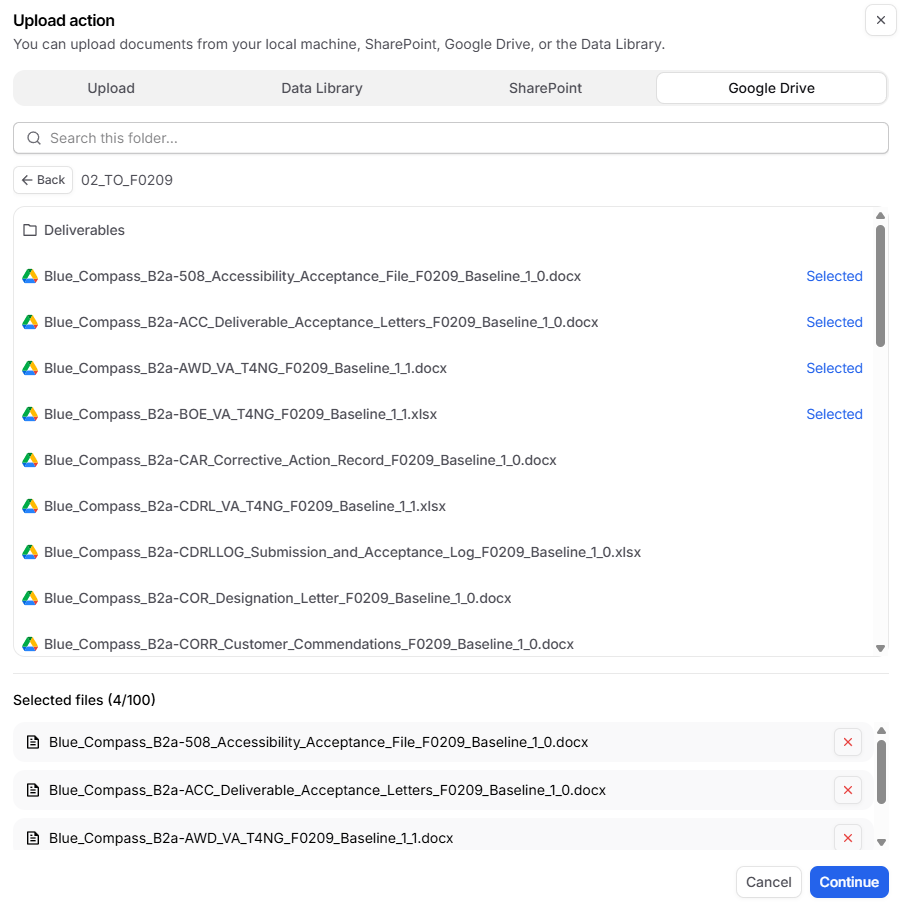
Anywhere you can attach or upload a document, choose the Google Drive tab.
The picker opens to your team's Approved Google Drive locations, filtered to the ones your Google account can access. Click a folder to browse into it, or use the search box to find a file by name.
Click a file to select it. Selected files appear in the list below the picker.
Click Continue, then set a data classification for each file on the Review & Confirm step, just as you would for a regular upload.
Click Confirm. GovDash copies the current contents of each file into your team's GovDash storage and processes it like any other document.
What gets imported
GovDash takes a snapshot of each file at the moment you import it, so later edits in Google Drive won't appear in GovDash. To bring in a newer version, import the file again from the Google Drive tab. This creates a new document alongside the original rather than replacing it. Keeping imported documents in sync with Drive is planned for a future release.
Files must be under 500 MB. Google limits exports of Docs, Sheets, and Slides to 10 MB.
File type in Drive | What GovDash imports |
|---|---|
Uploaded files (PDF, Word, Excel, PowerPoint, images, and more) | The file as-is |
Google Docs | Exported as a Word document (.docx) |
Google Sheets | Exported as an Excel workbook (.xlsx) |
Google Slides | Exported as a PowerPoint deck (.pptx) |
Google Forms, Drawings, Sites, Maps, and other Google-native types | Not importable; shown greyed out in the picker |
Shortcuts | Folder shortcuts open the target folder; file shortcuts are not importable |
Reprocessing and revoked access
Whenever GovDash needs to read a Google Drive document again, for example when you reprocess it, it re-checks two things using the importing user's Google account: that the account can still open the file in Drive, and that the file is still inside a location approved for your team.
If either check fails, processing stops and the document shows an error. That means removing an approved location, revoking someone's access to the file in Drive, or disconnecting the importing user's Google account will all stop GovDash from reading the file again. Documents that were already imported stay in GovDash as snapshots.
Google Workspace and CUI
Google Workspace can hold Controlled Unclassified Information (CUI) only under specific conditions. Its core services, including Drive, Docs, Sheets, and Slides, carry a FedRAMP High authorization. For most CUI categories, organizations also need the Enterprise Plus edition with the Assured Controls Plus add-on so that data storage and Google support access are limited to the United States. Business and Enterprise Standard editions can't add Assured Controls Plus and are generally suitable for FCI (CMMC Level 1) only. For details, see Google's FedRAMP configuration guide and CMMC compliance page.
How this affects the GovDash integration
GovDash only reads from Google Drive and never writes files to it, so connecting a Drive that isn't configured for CUI doesn't move CUI out of GovDash's boundary. You can connect either kind of Workspace.
Files you import are classified in GovDash at import time and are protected according to that classification from then on, regardless of where they came from.
When you connect, GovDash asks whether your Workspace is configured for CUI and records your answer. The answer appears next to your account under Settings > Integrations > Google Drive and is written to your team's activity log for compliance accounting. It doesn't change what you can do in GovDash.
If your Google Workspace is not configured for CUI, don't store CUI in it. CUI shouldn't live in a Drive that can't hold it, whether or not GovDash is connected.
Disconnecting your Google account
To disconnect, go to Settings > Integrations > Google Drive and click Disconnect next to your account. GovDash deletes its copy of your Google credentials immediately, and documents you've already imported aren't affected.
Because GovDash re-checks access as the importing user, documents you imported can't be reprocessed after you disconnect. You can also revoke GovDash's access at any time from your Google Account permissions page.
FAQ
Who can set up the Google Drive integration?
Any GovDash user can connect their own Google account. Approving locations for the team requires the Manage Team Integrations permission in your assigned role.
Does GovDash have access to my entire Google Drive?
Google's read-only permission covers the files your account can access, but GovDash only lets your team browse and import from locations an admin has approved. Within those locations, you only see files your own Google account can already open.
Can GovDash edit or delete files in my Google Drive?
No. GovDash requests read-only access and never creates, edits, moves, or deletes anything in Drive.
Will changes I make in Google Drive sync to GovDash?
Not today. GovDash imports a snapshot of each file, so later edits in Drive aren't reflected. To bring in a newer version, import the file again. This is different from the SharePoint integration, which syncs changes automatically.
Can I connect a personal Google account?
Yes. Select Not configured for CUI when you connect. Check with your organization first, since many teams require work files to live in a managed Google Workspace.
Why don't I see a folder my admin approved?
Your Google account doesn't have access to that folder in Drive. Ask the folder owner to share it with you, and it will appear in the picker the next time you open it.
Why is a file greyed out in the picker?
Some Google-native file types, such as Forms, Drawings, Sites, and Maps, can't be imported. File shortcuts can't be imported either; open the original file's folder and select it there instead.
Why did reprocessing a Google Drive document fail?
GovDash re-checks access as the person who imported the document. Reprocessing stops if that person's Google account can no longer open the file, the file is no longer in an approved location, or that person has disconnected their Google account.
What happens to imported documents if I disconnect my Google account?
They stay in GovDash as snapshots and remain usable, but they can't be reprocessed from Drive. To get a fresh copy, reconnect and import the file again.
I see "This app is blocked" when I try to connect. What should I do?
Your organization restricts third-party apps in Google Workspace. Ask your Google Workspace super admin to allow GovDash under Security > Access and data control > API controls > Manage Third-Party App Access in the Google Admin console.
Our Google Workspace isn't configured for CUI. Can we still connect?
Yes. GovDash only reads from Drive, so connecting doesn't move CUI out of GovDash's boundary. Just don't store CUI in a Workspace that isn't configured to hold it