Overview
The Microsoft Teams GCC High integration brings Dash directly into your GCC High Microsoft Teams environment. Once connected, you can message Dash one-on-one or tag Dash in a standard channel or thread to get help without leaving Teams.
Unlike the Commercial Teams integration, the GCC High integration runs entirely on Microsoft government endpoints and can be connected for CUI (Controlled Unclassified Information).
Installation Instructions
Setup happens in four stages: upload the Dash GCC High app to your organization, have IT approve it, install it in your Teams desktop client, and connect GCC High Teams within GovDash.
Step 1: Upload Dash to your Microsoft Teams GCC High organization
Please Note
This step is only required the first time anyone in your organization installs Dash into Microsoft Teams. If a colleague has already uploaded the app, skip to Step 4.
GCC High App Package
The GCC High integration uses a dedicated app package (ProdTeamsAppGccHigh.zip) with its own app ID. Do not upload the Commercial TeamsApp.zip package to a GCC High tenant.
Download the Dash GCC High app package provided below
In your Microsoft Teams desktop client, upload the ProdTeamsAppGccHigh.zip manifest to your organization.
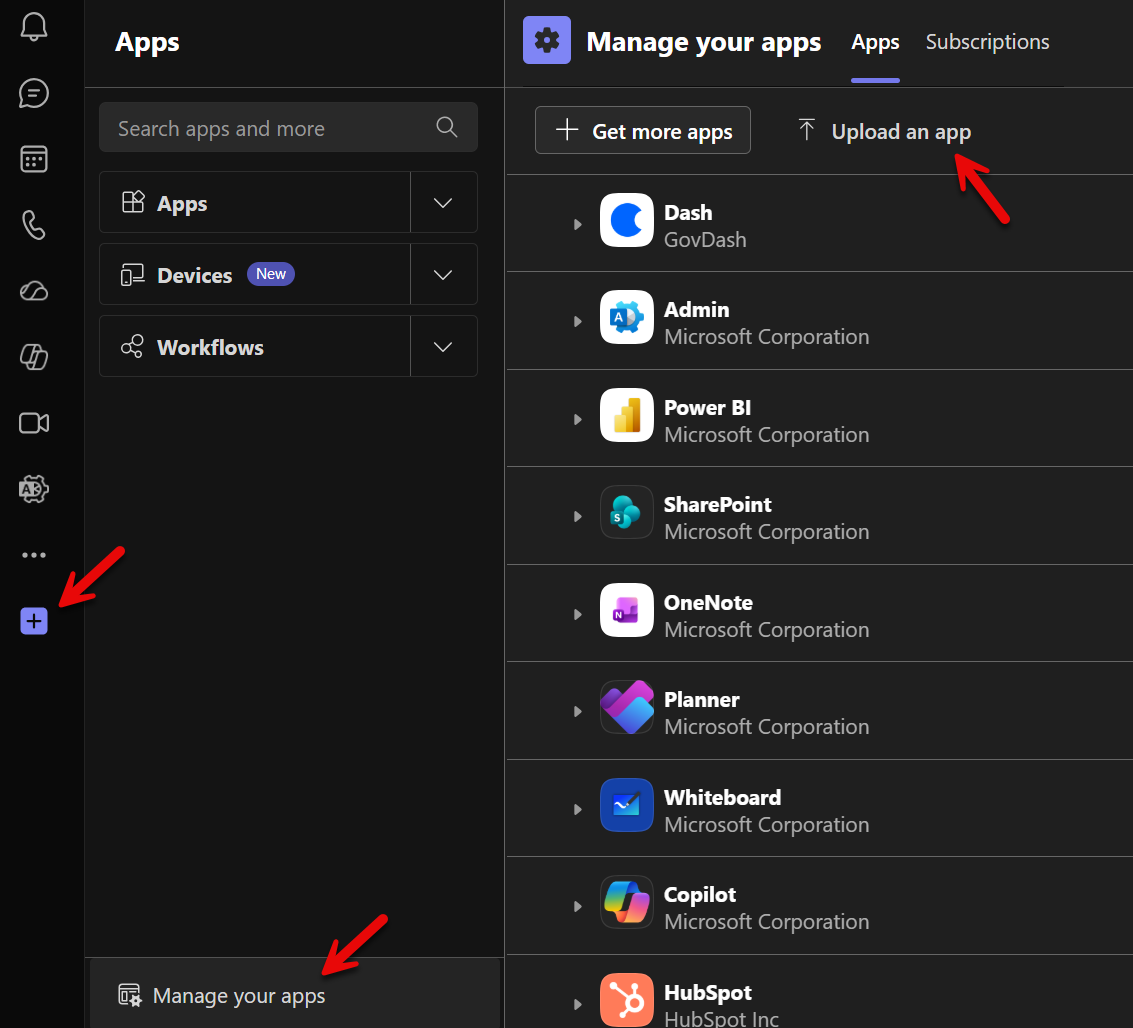
3. Once the app is uploaded, your IT team must approve it in the GCC High Teams Admin Center (see next step).
Step 2: IT Team Approval
To approve Dash in your organization’s GCC High Microsoft Teams environment, an admin must approve the app after a user has uploaded the Dash manifest (Step 1).
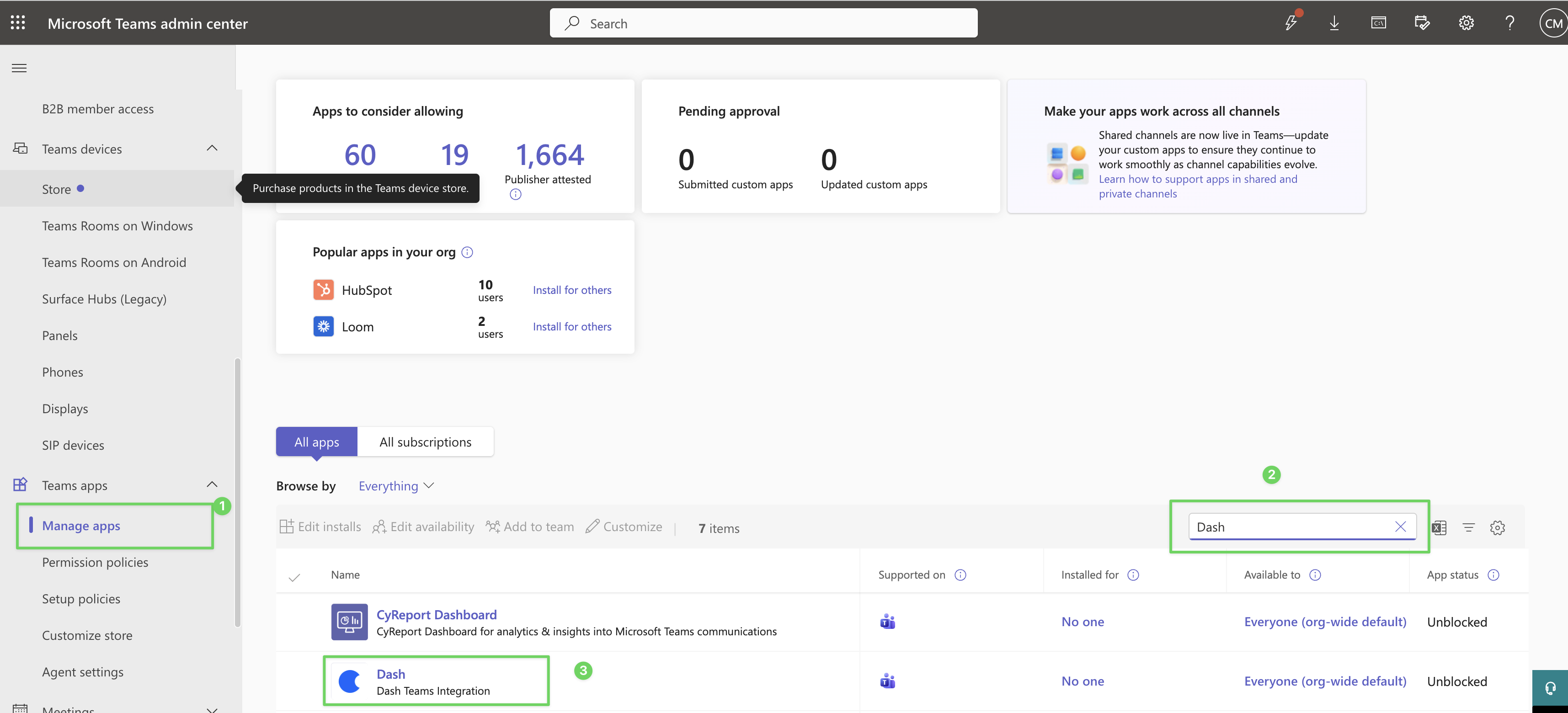
Have an IT admin log in to the GCC High Teams Admin Center at admin.gov.teams.microsoft.us.
Locate Dash on the Manage apps page and approve it.
Please Note
If the manifest has been uploaded but Dash is missing from the Manage apps page, log out and log back in to admin.gov.teams.microsoft.us. Microsoft often only refreshes the list of available apps on a new login session.
Once the admin has approved the app, users can install it within their desktop client.
Step 3: Install Dash in your Teams desktop client
After your IT team approves the app, sign out and sign back in to Microsoft Teams so that Dash appears within your Apps Built for your org section.
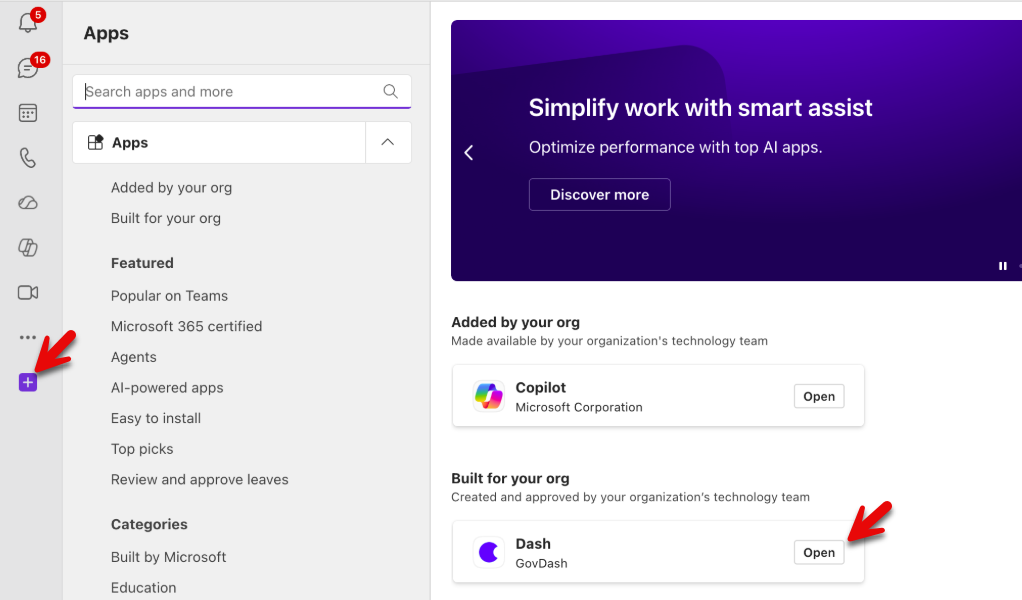
Dash will show either an Open button (if it has already been installed) or an Add button (if this is your first time installing it). Click the button to add Dash.
Step 4: Connect GCC High Teams within GovDash
Permission Required
You must have the Manage Team Integrations permission in your assigned role. For more information on roles and permissions, please see our support article here.
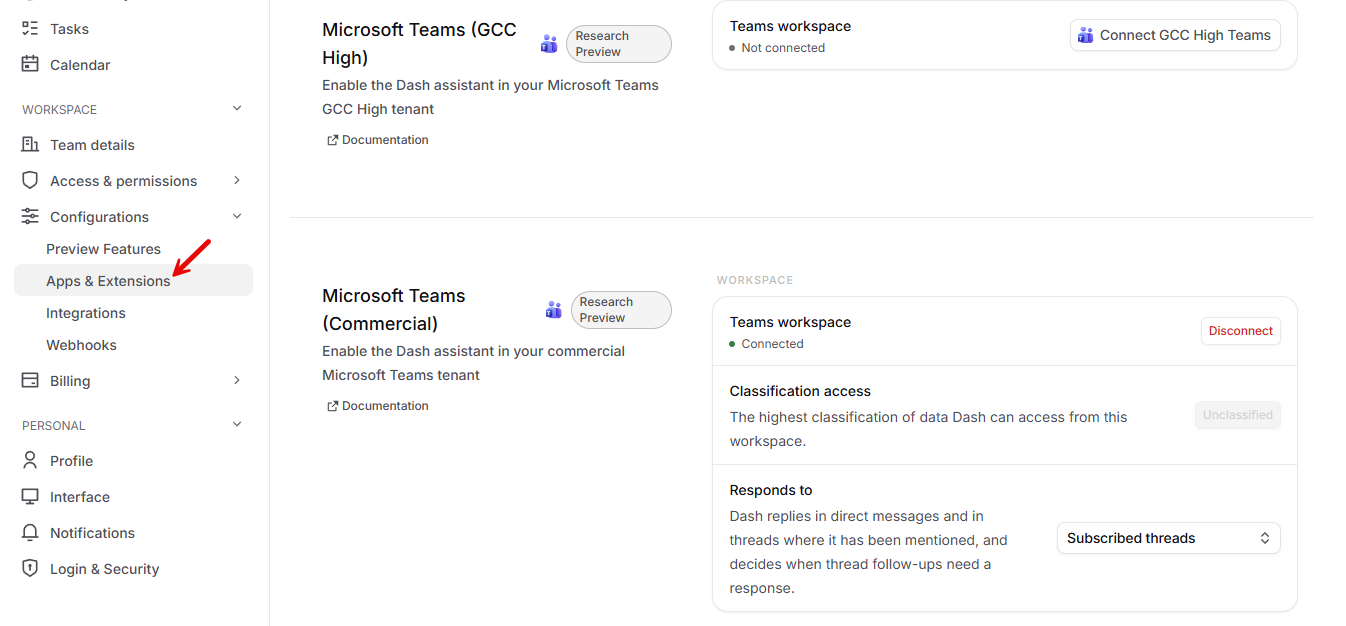
Go to Settings > Configurations > Apps & Extensions.
Scroll down to the Teams section and click Connect GCC High Teams (permission required).
Sign in with a Microsoft account from your GCC High tenant and grant the requested scopes. Because the GCC High integration can handle CUI, you will be asked to confirm that you are authorized to configure the integration and that your GCC High tenant can securely store, process, and transmit CUI.
Step 5: Connect Your Account
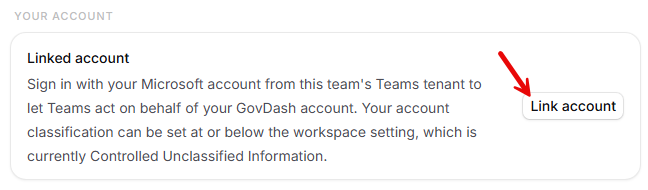
Once the integration is fully connected, you can then add your Microsoft account using the Link account button, as shown below. This will walk you through signing in with your Microsoft account that you use Teams with.
Please Note
The Microsoft Teams integration may only be installed on one Team at a time. If you hit an error connecting, check the settings page of other GovDash teams you’ve been added to, you may need to disconnect Teams there first. Support for multiple teams within chat bots is targeted for Q3/Q4 2026.
Step 6: IT Team Approval of Microsoft Graph Permissions
After a user connects GCC High Teams within GovDash, Dash is added to your Microsoft environment and requests the Microsoft Graph permissions required for the integration. Your IT team must approve these permissions before Dash can fully operate in Teams.
Have an IT admin sign in to Microsoft Entra through the Azure Government portal (portal.azure.us) and locate the Dash enterprise application. Its application ID starts with
73d25920-a256-42c6-8ddd-4691fda90581Review the pending Microsoft Graph permission request for Dash.
Approve the requested permissions for your organization.
How to Use Dash in Teams
Talking to Dash within Teams
Please Note - Chat Classification
All Dash chats utilizing the GCC-High Teams integration are by default, and locked to CUI-level classification. Dash in GCC-High Teams cannot interact with opportunities that are marked U/Unclassified at this time.
First, ensure you have connected your Teams account within GovDash. Please see Step 5 above for guidance on this step.
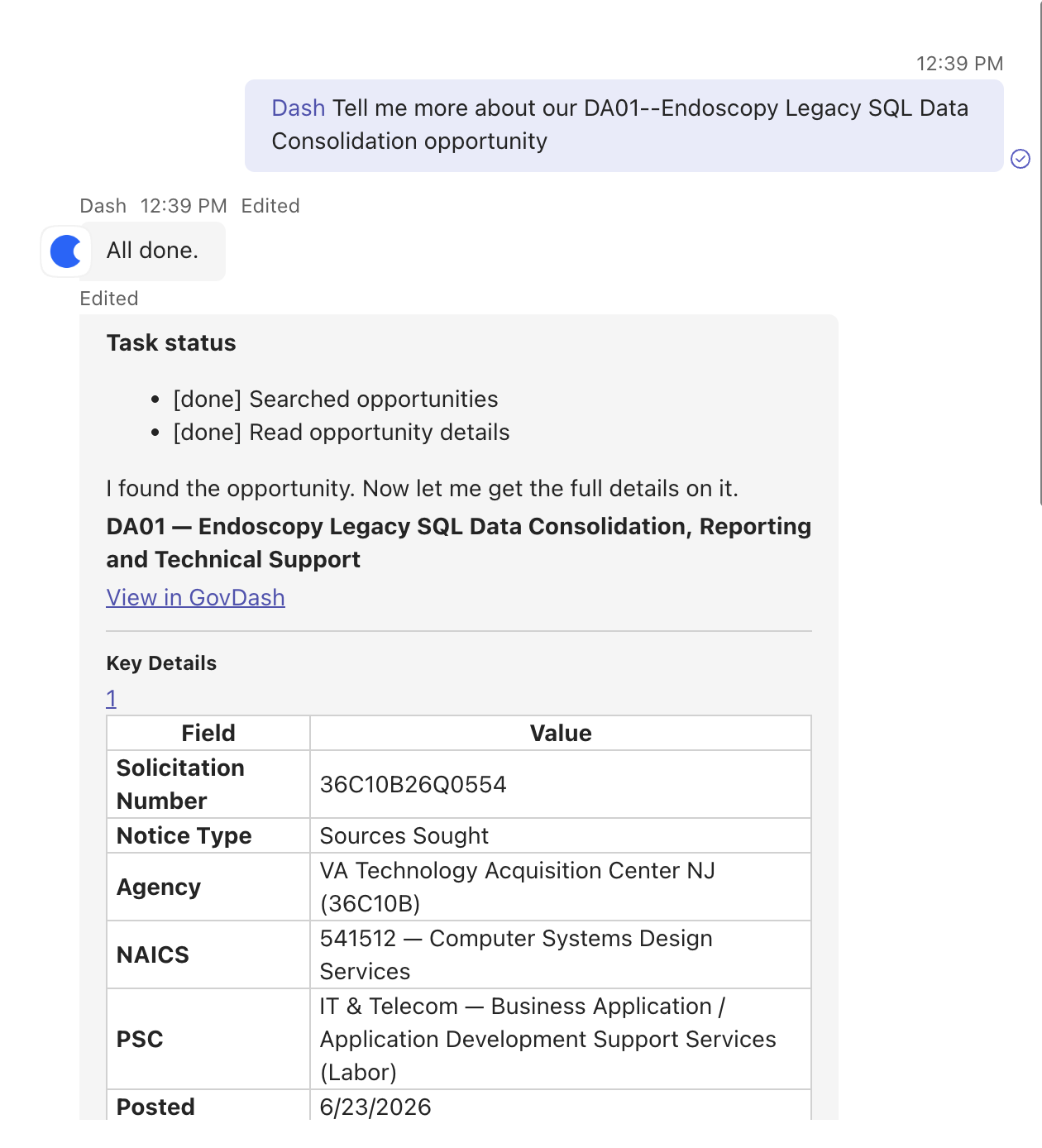
You can interact with Dash in two ways:
Message Dash directly in a one-on-one chat, or
Tag Dash in a Standard channel or thread that he has previously been added to.
Adjusting How Dash Responds
Within the Apps & Extensions settings for Teams within GovDash, you can adjust how Dash responds within your Teams chats:
Subscribed Threads — Dash replies in direct messages and in threads where it has been mentioned (using @Dash), and decides when thread follow-ups need a response.
All Channel Messages — Dash will evaluate every message in all channels it has been added to and it will decide on its own whether to respond, no mention (using @Dash) is required for Dash to contribute.
Dash in Teams Example Use Cases
Capture and pipeline
The pursuit conversation and the capture plan stop being two separate artifacts.
What Dash can do | What to type in the thread |
List pipeline opportunities with phase, notice type, and response due dates | "@Dash what's in our pipeline with responses due in the next 30 days?" |
Pull full capture plan detail: win themes, competition intel, teaming strategy, pricing approach, and pursuit-stage answers | "@Dash what are our win themes on [opportunity], and who are we up against?" |
Update the answer to an individual capture question | "@Dash update the incumbent question on [opportunity]: incumbent is [name], contract expires [date]." |
Read, configure, and re-request gate reviews. Add or remove reviewers, set approval mode and reviewer order | "@Dash who still owes a gate review on [opportunity]?" then "add [name] as a reviewer and re-request it." |
Proposals
Section owners get unblocked in the thread instead of a day later.
What Dash can do | What to type in the thread |
Query solicitation documents, including RFPs, PWS, SOWs, amendments, and attachments, by topic or requirement | "@Dash what does the PWS say about [requirement] on [opportunity]?" |
List cover letter templates, compare them against the solicitation's formatting requirements, and apply the best match | "@Dash which cover letter template fits [opportunity]'s formatting requirements? Apply it." |
Contracts and past performance
Post-award answers without opening the platform, and past performance search that finds the right work even when the wording differs.
What Dash can do | What to type in the thread |
Browse or search full award history by name, agency, or date | "@Dash what have we won with [agency] since 2023?" |
Pull contract line items, including base, exercised options, and unexercised options, plus task areas | "@Dash what options are still unexercised on [contract]?" |
Read and summarize contract modifications, including AI-generated field update suggestions | "@Dash summarize the latest mod on [contract] and what it changed." |
Search past performance semantically by topic, capability, requirement, or customer | "@Dash find past performance that maps to [requirement]." |
Data Library, staffing, and teaming partners
The staffing and partner questions that normally take a day of asking around.
What Dash can do | What to type in the thread |
Search uploaded company documents by topic or keyword | "@Dash find our documentation on [topic]." |
Find and rank personnel and resumes from the staffing pool by qualifications, role, education, or certifications | "@Dash rank our people for a [role] with [certification] and [domain] experience." |
Search teaming partner documents, awards, and personnel for capabilities and past performance | "@Dash what does [partner] bring in [capability area], and do they have relevant awards?" |
Tasks
Converts a Teams conversation into tracked work.
What Dash can do | What to type in the thread |
Create, update, and list tasks, linked to opportunities, proposals, contracts, people, companies, or agencies | "@Dash create a task to finish the [section] draft, link it to [opportunity], assign to [name], due Friday." |
Assign to team members and set due dates, start dates, priority, and status | "@Dash bump [task] to high priority and move it to next Wednesday." |
Filter tasks by assignee, creator, due date range, priority, status, tag, or entity type | "@Dash what's open and overdue on [opportunity]?" |
Create subtasks under an existing task | "@Dash add subtasks under [task], one per volume." |
Notes
Decisions made in a thread stop evaporating when the thread scrolls.
What Dash can do | What to type in the thread |
Create shared notes on opportunities, proposals, contracts, tasks, people, companies, and agencies | "@Dash save the decision from this thread as a note on [opportunity]." |
Mention and notify specific team members inline with @mentions | "@Dash note on [contract]: mod review needed, mention [name] to confirm." |
Agents and automation
Builds an agent once from a channel, and it keeps running afterward.
What Dash can do | What to type in the thread |
Build new agents with custom goals, tool access, and scheduled or event-based triggers | "@Dash build an agent that posts a Monday summary of everything due in the next two weeks." |
Update an existing agent's goal, schedule, tool bundles, scope, or enabled state | "@Dash change the pipeline agent to run Fridays instead of Mondays." |
List all agents and review recent run history | "@Dash which agents ran this week, and what did they find?" |
Run an agent manually and fetch detailed results from a specific run | "@Dash run the compliance agent on [opportunity] now and show me the result." |
Team and notifications
Closes the loop so the thread ends in someone actually being told.
What Dash can do | What to type in the thread |
List team members with name, email, and role, or search by name or role | "@Dash who on the team is a contracts lead?" |
Send an in-app GovDash notification to any team member with a custom message and optional deep link | "@Dash notify [name] that the [section] draft is ready and link them to it." |
CUI Handling
GCC-High Microsoft Teams chat threads are connected for CUI (Controlled Unclassified Information) only. During setup, the GovDash admin must confirm they are authorized to configure the integration and that the connected GCC-High tenant can securely store, process, and transmit CUI.
Commercial Tenants
If your organization uses a Commercial Microsoft Teams tenant instead, see the Microsoft Teams Commercial Integration article. Commercial Teams threads are labeled as unclassified resources within GovDash because Commercial Microsoft Teams cannot handle CUI.