Overview
Pipeline Views control how your pipeline looks and which opportunities it shows. Everything is in the toolbar above your pipeline:
Layouts: see opportunities as a Kanban board, a table or a Gantt timeline.
Saved Views: save the filters you use most and switch between them in one click.
Sorting: order opportunities by up to three fields.
Looking for Phases or Custom Fields?
Phases, custom fields, member roles and required fields are set up in Capture Settings.
Click through the walkthrough below to see each option.
Layouts
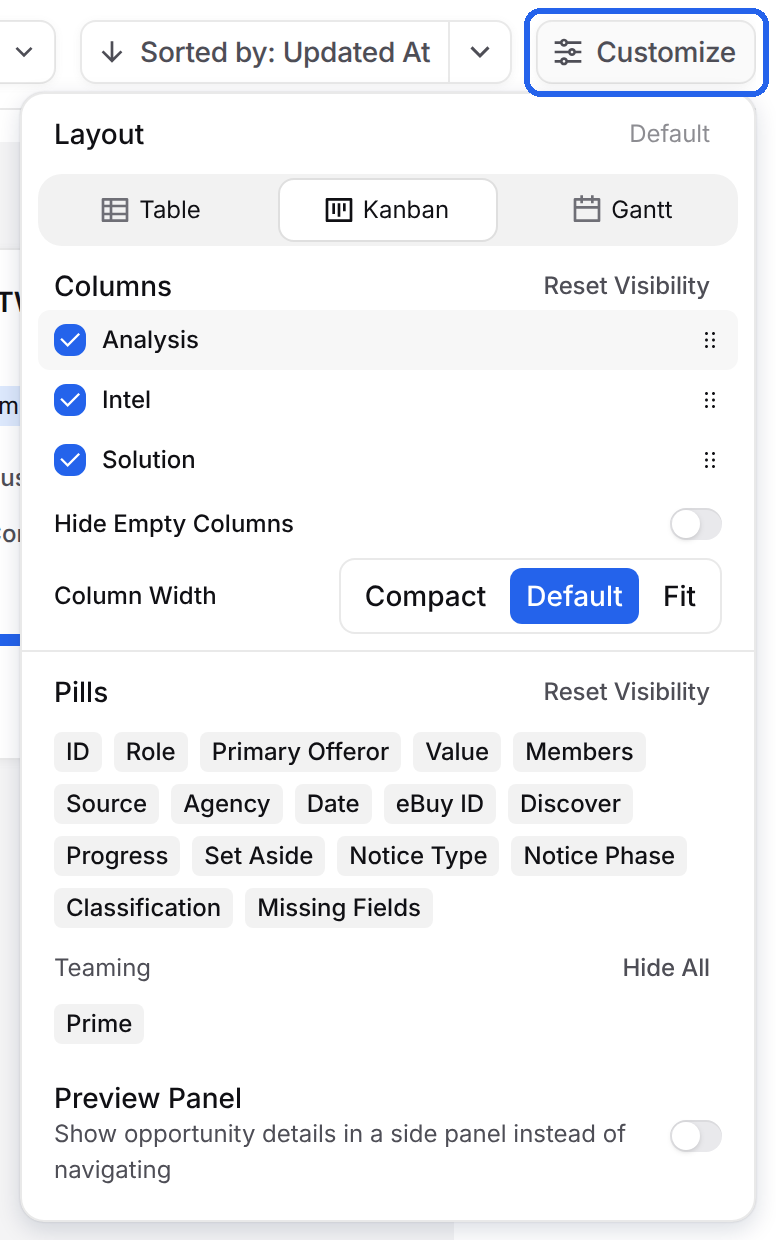
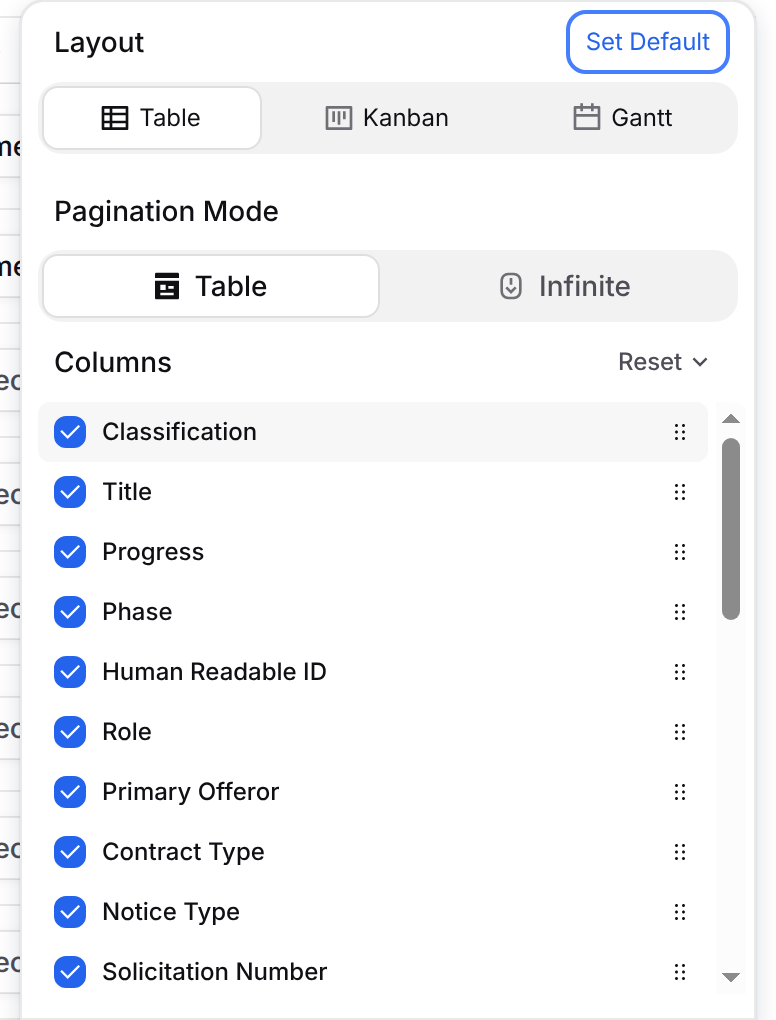
Select Customize at the top right of the pipeline, then choose Table, Kanban or Gantt under Layout. Default marks the layout the pipeline opens in. To change it, switch layouts and select Set Default.
Kanban
Each column is a phase. Drag a card to another column to move the opportunity to that phase. In Customize:
Columns: uncheck a phase to hide it, or drag to reorder.
Hide Empty Columns and Column Width (Compact, Default or Fit).
Pills: the details on each card. Select a pill to show or hide it. Hidden pills look faded.
Preview Panel: opens opportunities in a side panel, so you can read the details and add a quick note without leaving the pipeline.
Table
The table shows one opportunity per row. In Customize, choose Table pagination to page through results or Infinite to keep scrolling. Check the columns you want and drag them into order. Select Reset to go back to the standard columns.
Gantt
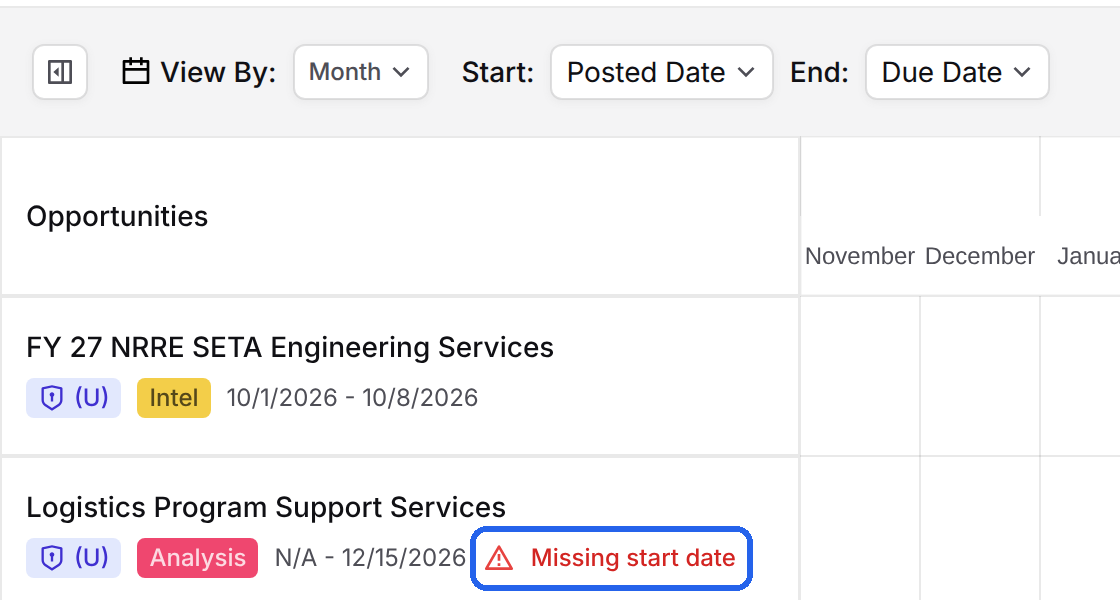
The Gantt timeline shows each opportunity as a bar, so you can spot overlapping pursuits and tight deadlines. Choose View By, pick the date fields for Start and End, and use Zoom to adjust. Opportunities without a start date show Missing start date.
Saved Views
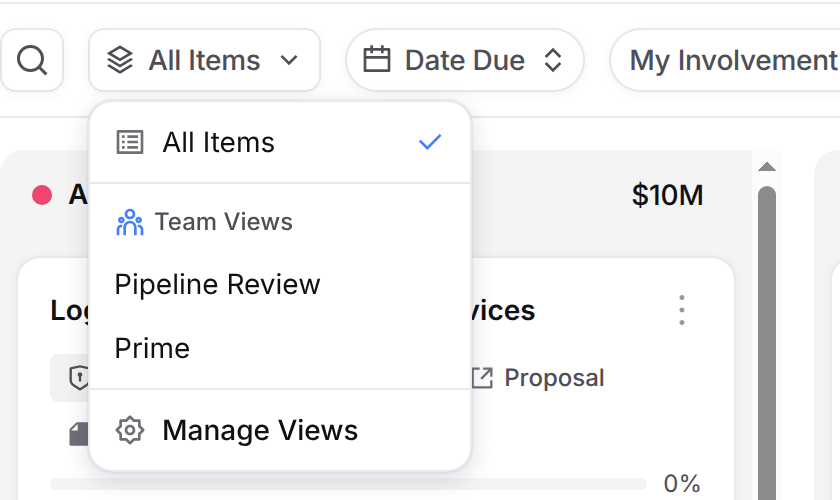
Select All Items at the top left to switch views. Team Views are shared with everyone on your team. Select Manage Views to rename a view, set it as your default, or change whether it's private or shared.
Saving a View
Add the filters you want, like Date Due, My Involvement or More filters.
Select Save, then Save as New View.
Enter a View Name.
Choose Private to keep it to yourself, or Team to share it.
Optionally, check Set as my default view so it loads each time you open the pipeline.
Select Save View.
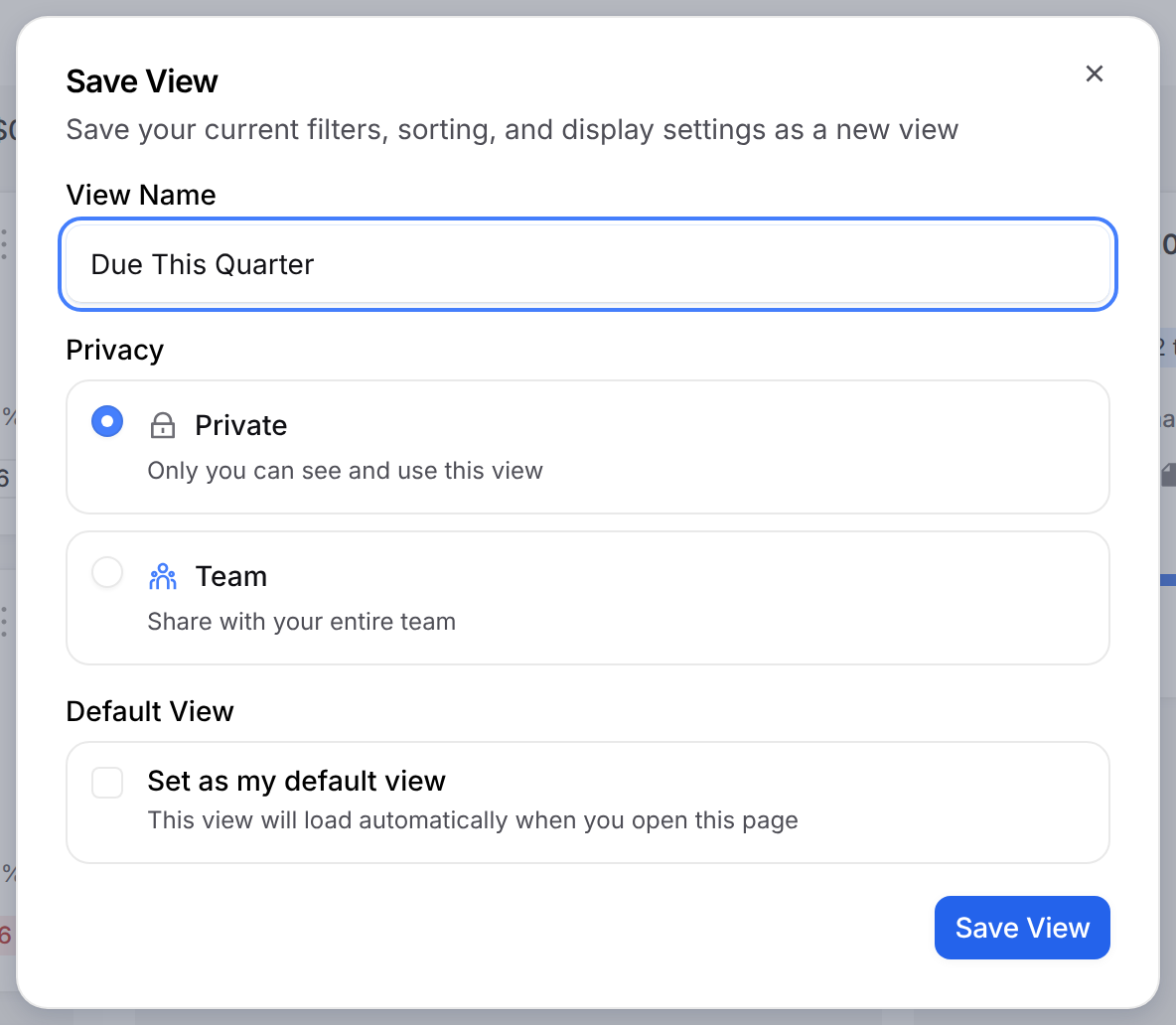
A view saves your filters, sorting and display settings. If you change a view, a dot appears on its name. Select Save to update the view or save a new one, or Reset to undo your changes.

Tip: for a view that stays current, use a Date Due shortcut like Next 30 days or This quarter. These ranges roll forward on their own. Calendar dates and the Q1 to Q4 shortcuts stay fixed.
Sorting
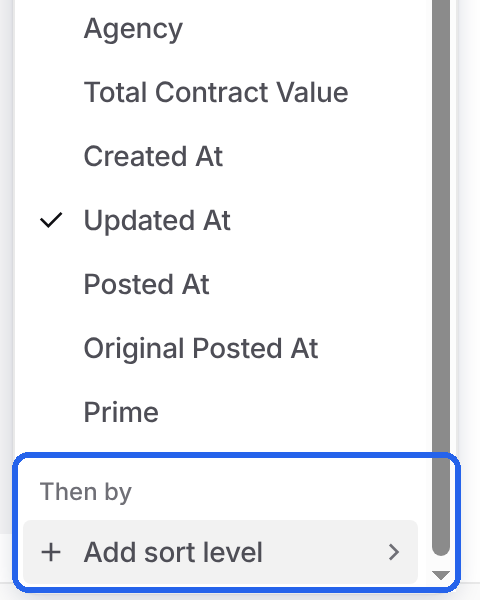
Sorted by shows the current sort. Select it to switch between ascending and descending, or select the arrow next to it to choose another field.
Add a level: under Then by, select Add sort level and pick a field. You can sort by up to three fields.
Change or remove a level: hover the level and choose Ascending, Descending or Remove sort level.
In Table: hold Shift and select a column header to add it as a sort level.
Save Current as Default: appears when your sort differs from your default. It saves only the first sort field.
FAQ
Can other people see my saved views?
Only if you choose Team when you save it. Private views are only visible to you.
Why does my saved view show different opportunities each week?
It uses a rolling Date Due shortcut, like Next 30 days, which moves forward with today's date.
Does changing my layout or default view change it for my team?
No. Set Default and Set as my default view only change what opens for you.
Where do I add phases or custom fields?
In Capture Settings.