Overview
Capture Settings is where admins set up how capture works for your whole team. Go to Settings > Capture, or select the Settings gear at the top right of the pipeline. Here you can manage:
Phases and stages: the columns in your pipeline and the tabs in each opportunity.
Custom fields: the fields and categories on the Overview tab.
Member roles: the roles you assign on each opportunity.
Overview templates: which widgets and fields show on the Overview tab.
Opportunity IDs: a numbering pattern for your opportunities.
Required fields: fields that must be filled in before an opportunity is created or moves forward.
Looking for Something Else?
To set up Capture Plan questions, weights, PWin and gate reviewers, see Capture Plan Templates.
To change layouts, saved views or sorting, see Pipeline Views.
Phase/Stage Customization
Renaming Phases/Stages
To rename your Pipeline phases/stages, click on the phase/stage title within Kanban view, or select the Settings gear in the top right of the Pipeline to adjust the name within Settings.
.png)
Kanban View

Settings Gear
Changing the phase/stage names will also change the tabs within your opportunities in the Pipeline.
.png)
Pipeline View
.png)
Opportunity View
Changing Phase/Stage Color
To adjust the color of a phase, click on the colored dot next to the phase/stage you want to adjust, and select your new color. Alternatively, click the Settings gear in the top right of the Pipeline and adjust the color within Settings.
.png)
Kanban View
Creating and Managing Phases
To add new phases to your Pipeline, click Add Phase as shown below, where you can assign a name and a color to the phase.
Once your phase is created, you can adjust the order within your existing phases by clicking and dragging the handle icon on the right side of the phase bars.
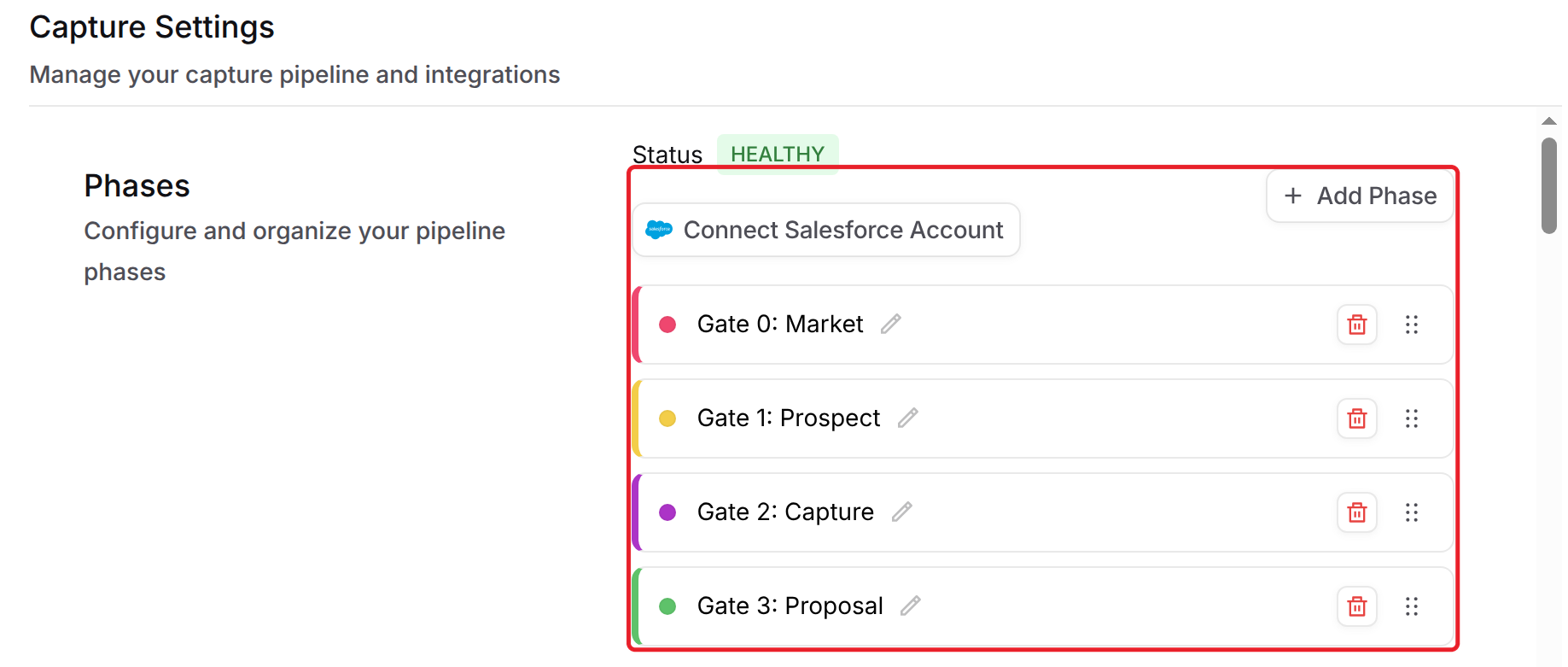
Please Note
Deleting a phase permanently deletes its capture questions and answers. Any opportunities in that phase move to the nearest phase. If you only want to change a phase, rename or reorder it instead.
Adding and Managing Custom Fields
To add custom fields within your opportunity Overview tab, click the Settings gear in the top right of the Pipeline.
To create a custom field, click Add Field as shown below.
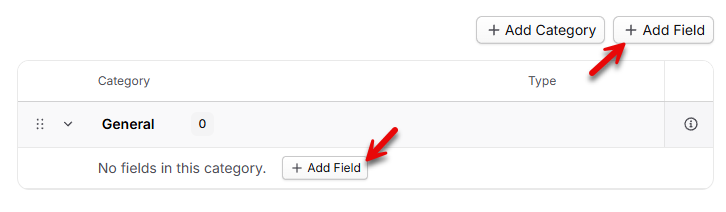
Next, assign your custom field a title, a type, and then click Create Field to add your custom field.
If you’d like to make any changes to any custom fields you’ve created, simply click the action menu and Edit option within the menu on the custom field you want to make edits to, and Save Changes once you’re finished.
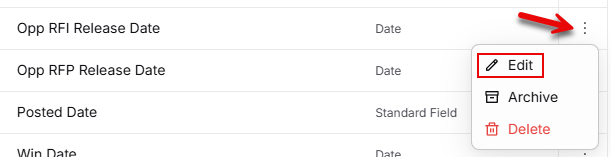
You can also re-order your custom fields within this menu, which will re-order the fields within your opportunity Overview tab.
Calculated/Formula Fields
Formula fields allow you to apply calculations between multiple fields to output a value, such as calculating PWin, forecasted values, award pricing percentages, and more. To create a formula field, select the Formula field type. Next, select your desired value display format, and build your formula using the available options. To add your fields into the formula, use the @ symbol to pull up a list of available fields.
.png)
When hovering over your calculated field within your opportunity, you can quickly view the formula that is used to calculate the value:
.png)
Adjusting Kanban Card Pill Appearance
For non-text type custom fields, you can adjust the appearance of the pill that displays on Kanban view cards by changing the Pill Appearance settings while editing a custom field.
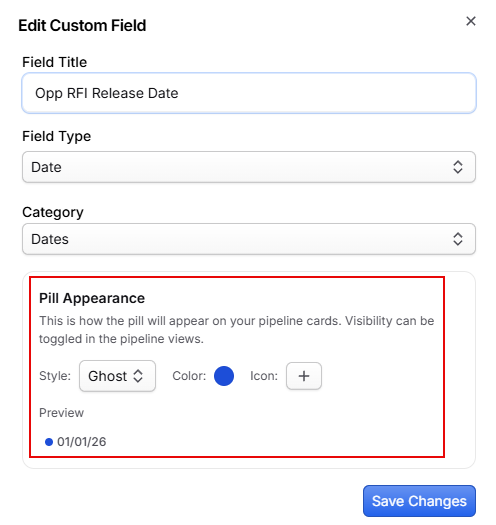
Customizing Member Roles and Views
The default Members roles (Capture, Project, Proposal Managers) can be fully customized, including renaming existing roles and adding new ones. You can also customize which roles appear per opportunity.
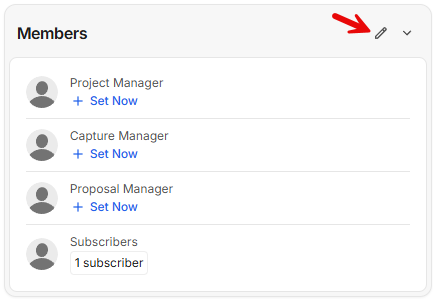
To customize the default roles or add new ones, navigate to the Capture Settings page. You can also select the pencil icon within an opportunity’s Overview page to add new roles.
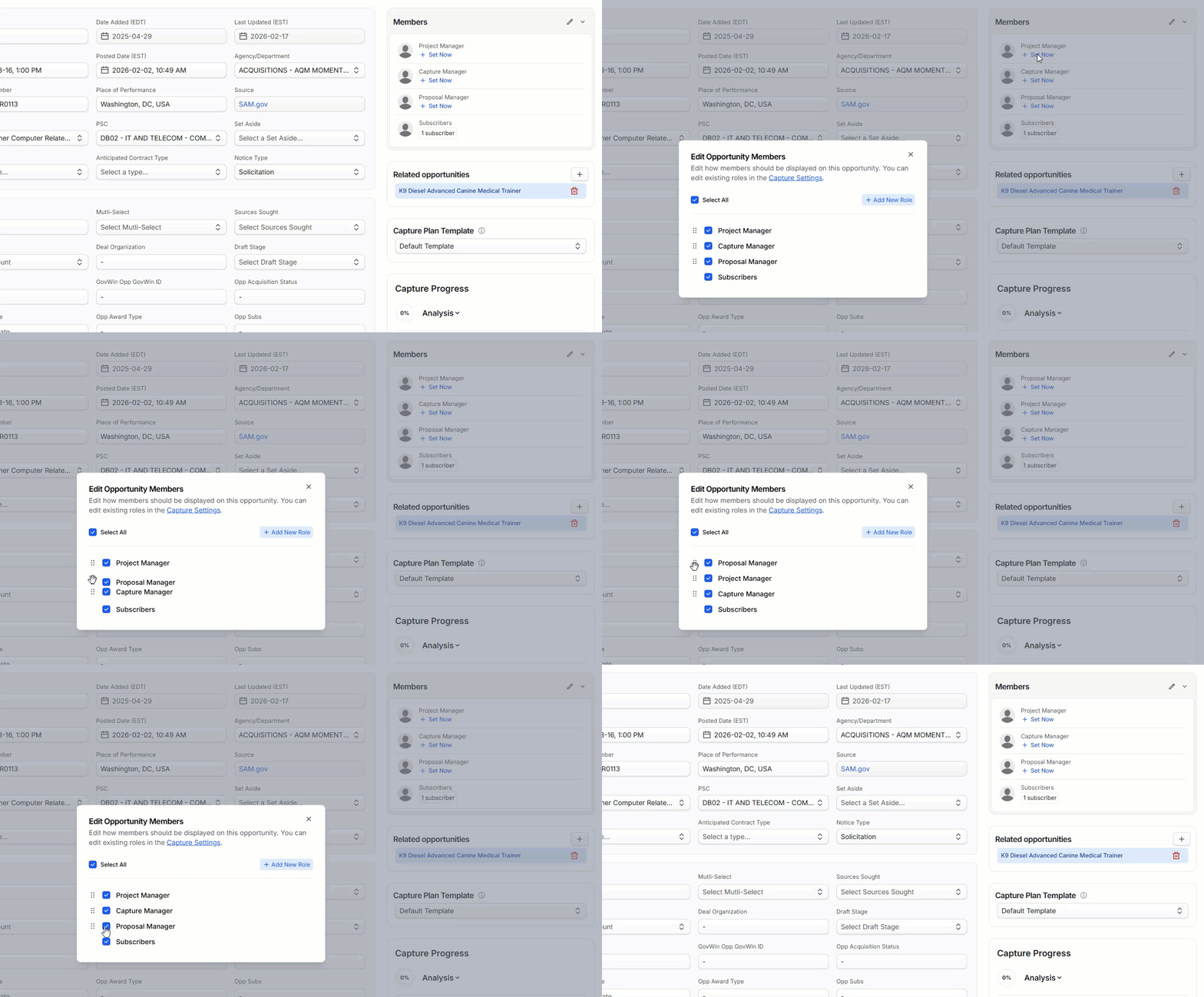
From the same menu within an opportunity’s Overview page, you can choose which roles you want to show within the specific opportunity you’re in, as well as reorder them within the list.
Overview Page Customization & Templates
Overview Categories
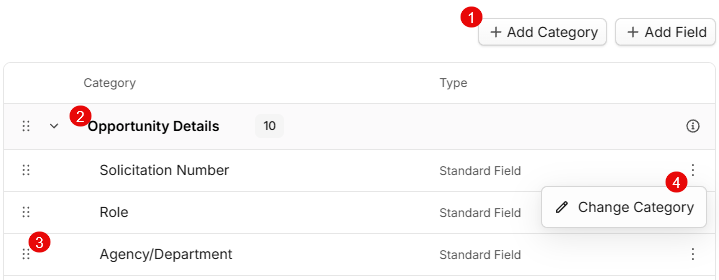
To customize the categories that your overview and custom fields are displayed under, navigate to the Custom Fields section under Capture Settings. Here you can add new categories1, rename existing categories2, and rearrange your fields in and between categories3 by clicking and dragging or choosing Change Category under the three-dot action menu on the right of the field row4. You may delete any non-default category by selecting the  icon.
icon.
Opportunity Details is a default category that cannot be deleted, and any GovDash default Standard Fields cannot be deleted. If a category containing a Standard Field is deleted, it will move back to Opportunity Details automatically.
Overview Templates & Widgets
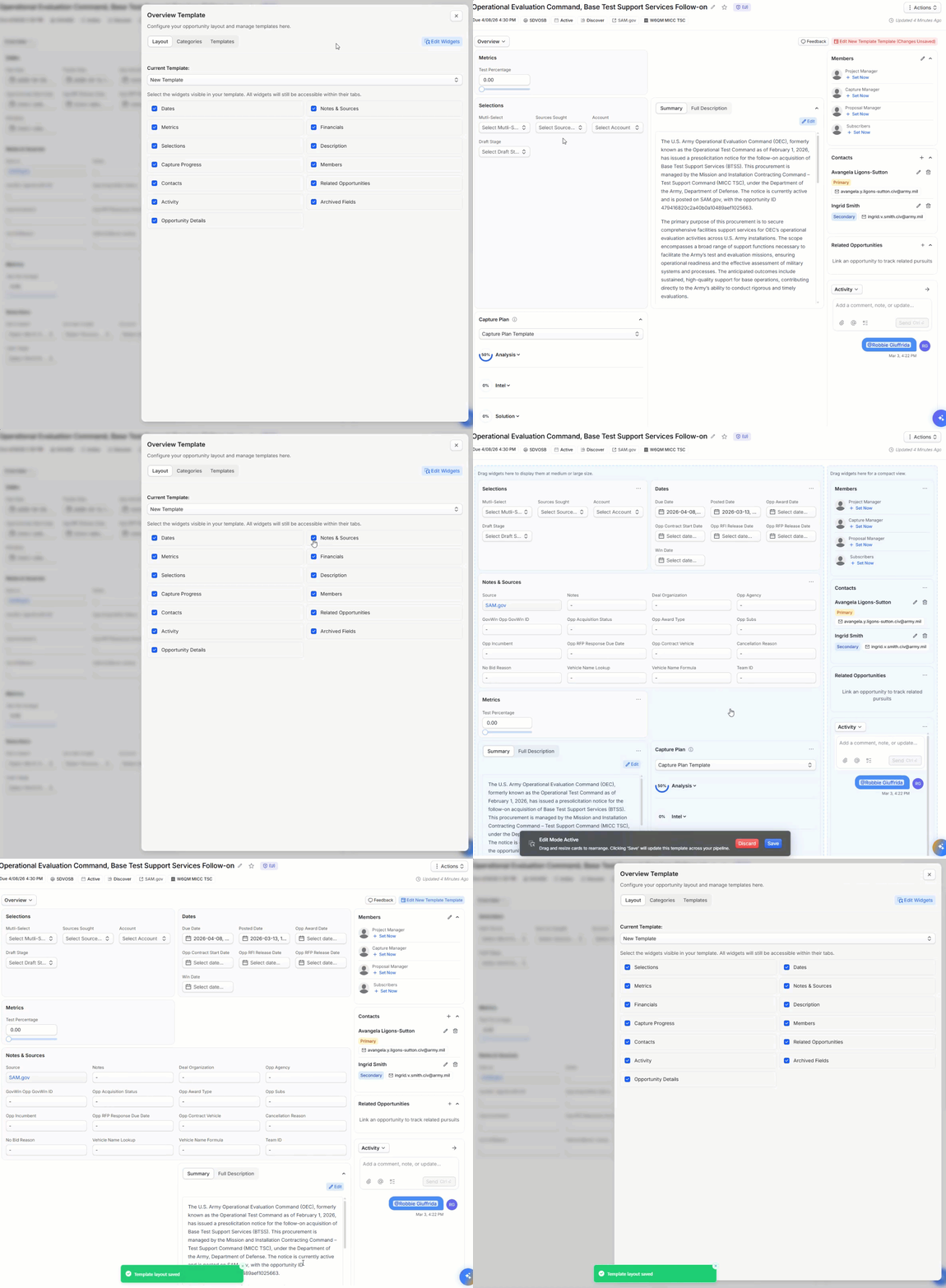
Within an opportunity, select the Edit Default Template button in the top right of the page to edit your templates and widgets. This menu is broken into 3 tabs.
Layout
The Layout tab provides you with options to edit widget order and viewable widgets. By selecting the checkboxes on the page, this will add/remove the widget from your template’s view. You can edit the widget order by selecting Edit Widgets in the top right, and then freely move your widgets around the page as desired.
Categories
The Categories tab provides you with the ability to adjust your category names and field order. You can also add, remove, or edit categories here and create new custom fields, as you can in Settings.
Templates
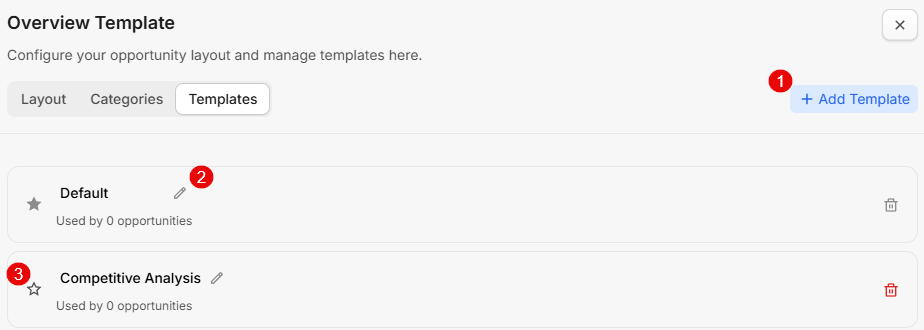
The Templates tab allows you to create and save templates that can be used to tailor Overview layouts based on your opportunity or phase. You can choose to display certain details when you’re assessing an opportunity, and then swap to another template once you’re ready to begin pursuing it and display additional details.
Select Add Template to add a new template1, the pencil to rename templates2, and the star icon to set your default template3.
Changing Templates
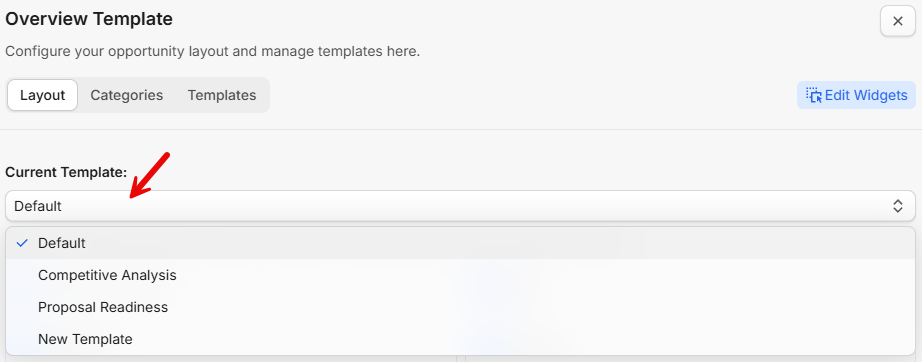
To change your current template, select Edit Default Template in the top right of the Overview page, then choose your template from the Current Template dropdown under the Layout tab.
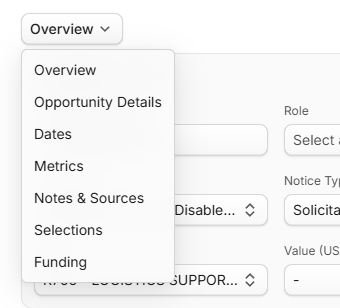
The Category view dropdown at the top of the Overview page allows you to filter the current view to your selected category.
Customizing Opportunity IDs
You can configure customized opportunity IDs to assign to your opportunities within your Pipeline, which gives you the flexibility to tailor your opportunity classification to your needs.
.png)
Within the Capture Settings Page, scroll to the Human Readable IDs section to begin creating your new ID. You can configure this by using the modifiers (1) to create a pattern (2), and a preview of that pattern will be displayed at the top (3). You can freely move the modifiers around in the Your Pattern section to adjust as needed.
.png)
Once you’re satisfied with your pattern, click Save Changes to set how this pattern should be implemented. We have several options available for implementing/updating the IDs, as shown below:
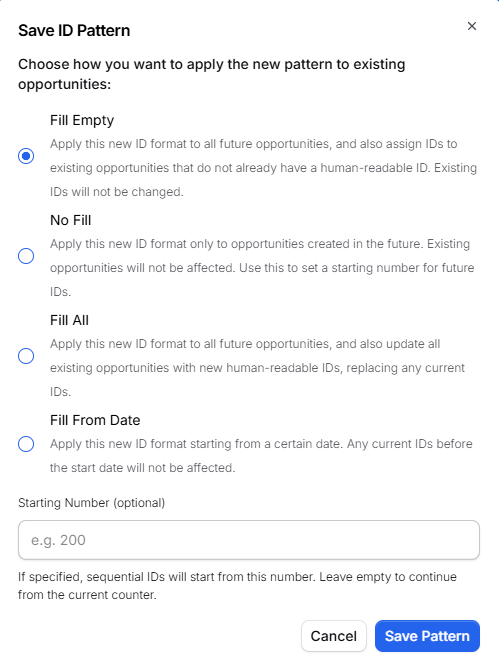
Fill Empty: Your pattern will be applied to all future opportunities you add to your Pipeline. IDs will also be applied to existing opportunities in your Pipeline that don’t currently have an ID. Existing IDs attached to your opportunities will not be changed.
No Fill: Your pattern will be applied to all future opportunities you add to your Pipeline. Existing IDs attached to your opportunities will not be changed.
Fill All: All opportunities, current and future, will have your pattern applied. This will overwrite any existing IDs attached to your opportunities.
Fill From Date: Your pattern will be applied starting from a date you choose. IDs on opportunities from before that date will not be changed.
Starting Number (optional): If you are using Sequential Numbering in your pattern, you can optionally choose a number to start from.
Mandating Specific Fields On Opportunity Creation
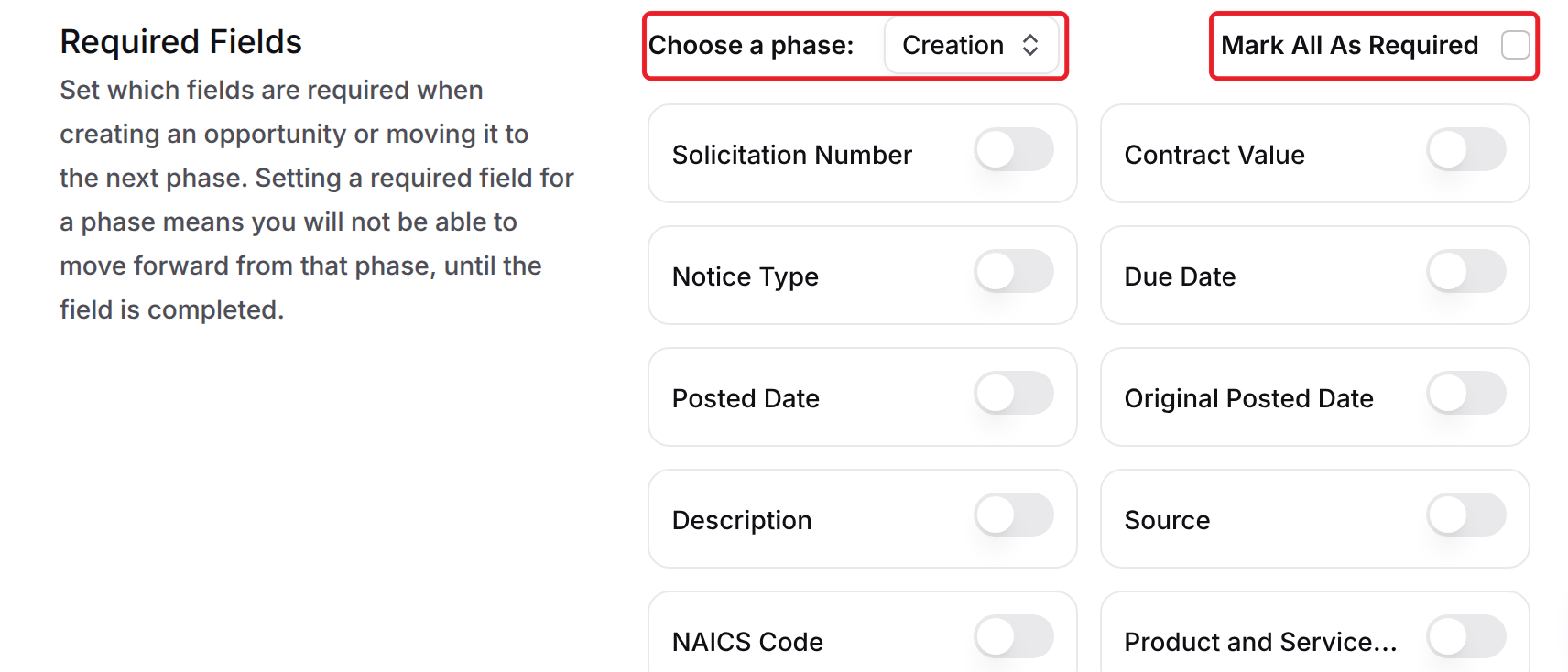
Under the Capture Settings, use the Required Fields section to choose fields that must be filled in. Under Choose a phase, select Creation to require fields before an opportunity can be created, or select a phase to require fields before an opportunity can move forward from that phase. Turn on individual fields, or check Mark All As Required. Custom fields are supported too. Opportunity Name and Classification are always required.
FAQ
Is it possible to reorder custom fields in the opportunity Overview tab?
Yes, you can reorder your custom fields within the settings menu, which will reflect in the opportunity Overview tab.
How do I create a new custom field in the pipeline?
To create a new custom field, click the Settings gear in the top right of the Pipeline, then select Add Field.
Can I delete the default phases?
Yes. Any phase can be deleted, including the defaults. Deleting a phase permanently deletes its capture questions and answers, and moves its opportunities to the nearest phase.