Overview
Capture Plan Templates decide what your team sees in each opportunity's Capture Plan. Admins set them up once, and every opportunity that uses the template follows them. Each template has three tabs:
Questions: the questions for each phase and how much each one counts toward progress.
PWin: how reviewers score the probability of win.
Gate Reviews: who reviews each phase and in what order.
Admin Setup
You need permission to manage Capture settings to create or edit templates. Without it, these controls are grayed out. To answer questions or run a gate review, see Capture Plan and Gate Reviews & PWin Scoring.
Click through the walkthrough below to see each setting.
Creating and Managing Templates
Go to Settings > Capture and scroll to Capture Plan Templates.
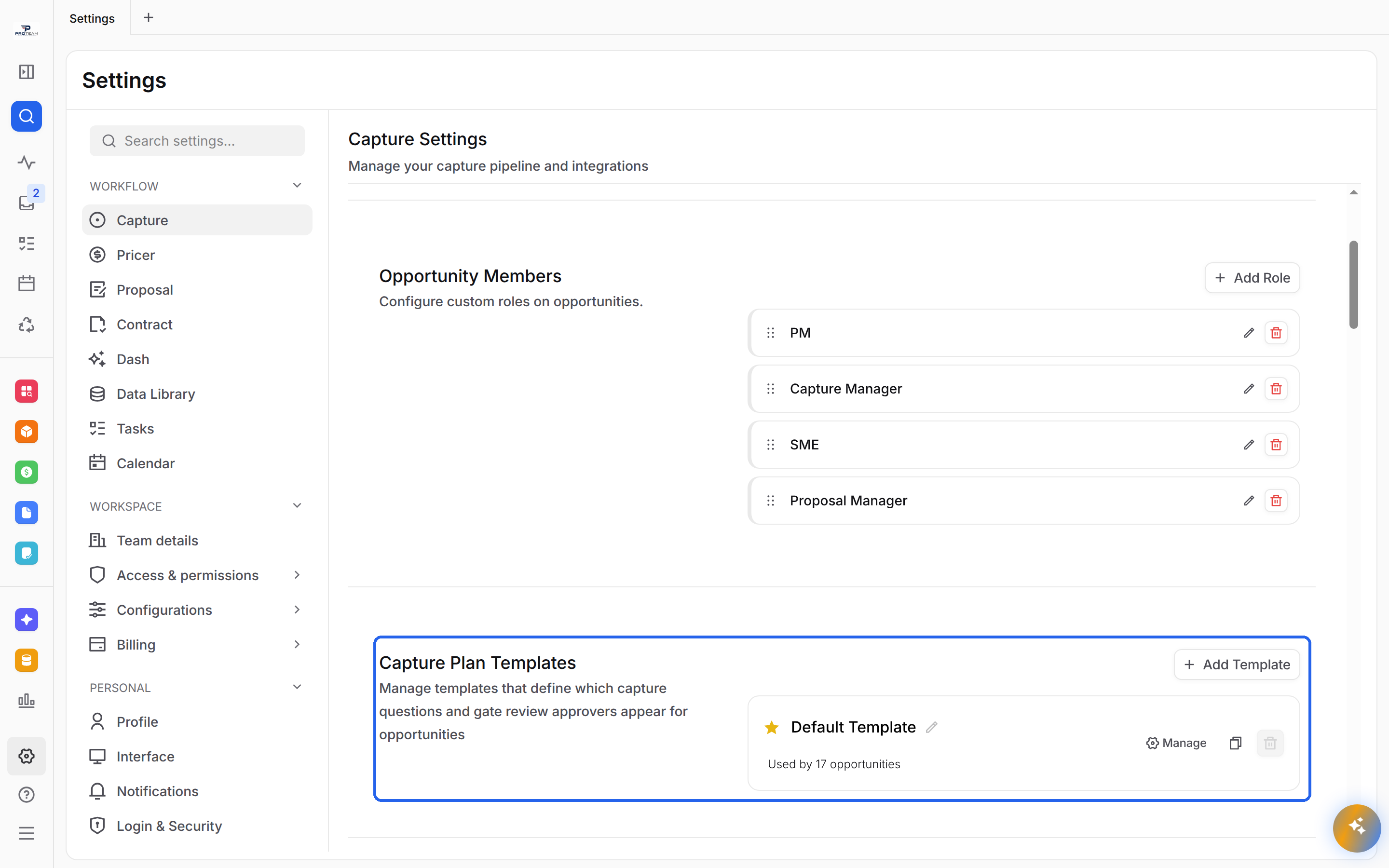
Select Add Template.
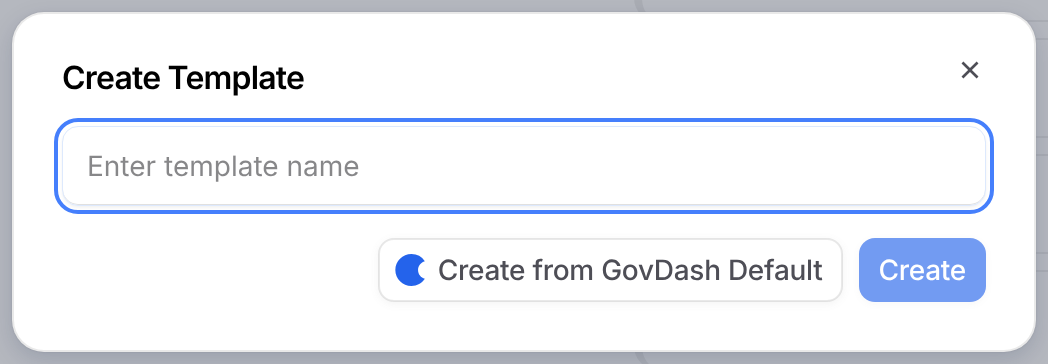
Enter a template name.
Select Create for a blank template, or Create from GovDash Default to choose which of GovDash's standard sections and questions to include.
Each template card shows how many opportunities use it. From the card you can:
Select Manage to open the template.
Select the pencil to rename it.
Select the copy icon to duplicate it. This is the fastest way to build a variation.
Select the trash icon to delete it. The default template, marked with a star, can't be deleted.
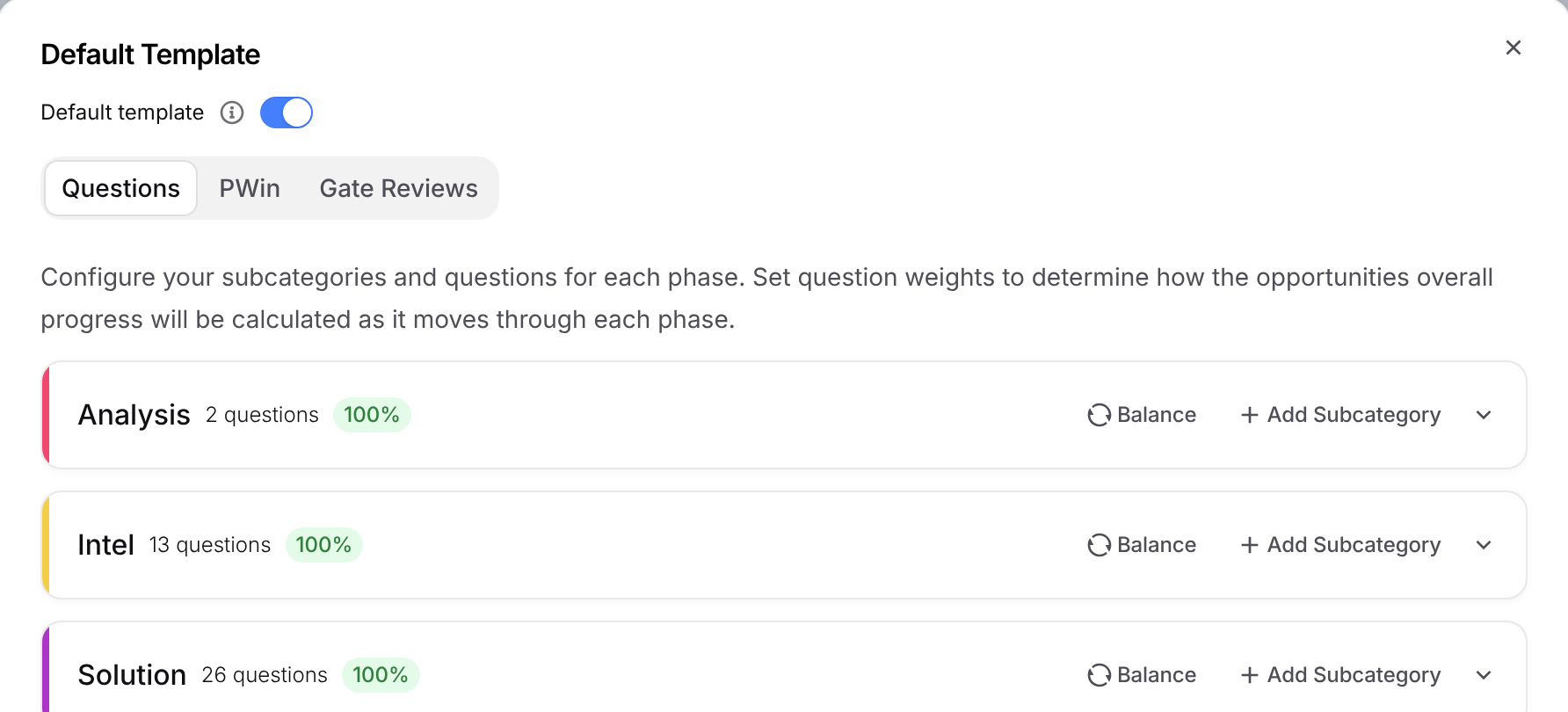
To make a template the default for new opportunities, open it and turn on Default template.
Questions and Weights
The Questions tab lists each phase with its subcategories and questions.
Select Add Subcategory on a phase to start a new group of questions.
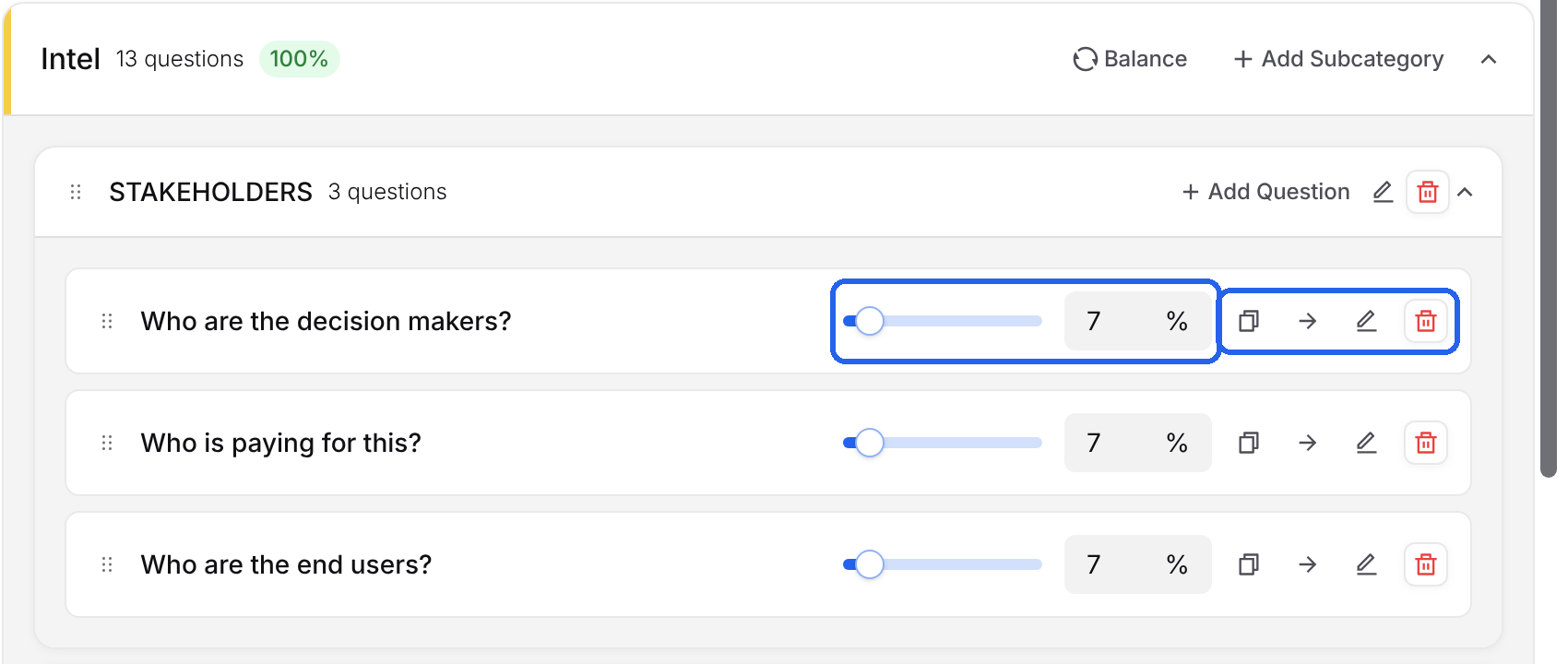
Select Add Question on a subcategory to add a question to it.
Use the icons on a question to copy, move, edit or delete it.
Question Details
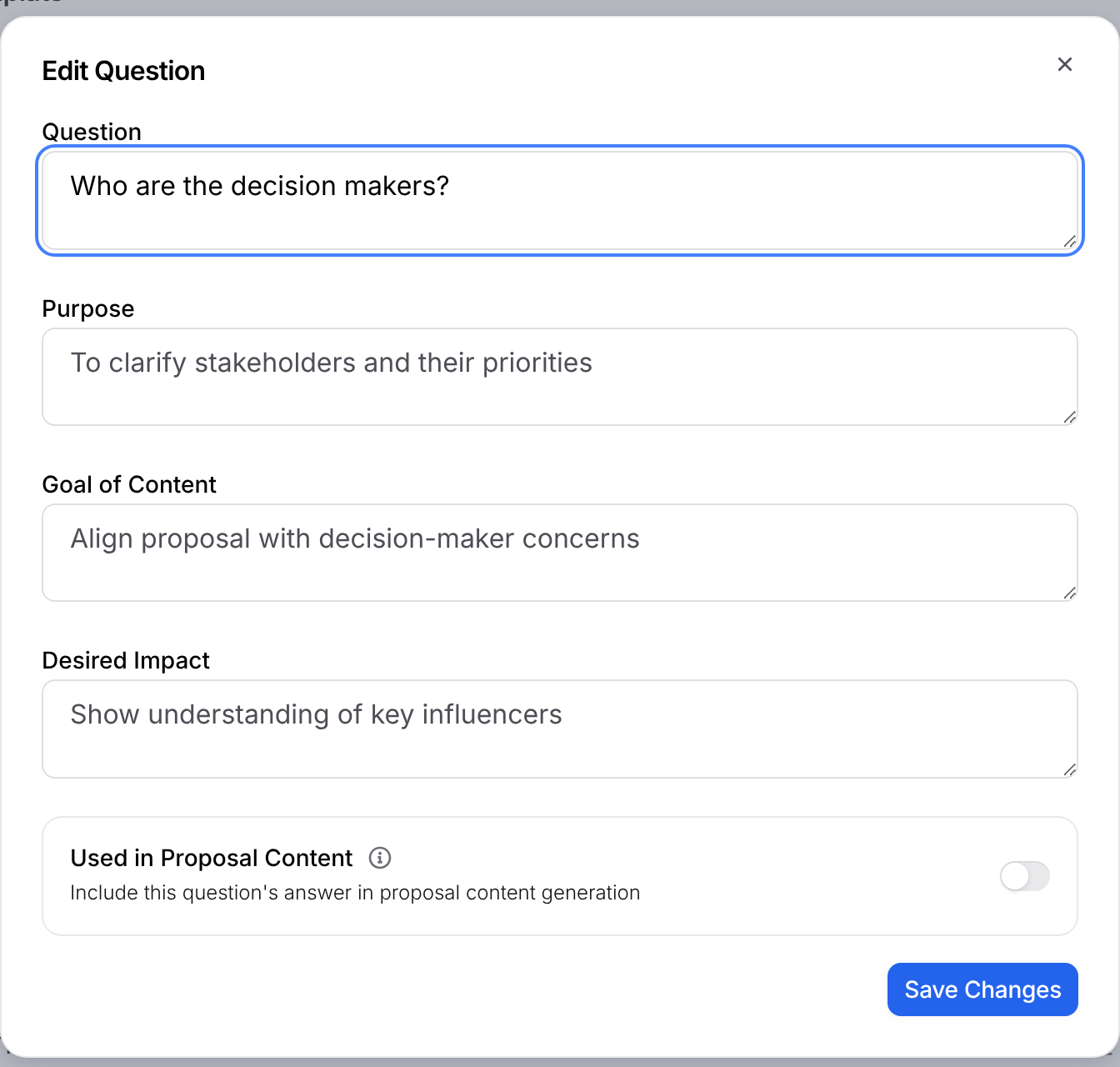
Select the pencil on a question to edit it.
Question: what your team answers.
Purpose, Goal of Content and Desired Impact: why the question matters. Users see these when they hover the question's badge.
Used in Proposal Content: turn this on so GovDash uses the answer when it writes the proposal. The question then shows a green Used for proposal content badge. Leave it off for internal notes, which show a red Not used for proposal content badge.
Question Weights
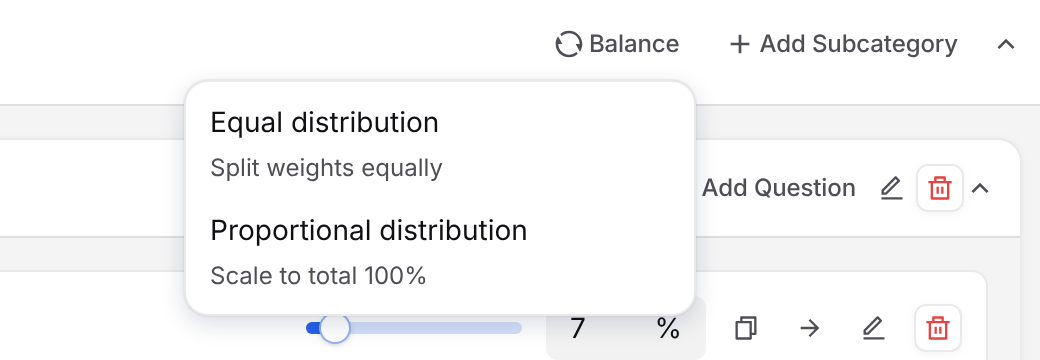
A question's weight is the share of its phase's progress it counts for. Drag the slider or type a percentage. Weights in each phase must total 100%, and the phase badge turns green when they do. To fix them quickly, select Balance:
Equal distribution splits the weight evenly across the questions.
Proportional distribution scales the current weights so they total 100%.
If weights don't total 100% when you close the template, GovDash shows Unbalanced Configuration. Select Reset & Close to reset them to an equal split.
PWin Setup
The PWin tab sets how reviewers score the probability of win during a gate review. If the tab is empty, select Populate with Defaults to start from GovDash's setup.
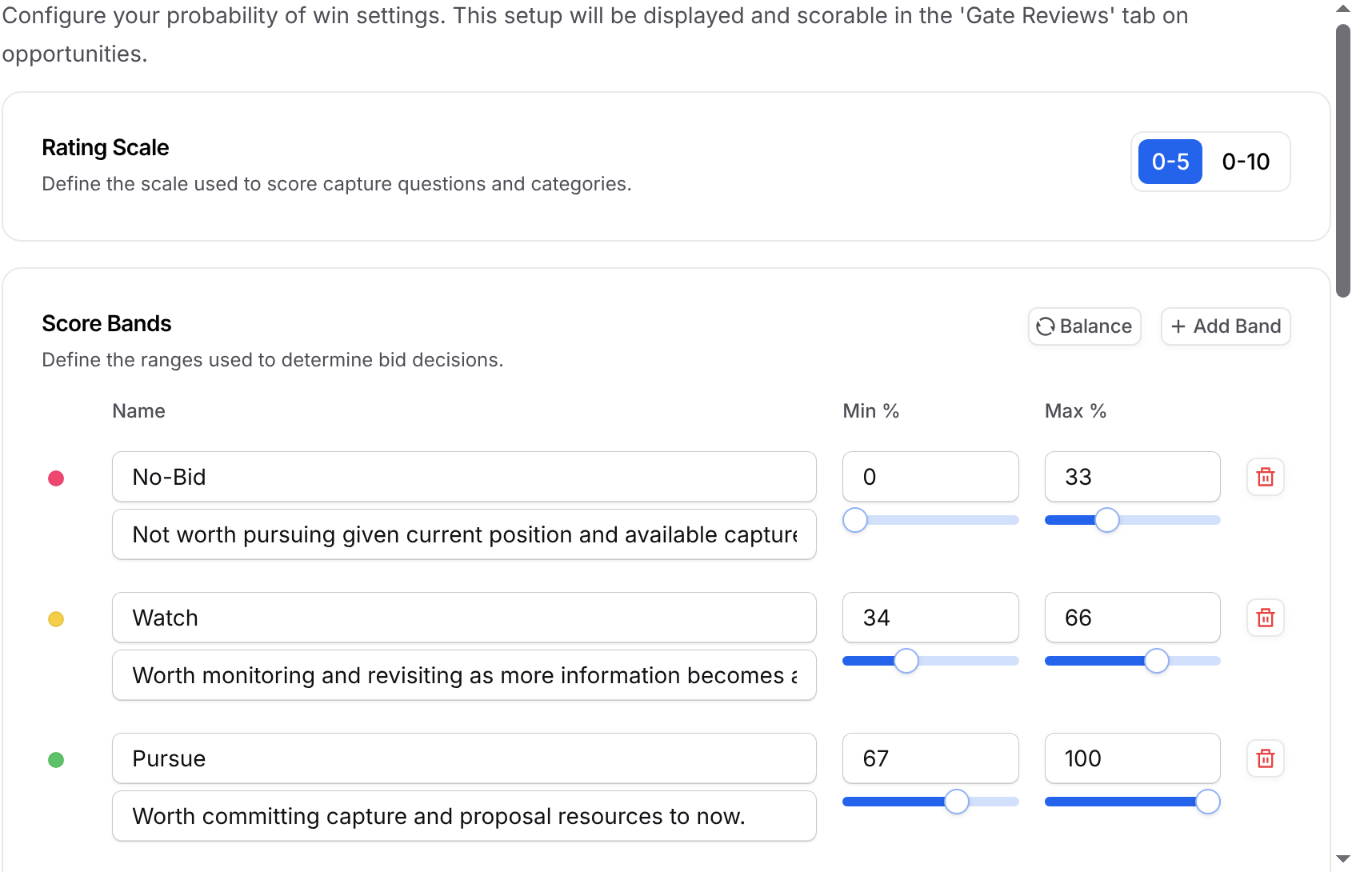
Rating Scale: reviewers score from 0-5 or 0-10.
Score Bands: turn the PWin percentage into a recommendation, like No-Bid, Watch or Pursue. Set each band's name, description and range, or select Add Band.
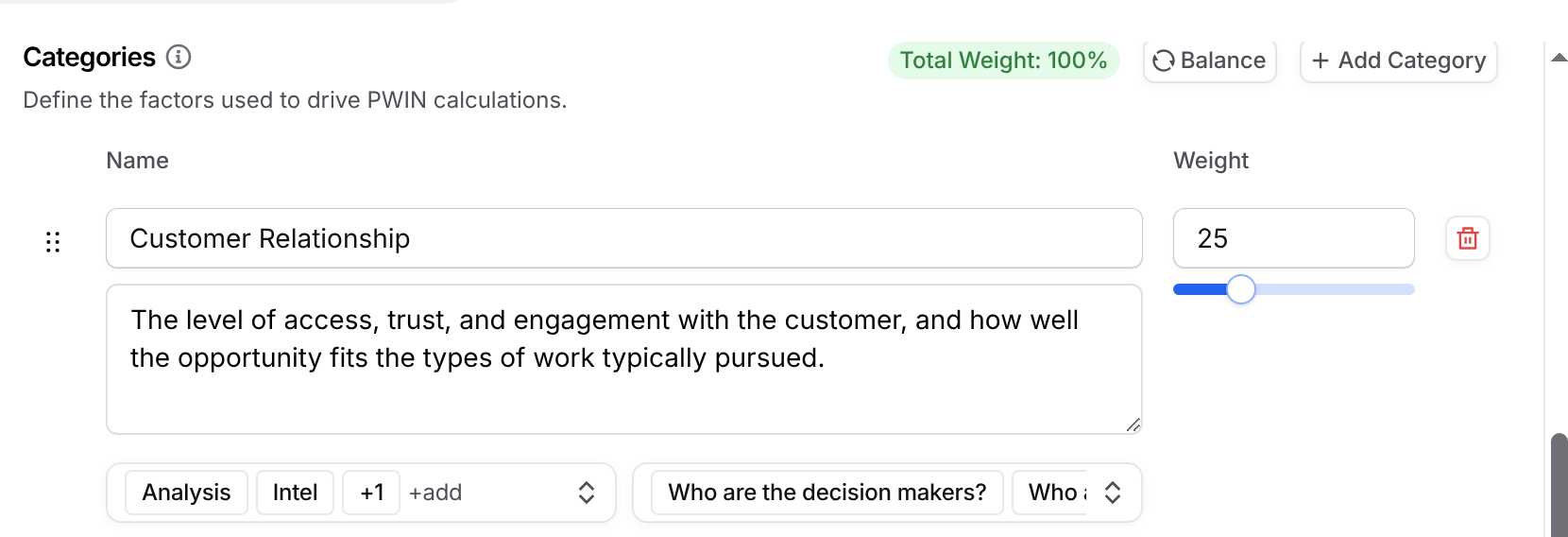
Categories are the factors that drive PWin, like Customer Relationship. Their weights must total 100%. For each category:
Write a clear description. Dash uses it when it runs a PWin analysis, so detail helps.
Set its weight.
Choose the phases where it can be scored.
Link related Capture Plan questions. Reviewers rate those questions during the gate review.
Gate Review Defaults
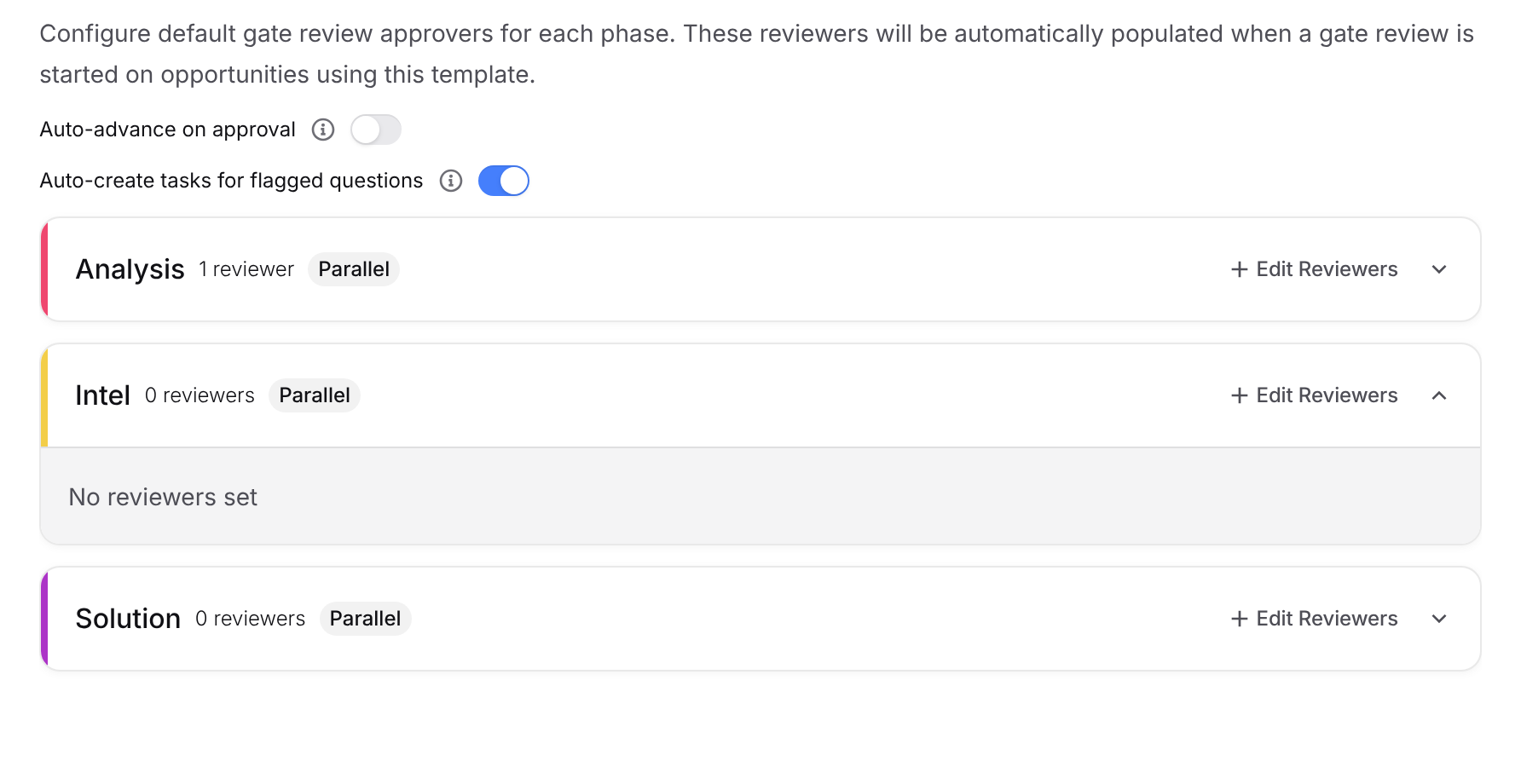
The Gate Reviews tab sets default reviewers for each phase. They're added automatically when a gate review starts on an opportunity that uses this template.
Auto-advance on approval: moves the opportunity to the next phase once all reviewers approve.
Auto-create tasks for flagged questions: creates tasks for the assignees when a reviewer flags a question.
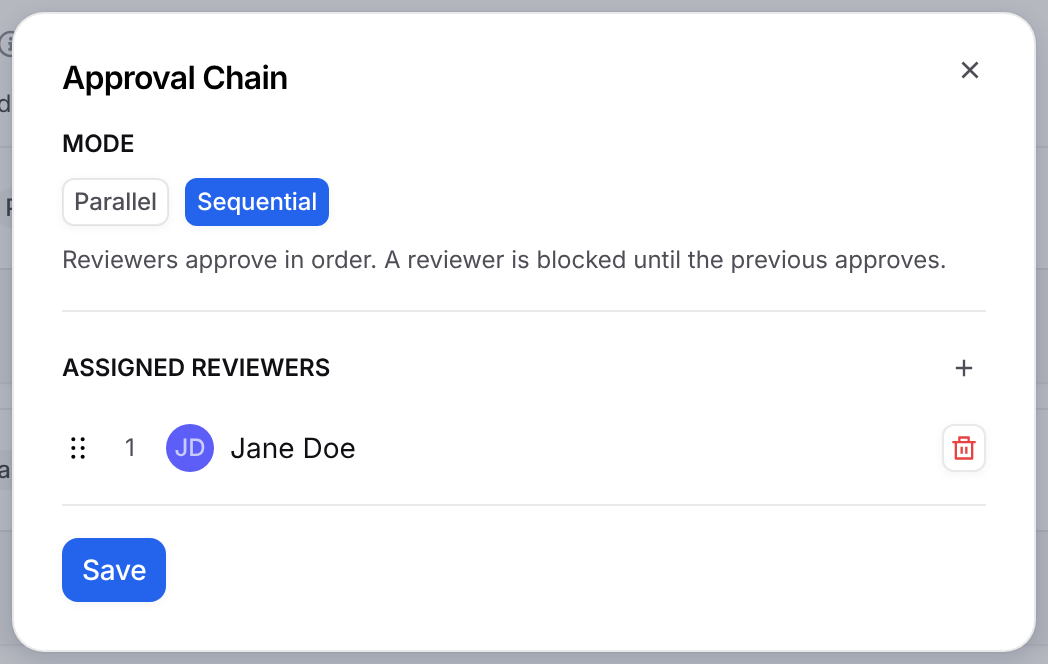
Edit Reviewers: opens the approval chain for that phase.
In Approval Chain, choose Parallel so reviewers approve at the same time, or Sequential so they approve in order. Select + to add reviewers, then Save.
Using a Template
New opportunities use the default template. To use a different one, pick it from the template menu on the opportunity's Capture Plan card. Switching keeps answers only where the question text and section name match, and it resets any gate review in progress. See Capture Plan.
FAQ
Do template changes affect existing opportunities?
Yes. Opportunities use the template itself, so edits show up on every opportunity that uses it. To try changes safely, duplicate the template first.
Why can't I delete a template?
The default template can't be deleted. Make another template the default first. If every button is grayed out, you don't have permission to manage Capture settings.
Why did my weights change when I closed the template?
Weights in each phase, and PWin band and category weights, must be balanced. If they aren't, GovDash resets them to an equal split when you select Reset & Close.
What does Used in Proposal Content do?
When it's on, GovDash uses the question's answer when it writes the proposal. When it's off, the answer stays in the Capture Plan.