Overview
Gate reviews let your team decide, phase by phase, whether an opportunity is ready to move forward. Reviewers check the answers in the Capture Plan, then approve, reject or ask for changes. PWin scoring rates your probability of win in each phase, so you can see how it changes as the capture moves forward.
Both live on the Gate Reviews / PWin tab under CAPTURE PLAN in the opportunity side panel.
Your Admins Set Up Gate Reviews and PWin
Default reviewers, approval order, PWin categories and weights come from your capture plan template in Capture Settings. Your gates and categories may look different from the examples in this article.
Click through the interactive walkthrough below. It has a chapter for running a gate review and one for PWin scoring, or you can follow the steps in this article.
Running a Gate Review
Starting a Gate
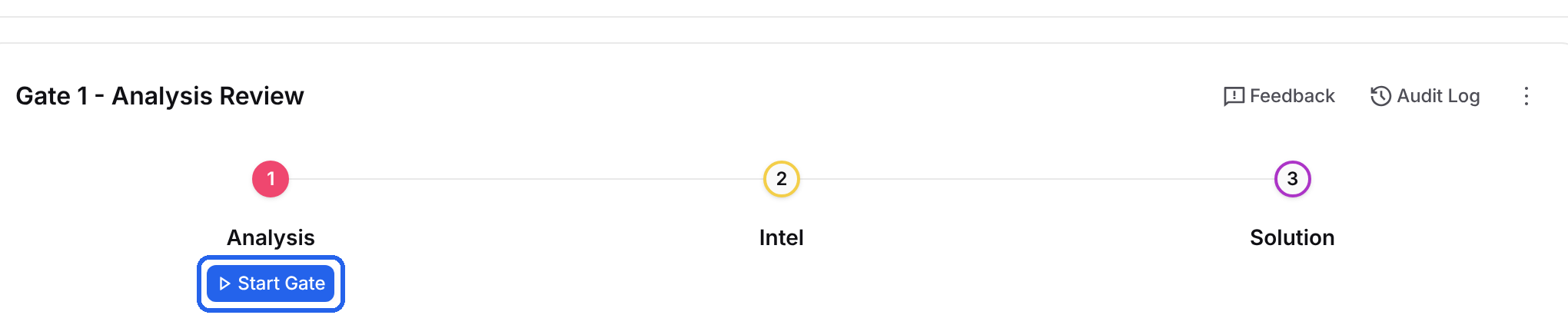
The tracker at the top shows a gate for each phase. Select Start Gate under the current phase to begin its review.
Adding Reviewers
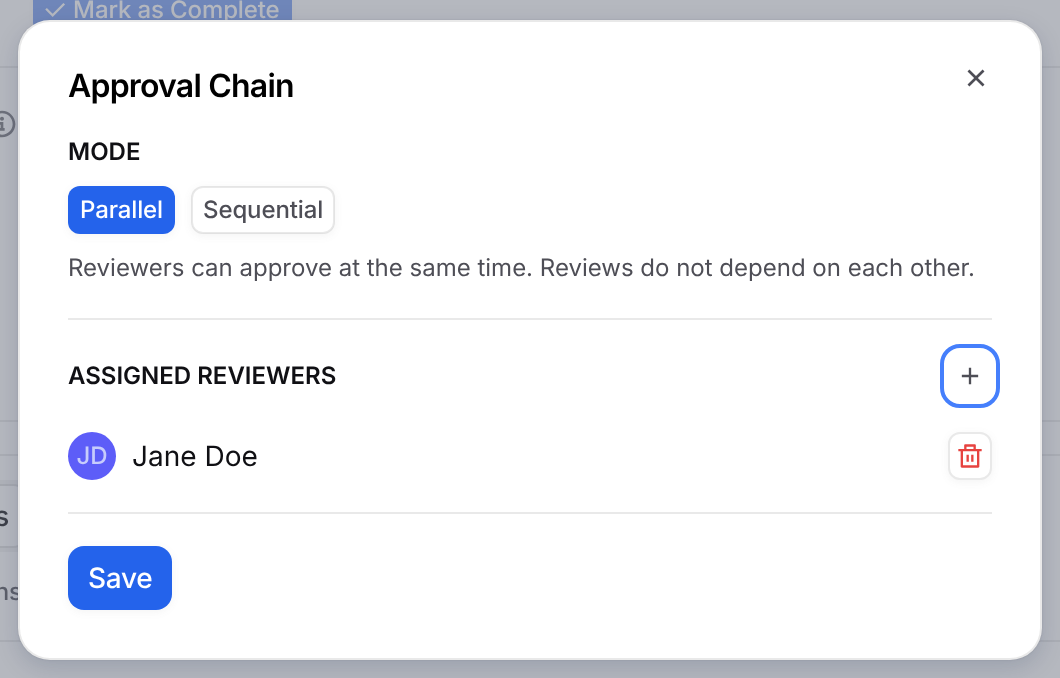
Select the pencil next to Reviewers to open Approval Chain. Then:
Choose Parallel so reviewers can approve in any order, or Sequential so they approve one after another.
Select + to add people from your team.
Select Save. GovDash notifies the reviewers whose turn it is.
Reviewing Questions
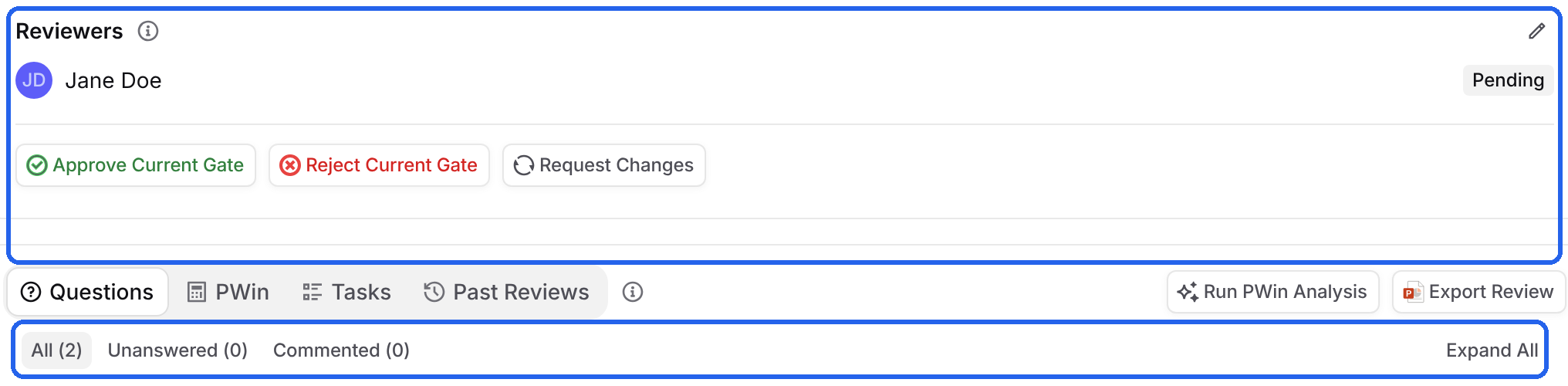
Each reviewer's status shows next to their name. Use the All, Unanswered and Commented filters to focus on the questions that need attention.
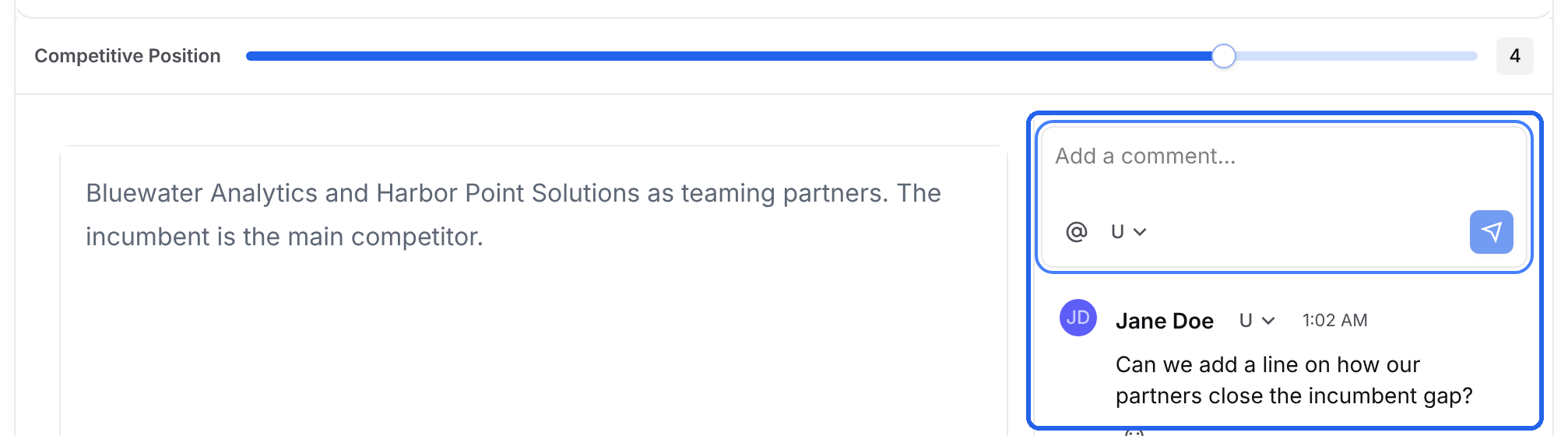
Expand a question to read the answer, rate it with the slider, and add a comment. Type @ in a comment to mention a teammate.
Approving, Rejecting or Requesting Changes
Approve Current Gate: approve the phase, with an optional comment.
Reject Current Gate: stop the phase from moving forward.
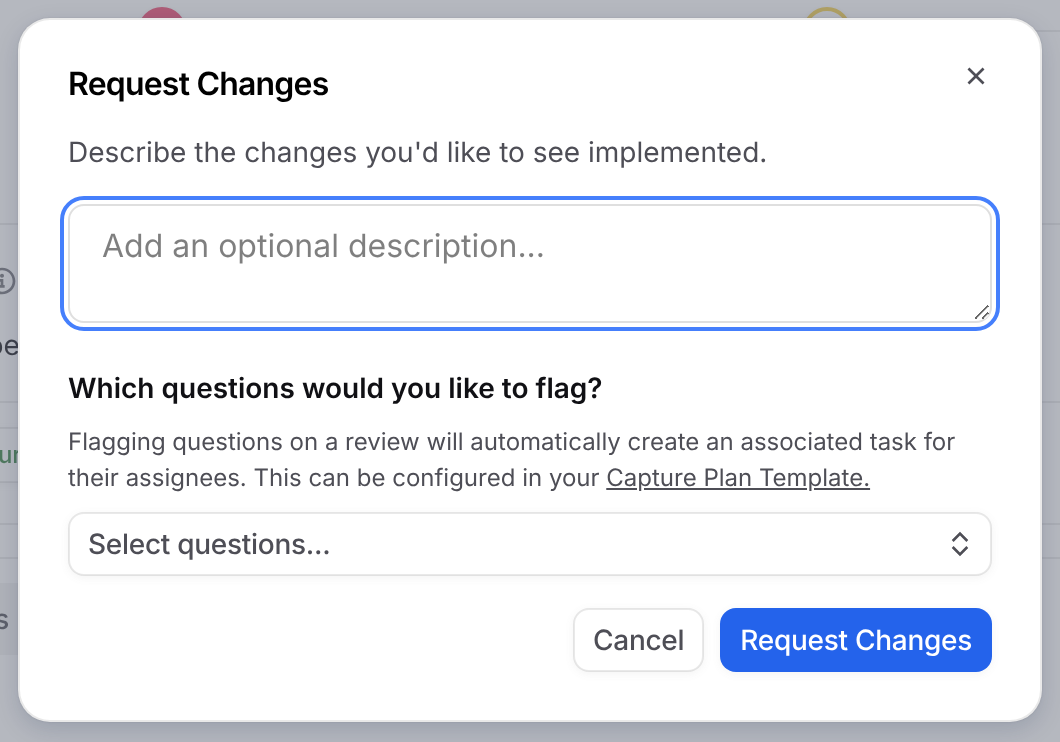
Request Changes: describe what needs to change and flag questions. Flagged questions create tasks for their assignees.
Completing a Gate
Once the gate is approved, select Mark as Complete in the tracker, then Complete. The opportunity moves to the next phase, and the next gate is ready to start. Earlier reviews stay on the Past Reviews tab.
Exporting and Tracking a Review
Export Review: download the review as a PowerPoint to present to leadership or a bid board.
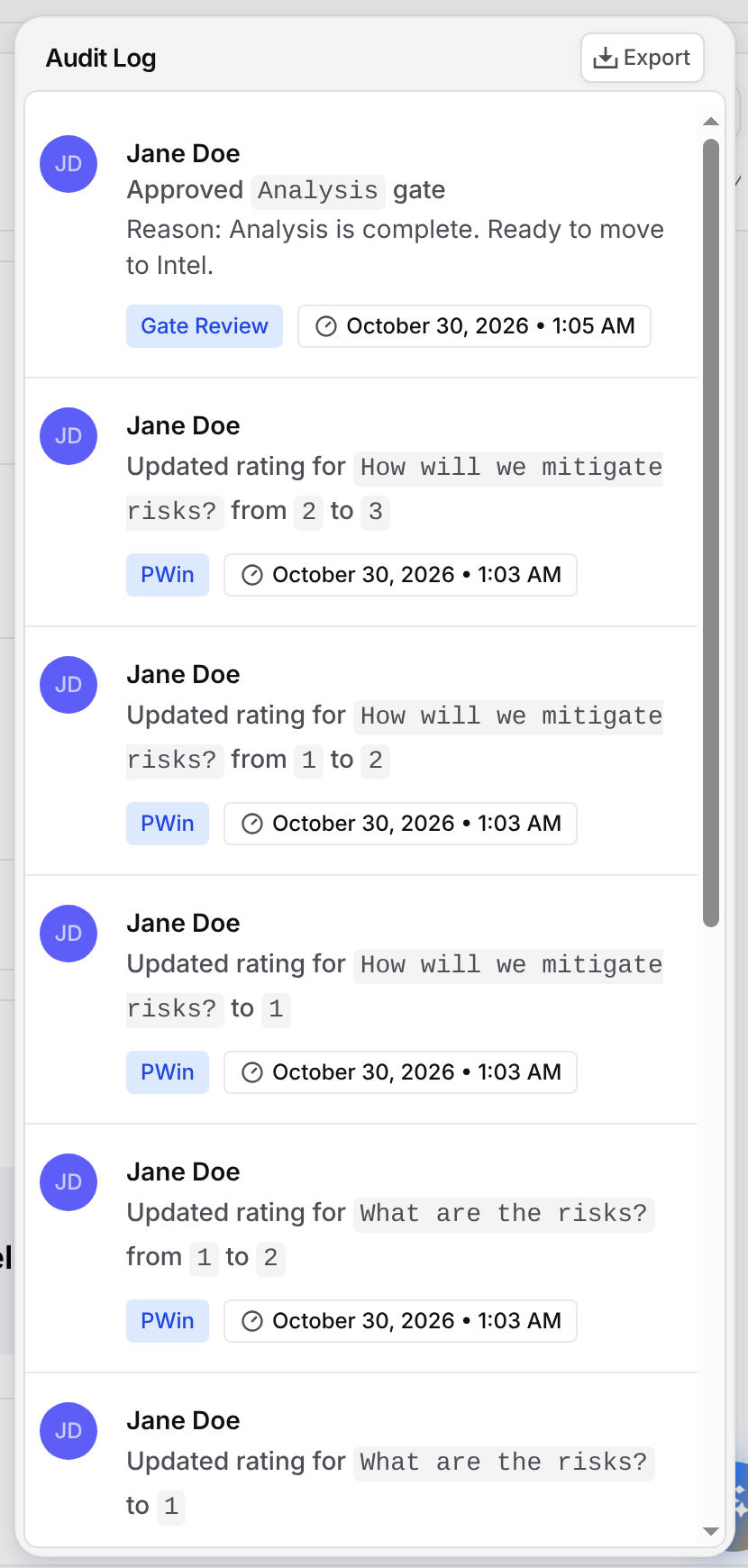
Audit Log: see every approval, rating, reviewer change and request, and select Export to download it.
Past Reviews: open earlier reviews, or select Generate to create a review presentation of the current phase.
Reset Current Gate: in the menu next to Audit Log, clears the approvals so the review can start over.

PWin Scoring
Open the PWin tab on Gate Reviews / PWin. Scores are specific to the current phase.
PWin Summary
The summary shows your Overall Score, the Recommendation for that score, and your Strongest and Weakest categories.

Scoring Categories
Under Current Scoring, each category shows its Score and Weight. Expand a category to rate it and its linked questions, and add comments. The overall score updates as you go. Reset Scores sets the category ratings back to zero and keeps question ratings and comments.

Running a PWin Analysis with Dash
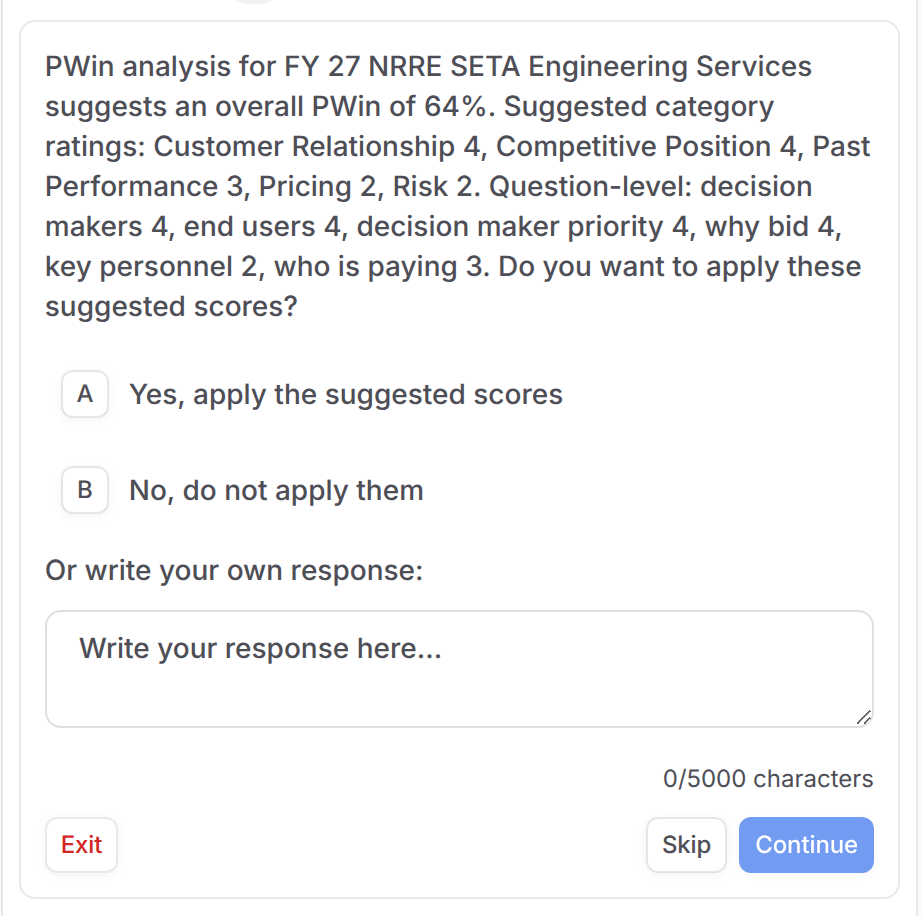
Select Run PWin Analysis. Dash reads your Capture Plan answers and suggests an overall PWin and a rating for each category and question. Choose whether to apply the suggestions, then select Continue. Dash explains each rating and gives tips on where to improve.
Tracking PWin Over Time
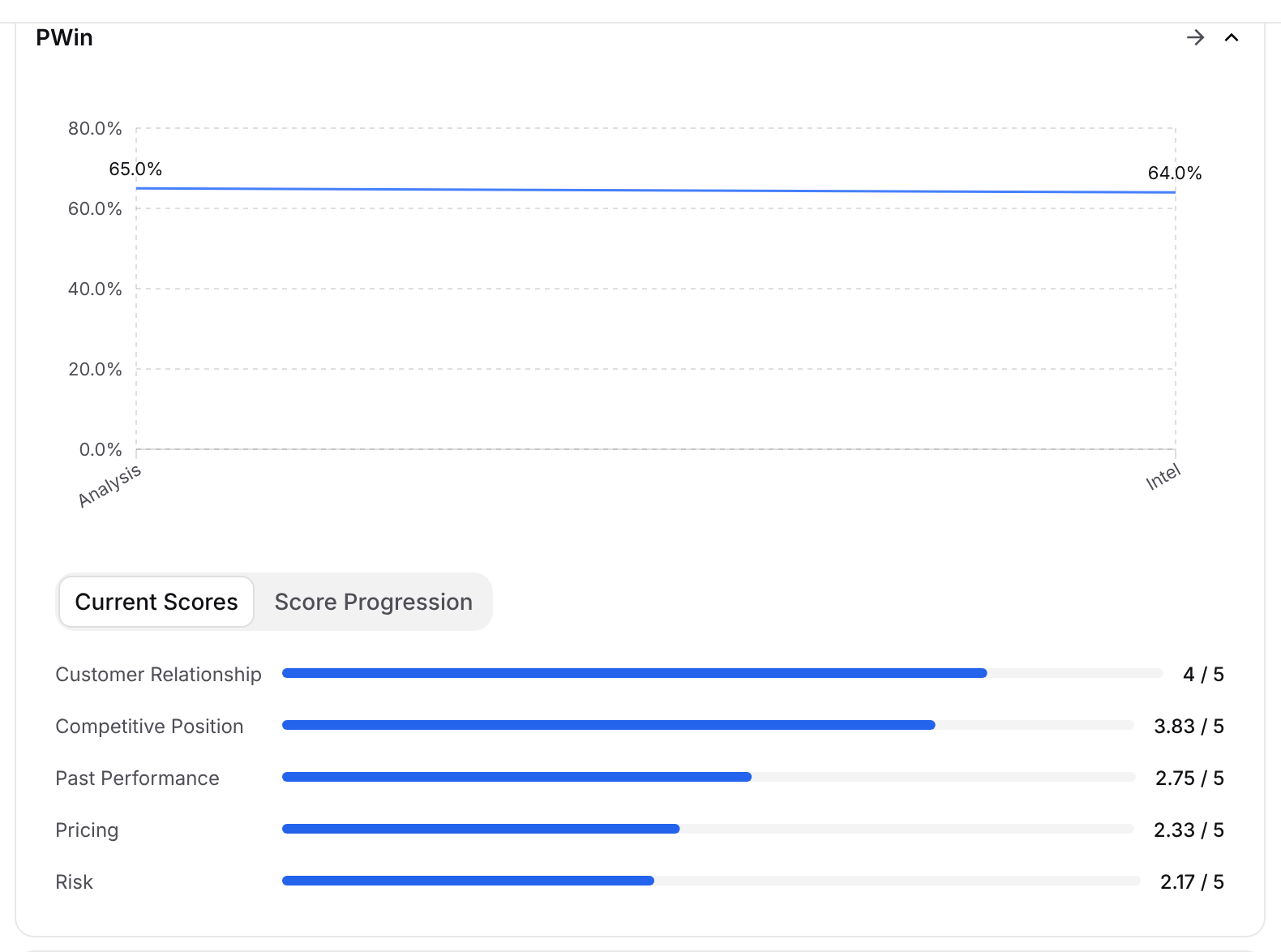
The PWin card on the opportunity's Overview tab shows Current Scores and Score Progression across phases. To see PWin across your whole pipeline, use the PWin widget on the Capture dashboard.
Video: How PWin Scores Are Calculated
Watch how category ratings, linked questions and weights add up to your PWin.
FAQ
How is the overall PWin score calculated?
GovDash scores each category from its rating and its rated linked questions, then applies the category weights. The result is rounded to a whole percentage between 5% and 94%. Unrated categories and questions are left out.
Why did I see a warning that a reviewer can't view this opportunity?
GovDash only notifies reviewers who can open the opportunity. They stay on the review, but won't get notifications until they have access. Ask your GovDash admin to give them access, or choose a different reviewer.
Why doesn't a category show on the PWin tab?
It may not be set up for the current phase. Admins can check the category's phases in the capture plan template in Capture Settings.
Is PWin included when I export a gate review?
Yes. When PWin is set up, the PowerPoint includes a PWin Summary slide with category ratings, and each linked question's slide shows its rating.
Can reviewers be set up ahead of time?
Yes. Admins can preset reviewers, approval order and auto-advance for each phase in the capture plan template in Capture Settings.