Overview
The Capture Plan is where your team records what it learns about an opportunity before you write the proposal: the customer, their needs, the competition and your solution. Questions are grouped into phases, like Analysis, Intel and Solution, and each phase is split into sections.
Your answers do more than track capture. Questions marked Used for proposal content feed GovDash when it writes your proposal, and Suggest Answer lets Dash draft answers from your solicitation documents.
Each opportunity has a Capture Plan with questions for every capture phase, and your answers feed the proposal GovDash writes later. Each part has its own article:
Capture Plan (this article): answering questions, Suggest Answer, attaching documents and exporting.
Capture Plan Templates: setting up the questions, weights, PWin and default reviewers.
Gate Reviews & PWin Scoring: reviewing each phase and scoring the probability of win.
You Can Customize the Capture Plan
Admins can add, edit and remove phases, sections and questions, set question weights, and build templates in Capture Settings under Capture Plan Templates. Your Capture Plan may look different from the examples in this article.
Click through the interactive walkthrough below. It has a chapter for answering questions and one for Suggest Answer and Export, or you can follow the steps in this article.
Opening the Capture Plan
Open the opportunity and select a phase under CAPTURE PLAN in the side panel. The badge next to each phase shows how complete it is. The tabs across the top switch between that phase's sections.
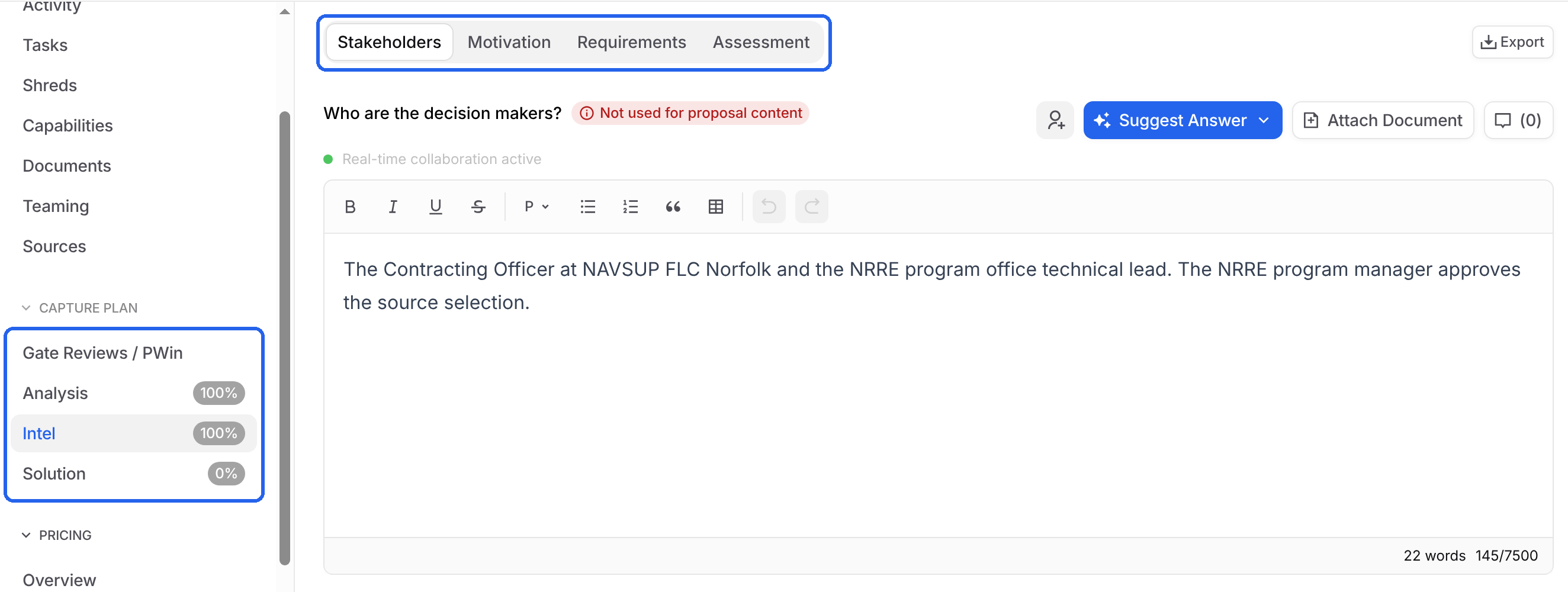
By default, the phases and sections are:
Analysis: Considerations, like budget, critical companies and scope changes.
Intel: Stakeholders, Motivation, Requirements and Assessment.
Solution: General, Approach, Benefits, Features and Risks.
Tracking Progress
The Capture Plan card on the opportunity's Overview tab shows the progress of every phase. Select a phase name to expand it and see a bar for each section.
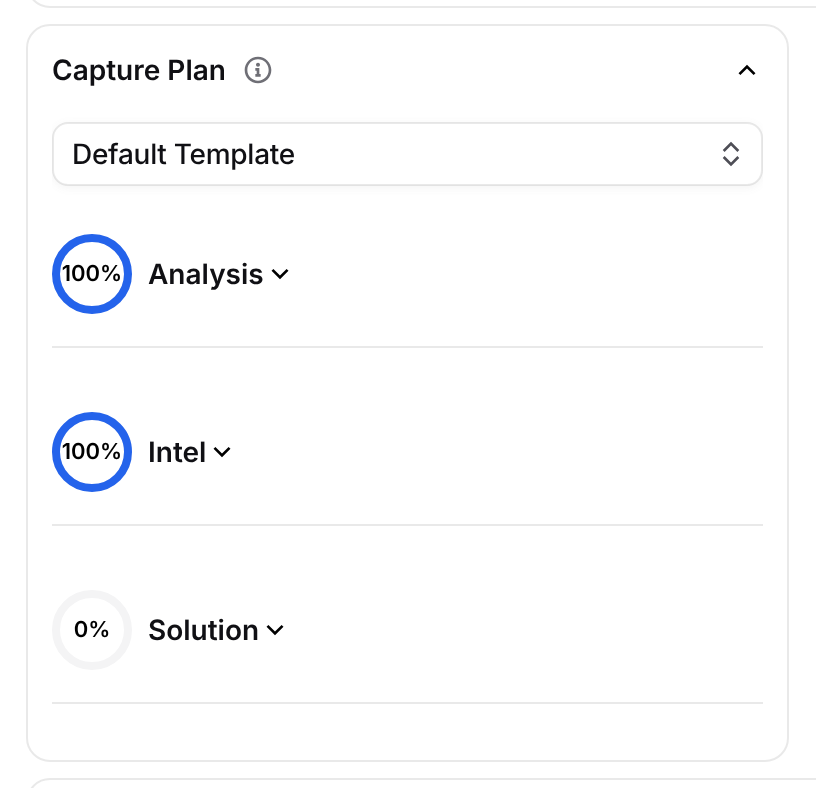
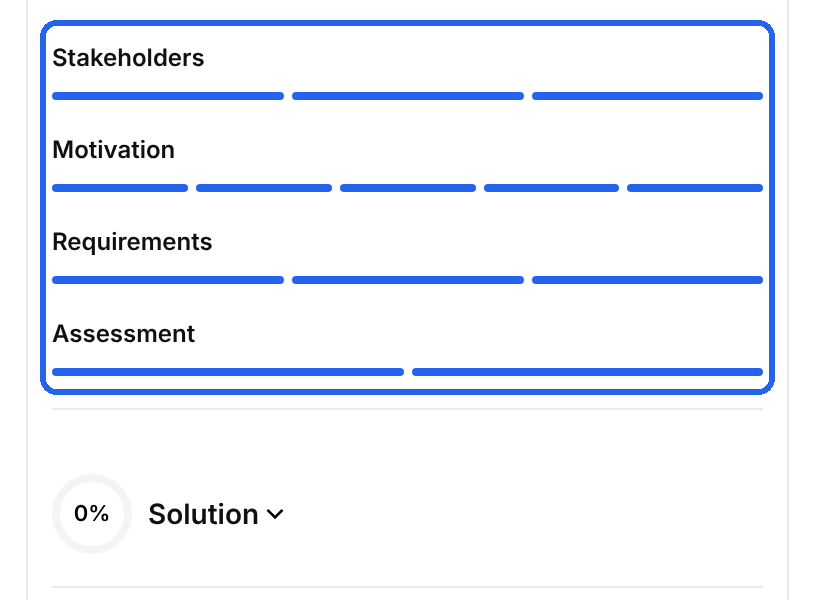
Some questions count for more than others. Hover over a question to see its weight, like 7% of phase progress.
The percentage next to each phase under CAPTURE PLAN in the side panel shows the same progress, so you can check it from any tab.
Overall Opportunity Progress
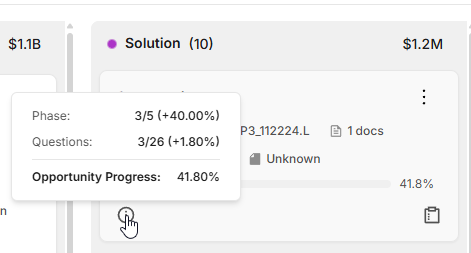
The Pipeline shows a percentage on each opportunity for its overall progress. It goes up as the opportunity moves to later phases, and as your team answers questions in its current phase. For example, an opportunity in the second of four phases starts at 25%, and answering all of that phase's questions brings it to 50%.
Hover over the info icon on an opportunity card to see how much comes from its phase and how much from answered questions.
Questions with a higher weight count for more. Admins set the weights in Capture Plan Templates.
Choosing a Template
The template decides which questions show for the opportunity. If your team has more than one, pick a different one from the dropdown at the top of the Capture Plan card.
When you switch, answers carry over to any question with the same text in a section with the same name. Switching also resets a gate review that is in progress. See Gate Reviews & PWin Scoring.
Answering Questions
Open a phase and select a section tab.
Type your answer in the editor under the question. It saves automatically as you type.
Move on to the next question. The phase's progress goes up as you answer.
Real-time collaboration active under a question means teammates on the page see your edits as you type. When teammates are typing, you see who is contributing and where at the top of each answer box, and their changes show up right away.
Next to each question you can also:
Hover over the Used for proposal content or Not used for proposal content badge to see the question's Purpose, Goal of Content and Desired Impact.
Select the person icon to Assign Users.
Select the comment icon to discuss the question with your team. The number shows how many comments it has.
Not sure what a strong answer looks like? Download the example Capture Plan template, which has an example for each question.
Suggest Answer
Dash can draft an answer for you from the opportunity's documents and your team's data.
Select Suggest Answer next to the question.
Choose Answer in editor to draft it right in the question, or Answer in chat to work on it with Dash in the chat panel.
Read the draft. The tags in the text show which document each point came from.

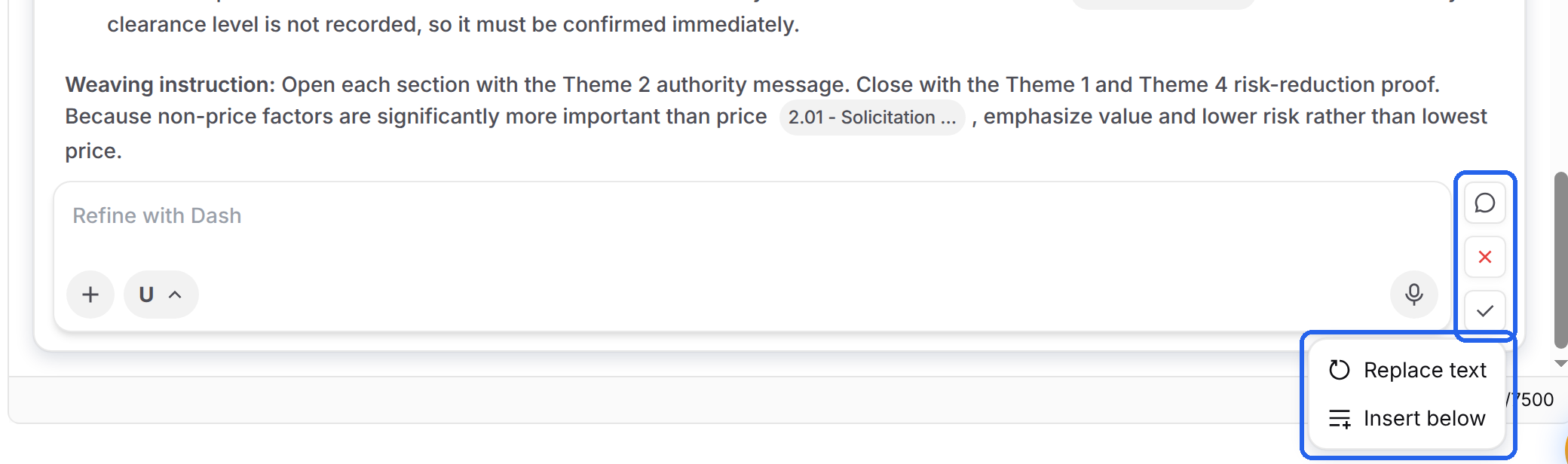
For an answer in the editor, finish with the controls to the right of the draft:
Refine with Dash: type what to change, like "make it shorter".
Expand to chat: keep working on it in the chat panel.
Reject: discard the draft.
Accept: then choose Replace text to swap out what's in the editor, or Insert below to keep it and add the draft after it.
Giving Dash More Context
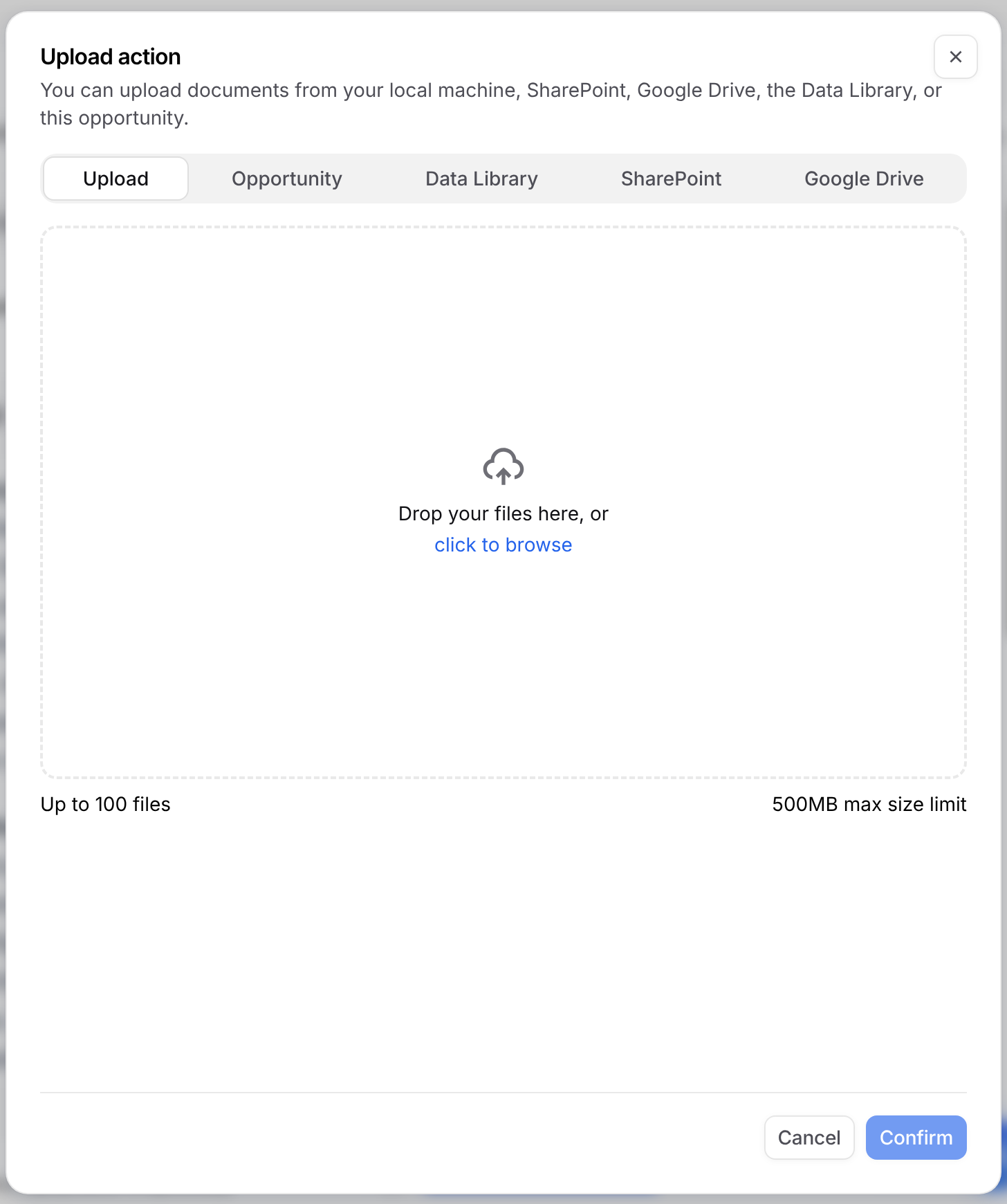
Dash uses the files on the opportunity's Documents tab. To give it more for one question, like meeting notes or customer intel, select Attach Document. Upload a file or pick one from the Opportunity, Data Library, SharePoint or Google Drive, then select Confirm.
Exporting the Capture Plan
Select Export in the top right of any phase. GovDash downloads the whole Capture Plan as an Excel file, with a sheet for each phase.
FAQ
Where do my answers go?
They stay on the opportunity. Answers to questions marked Used for proposal content are also used when GovDash writes your proposal. See Transitioning Opportunities to Proposal.
Why isn't my phase at 100%?
Some questions are still unanswered. Each question counts for a set share of the phase, so hover over each question to see its weight.
Can I change the questions?
Admins can add, edit and weight questions and templates in Capture Settings.
Will I lose answers if I switch templates?
Answers carry over to questions with the same text in a section with the same name. Other answers stay with the old template, so switching back brings them back.