Overview
Government pursuits rarely begin and end with a single announcement. A program might appear first as a forecast, then as a Sources Sought notice or an RFI, and finally as the RFP you respond to. The Sources tab keeps that entire history attached to one opportunity, so your team can see where each piece of information came from, jump straight to any original notice, and keep key fields up to date without re-entering data.
One source on every opportunity is marked as the Primary source. This is the source shown in the Primary Source field on the opportunity Overview tab, and the source GovDash uses by default to keep your fields current. You can change which source is primary at any time, and you can override that choice field by field using Field Sync.
Accessing the Sources Tab
Click Capture in the left-hand navigation menu, then open an opportunity from your Pipeline.
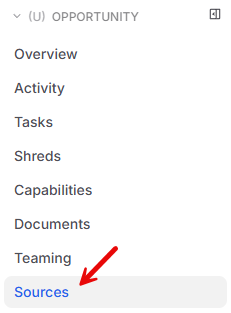
In the left-hand navigation menu under Opportunity, click Sources.
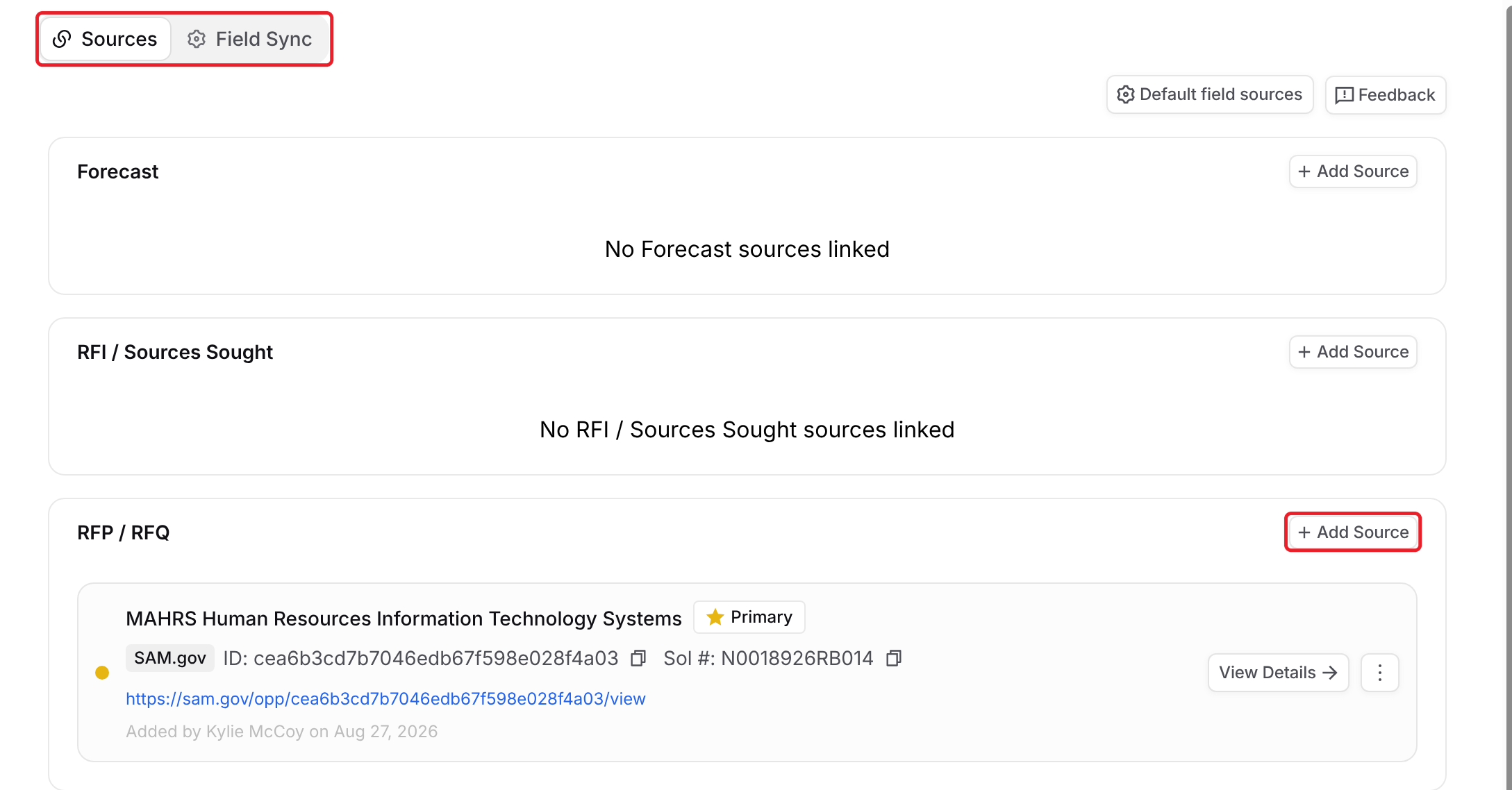
The Sources page has two tabs, Sources and Field Sync. The Sources tab groups everything linked to the opportunity into sections by source type:
Forecast: agency forecast and procurement forecast records.
RFI / Sources Sought: pre-solicitation notices.
RFP / RFQ: the solicitation you are responding to.
GovWin: linked GovWin opportunities.
Manual: any source you add yourself with a name and a link.
Other: appears only when a linked source falls outside the groups above.
Each section has its own Add Source button.
Adding a Source
On the Sources tab, find the section for the type of source you are adding.
Click Add Source in that section.
Add the source using the option provided for that type:
Forecast: search by forecast title or number, then click Add.
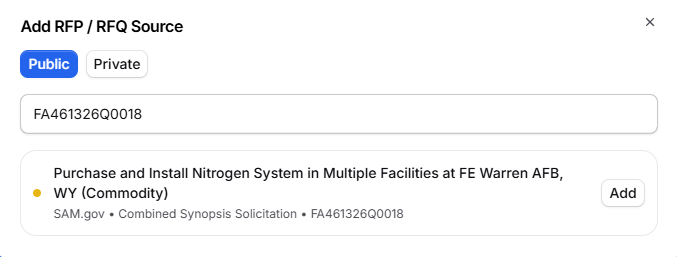
RFI / Sources Sought and RFP / RFQ: search by solicitation title or number, then click Add. Notices that are already linked to the opportunity are marked Already Linked.
GovWin: enter the GovWin ID, review the record GovDash finds, then click Add Source.
Manual: give the source a name (for example, Related RFI Response), paste its URL, then click Add Source.
The window closes and your new source appears in the list for that tab.
Attaching a Notice from Discover
You can also link a notice to an existing opportunity directly from Discover:
Click Discover in the left-hand navigation menu and find the notice you want to link.
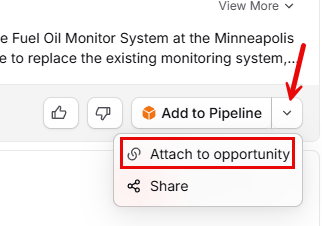
Click the arrow next to Add to Pipeline and choose Attach to opportunity.
Search for the opportunity within the Attach to Opportunity window, select it, and confirm.
GovDash will confirm with a Notice attached to opportunity message, and the notice will now appear on that opportunity’s Sources tab.
Reviewing a Linked Source
Every linked source is displayed on a card that includes:
The source title, along with a Primary badge if it is the primary source.
The source system the record came from, such as SAM.gov, SLED, PIEE, GSA eBuy, or GovWin.
Copyable ID and Solicitation number identifiers, making it quick and easy to paste them into an email or another search.
A link to the original notice, when one is available.
An Added by line with the team member’s name and the date the source was linked.
A View Details button that opens the matching record within GovDash.

Choosing the Primary Source
The Primary source is the source GovDash treats as the opportunity’s main source of truth. It is displayed in the Primary Source field on the opportunity Overview tab, and it is used by default to keep your opportunity fields up to date.
On the Sources tab, find the source you want to promote.
Click the three-dot menu on that source card and choose Set as Primary.
Confirm your selection in the Set as Primary Source window.
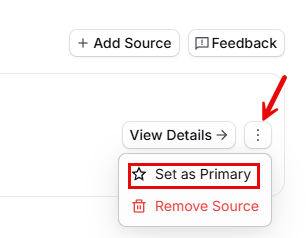
The Primary badge will move to the source you selected.
To step back from that choice, open the three-dot menu on the primary source and choose Remove as Primary. To unlink a source from the opportunity entirely, choose Remove Source on any non-primary source.
Keeping Fields Up to Date with Field Sync
The Field Sync tab controls which linked source keeps each opportunity field current. When an amendment moves the response due date, your Pipeline reflects the change without anyone re-typing it.
At the top of the Sources page, click Field Sync.
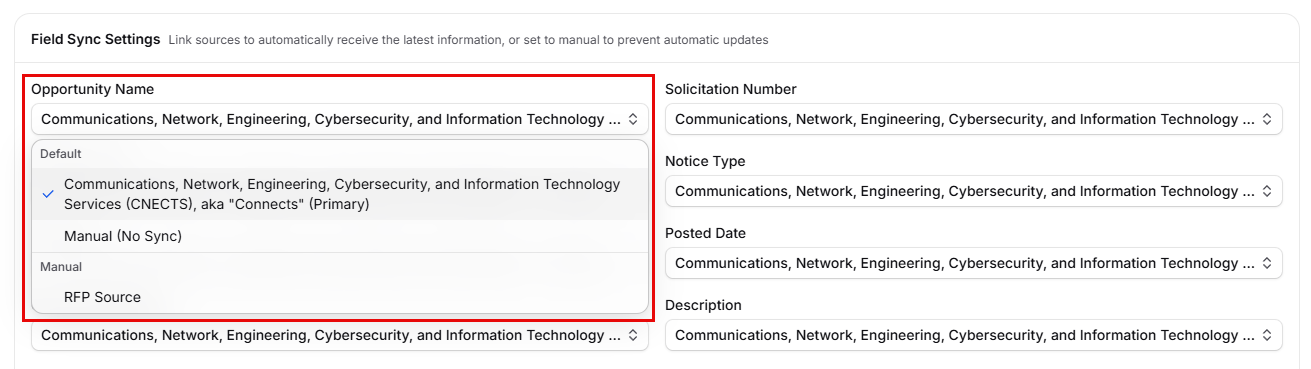
Under Field Sync Settings, find the field you want to control.
Choose an option from that field’s drop down menu:
Primary Source: follow whichever source is currently set as primary. This is the default.
Manual (No Sync): stop automatic updates so the value you have entered stays put.
A specific linked source: follow that source, even if it is not the primary source.
To change which source each field follows by default on every opportunity, click Default field sources. This opens Default Field Sources in Capture Settings.
FAQ
What is the purpose of the Sources tab?
The Sources tab keeps the entire history of an opportunity attached to it, allowing your team to see where each piece of information came from and to keep key fields up to date without re-entering data.
How can I access the Sources tab?
To access the Sources tab, click 'Capture' in the left-hand navigation menu, open an opportunity from your Pipeline, and then click 'Sources' under the Opportunity section.
What types of sources can be added to an opportunity?
You can add various types of sources including Forecast, RFI/Sources Sought, RFP/RFQ, GovWin, and Manual.
Can I change the Primary source for an opportunity?
Yes, you can change the Primary source at any time by selecting the source you want to promote and choosing 'Set as Primary' from the three-dot menu.
What is Field Sync and how does it work?
Field Sync controls which linked source keeps each opportunity field current, ensuring that updates from the primary source reflect automatically in your Pipeline.