Overview
The Overview tab is the first page you see when you open an opportunity. It puts the opportunity's key details, capture progress, PWin scores, documents, people and activity on one page, so you can see where a pursuit stands at a glance and update it without opening every tab.
The page is made of cards. Your team's overview template decides which cards show, how big they are and where they sit, so your Overview may look a little different from the screenshots here.
Click through the interactive walkthrough below to see how the Overview tab works, or read the sections below.
Opening the Overview Tab
Click Capture in the left-hand navigation menu, then open an opportunity from your Pipeline.
The opportunity opens on the Overview tab. To come back to it from another tab, click Overview under OPPORTUNITY.
The main column holds the field cards and the larger widgets. The column on the right holds smaller cards like Members, Contacts and Related Opportunities.
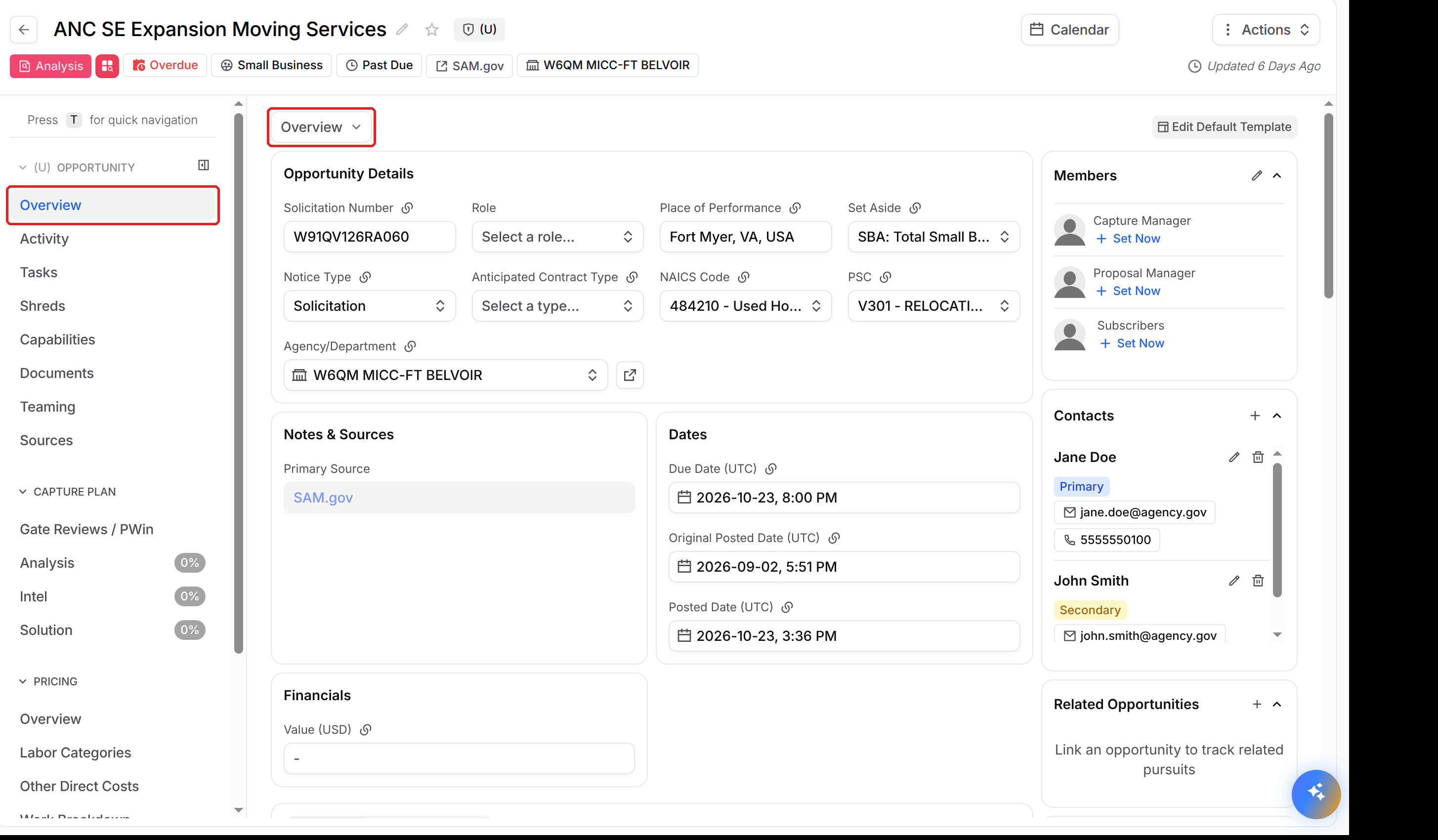
Opportunity Details and Standard Fields
The field cards at the top of the page hold the opportunity's details. GovDash fills in these standard fields from the opportunity's source, and you can edit any of them by clicking the field.
Opportunity Details: Solicitation Number, Role, Place of Performance, Set Aside, Notice Type, Anticipated Contract Type, NAICS Code, PSC, Agency/Department and Primary Offeror.
Dates: Due Date, Posted Date and Original Posted Date.
Financials: Value (USD).
Notes & Sources: the opportunity's Primary Source link.
Your team can rename these categories, add custom fields to them and create new ones. A red asterisk (*) next to a field means your team requires it for the opportunity's current phase.
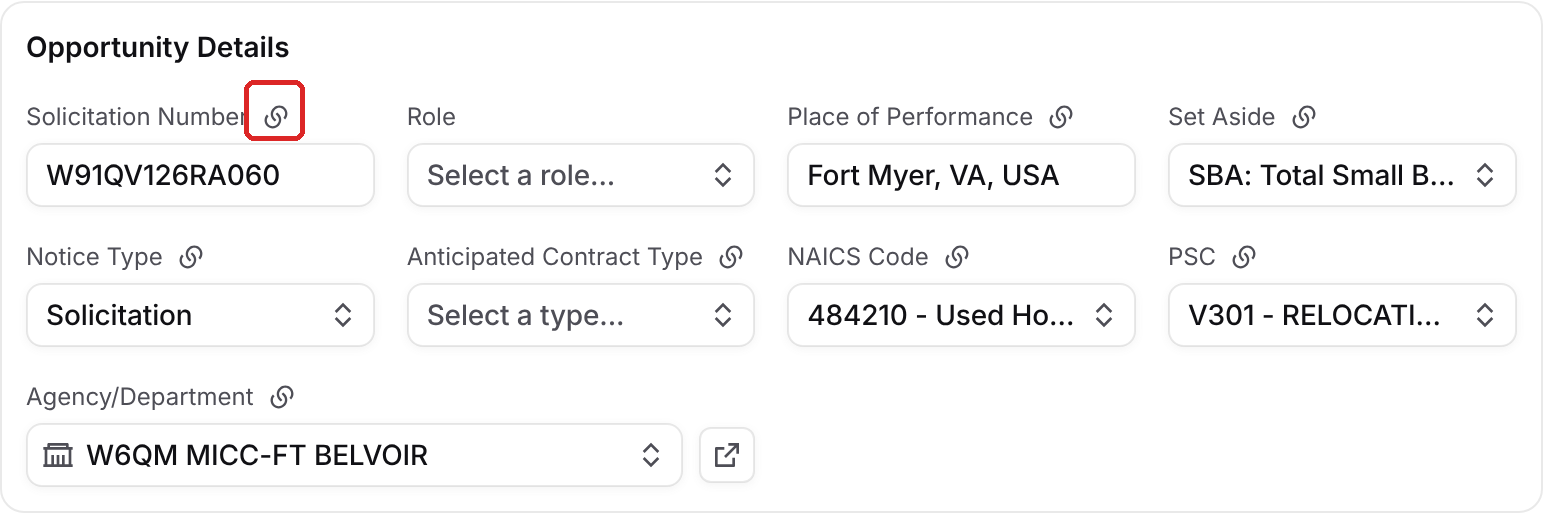
Fields Linked to Your Sources
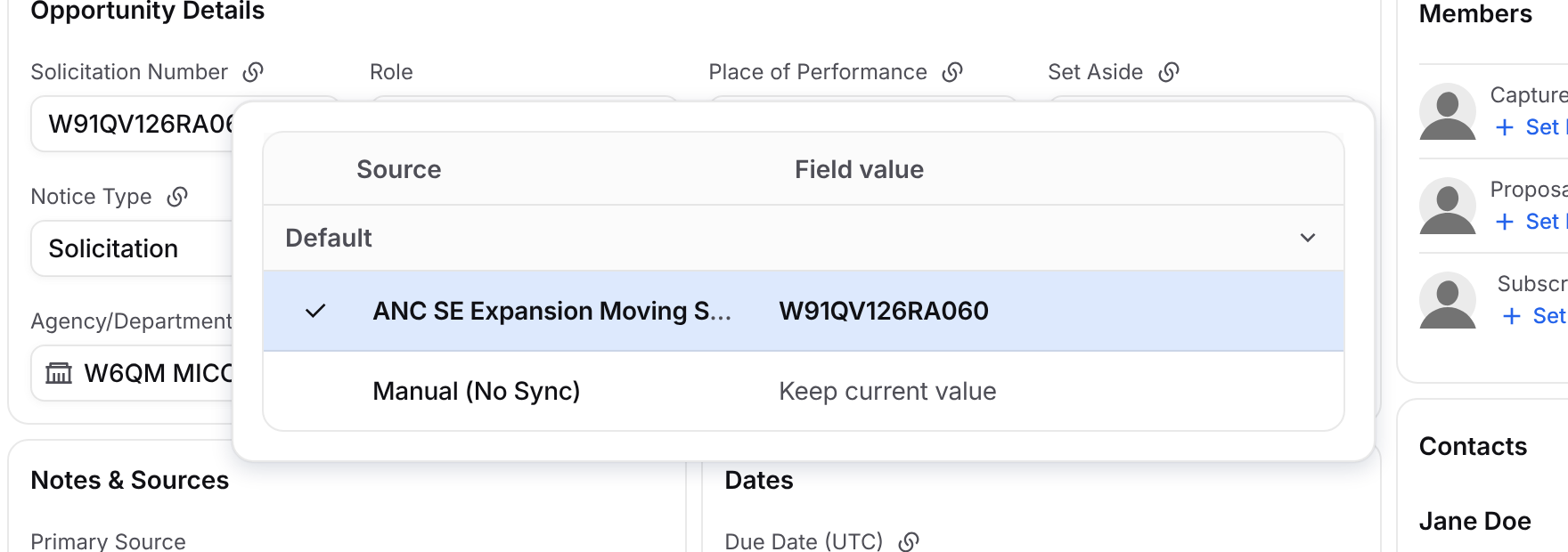
The link icon next to a field label means the field can be kept in sync with one of the opportunity's linked sources, such as a SAM.gov notice. Click the icon to see which source the field uses and what value each source has.
Pick a source to fill the field from that source.
Pick Manual (No Sync) to keep the current value and stop the field from updating.
Tracking Multiple Sources
To add sources and set field sync for every field at once, see Keeping Fields Up to Date with Field Sync.
Filtering the Overview by Category
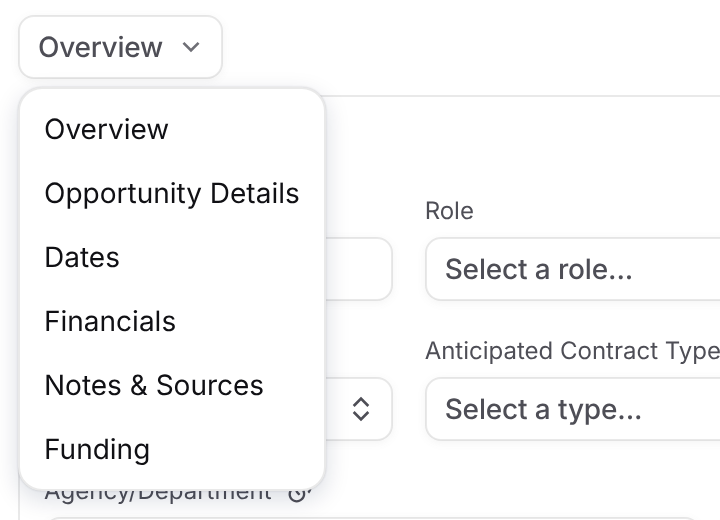
Click the Overview dropdown at the top left of the page to focus on one part of the opportunity:
Overview: the full page with every card.
A field category, such as Dates or Financials: only that category's fields. Categories with no fields aren't listed.
Archived: custom fields your team has archived that still have a value on this opportunity. They are read only. This option only shows when there are archived values.
Funding: the top contractors for the opportunity's NAICS and PSC codes over the last 5 years, with their awarded amounts and total outlays from USAspending.gov. Click Export to download the list.
Cards on the Overview
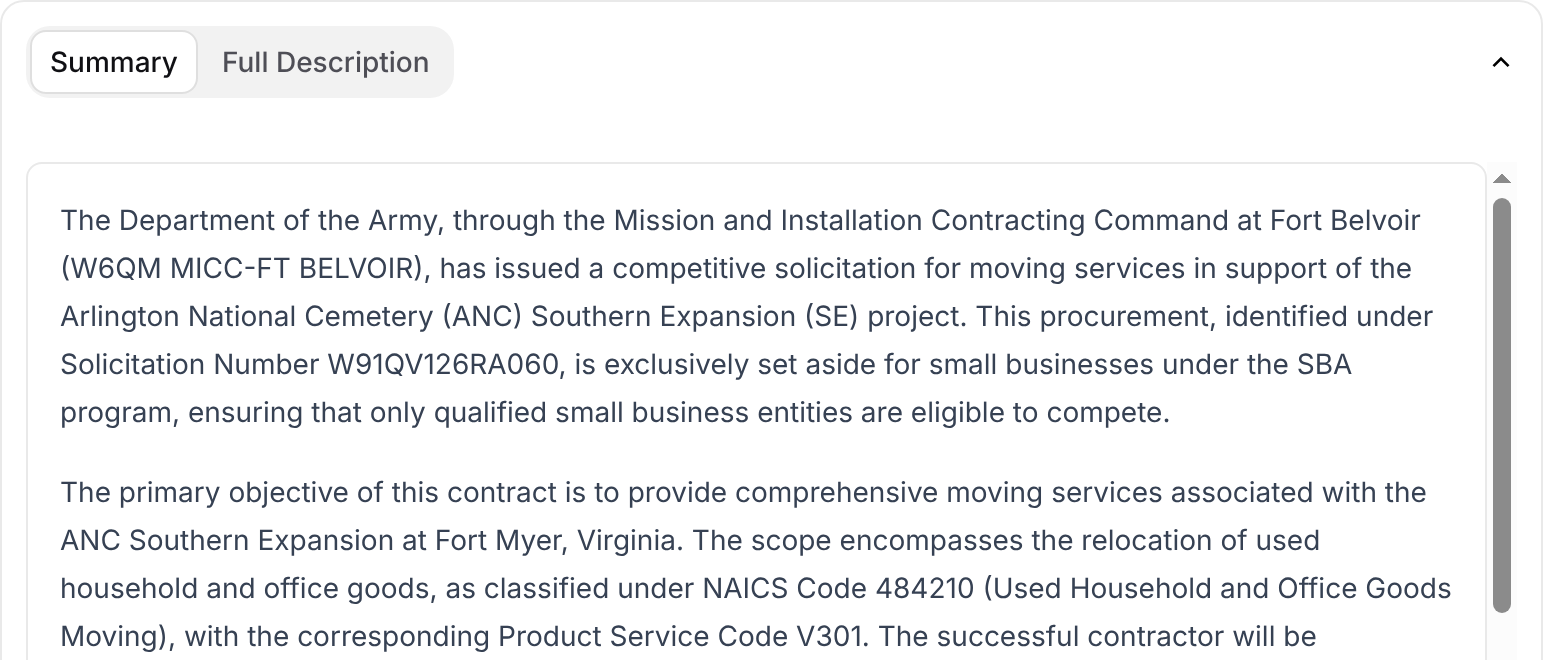
Summary and Full Description
Summary is a short overview of the opportunity, and Full Description is the notice description. If there's no summary yet, click Generate on the Summary tab to have GovDash write one. Click into either tab to edit it, then click Save.
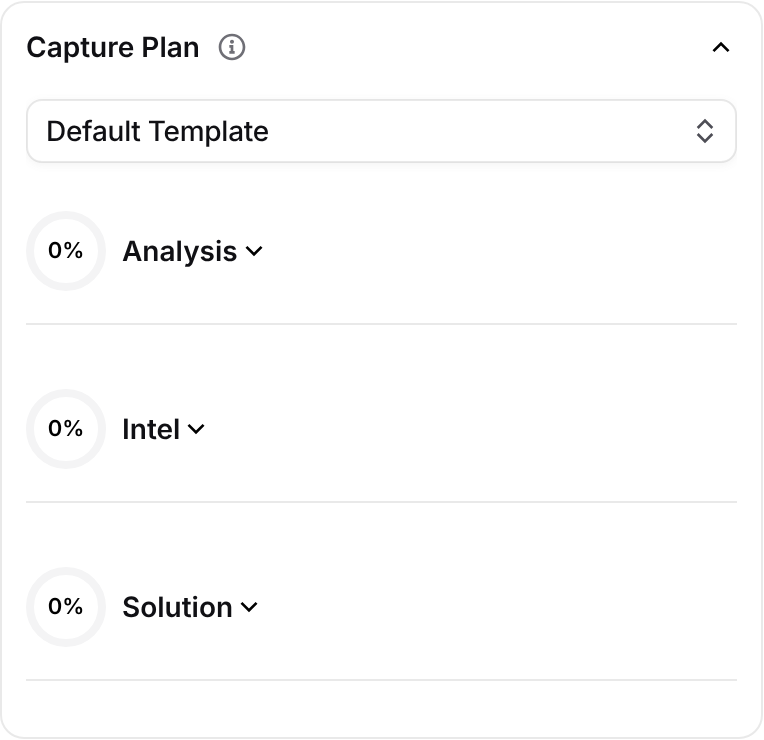
Capture Plan
Shows the capture plan template the opportunity uses and how much of each phase is done. Pick a different template from the dropdown at the top of the card, or click a phase to see its progress. See Tracking Progress in the Capture Plan article.
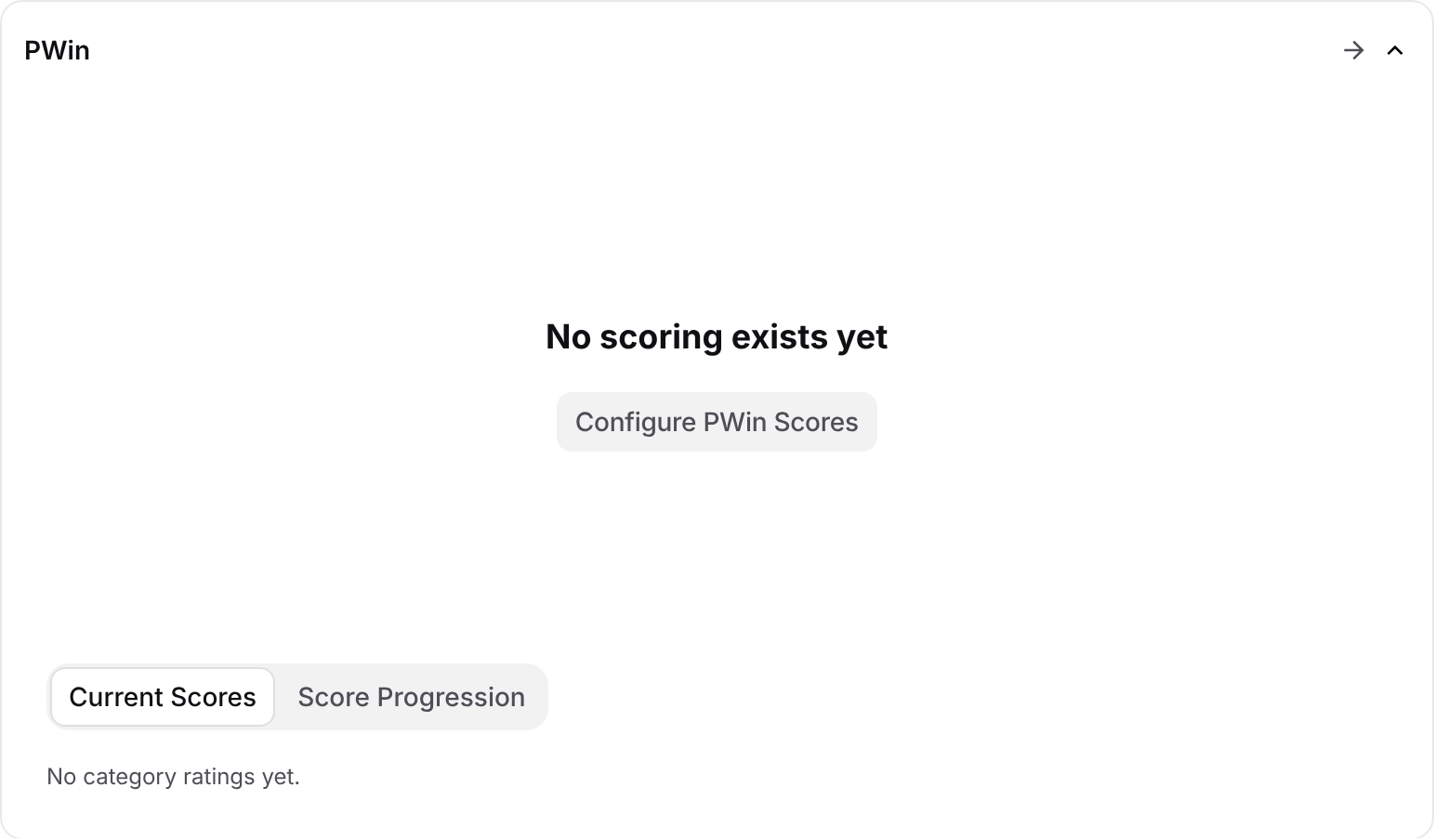
PWin
Shows the opportunity's Current Scores and Score Progression. If nothing is scored yet, click Configure PWin Scores. Click the arrow at the top of the card to open the Gate Reviews / PWin tab. See Gate Reviews & PWin Scoring.
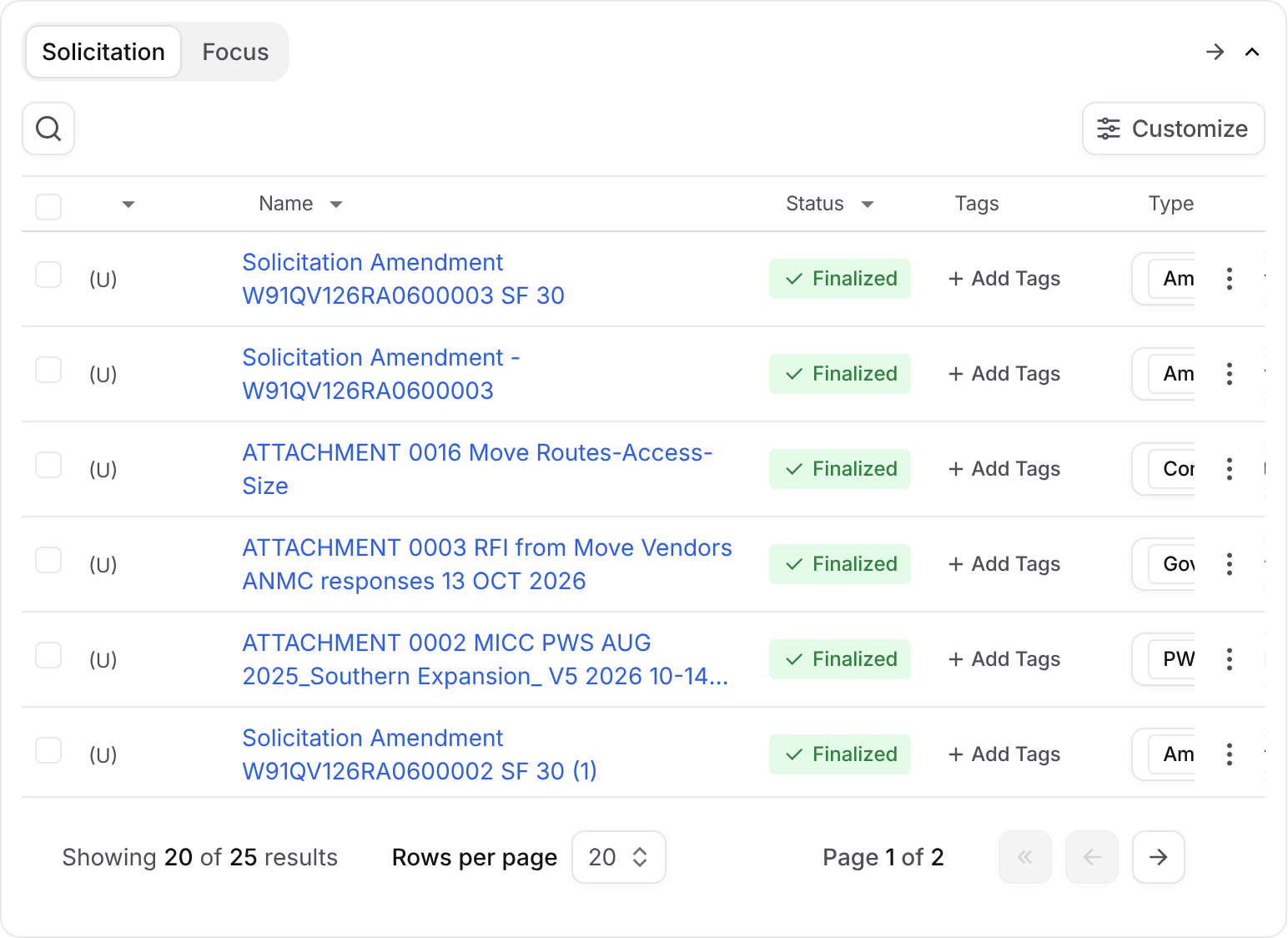
Solicitation and Focus Documents
Lists the opportunity's documents. Switch between the Solicitation and Focus tabs, click Customize to choose columns, and click the arrow to open the Documents tab. See Solicitation Documents & Shreds.
Members and Contacts
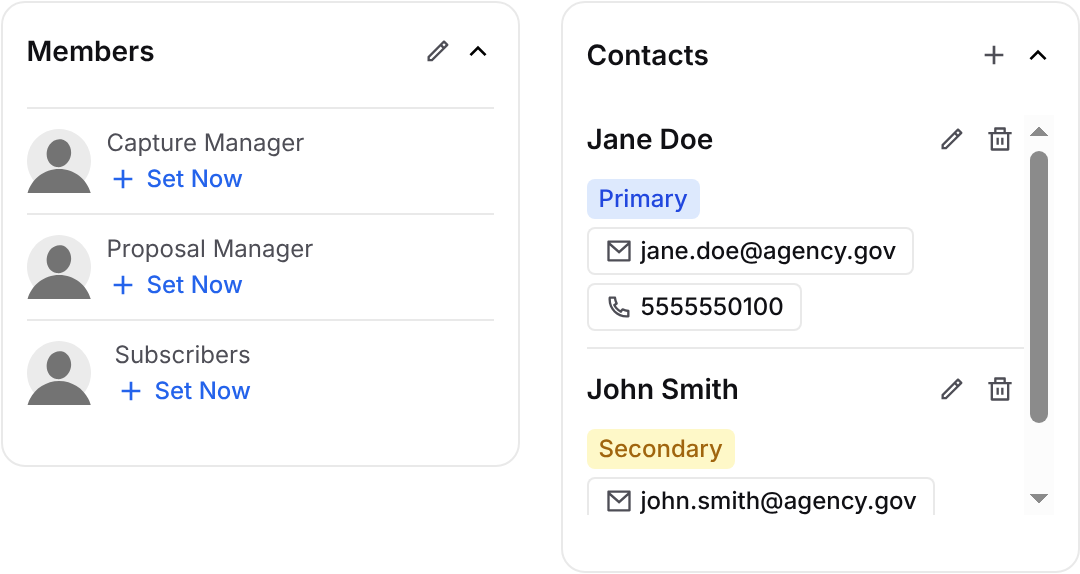
Members: the people assigned to each role on the opportunity, plus its subscribers. Click Set Now to assign someone, or the pencil to choose which roles show. To get a daily email about changes to opportunities you're assigned to, turn on Daily Edited Opportunity Digest in your notification settings. Admins can change the roles in Capture Settings.
Contacts: the opportunity's government contacts, marked Primary or Secondary. Click + to add a contact.
Related Opportunities and SharePoint Links
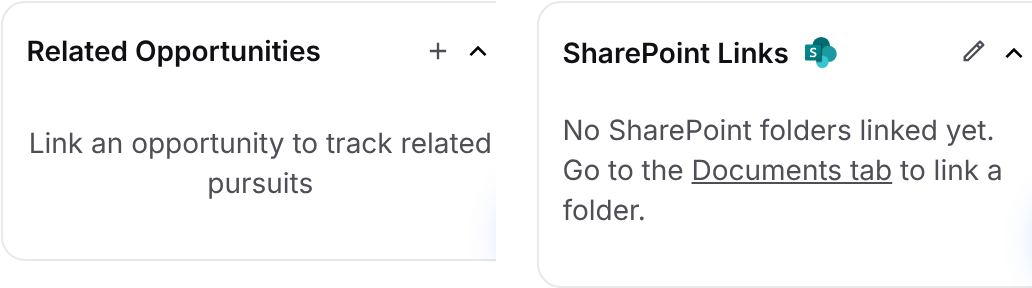
Related Opportunities: other opportunities linked to this one, such as joint pursuits. Click + to link one. Related opportunities don't share any details. Each one shows in the list as a shortcut you can click to open it.
SharePoint Links: the SharePoint folders linked to the opportunity. Link folders from the Documents tab. See Linking SharePoint Folders.
Activity
Shows comments and changes on the opportunity. Add a comment right from the card, or click the arrow to open the Activity tab. See Activity, Tasks, and Notes.
Contract Award Tracking
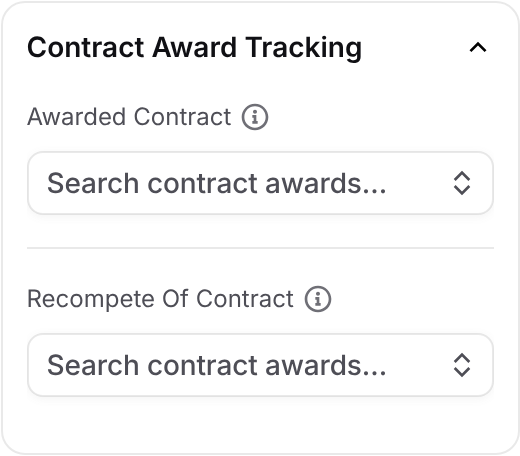
Links the opportunity to contracts in your Contract inventory. Use Awarded Contract for the contract you won from this opportunity, and Recompete Of Contract for the existing contract this opportunity recompetes.
Customizing the Overview Layout
Click the template button at the top right of the page, for example Edit Default Template, to open the Overview Template panel. It has 3 tabs:
Layout: choose the Current Template and check the cards you want to show. Hidden cards are still available in their own tabs.
Categories: rename and reorder categories and fields, or click Add Category or Add Field.
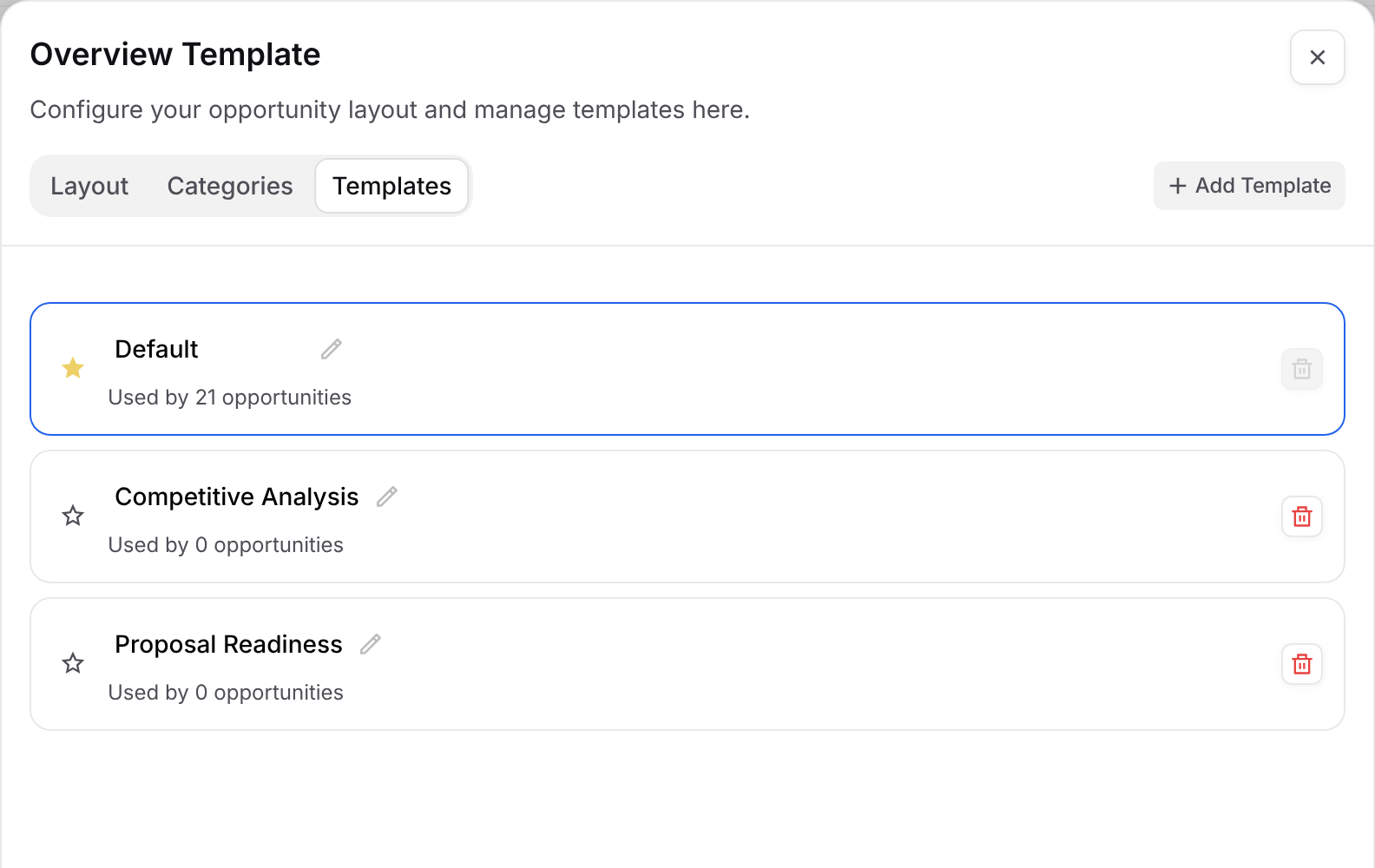
Templates: click Add Template to create a template, the pencil to rename one and the star to make it your team's default.
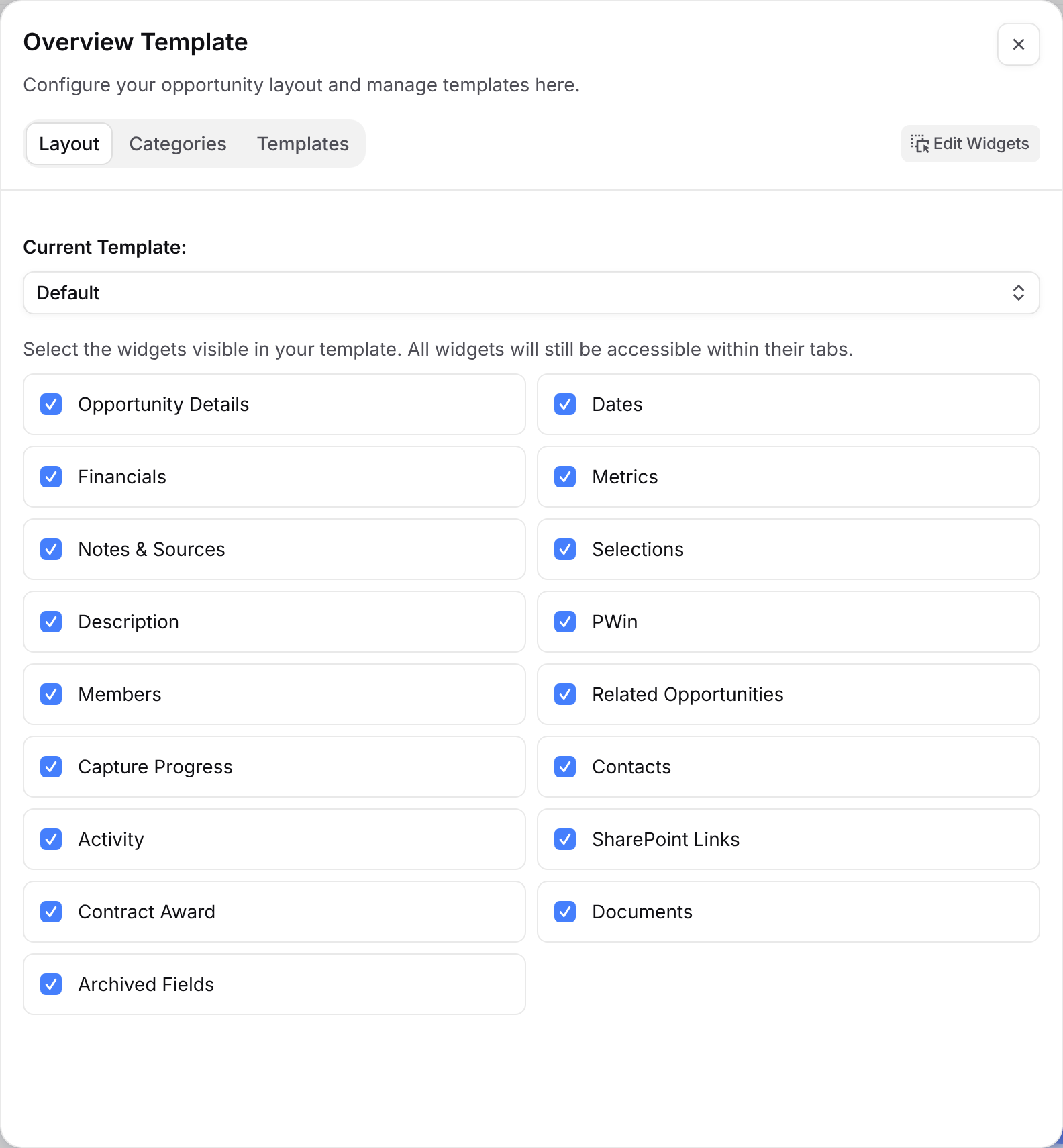
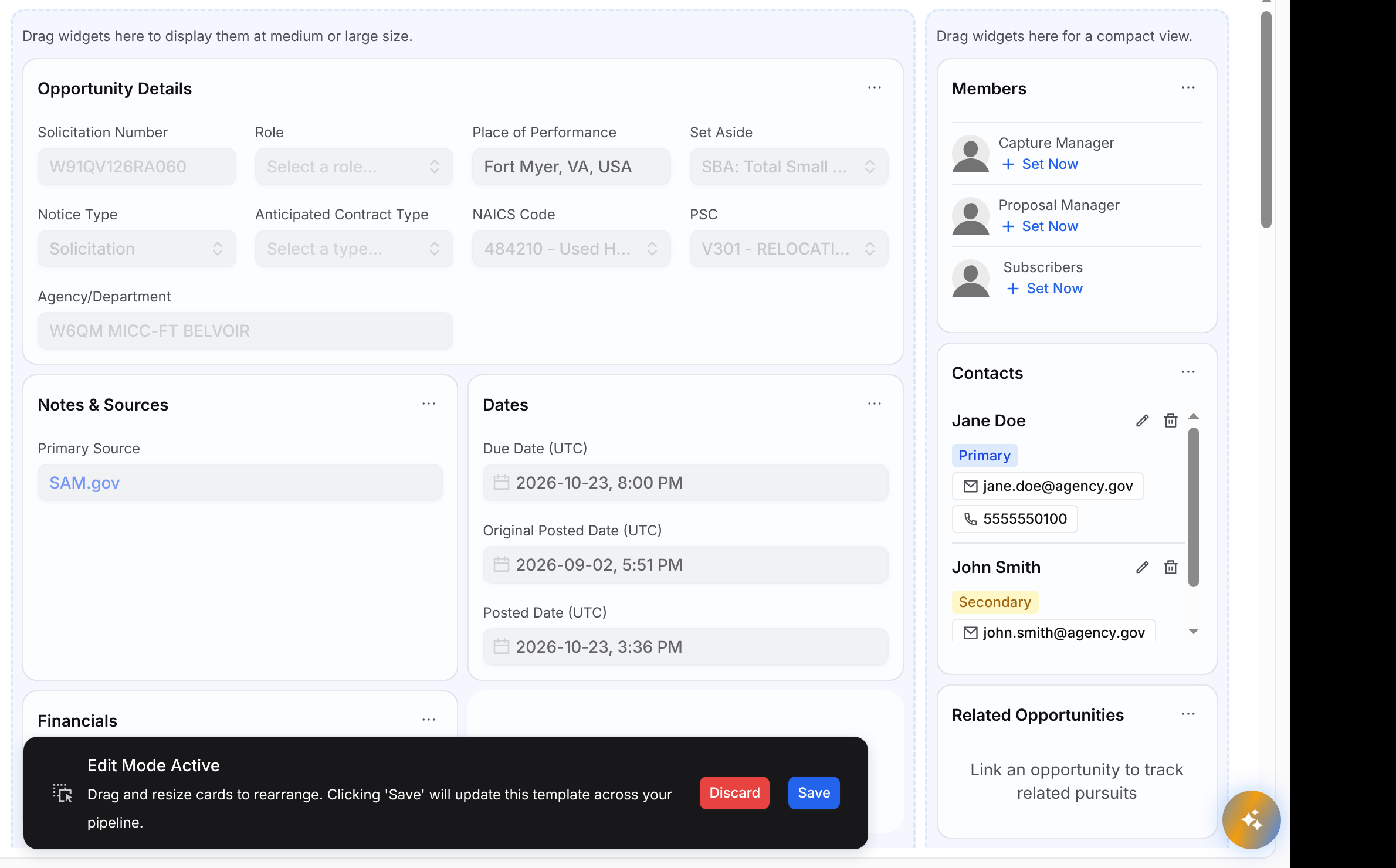
To move or resize cards, click Edit Widgets on the Layout tab. Drag cards where you want them, use a card's menu to resize or hide it, then click Save in the bar at the bottom of the page, or Discard to undo.
Changing templates requires permission to manage Capture settings. If the button is grayed out, ask your team admin.
More on Customizing
For step by step instructions on categories and templates, see Overview Page Customization & Templates.
FAQ
Why don't I see a card that someone else on my team sees?
Each overview template can show or hide different cards. Check which template the button at the top right of the page shows, then ask your team admin if you need a card added.
Why is the template button grayed out?
Changing overview templates requires permission to manage Capture settings. Ask your team admin for access or to make the change for you.
Why did a field change on its own?
Fields with a link icon can sync from one of the opportunity's sources. When that source updates, the field updates too. Click the link icon and pick Manual (No Sync) to keep your own value.
Why does Funding show no data?
Funding looks up contractors by the opportunity's NAICS and PSC codes. Add a NAICS Code or PSC in the Opportunity Details card, then open Funding again.