Overview
Discover finds opportunities that fit your business, based on the past performance recorded in GovDash, so you can quickly see which opportunities you’re best suited to win.
Accessing Discover
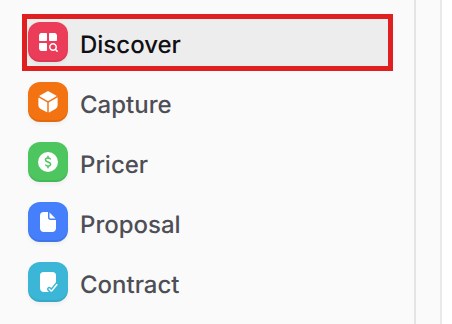
To open Discover, select Discover under Modules in the left navigation menu.
At the top of Discover, choose Public, Private, or Forecast.

Using Discover
GovDash provides you with multiple avenues to find opportunities, both through recommendations and search.
Recommendations and Relevance
When you use a search profile, GovDash puts the opportunities that best fit that profile at the top of your results. Every team starts with a Past Performance profile built from the NAICS codes, PSCs, and customers in the contracts and documents you upload to Contract.
Need to upload your contracts?
If you need assistance uploading your contracts in order to take advantage of this profile, check out our support article here for guidance and best practices.
Each opportunity will be displayed on a card with pertinent information prominently displayed, such as the current status, the type of opportunity, NAICS and PSC codes, set asides, and more.
Opportunity Matching
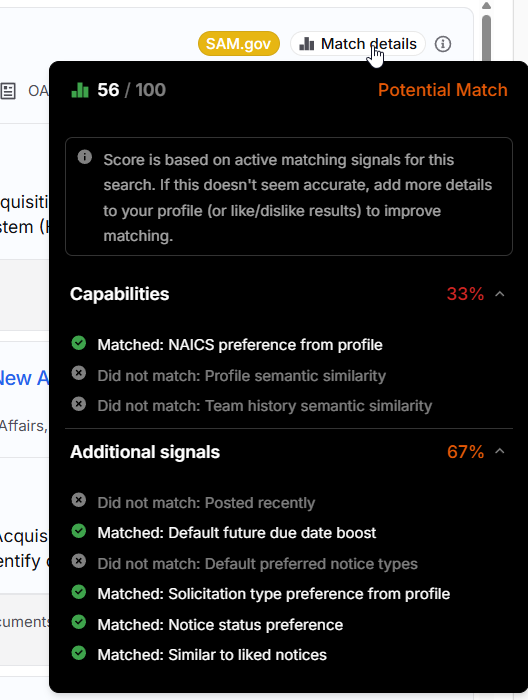
Each card shows how well the opportunity matches your selected profile. Hover over Match details to see the score out of 100 and which profile criteria matched.
Search
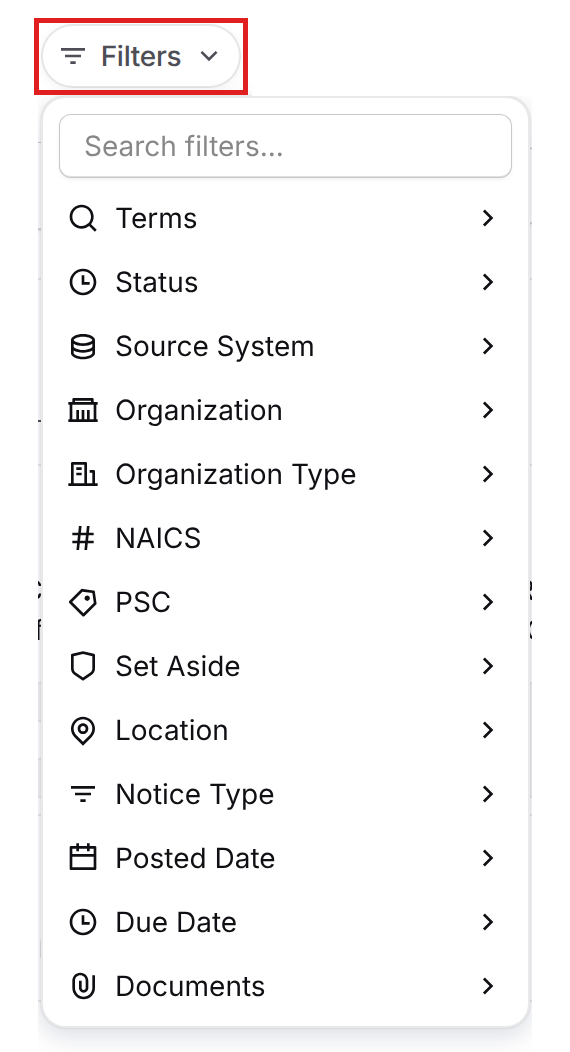
Type in the search bar to search by keyword, code, or agency, or just describe what you’re looking for. To narrow your results, select Filters and choose a filter such as Terms, Status, Source System, Organization, NAICS, PSC, Set Aside, Location, Notice Type, Posted Date, or Due Date. To narrow an organization or agency down to its sub levels, select Adv. next to the Organization filter. .png)
Search Profiles
To learn more about setting and configuring Search profiles to tailor your results, check out our support article here.
Sources
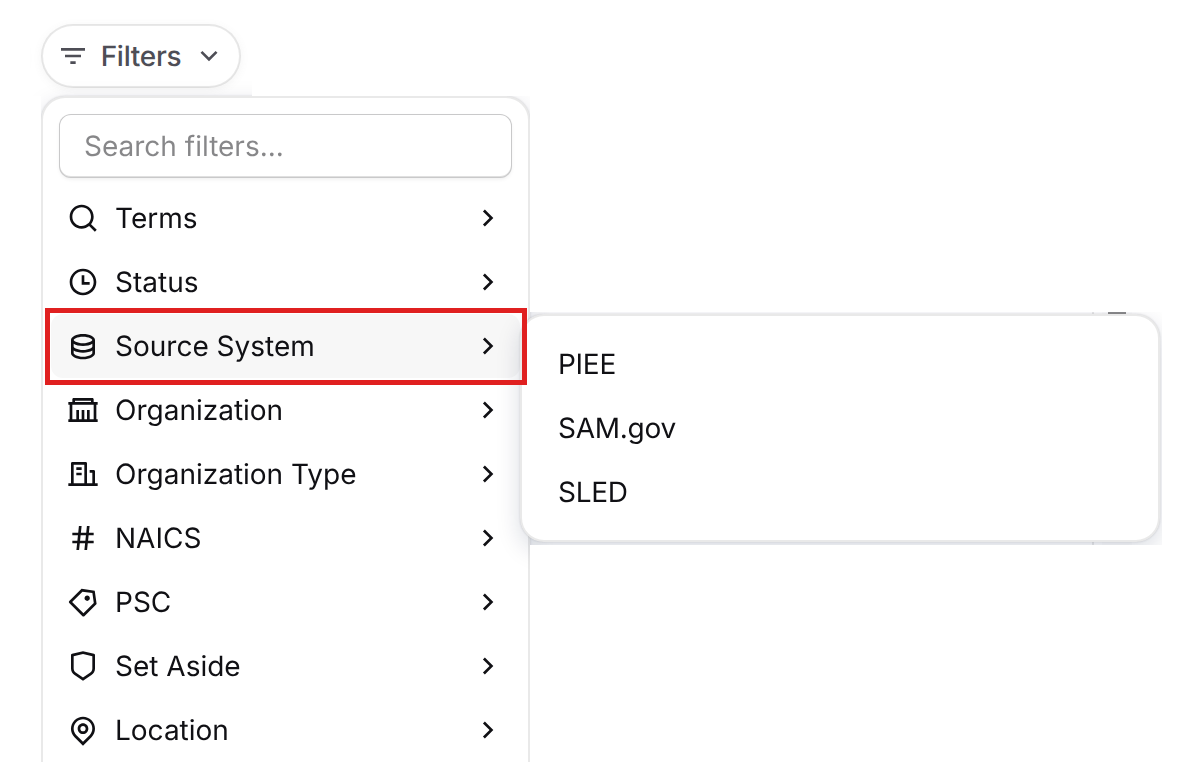
Discover provides public and private source options. Select Public or Private at the top of the page to switch between them. Publicly available sources such as PIEE, SAM.gov, and State, Local & Education (SLED) sources are in Public, while sources that need an integration or a closed portal login (such as eBuy) are in Private. You only see Private if you have permission to view private opportunities.
By default, Discover will provide all public sources within Public for you to view. To filter specific sources within Discover results, select the Source System drop down in the filters and choose your source.
From here, you can continue to filter for specific states, statuses, industries, governments or departments, and more using the filters at the top.
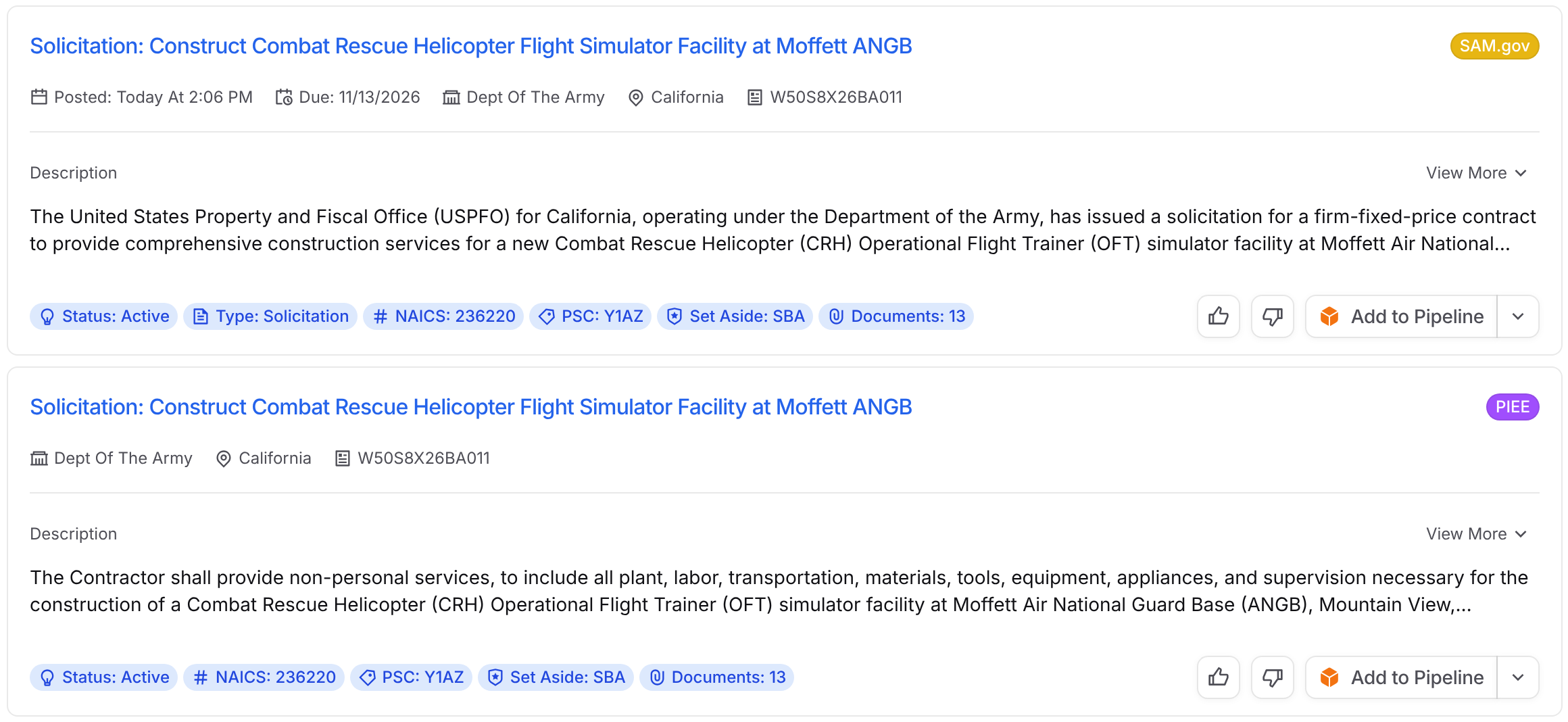
Within the results, you can quickly determine which source the opportunity is from based on the tag in the top right of the card.

Some opportunities are posted on more than one source, such as SAM.gov and PIEE. When this happens, Discover lists the opportunity once for each source, and each card shows that source's latest notice along with its source tag. Click the title on any card to open the notice from that source. On the opportunity page, Alternate Sources lets you switch between the sources (see Discover Opportunity Pages).
Filtering by source?
The Source System filter checks every source an opportunity is posted on, not just the one that posted most recently. For example, if you select only PIEE, you'll still see the PIEE version of an opportunity even when SAM.gov posted the newest notice. Discover shows only the cards for the sources you selected.
Within each record you can view the source link and list of documents that were downloaded from the opportunity page. By adding the opportunity to your Pipeline, the documents will automatically download and associate with the record, making it quick and easy for you to get started with your capture process.
Forecasts
Forecasts help you get ahead of upcoming work by surfacing opportunities before the government releases a solicitation. To view forecasted opportunities, select Forecast at the top of Discover.

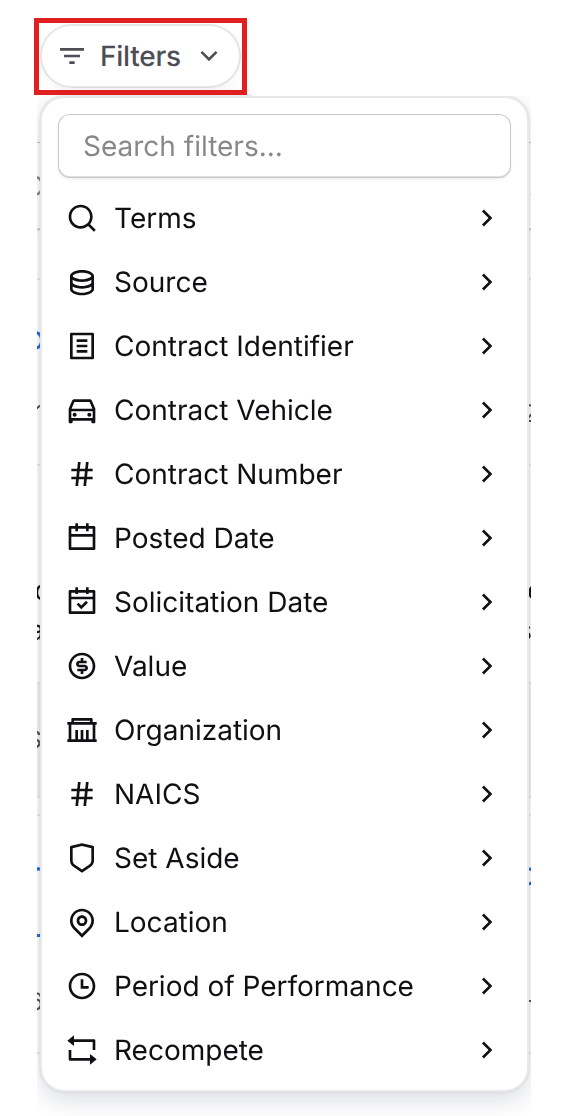
Select Filters to narrow forecasts by Source, Contract Vehicle, Value, NAICS, Recompete, and more. Tags in the top right of each card show the forecast source, such as DHS APFS, and other details such as Existing Contract.

Forecast Sources
Forecasted opportunities are pulled from official agency forecast systems, such as the DHS Acquisition Planning Forecast System (APFS) and the GSA Acquisition Gateway.
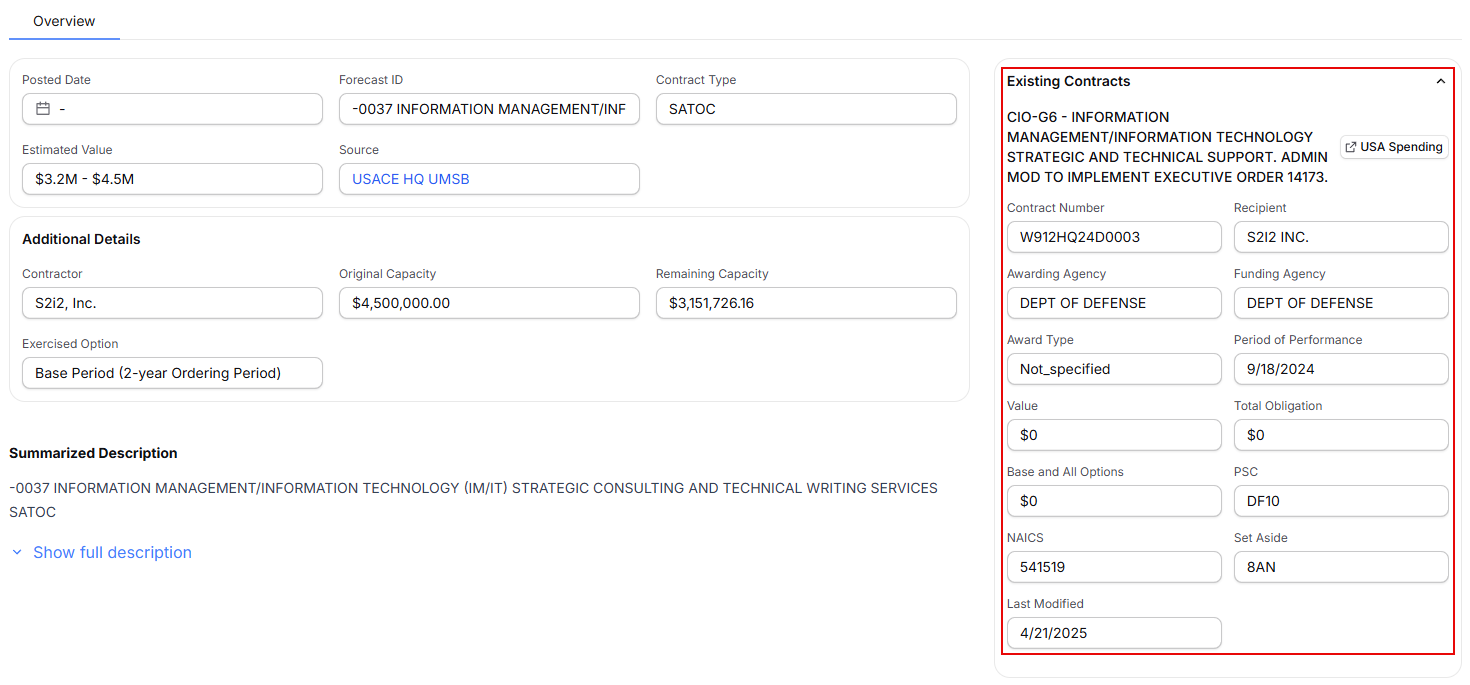
In addition to agency-published forecasts, GovDash scans USAspending.gov award end dates to identify existing contracts approaching expiration that may be recompeted. These predicted recompetes appear alongside agency forecasts, giving you visibility into potential opportunities even before an agency publishes a forecast. On recompete records, you can view incumbent information, including details of the existing contract, directly within the opportunity.
Using Dash with Forecasts
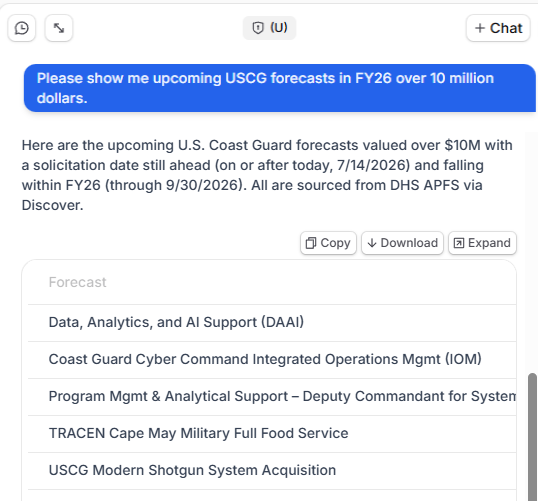
You can also ask Dash to search forecasts for you. Describe what you’re looking for (for example, an upcoming FY26 opportunity valued over $10 million), and Dash applies the right filters and returns matching forecasts.
Just like other opportunities in Discover, forecasts can be added to your Pipeline, allowing you to begin your capture process well before the solicitation is released.
Using the eBuy Integration
After the connection to eBuy has been successfully established, you can view your eBuy opportunities within Discover. Select Private at the top of the Discover page to find your eBuy opportunities.

Similarly to the public opportunities, you can easily search and filter your opportunity list, like, dislike, and add opportunities to your GovDash Pipeline. Using the link to the eBuy opportunity, you can also download any documents associated with the opportunity and upload them to the opportunity once it is in your Pipeline.
Searching Your eBuy Opportunities
The Private tab includes the same search bar found on the Public and Forecast tabs, located at the top of the opportunity list. Start typing to instantly narrow your eBuy opportunities by:
Title
RFQ ID
Description
Agency
Contact name or email
Solicitation number
Contract identifier
Press / anywhere on the page to jump straight into the search bar, and click the x inside the bar to clear your search.
Contract Vehicles Available on GSA eBuy
GSA eBuy supports RFQs, RFPs, and RFIs posted under a growing list of acquisition vehicles, including:
GSA & VA Multiple Award Schedules (MAS): All SINs across the consolidated schedule, including IT, professional services, facilities, and more
GWACs: 8(a) STARS III, Alliant 2, Alliant 3, VETS 2, and Polaris (all pools)
OASIS+: All six pools (Unrestricted, Total SB, 8(a), WOSB, HUBZone, SDVOSB) across 13 service domains; eBuy is the mandatory solicitation tool for all OASIS+ task orders
Network Services & Telecom: EIS and CS3 (COMSATCOM)
BPAs: Blanket Purchase Agreements established against MAS (e.g., 2GIT, SCRIPTS, GSS for IT Products, Governmentwide Printer)
FSSI: Active Federal Strategic Sourcing Initiative contracts
Opportunities are posted by SIN, domain, or contract category. Contractors must hold the applicable vehicle and be registered with the Vendor Support Center (VSC) in order for opportunities to be synced to GovDash.
Haven’t Setup Your Integration Yet?
Check out our integrations guide here for assistance with integrating eBuy with your GovDash account.
Discover Email Notifications
Discover Recap
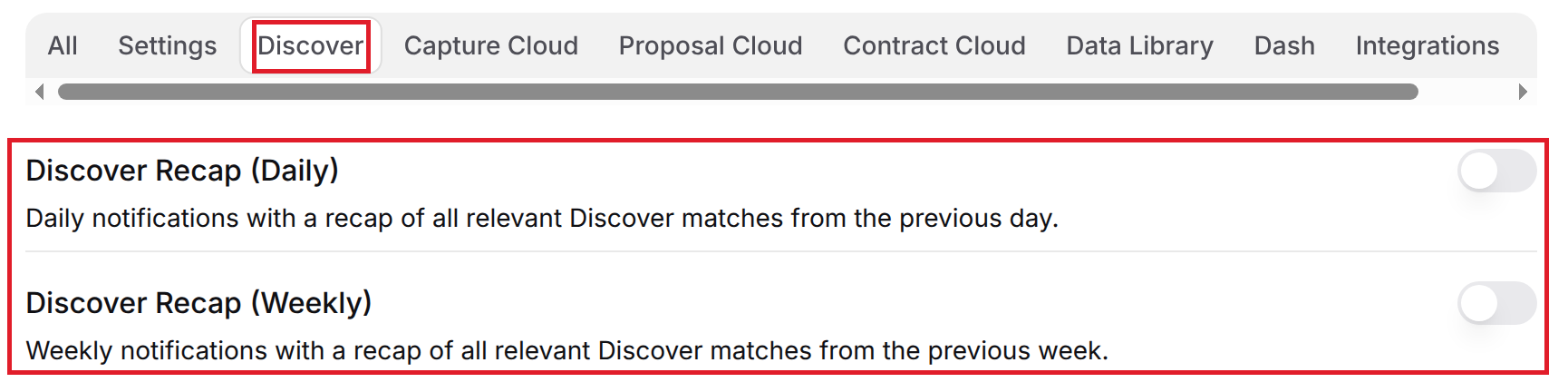
Discover Recap emails send you relevant opportunities you may have missed. They only include opportunities you haven’t liked, disliked, or added to your Pipeline. There are two recap emails:
Discover Recap (Daily): A recap of relevant Discover matches from the previous day.
Discover Recap (Weekly): A recap of relevant Discover matches from the previous week, sent on Mondays.
To turn either email on or off, go to Settings > Notifications, select the Discover tab, and use the toggle next to each recap. Under Search Profiles, select Manage to set a notification schedule for a search profile.
Likes
To like an opportunity, select the thumbs up button on its card. In the dialog, you can add a note about why it’s a good fit, and check Update my profile to improve recommendations to have Dash update your search profile. Select Submit, or Skip to like it without a note. To undo a like, select the thumbs up button again. Likes tell Discover what you want to see more of.
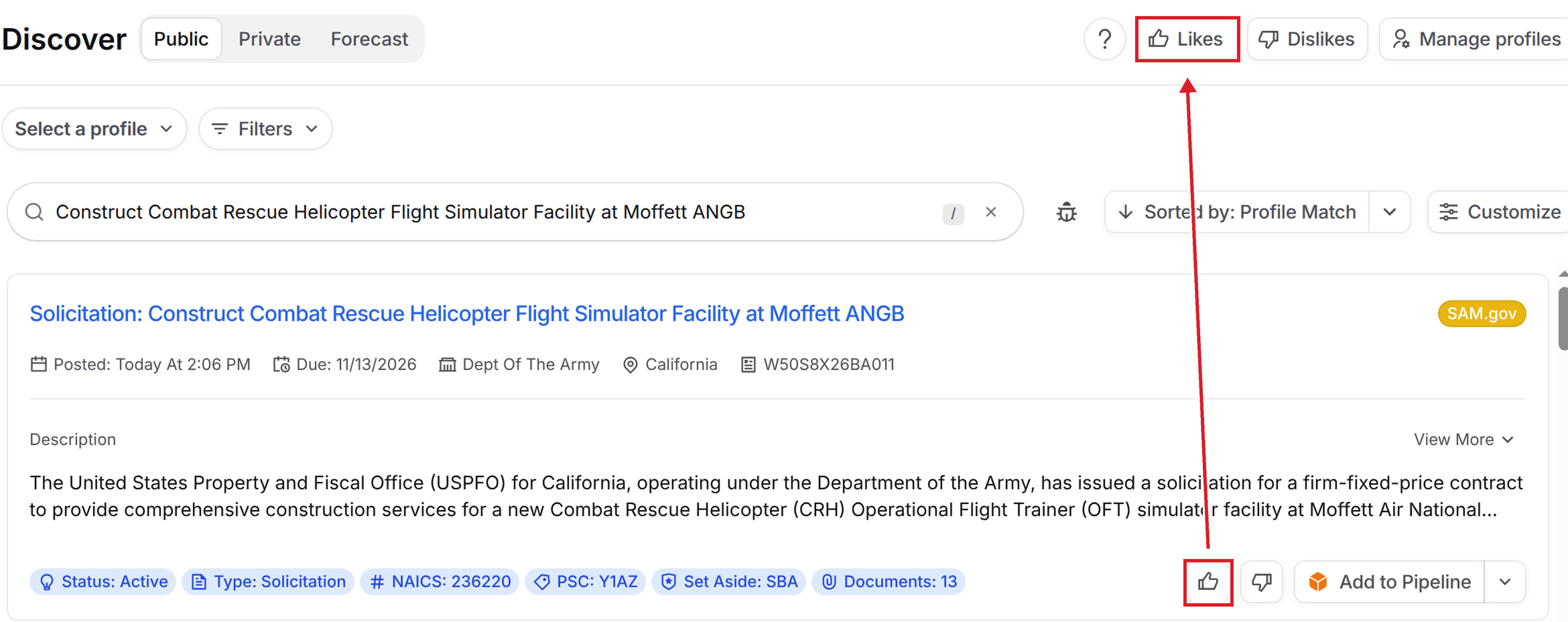
To see the opportunities you’ve liked, select Likes in the top right of Discover.
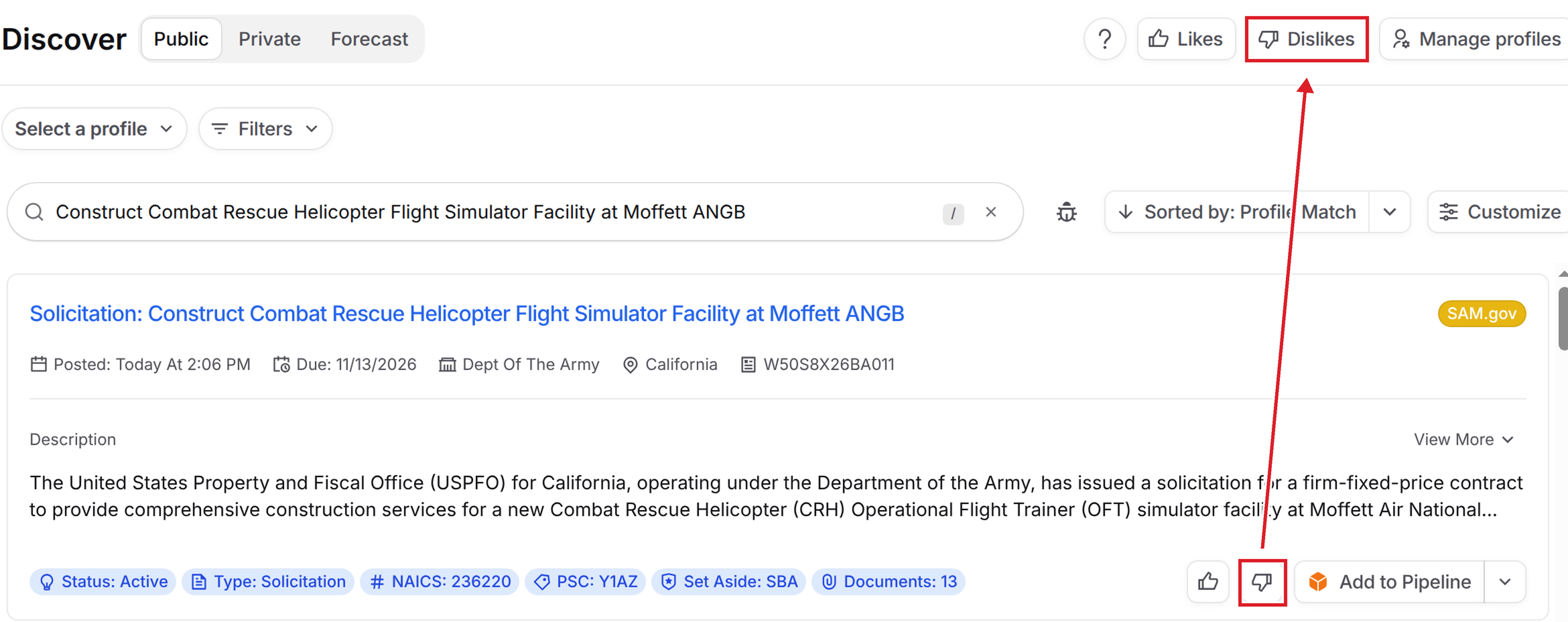
Dislikes
To hide an opportunity from your results, select the thumbs down button on its card. In the dialog, you can add an optional note, then select Submit, or Skip to dislike it without one. The opportunity moves to Dislikes, which you can open from the top right of Discover. To undo a dislike, select the thumbs down button again.
Adding Opportunities to the Pipeline
You can move an opportunity from Discover straight into your Pipeline so your team can start capture. Select Add to Pipeline on any opportunity card, or on the opportunity’s full details page. In Set Classification, choose the classification level for the opportunity, then select Add to Pipeline.

Opportunity Records
Ready to start working with opportunities within the Discover? Click to learn more about opportunity records!
Sharing Opportunities
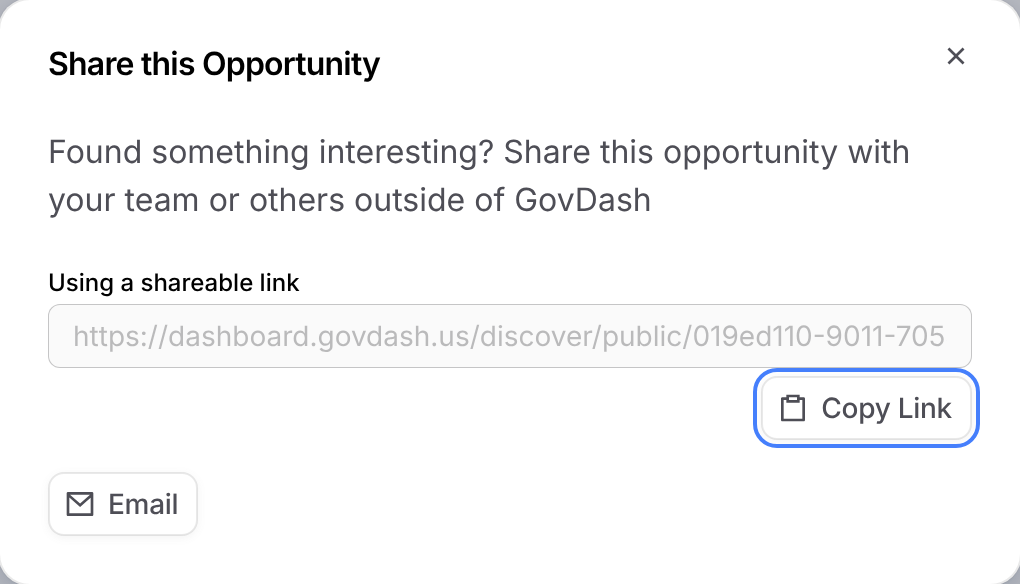
You can share an opportunity with your team or with people outside GovDash. Select the arrow next to Add to Pipeline, then select Share.
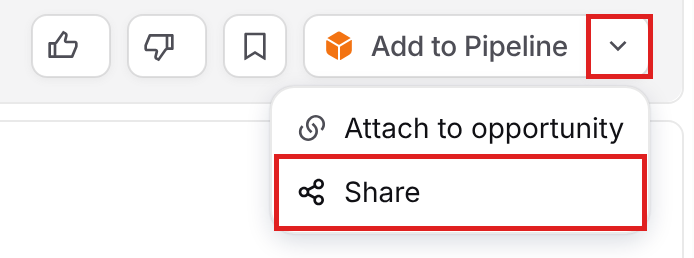
In Share this Opportunity, select Copy Link to copy a shareable link, or select Email to send the opportunity details and link from your email app.
Discover Settings
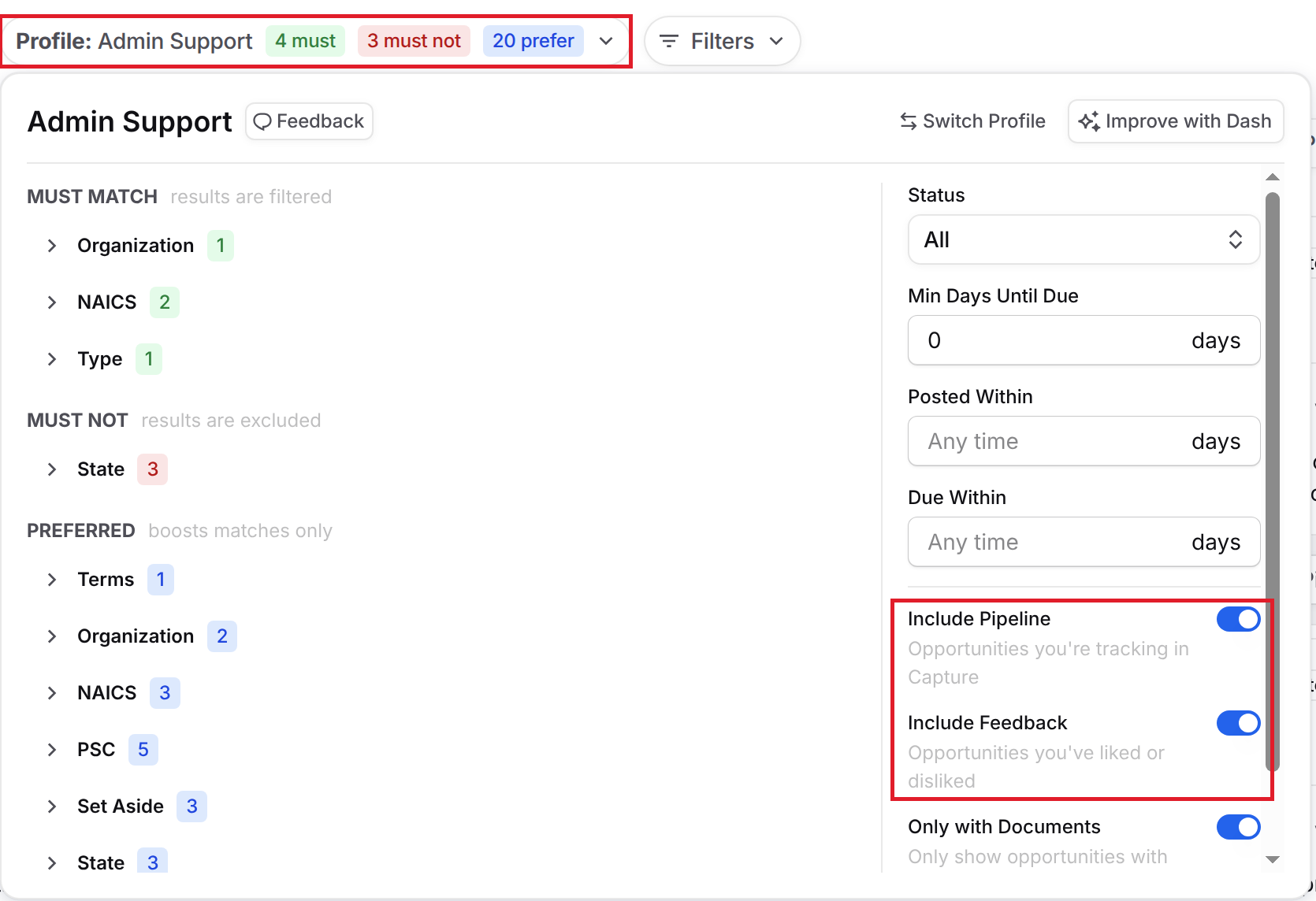
You can choose whether results include opportunities you’ve already added to your Pipeline or given feedback on (Likes or Dislikes). Select Profile at the top of your results, then turn on Include Pipeline or Include Feedback.
When an opportunity is already in your Pipeline, the Add to Pipeline button changes to View in Pipeline. Select it to open the opportunity in your Pipeline.

FAQ
How does Discover determine which opportunities are suitable for my business?
Discover uses your search profile to suggest opportunities. The Past Performance profile is built from the NAICS codes, PSCs, and customers in your uploaded contracts.
What steps do I need to take to upload my contracts for Discover?
See Uploading Your Contracts for steps and best practices.
Can I filter opportunities by specific sources in Discover?
Yes. Select Filters, then Source System, and choose the sources you want. Discover checks every source an opportunity is posted on, so an opportunity posted on both SAM.gov and PIEE appears when you filter for either source.
Why do I see the same opportunity more than once in Discover?
Some opportunities are posted on more than one source, such as SAM.gov and PIEE. Discover lists the opportunity once for each source so you can see each source's latest notice. Check the tag in the top right of each card to see which source it's from.
What happens when I add an opportunity to my Pipeline?
When you add an opportunity to your Pipeline, any associated documents will automatically download and link to that record.
Is there a way to customize my notification settings for Discover?
Yes. Go to Settings > Notifications and select the Discover tab to turn Discover Recap (Daily) and Discover Recap (Weekly) on or off.