Overview
Opportunity pages show everything about an opportunity in one place, including a summarized description, key dates, classification codes, contacts and solicitation documents. From the page, you can like or dislike the opportunity, share it and add it to your Pipeline.
Accessing Opportunity Pages
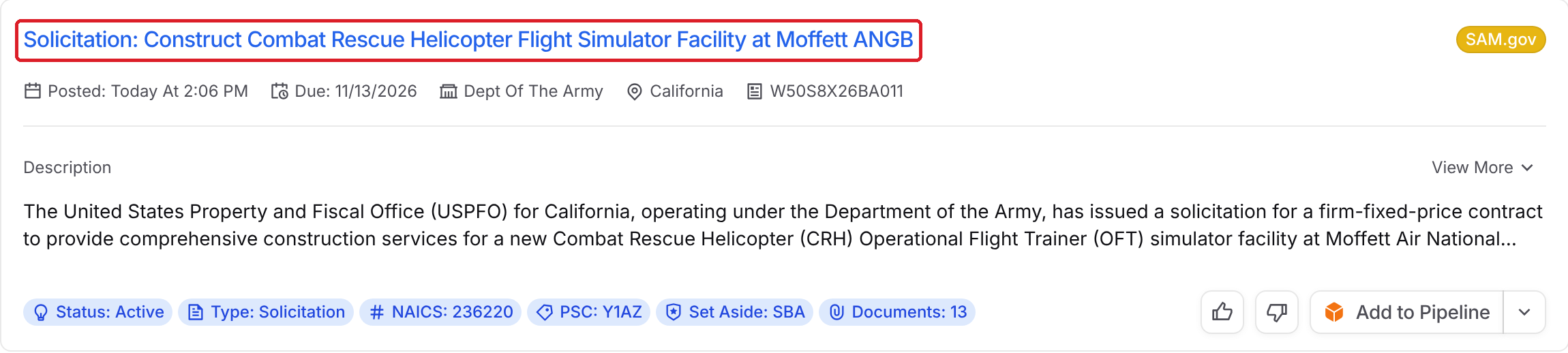
To open an opportunity page, go to Discover and click the opportunity's title on its card.
Learn More
To learn more about using Discover to find opportunities, check out our guide here.
Page Header
The top of the page shows the opportunity title, plus tags for its source, notice type, status, set aside, agency, due date and solicitation number. In the top right, you can:
Like or Dislike the opportunity (thumbs up or thumbs down) to improve your recommendations. You can add an optional note about why.
Click Add to Pipeline to add it to your Pipeline (see Add to Pipeline below).
Click the arrow next to Add to Pipeline for more options. Attach to opportunity links it to an opportunity already in your Pipeline. Share lets you copy a link or email the opportunity to your team or people outside GovDash.

Overview Tab
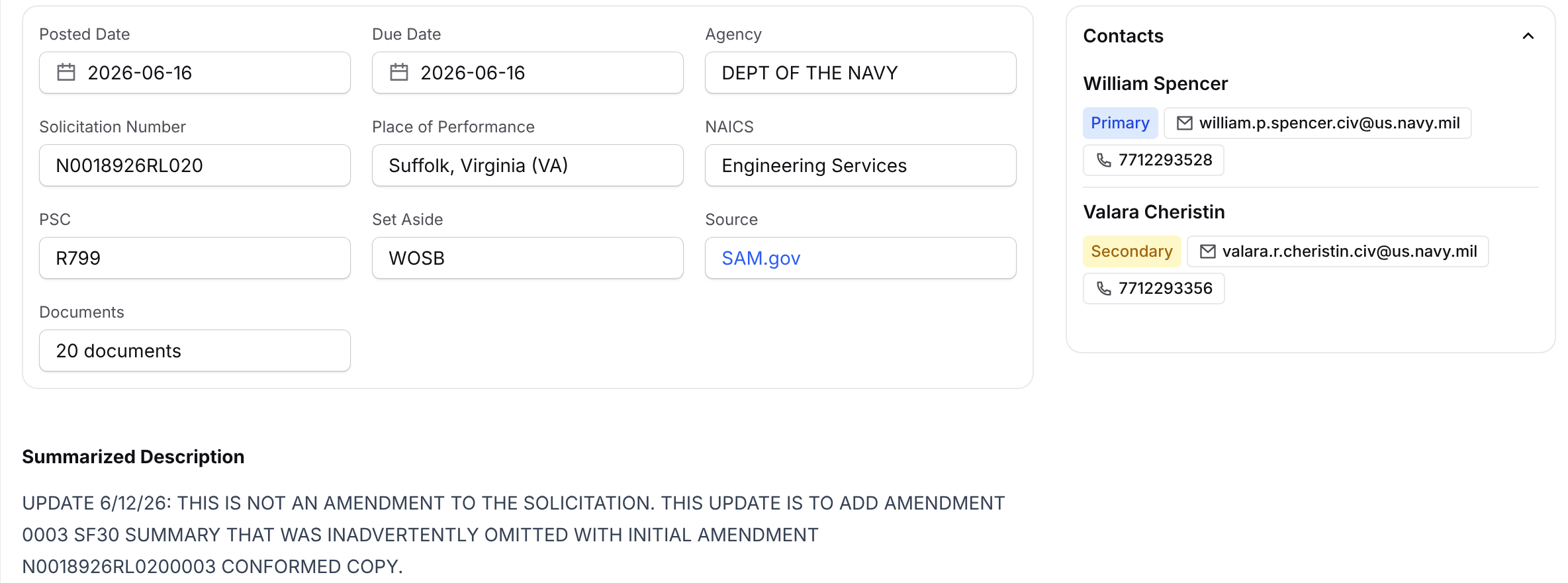
The Overview tab gives you a quick summary of the opportunity, including:
Posted Date and Due Date
Agency
Solicitation Number
Place of Performance
NAICS and PSC codes
Set Aside
Source, with a link to the original posting
Documents
Below the details is a Summarized Description powered by GovDash. Click Show full description to read the full text. The Contacts card on the right lists the primary and secondary contacts with their email and phone number.
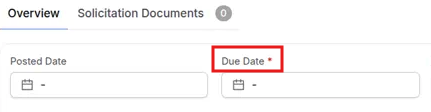
Fields marked with a red asterisk (*) are fields your team requires when creating an opportunity. This helps you see at a glance which details your team expects to be filled in before you add the opportunity to your Pipeline. Only fields shown on the opportunity page are marked, so any other required fields (such as custom fields) can be completed once the opportunity is in your Pipeline.
Want to change which fields are required?
Your team's required fields are managed in Settings → Capture → Required Fields, with Creation selected under Choose a phase.
Solicitation Documents
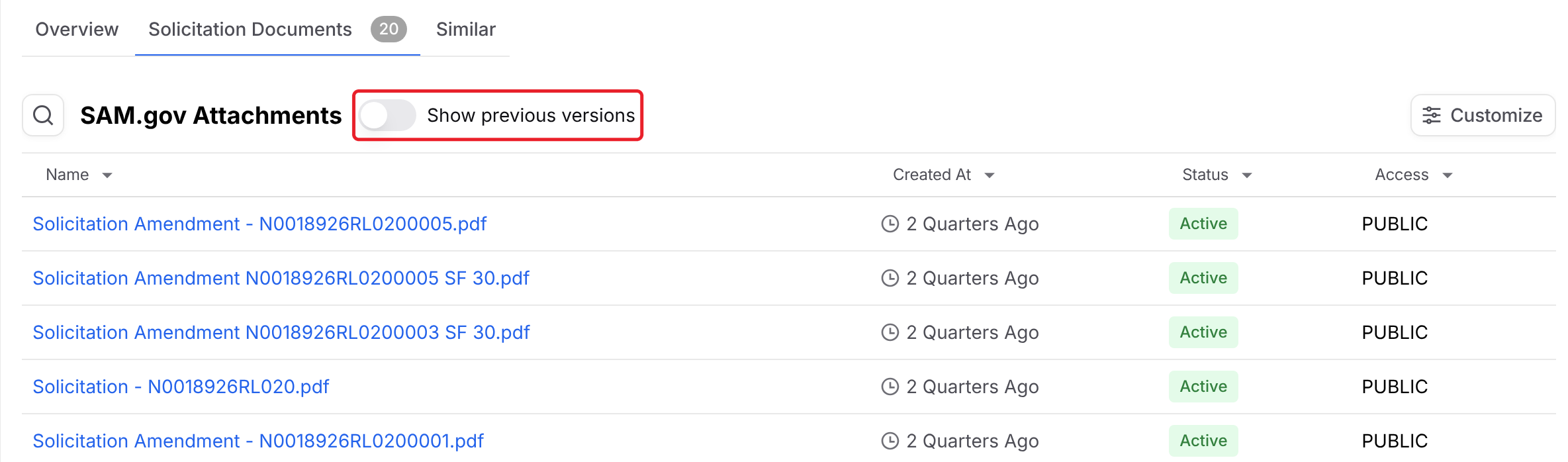
The Solicitation Documents tab collects every document and attachment from the opportunity source, such as SAM.gov, in one place. Click a document's name to download it. Turn on Show previous versions to see older versions of the documents.
Similar
The Similar tab shows other opportunities like the one you're viewing. From here, you can click an opportunity to open it, like or dislike it, or add it to your Pipeline. This tab only appears for SAM.gov opportunities.
Alternate Sources and History
The right side of an opportunity page can show two more cards:
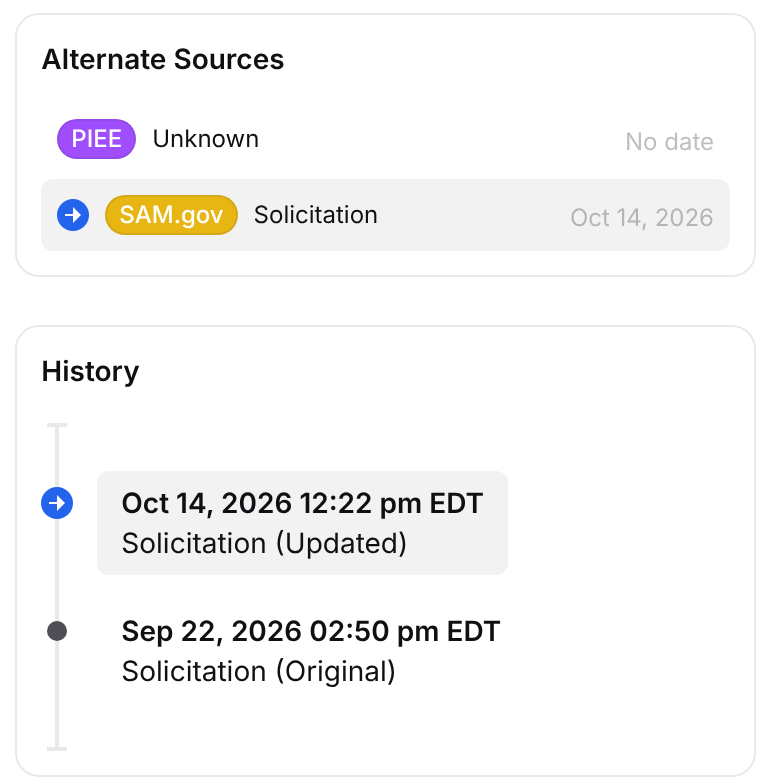
Alternate Sources: appears when the opportunity is posted on more than one source, such as SAM.gov and PIEE. It lists each source with its latest notice type and posted date, and highlights the one you're viewing. Click a source to open its version of the opportunity.
History: lists each version of the notice from the source you're viewing, newest first, with the date and time it was posted. The first notice is marked Original and later ones Updated.
Add to Pipeline
You can add the opportunity to your Pipeline from any tab:
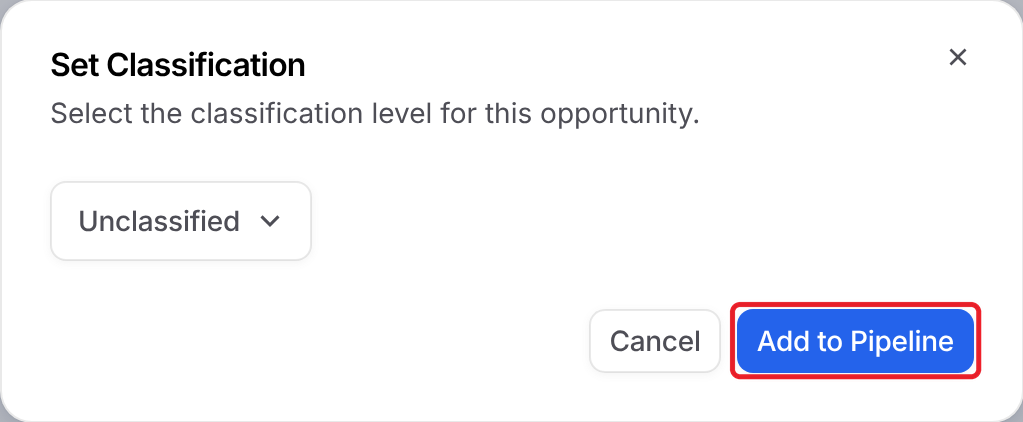
Click Add to Pipeline in the top right.
In Set Classification, choose the classification level for the opportunity.
Click Add to Pipeline.
GovDash creates the opportunity and shows a confirmation. You stay on the opportunity page, and the button changes to View in Pipeline. Click it, or View in Pipeline in the confirmation, to open the opportunity in your Pipeline.
FAQ
What are Opportunity Pages?
Opportunity Pages are a starting point for identifying and assessing opportunities, as well as collecting information to create compelling proposals. They provide an overview of an opportunity's description, dates, classification details and contact information.
How can I access an Opportunity Page?
Go to Discover and click the opportunity's title on its card.
What information is included in the Overview tab?
The Overview tab includes the posted and due dates, agency, solicitation number, place of performance, NAICS and PSC codes, set aside, source link, documents, contacts and a summarized description of the opportunity.
What does the red asterisk next to a field mean?
A red asterisk marks a field your team requires when creating an opportunity. Your team's required fields are set in Settings → Capture → Required Fields. If you don't see any asterisks, none of the fields shown on the opportunity page are currently required for your team.
What documents are available in the Solicitation Documents tab?
The Solicitation Documents tab contains all documents and attachments from the opportunity source, such as SAM.gov. Click a document's name to download it.
Can I find similar opportunities?
Yes. For SAM.gov opportunities, the Similar tab shows other opportunities like the one you're viewing.
Why does an opportunity page list more than one source?
Some opportunities are posted on more than one source, such as SAM.gov and PIEE. Alternate Sources lists each one so you can open the version from any source.
How do I add an opportunity to my Pipeline?
Click Add to Pipeline in the top right of any tab, choose a classification and click Add to Pipeline. Then click View in Pipeline to open it.
Where can I find funding information for an opportunity?
Once an opportunity is in your Pipeline, open its Overview, click the view dropdown in the top left, and choose Funding to see top performers for the opportunity's NAICS code and agency.