The GSA eBuy integration brings your eBuy opportunities into Discover so you can add them directly to your Pipeline. There are two ways to connect, and you can use either one or both at the same time:
Standard eBuy Integration forwards your eBuy notification emails into GovDash. This is the default workflow and does not require GovDash to access your eBuy account.
Enhanced eBuy Integration uses an eBuy account you authorize to retrieve opportunities directly, including their documents and full details, on a recurring schedule. This is an optional, opt-in feature that is off by default.
The sections below cover how to set up each method, how the two differ, and how to use the integration once it is connected.
Permission Requirements
To set up either method, you must be an administrator on both GovDash and GSA eBuy. The Enhanced method also requires the login credentials for the eBuy account you want to connect, plus the ability to set up multi-factor authentication on that account.
Choosing a Connection Method
Standard eBuy Integration | Enhanced eBuy Integration |
|---|---|
|
|
Standard eBuy Integration Setup
Navigate to the Integrations page within GovDash.
Under the eBuy section, copy the email address provided within the box, as this will be needed to connect to eBuy.
.png)
Login to your eBuy account, navigate to Profile at the top of the page.
.png)
Click the Add a new POC to a Category button.
.png)
A form will appear below, which will require you to fill in several boxes. Click Add when finished.
Name - GovDash
Phone - N/A
Email - Paste the email address that you copied in step 2
SIN - Keep this on All
Within 24 hours, the Status indicator within the GovDash Integrations page will change to HEALTHY indicating that the connection has been successfully established.
When will I start receiving eBuy opportunities within Discover?
Once the status indicator shows HEALTHY, which will be within 24 hours of setup, Discover will begin populating eBuy notices when they are received by email, which are sent every 4 hours.
Enhanced eBuy Integration Setup
The Enhanced integration connects an eBuy account you authorize so that GovDash can retrieve opportunities directly, rather than waiting on forwarded emails. Please read the disclosure below before enabling it.
Important Disclosure
The Enhanced eBuy Integration is not an official GSA eBuy integration and is not endorsed by GSA.
If you enable this feature, you are authorizing GovDash to access and retrieve opportunity data from your eBuy account on your behalf so that information can be displayed and managed within GovDash.
Based on our review, we are not aware of any published eBuy policy that explicitly prohibits this type of customer-authorized access, but GovDash has not received formal GSA approval or certification for this feature. Because of that, this feature should be treated as an optional customer-directed workflow tool, not an official government integration.
What changes with the Enhanced integration
• All active opportunities that the connected account can see in eBuy are pulled into the Private Opportunities Domain in Discover, not only the ones posted after setup. This includes historical opportunities the account already has access to.
• Each opportunity that is pulled in includes the documents, descriptions, contacts, dates, addresses, and any other information available in eBuy. Documents are attached as individual files, and amendment documents that GSA posts later are added to the opportunity automatically.
• There is no waiting on an email for an opportunity to be imported. GovDash checks eBuy on the connected account four times per day. If an opportunity is there, GovDash retrieves it.
Before you start
Decide which eBuy account you want to connect. This can be an account that already exists (such as your own) or a new one you create with any email you prefer.
Make sure that account is added as a PoC on every eBuy contract you want to see in GovDash, the same as the Standard method. (See the Standard setup steps above for how to add a PoC.)
Have that account's eBuy username and password ready. You will also set up an authenticator secret key during this process.
Setup steps
In GovDash, go to Settings > Configurations > Integrations, scroll down to the eBuy section, and click Enable Enhanced Integration.
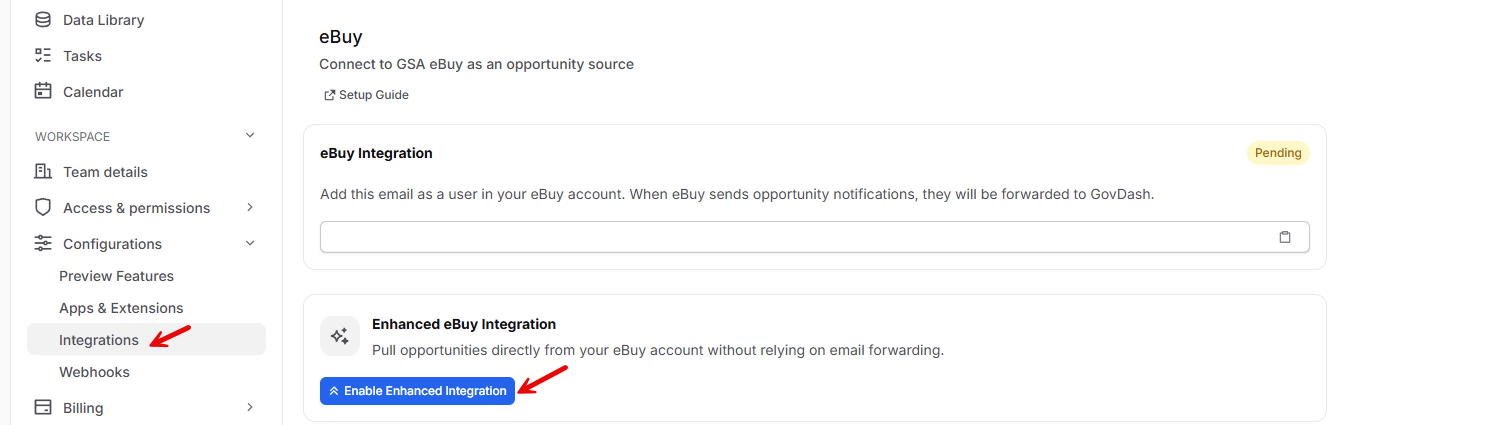
Follow the prompts and read through the information explaining the details of the integration (Introduction, Disclosures, Comparison, Expectations, and Your Responsibility).
In a separate tab or window, log in to https://mfalogin.fas.gsa.gov/app/UserHome with the account you want to use with GovDash.
Click the menu in the top right, then go to Account settings.
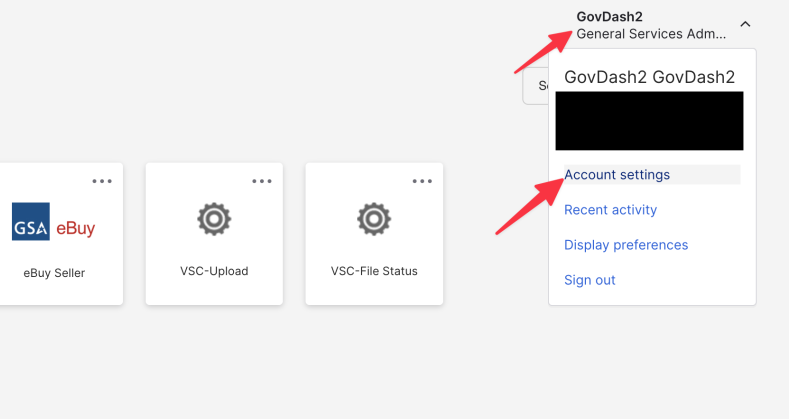
Scroll down to Extra Verification and click Set up for Google Authenticator.
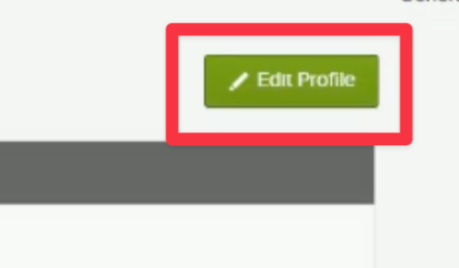
Google Authenticator Disabled?
If your Google Authenticator is disabled in your profile, select Edit Profile in the top right to unlock the options. If it still shows disabled after doing this, try logging out and back in to try again.
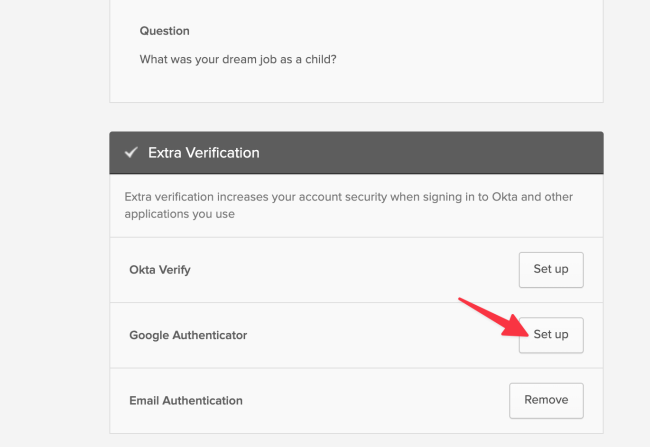
If prompted, click Setup under Google Authenticator.
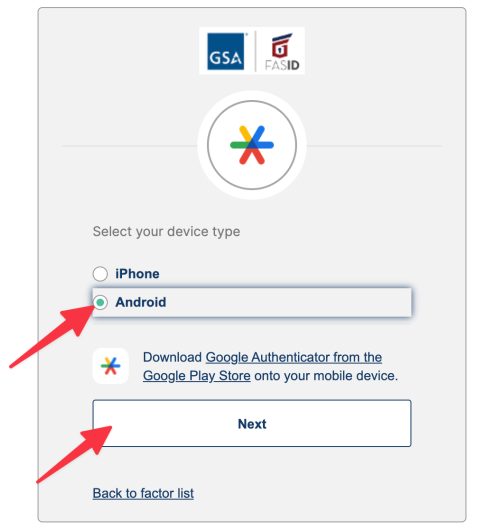
Select Android from the list, then click Next. You do not need to download or install any apps.
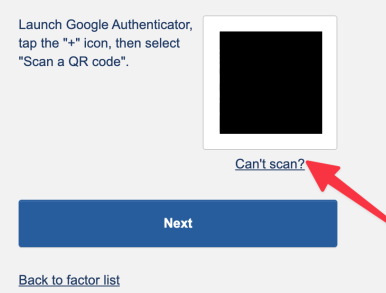
On the next screen, ignore the QR code and instead click Can't scan?
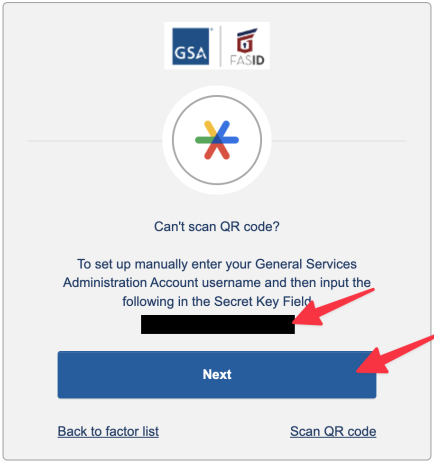
On the following page, find the Secret Key. This is a long string of letters and numbers. Copy this string, then click Next.
Reusing the Secret Key If you would like to use Google Authenticator or another authenticator app, you can use this same Secret Key. Follow the manual setup instructions in your app to do so at a later time. |
Go back to GovDash. Do not close the GSA tab. On the last step of the Enhanced setup, enter the eBuy Username (email address) and password you just used to log in to the eBuy portal, then paste the Secret Key you copied exactly as it appears. To the right of the Secret Key box you will see a Current OTP indicator, which is the 6-digit code you will use to verify the setup. After noting the OTP, check the authorization box, then click Authorize and Enable.
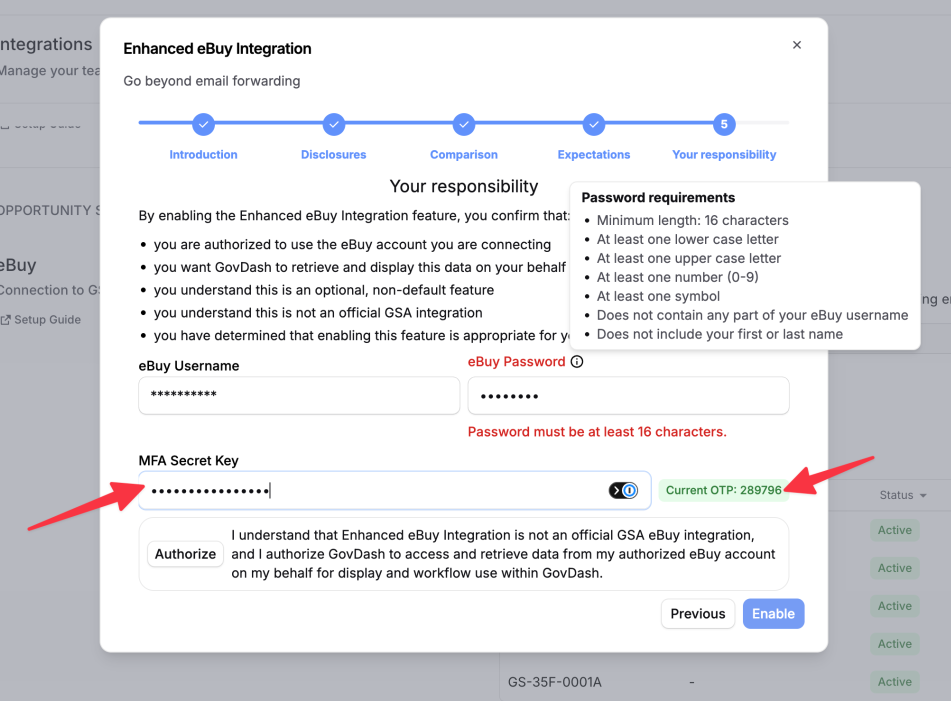
Password Requirements The eBuy password you enter must meet all of the following:
|
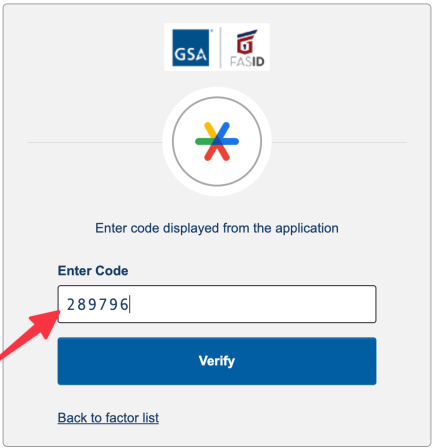
Go back to the GSA tab and enter the 6-digit Current OTP code from GovDash, then click Verify.
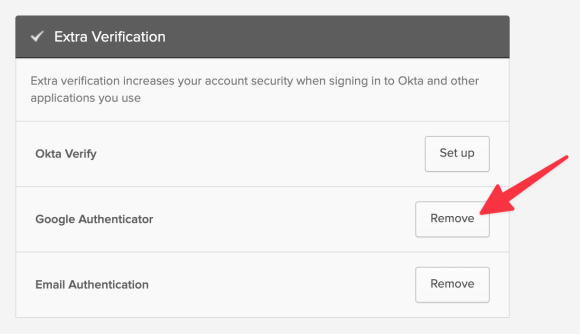
After verifying, you will return to the GSA account settings page. You can confirm the authenticator was set up because the Extra Verification section now shows Remove next to Google Authenticator. You can now close the GSA tab.
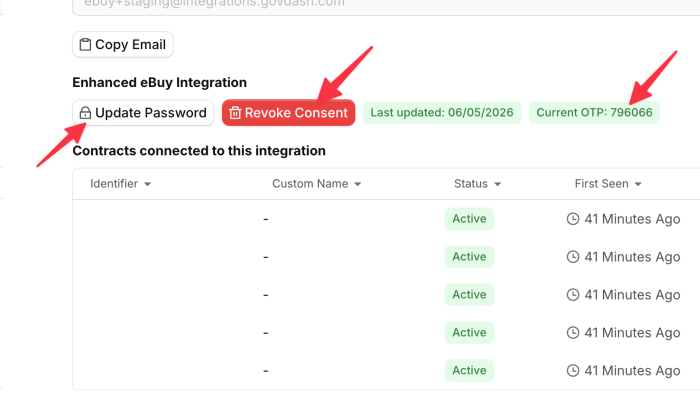
Back in GovDash, you will now see controls under the eBuy section for the Enhanced integration. The connection will show as PENDING until the next scheduled check runs, at which point it will update to HEALTHY or, if the login failed, UNHEALTHY.
Managing and disabling the Enhanced integration
Once enabled, the eBuy section gives you controls to update the username, password, and secret key, see when the password was last updated, view the current OTP for the connected account (which you can also use to log in to eBuy yourself), and revoke consent to disable the integration.
You can run the Standard and Enhanced methods at the same time. If you set up the Enhanced integration but still have the Standard email POC in place, that POC will continue to receive and process notices for the Private Opportunities Domain. If you no longer want to use the Standard method, you can disable it by removing the POC from your eBuy settings.
Using the eBuy Integration
After the connection to eBuy has been successfully established, you can view your eBuy opportunities within Discover. You can switch to Private Opportunities under the Domain drop down at the top of the Discover page to find your eBuy opportunities.
Discover Permissions
The Private domain is only shown to team members whose role includes the Read Private Portals in Discover permission — see Roles & Permissions to manage it.

Similarly to the public opportunities, you can easily filter your opportunity list, bookmark, dislike, and add opportunities to your GovDash Pipeline.
If you use the Standard eBuy integration, use the link to the eBuy opportunity to download any documents associated with the opportunity and upload them to the opportunity once it is in your Pipeline. GovDash does not download documents from the eBuy site for the Standard integration, so please ensure you are uploading them to the opportunity once you’ve added it to your Pipeline.
If you use the Enhanced eBuy Integration, GovDash retrieves the opportunity’s documents for you and attaches each one to the opportunity as an individual file.
.png)
Automatic Document and Amendment Updates
With the Enhanced eBuy Integration, GovDash keeps the documents on your eBuy opportunities current for you:
Individual files, not a zip. Every attachment on the eBuy RFQ, RFP, or RFI is added to the opportunity as its own file, so you can open, preview, and work with each document directly in GovDash.
Amendments arrive automatically. GovDash checks eBuy on the connected account four times per day. When GSA posts an amendment or a new attachment, the new files are added to the opportunity in your Pipeline on the next check — no download or upload required.
New documents are processed for you. Newly added files are processed just like documents you upload yourself, so Dash and your opportunity’s document tools can use them right away.
Your team is notified. When new documents are added to an opportunity that is already in your Pipeline, GovDash sends an in-app notification to team members subscribed to Amendment Updates in their notification settings.
Learn More About Discover
Learn more about GovDash’s Discover feature, including eBuy, by checking out our support article here.
Contract Vehicles Available on GSA eBuy
GSA eBuy supports RFQs, RFPs, and RFIs posted under a growing list of acquisition vehicles, including:
GSA & VA Multiple Award Schedules (MAS): All SINs across the consolidated schedule, including IT, professional services, facilities, and more
GWACs: 8(a) STARS III, Alliant 2, Alliant 3, VETS 2, and Polaris (all pools)
OASIS+: All six pools (Unrestricted, Total SB, 8(a), WOSB, HUBZone, SDVOSB) across 13 service domains; eBuy is the mandatory solicitation tool for all OASIS+ task orders
Network Services & Telecom: EIS and CS3 (COMSATCOM)
BPAs: Blanket Purchase Agreements established against MAS (e.g., 2GIT, SCRIPTS, GSS for IT Products, Governmentwide Printer)
FSSI: Active Federal Strategic Sourcing Initiative contracts
Opportunities are posted by SIN, domain, or contract category. Contractors must hold the applicable vehicle and be registered with the Vendor Support Center (VSC) in order for opportunities to be synced to GovDash.
eBuy Feed Nicknames
If you have configured more than one eBuy feed (or just have a single feed), it can be helpful to set custom nicknames for the feeds. Within your eBuy integrations settings, simply click the action menu to the right and click Edit from the menu to assign a custom nickname.
.png)
This nickname will appear within your Discover eBuy feed to show where the opportunity came from!
.png)
Private Portal Notices in Discover
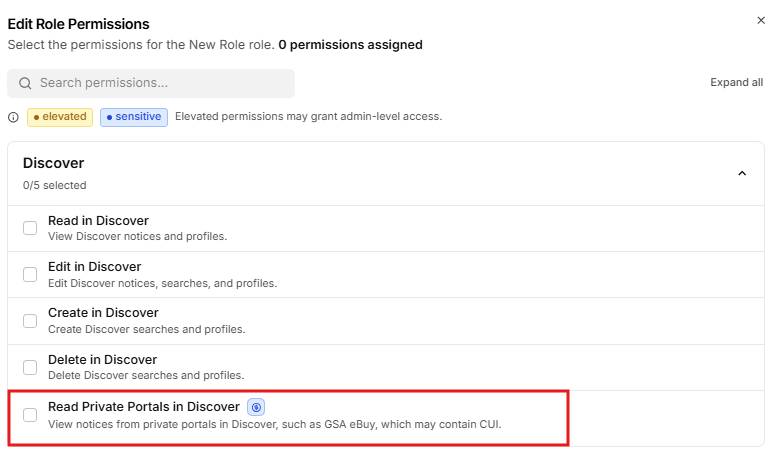
Notices from private portals, such as GSA eBuy, can contain Controlled Unclassified Information. Access to them is controlled by the Read Private Portals in Discover permission, so you can decide exactly which roles on your team can see them.
Configuring access
Navigate to Settings → Access & Permissions → Roles.
Click the key icon (or three-dot action icon → Edit Permissions) next to the role you want to change.
In the Discover area, toggle Read Private Portals in Discover on or off, then save.
By default, the Admin, Editor, and Reader roles include this permission, and any existing role that already had Read in Discover or Read in Capture keeps it — nothing changes for your team until you decide to remove it from a role.
With Read Private Portals in Discover
Users with this permission can:
Use the Private domain in Discover to browse and search your eBuy notices
Open private notice pages and add them to your Pipeline
Search private notices from an opportunity's Sources tab and from Quick Create
Ask Dash about private notices while on the Private domain
Without Read Private Portals in Discover
Users without this permission:
Do not see the Private domain in Discover — only Public and Forecast
See the message "You do not have permission to view private notices." if they open a link to a private notice, with a pointer to Role Settings so they can ask an administrator for access
Do not see the Private option when searching notices from an opportunity's Sources tab or in Quick Create
FAQ
What information syncs from eBuy to GovDash?
With the Standard integration, anything within the original email from eBuy will populate, and GovDash processes only due date changes when eBuy updates an opportunity.
With the Enhanced integration, GovDash also pulls in the opportunity’s documents as individual files and adds new amendment documents to the opportunity automatically when GSA posts them.
Does GovDash notify me when my eBuy opportunities are updated?
You will receive an email from eBuy when an opportunity is updated. With the Enhanced integration, GovDash also sends an in-app notification to team members subscribed to Amendment Updates whenever new documents are added to one of your eBuy opportunities. GovDash does not send an email for these updates.
Will GovDash sync documents from my eBuy opportunities, or will I have to upload them myself?
With the Enhanced integration, GovDash syncs the opportunity’s documents for you as individual files and adds amendment documents automatically as GSA posts them.
With the Standard integration, you will need to manually upload your solicitation documents to the GovDash opportunity within your Pipeline within the Solicitation Documents tab.
.png)