Overview
A program rarely shows up just once. It might post first as a forecast, then as an RFI or Sources Sought notice, and finally as the RFP you respond to. The Sources tab keeps every one of those records on a single opportunity, so your team can see where each piece of information came from and open any original notice in one click.
One source is the Primary source. It shows in the Primary Source field on the opportunity Overview and keeps your opportunity fields current by default. The Field Sync tab lets you choose, field by field, which source to follow or stop updates entirely.
Click through the interactive walkthrough below. It has a chapter for Sources and one for Field Sync, or you can follow the steps in this article.
Sources
Open the opportunity and select Sources under OPPORTUNITY in the side panel. The page has two tabs: Sources and Field Sync.
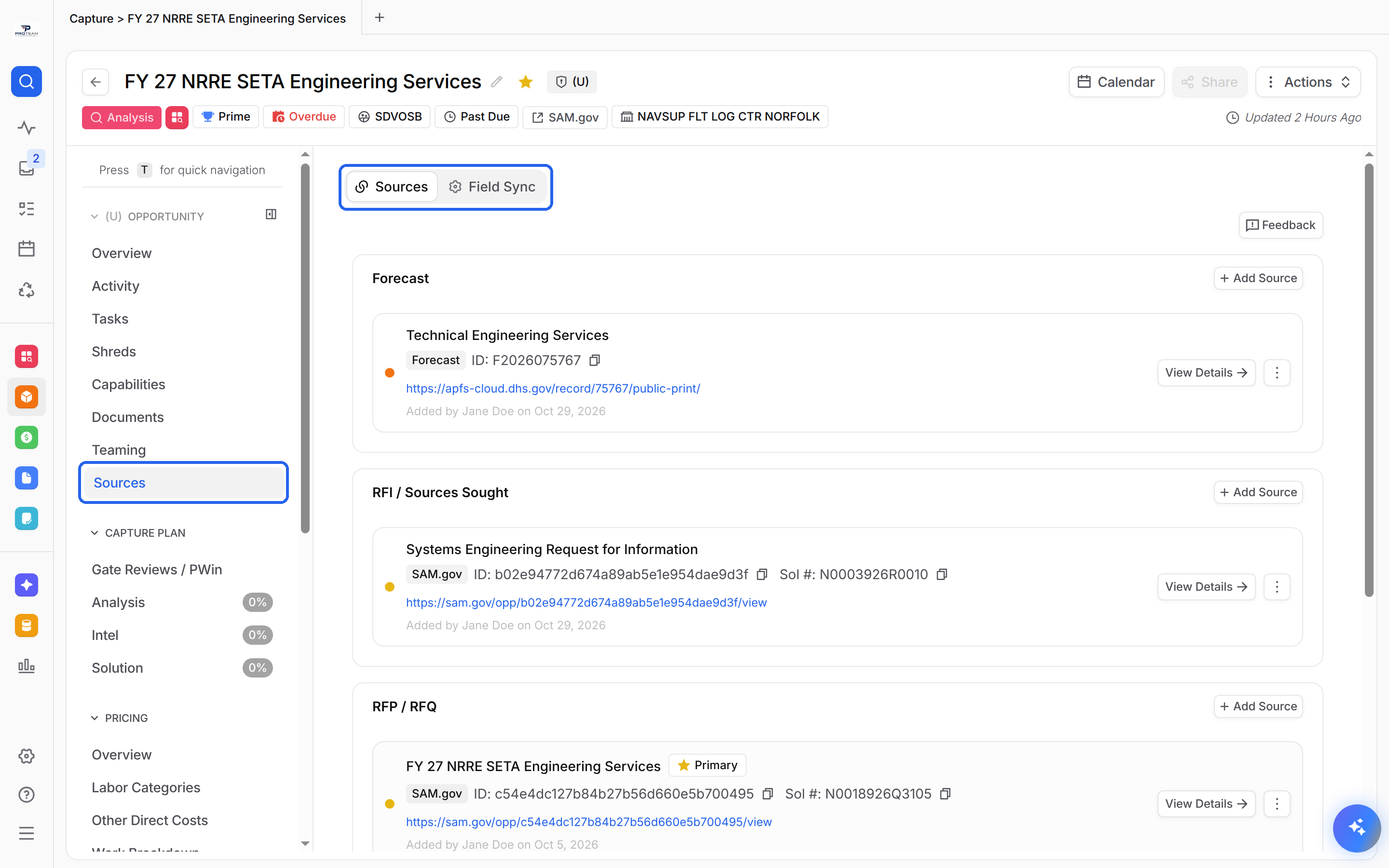
Sources are grouped by type, and each section has its own Add Source button:
Forecast: agency forecast records.
RFI / Sources Sought: early market research notices.
RFP / RFQ: the solicitation you respond to.
GovWin: linked GovWin opportunities.
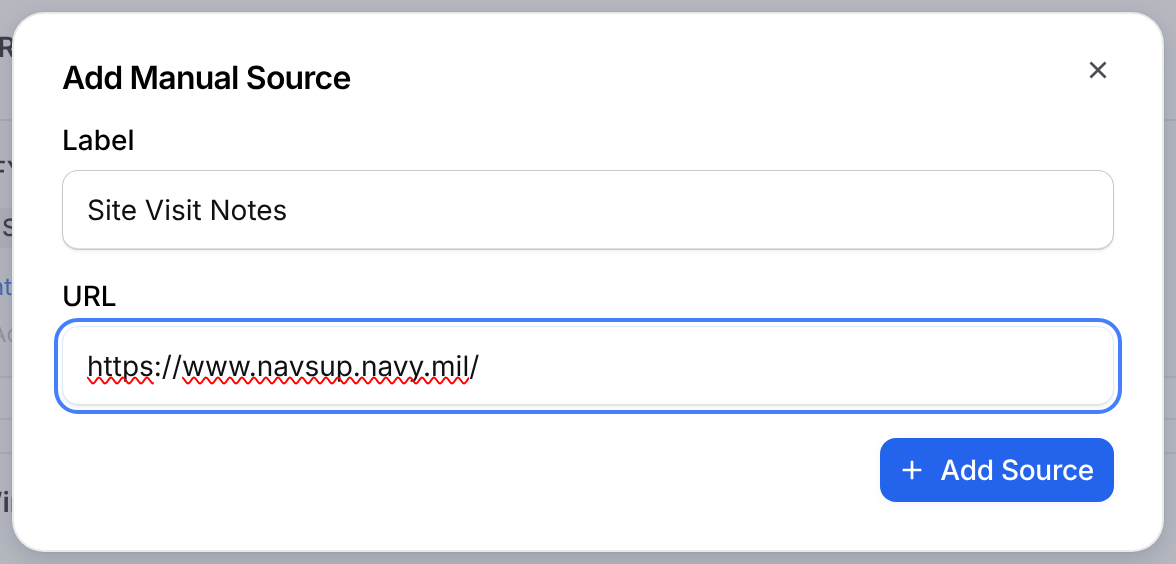
Manual: anything else you add with a label and a link.
Adding a Source
Find the section for the type of source you are adding.
Select Add Source in that section.
Add the source using the option for that type, listed below.
Forecast: search by forecast title or number, then select Add.
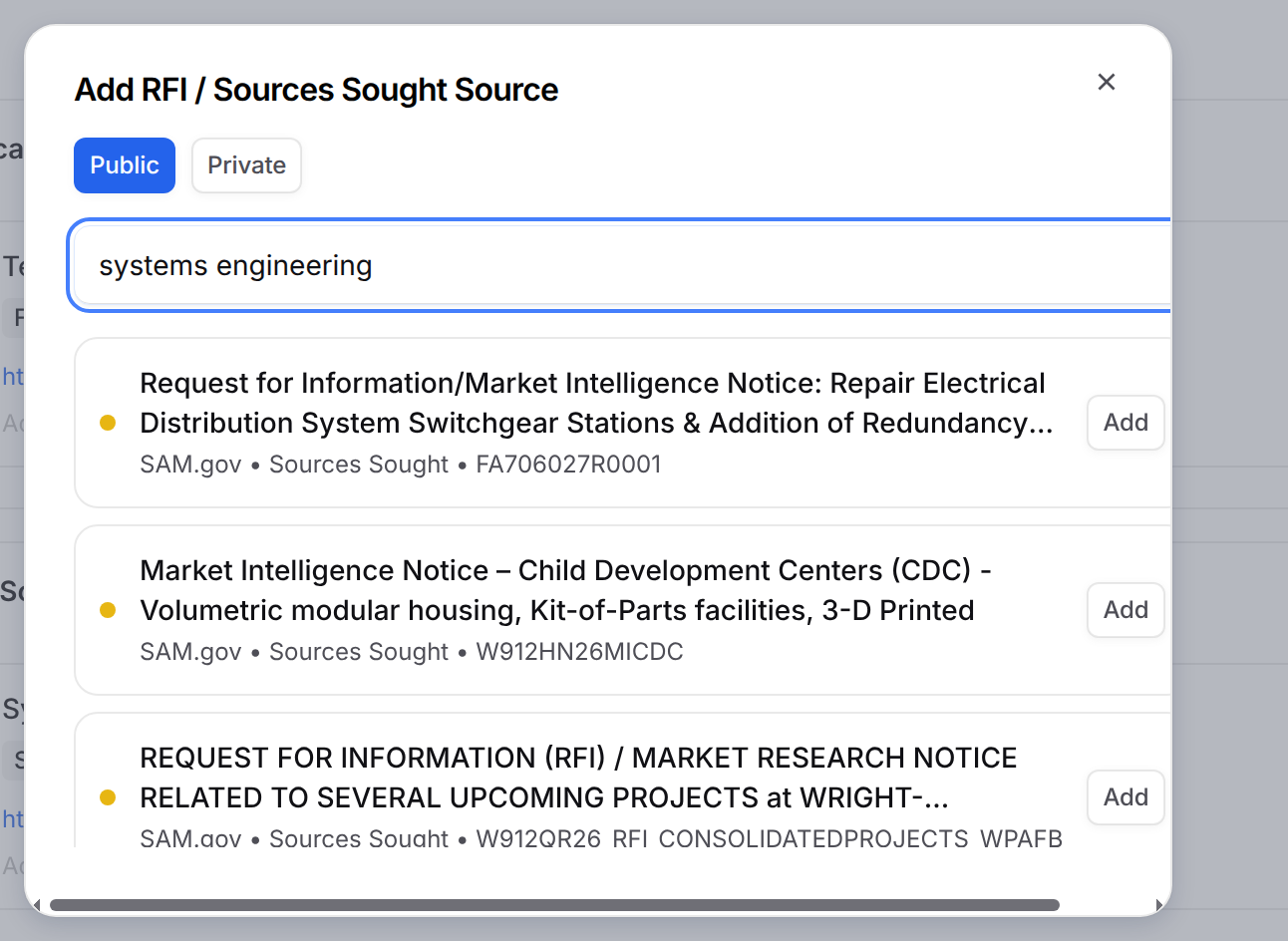
RFI / Sources Sought and RFP / RFQ: search by solicitation title or number. Switch between Public and Private notices, then select Add.
GovWin: enter the GovWin ID, select Find, review the record, then select Add Source. This needs your team's GovWin integration. If it isn't set up, Add Source is grayed out.
Manual: enter a Label and URL, then select Add Source. Manual sources show as Manual Upload.
Attaching a Notice from Discover
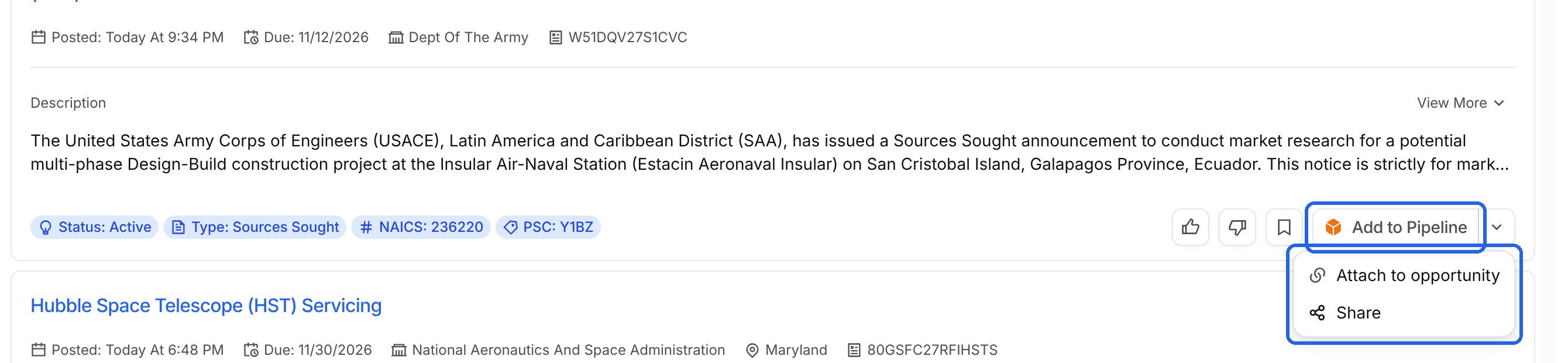
You can also link a notice while browsing Discover, without leaving the search.
Find the notice in Discover.
Select the arrow next to Add to Pipeline, then Attach to opportunity.
Search for the opportunity, check it, then select Attach.
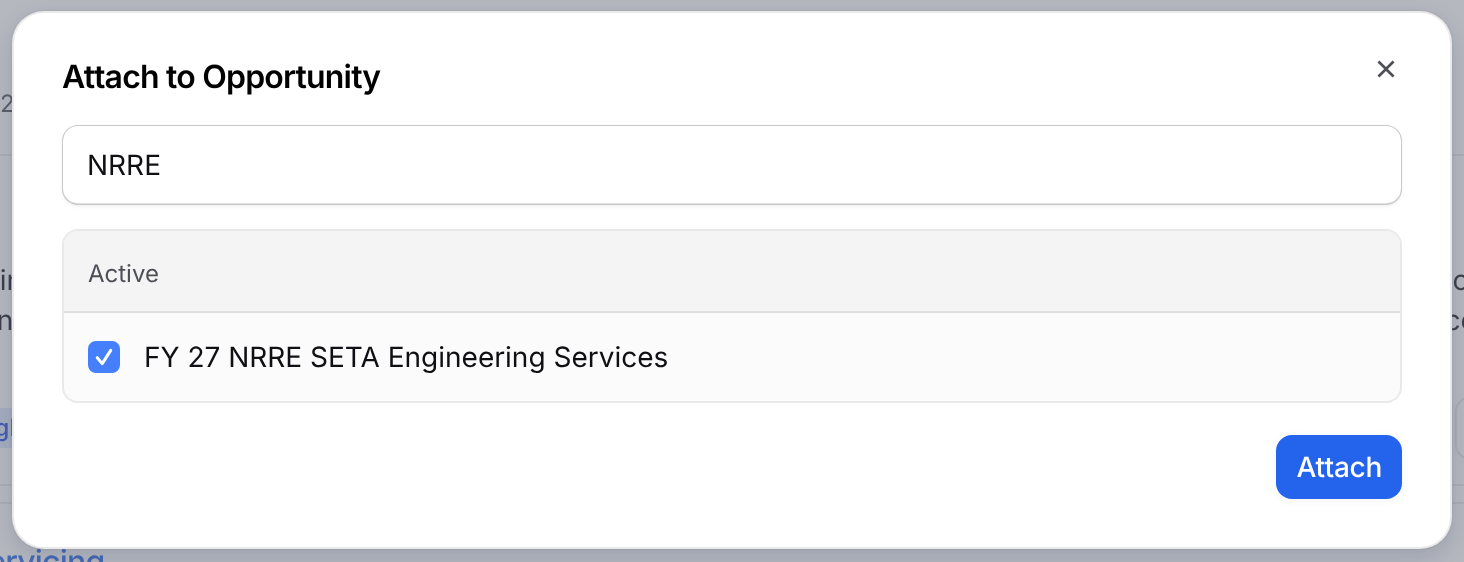
You'll see Notice attached to opportunity, and the notice shows on that opportunity's Sources tab.
Reviewing a Source
Each source card shows the source system, like SAM.gov, copyable IDs and solicitation numbers, a link to the original notice, and who added it and when. Select View Details to open the full record, including its dates, codes, contacts and history.
Choosing the Primary Source
Open the menu on the source card you want to use.
Select Set as Primary.
Select Confirm. The Primary badge moves to that source.

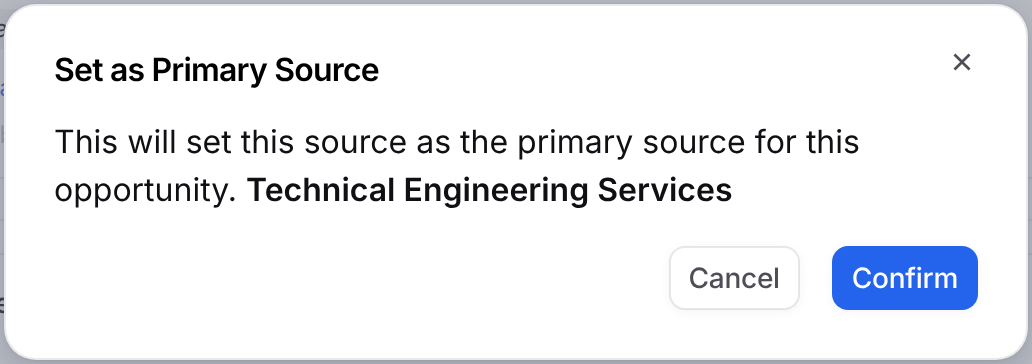
To undo it, open the menu on the primary source and select Remove as Primary Source. To unlink a source, select Remove Source. It only shows on sources that aren't primary.
Field Sync
Field Sync controls where each opportunity field gets its value. When an amendment moves the due date, fields that follow that source update without anyone retyping them.
Select Field Sync at the top of the Sources page.
Under Field Sync Settings, select the dropdown for the field you want to change.
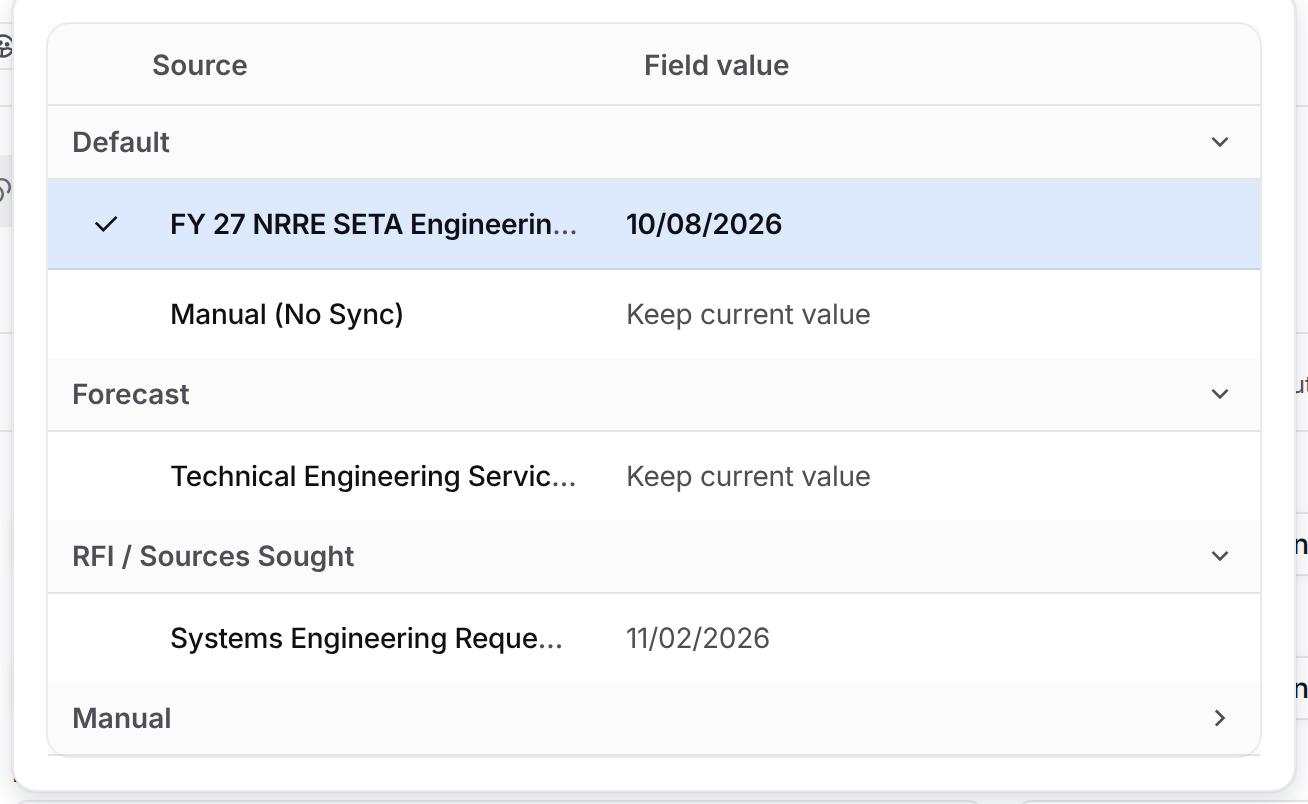
Pick a source. Field value previews what the field will show.
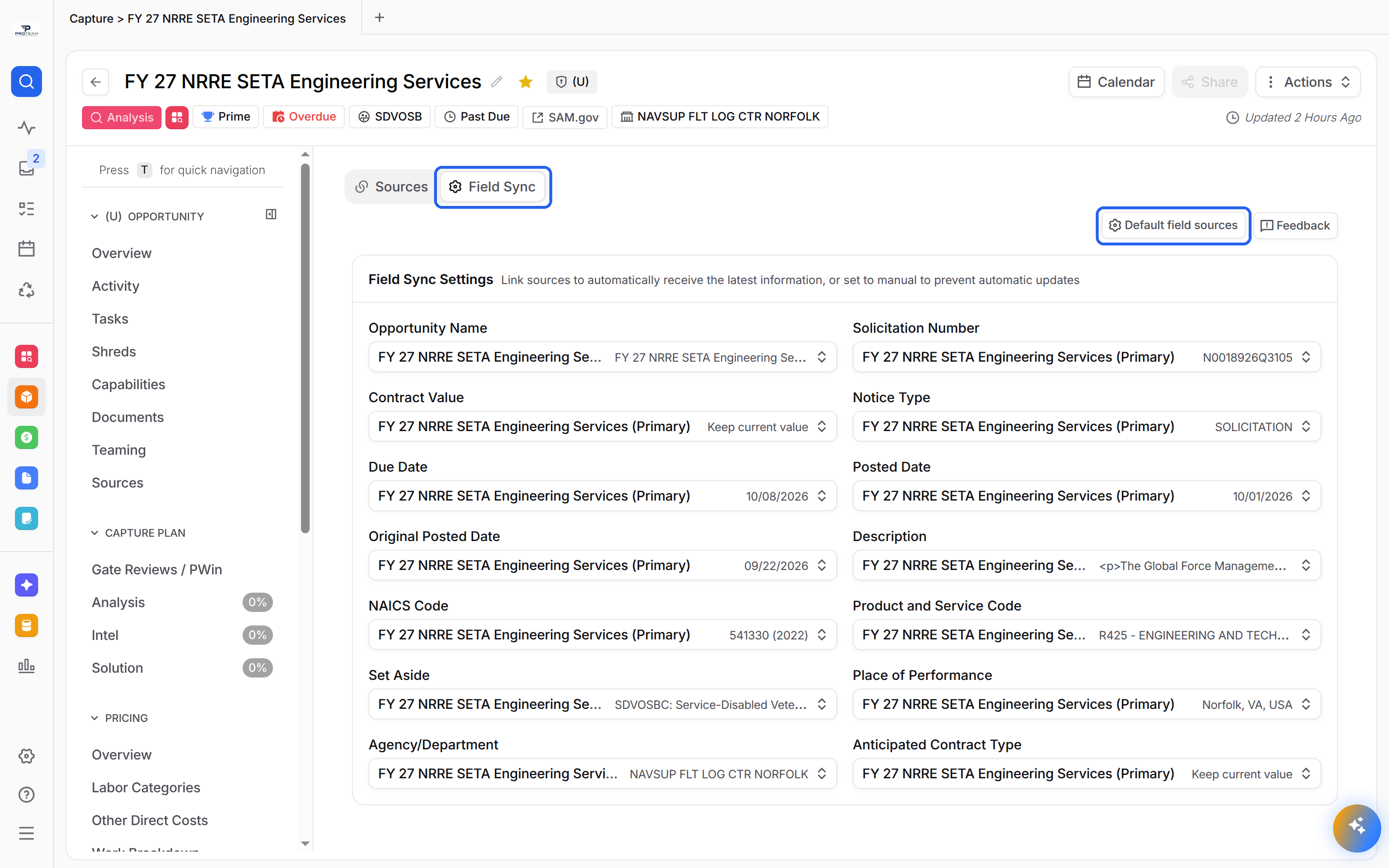
Each field can follow:
The primary source, marked (Primary): follows whichever source is primary. This is the default.
Manual (No Sync): keeps the current value and stops automatic updates.
A specific linked source: follows that source, even if it isn't primary.
Default Field Sources
Select Default field sources to open Capture Settings. There you choose Source or Manual for each field, which sets the starting choice when opportunities are added to the pipeline. Fields set to Manual keep their initial value and aren't overwritten by later source updates.
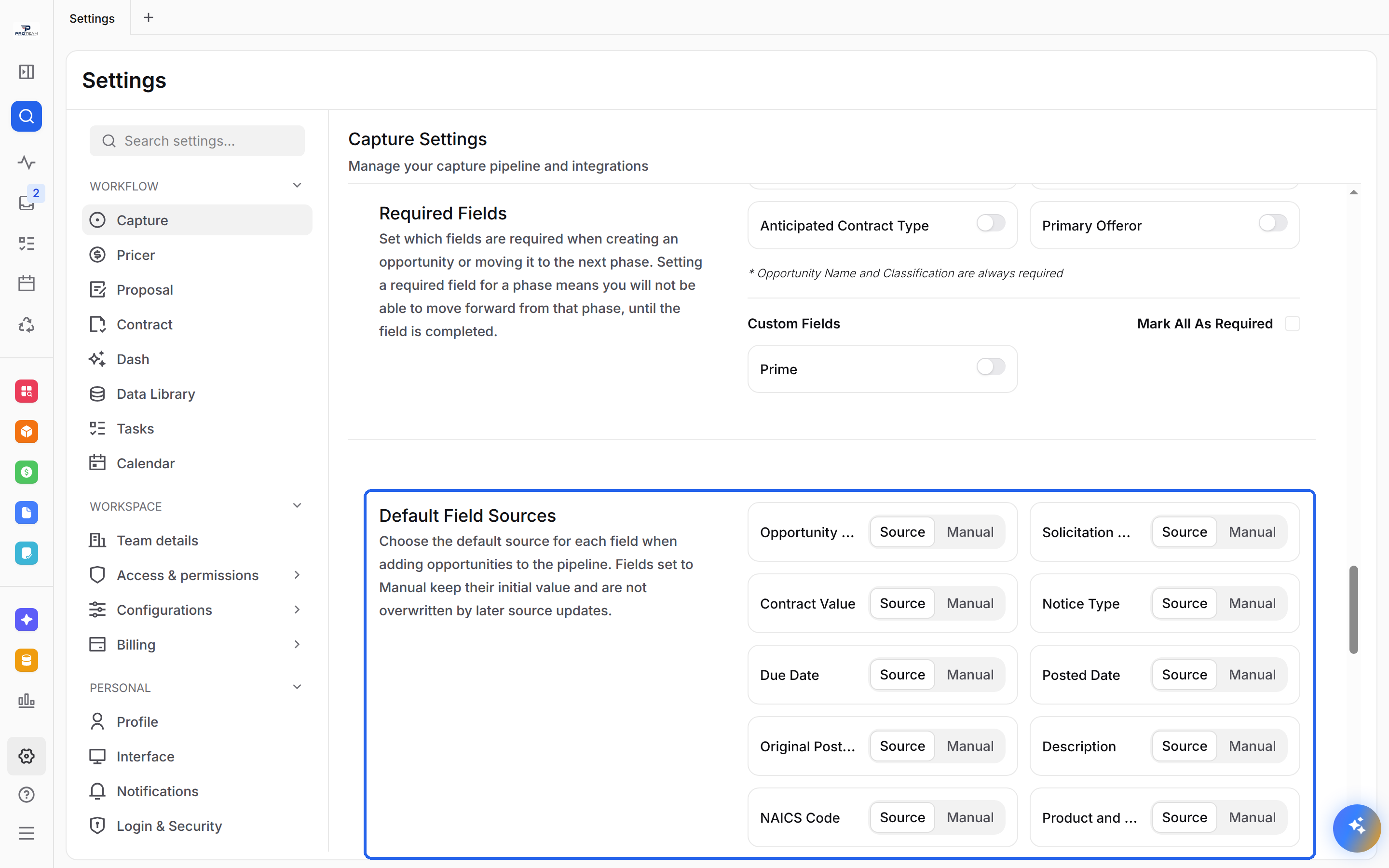
When you select Save Changes, choose how to apply them:
No Fill: only opportunities created from now on.
Fill All: existing opportunities too. Fields set to Manual become Manual, and fields set to Source go back to the primary source. Current values stay as they are.
Fill From Date: opportunities created on or after a date you pick.
FAQ
Why track more than one source?
A program often posts several times, from forecast to RFI to RFP. Keeping them together shows the full history and lets your fields stay current as new notices post.
How do I open the Sources tab?
Open the opportunity and select Sources under OPPORTUNITY in the side panel.
What types of sources can I add?
Forecast, RFI / Sources Sought, RFP / RFQ, GovWin and Manual. You can also attach a notice from Discover.
Can I change the primary source?
Yes. Open the menu on any source card, select Set as Primary, then Confirm.
How do I stop a field from updating?
On the Field Sync tab, set that field to Manual (No Sync). It keeps its current value.