Max Tier Feature
GovDash Pricer is a Max tier feature, but includes one free usage every rolling 30 days. Please reach out to your Account Manager or email support@govdash.com to subscribe or get more information.
The Strategy Review tab turns your Pricer workbook into a staffing strategy summary. It reads the labor, work breakdown structure, and teaming data already in your price and presents it as readiness signals, key metrics, a workshare breakdown, and a written narrative you can drop into your proposal.
Most of that story is buried across your labor grid, WBS, and teaming tabs, which makes it hard to answer a simple question: is this staffing plan actually ready to submit? Strategy Review pulls those threads together so you can catch gaps early, such as an unfilled key person, a task area with no hours, or a role with no clearance coverage, while there’s still time to fix them instead of discovering them in review or after submission. It also gives you a head start on the written staffing approach your proposal already needs.
Strategy Review is a read-only lens on your pricing data, with one exception: the narrative text is fully editable. Nothing you do here changes your underlying labor categories, rates, or line items, so you can use it as a check on your plan without any risk to your numbers.
Opening Strategy Review
Open your opportunity and go to Pricer.
Select the Strategy Review tab from the Pricer navigation.
Use the Overview and Narrative sub-tabs to switch between the readiness snapshot and the written summary.
Everything on the page reflects the current state of your workbook, so keep pricing your labor, work packages, and teaming partners for the most complete picture.
The Overview Tab
The Overview tab is your at-a-glance readiness snapshot. It combines a readiness rollup, individual readiness signals, headline metrics, and your team workshare split.
Think of it as a preflight check for your staffing plan. Instead of manually cross-referencing labor categories, work packages, and teaming percentages, you get one screen that tells you where the plan is solid and where it needs attention. It’s a quick gut check before a pricing review or a color team.
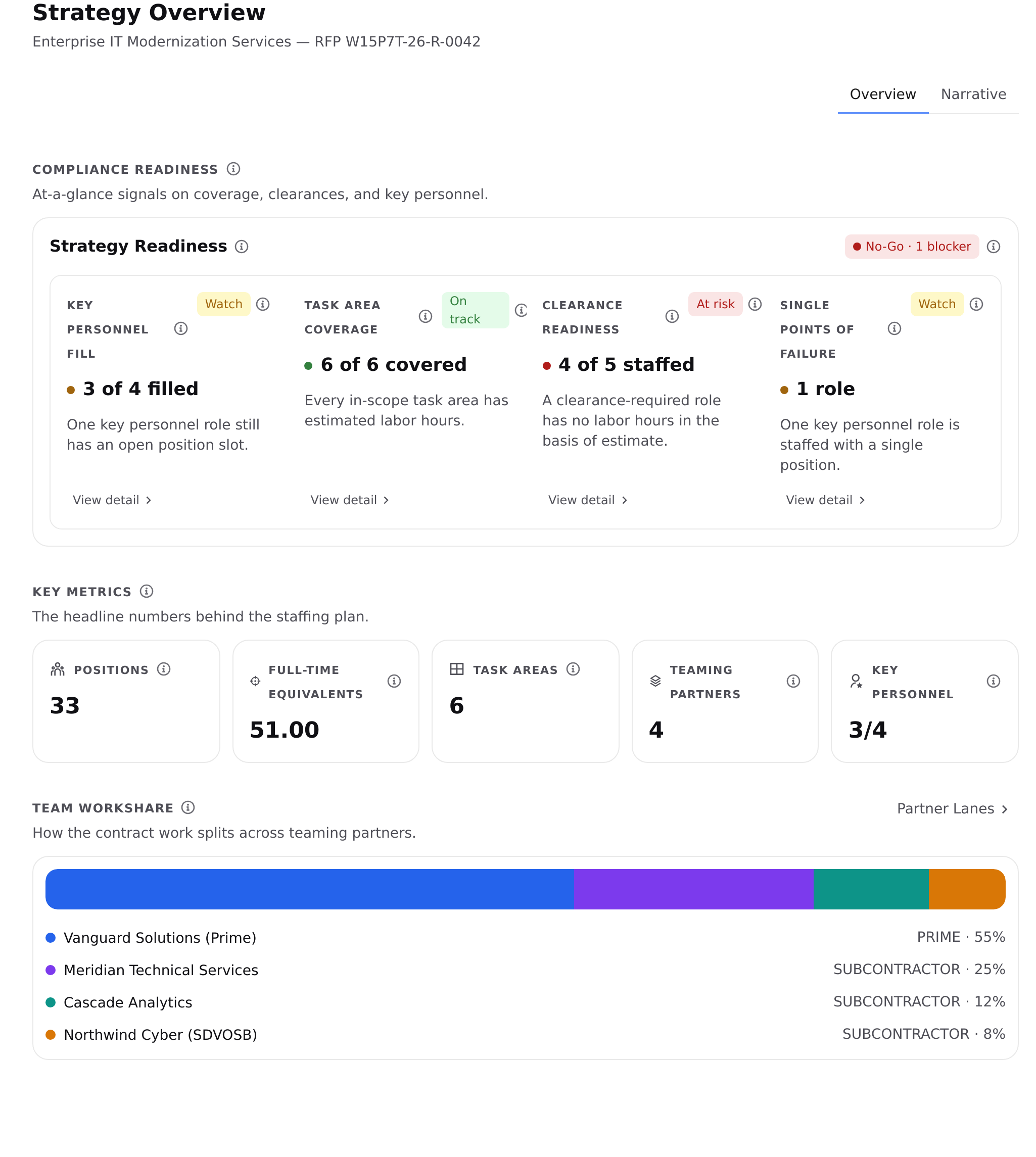
Strategy Review tab showing the Strategy Readiness rollup, readiness signals, key metrics, and team workshare:
Strategy Readiness rolls the four readiness signals below it into a single posture:
Go: all signals are on track.
Watch: some items need attention, but none are blockers.
No-Go: at least one signal is at risk and is treated as a blocker.'
Key metrics summarize the headline numbers behind the plan:
Positions: the total position count across all labor categories in this price.
Full-time equivalents: total estimated labor hours divided by your hours-per-FTE setting (falls back to total positions when no hours are assigned yet).
Task areas: the task areas included in this price estimate.
Teaming partners: partners on this opportunity with a declared workshare greater than zero.
Key personnel: key personnel roles filled, out of all key personnel roles in this price.
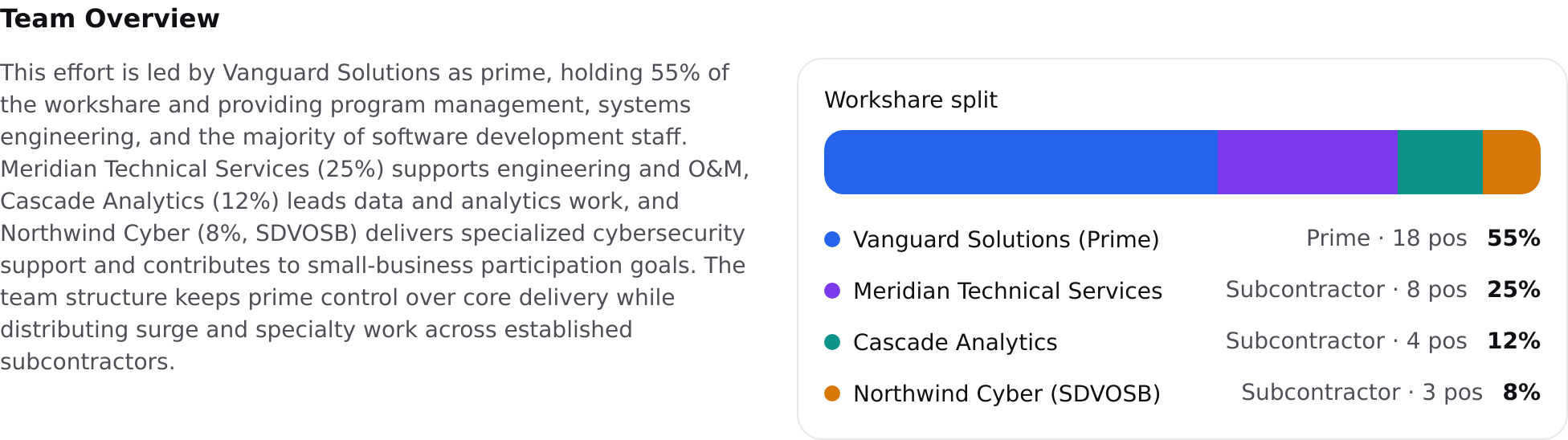
Team workshare shows how the contract work splits across your prime and subcontractor partners, using the declared workshare percentages from Capture. This makes it easy to confirm your split lines up with your teaming agreements and any small-business or socioeconomic participation goals before you commit to it. Select Partner Lanes to jump to the teaming details.
Reading the Readiness Signals
The four readiness signals give you a quick read on where the staffing plan stands, and each one maps to a common way proposals lose points or get downgraded in review. Watching them lets you close gaps proactively rather than reactively. Each signal shows a value and one of three statuses: On Track, Watch, or At Risk.
Key personnel fill: key personnel roles with all position slots filled in your labor category plan, matched from the proposal outline to this price.
Task area coverage: how many in-scope task areas have estimated labor hours. Task areas you’ve excluded from pricing aren’t counted.
Clearance readiness: clearance-required labor categories that have labor hours in the basis of estimate, compared to all clearance-required roles.
Single points of failure: key personnel roles staffed with only one position, which have no built-in depth if that slot is unfilled.
Use the View detail links on each signal to jump to the supporting breakdown in the Narrative tab.
The Narrative Tab
The Narrative tab turns the same pricing data into a written staffing strategy summary, paired with supporting visuals.
This saves you from starting the staffing narrative from a blank page. Because it’s generated straight from your priced workbook, the write-up stays consistent with your actual numbers. The FTEs, task areas, and workshare in the narrative match what you priced, so you spend your time refining the story instead of reconciling it against your model.
Select Generate to create the narrative from your current pricing snapshot. Once it exists, the button changes to Regenerate, which you can use whenever your labor, WBS, or teaming data changes materially. Regenerating replaces the current narrative, so save any manual edits you want to keep before you regenerate.
The narrative is organized into five sections:
Team Overview: the teaming structure and how work is expected to split across prime and subcontractor partners.
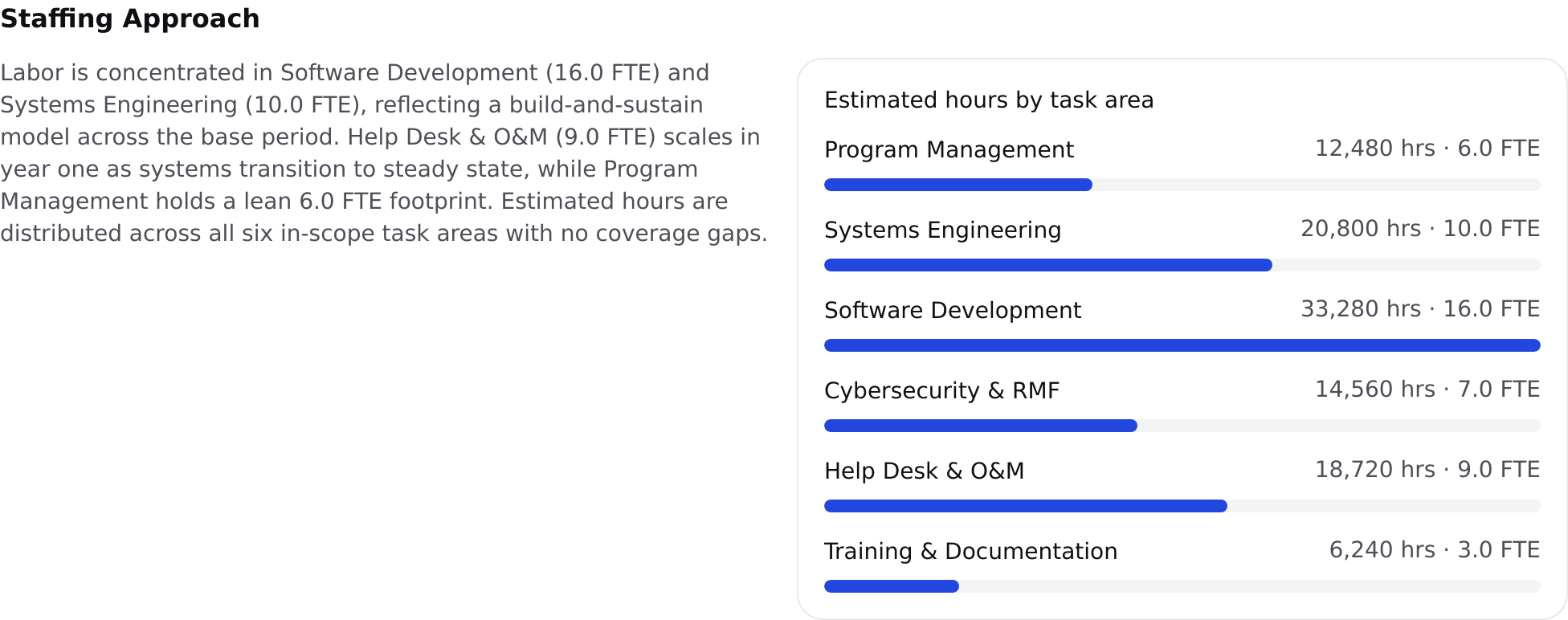
Staffing Approach: how labor is spread across task areas and the overall staffing model for this price.
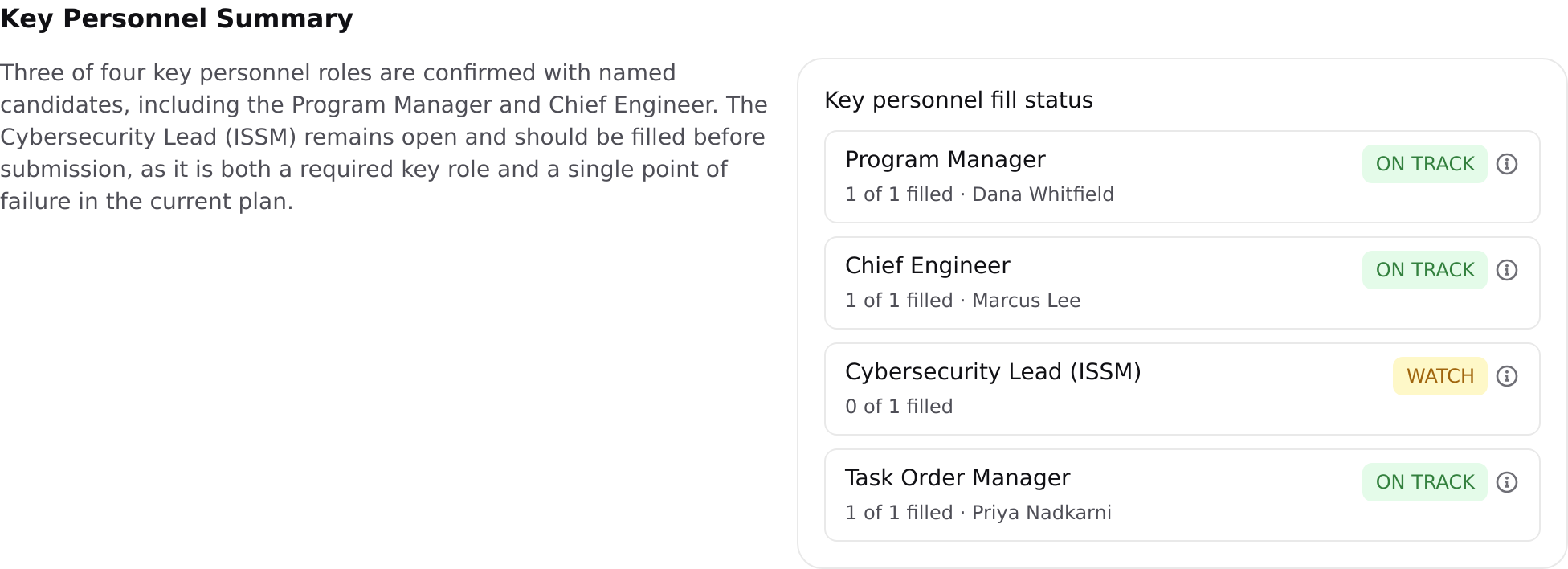
Key Personnel Summary: named or designated key personnel roles and how they support the plan.
Non-Labor Items: other direct costs, materials, travel, and subcontract line items captured in this price.
Risks & Gaps: readiness gaps, staffing risks, and areas to address before submission.
Each section pairs the written summary with a live visual drawn from your workbook:
Team Overview narrative section with the workshare split visual
Staffing Approach narrative section with estimated hours by task area
Key Personnel Summary narrative section with key personnel fill status
Editing and copying: Narrative text is fully editable, so you can add your win themes and discriminators, then move it straight into your proposal. Each visual panel also includes a copy action so you can reuse the underlying data in slides or review docs. Remember that regenerating the narrative will overwrite your edits.
FAQ
Why do some metrics show zero or a task area looks missing?
Strategy Review only reflects data that is in your price. If labor hours, work packages, or teaming workshare haven’t been entered yet, those metrics will read as zero. Task areas you’ve excluded from pricing, or that have no work packages, aren’t counted.
Why is my strategy showing No-Go?
No-Go means at least one readiness signal is at risk and is treated as a blocker. Open the Overview tab, find the signal marked At Risk, and use View detail to see what’s driving it.
Does editing the narrative change my pricing?
No. The narrative is the only editable content on the page, and edits stay within Strategy Review. Your labor categories, rates, and line items are never changed here.
What happens to my edits if I regenerate?
Regenerating builds a fresh narrative from your current pricing snapshot and replaces the existing text, including any manual edits. Save anything you want to keep before regenerating.