The Labor Categories tab is where you build and maintain the labor foundation of your pricing model. This is the place to review extracted roles, clean up any missing or incorrect labor categories, and enter the labor assumptions that drive cost rollups throughout Pricer.
If you are pricing a labor-heavy contract, most of your cost model starts here. Once labor roles, rates, and effort are defined, GovDash Pricer can calculate totals, apply indirect wrap rates, and roll labor into CLIN-level pricing.
Access Labor Categories
1. Open GovDash Pricer and select the workbook you want to review.
2. Select Labor Categories in the Pricer navigation.
3. Review the Labor Cost Summary before editing individual roles.
What You Use This Tab For
Use the Labor Categories tab to:
Review labor categories extracted from solicitation documents
Add roles manually if extraction missed something
Separate Key Personnel from Standard labor roles
Enter hourly rates and burdened rates
Define level of effort using hours or FTEs
Track labor cost totals across base and option years
Time-phase hours for each position across every period with the Staffing Plan
Confirm escalation impacts year over year
Reference extraction source citations when available
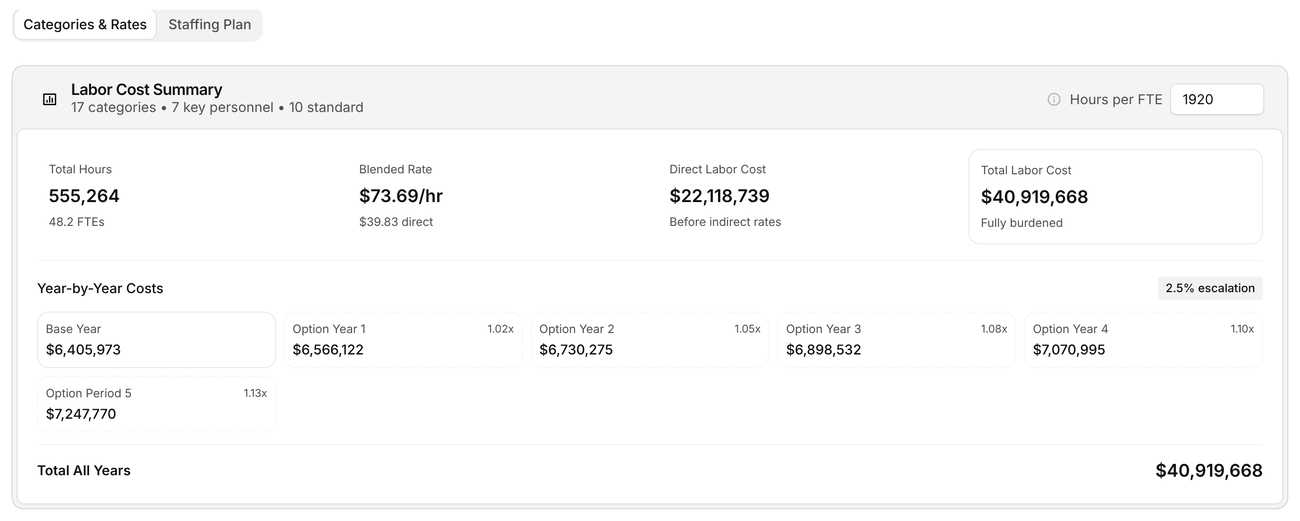
Labor Cost Summary Card
The Labor Cost Summary shows the category count and the Key Personnel versus Standard split. It also contains the workbook’s global Hours per FTE value. This default drives hours-to-FTE conversions. A category-level Hrs / Position value overrides the global default for that category only. Salary-to-hourly-rate math always uses 2,080 paid hours per year, so changing Hours per FTE doesn't change a category's direct rate.
When labor hours are available, the summary shows:
Total Hours and the FTE equivalent
Blended Rate, including direct and burdened views
Direct Labor Cost before indirect rates
Total Labor Cost after burdening
If no hours are available, the card displays No hours entered yet and prompts you to add estimated hours or FTEs. If some priced categories still have no hours, it reports how many are missing hours.
For multi-year opportunities, Year-by-Year Costs shows each base and option period, the active escalation, and Total All Years. Option periods are visually distinguished.
Add and Organize Labor Categories
If the workbook has no labor categories, the tab displays No labor categories and offers Add Category. You can also select Add Category above the role lists at any time.

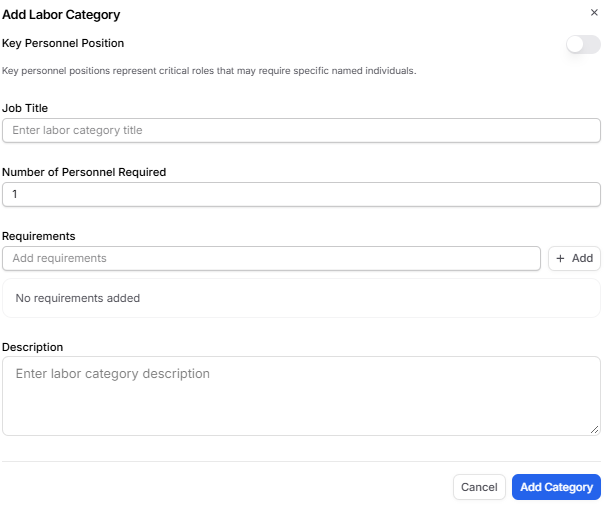
In Add Labor Category:
Turn on Key Personnel Position when the role is a critical named or designated position.
Enter the Job Title.
Enter the Number of Personnel Required.
Add any Requirements.
Enter a Description.
Select Add Category.
Labor categories are separated into Key Personnel and Standard tabs. Each tab shows its current count. If one type is empty, Pricer displays No categories of this type yet. Use Add Category to create one.
Read and Edit Category Rows
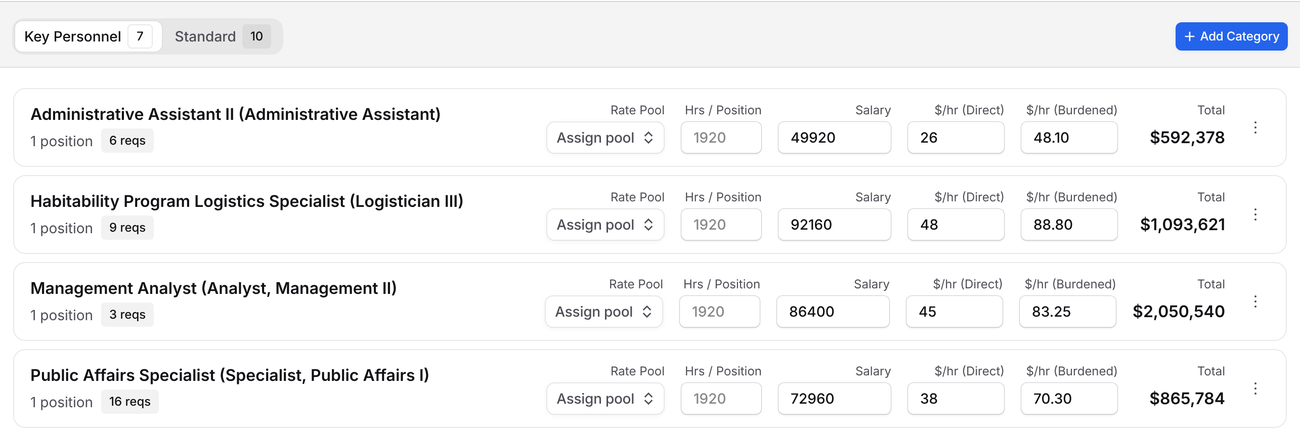
Each collapsed category row shows the role, position count, and requirements count when available. The row also contains:
Rate Pool, when the workbook has multiple pools
Hrs / Position
Salary
$/hr (Direct)
$/hr (Burdened)
Total
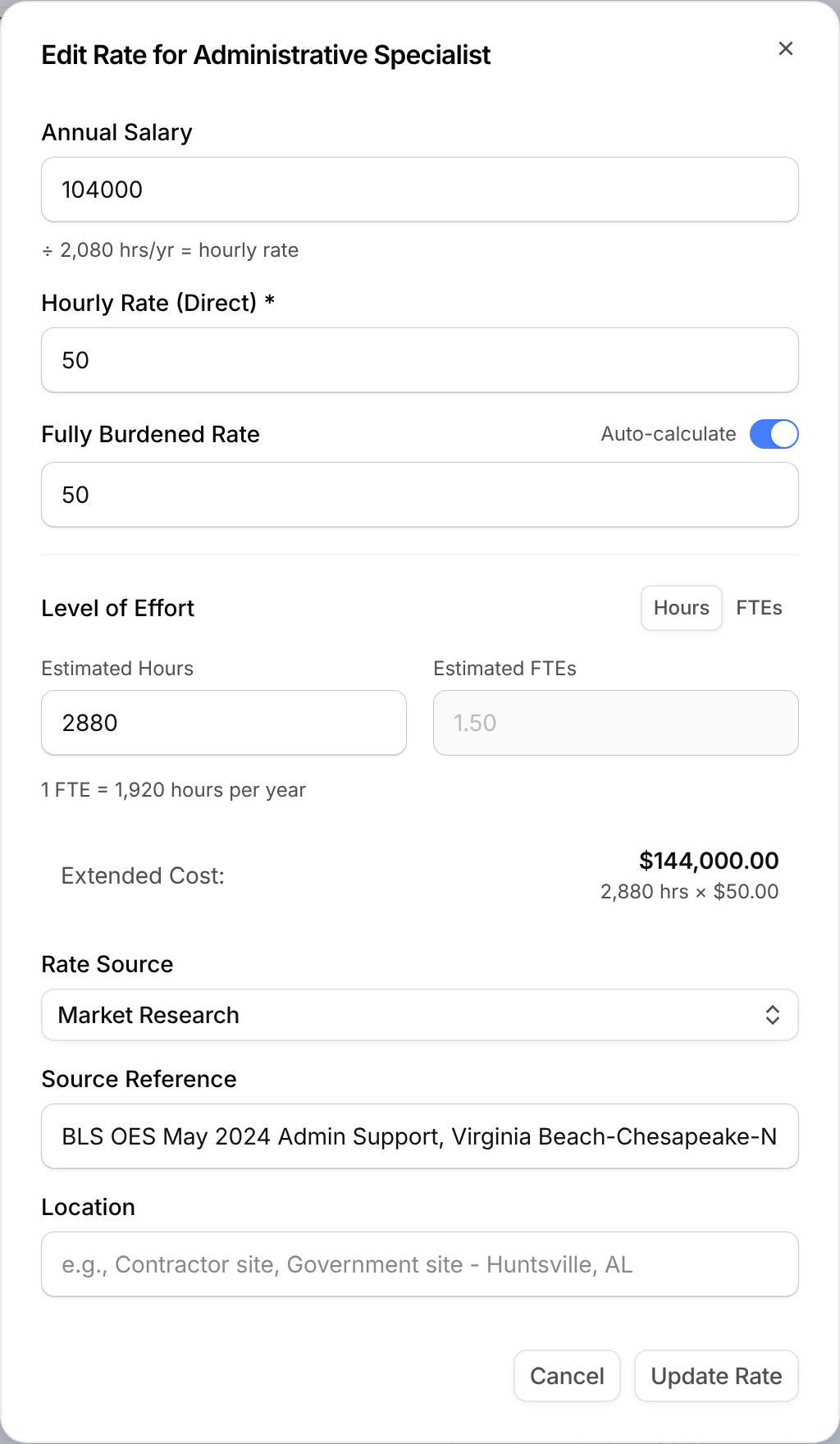
Changes save when you leave a field or press Enter. Salary and direct hourly rate are linked through 2,080 paid hours per year. For example, a $104,000 Salary gives a $50.00 $/hr (Direct) rate. The burdened rate uses the active wrap rate. Editing a burdened value inline back-solves the direct rate.
Hrs / Position overrides the global Hours per FTE value for the selected category’s capacity and FTE conversion. Clear the override to return to the global default.
Expand a Labor Category
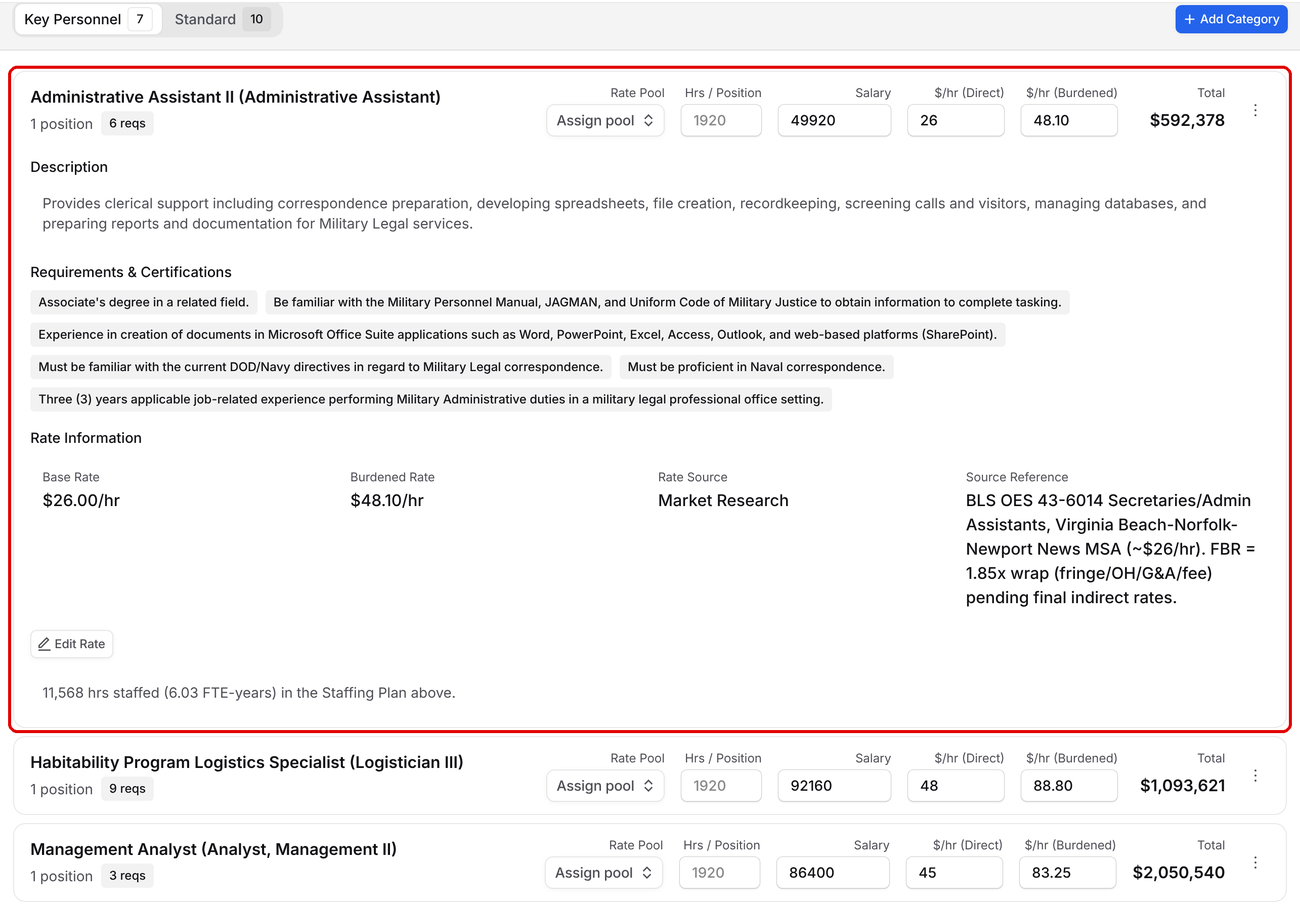
Expand a category to review its Description, Requirements & Certifications, extracted source document, and Rate Information.
Rate Information displays Base Rate, Burdened Rate, Rate Source, and Source Reference. Select Add Rate when no rate exists or Edit Rate to open the complete pricing dialog.
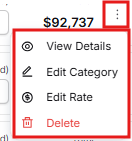
Use the Category Action Menu
View Details: Review title, description, personnel count, type, location, and certification requirements.
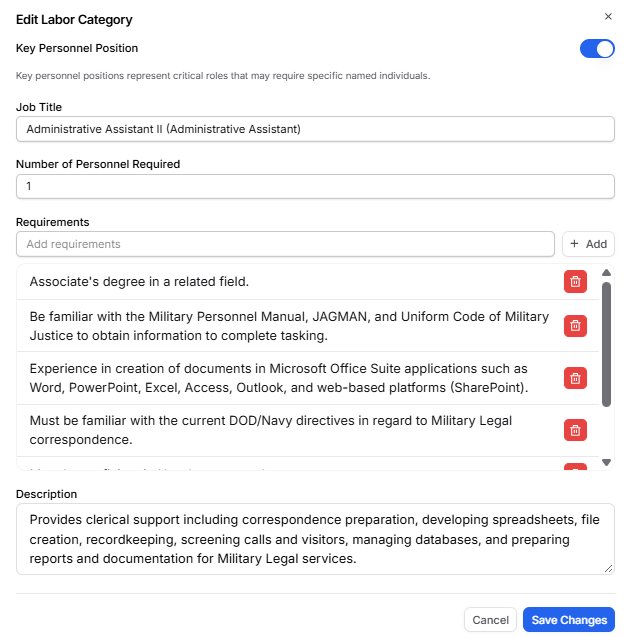
Edit Category: Update Key Personnel status, Job Title, Number of Personnel Required, Requirements, and Description.
Edit Rate: Maintain salary, direct and burdened rates, level of effort, and sourcing.
View in Document: Open highlighted source sentences when a source document and citations are available.
Delete: Remove the labor category immediately. Verify its connections first because no confirmation dialog is shown.
Editing a Labor Category
Edit Category is used when the role itself needs to be updated.
For example, you might use this if:
The extracted title is too vague
The personnel count is incorrect
A role should be classified as Key Personnel
Requirements or certifications were missed
The description needs clarification
This is focused on the definition of the role, not the pricing.
Editing Labor Rates
Open Edit Rate when you need the complete rate, effort, and sourcing workflow.
Set Salary and Rates
Annual Salary
Hourly Rate (Direct), required
Fully Burdened Rate
Annual Salary and Hourly Rate (Direct) stay linked through 2,080 paid hours per year, the hours an annual salary covers including paid leave. Paid leave is usually recovered through your fringe rate, so it isn't priced twice. With Auto-calculate enabled, Pricer calculates the fully burdened rate from the active wrap rate. Editing the burdened value back-solves the direct rate and salary.
Turn Auto-calculate off to store the fully burdened rate as a manual override. A manual burdened rate is detached from later indirect-rate changes.
Set Level of Effort
Choose Hours or FTEs. The inactive field converts automatically using the category’s Hrs / Position override when one exists, or the global Hours per FTE value otherwise.
Extended Cost previews entered hours multiplied by the burdened rate when available, or the direct rate otherwise. Workbook totals use the hours staffed in the Staffing Plan, so Estimated Hours and Estimated FTEs here don't change them.
Record the Rate Source
Select one Rate Source:
GSA Schedule
DOL Wage Determination
Historical Award
Market Research
Internal Rate Card
Manual Entry
Solicitation Extraction
Use Source Reference for a contract number, wage determination number, or other supporting detail. Select Add Rate or Update Rate to save.
Allocate Hours to Positions and Work Packages
You enter hours for each position in the Staffing Plan below. When you expand a category in Categories & Rates, the card shows how many hours are already staffed for that category. If none are staffed yet, it says No hours staffed yet. Add positions and hours in the Staffing Plan above.
To tie a position to a work package, open the position's actions menu in the Staffing Plan and select Assign work packages…. Enter the hours for each work package and click Save. Apply to all periods is on by default. If no work packages are listed, generate the Work Breakdown Structure first.
Pricer prices labor from the hours staffed on positions.
Staffing Plan
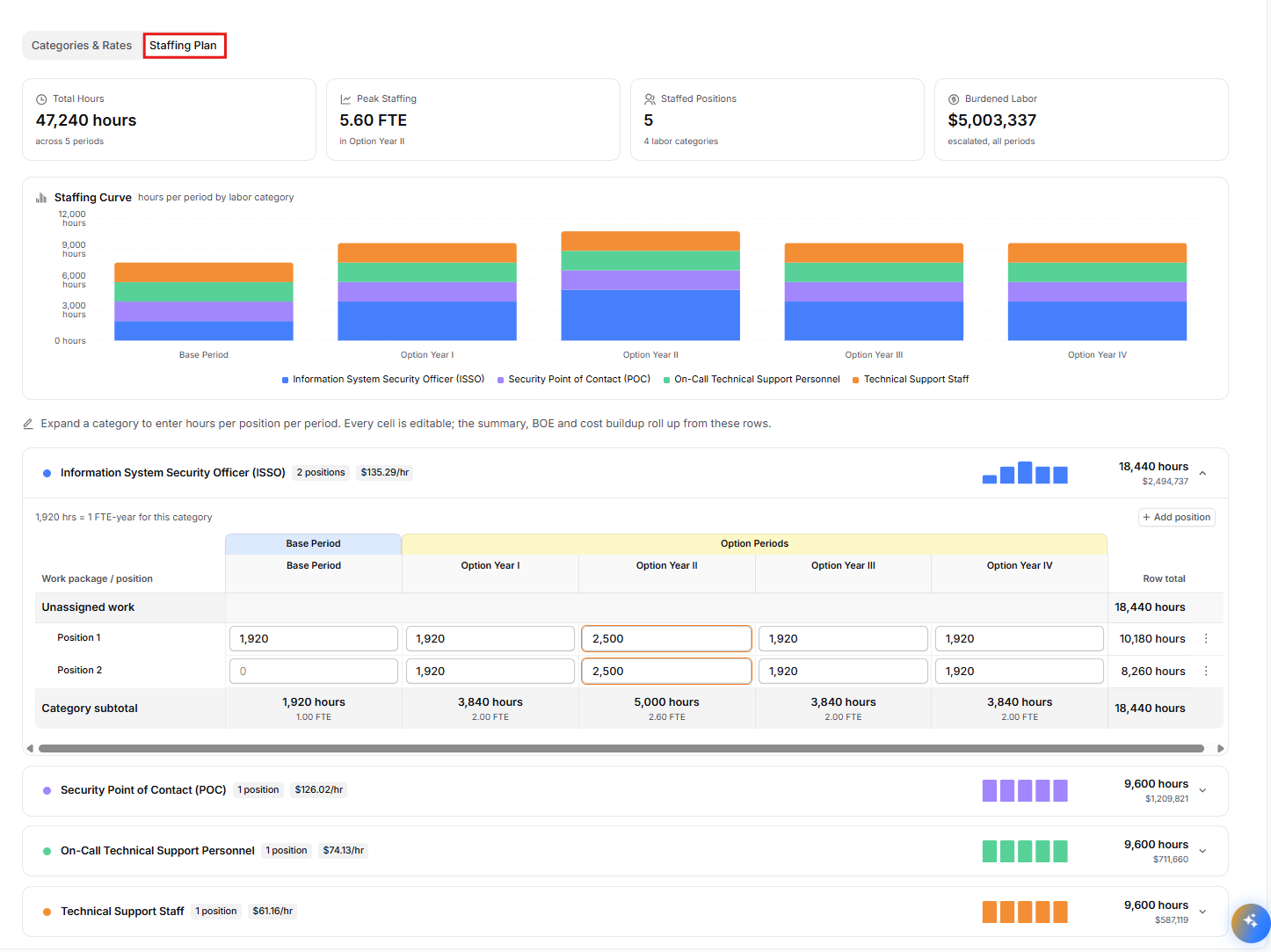
The Staffing Plan lets you time-phase labor. Each labor category expands into one row per staffed position, with an hours cell for every base and option period. Pricer applies escalation period by period, so burdened costs reflect the year the hours fall in.
Open the Staffing Plan
Open a workbook and select Labor Categories in the Pricer navigation.
Select Staffing Plan at the top of the tab. Select Categories & Rates any time to return to rates and category details.
If the workbook has no periods yet, Pricer shows Set the period structure first. Add base and option periods on the Overview tab, then come back.
Review Staffing at a Glance
Four summary cards sit at the top of the Staffing Plan:
Total Hours: All staffed hours across every period.
Peak Staffing: The highest FTE count and the period it falls in.
Staffed Positions: The number of positions and how many labor categories they cover.
Burdened Labor: Escalated burdened labor cost across all periods. This card is hidden when you hide wrap rates.
Below the cards, the Staffing Curve charts hours per period for each labor category.
Staff Positions by Period
Each labor category card shows its position count, burdened hourly rate, total hours, and escalated labor cost (or FTE-years when the category has no rate).
Select a labor category to expand it. The card shows how many hours equal one FTE-year for that category.
Select Add position to add a position row.
Select the hours cell under a period, enter the hours, and press Enter to save. Press Escape to cancel.
Repeat for each period. Columns are grouped into base and option periods, and each period after the first shows its escalation step.
Select a position's name to rename it.
Positions are grouped by work package. Positions without a work package appear under Unassigned work.
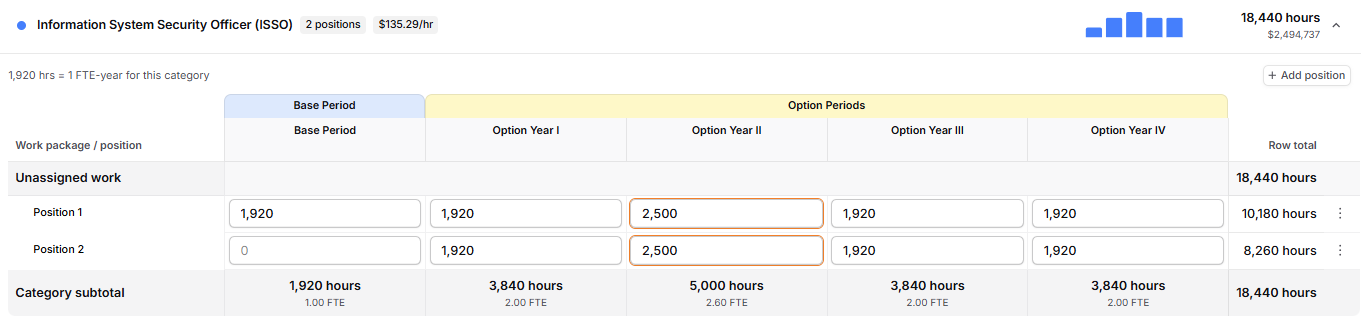
Seeing an outlined cell?
Pricer outlines a cell when it holds more hours than one FTE-year for that category (shown at the top of the card). Double-check that the entry isn't a typo.
Use Position Actions
Open the actions menu on a position row to:
Copy Base Year hours to every period: Copy the first period's hours into every period. The option shows your first period's name.
Fill as full-time every period: Enter one full-time position's hours in every period.
Assign work packages…: Split the position's hours across work packages. To undo it, choose Clear work package assignments.
Remove position: Delete the position and its hours.
How This Tab Connects to the Rest of Pricer
The Labor Categories tab is tightly connected to other pricing areas.
Overview: Uses labor categories for counts, Key versus Standard split, total headcount, and readiness. Escalation and period assumptions affect year-by-year projections.
Indirect Rates: Supplies the wrap logic used for auto-calculated burdened rates. A selected rate pool determines which pool wrap applies when multiple pools exist.
Work Breakdown: Provides the work packages available for labor assignment.
Basis of Estimate: Uses labor assignments and hours to support work-package cost and staffing detail.
Line Items: Can calculate labor CLINs from connected labor categories, rates, effort, and periods.
Because of these dependencies, labor categories should be validated early in the pricing process before finalizing indirect rates or building CLINs.