The Overview tab is the starting point in GovDash Pricer. It gives you a concise health check for the workbook and a launchpad into the detailed pricing work behind it.
Use Overview to review the pricing snapshot, confirm labor and non-labor coverage, identify gaps in the Work Breakdown and Basis of Estimate, check value and indirect-rate assumptions, and open your Strategy Narrative.
Values you edit on Overview update the same Pricer workbook used by the detailed tabs.
Access Overview
Open a workbook from the Pricer dashboard, or open an opportunity and go to the PRICING section of its left menu.
Select Overview in the Pricer navigation. Overview opens by default when you enter a workbook.
Start with the Pricing Snapshot, then scan the cards from top to bottom for incomplete or unexpected data.
Select Open in a summary-card header, select a card row, or select an additional-rows entry when you want to open the related detail.
What You Can Do on the Overview Tab
The Overview tab helps you:
Review and edit the pricing snapshot, including contract values, period of performance, escalation, contract type, and target fee.
Scan labor categories and wage determination details before opening the full labor grid.
Check Other Direct Cost categories and find items that still need prices.
Review Work Breakdown coverage and Basis of Estimate readiness.
Set Target Value, Target Fee %, and P(Win) %, then review the calculated Weighted Value.
Validate the wrap-rate stack while keeping sensitive rates hidden when needed.
Generate, review, edit, and reuse a five-part Strategy Narrative based on the current workbook.
Open detailed Pricer tabs and records directly from summary cards and rows.
Page Controls
Use Feedback to share product feedback. Open Actions for workbook exports, wrap-rate visibility, market-data assistance, document re-extraction, and the guided Pricer tour. The Calendar button and the second Actions menu next to it belong to the opportunity, not the workbook. That menu is where you mark an outcome, such as Won or Lost.
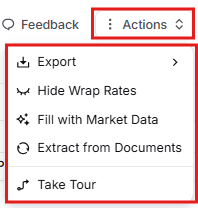
Show/Hide Wrap Rates
Select Hide Wrap Rates in Actions before screen sharing or when indirect-rate values should not be visible. The command changes to Show Wrap Rates while values are concealed.
Hidden values remain in the workbook; only their display changes across supported Pricer views, including Overview.

Fill with Market Data
Select Fill with Market Data to open Dash with a Pricer task that fills labor-category rates and hours, prices ODCs from suggested quantities and market prices, and uses an available line-item structure to place cost elements.
When your team enables web search and the opportunity is Unclassified, Dash can research current market data. Otherwise, it uses the pricing context and tools available in GovDash.

Review generated values
Treat market data as a starting point. Review every rate, hour, quantity, price, and line-item assignment before using the workbook in a proposal.
Extract from Documents
Select Extract from Documents when source documents change or you need a fresh AI extraction. Pricer asks you to confirm before it starts a background re-extraction.

This action cannot be undone
Re-extraction permanently replaces AI-extracted labor categories, unpriced structural line items, wage determination data, period-of-performance structure, contract values, and full-time-equivalent hours when extraction completes.
Outline-pinned labor categories and priced line items are preserved.
Export
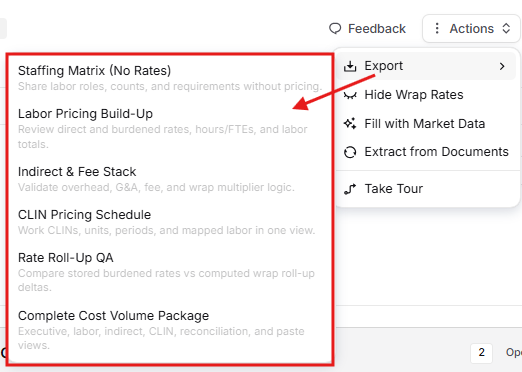
Open Export in Actions and choose the workbook package you need:
Staffing Matrix (No Rates)
Labor Pricing Build-Up
Indirect & Fee Stack
CLIN Pricing Schedule
Rate Roll-Up QA
Complete Cost Volume Package
Take Tour
Select Take Tour at the bottom of Actions for a guided walkthrough of Overview, workbook controls, Pricing Snapshot, summary cards, value, and indirect rates.

Overview Sections
Pricing Snapshot
The Pricing Snapshot runs across the top of Overview and keeps the workbook’s highest-level context in one place.

Value: Edit Estimated, Ceiling, Minimum, and Target Fee. When Target Value and P(Win) are available, the cell also shows the calculated Weighted Value and P(Win).
Period of Performance: Edit Start and End dates, Base and Option years, and Escalation %.
Contract Type: Select the pricing strategy that applies to the opportunity.
Labor Categories: Review the total category count and its Key versus Standard split.
Most values save in place. Hours per FTE is managed from the Labor Categories header, not Overview.
Labor Categories
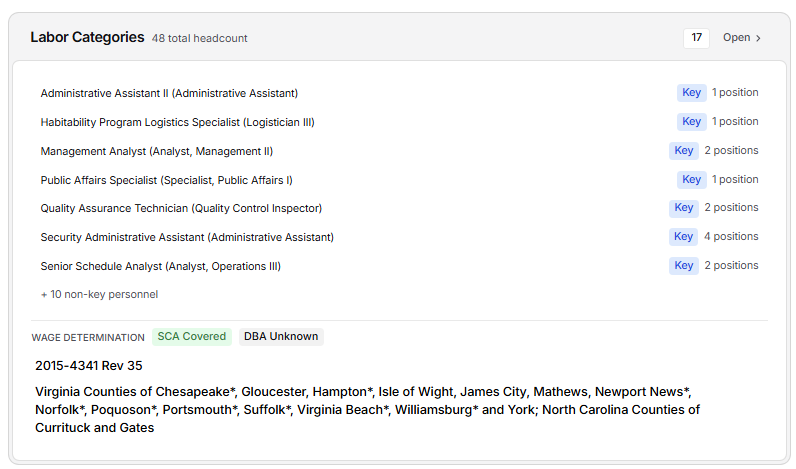
The Labor Categories card shows the roles currently loaded into the workbook. The card header shows the category count and total headcount. The Pricing Snapshot shows the Key versus Standard split. Each visible row shows a job title, a Key badge when the role is Key Personnel, and its position count.
Select a labor row to open that category in Labor Categories. Select Open in the card header or select the additional-rows entry to open the full tab. Manage Hours per FTE from the Labor Categories header.
If no labor categories exist, the card displays No labor categories yet. Extract or add them in the Labor tab. Select Open to continue in Labor Categories.
Other Direct Costs
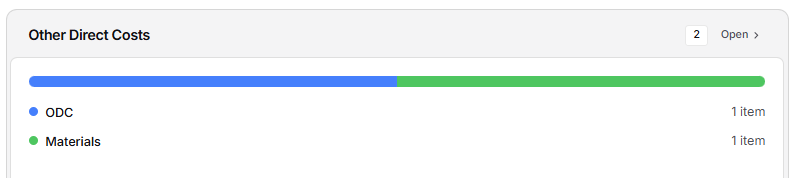
The Other Direct Costs card summarizes non-labor items by category: ODC, Materials, Travel, and Subcontract. A distribution bar and category rows show how many items are in each group.
When any item does not have a unit price, an unpriced badge shows how many items still need pricing. Select Open in the card header to open Other Direct Costs and edit item details, quantities, prices, and assignments.
If no items exist, the card displays No items available. Select Open to add ODCs and materials in Other Direct Costs.
Work Breakdown
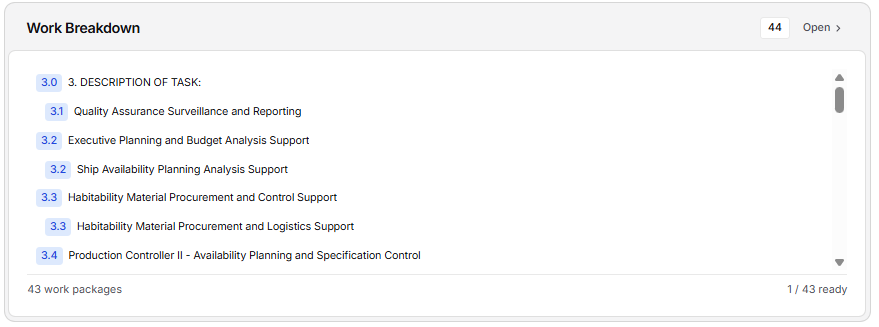
The Work Breakdown card shows the included WBS hierarchy in a scrollable list. The badge in the card header shows the number of included WBS nodes. Nodes currently excluded from the WBS are omitted from the Overview list and counts. Rows can include a WBS item number and badges for assigned labor categories and ODC categories.
The footer separately shows the number of leaf work packages and how many are ready for cost entry. Select a node to open it in Work Breakdown, or select Open in the card header to open the full tab.
If no work packages exist, Overview displays No work packages generated yet.
Basis of Estimate
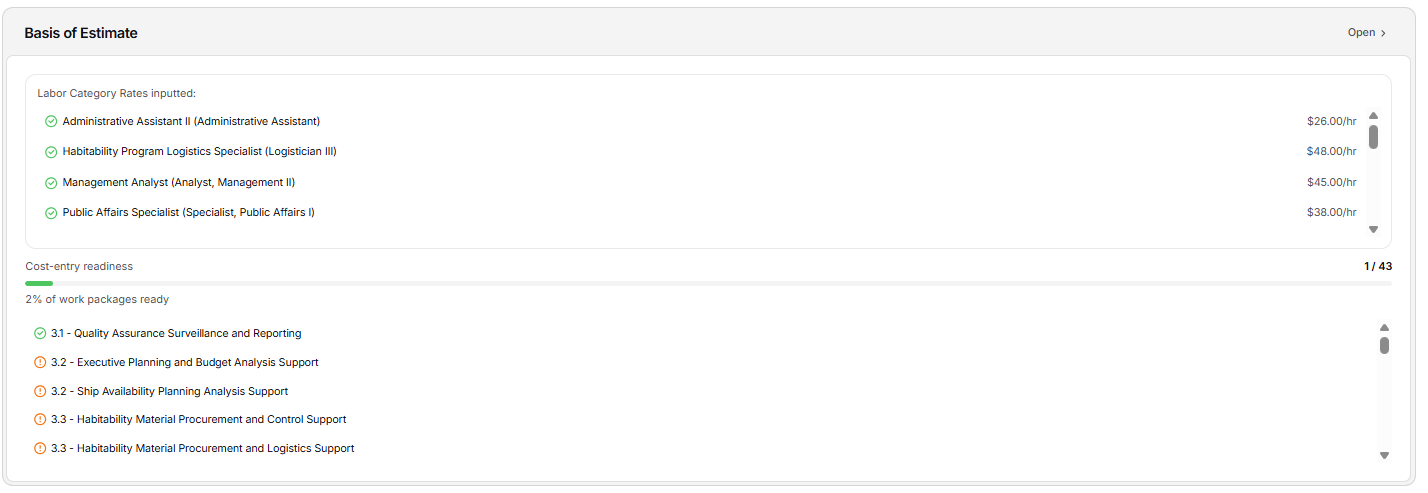
The Basis of Estimate card shows whether labor rates and work-package inputs are ready for cost entry.
Labor Category Rates inputted: Each labor category has a success or warning icon and shows its hourly rate when present. Select a labor row to open it in Labor Categories.
Cost-entry readiness: Review the number and percentage of work packages ready.
Work-package coverage: Each row can show LCAT-hour coverage and priced-versus-total ODC badges. Select a work package to open it in Basis of Estimate.
If the WBS has no work packages, Overview displays No BOE available. Generate the Work Breakdown Structure first.
Strategy Narrative
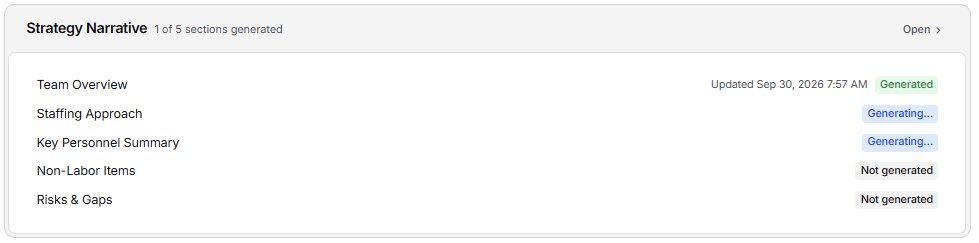
The Strategy Narrative card brings proposal-ready staffing context into Overview. Its header shows how many of the five sections have been generated.
Read the section statuses
Not generated: No narrative exists yet.
Generating…: Pricer is writing the section from the current pricing snapshot.
Failed: Generation did not finish. Open the section and regenerate it, or write the narrative manually.
Generated: The section contains narrative text and shows its last-updated date and time.
Select Open in the card header to open the full Strategy Narrative, or select a section row to open the workspace at that section.
Generate and refine the narrative
In the full workspace, select Generate to create all sections from the current pricing snapshot. Select Regenerate for all sections or for an individual section after workbook data changes.
Narrative text is editable. Review the generated copy, add your win themes and discriminators, and keep the language aligned with the priced workbook.

Use the five sections and live visuals
Team Overview: Summarizes the team and pairs the narrative with the declared workshare split.
Staffing Approach: Explains the staffing model and pairs it with estimated hours by task area.
Key Personnel Summary: Summarizes key roles and pairs the narrative with key-personnel fill status.
Non-Labor Items: Summarizes ODCs and materials and pairs the narrative with quantity data.
Risks & Gaps: Highlights items that need attention and pairs the narrative with current readiness signals.
Use each visual panel’s copy action to reuse its supporting data in slides, reviews, or proposal working files.
Regeneration replaces narrative content
Regeneration creates fresh content from the current pricing snapshot. It can replace manual narrative edits and discard edits that have not finished saving. Save or copy anything you want to retain before regenerating.
Value Summary
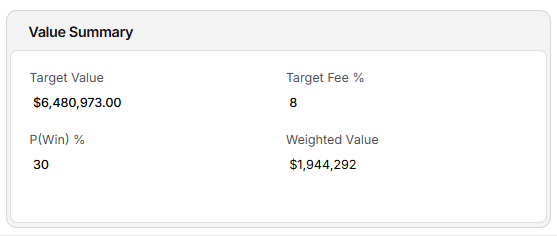
The Value Summary card contains four fields: Target Value, Target Fee %, P(Win) %, and Weighted Value.
Edit Target Value, Target Fee %, and P(Win) % directly in the card.
P(Win) must be between 0 and 100.
Weighted Value is calculated as Target Value multiplied by P(Win). It remains blank until both inputs are available.
Edit Government Estimate, Ceiling, and Minimum in the Value cell of the Pricing Snapshot.
Indirect Rate Structure
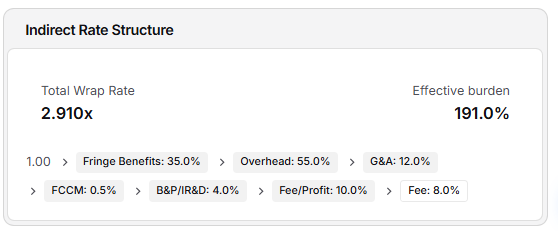
The Indirect Rate Structure card is a validation view of the current wrap-rate setup. It shows Total Wrap Rate, Effective burden, and the ordered indirect-rate component stack. Target Fee appears at the end when configured.
Use Hide Wrap Rates in Actions to conceal the values during screen sharing. Hiding values does not change calculations.
If no indirect rates are configured, Overview prompts you to add them in Indirect Rates. Use the Pricer navigation to open that tab and configure the stack.
How the Overview Tab Connects to Other Tabs
Overview summarizes the workbook and helps you reach the records behind each preview.
Labor Categories: Select a labor row to open that category. Manage rates, hours, assignments, and Hours per FTE in the full tab.
Other Direct Costs: Select Open in the card header to open the detailed ODC tab and complete quantities, prices, and assignments.
Work Breakdown: Select a node to open it in the WBS. Labor and ODC assignments made there feed readiness and BOE coverage.
Basis of Estimate: Select a work-package row to open its BOE detail. Incomplete labor rates, hours, or ODC prices remain visible as warnings on Overview.
Indirect Rates: Use Pricer navigation to configure the rate stack. Overview is a read-only validation view for the resulting wrap rate.
Strategy Narrative: Select Open in the card header or select an individual section row to open the full narrative workspace.
Line Items: Period, escalation, labor, ODC, and indirect assumptions continue to feed line-item totals where applicable.