The Labor Categories tab is where you build and maintain the labor foundation of your pricing model. This is the place to review extracted roles, clean up any missing or incorrect labor categories, and enter the labor assumptions that drive cost rollups throughout Pricer.
If you are pricing a labor-heavy contract, most of your cost model starts here. Once labor roles, rates, and effort are defined, GovDash Pricer can calculate totals, apply indirect wrap rates, and roll labor into CLIN-level pricing.
Access Labor Categories
1. Open GovDash Pricer and select the workbook you want to review.
2. Select Labor Categories in the Pricer navigation.
3. Review the Labor Cost Summary before editing individual roles.
What You Use This Tab For
Use the Labor Categories tab to:
Review labor categories extracted from solicitation documents
Add roles manually if extraction missed something
Separate Key Personnel from Standard labor roles
Enter hourly rates and burdened rates
Define level of effort using hours or FTEs
Track labor cost totals across base and option years
Confirm escalation impacts year over year
Reference extraction source citations when available
Labor Cost Summary Card
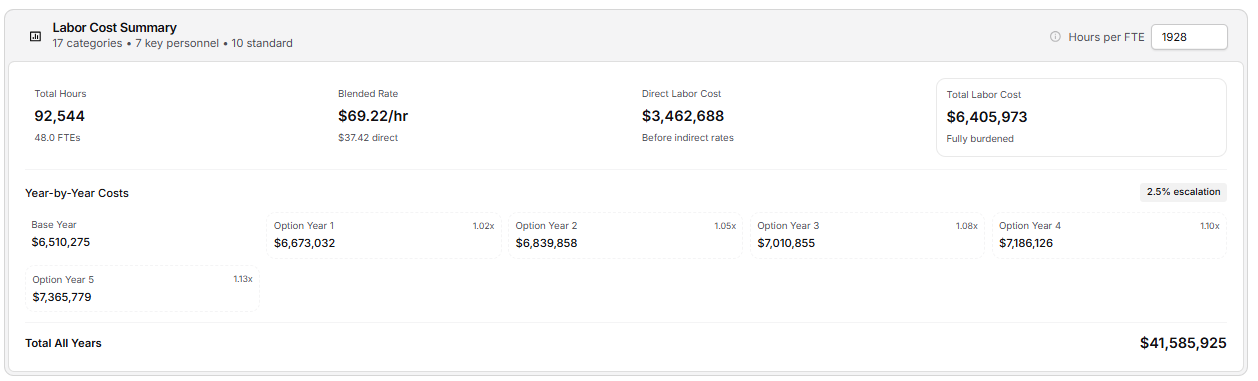
The Labor Cost Summary shows the category count and the Key Personnel versus Standard split. It also contains the workbook’s global Hours per FTE value. This default drives hours-to-FTE conversions and salary-to-hourly-rate math. A category-level Hrs / Position value overrides the global default for that category only.
When labor hours are available, the summary shows:
Total Hours and the FTE equivalent
Blended Rate, including direct and burdened views
Direct Labor Cost before indirect rates
Total Labor Cost after burdening
If no hours are available, the card displays No hours entered yet and prompts you to add estimated hours or FTEs. If some priced categories still have no hours, it reports how many are missing hours.
For multi-year opportunities, Year-by-Year Costs shows each base and option period, the active escalation, and Total All Years. Option periods are visually distinguished.
Add and Organize Labor Categories
If the workbook has no labor categories, the tab displays No labor categories and offers Add Category. You can also select Add Category above the role lists at any time.

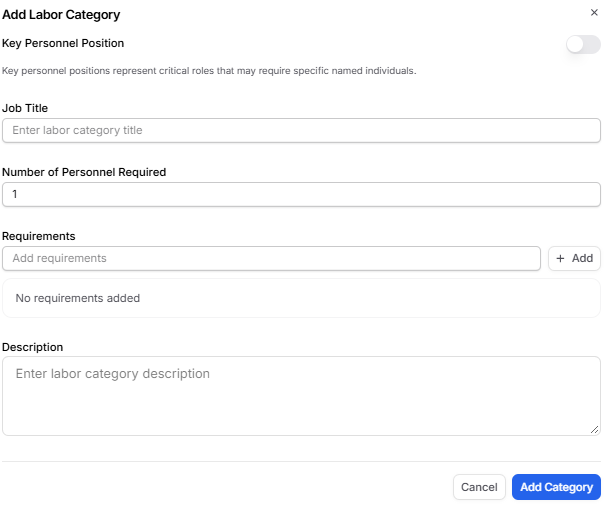
In Add Labor Category:
Turn on Key Personnel Position when the role is a critical named or designated position.
Enter the Job Title.
Enter the Number of Personnel Required.
Add any Requirements.
Enter a Description.
Select Add Category.
Labor categories are separated into Key Personnel and Standard tabs. Each tab shows its current count. If one type is empty, Pricer displays No categories of this type yet. Use Add Category to create one.
Read and Edit Category Rows
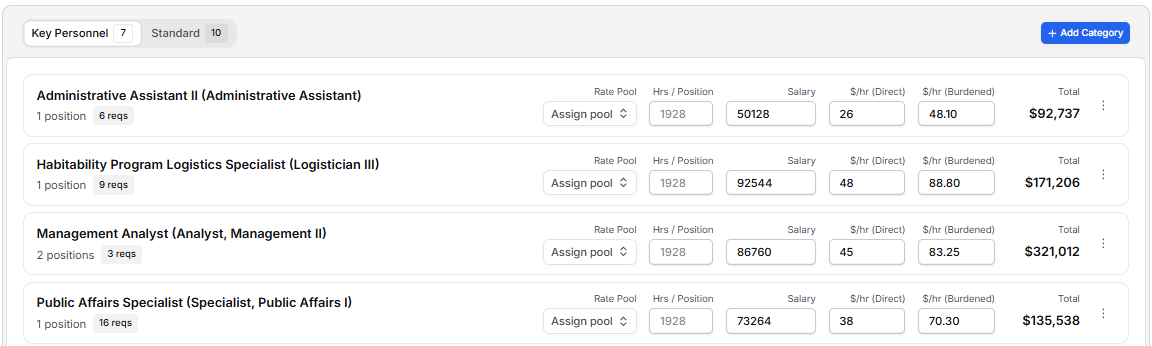
Each collapsed category row shows the role, position count, and requirements count when available. The row also contains:
Rate Pool, when the workbook has multiple pools
Hrs / Position
Salary
$/hr (Direct)
$/hr (Burdened)
Total
Changes save when you leave a field or press Enter. Salary and direct hourly rate are linked through the global Hours per FTE value. The burdened rate uses the active wrap rate. Editing a burdened value inline back-solves the direct rate.
Hrs / Position overrides the global Hours per FTE value for the selected category’s capacity and FTE conversion. Clear the override to return to the global default.
Expand a Labor Category
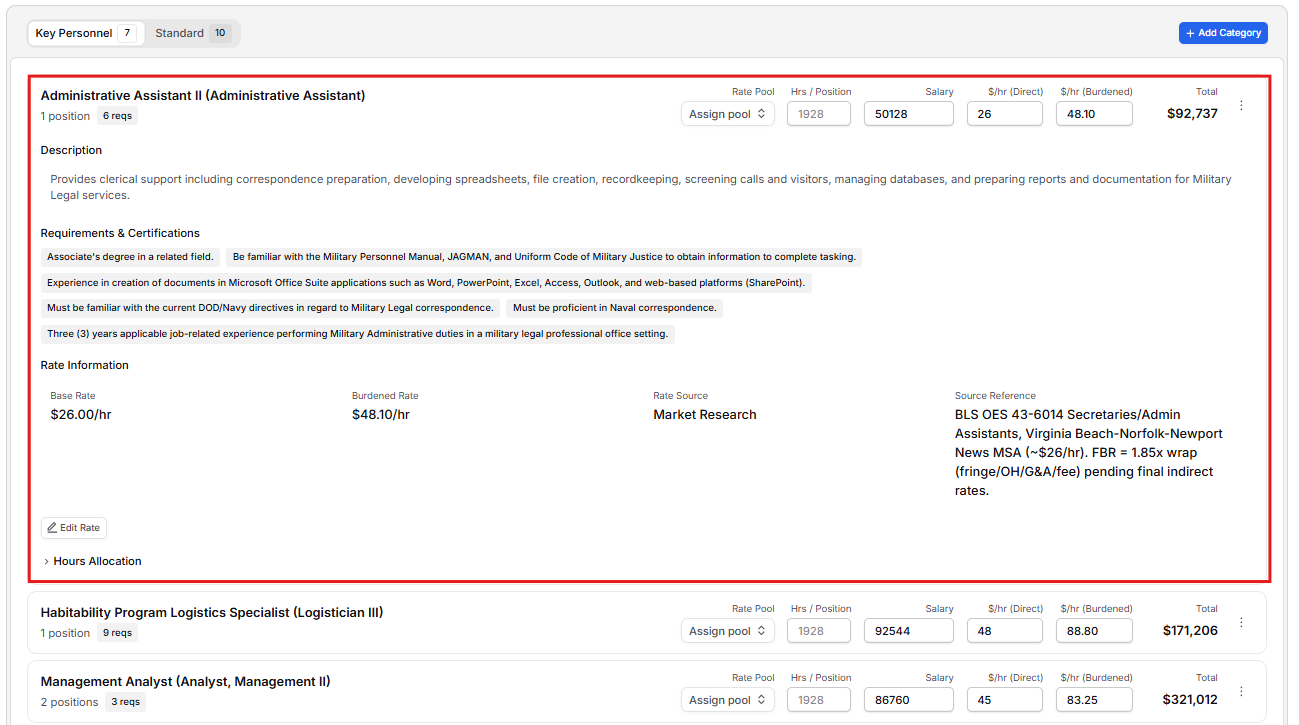
Expand a category to review its Description, Requirements & Certifications, extracted source document, and Rate Information.
Rate Information displays Base Rate, Burdened Rate, Rate Source, and Source Reference. Select Add Rate when no rate exists or Edit Rate to open the complete pricing dialog.
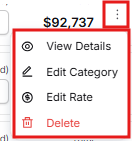
Use the Category Action Menu
View Details: Review title, description, personnel count, type, location, and certification requirements.
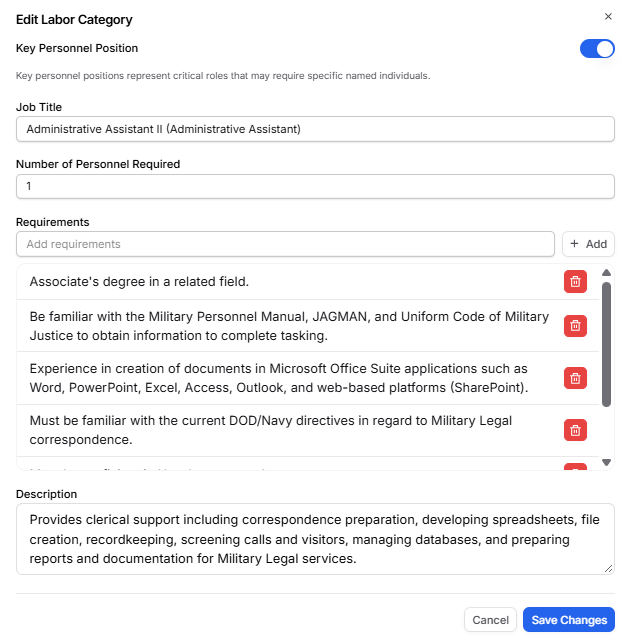
Edit Category: Update Key Personnel status, Job Title, Number of Personnel Required, Requirements, and Description.
Edit Rate: Maintain salary, direct and burdened rates, level of effort, and sourcing.
View in Document: Open highlighted source sentences when a source document and citations are available.
Delete: Remove the labor category immediately. Verify its connections first because no confirmation dialog is shown.
Editing a Labor Category
Edit Category is used when the role itself needs to be updated.
For example, you might use this if:
The extracted title is too vague
The personnel count is incorrect
A role should be classified as Key Personnel
Requirements or certifications were missed
The description needs clarification
This is focused on the definition of the role, not the pricing.
Editing Labor Rates
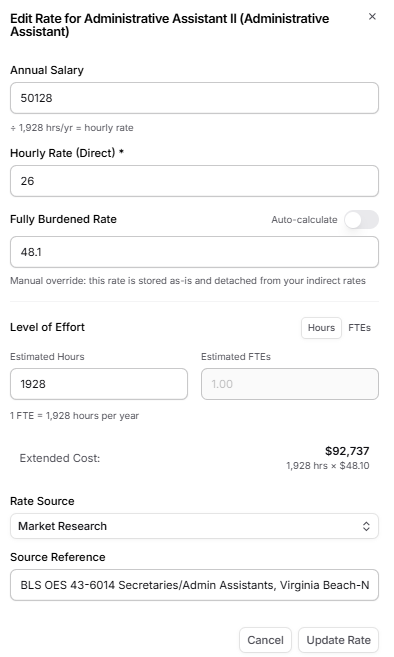
Open Edit Rate when you need the complete rate, effort, and sourcing workflow.
Set Salary and Rates
Annual Salary
Hourly Rate (Direct), required
Fully Burdened Rate
Annual Salary and Hourly Rate (Direct) stay linked through the global Hours per FTE value. With Auto-calculate enabled, Pricer calculates the fully burdened rate from the active wrap rate. Editing the burdened value back-solves the direct rate and salary.
Turn Auto-calculate off to store the fully burdened rate as a manual override. A manual burdened rate is detached from later indirect-rate changes.
Set Level of Effort
Choose Hours or FTEs. The inactive field converts automatically using the category’s Hrs / Position override when one exists, or the global Hours per FTE value otherwise.
Extended Cost previews entered hours multiplied by the burdened rate when available, or the direct rate otherwise.
Record the Rate Source
Select one Rate Source:
GSA Schedule
DOL Wage Determination
Historical Award
Market Research
Internal Rate Card
Manual Entry
Solicitation Extraction
Use Source Reference for a contract number, wage determination number, or other supporting detail. Select Add Rate or Update Rate to save.
Allocate Hours to Positions and Work Packages
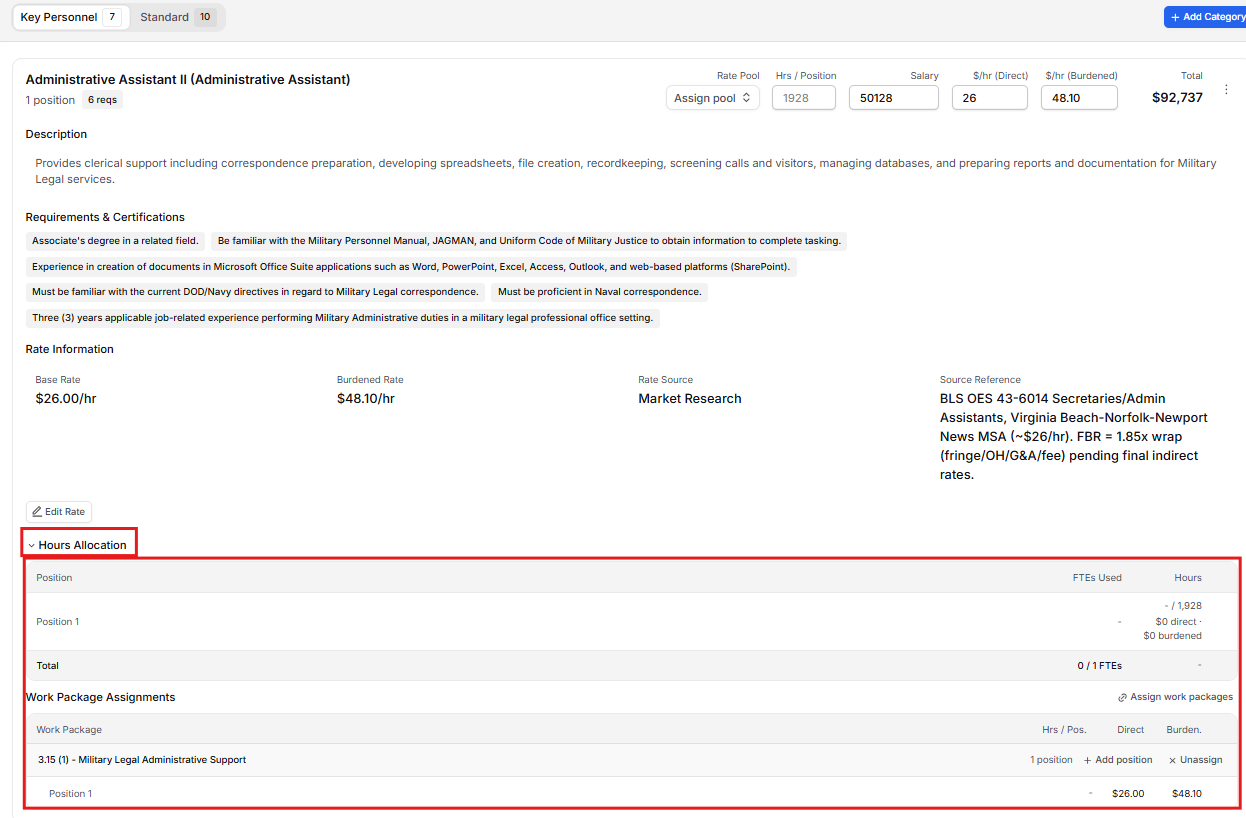
Expand a labor category and open Hours Allocation. The position summary shows each position’s FTEs Used and Hours against the category’s Hrs / Position baseline. It also shows direct and burdened cost when rates are available.
The Total row shows used FTEs, planned positions, total hours, and category-level direct and burdened costs.
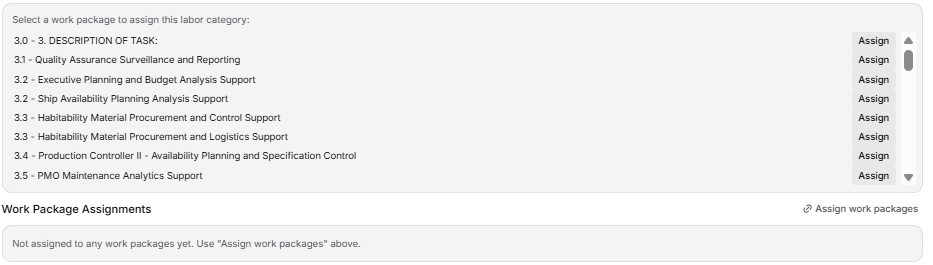
Assign Work Packages
Open the picker: Select Assign work packages.
Choose included WBS work: Select Assign beside each work package the role supports. If none are available, generate the Work Breakdown Structure first.
Set position hours: Enter Hrs / Pos. for each assigned position.
Adjust positions: Use Add position or the remove control when the allocation needs more or fewer position rows.
Review downstream work: Select the work-package name to open the related BOE context when available, or select Unassign to remove the role from that work package.

When work-package allocations exist, Pricer uses those hours before the category-level Estimated Hours or Estimated FTEs when calculating totals.
How This Tab Connects to the Rest of Pricer
The Labor Categories tab is tightly connected to other pricing areas.
Overview: Uses labor categories for counts, Key versus Standard split, total headcount, and readiness. Escalation and period assumptions affect year-by-year projections.
Indirect Rates: Supplies the wrap logic used for auto-calculated burdened rates. A selected rate pool determines which pool wrap applies when multiple pools exist.
Work Breakdown: Provides the work packages available for labor assignment.
Basis of Estimate: Uses labor assignments and hours to support work-package cost and staffing detail.
Line Items: Can calculate labor CLINs from connected labor categories, rates, effort, and periods.
Because of these dependencies, labor categories should be validated early in the pricing process before finalizing indirect rates or building CLINs.