The Indirect Rates tab is where you configure the indirect burden structure used in GovDash Pricer. This includes common indirect components such as Fringe, Overhead, and G&A, as well as Fee or Profit. Every rate is tied to an allocation base (the costs it multiplies), and rates are grouped into rate pools so different groups of labor can carry different wrap rates.
The goal of this tab is to help you build a wrap rate model that reflects how your organization burdens costs, then immediately see how those assumptions impact total pricing.
This tab is also designed for scenario testing. You can model changes, compare outcomes, and save only when you are confident in the final indirect structure.
What You Use This Tab For
Use the Indirect Rates tab to:
Build and maintain your indirect rate stack, organized into rate pools
Assign each rate to the allocation base it multiplies
Configure how wrap rates are calculated, including your G&A base
Set Fee or Profit values that sync with the Overview tab
Apply team templates for standardized pricing assumptions
Test different indirect scenarios before saving
See exactly how your price builds, from direct labor to total price
View year-by-year costs when multi-year pricing is enabled
Choosing Your Calculation Settings
The bar at the top of the tab holds two settings that apply to the whole workbook. Hover the information icon next to each one for a quick explanation of every option.

Method
Multiplicative : each labor rate is applied to its allocation base as the waterfall builds: Fringe on labor, Overhead on labor + fringe, and G&A on total cost input. This is how DCAA-audited rate structures work.
Additive : every labor rate is applied to direct labor dollars and the results are summed, so the wrap is 1 + Fringe + Overhead + G&A. It is simpler, and it is lower than the multiplicative wrap whenever a rate compounds on an earlier one.
G&A Base
TCI (Total Cost Input): G&A applies to burdened labor plus every non-labor cost: materials, subcontracts, travel, and ODCs. This is the most common election.
Value Added: G&A applies to burdened labor plus travel and ODCs. Materials and subcontracts are excluded, so pass-through dollars carry no G&A.
Labor Only: G&A applies to burdened labor only (direct labor + fringe + overhead).
Changing either setting updates the opportunity immediately and saves automatically. Rate-percentage edits preview the result while you type and save when you press Enter or leave the field. Fee slider changes remain modeled until you select Save; select Reset to discard them.
Seeing How Your Price Builds
Directly below the settings bar, the How your price builds strip lays out your workbook as an equation: burdened labor, non-labor costs, total cost input, G&A, total cost before fee, fee or profit, and total price. Use the Labor Categories link in Burdened Labor or the Line Items link in Non-Labor to open the source tab for those costs.
The strip also shows your wrap rate (or Blended wrap when you use more than one rate pool). Click see the math to open a step-by-step view of every tier of the wrap: the rate, what it applies to, and the running multiplier, with dollar amounts alongside each tier once labor hours are entered. Non-labor rates appear in their own section, because they burden their own cost element instead of the labor wrap.

Applying Indirect Rate Templates
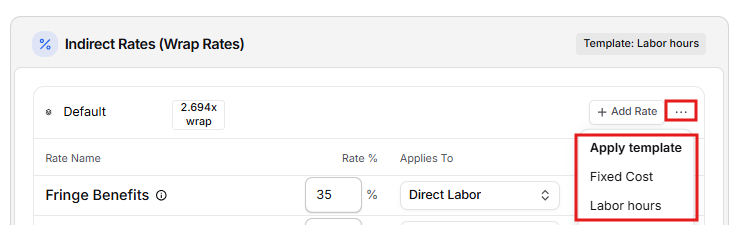
If your team has created indirect rate templates, you can apply one to any rate pool. Templates let you quickly apply a pre-configured indirect rate stack, which is especially useful when your organization wants consistent burden assumptions across bids.
Open the pool's ⋯ menu in the pool header. (In an empty pool, click the Apply template button instead.)
Under Apply template, choose a template. Only that pool's rates are replaced.
When you apply a template to the default pool, the card header shows Template: <template name>. If that default-pool stack later differs from the template, the badge changes to Modified from <template name>; hover it to review changed or removed rates. Applying a template to a secondary pool replaces that pool's rates but does not replace the workbook-level template badge, which tracks the default pool.
If you have access to manage team Pricing Settings, use the Settings icon to open Pricing Settings, where Allocation Bases and Indirect Rate Templates are managed.
Setting Fee or Profit
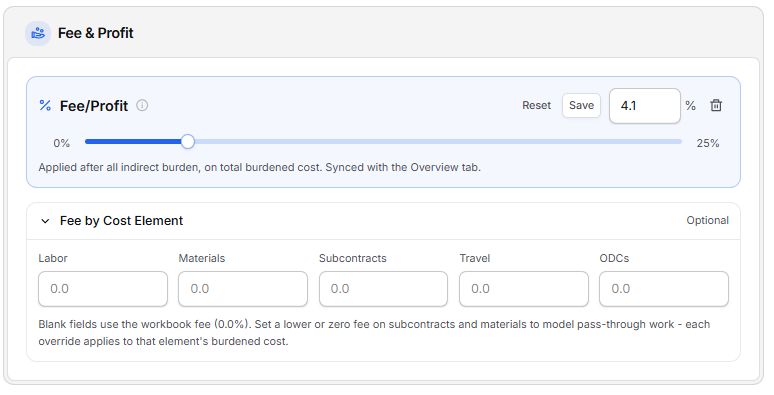
The Fee & Profit card appears below the Indirect Rates (Wrap Rates) card. Its workbook fee is synced with Target Fee in the page summary and Target Fee % on Overview. Fee is applied after indirect burden. Labor priced through the rate waterfall receives the labor fee; labor categories with an entered fully burdened rate bypass the waterfall and are added as entered rather than receiving fee again.
Drag the slider or type a value to model a new fee, then click Save to keep it or Reset to go back. To remove fee entirely, choose Remove fee (sets to 0%).
If your organization uses different fee percentages by cost element, expand Fee by Cost Element and enter an override for Labor, Materials, Subcontracts, Travel, or ODCs. A blank field inherits the workbook fee. Enter a value from 0 through 100 and leave the field to save it; clear the field to return to the workbook fee. The card shows Overrides active when any override is saved.
Note
When subcontracted work exceeds 70% of total workbook cost, Pricer shows a pass-through warning and expands Fee by Cost Element.
Organizing Rates into Rate Pools
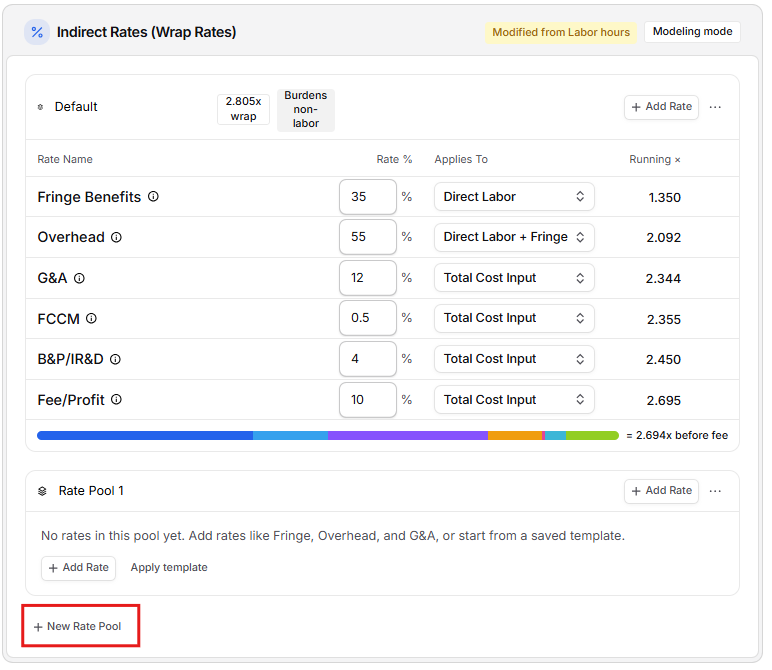
Your indirect rates are grouped into rate pools inside the Indirect Rates (Wrap Rates) card. Every workbook starts with one pool. Add more when different groups of labor need different wrap rates, for example on-site versus off-site staff. Each pool shows its own wrap multiplier in its header.
Add a pool: click New Rate Pool below your existing pools.
Rename a pool: click the pool name in its header and type a new name.
Delete a pool: open the pool's ⋯ menu and choose Delete pool. A pool must be empty first; until it is, the option reads Delete pool (remove rates first). Labor categories assigned to a deleted pool fall back to the default pool's rates.
A pool that holds a G&A rate on Total Cost Input shows a Burdens non-labor badge, because that rate also applies to materials, subcontracts, travel, and ODCs. A pool that only holds rates on non-labor bases shows a No labor rates badge.
Labor categories that aren't assigned to a pool are burdened with your default (first) pool's rates. Because G&A applies to your whole workbook, if the default pool doesn't hold a G&A rate but another pool does, that unassigned labor also carries the G&A from the other pool, so it is never priced without G&A. When this happens, the default pool shows an Unassigned labor + G&A badge (the badge uses your G&A rate's name). Hover the badge to see which pool the G&A comes from. Labor categories you assign to the default pool directly still use only the rates listed in that pool.
Each rate row in a pool includes:
Rate Name (such as Fringe Benefits or G&A): click it to rename the rate
Rate %: the percentage for the rate
Applies To: the rate's allocation base, which you can change right in the row
Running ×: the labor multiplier after this rate applies, before fee
Typical range guidance for common rates, with a warning when a rate is above or below the typical range
Below the rates, a wrap bar shows how each labor rate stacks up to the pool's total, ending with the pool's wrap rate before fee.
Assigning labor categories to a pool
When a workbook has more than one rate pool, each labor category on the Labor Categories tab gets a Rate Pool drop down. Choose the pool whose wrap rate should burden that category, and Pricer uses that pool's wrap rate for the category everywhere it is priced. Categories you leave on Assign pool are unassigned labor: they use the default pool's rates, plus your workbook's G&A if the default pool doesn't have its own.
Modeling Changes Before Saving
One of the most important features in this tab is Modeling Mode.
When you type a new rate percentage, Pricer immediately recalculates the wrap rate, price buildup, cost levers, and year-by-year preview, and a Modeling mode badge appears. Press Enter or leave the field to save; press Escape to restore the saved rate. The fee slider also previews calculations, but its modeled value is kept only when you select Save; select Reset to discard it.
This is especially useful for scenario planning, internal reviews, and comparing alternative indirect structures.
Adding a New Indirect Rate
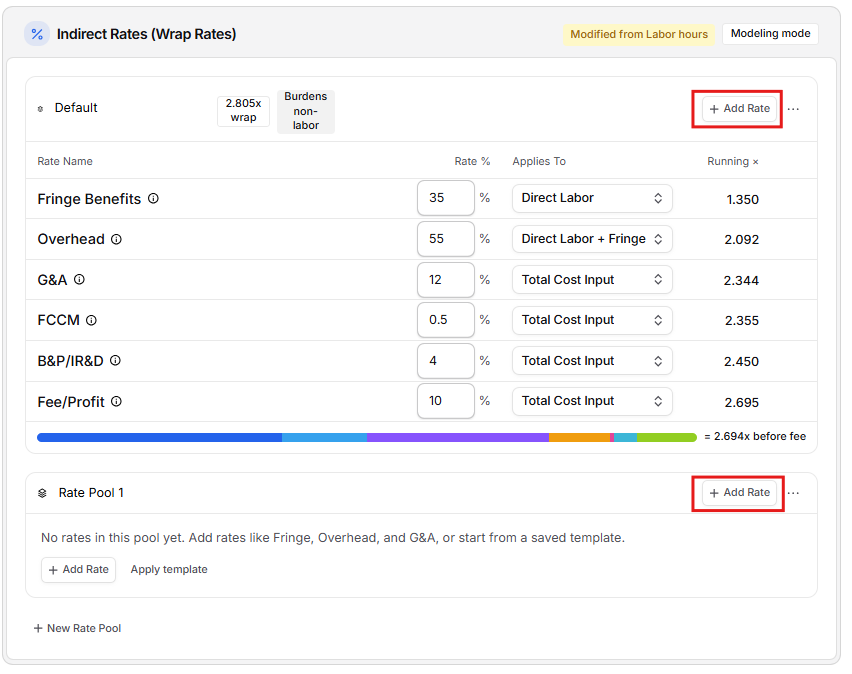
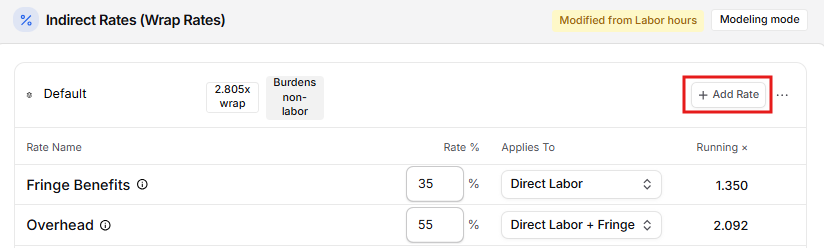
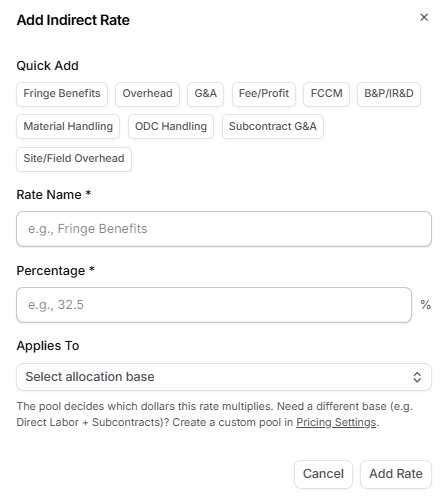
To add a new rate, click Add Rate in the rate pool you want to add it to. The Add Indirect Rate dialog supports two approaches:
Quick Add
Quick Add includes Fringe Benefits, Overhead, G&A, Fee/Profit, FCCM, B&P/IR&D, Material Handling, ODC Handling, Subcontract G&A, and Site/Field Overhead. Selecting an option fills the rate name, selects its built-in allocation base when that base exists for the team, and fills the midpoint of the configured typical range.
If the expected built-in base is unavailable, Pricer asks you to select or create a base.
Manual Entry
If your rate is unique, you can manually enter:
Rate Name (required)
Percentage (required)
Allocation base (required): for example Direct Labor, Direct Labor + Fringe, Total Cost Input, Materials, Subcontracts, Travel, or ODCs, plus any custom bases your team has created
Percentages must be numeric and greater than or equal to 0. Once added, the new rate becomes part of the pool and immediately impacts wrap calculations.
Working with Indirect Rates Using Dash
Dash can work with the indirect rates in your Pricer workbook right from the chat. Every change Dash makes is saved to the workbook, and Pricer shows you exactly what changed so you can review it before you move on.
Seeing What Dash Changed
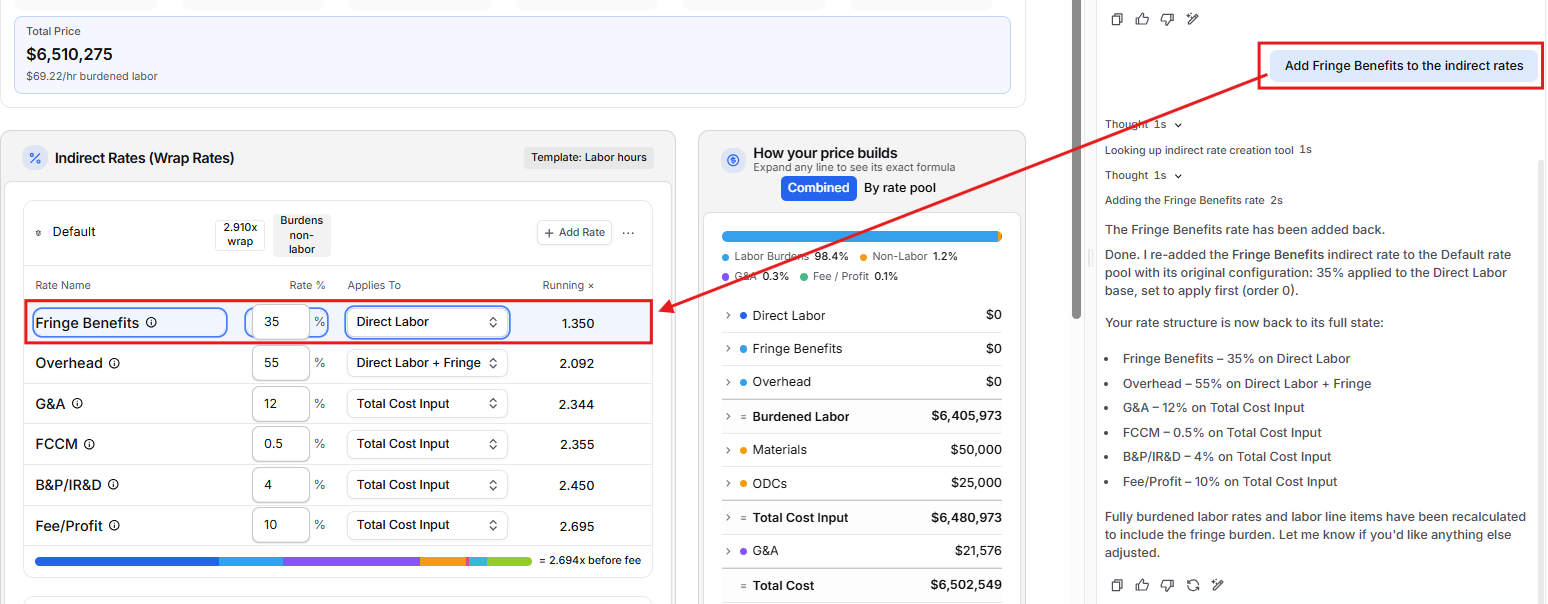
Whenever Dash adds, updates, or removes an indirect rate in the workbook you have open, the Indirect Rates tab refreshes right away and you'll see a notification such as Dash added Overhead, Dash updated G&A, or Dash removed Fringe Benefits. For updates, the notification also lists which fields changed, for example Changed percentage or Changed name, percentage, and allocation base.
On the tab itself, any rate Dash added or updated is shaded light blue in its rate pool, and the cells Dash changed are outlined in blue:
Rate Name: when Dash added the rate or renamed it
Rate %: when Dash set or changed the percentage
Applies To: when Dash set or changed the rate's allocation base
If Dash moves a rate to a different rate pool, the rate is shaded in its new pool and the notification reads Changed rate pool. A rate Dash removes disappears from its pool, and the notification confirms which rate was removed. If Dash changes the same rate more than once, the highlights add up so you can see everything it touched. Highlights clear when you reload the page.
Want to adjust something Dash changed?
Edit the rate just like any other: click the rate name to rename it, type a new percentage, or choose a different base in the Applies To drop down. Pricer recalculates your wrap rate and pricing as soon as the change is saved.
Reviewing the Total Cost Buildup
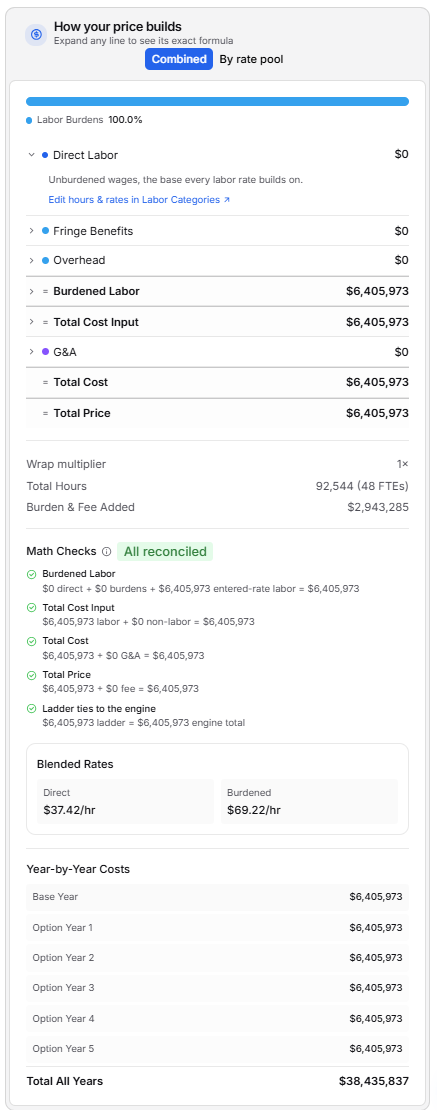
On the right side of the page, the How your price builds card translates your indirect rates into real cost impact using the labor data currently entered in the opportunity. Expand any line to see its exact formula.
The card shows:
• A composition bar and expandable waterfall for direct labor, labor burden, non-labor, G&A, fee or profit, subtotals, and total price
• Wrap multiplier and Total Hours
• Burden & Fee Added: indirect burden and fee above direct labor, manual direct labor, and entered non-labor cost
• Math Checks: subtotal reconciliation and Labor carries G&A coverage
• Cost Levers: the total-price impact of moving each rate by one percentage point
• Blended Rates: blended direct and burdened labor rates
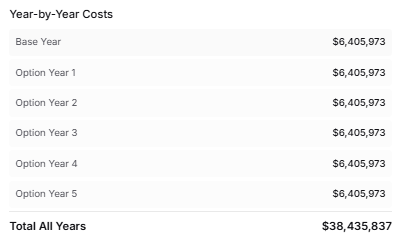
• Year-by-Year Costs when the period is configured
When your workbook has more than one rate pool, switch between Combined and By rate pool to see the buildup for the whole workbook or one pool at a time.
When unassigned labor picks up G&A from another pool, the buildup lists it as its own Unassigned labor entry alongside your rate pools, so you can see exactly what it adds.
Seeing a warning on Labor carries G&A?
This check flags direct labor in a rate pool that has no G&A rate. It shows how many labor dollars are affected and how much G&A they are missing, for example "$250,000 direct labor in On-Site carries no G&A - off by $31,250". Labor you assign to a pool is always priced with that pool's own rates, so Pricer won't add G&A to it for you. To fix it, add your G&A rate to that pool, or move those labor categories to a pool that carries G&A on the Labor Categories tab.
The card uses the labor categories that have rates and hours entered, so add labor effort on the Labor Categories tab to see complete totals.
Viewing Year-by-Year Burdened Totals
When Base years and Option years are set, the right-hand card shows Year-by-Year Costs. If either value is missing, use the Period of Performance summary at the top of the Pricer page to enter Base, Option, and Escalation %. This card includes:
Base and option year breakdowns
Escalation indicators when escalation is greater than 0
Escalation multipliers by year
Total burdened cost across all years
Year 1 uses the current full price. When Escalation % is greater than zero, Pricer compounds it annually and applies the multiplier uniformly to the full Year-1 price, including burdened labor, entered-rate labor, non-labor with handling and G&A, and fee.
How This Tab Connects to the Rest of Pricer
The Indirect Rates tab is closely tied to other pricing areas.
The Overview tab displays a summary of the total wrap multiplier and effective burden percentage, which are derived directly from the indirect stack configured here. Overview is useful for quick validation, while Indirect Rates is where detailed setup happens.
The Labor Categories tab uses the wrap multiplier from this tab to support burdened labor calculations. When a workbook has more than one rate pool, each labor category is burdened with the wrap rate of the pool you choose in its Rate Pool drop down. If auto-calculate burdened rates is enabled, labor category burdened rates update automatically based on the wrap rate model.
The Line Items tab reflects these indirect assumptions whenever labor-based CLINs are calculated from labor categories. As indirect rates change, burdened labor totals and downstream pricing values update accordingly.
Because of these dependencies, review labor roles, hours, direct rates, non-labor costs, rate-pool assignments, indirect rates, fee, and line-item pricing together before the pricing workbook is finalized. BOE also reflects burdened labor values derived from the labor and indirect-rate setup.
Need a custom allocation base?
Built-in allocation bases cover standard cost elements. Team members with Pricer settings-management access can create a custom base under Settings > Pricer > Allocation Bases by naming the base and selecting one or more cost elements. Changing a custom base immediately changes the math for every rate that uses it.