The Basis of Estimate tab is the central hub for the cost estimate in GovDash Pricer. It presents labor hours and non-labor costs by work package, giving you a structured line-item view that connects the WBS hierarchy to actual contract dollars.
The BOE complements the WBS tab; the two tabs serve different purposes in the pricing workflow. The WBS tab is where you confirm the structure of the work and the elements of cost that apply to each node: which labor categories, which ODCs, which materials. The Basis of Estimate tab is where you review and refine the pricing assigned to each work package, monitor package and workbook totals, and record whether cost entry is ready for review. In practice you'll move between the two tabs as you refine an estimate, but the mental model holds: WBS for scope and elements, BOE for dollars.
Most of what appears on this tab is driven by other tabs. The WBS provides the header structure, the Labor Categories tab feeds linked labor rows, and the ODCs & Materials tab feeds Catalog rows. The BOE tab is where everything converges, where you can mark readiness, add ad-hoc rows, and export the completed grid.
What You Use This Tab For
Use the Basis of Estimate tab to:
Review all cost rows organized by work package
Enter hours on manually added labor rows; use the Labor Categories tab for WBS-mapped labor assignments
Mark work packages as ready for cost entry
Add manual labor and non-labor rows to any work package
Pull in ODC and material items from your catalog without re-entering them
Export the full BOE grid as a spreadsheet
Tab-Level Actions
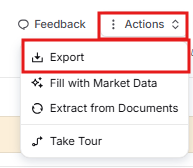
Open Actions in the Pricer page header and select Export. Pricer downloads an Excel workbook named govdash-boe-YYYY-MM-DD.xlsx. The Basis of Estimate Worksheet sheet contains every BOE row, including collapsed detail rows and unready work packages. The Work Package Summary sheet provides one summary row per work package with labor hours, labor cost, non-labor cost, grand total, and Cost Entry Ready status.
Readiness Alerts
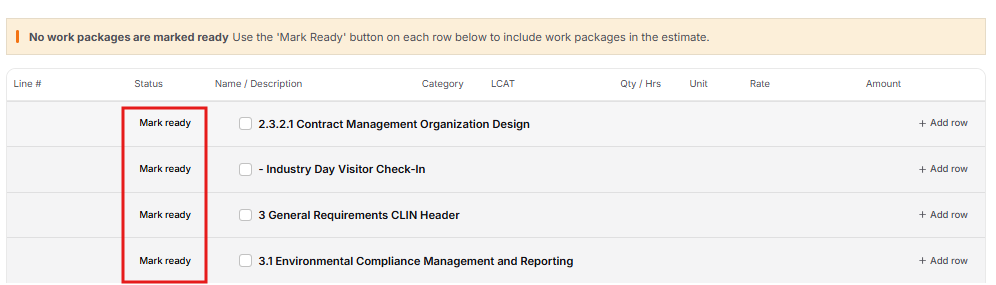
A yellow warning banner appears when no work packages or only some work packages are marked ready. Ready is a workflow status for tracking review progress; it does not lock a package. In the current BOE, unready packages remain visible and editable and are still included in the on-screen totals and Excel export. The export records each package's status in a Ready or Cost Entry Ready column.

Bulk Selection
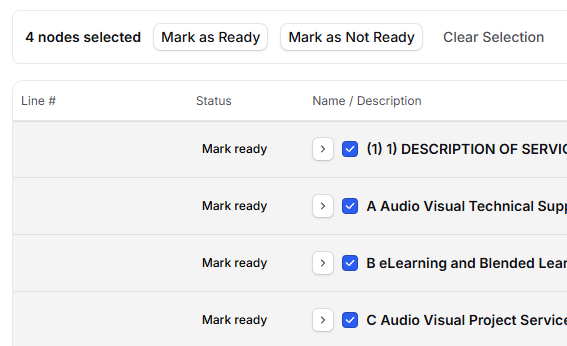
Each WBS header row has a checkbox. When one or more are checked, an action bar appears at the top of the grid with the following controls:
Mark as Ready: Sets all selected work packages to ready in one action. Use this when you've reviewed several work packages together (for example, after a pricing review meeting).
Mark as Not Ready: Clears the ready status from all selected work packages. Useful when an upstream change requires re-review.
Clear Selection: Unchecks everything and dismisses the bar.
The BOE Grid
The BOE grid is the working surface of the tab. This is where every cost in the estimate comes together, organized by work package: WBS nodes become collapsible header rows, with labor and non-labor cost rows nested underneath. The depth of the grid mirrors the depth of your WBS, so structures that go beyond two levels show that hierarchy here too.
Select the chevron on a work-package header to expand or collapse that package's detail rows. The WBS header itself remains visible, and all work-package headers remain in WBS order.
WBS Header Rows
Each work package gets one header row. The header anchors all the cost rows nested under it and serves as the control surface for work-package-level actions: marking readiness, bulk selection, and adding new cost rows.
Checkbox: Selects the work package for bulk readiness operations from the blue action bar (see Bulk Selection above).
WBS number and title: Identifies the work package by the structure built in the WBS tab. Changes to WBS numbering or titles flow here automatically.
Amount: The live total of labor and non-labor rows assigned directly to this work package. Child work packages keep their own header totals.
Ready badge or Mark ready control: Records the package's current readiness status. Select Mark ready to set the status; select the Ready badge to clear it. This status does not lock editing or remove an unready package from current totals or export.
Add row dropdown: Adds a labor, non-labor, or catalog-linked row to this work package. See "Adding Rows" below.
The Amount rollup sums every labor row and non-labor row underneath that work package, including catalog and manual rows alike. The grand total at the bottom of the grid sums the header rows. Edits to any line item, whether adjusting hours on a labor row or changing a unit price on a catalog row, reflect immediately in both the header total for that work package and the grand total.
Labor Rows
Labor rows show every labor category assignment under a work package. They come in two flavors, and the distinction tells you where to make edits:
WBS-mapped labor rows come from labor-category assignments to the work package. BOE displays the description, LCAT, hours, direct rate, burdened rate, and amount as read-only values. Select a mapped row outside an interactive control to open and highlight the matching assignment in Labor Categories.
Manually added labor rows are line items created from BOE. Their Line #, Description, LCAT, and Hours are editable, and the row has a delete control. If the row has an LCAT, selecting the row outside an interactive control also opens the matching Labor Categories assignment.
SLIN badges identify rows that represent sublines within a CLIN, used when a contract requires pricing visibility into individual elements of a line item. A blue SLIN badge marks a separately-priced subline that contributes to the total. Line-item-derived labor and non-labor rows can show SLIN or SLIN · NSP badges based on the current line-number role. For an informational non-labor row, BOE shows dashes for quantity, unit, and amount and shows NSP in the Rate column. Labor rows always show their hours, rates, and amount.

The Rate column shows the direct and burdened rate pulled from the labor category. Rates are read-only here because they're managed in the Labor Categories tab; changes there flow back to every row using that category.
Non-Labor Rows
Non-labor rows show every ODC, material, travel, subcontract, or other item assigned to a work package. They come in two flavors, and like labor rows, the distinction tells you where to make edits:
Catalog rows come from ODCs & Materials assignments and show a gray Catalog badge instead of a delete control. Editing Description, Unit, or Unit Price updates the shared catalog item. Editing Qty updates that item's assignment quantity for the current work package. Select the row outside an interactive control to open and highlight the item in ODCs & Materials.
Manual non-labor rows are added directly in BOE. Line #, Description, Qty, Unit, and Unit Price are editable; Category is displayed as a badge. Changing Unit Price recalculates Amount from the row's current quantity. A quantity-only edit does not currently recalculate the stored Amount. The delete control removes the row immediately without a confirmation dialog.

Adding Rows
Each WBS header has an Add row control. Expanded Labor and ODC / Materials / Other separator rows also have an add icon. The work-package menu contains two submenus: Labor Categories and ODCs & Other.
Labor Categories: Choose a defined labor category or Unassigned labor row. The new BOE labor line item starts with the package number and title as its description and uses Hours as its unit.
ODCs & Other : Choose an item under From catalog, or create a Blank row categorized as ODC, Materials, Travel, or Other. Adding a catalog item creates or updates its assignment to the package with an initial quantity of 1. Subcontract rows can appear when supplied by existing pricing data, but Subcontract is not a current Blank row option in BOE.
Note
A work package must have a WBS number before you can add a labor, blank non-labor, or catalog row. If it is unnumbered, BOE shows “Cannot add rows to unnumbered work packages.” Assign the number in Work Breakdown Structure, then return to BOE.
Inline Editing
Text and number fields save when you leave the field or press Enter. A blank text entry reverts to the previous value. Line # must match the workbook's current CLIN numbering schema; BOE rejects an invalid value and restores the previous number. While a save is running, affected actions can show “Saving changes, please wait…”.
A Typical Workflow
BOE work usually happens after the WBS, Labor Categories, and ODCs & Materials tabs are roughly in shape. A common sequence:
Expand a work package. Select its chevron to reveal the Labor and ODC / Materials / Other sections and their detail rows. Confirm the right elements of cost are present.
Adjust where needed. For linked rows, jump back to the source tab to make changes. For manual rows, edit them inline. Add new rows from the Add row dropdown if something is missing.
Check the rollup. The Amount column on the header row shows the total cost for that work package. Use it as a sanity check against any budget you have for that scope.
Mark as Ready. When the work package is priced and reviewed, toggle Ready on the header row. The yellow readiness banner at the top of the tab updates as you go.
Export when complete. Export when ready for handoff. Open Actions and select Export. Pricer creates the two-sheet Excel workbook from the full BOE row set and records each package's readiness status; export is available even when some packages are not marked ready.
How This Tab Connects to the Rest of Pricer
The BOE grid is the convergence point for everything you've built in the other tabs. WBS structure determines which header rows appear. Labor categories and their rates feed into labor rows. ODC and material items assigned in the ODCs & Materials tab appear as Catalog rows automatically. Indirect rates configured in the Indirect Rates tab drive the burdened rates shown on labor rows.
Clicking any labor row with an LCAT navigates to the Labor Categories tab with that assignment highlighted. Clicking any Catalog row navigates to the ODCs & Materials tab with that item highlighted.
Navigation also works in the other direction. The Overview, WBS, and Labor Categories tabs all deep-link into specific rows on this tab, scrolling to and briefly highlighting the target row so you can pick up where you left off after switching context.