The Work Breakdown Structure (WBS) tab is where you review and refine the hierarchy of work packages that GovDash Pricer synthesizes from opportunity-linked documents. The WBS supplies the scope structure used by the Basis of Estimate and gives Labor Categories and Other Direct Costs a shared set of work packages for assignment.
During initialization, Pricer uses extracted task areas and supporting solicitation text to build work packages. A generated package can include a WBS number, title, description, output or deliverable, Acceptable Quality Level, source coverage, cost-demand metadata, and Basis of Estimate fields. Review the hierarchy, correct the package details, manage coverage, and include or exclude scope before relying on the structure downstream.
A well-reviewed WBS makes labor and direct-cost assignments easier to trace and gives reviewers a clear path from solicitation language to work package and estimate.
What You Use This Tab For
Use the Work Breakdown Structure tab to:
Review the synthesized work-package hierarchy against opportunity-linked documents.
Search, expand, collapse, and review included or excluded work packages.
Add work packages, delete eligible leaf packages, and include, exclude, or restore scope.
Edit the WBS number, title, description, output or deliverable, and Acceptable Quality Level.
Review broad document coverage and manage the exact supporting sentences for a package.
Navigate to linked labor categories and Other Direct Costs.
Capture the Basis of Estimate readiness fields currently available in the panel.
Ask Dash to list your work packages or update a package's title, description, deliverable, AQL, or WBS number.
Page Controls
Open Actions in the Pricer page header for workbook-level tools. On the Work Breakdown Structure tab, the menu includes the tab-specific View Coverage and Regenerate actions, plus Fill with Market Data, Extract from Documents, and Take Tour when those controls are available for the workbook and user.
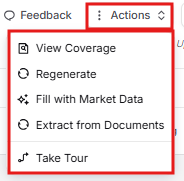
View Coverage
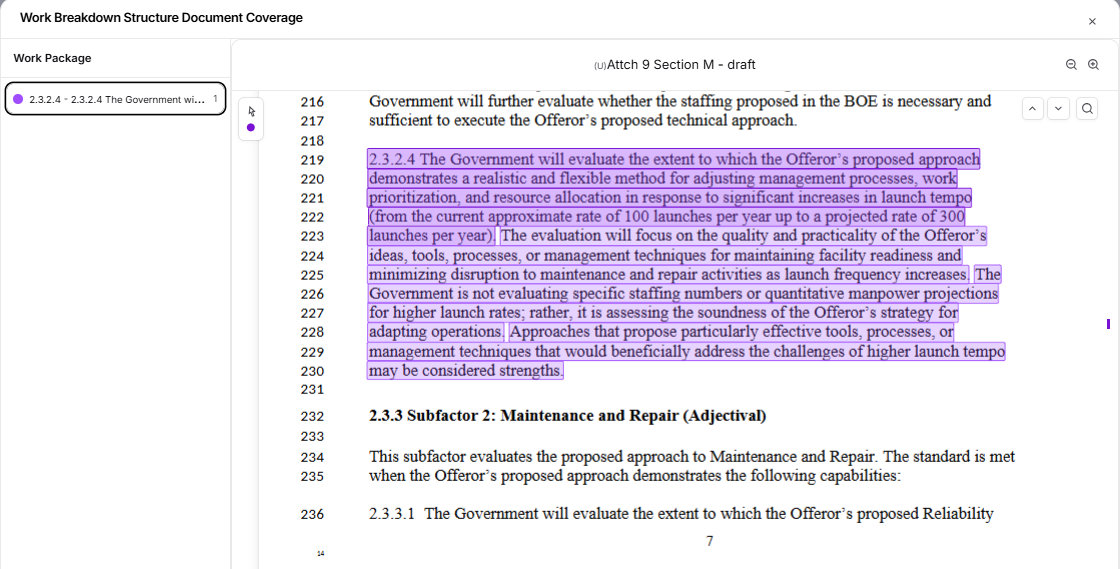
View Coverage opens the Work Breakdown Structure Document Coverage modal. From Actions, it shows the covered documents, color-coded work packages, their highlighted source passages, and an Excluded section for task areas that are not assigned to a package. When more than one covered document is available, use the document selector in the modal header. You can select an uncovered task area and assign it to a work package.
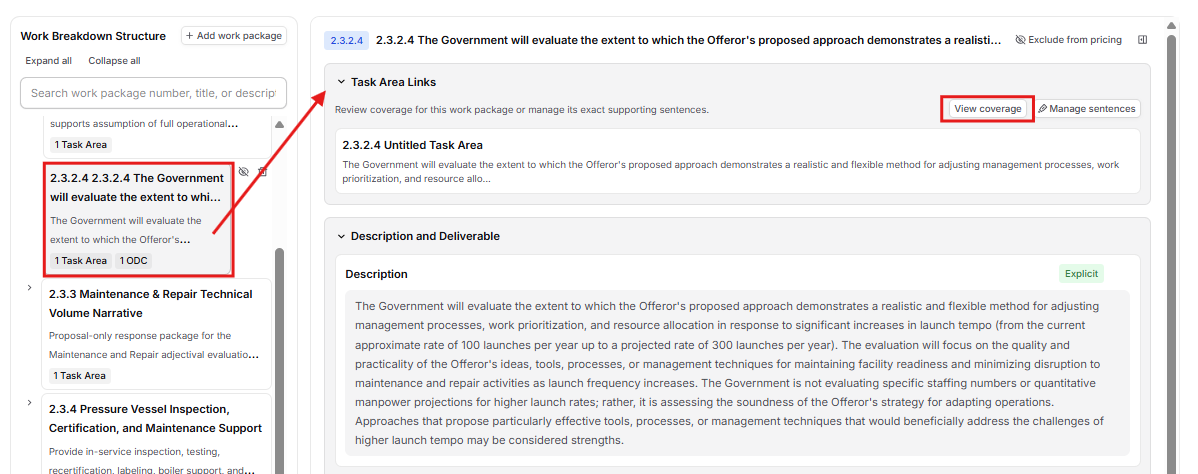
View coverage in a selected package's Task Area Links section opens the same modal scoped to that package. Use Manage sentences when you need to add or remove exact supporting sentences rather than review broad coverage.
Regenerate
Triggers a full WBS rebuild in the background. A confirmation dialog appears before the action is committed.
Use this when the underlying solicitation documents have changed materially or when the original synthesis missed enough of the structure that point edits would take longer than starting over.
Important
Regenerating permanently replaces all work packages, task area assignments, labor category mappings, BOE readiness flags, and validation results. This action cannot be undone, so prefer targeted edits when only a few nodes need adjustment.
The WBS Tree Panel
The left side of the tab displays the full WBS hierarchy as a collapsible, searchable tree. This is the primary navigation surface for the tab; selecting any node loads its details on the right. The hierarchy can extend beyond two levels when the solicitation supports it, so don't assume what you see at first is the full depth. Expand parent nodes to see what sits underneath.
Navigating the Tree
Each package can show its WBS number, title, description excerpt, and badges for linked Task Areas, LCATs, Line Items, and category-specific direct costs. Select a package to load its details. Use a package's chevron, Expand all, or Collapse all to control the hierarchy. For a new tree with 24 or more packages, parent packages start collapsed.
Search by work package number, title, or description. Matching packages remain visible with their ancestors. Unnumbered top-level packages appear under Unnumbered task areas. When several top-level packages have the same title, Pricer shows one of them with a Show similar nodes button (for example, Show 2 similar nodes). Select it to see the others, or select Hide similar nodes to collapse them again.
Excluded Nodes
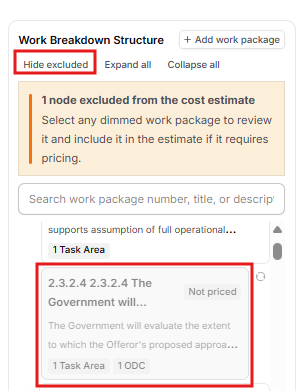
Generated relevance exclusions and user-applied exclusions are hidden from the tree by default. Select Show excluded to display them. The packages appear dimmed with a Not priced badge, and the warning identifies how many packages are excluded from the cost estimate.
For a generated relevance exclusion, use Include in cost estimate. If the package still needs BOE synthesis, the row tooltip can read Include and synthesize in cost estimate, and the details panel explains that inclusion triggers regeneration for that package. For a package you excluded, use Restore to pricing; the row tooltip can read Restore and synthesize when synthesis is required. Use Exclude from pricing on an included package when it should not contribute to pricing.

Node Actions
Selecting a package reveals the actions available for its current state:
Exclude from pricing removes an included package from pricing.
Include in cost estimate overrides a generated relevance exclusion.
Synthesis starts when that package does not already have generated BOE content.
Restore to pricing removes a user-applied exclusion. Synthesis starts when needed.
Delete work package is available only when the selected included package has no children. The Delete Work Package confirmation names the package and states that deletion cannot be undone.
Adding child work packages is the most common manual adjustment. If a synthesized work package bundles several distinct activities (for example, "Fabrication, Integration, Assembly, and Installation" as a single node), use Add work package to create a package for each activity underneath it (see Adding Work Packages Manually below). Breaking it into children lets you assign labor categories and ODCs to the specific component they belong to, which makes the cost build more defensible.
Adding Work Packages Manually
Select Add work package in the Work Breakdown Structure panel header.
Click Add work package. The Add work package dialog opens.
Under Title, type a name for the new work package (for example, "Program Management").
Under Where should it appear?, choose the section of the work breakdown for the new package. Select Top level of the work breakdown to create it as its own main work package, or select an existing work package to place the new one beneath it. Use the arrows to expand or collapse packages that have children.
Check the preview. A dashed row marked New shows exactly where the new work package will appear in the hierarchy.
Click Add work package (or press Enter in the Title field) to create it.
After creation, the new package is selected and Manage Coverage Sentences opens. Use task areas on the left to navigate the source document, then use Select for package to highlight exact supporting sentences. Already in package identifies existing coverage. Review pending additions and removals, then select Save changes. A sentence already assigned elsewhere moves to the target package when saved. You can close the dialog without saving and reopen it from Manage sentences in Task Area Links.
Fill in the rest of the Node Details panel (description, deliverable, AQL, and BOE Readiness) just as you would for a synthesized work package.
The Add work package button is hidden while the WBS is generating, and you need edit access to Pricer to use it.
Starting from scratch?
If an opportunity doesn't have a breakdown yet, the WBS tab shows No Breakdown Generated with two options: Generate from documents to have Pricer build the WBS from your solicitation, or Add work package to build it yourself one package at a time.
The Node Details Panel
Selecting any node loads its full details in the right-side panel. The panel can be collapsed to a narrow sidebar by clicking the fold icon in the top-right corner. Click the vertical "Node Details" label to reopen it.
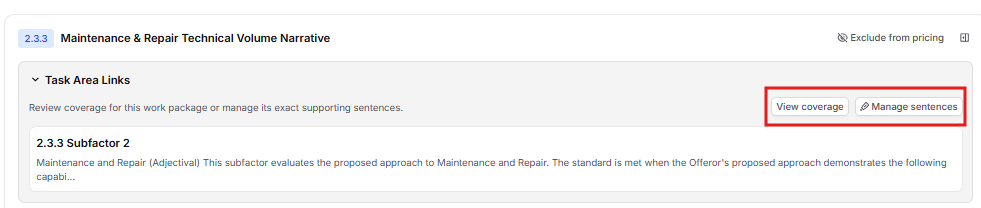
Task Area Links
This section shows the solicitation task areas the node was synthesized from. Each task area shows its number, title, and a description excerpt. The links exist so you can always trace a work package back to the language in the solicitation that drove it.
View coverage opens the coverage modal scoped to the selected package.
Manage sentences opens the sentence-selection dialog for adding or removing exact supporting sentences.
If no task areas are linked, the section shows None linked. This is common for a newly created package until you save coverage sentences.
Description, Deliverable, and AQL
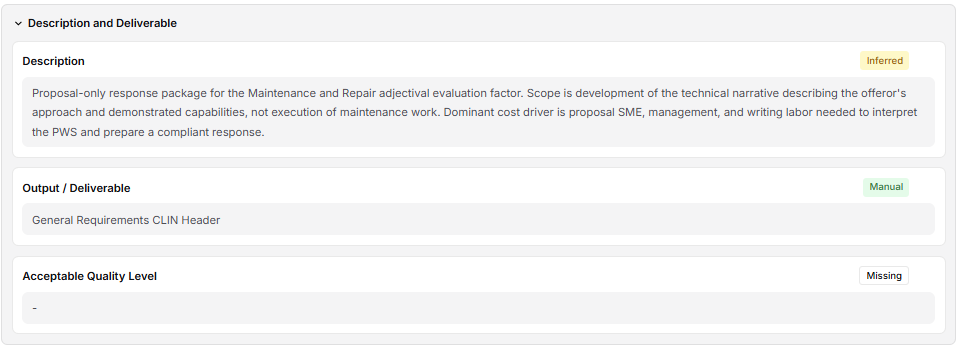
The Description and Deliverable section contains Description, Output / Deliverable, and Acceptable Quality Level cards. Select a card, edit the value, and use Save. Use the close control or Escape to cancel.
Provenance badges can identify values as Explicit, Inferred, Manual, or Missing.
Description records the work performed by the package. Output / Deliverable records the expected result. Acceptable Quality Level records the quality or acceptance standard when one is available. Non-labor items are generated from work-package demand; do not treat AQL as the sole trigger for an Other Direct Cost.
Cost Elements
Cost Elements shows the Labor Categories and Other Direct Costs assigned to the selected package. A labor row can show its position count. A direct-cost row shows the item, category, and assignment quantity. Select a row to open the linked item in Labor Categories or ODCs & Materials.

If no cost elements are assigned, use the Labor Categories or Other Direct Costs shortcuts. Create and maintain the assignments in those tabs; use the WBS panel to verify and navigate the connections.
BOE Readiness
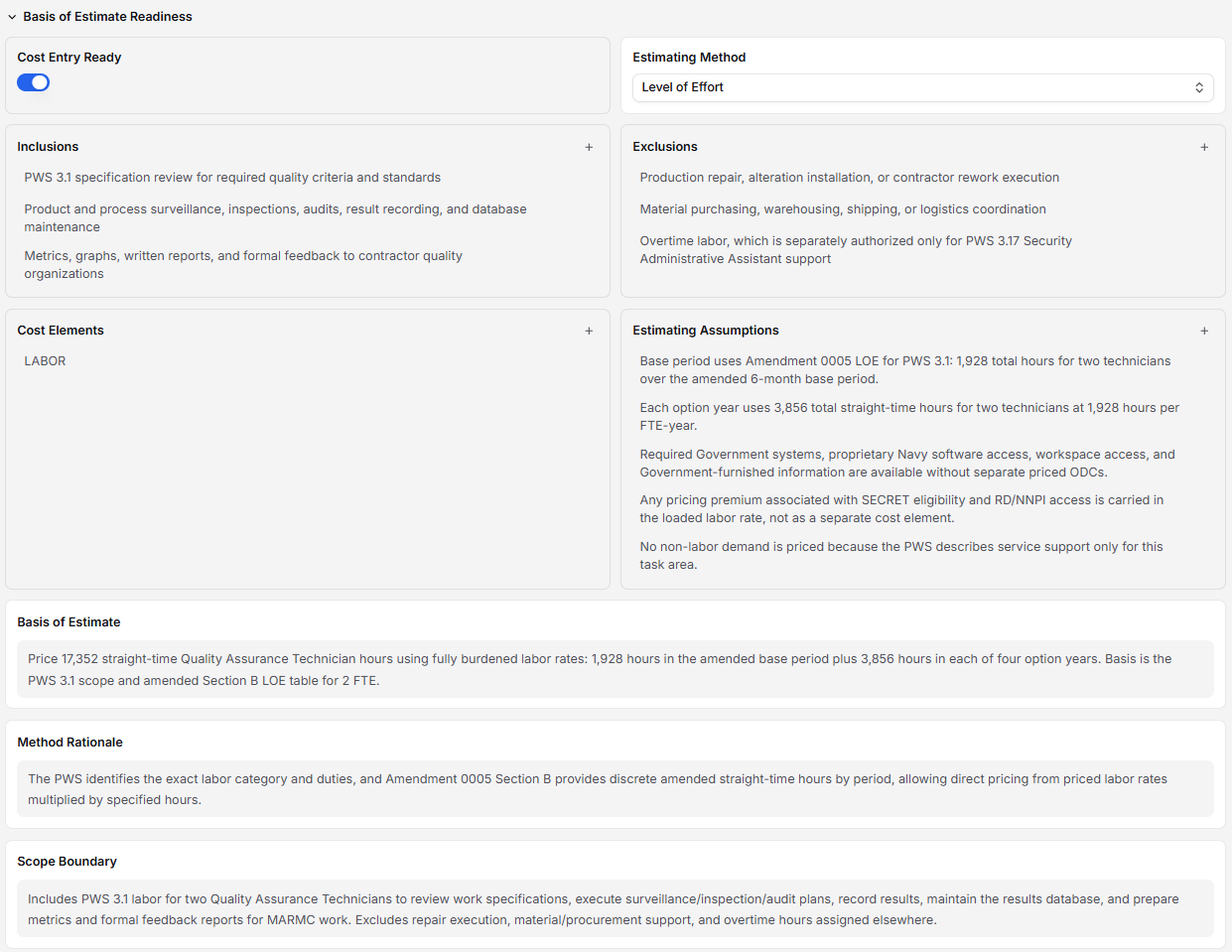
Basis of Estimate Readiness is collapsed by default. Expand it to review or edit:
Cost Entry Ready
Estimating Method: Bottoms Up, Level of Effort, Analogy, Parametric, Vendor Quote, or Unknown
Inclusions and Exclusions, with controls to add, remove, or move an item between the lists
Cost Elements
Estimating Assumptions
Basis of Estimate
Method Rationale
Scope Boundary
Turn on Cost Entry Ready when the package is ready for cost work and review. The package header shows Cost-entry ready, and the Basis of Estimate tab shows Ready or Mark ready plus a readiness summary. The current panel does not expose Confidence or Review Flags. List changes use their add, remove, or move controls; narrative cards use Save; Estimating Method saves when selected.
Working with Work Packages Using Dash
You don't have to refine every work package by hand. Dash can read the work packages in your Pricer workbook and update them for you, right from the chat.
Make sure the Pricer source is turned on in Dash so it can read your pricing workbook.
Asking Dash About Your Work Packages
Ask Dash something like "List the work packages in this workbook." While it works, you'll see Listing work packages in the chat. Dash returns each package with its WBS number, title, description, deliverable, AQL, whether it is included or excluded, and where it sits in the WBS tree.
If the workbook doesn't have a Work Breakdown Structure yet, Dash will let you know so you can generate one first.
Updating a Work Package with Dash
Tell Dash which package to change and what you want, for example "Update 1.2.3 so the deliverable is a monthly status report." Dash can update a package's:
Title
Description
Output / Deliverable
AQL (Acceptable Quality Level)
WBS Number
You'll see Updating work package in the chat while Dash saves the change. Once it's done, open the package in the Work Breakdown Structure tab to see the new values. Fields Dash updates show the Manual provenance badge, just like your own edits.
Tip: WBS numbers must be unique
If you ask Dash to give a package a WBS number that another package already uses, Dash will let you know so you can choose a different number. To update work packages with Dash, you need edit access to the pricing workbook.
How This Tab Connects to the Rest of Pricer
The Work Breakdown Structure is the structural foundation of your cost estimate. Every other Pricer tab references the work packages defined here.
Overview: Summarizes the current WBS and can open a package for review.
Basis of Estimate: Displays the current priced work packages, readiness states, linked costs, and package totals.
Labor Categories: Assigns labor and position hours to work packages.
ODCs & Materials: Assigns direct-cost quantities to work packages.
Line Items: Can link pricing rows to work packages; those links can appear as badges in the WBS and rows in the BOE.
Coverage and Manage sentences connect work packages to supporting solicitation language. Review downstream assignments before Regenerate because a full rebuild permanently replaces the current WBS structure and mappings listed in the confirmation.