The ODCs & Materials tab is where you manage non-labor costs in GovDash Pricer, including materials, travel, subcontracts, equipment, and any other direct costs that aren't captured as labor. Items entered here are assigned to work packages and roll directly into the Basis of Estimate.
Although the tab is named ODCs & Materials, the broader concept is non-labor direct cost. Materials are technically a category of ODC; the category badge on each row distinguishes the type (ODC, Materials, Travel, or Subcontract) so totals can be summarized appropriately. The tab is the single place to maintain unit prices, quantities, CLIN assignments, and work package links for every non-labor cost in the estimate.
What You Use This Tab For
Use the ODCs & Materials tab to:
Review items created from Work Breakdown Structure non-labor demand.
Add missing direct-cost items manually.
Set or edit the item name, category, unit, unit price, and CLIN.
Assign each item to one or more work packages and maintain assignment quantities and notes.
Find pricing gaps with the Unpriced, Unassigned, and No CLIN issue filters.
Export the current result set to CSV.
Open the corresponding item from Overview, WBS, or BOE.
Page Controls
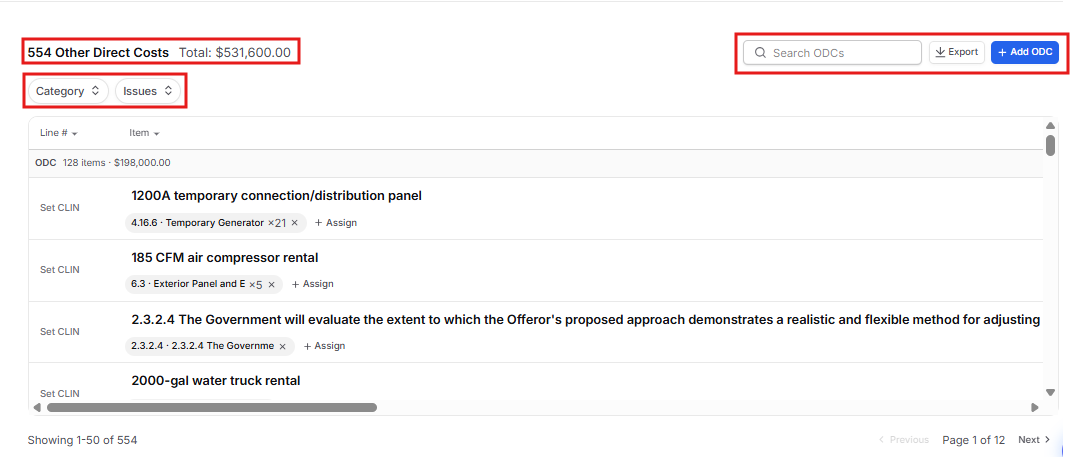
Item count and Total: The header shows the number of Other Direct Costs and the combined direct Total Cost.
Search ODCs: Matches the item name, description, or Line #.
Category: Filters the current list by one or more supported categories.
Issues: Filters for Unpriced, Unassigned, or No CLIN rows.
Clear filters: Removes the current search and selected filters.
Export: Downloads the current searched, filtered, and sorted result set as CSV.
Add ODC: Opens the Add Other Direct Cost dialog.
Workbook Actions
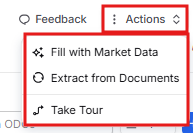
The Actions menu contains workbook-level tools. Fill with Market Data can help populate suggested ODC quantities and market prices. Extract from Documents reruns a source-data workflow. Read the confirmation before starting an action that can replace source-derived data. Take Tour opens the guided Pricer walkthrough.
Empty State
If the workbook has no ODC records, the tab displays No Other Direct Costs and explains that items can auto-populate from the Work Breakdown Structure once work packages exist. Select Add manually to create the first item.
How Items Get Onto This Tab
Work Breakdown Structure Generation
When Pricer builds or regenerates the Work Breakdown Structure, it evaluates the non-labor demand attached to leaf work packages and creates supported ODC, Materials, Travel, or Subcontract items with work-package assignments.
The source documents help inform that WBS demand, but the ODC row is generated from the current WBS model. Review generated names, categories, units, assignments, quantities, and prices before using them in the estimate.
Manual Entry
Select Add ODC or Add manually to create a cost that is missing from the generated list. Manually created rows display a Manual badge.
Why Some Items Look Like Duplicates
Similar-looking rows can remain separate when their names or categories differ. During WBS generation, exact normalized name-and-category matches are consolidated into one item and assigned to each applicable work package. Variations such as Kickoff travel and Quarterly review travel remain separate because they are distinct inputs.
To consolidate rows manually, keep one item, assign it to every applicable work package, verify the quantity on each assignment, and delete the redundant item.
Categories
Every item uses one of four categories. You can change the Category inline after creation.
In the default view, items are grouped by category and each category header shows its item count and direct-cost total. Use Category to display one or more categories. If you sort by a table column, the sorted result is shown as a continuous list.
Category | When to use |
|---|---|
ODC | Direct non-labor inputs not covered by a more specific category, including equipment and other direct-cost items. |
Materials | Physical goods, hardware, consumables, or supplies required for contract performance. |
Travel | Airfare, lodging, per diem, mileage, and other travel costs. |
Subcontract | Amounts paid to subcontractors or teaming partners. |
The Items Table
Select a column heading to sort ascending or descending; select it again to return to the default category-and-name order. The tab displays up to 50 items per page and shows Previous and Next controls when more pages are available.
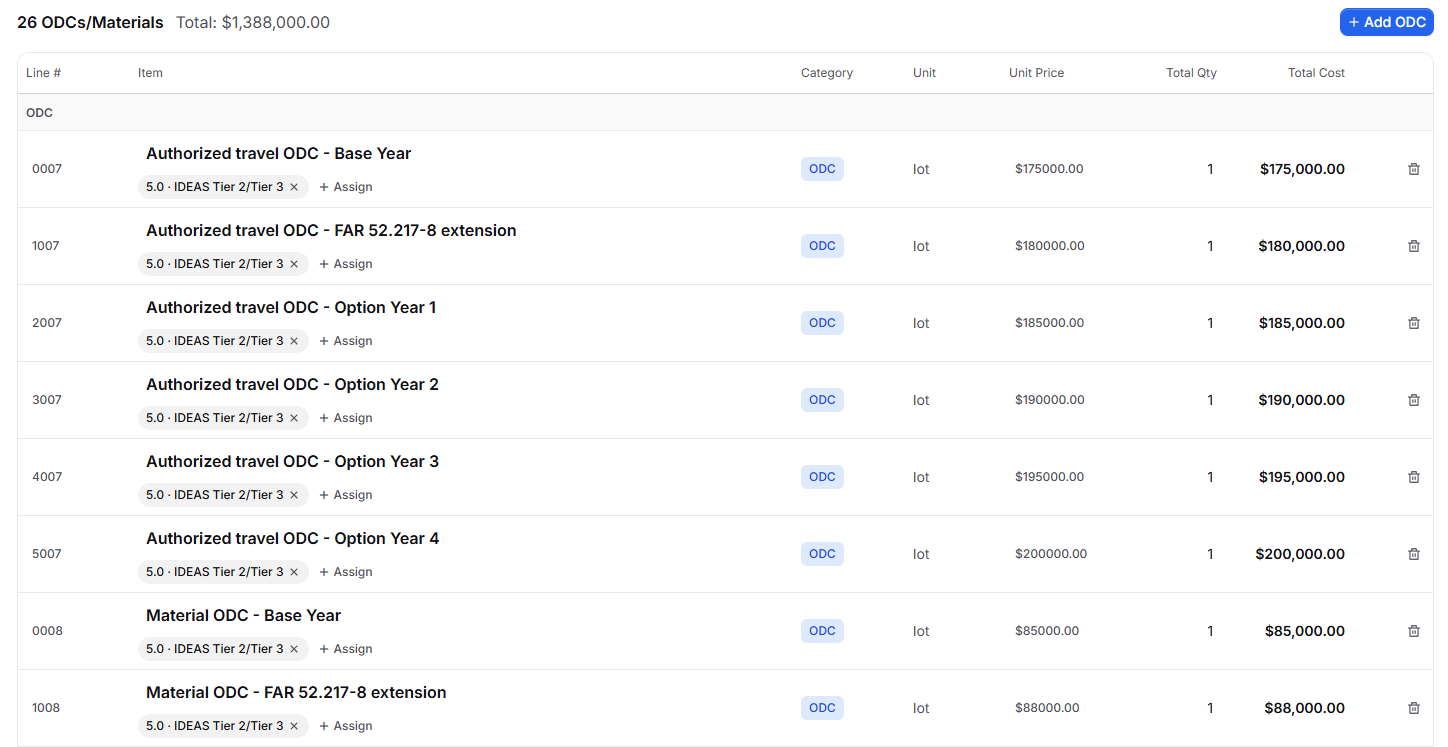
Line #: The CLIN for the linked line-item record. Select the value to edit it inline. Blank rows display Set CLIN.
Item: Select the item name to edit it inline. Manually created rows display a Manual badge. Assignment badges show the work-package number and, when greater than one, the assignment quantity.
Category: Select the category badge to change the item to ODC, Materials, Travel, or Subcontract.
Unit: Select the value to edit the unit of measure inline. Blank rows display Add unit.
Unit Price: Select the value to edit the per-unit direct cost. Clearing the value marks the row Unpriced and displays a placeholder for Total Cost.
Total Qty: The sum of quantities from all work-package assignments. Select the value to open Assign to Work Package.
Total Cost: Unit Price multiplied by Total Qty. This is direct non-labor cost before downstream handling, G&A, fee, or profit.
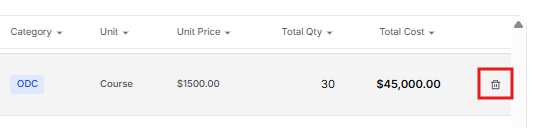
Delete: Opens Delete ODC. Confirming removes the item and all work-package assignments.
Manage Work-Package Assignments
Select an assignment badge to open Edit Assignment.
Use Remove assignment on a badge to delete that link.
Select Assign to work package on an unassigned row or Assign on an assigned row to add another link.
Select Total Qty to open Assign to Work Package.
How Quantity Works
Total Qty is calculated from work-package assignments and is not edited directly on the item row. Each item can have one assignment for each work package, and each assignment stores its own quantity and optional notes.
For example, an item assigned to Work Package 1 with quantity 4 and Work Package 2 with quantity 6 has a Total Qty of 10. Total Cost equals Total Qty multiplied by Unit Price.
To change an existing quantity, select its assignment badge and edit the Quantity in Edit Assignment. Saving replaces the quantity for that item-and-work-package assignment; it does not add a second assignment to the same work package. To add quantity under a different scope, select Assign and choose another work package.
Unassigned items
An Unassigned row can have an item and unit price, but it does not contribute scoped quantity to a work package or appear as a cost under that work package's BOE until it is assigned.
Dialogs
Add ODC / Material
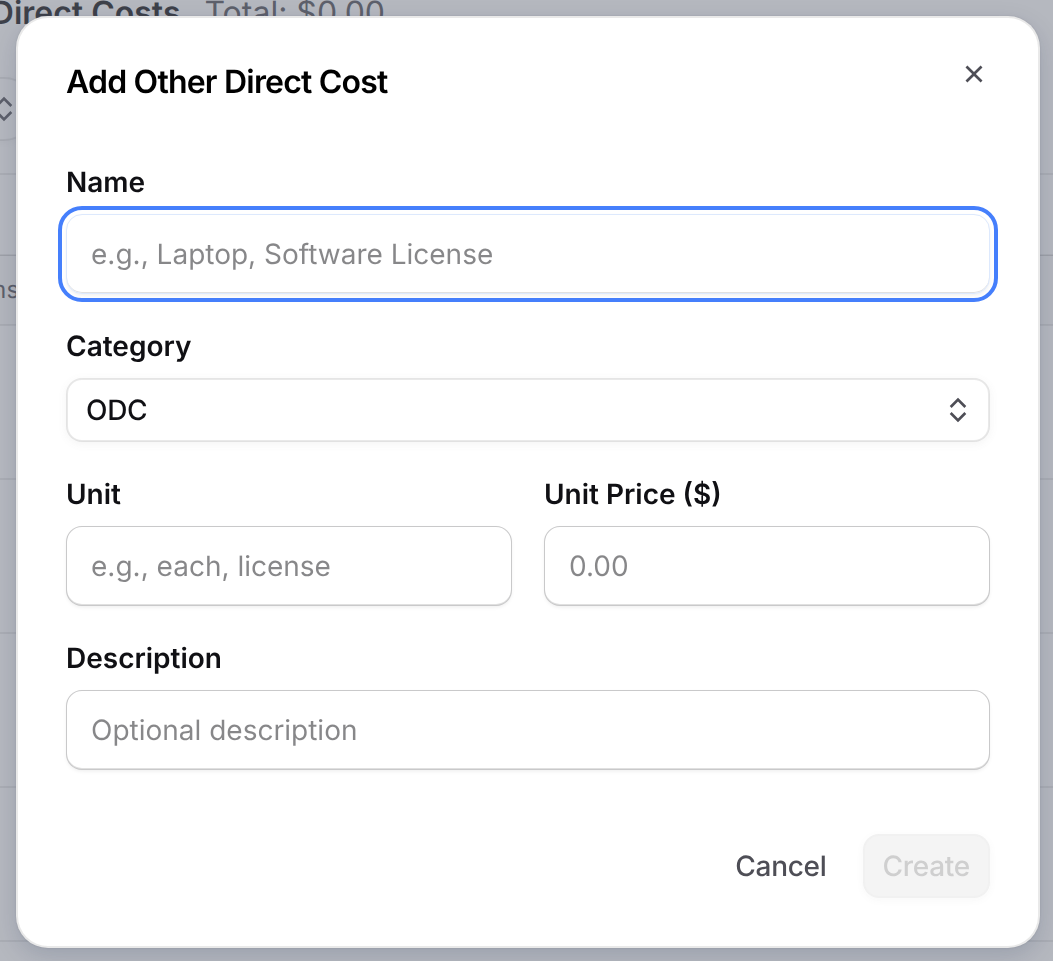
Select Add ODC in the page header, or Add manually in the empty state, to open the Add Other Direct Cost dialog.
Name (required): Create remains disabled until a name is entered.
Category (required): ODC, Materials, Travel, or Subcontract. The default is ODC.
Unit (optional): The unit of measure (for example, "each," "license," "month," or "trip"). You can change it later in the table.
Unit Price (optional): The per-unit dollar cost. Can be set later in the table.
Description (optional): Stored narrative text not displayed in table columns but useful for internal notes about the item's purpose or sourcing.
After creation, Name, Category, Unit, Unit Price, and Line # can be edited inline on the row.
Assign to Work Package
Opened from the Assign button on any item row to link the cost to one or more WBS nodes. Every item must be assigned to at least one work package for its cost to show up in the Basis of Estimate.

Work Package (required): Opens the Work Package Picker to select from your WBS nodes.
Quantity: The number of units for this assignment. Defaults to 1. Multiple assignments for the same item accumulate into the Total Qty shown on the row.
Notes (optional): Internal notes specific to this assignment, useful when the same item lands on several work packages for different reasons.
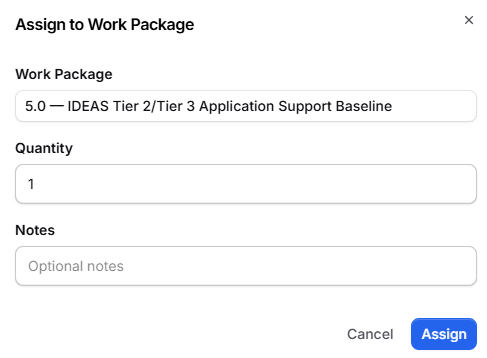
One item can be assigned to multiple work packages, with each assignment tracking its own quantity and notes independently. This is how you handle costs that span the contract: define the item once, assign it everywhere it applies, and let the quantities roll up.
Edit or Remove an Assignment
Select an existing assignment badge to open Edit Assignment. Change the work package, replace the quantity, or update the notes, then select Save. Each item has at most one assignment to a given work package. Use Remove assignment on a badge to delete that link.
Delete an Item
Select the delete control on a row to open Delete ODC. The confirmation identifies the item and warns that deleting it also removes all work-package assignments. Select Delete to confirm.
Export ODCs
Select Export to download the current searched, filtered, and sorted result set as a CSV file named [Pricing Name] - Other Direct Costs.csv.
The file includes Line #, Item, Description, Category, Unit, Unit Price, Total Qty, and Total Cost.
A Typical Workflow
Most teams settle into a rhythm that runs through the tab top to bottom:
Review the rollup and gaps: Compare the item count and direct-cost total with the expected non-labor scope. Use Issues to find Unpriced, Unassigned, and No CLIN rows.
Validate generated items: Confirm each WBS-derived item has the right name, category, unit, assignments, and quantity. Consolidate only when the items represent the same cost input.
Add missing costs: Select Add ODC and create any required direct non-labor item that is not already represented.
Complete row data: Edit the Line #, Item, Category, Unit, and Unit Price inline. Use Search ODCs and Category to narrow the list.
Verify work-package assignments: Review each assignment's work package, quantity, and notes. Add or remove assignments until Total Qty reflects the intended scope.
Recheck totals and downstream records: Confirm each Total Cost and the page-level direct-cost total. Review the corresponding WBS and BOE records, then confirm the linked Line Items and downstream indirect-cost buildup.
Export for review: Apply any needed search or filters and select Export to download the current result set.
Navigate to a Specific ODC
Overview, WBS, and BOE can open this tab with a specific item in focus. Pricer clears the local search and filters, returns to the default ordering, opens the page containing that item, scrolls to the row, and briefly highlights it.
Select an item in the Other Direct Costs card on Overview.
Select a linked ODC or material in a WBS node's Cost Elements section.
Select a non-labor Catalog row in Basis of Estimate.
How This Tab Connects to the Rest of Pricer
Work Breakdown Structure: WBS non-labor demand can generate ODC items and initial assignments. Linked items appear in a work package's Cost Elements section.
Basis of Estimate: Assigned items appear as non-labor Catalog rows under the applicable work package. Quantity and unit-price changes flow to the linked BOE cost.
Line Items: An ODC is linked to a line-item record. Name, category, unit, unit price, assignment-derived quantity and amount, and Line # synchronize to that record.
Indirect Rates: The ODC tab displays direct cost. Applicable handling, G&A, fee, or profit is added downstream according to the configured non-labor pools and pricing stack.
Overview: The Other Direct Costs card summarizes category counts and direct-cost totals and can open a specific ODC row.