Overview
If the PWS/SOW document you’ve uploaded and marked as the original document contains task requirements for the contract, GovDash will automatically extract these (complete with their structure within the document) and display them for your review within the Task Areas tab.
As shown below, the heading number1 and level is extracted and maintained along with the task area name2 and fully extracted description3. GovDash will automatically assign who performed/will perform the work4, which can be changed or removed through the drop down, and bulk assignment/removal options are available when selecting task areas and using the action bar at the bottom of the page. This company list is maintained in the Data Library, where you can add new companies as needed. You may manually create task areas5 from this page as well.
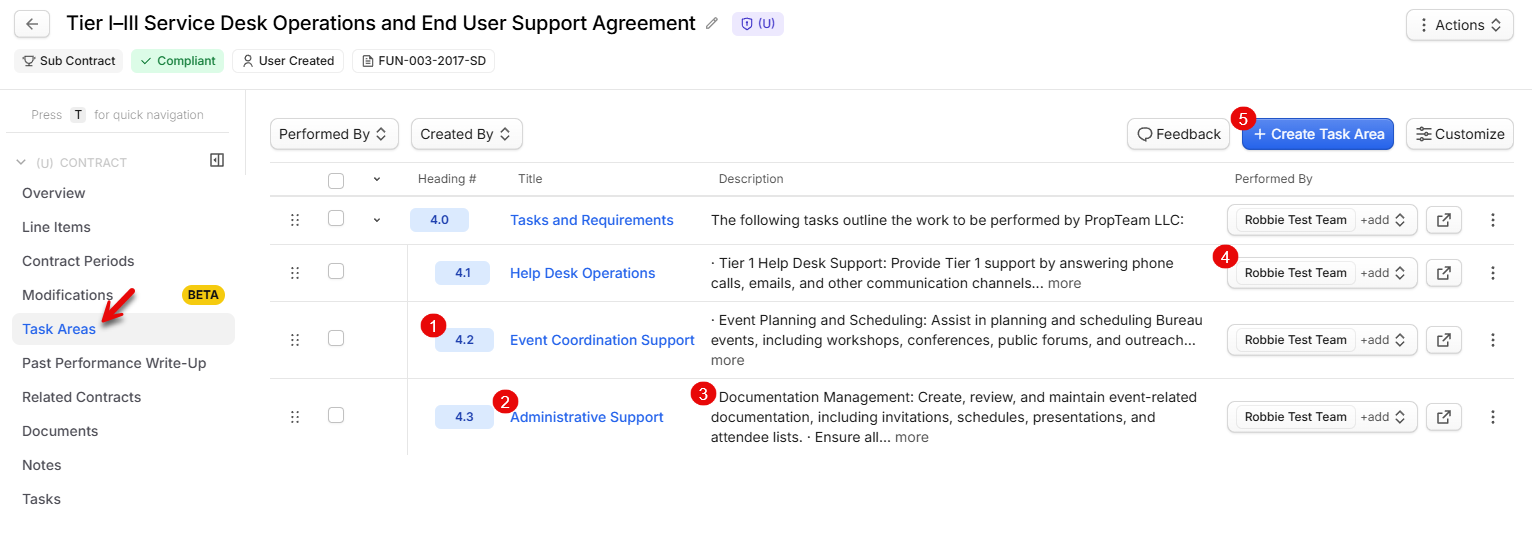
When clicking on the task area title, you will be shown directly within the document preview where this task area was extracted from.
.png)
Does the company assigned to a task area affect generated content?
Yes. When you generate a past performance write-up with Only our task areas turned on, GovDash skips task areas performed only by other companies. See Past Performance Write-Ups.
FAQ
Where do task areas come from?
GovDash extracts task areas from the PWS/SOW document marked as the contract's original document. If none appear, check that the PWS/SOW is attached in the Key Documents card on the Overview tab. See Updating Key Documents.
Can I add task areas that GovDash didn't extract?
Yes. You can create task areas manually from the Task Areas tab.
How do I change who performed a task area?
Use the drop-down on the task area to change or remove the company. To update several at once, select the task areas and use the action bar at the bottom of the page. To add a company to the list, add it in the Data Library.