Overview
For every contract in your inventory, GovDash generates a past performance write-up: a narrative that captures the work you performed, backed by citable experience claims pulled from your contract documents. It's the foundation for the past performance content you reuse across proposals.
A contract can also hold more than one write-up, so you can tailor a version for a specific pursuit or agency without overwriting the original. One write-up is always marked Primary, and that's the version GovDash uses everywhere outside the contract record.
To access, select the Past Performance Write-Up tab on the left hand side of your contract record.
Working With Multiple Write-Ups
The same award often supports many pursuits, and each one calls for a different emphasis. Instead of overwriting your write-up or managing copies in Word, you can keep every version right on the contract.
Click through the interactive walkthrough below to see how it works, or follow the steps below.
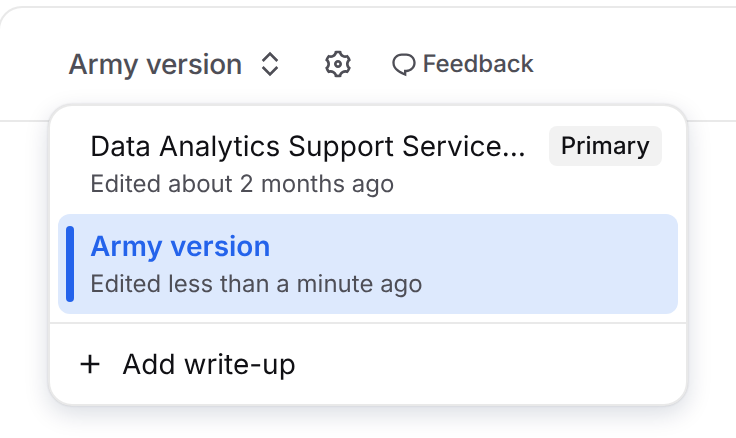
Switching between write-ups
The dropdown at the top of the tab shows the name of the write-up you're viewing. Open it to switch to another write-up or create a new one. The primary write-up is labeled Primary in the list.
The page URL updates when you switch, so you can send a teammate a link straight to a specific write-up.
Creating a write-up
Open the write-up dropdown and select Add write-up.
Enter a name your team will recognize, such as DHS CISA tailoring. Names can be up to 200 characters.
Click Create.
The new write-up starts empty, so you can build it out with your own sections (see Adding a section below). To start from an existing write-up instead, use Duplicate from the gear menu. If the contract doesn't have a write-up yet, the first one you create automatically becomes primary.
Managing a write-up
Click the gear button next to the dropdown to manage the write-up you're viewing.
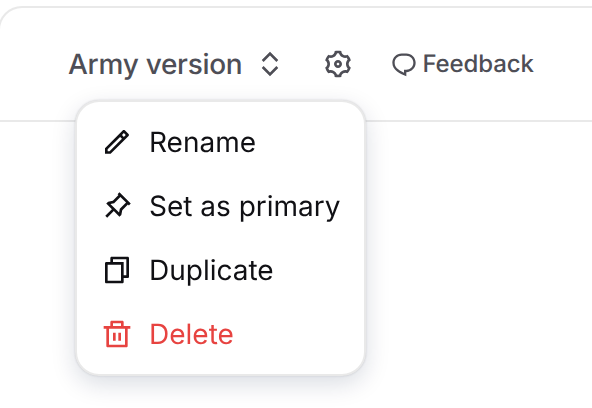
Action | What it does |
Rename | Changes the write-up's name. |
Set as primary | Makes this the write-up GovDash uses in proposals, search, and Dash. Unavailable if it's already primary. |
Duplicate | Creates a copy named "{name} (copy)" that includes the sections, task areas, and claim links. The copy is not set as primary. |
Delete | Permanently removes the write-up. If you delete the primary write-up and others remain, the oldest remaining write-up becomes primary. |
You'll need edit access to Contract to edit, rename, or delete a write-up. The dropdown is locked while changes are still saving. A write-up that is still generating shows Generating... in the list.
How the primary write-up is used
Only the primary write-up feeds the rest of GovDash:
Proposal past performance drafting
Past performance search and retrieval
Capability matrix export
Dash's past performance tools
Other write-ups stay on the contract record for tailoring and export. When you want one used elsewhere in GovDash, open it from the dropdown, click the gear button and select Set as primary.
Tip
The primary write-up applies to every proposal, search, and Dash response in your workspace, not just one pursuit. If you promote a tailored version for a specific proposal, switch the primary back to your general version when you're done.
Reviewing the Write-Up
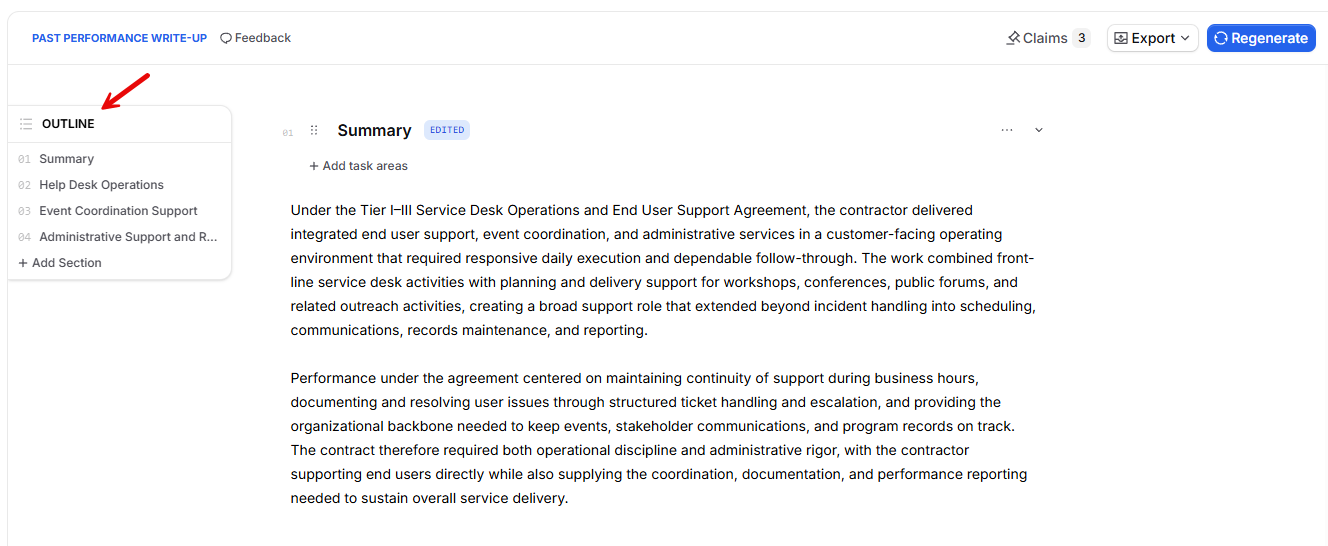
The write-up is organized into sections that read like a finished past performance narrative. As you review it, you can dig into the evidence behind it and keep it current. When a write-up has more than one section, an Outline menu sits on the left edge of the tab. Hover over it to expand it and see every section in order, then click a section to jump to it.
Experience claims
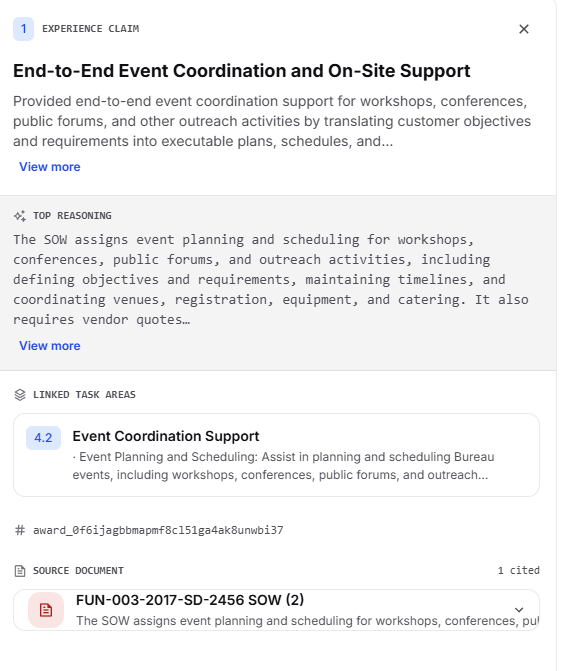
Click Claims at the top of the tab to open the list of experience claims GovDash extracted from your contract documents for the write-up you're viewing. The number next to it shows how many claims there are, and the button appears once the write-up has at least one claim.
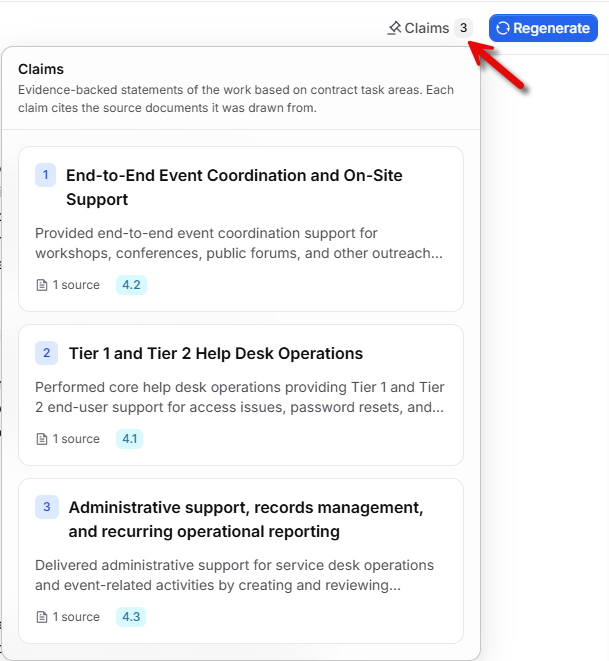
Selecting a claim opens a side panel with its details, so you can trace the write-up back to the source evidence.
Editing the write-up
If you have edit access to Contract, you can refine the write-up in place, adjusting wording directly in the sections. Edits only apply to the write-up you're viewing, so tailoring one version never changes the others. Your changes save automatically, and the save status appears near the top of the tab.
Adding task areas
If you have edit access to Contract, you can adjust these yourself instead of regenerating the write-up:
To add task areas, click Add task areas next to the badges (if the section has no task areas yet, you'll see the full Add task areas button; otherwise it's the + icon).
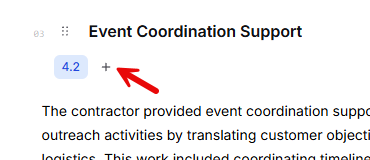
Use Search task areas to find what you need, then select one or more task areas. Only task areas belonging to this contract are available.
To remove a task area, hover over its badge and click the ✕.
Adding a section
Need to cover something the generated write-up missed? If you have edit access to Contract, you can add your own section at any time.
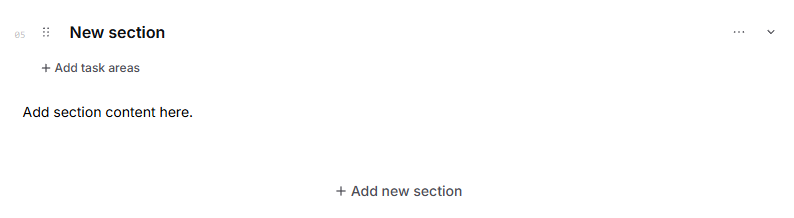
Hover over the Outline menu on the left edge of the Past Performance Write-Up tab to expand it. You can also add a section using the Add new section button at the very bottom of the write-up.
Click Add Section at the bottom of the outline list. GovDash adds a section titled New section to the end of the write-up and scrolls you straight to it.
Click the section title to rename it, then replace the placeholder text with your content and add task areas. Your changes save automatically, and the save status appears near the top of the tab.
Exporting the write-up
Click Export at the top of the tab to download the write-up you're viewing as a Word document. Choose No Template, or pick one of your team's cover page templates to include it.
Regenerating the Write-Up
Need a fresh start? Click Generate in the top-right of the Past Performance Write-Up tab. GovDash asks you to confirm in the Generate write-up dialog, because Dash rewrites the write-up you're viewing from scratch. Click Generate to start. It may take a few minutes.
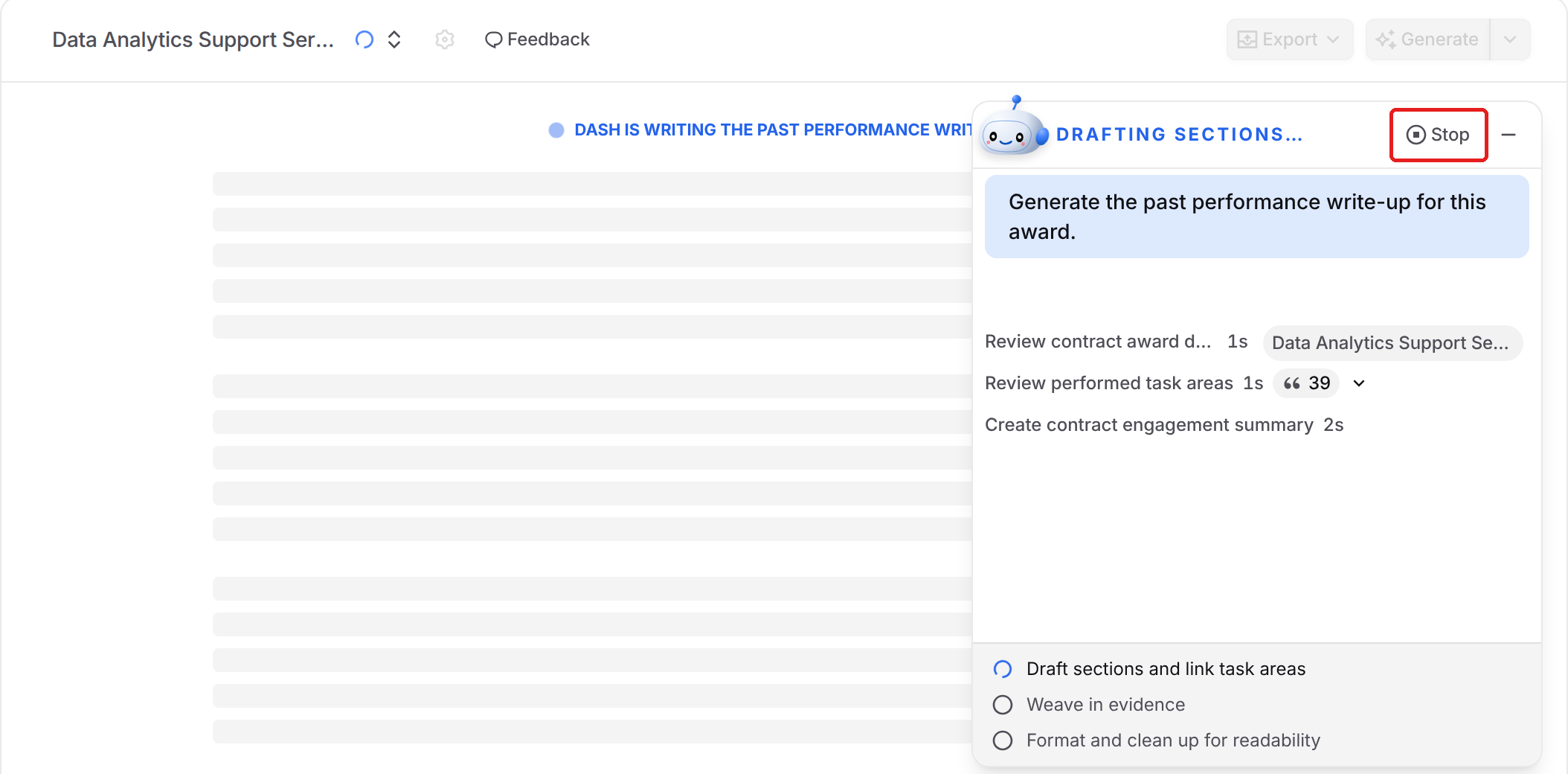
While Dash works, a progress panel shows each step: Draft sections and link task areas, Weave in evidence, and Format and clean up for readability. Sections appear in the write-up as they're written, so you can start reading right away. Changed your mind? Click Stop at any time. Dash keeps what it has written so far, so the write-up may be incomplete until you generate it again.
Regeneration relies on the contract's task areas, so Generate stays disabled until the contract has at least one. Hover the disabled button and you'll see "Add task areas to this award to generate a write-up." Open the Task Areas tab to add them, then come back and regenerate.
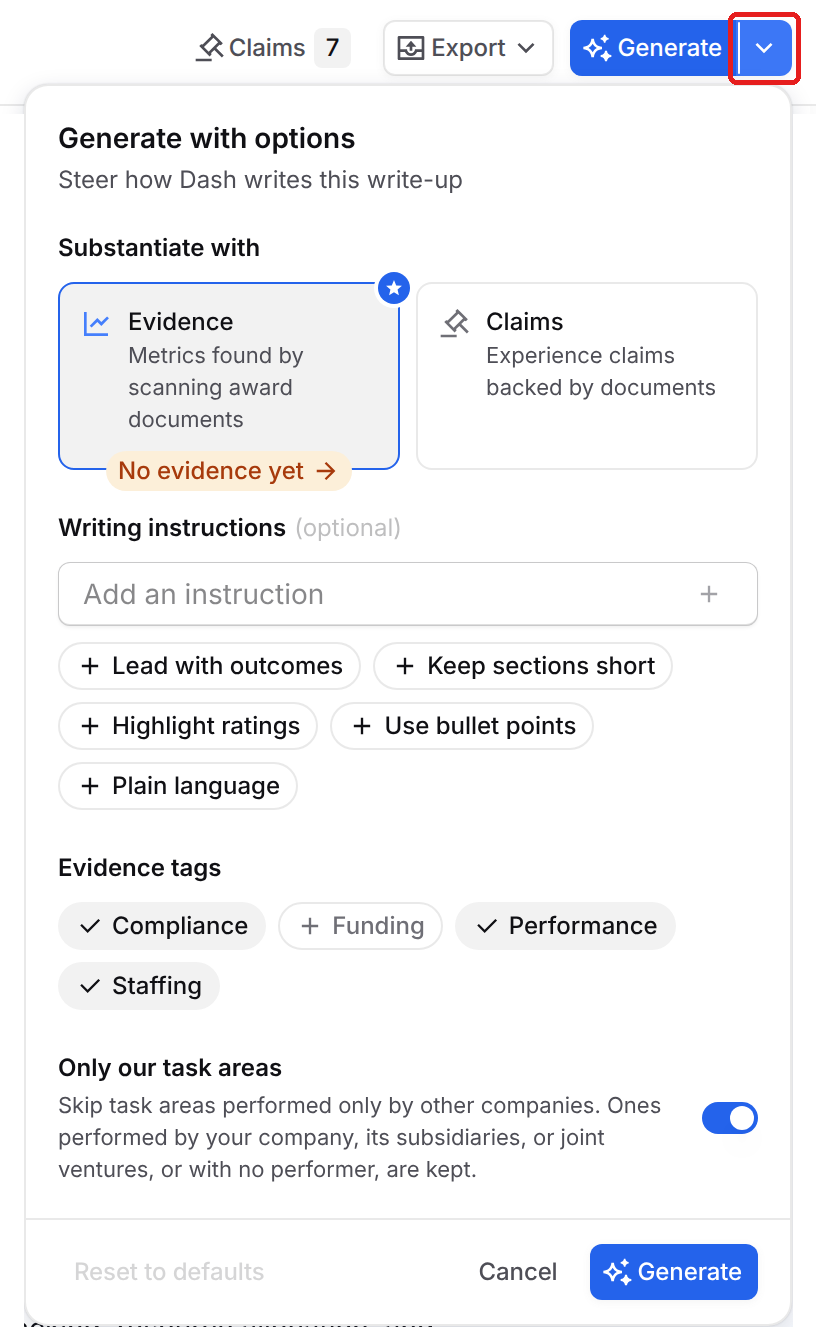
Want more control? Click the arrow next to Generate to open Generate with options:
Substantiate with: Choose Evidence (marked Recommended) to back up the write-up with metrics GovDash found by scanning your contract documents, or Claims to use experience claims backed by your documents. To learn more about evidence, see Reviewing Contract Evidence.
Writing instructions: Optional. Type your own direction in Add an instruction, or pick a suggestion such as Lead with outcomes, Keep sections short, Highlight ratings, Use bullet points, or Plain language.
Evidence tags: When you choose Evidence, pick which kinds of evidence Dash uses, such as Performance or Staffing.
Only our task areas: On by default. Dash skips task areas performed only by other companies and keeps the ones performed by your company, its subsidiaries, or joint ventures, or with no performer listed. Turn it off to include every task area.
Click Generate in the panel to apply your options. If the contract doesn't have any evidence yet, GovDash lets you know it will use claims instead and offers a Go to evidence button.
Important Note Regarding Regeneration
Generating deletes the write-up you're viewing, including your edits and its generated claims, and rebuilds it from scratch, so only use it when you want a clean rewrite.
Using Dash With Write-Ups
Dash can manage write-ups for you. Try asking:
"List the past performance write-ups on this contract"
"Create a new write-up called Navy recompete on this contract"
"Duplicate the primary write-up and rename it Army version"
"Set the Army version write-up as primary"
"Show me the primary write-up"
"Add a section about cybersecurity to the write-up"
FAQ
Why can't I generate a write-up with Only our task areas turned on?
None of the contract's task areas are performed by your company, its subsidiaries, or joint ventures. Open the Task Areas tab and add one of them to Performed By on a task area, or turn off Only our task areas in Generate with options.
Can I have more than one write-up for a contract?
Yes. Use the write-up menu to Create a new write-up, Duplicate an existing one, or Rename it. This is useful when you want a version tailored to a specific agency or opportunity.
Which write-up does GovDash use in proposals?
GovDash uses the primary write-up when it drafts past performance for proposals, searches your past performance, exports capability matrices, and answers past performance questions in Dash. To change it, open the write-up menu and click Set as primary.
Can I download a write-up?
Yes. Click Export to download the write-up as a Word document, using No Template or one of your team's cover page templates.