Overview
Evidence pulls the numbers that show how well you performed on a contract out of the contract's documents, such as uptime percentages, customer satisfaction ratings, labor hours and award fees. Every value links back to the exact sentence in the document it came from, so you can cite real, verifiable results in past performance write-ups and proposals.
Evidence is organized in two levels:
Series: one metric tracked over time, for example Customer Satisfaction or Deliverables On Time.
Observation: one value of that metric on a specific date, taken from one document. A monthly status report adds one observation per metric each month.
To open it, open a contract from your inventory and click Evidence in the left menu.
Research Preview
The Evidence tab shows a flask icon in the contract menu, which marks it as Research Preview. It's available to every team, and we're still improving it.
Click through the interactive walkthrough below to see how it works, or follow the steps below.
Documents GovDash scans
GovDash looks for evidence in contract documents of these types:
Monthly Status Report
Deliverables
Meeting Minutes
CPARS
Past Performance Volume
Past Performance Summary
Capability Statement
Financial Statement
Quality Assurance Volume
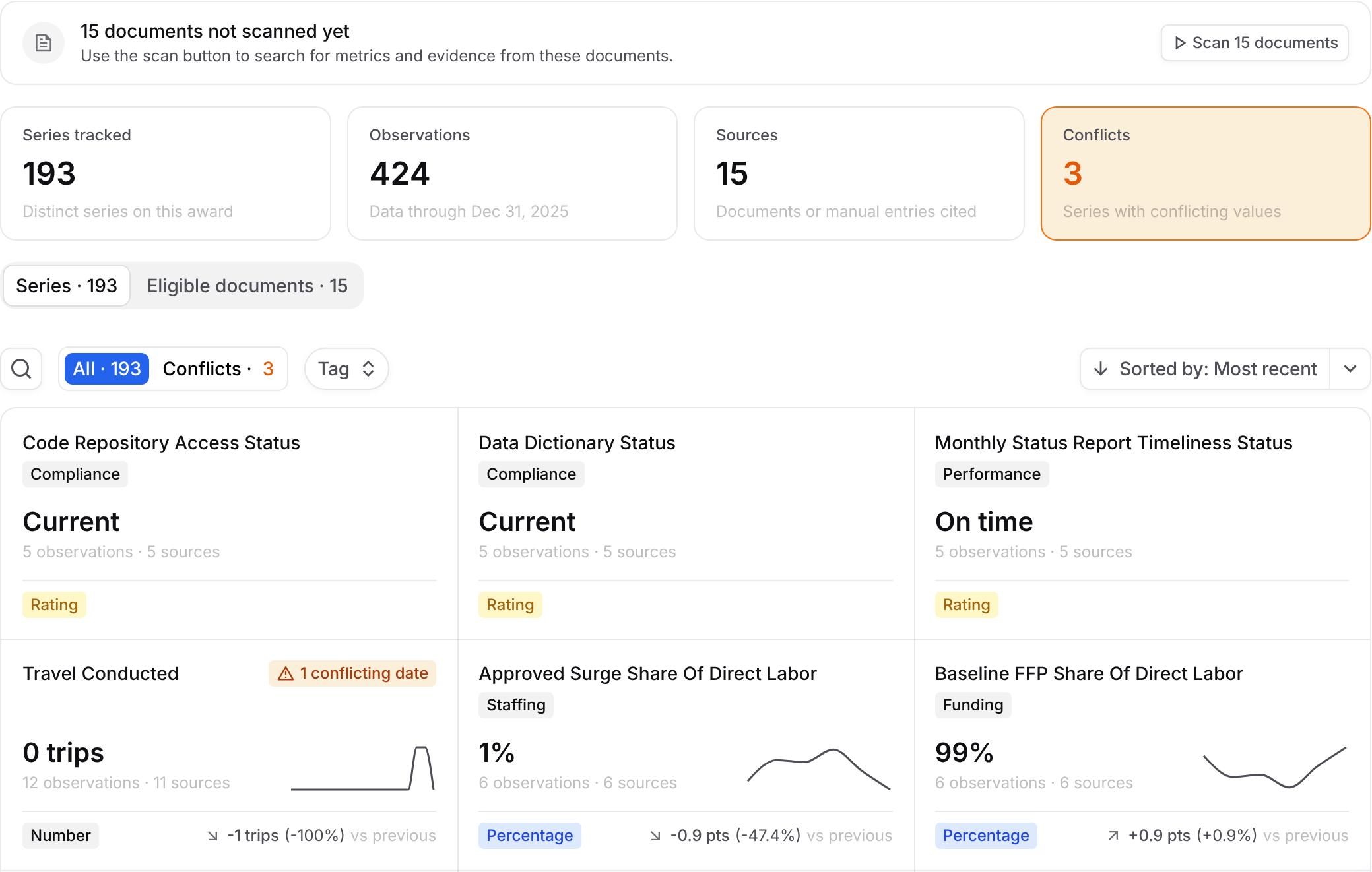
When you add one of these documents to a contract, GovDash scans it automatically after it finishes processing. A banner at the top of the Evidence tab shows where scanning stands:

Banner | What it means |
|---|---|
Scanning for evidence | GovDash is reading your documents. New observations appear when it finishes. |
All eligible documents scanned | Every eligible document has been scanned, with the time of the last run. |
1 document not scanned yet | Some eligible documents haven't been scanned. Click the scan button on the banner, such as Scan 15 documents, to scan them now. |
If the contract doesn't have any documents GovDash can scan, the tab shows No documents to scan for evidence with the list of supported types. Click Go to documents to upload one, or change an existing document's type. Until a document with performance data is scanned, the tab shows No evidence yet.
If every eligible document was scanned and nothing turned up, you'll see No evidence found. Click Rescan all documents to try again after you update your documents.
Reading the Summary
The cards at the top summarize all evidence on the contract:

Card | What it shows |
|---|---|
Series tracked | How many different metrics GovDash has found. |
Observations | How many values have been recorded, and the latest date they cover. |
Sources | How many documents the values come from. |
Conflicts | How many series have documents that report different values for the same date. See Resolving Conflicts. |
Browsing Series
The Series tab shows a card for each metric with its latest value, its tags, how many observations and sources it has, a trend line and the change since the previous value. A conflict badge marks series that need review.
Search series: find a metric by name.
All and Conflicts: switch between every series and only the ones with conflicts.
Tag: show only series with a tag, such as Performance, Staffing, Funding or Compliance.
Sorted by: order cards by Most recent or Most observations.
Viewing a Series
Click a series card to open its page. At the top you'll see:
Latest: the most recent value.
Change vs previous: how much it moved since the value before it.
Range: the lowest and highest values.
Observations: how many values are recorded.
Below that, a chart shows the trend for numeric series, and a table lists every observation with its Date, Value, Change and Source. Click View source on any row to open the document with the cited sentence highlighted, so you can confirm the value before you use it.
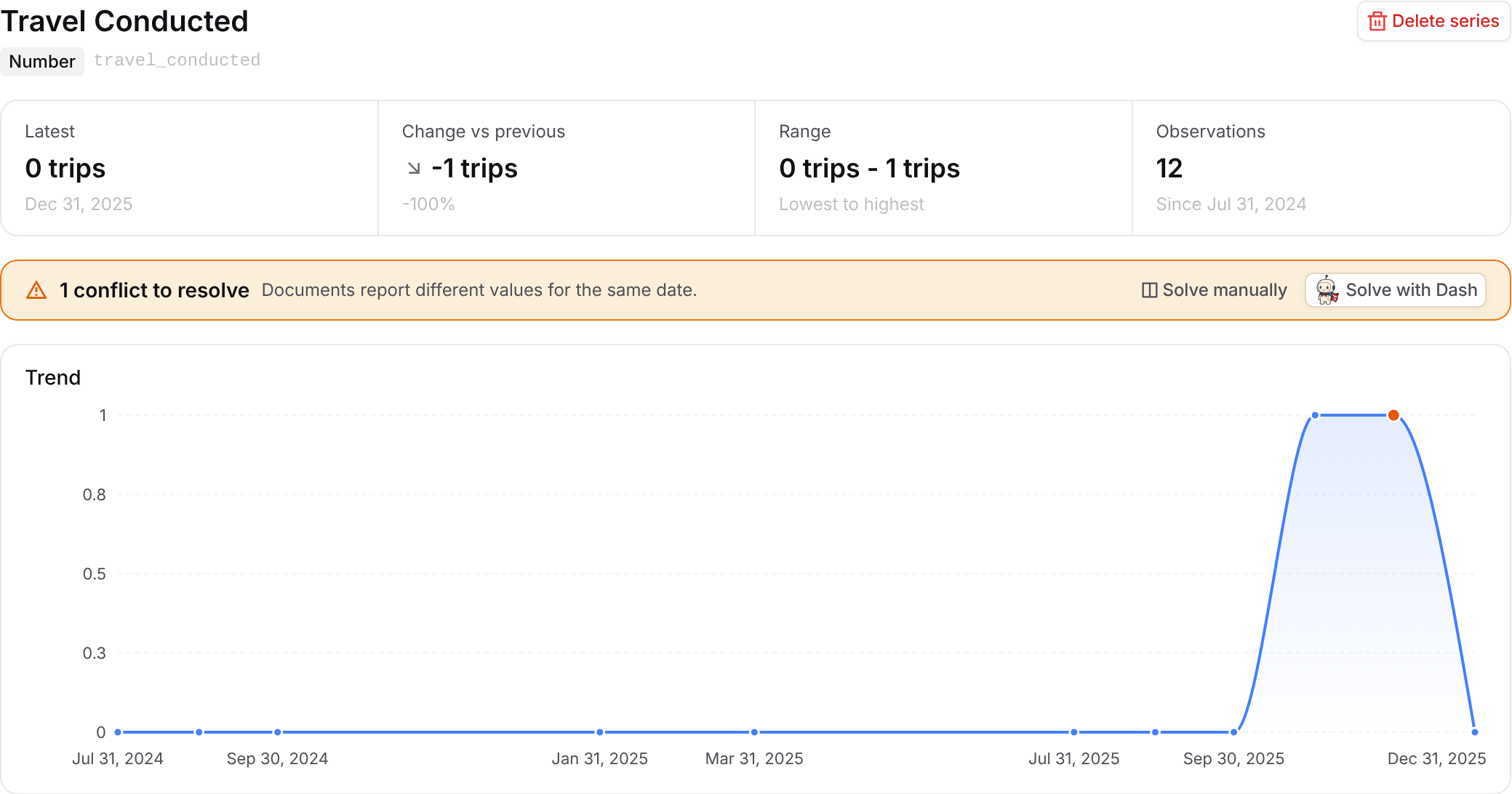
To remove a value that GovDash pulled in by mistake, click Delete observation on its row. To remove a whole metric you don't need, click Delete series at the top of the page. Both are permanent.
Resolving Conflicts
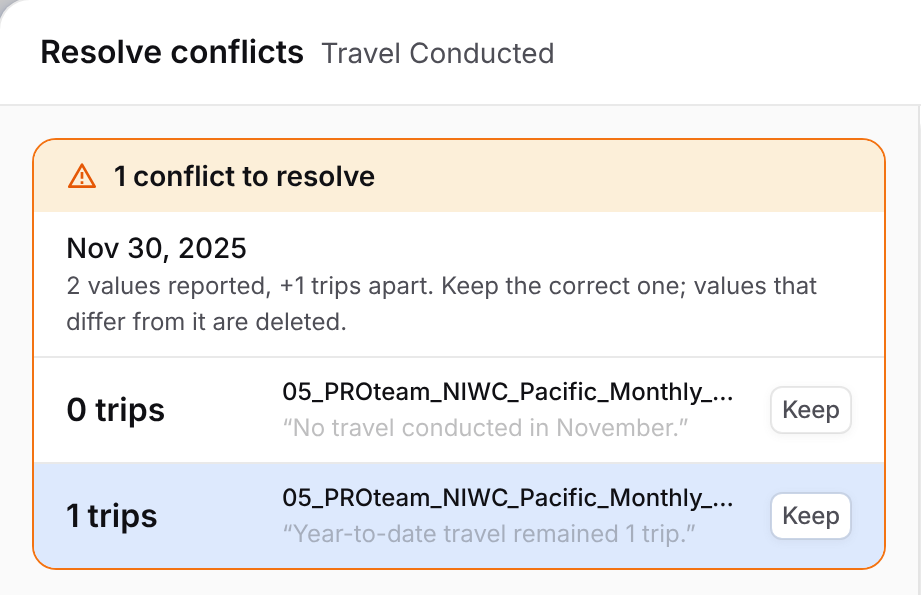
A conflict happens when two documents report different values for the same metric on the same date, for example when a contract modification updates a figure from the original award. A series with conflicts shows a banner, such as 1 conflict to resolve, with two ways to fix it.
Solve manually
Click Solve manually.
The Resolve conflicts panel lists each value reported for that date, with the document it came from. The newest document is marked Newest. Click a value to see its source.
Click Keep next to the correct value, then click Keep and delete others. The other values for that date are deleted.
If there are more conflicts, use the arrows to move to the next one.
Solve with Dash
Click Solve with Dash to have Dash review the conflicting values and their sources. Dash shows a table of which value to keep and which to delete for each date, then asks you to choose Apply plan, Change some rows or Don't apply. Nothing is deleted until you approve.
Eligible Documents
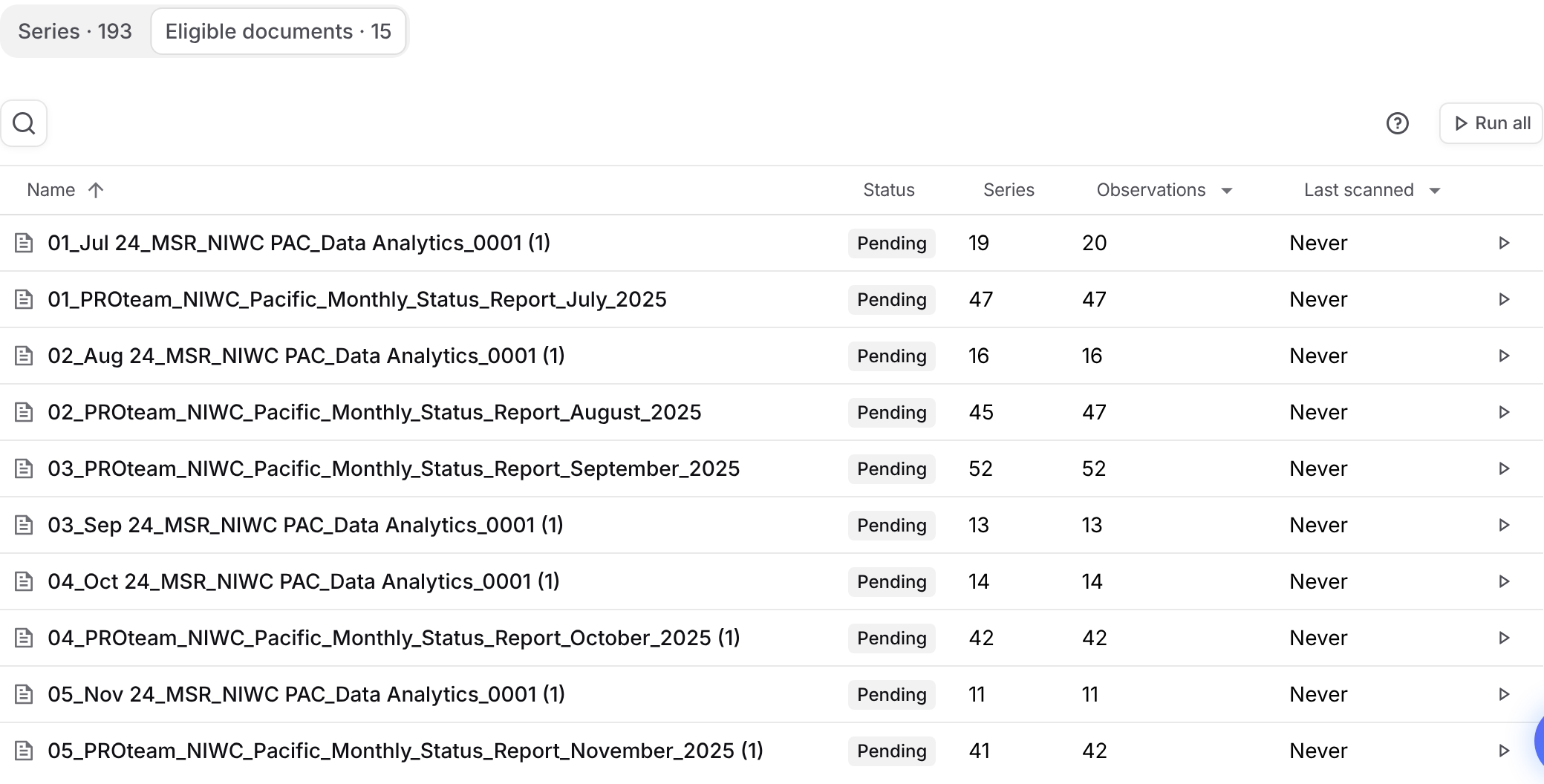
Click the Eligible documents tab to see every document GovDash can scan on this contract, with its Status (Scanned or Pending), how many Series and Observations it added, and when it was Last scanned.
Click a document to see the values it contributed and the Period covered.
Click the play button at the end of a row to scan that document, or Run all to scan every eligible document. Scanning a document again replaces its old observations with the new results. Series keep their tags.
If you remove a document from the contract, GovDash deletes the evidence it found in that document.
FAQ
Why don't I see any evidence on my contract?
Evidence only comes from Monthly Status Report, Deliverables, Meeting Minutes, CPARS, Past Performance Volume, Past Performance Summary, Capability Statement, Financial Statement and Quality Assurance Volume documents. Add one of these to the contract, then check the banner at the top of the Evidence tab to see whether it has been scanned.
Will re-scanning a document remove my changes?
Re-scanning replaces the observations GovDash found in that document with new results. Series keep their tags.
How do I know a value is correct?
Open the series and click View source on the observation. GovDash opens the document and highlights the sentence the value came from.