Overview
During onboarding, you and your team uploaded contract documents to GovDash to build your initial contract inventory list. We recommend going through your inventory list periodically to make sure you have all of your contract documentation uploaded.
Ensure You Have...
For each contract within GovDash, it's best to have a combination following documents uploaded to each contract record if you have them available:
Main contract document
Performance Work Statement/Statement of Work
Resumes of Personnel (key and assigned)
Status Reports
Deliverables
CPARS
The more information that GovDash has about your contract and the work you performed, the better we'll be able to write to those capabilities in your future proposals, and the better we can match opportunities to your team based on your past performance!
Important - Contract Requirements
Your contracts within GovDash must at least contain the main contract document and PWS/SOW in order to use it as past performance, as without these documents, we cannot create compliant past performance narratives.
Uploading The Main Contract and PWS/SOW Documents
To access Contracts to manage your contract inventory in GovDash, click Contract in the GovDash navigation menu on the left.
If you haven't already uploaded the main contract documents to the contract record, or would like to verify that you have uploaded the documents, you can verify by seeing if you have a .png) symbol next to your contract. A compliant contract that contains these documents will have a
symbol next to your contract. A compliant contract that contains these documents will have a .png) symbol next to the contract, signifying that it can be used as past performance within your proposals.
symbol next to the contract, signifying that it can be used as past performance within your proposals.
.png)
To upload these documents, you can hover over the .png) symbol and click Add PWS Document. You can change these documents out at any time in the Key Documents section of your Overview page.
symbol and click Add PWS Document. You can change these documents out at any time in the Key Documents section of your Overview page.
Uploading Supporting/Modification Documents
Once you have your main contract documents uploaded, we highly recommend uploading supporting documents like contract modifications, resumes, status reports, deliverables, CPARs, etc. so that GovDash has the best foundation for writing content, capability matching, and more.
To upload supporting documentation to any contract, start by clicking on the contract title in your contract inventory list.
Next, click the Attach Documents button located in the top right of the Documents tab.
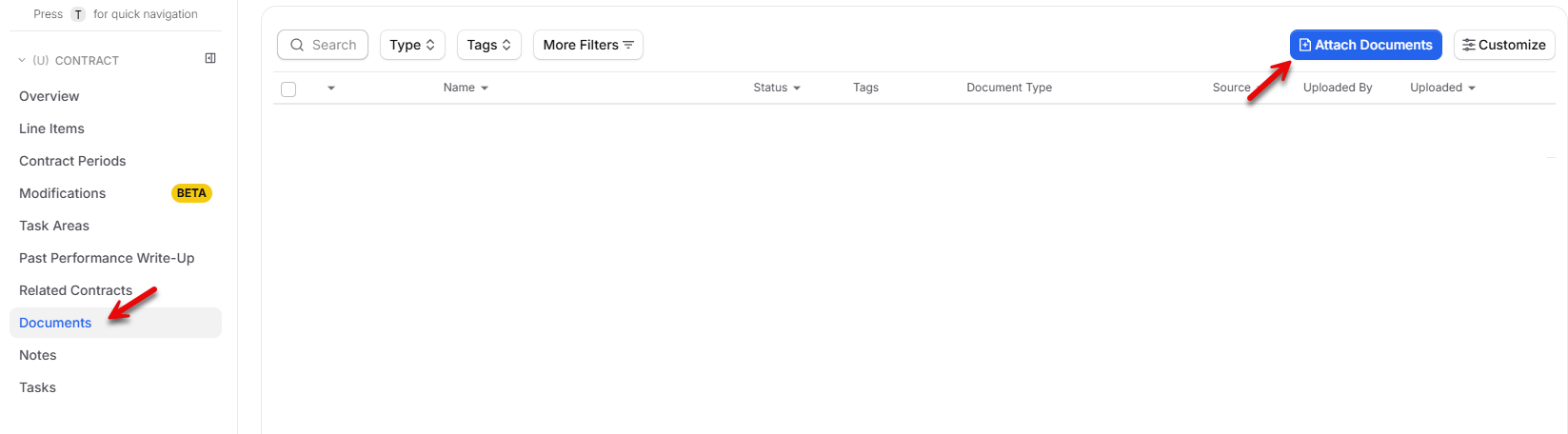
To upload files from your computer to the contract record, click Upload, and then you can drag and drop your files, or click to browse your local computer. You may also attach documents from your Data Library and SharePoint.
.png)
Once your files are selected, click Confirm, and GovDash will upload your supporting documentation directly to the contract. This will update your contract details, as well as the past performance description written for this contract.
Vehicle and Prime Contracts
If you hold an IDIQ, GWAC, or BPA, you can connect the orders issued under it to the vehicle itself. The same applies to subcontracts: you can connect your subcontract to the prime it sits under. Once connected, the orders nest under the vehicle in your contract inventory instead of sitting at the top level as unrelated records.
A vehicle contract is just a regular contract record. There is nothing special to create. Any contract becomes a vehicle as soon as another contract points to it as its parent, and every record keeps its own documents, period of performance, values, and past performance.
A contract can sit under one vehicle and one prime at the same time, so a subcontract on a task order under an IDIQ works the way you would expect.
Linking a Contract to Its Vehicle or Prime
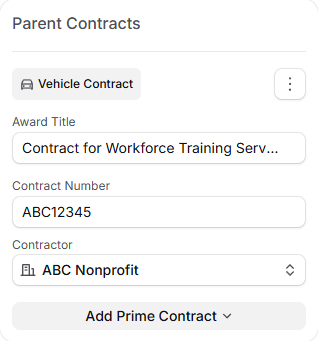
Open the task order or subcontract, then find the Parent Contracts card in the right sidebar of the Overview tab. Click Add Vehicle / Prime and choose whether to link a contract you already have in GovDash or create the parent record on the spot. Either way, the link is made right away.
Once a parent is linked, the card shows its title, contract number, and contractor, all editable from the card. The three-dot menu lets you open the parent record, switch it between vehicle and prime, or unlink it. Unlinking removes the relationship only. Neither record is deleted.
To go the other direction and add orders underneath a vehicle you already have open, see Task Orders, Subcontracts, and Related Contracts.
Letting GovDash Link Contracts for You
Most of the time you will not need to link anything by hand. When GovDash creates a contract record, whether you created it yourself, imported a batch, or uploaded a document, it reads the contract numbers on the record and connects it to its parent automatically.
All this takes is filling in the parent's contract number on the child record. The field is labeled for you based on the award type: a delivery order, purchase order, or BPA call asks for a Vehicle Contract Number, and a subcontract asks for a Prime Contract Number.
The one catch is that the parent has to already exist in GovDash. If you import a batch of task orders before the IDIQ is in your inventory, those orders will land at the top level and you will need to link them yourself. Load the vehicle first and everything under it connects on its own.
Recompetes and Follow-On Awards
Contract relationships connect a parent and a child, not one generation to the next. How you handle a follow-on depends on whether it is a new order or a new contract:
Another order on the same vehicle. Link it to the same vehicle record. Every generation of the work then nests under one vehicle, each order with its own period of performance and values.
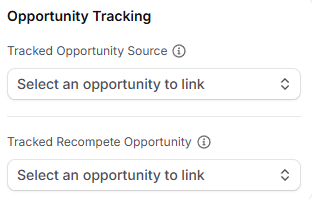
A brand new contract. Create a new record for it and leave the old one in place, since the incumbent's documents and CPARS are your past performance. To tie the two together, open the incumbent record and use Opportunity Tracking → Tracked Recompete Opportunity to point at the recompete you are pursuing in Capture, then set Tracked Opportunity Source on the new award once you win it.
Tip
Give the vehicle record its full ceiling value and leave obligated amounts on the orders. Use the Vehicle Name field (SEWP V, for example) on every related record so one search brings all of them up together. Vehicle Name is a label, not a link, so it does not create a relationship on its own.
Linking SharePoint Folders
Linking a SharePoint folder to your contract allows you to monitor new (or removed) documents added to a specific folder to quickly add them to your contract’s documents.
To link a SharePoint folder, navigate to your contract’s Documents tab, and click Link SharePoint Folder within the SharePoint Folder Sync window. Navigate to the folder you wish to link to your contract, and click the Link button to confirm. Your linked folder will display in the SharePoint Folder Sync window.
Adding Documents From Linked Folders
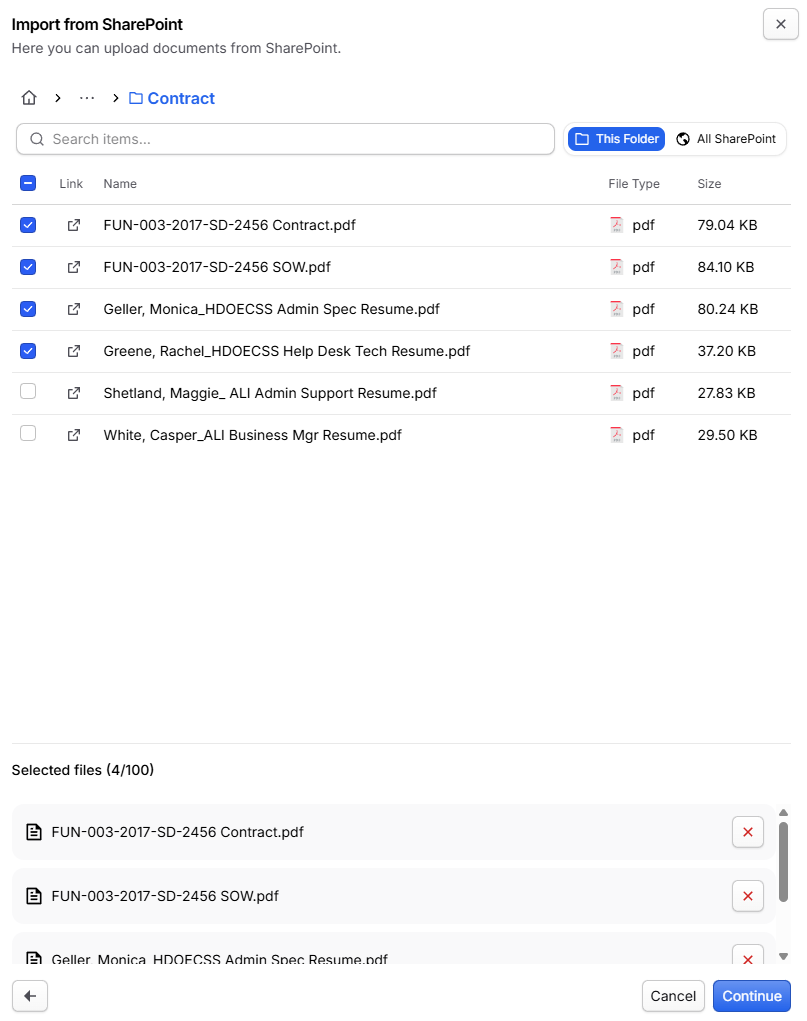
Once your folder is linked, simply click the folder in the list to bring up the documents present within the folder. Here you can choose to upload some or all files within the folder quickly.
Tracking File Changes
After linking your folder, GovDash will alert you to any changes within the linked folder within SharePoint, whether files are added or removed. You will be notified in-app, as well as a visual notification will show on the Documents tab of the contract.

By clicking the Review button, you can review any new or removed files and quickly add them (or remove old, deleted files) to your contract. GovDash will scan for new changes every 5 minutes.
Auto-Syncing New Files
You can enable auto-sync to automatically import Recommended files on synced folders. Recommended files are files that GovDash can make the best use of within your contracts. Files that are not recommended will need to be manually approved in order to import.
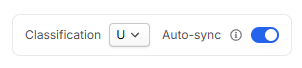
Before setting up auto-sync, you are required to specify what the classification level of every document being added to that SharePoint folder will be. For more granular control of classifications on a document-by-document basis, we do not recommend using auto-sync.
Recommended Document Types
The types of documents that GovDash recommends, and will auto-sync for documents in Contract, are as follows:
Auto-syncing Documents in Contract
Contract Award Summary
TO
Subcontract Agreement
Contract Modification
SOW
PWS
Statement of Objectives
Past Performance Volume
Past Performance Summary
Deliverables
Monthly Status Report
Meeting Minutes
CPARS
Linking Capture Opportunities
Linking opportunities to contracts allows your team to quickly track which opportunity in GovDash the work was done on, or allows your team to signal which opportunity will be used to work a potential recompete.
Open the contract from your contract inventory and stay on the Overview tab, then find the Opportunity Tracking card in the right sidebar.
Click Tracked Opportunity Source and pick the opportunity this contract came from. Only opportunities that are not already tied to a contract are listed.
Click Tracked Recompete Opportunity and pick the opportunity you are pursuing to recompete this contract.
Use the arrow button next to either field to jump to the linked opportunity record.
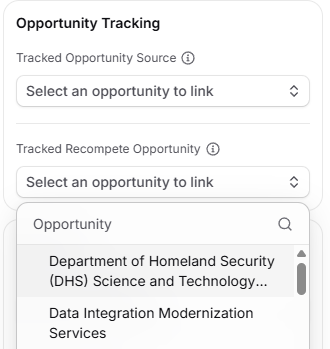
To remove a link, clear the selection in the field. Unlinking only removes the connection, neither the opportunity nor the contract is deleted.
Contract Modifications
GovDash keeps every contract modification linked to the contract, making sure operations, finance, and compliance are all working from the same, current version of reality. Each modification is broken out with full details on what has changed, along with a document preview with the highlighted changes.
Automatic Modification Processing
GovDash will automatically scan documents attached to a contract award for modification details. We use the following rules to determine if a document contains modification details:
The assigned document type is Amendment/Modification
The document contains a Modification Number
These are both requirements for GovDash to create a contract modification automatically from an uploaded document.
Supported Fields for Modification Updates
The following fields are currently supported for modification updates, meaning GovDash will be able to extract and provide recommendations for these fields:
Period of Performance Start and End Dates
Place of Performance
Obligated Amount
CLINs
Reviewing Changes
Once you have uploaded a contract modification and GovDash has successfully processed it, you will then need to review the changes before they are applied to the contract. On the Modifications tab, the Mod Number for each modification is a clickable link. Click it to open the modification details. If a modification does not have a mod number, the link will read Untitled modification.
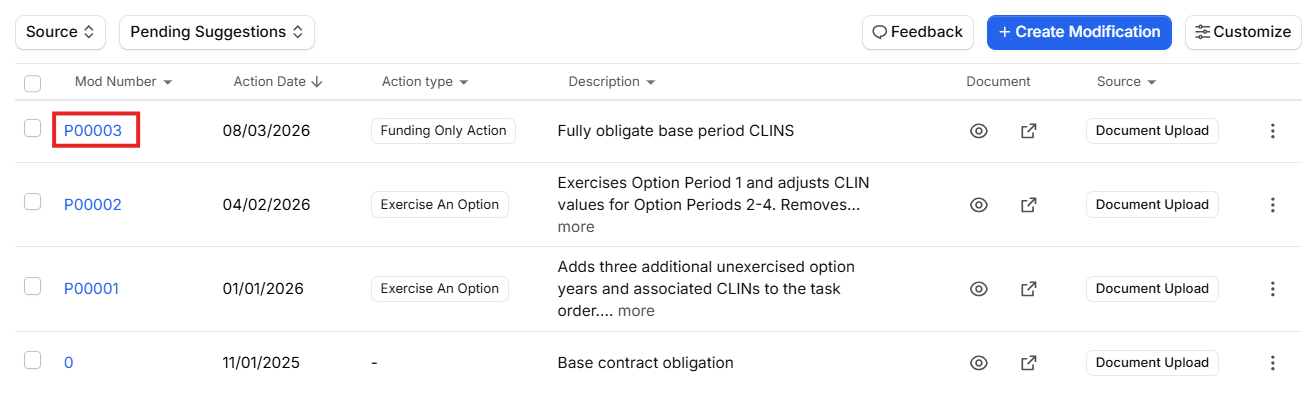
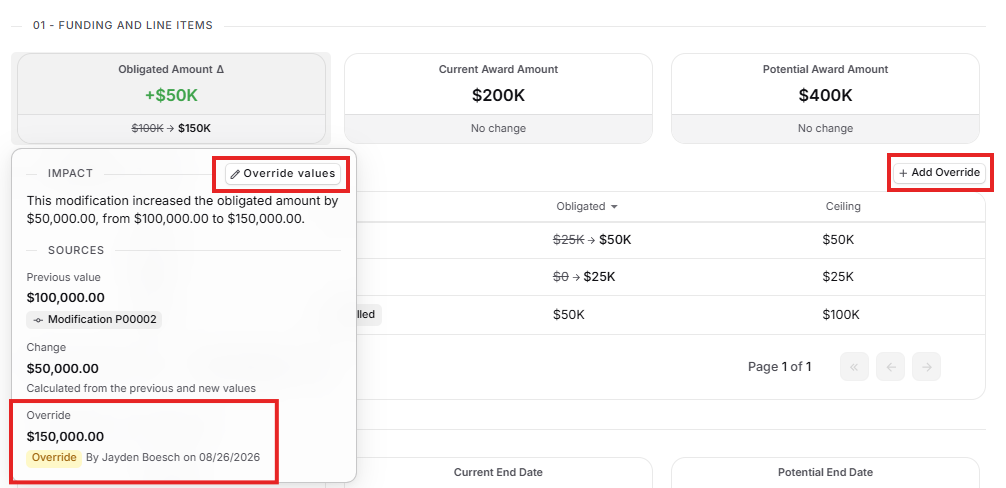
Once the changes are approved, they will automatically apply to the main contract details in the Overview tab, ensuring that the record is kept fully up to date and compliant. Anything you enter by hand on a modification is recorded as an override so it never gets confused with a value GovDash extracted from the document. See Overriding Modification Values below.
Reviewing a modification value's source
Every value GovDash records on a modification keeps a link back to where it came from. Click a value in the Funding and Line Items or Period of Performance tables to open its source details, then click the document name to open that document with the sentences behind the value highlighted for you.
Checking Where a Value Came From
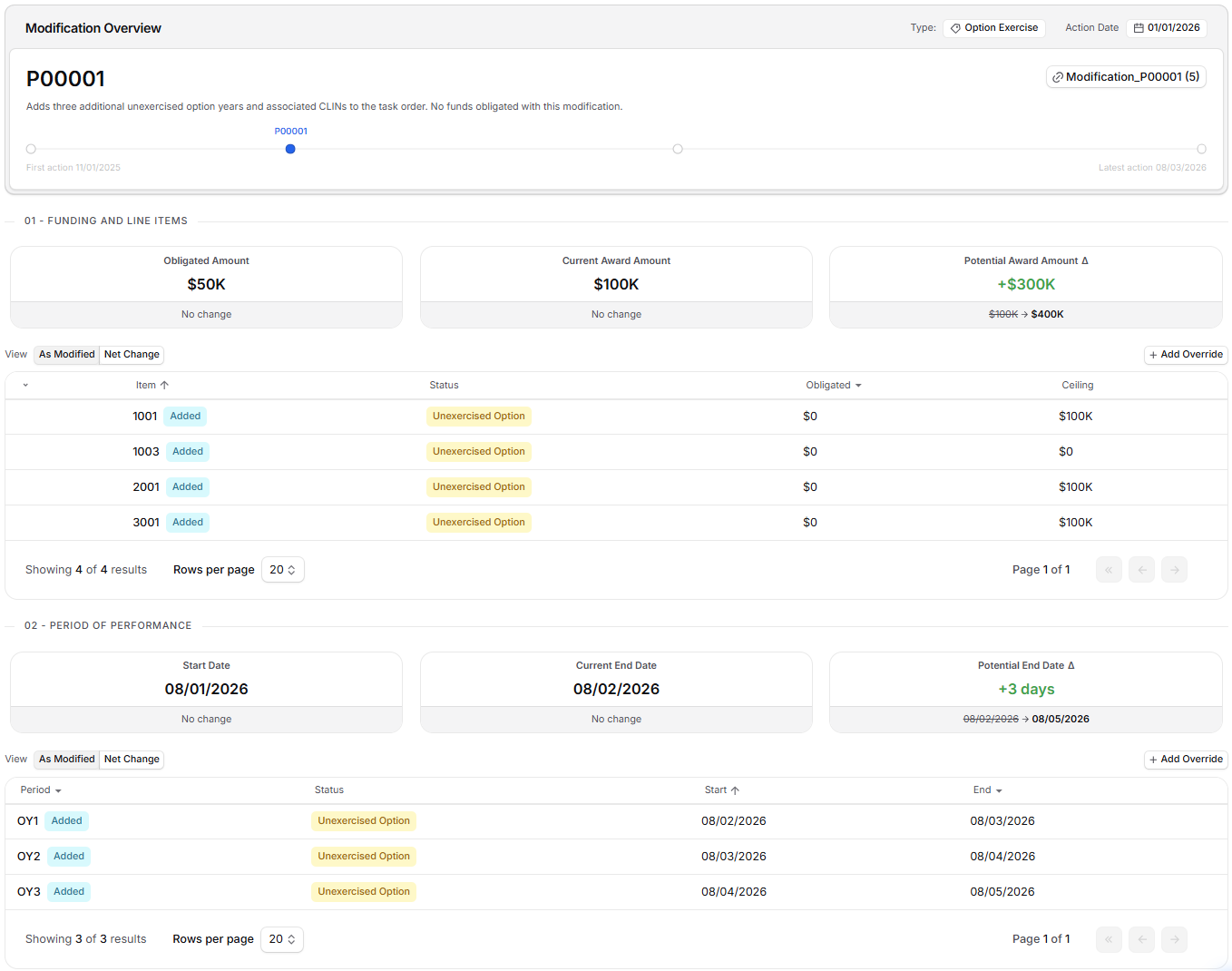
Open a modification from the Modifications tab to see its full record, including the Modification Overview card and the Funding and Line Items and Period of Performance sections.
In the Modification Overview card, click the attached document name to open the modification document in the document viewer. Use the close control in the viewer when you are done.
In the Funding and Line Items or Period of Performance tables, click any value to open its source details. You will see an Impact summary of what the modification did to that value, and a Sources list broken out by Previous value, Change, and New value.
For any source that came from a document, click the document name. The document opens in the viewer, scrolled to the first cited sentence, with every sentence behind that value highlighted.
Overriding Modification Values
GovDash extracts modification values straight from your modification documents, but sometimes you know better than the paperwork. Any value you enter by hand is recorded as an override, clearly labeled with who set it and when, and it can always be rolled back to the value GovDash extracted.
Manually Creating Modifications
You can also manually create a contract modification by selecting the Create Modification button on the Modifications tab. When manually creating modifications, it is intended for you to make the adjustments (if applicable) on the main Overview tab manually, and then document the changes in the modification entry screen along with uploading the supporting documentation.
Task Areas
If the PWS/SOW document you’ve uploaded and marked as the original document contains task requirements for the contract, GovDash will automatically extract these (complete with their structure within the document) and display them for your review within the Task Areas tab.
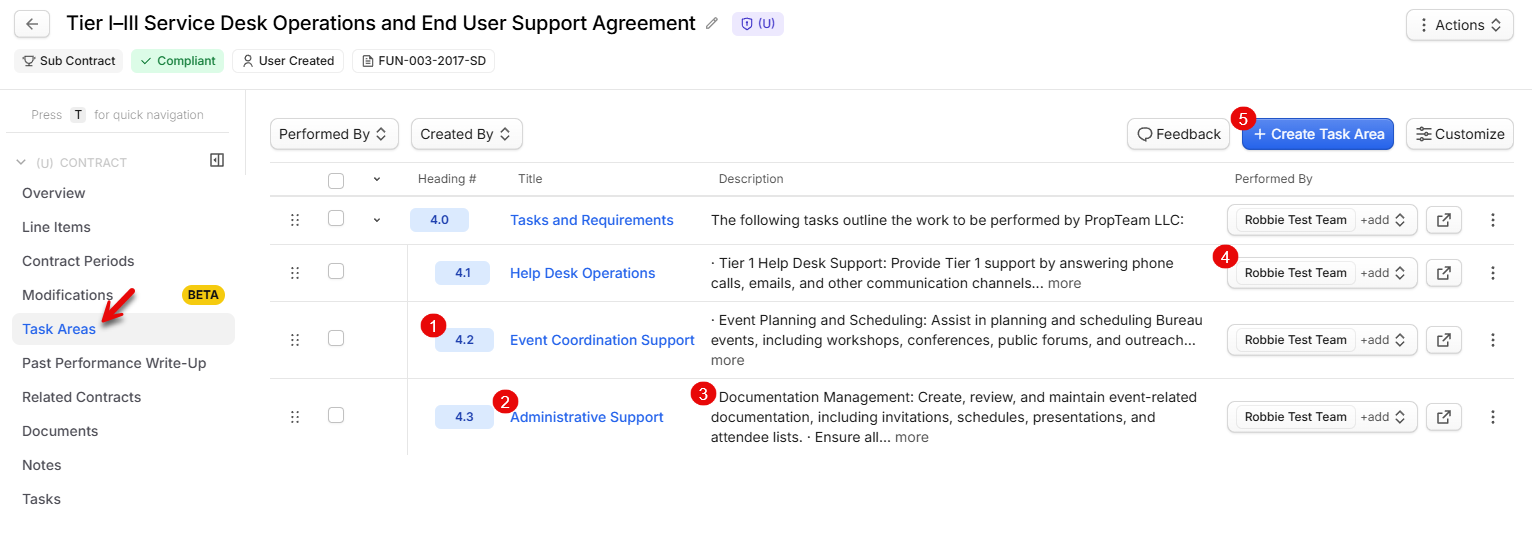
As shown above, the heading number1 and level is extracted and maintained along with the task area name2 and fully extracted description3. GovDash will automatically assign who performed/will perform the work4, which can be changed or removed through the drop down, and bulk assignment/removal options are available when selecting task areas and using the action bar at the bottom of the page. This company list is maintained in the Data Library, where you can add new companies as needed. You may manually create task areas5 from this page as well.
When clicking on the task area title, you will be shown directly within the document preview where this task area was extracted from.
.png)
Do changes here to the company that performed the work impact the proposals that I generate?
Currently the company assignment to task areas is limited to this page, but this information will impact proposal content in future releases.
Editing Your Contract Details
If you'd like to make any edits to your contracts after uploading all of your documentation, you can easily edit your contracts by clicking into any of the fields within a contract record.
.png)
From here, you can edit things like your contract names, award values, contract numbers, your role, period of performance dates, and more.
You can make edits at any time in the future, and we recommend periodically reviewing your contracts within GovDash to ensure all of your documents are up to date.
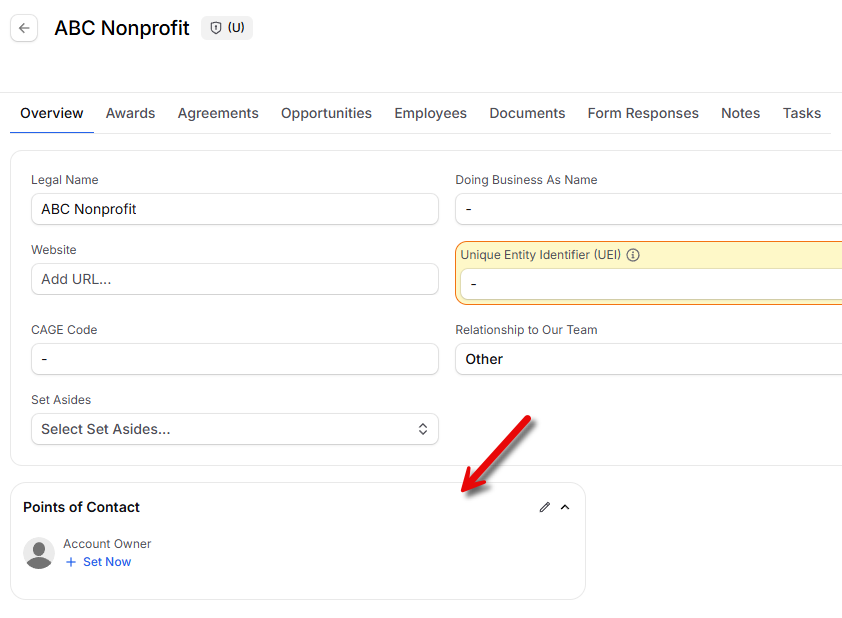
Points of Contact
Every contract record includes a Points of Contact box on the Overview tab. This gives you one place to record who owns the contract on your side and who you are working with on the government side.
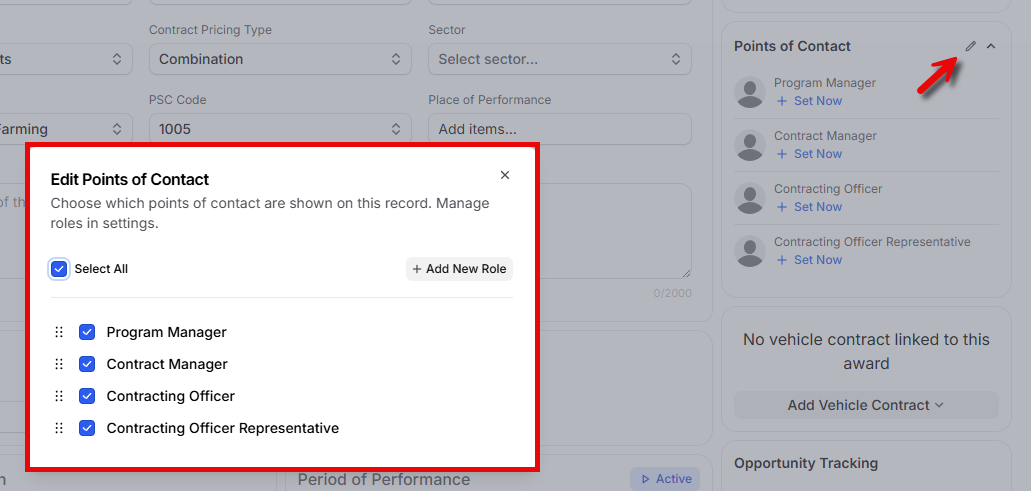
Four roles are included by default:
Program Manager (internal)
Contract Manager (internal)
Contracting Officer (external)
Contracting Officer Representative (external)
Assigning a Team Member
To assign someone on your GovDash team, click the role and select them from the list of users in your workspace. GovDash sends that person an in-app notification in their Inbox letting them know they were assigned to the role on that contract.
Assigning an External Contact
To point a role at someone outside your organization, select an existing person record from your Data Library. Once assigned, use the shortcut next to their name to jump straight to their record in the Data Library, where you can view or update their details.
You can also quickly add a new person at any time by scrolling to the bottom of the person picker and clicking Add New Person.
Customizing Roles
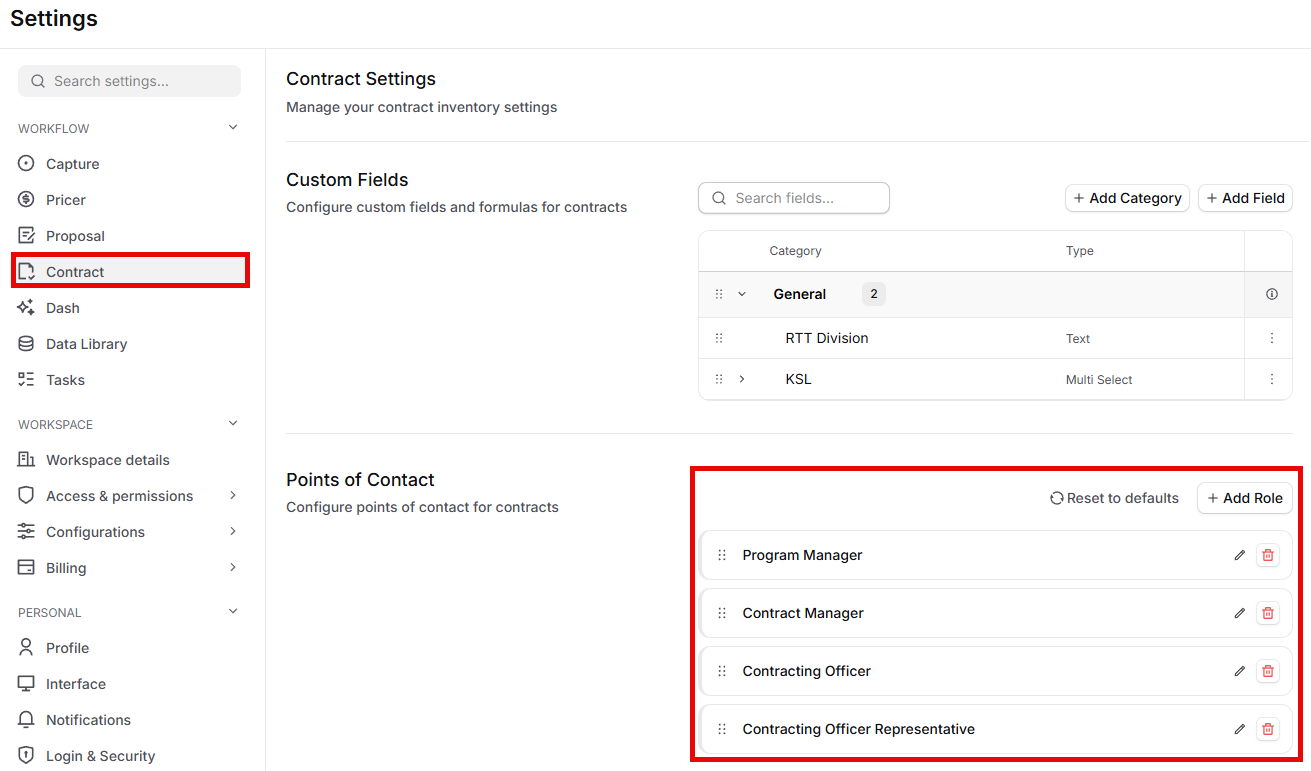
The four default roles are a starting point, not a fixed list. Click Edit within the Points of Contact box to add a role, remove one you do not use, or rearrange the order they display in. You can also manage role configuration in Settings if you want broader control across your records.
Points of Contact on Company and Agency Records
Points of Contact is also available on company and agency records in your Data Library. Both default to a single Account Owner role. Assignment and editing work the same way as they do on contracts, so you can track internal ownership and government contacts consistently across your records.
Past Performance Write-Ups
For every contract in your inventory, GovDash generates a past performance write-up: a narrative that captures the work you performed, backed by citable experience claims pulled from your contract documents. It's the foundation for the past performance content you reuse across proposals.
To access, select the Past Performance Write-up tab on the left hand side of your contract record.
Reviewing the write-up
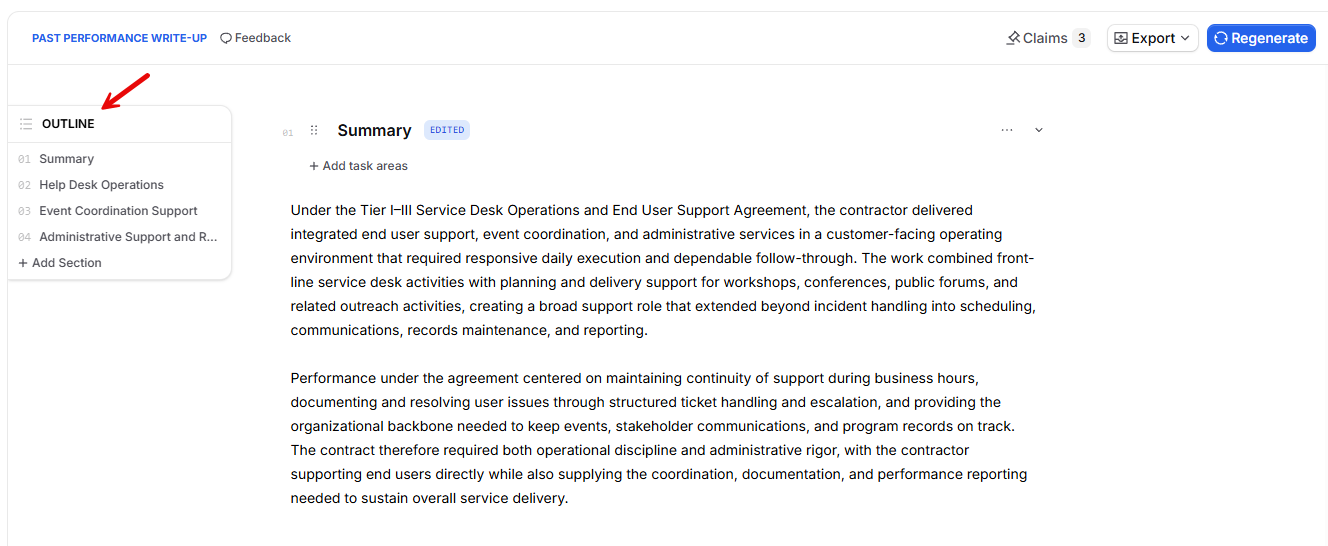
The write-up is organized into sections that read like a finished past performance narrative. As you review it, you can dig into the evidence behind it and keep it current. When a write-up has more than one section, an Outline menu sits on the left edge of the tab. Hover over it to expand it and see every section in order, then click a section to jump to it.
Experience claims
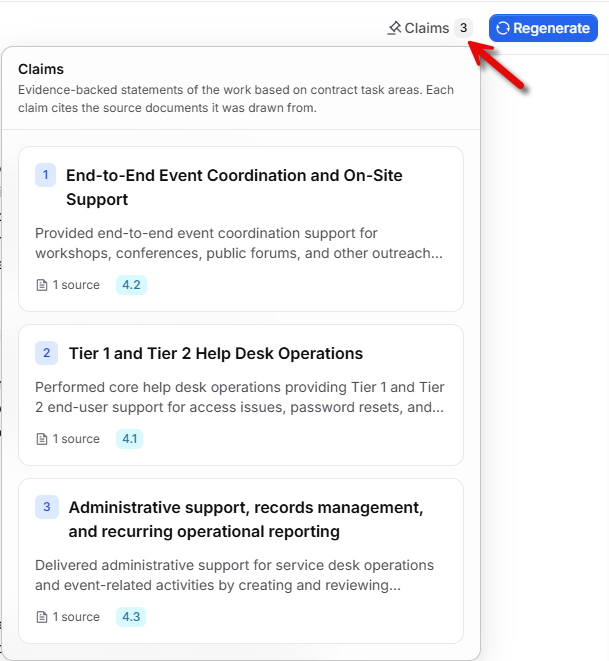
Use the Experience claims control at the top of the tab to open the list of claims GovDash extracted from your contract documents.
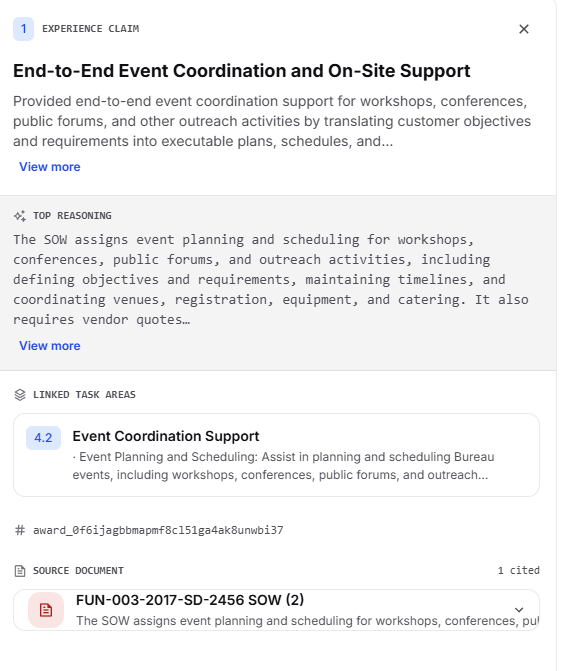
Selecting a claim opens a side panel with its details, so you can trace the write-up back to the source evidence.
Editing the write-up
If you have edit access to Contract, you can refine the write-up in place, adjusting wording directly in the sections. Your changes save automatically, and the save status appears near the top of the tab.
Adding Task Areas
If you have edit access to Contract, you can adjust these yourself instead of regenerating the write-up:
To add task areas, click Add task areas next to the badges (if the section has no task areas yet, you'll see the full Add task areas button; otherwise it's the + icon).
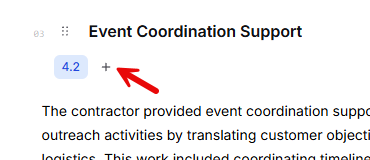
Use Search task areas to find what you need, then select one or more task areas. Only task areas belonging to this contract are available.
To remove a task area, hover over its badge and click the ✕.
Adding a section
Need to cover something the generated write-up missed? If you have edit access to Contract, you can add your own section at any time.
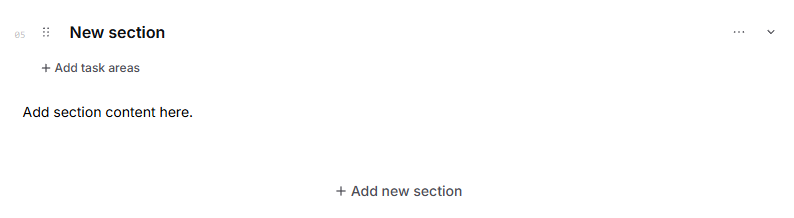
1. Hover over the Outline menu on the left edge of the Past Performance Write-up tab to expand it. You can also add a section using the Add new section button at the very bottom of the write-up.
2. Click Add Section at the bottom of the outline list. GovDash adds a section titled New section to the end of the write-up and scrolls you straight to it.
3. Click the section title to rename it, then replace the placeholder text with your content and add task areas. Your changes save automatically, and the save status appears near the top of the tab.
Regenerating the write-up
Need a fresh start? Click Regenerate in the top-right of the Past Performance Write-up tab. GovDash rebuilds the write-up from scratch, which may take a few minutes.
Regeneration relies on the contract's task areas, so Regenerate stays disabled until the contract has at least one. Hover the disabled button and you'll see "Add task areas to this award to generate a write-up." Open the Task Areas tab to add them, then come back and regenerate.
Important Note Regarding Regeneration
Regenerating deletes the existing experience claims and rebuilds the write-up from scratch, so only use it when you want a clean rewrite.
Updating Key Documents
It is critical to keep your contract related documents up to date within Contracts, as these documents form the foundation of how GovDash builds recommendations for opportunities, provides insights into your capabilities, and speaks about your experience within the content it generates.
Replacing Contract or PWS/SOW Key Documents
To designate a document as the main contract award or PWS/SOW, ensure you have uploaded the file. From the main Overview tab, within the Key Documents section, you will be able to upload or attach an existing document if one is missing, or replace a document by clicking the file drop down and choosing Remove document.
.png)
GovDash will then reprocess the file for any changes with the new document(s) and update the contract details as needed. You can keep the previous documents attached to the contract, or you can disconnect them from the contract from the Documents tab. Disconnected documents are still kept in your Data Library, but will no longer be attached to the contract or be used when referencing this contract as past performance.
.png)
Changing Document Types
At any time, you can change the document type for any document by selecting the drop down next to the file name and change the type within the list in Documents. This ensures that GovDash properly identifies what type of document is associated and understands its context and how it can be used throughout GovDash. For more information on how GovDash utilizes these document types, see our support article here.
.png)
Line Items
Line items and CLINs are extracted from your primary contract documents (contract award summary and PWS/SOW document types) and displayed within the Line Items tab.
.png)
Primary Contract Documents
Line Items
Contract Periods
Contract periods let you break a contract into its performance segments, such as Base Period, Option Year 1, and Option Year 2, and track the period of performance and option status of each one. Line items are assigned to periods, so you can see which CLINs belong to which year of the contract.
Creating a contract period
Open a contract, go to the Contract periods tab, and click Create contract period. Each period has four fields:
Title, such as Base Period or Option Year 1
Option Status: Base, Exercised Option, Unexercised Option, or Cancelled
Period of Performance Start
Period of Performance End
Periods stay in the order you create them, so add them chronologically starting with your base period.
Editing a period
Click into a period to open its detail page. Title, option status, and both dates are editable inline and save immediately. The detail page also lists every line item assigned to that period.
Assigning line items
When you create or edit a line item, use the Contract Period field to attach it to the right period. You can also filter the line items table by contract period.
Table and Gantt views
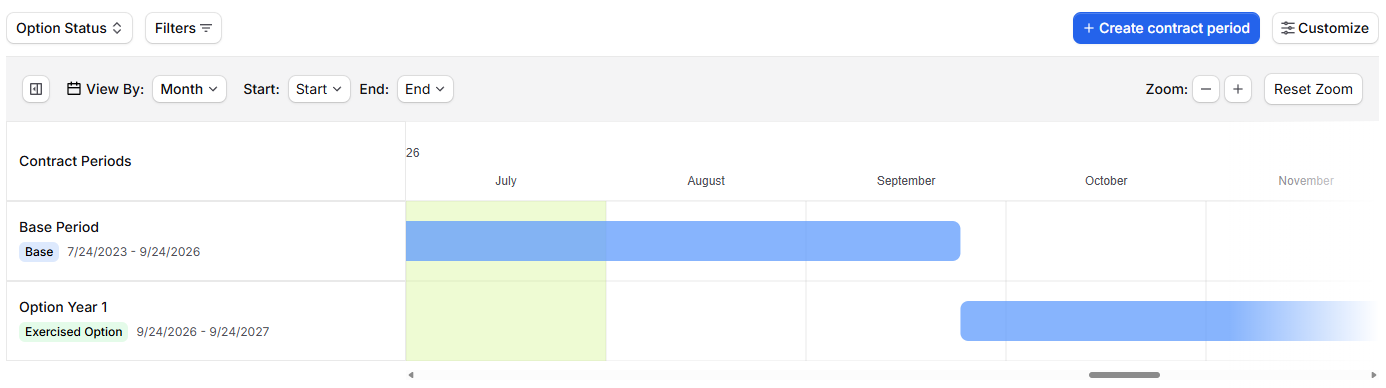
The Contract periods tab includes a Table and a Gantt view. The Gantt view plots each period across its start and end dates and color codes it by option status, giving you a visual picture of the full contract lifecycle. Click any bar to jump to that period.
You can filter by option status or by start and end date range, and sort by order, title, status, or either date. To remove periods, select them in the table and use the bulk delete action. Remaining periods are re-ordered automatically.
Modifications
When a modification changes a period of performance, the modification's Period of Performance card shows the before and after for each affected period, including old and new dates, status changes, and the net change to the schedule. If a date was entered by hand rather than extracted from the modification document, the value is labeled Override with the teammate who entered it and the date they did, and it can be reverted from the editor.
Tip
Unexercised options with an approaching start date are the ones that need a decision. The Gantt view is the fastest way to spot them.
Setting and Managing Award Classifications
When you upload a document into GovDash, you will select its classification as either (U) Unclassified or (CUI) Controlled Unclassified Information. This classification helps your team properly label sensitive data and ensures it is protected on the GovDash platform.
.png)
How Classification Works in GovDash
GovDash uses your document classification to automatically label related information across the platform.
If a document is classified as CUI, GovDash will automatically propagate that classification to items that are derived from that document or created from it. Examples include:
If you upload a CUI focus document to a proposal, the proposal classification will be updated to CUI
If you upload a resume and mark it as CUI, the Key Personnel entity extracted from that resume will also be marked as CUI
This same behavior applies across other connected parts of GovDash as information is extracted and structured from your uploaded files.
.png)
Where You Can Set Classification
Classification is not limited to document uploads. Other areas of GovDash also allow you to set classification, such as when you are creating an opportunity.
GovDash supports classification on the following types of records:
Dash Conversations
Key Personnel
Government officers (rarely used in the UI)
Agencies
Business partners
Capabilities
Forms (such as data calls)
Custom documents
Documents
Awards
Proposals
Opportunities
Updating Classification After Upload
If you need to change a classification after something is already in GovDash, you can update it at any time.
.png)
When you update the classification of a “parent” item (like a document), GovDash will show a popup listing related items that were derived from it. This helps you quickly decide whether you also want to update the classification of those related records.
.png)
Important Note Regarding Classification
Your team is responsible for properly marking your data in GovDash. Correct classification ensures that sensitive information is handled appropriately and that properly labeled, sensitive data is protected on the GovDash platform.
External Contracts
For any contracts that have been uploaded where the Contract Recipient is not your organization, these will reside within External Contracts in the Contract Inventory main page.
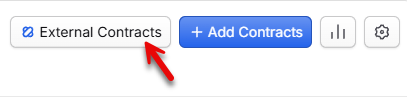
External Contracts are exempt from several flows within GovDash to ensure that your past performance remains the source of truth. External Contracts will not be used for:
Substantiation of claims
Past Performance content (unless you opt external contracts in by toggling Show ineligible contracts)
Discover recommendations
Capability Matrices (unless you opt external contracts in by toggling Show ineligible contracts)
Dash responses/Suggested Answers about your capabilities
External Contracts are meant to be utilized primarily with the Teaming module in order to properly assess their capabilities against the PWS.
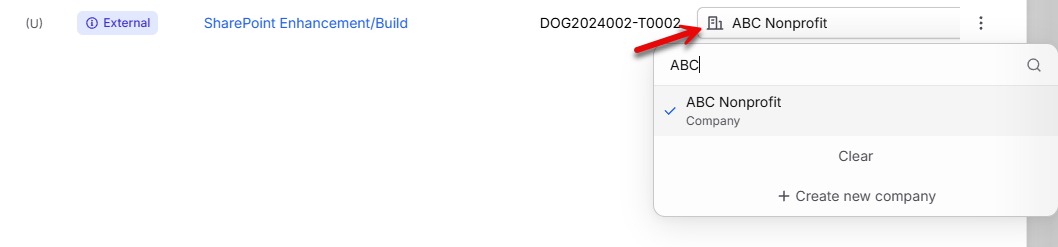
You can adjust which contracts appear as an External Contract by changing the Contract Recipient on an award to a team that is not your own.
Deleting Contracts
Deleting contracts can be done manually or in bulk. Using the Contract Inventory main page, you can select the boxes on the left of your contract titles to select contracts and delete in bulk using the black action bar that appears at the bottom of your screen.
.png)
You may also delete using the Delete Award button within your individual contract views in the top right.
.png)
What happens after I delete my contract?
Deleting your contract from Contracts will only remove its presence within Contracts and will not delete the associated documents from your Data Library. If you’d like to fully remove the contract and the documents, please ensure you’re deleting the contract from Contracts and the documents from the Data Library
Deleting Documents From Contracts
To disconnect documents from a specific contract, within the Documents tab in your contract, click the three-dot action menu on the right and choose Delete Document from the menu.
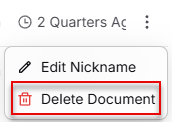
Deleting the document fully removes it from the contract record and from your Data Library, this action is not reversable.
FAQ
What types of documents can enhance my contract record in GovDash?
Enhancing your contract record can be achieved by uploading documents such as resumes, status reports, deliverables, and CPARS.
How can I verify if my main contract documents are uploaded?
You can verify the upload status of your main contract documents by checking the Contract Document and PWS/SOW columns in your contract inventory list.
What happens if I find a suggested document related to my contract?
If you find a suggested document, you can link it to your contract by clicking the Add Document option after verifying its relevance.
Is it possible to upload multiple documents at once to a contract?
Yes, you can upload multiple documents at once by dragging and dropping files or browsing your local computer during the upload process.
Why is it beneficial to keep my contract details updated in GovDash?
Keeping your contract details updated ensures that GovDash can provide accurate content writing and better match opportunities based on your current capabilities.