Overview
The Teaming tab is where you build and manage your team for an opportunity. You add partners, split the work, put NDAs and teaming agreements in place, collect information with data calls and evaluate how well each partner fits. Everything lives on the opportunity, so your whole capture team sees the same picture.
Open the opportunity and select Teaming under OPPORTUNITY in the side panel. Teaming has four tabs: Partners, Agreements, Data Calls and Evaluations.
Click through the interactive walkthrough below. It has a chapter for each tab, or you can follow the steps in this article.
Partners
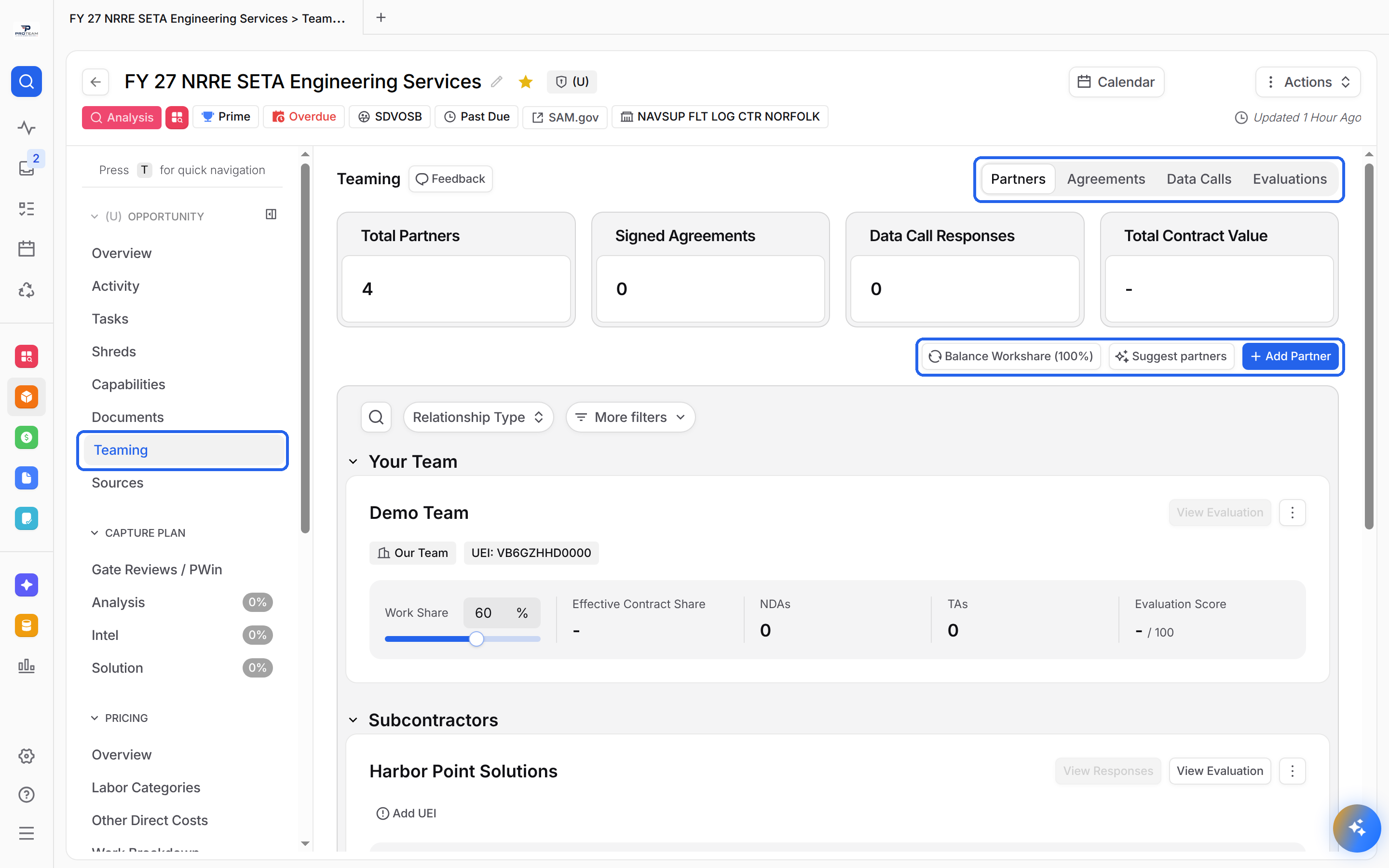
The Partners tab shows everyone on the team. The cards at the top show Total Partners, Signed Agreements, Data Call Responses and Total Contract Value. Total Contract Value comes from the opportunity's value, so it shows a dash until the value is set.
Adding Partners
Select Add Partner.
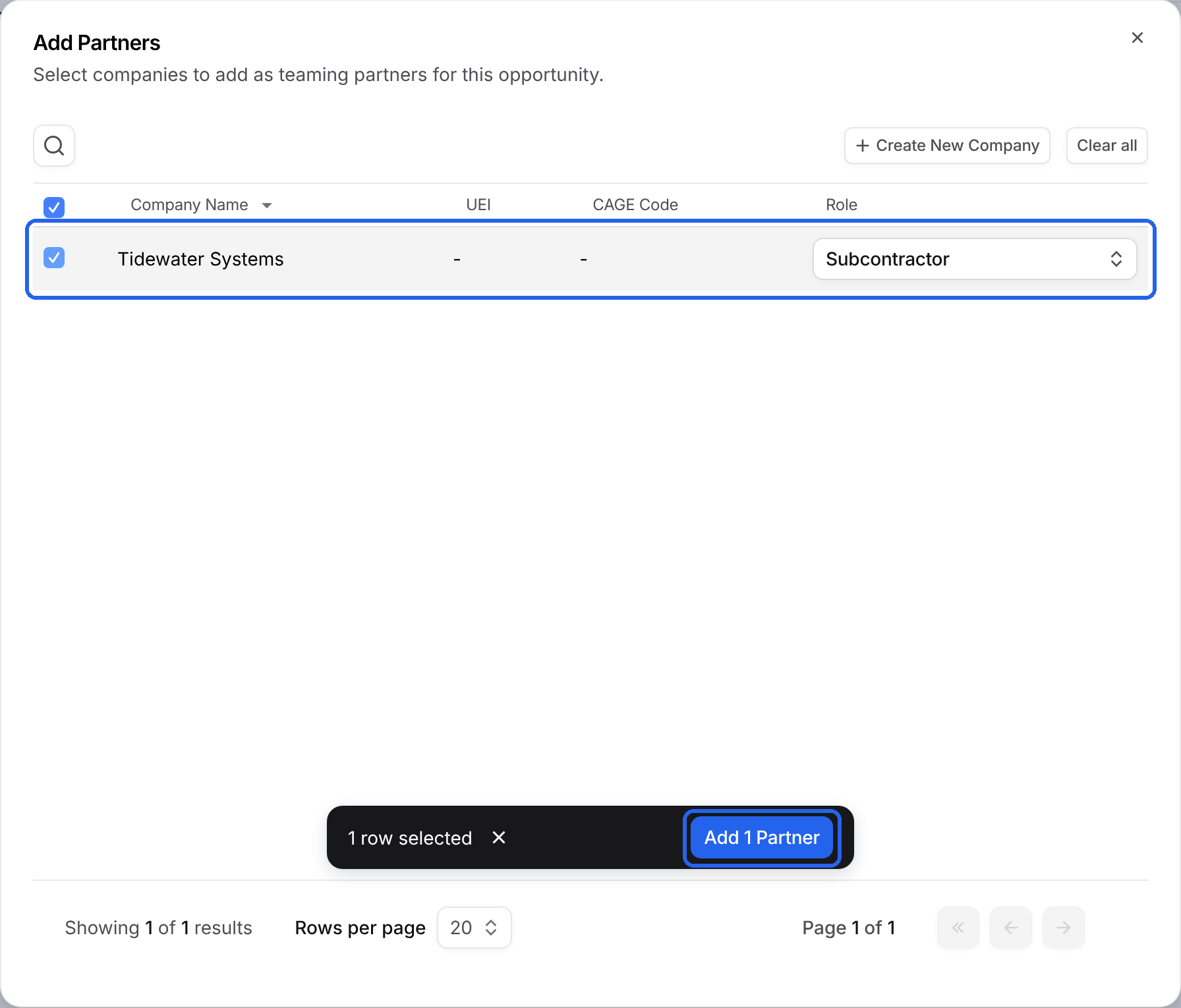
Check each company you want to add. Companies come from your Data Library.
Set each company's Role to Prime or Subcontractor.
Select Add Partner at the bottom of the window.
If a company isn't listed, select Create New Company to add it to your Data Library.
Getting Suggested Partners
Select Suggest partners, then Generate suggestions. Dash reads the opportunity requirements and finds possible partners in your Data Library.
Splitting the Work
Each partner card shows Work Share, Effective Contract Share, NDAs, TAs, Data Call Responses, Past Performance and Evaluation Score. Your own company shows under Your Team, and partners show under their role, like Subcontractors.
Type a percentage or drag the slider in Work Share. The Balance Workshare button shows the running total. If it isn't 100%, select Balance Workshare and pick Equal distribution or Proportional distribution.
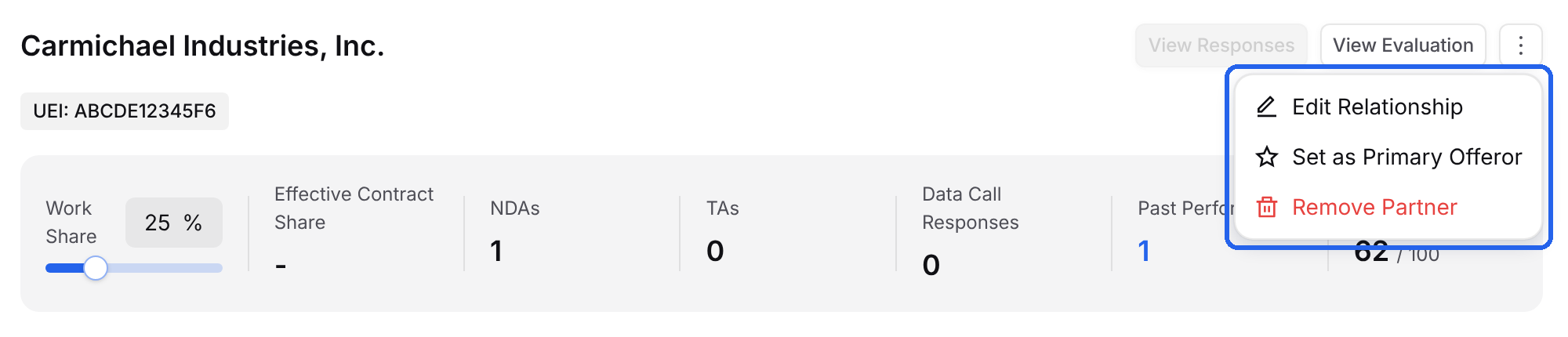
Open the menu on a partner card to Edit Relationship, Set as Primary Offeror or Remove Partner. Use the Relationship Type filter to show only primes or subcontractors.
Agreements
The Agreements tab tracks every NDA and teaming agreement for the opportunity, with counts for Pending, Signed and Expired agreements.
Creating Agreements
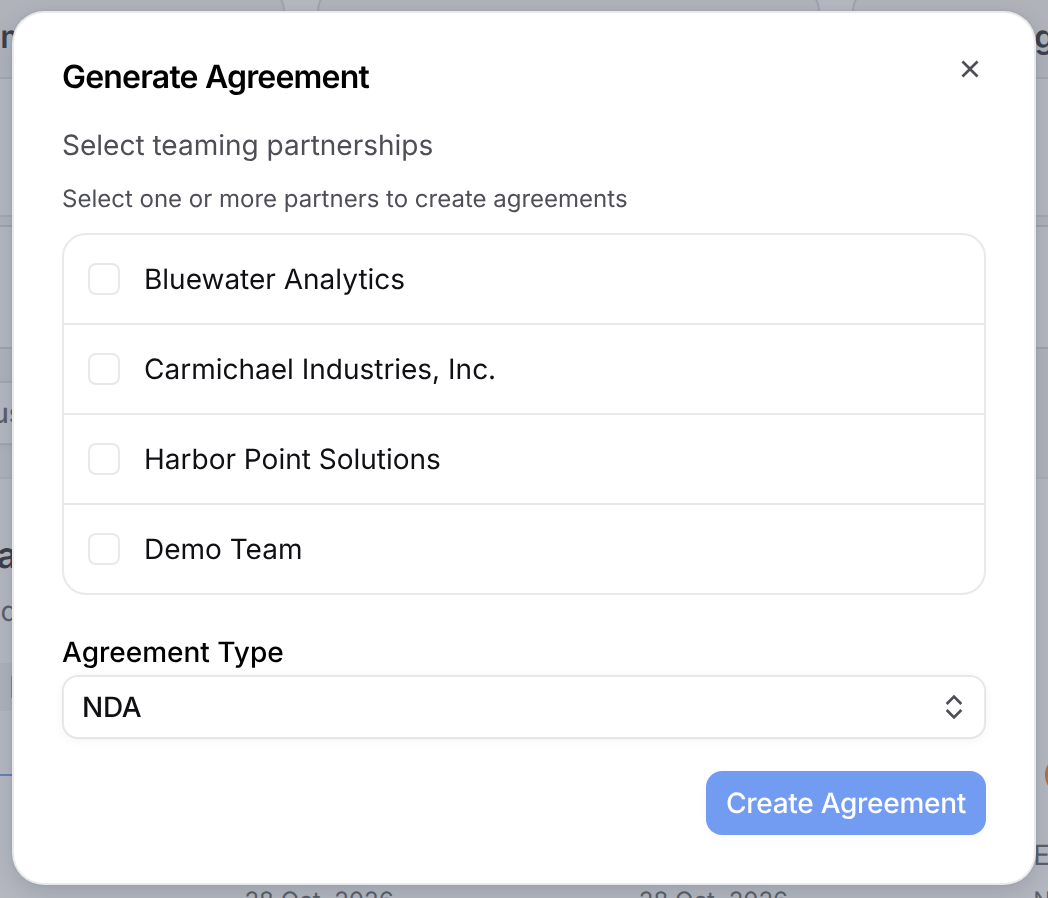
Select New Agreement(s).
Check one or more partners.
Choose an Agreement Type: NDA or Teaming Agreement.
Select Create Agreement. GovDash creates one agreement for each partner you checked.
Tracking Agreements
Each agreement card shows the partner, contact, status and type. The timeline tracks Created, Sent, Signed, Expires and Protection Period End. When your partner uploads a signed copy, select View Response to review it.
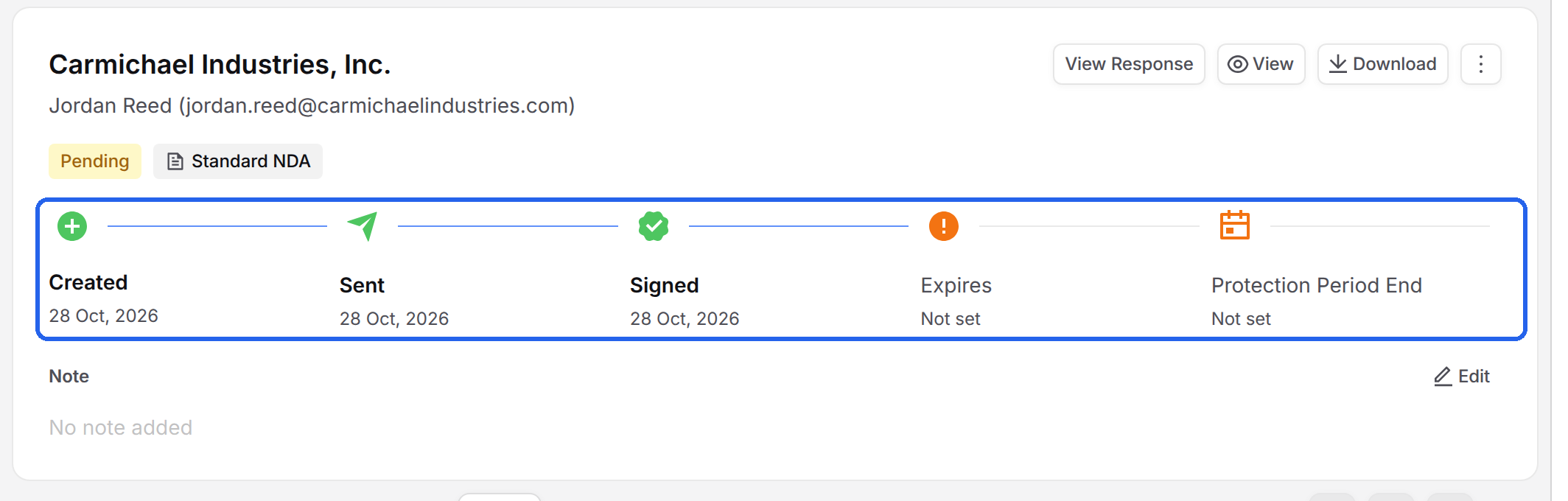
The card menu lets you view details, edit the agreement, view the original or signed copy, or delete it. Options like Send Agreement, Mark as Signed and Approve Response show up when they apply. For agreement templates, sending and approvals, see Agreements.
Video: NDAs and Teaming Agreements
Watch how to create, send and track an NDA or teaming agreement, including what your partner sees.
Data Calls
A data call is a form you send to partners to collect information, like past performance references.
On the Data Calls tab, select Create Data Call.
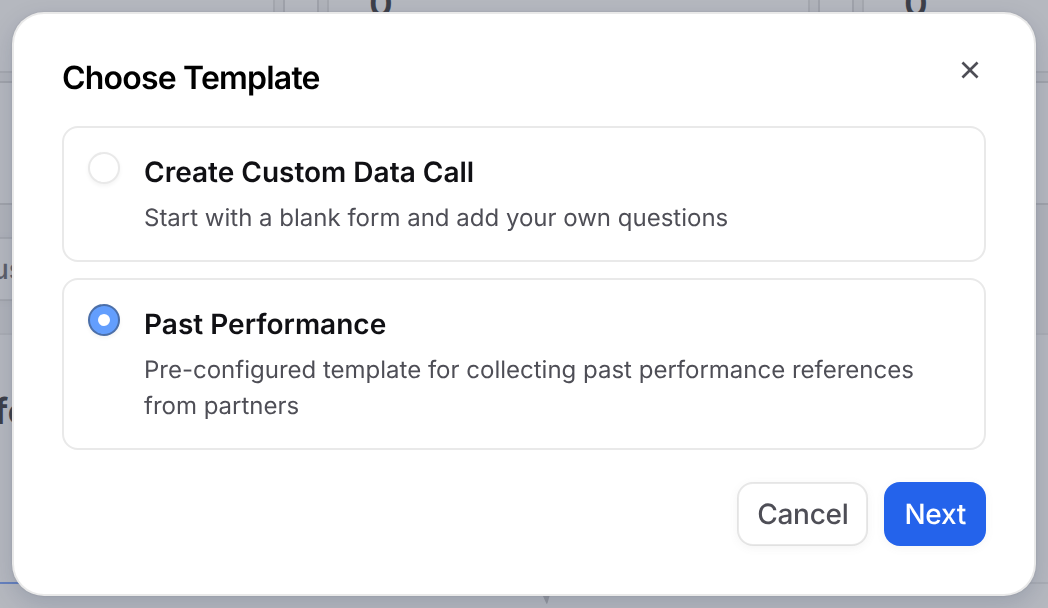
Choose Create Custom Data Call for a blank form, or Past Performance for a ready-made form. Select Next.
Name the data call and select Create.
Building and Sending the Form
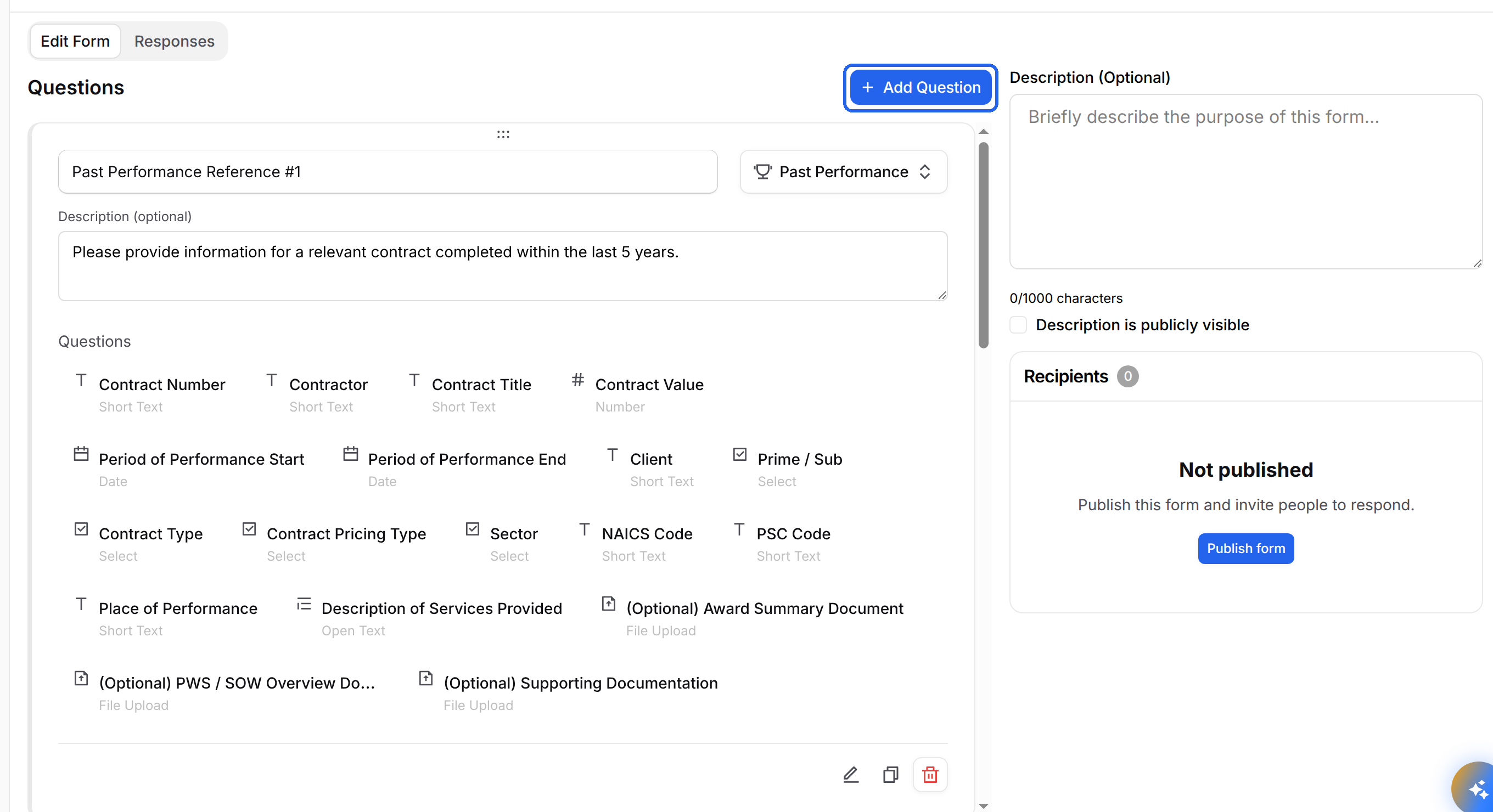
The form opens in the builder. The Past Performance template comes with reference sections that ask for details like contract number, value, period of performance and a description of the work. Select Add Question to add your own questions, and Preview to see what partners see.
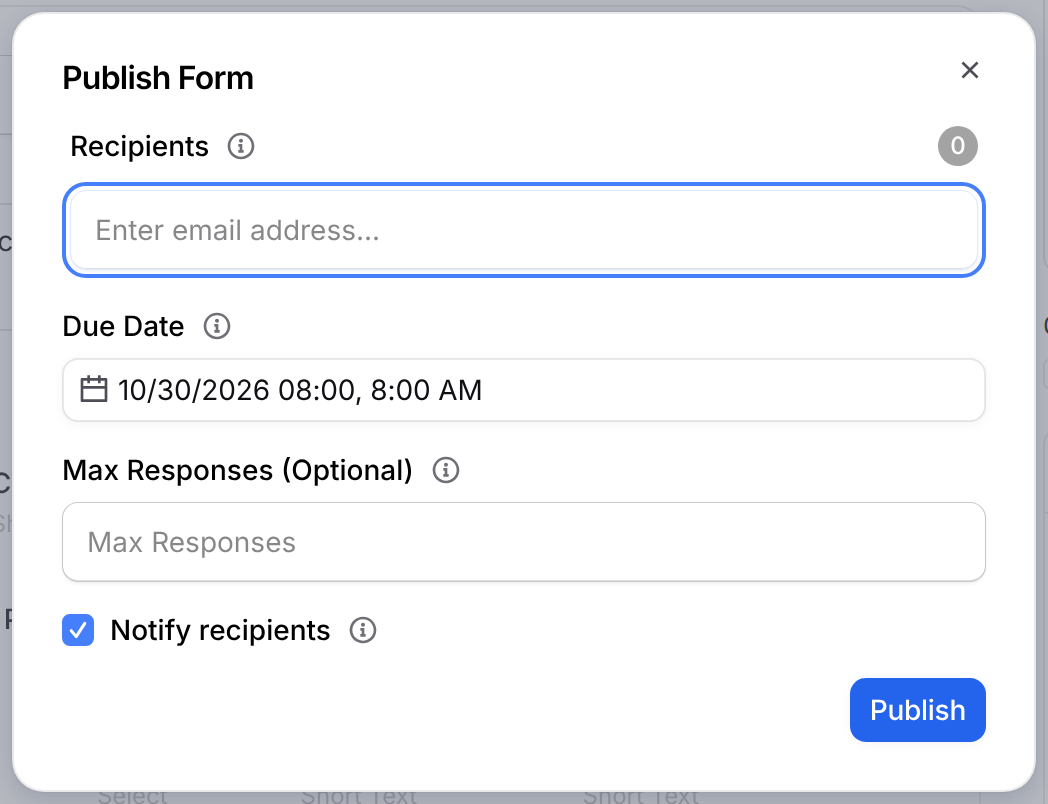
When the form is ready, select Publish. Add recipient emails, set a Due Date, optionally set Max Responses, keep Notify recipients on, then select Publish.
Back on the Data Calls tab, each data call shows its status and its Created, Sent and Due dates. Select View Form to see responses. Response counts also show on each partner card.
Evaluations
The Evaluations tab scores how well each partner fits the opportunity, with totals for Completed and In Progress evaluations and an Average Score.
Auto-Evaluating Partners
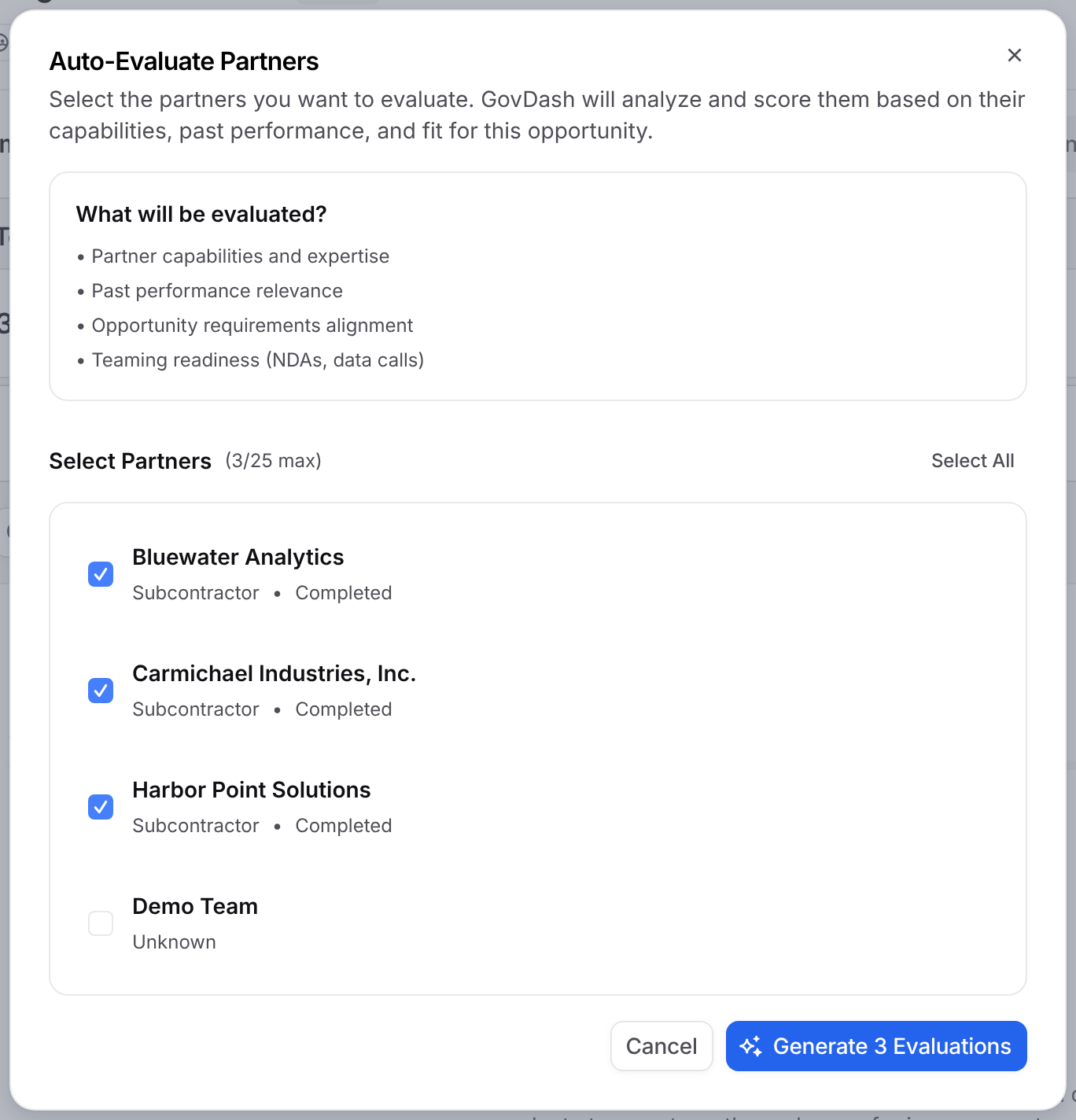
Select Auto-Evaluate.
Check up to 25 partners.
Select Generate Evaluations.
GovDash looks at each partner's capabilities and expertise, past performance, how well they match the opportunity requirements, and teaming readiness, like NDAs and data calls.
Reading an Evaluation
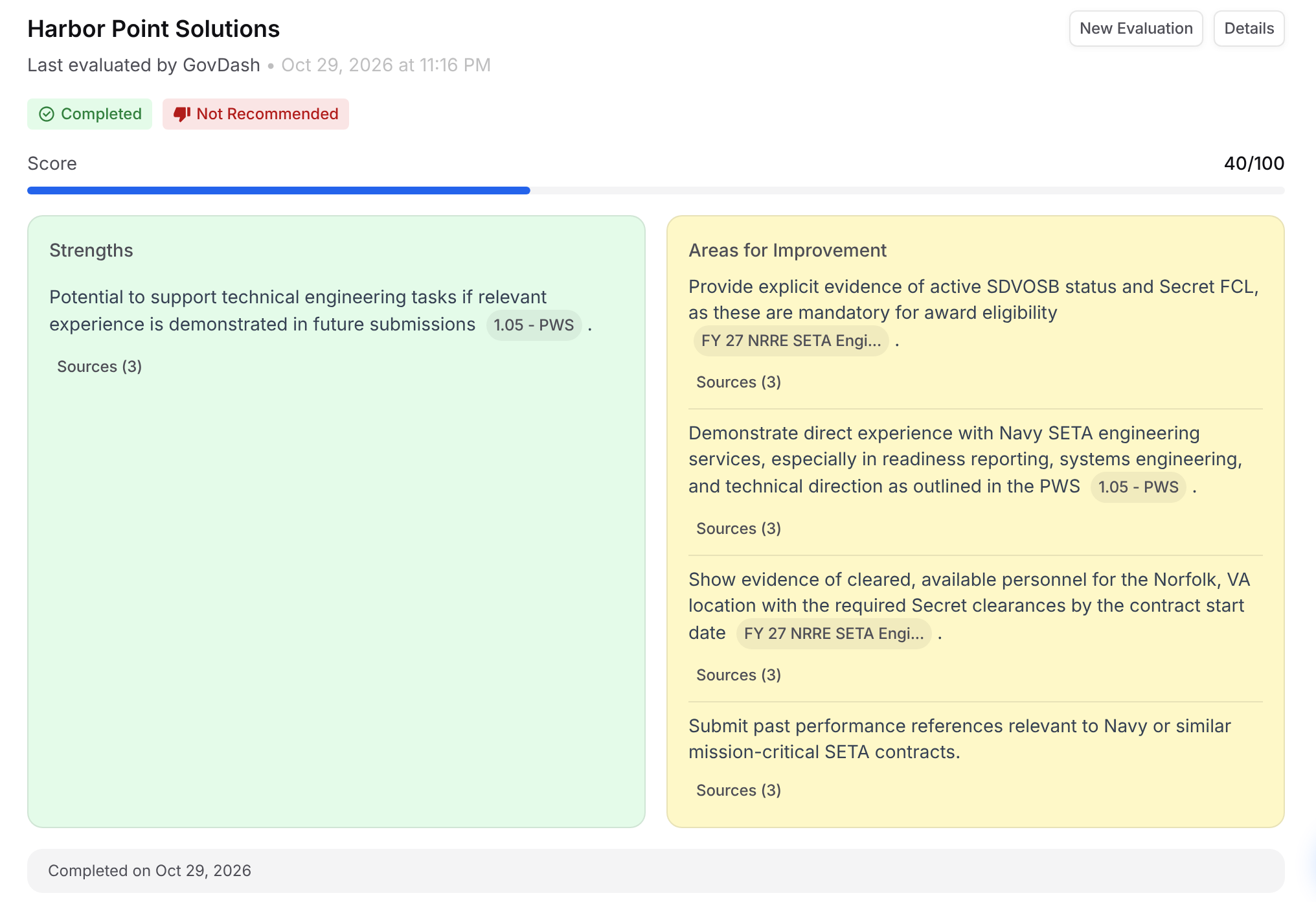
Each evaluation shows a score out of 100, a recommendation, Strengths and Areas for Improvement. Every point links to its sources. Select Details to compare all evaluations for a partner, with the full notes.
Adding Your Own Evaluation
Select New Evaluation to score a partner yourself. Choose the partner, set the Status, Recommendation and Score (0-100), add notes, strengths and areas for improvement, then select Create Evaluation.
Video: Teaming Partner Evaluations
FAQ
Who can open the agreement or data call links I send?
Only the email addresses you send them to. Recipients confirm their email with a one-time code before they can open an agreement.
How many partners can I auto-evaluate at once?
Up to 25. Select Auto-Evaluate and check the partners to assess.
What if my work shares don't add up to 100%?
Select Balance Workshare and choose Equal distribution to split the work evenly, or Proportional distribution to scale the current shares to 100%.
Why can't I generate suggested partners?
Generating suggestions requires permission to edit Capture and view companies. Ask your team admin to update your role.