What are Solicitation Documents
Solicitation documents are documents that are provided by the customer for the opportunity. These include documents like the RFP, PWS/SOW, attachments, amendments, and other forms. GovDash uses these documents to build capability matrices when sourcing task areas, building compliance matrices, developing your outline, and more. Dash utilizes these documents when being asked about the opportunity as well!
Adding Documents
To add documents to your opportunities in your Pipeline, navigate to the Documents tab of an opportunity and select Attach Documents. In the window that opens, drop your files or click Choose files (up to 100 files at a time, 500 MB max), then click Confirm.
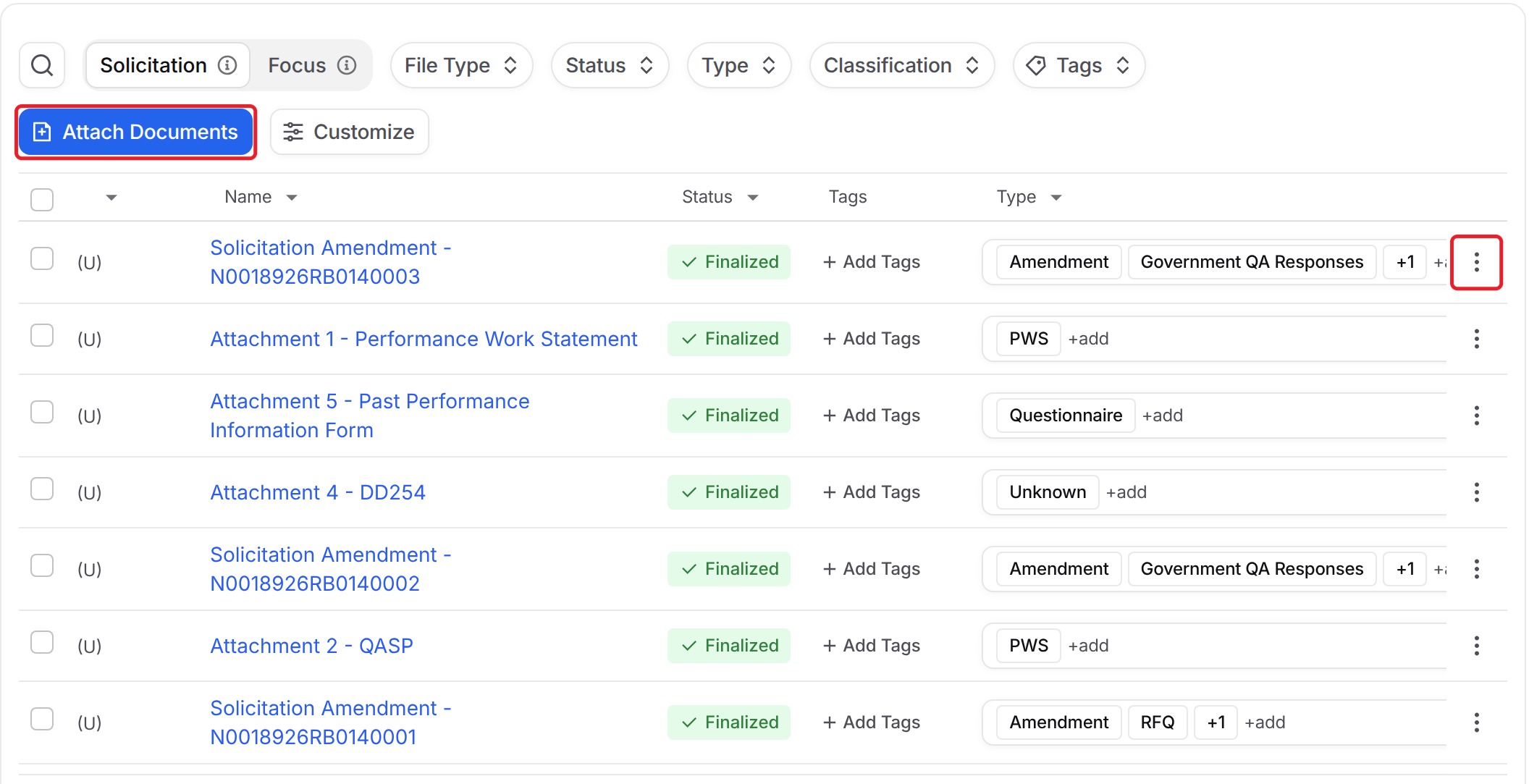
GovDash will then classify your documents (such as RFP documents, PWS/SOW, mods, agreements, etc.) which will dictate how GovDash will use the document. You can assign tags here as well.
New to Tags?
Learn how to create tags from our guide here. We also have an advanced tagging guide here that will explain best practices, provide recommendations, and more.
Deleting Documents
To remove any solicitation package documents, click the three dot menu at the end of the document's row, and click Delete Document.
.png)
Linking SharePoint Folders
Linking a SharePoint folder to your opportunity allows you to monitor new (or removed) documents added to a specific folder to quickly add them to your opportunity’s documents.
To link a SharePoint folder, navigate to your opportunity’s Documents tab, and click Link SharePoint Folder within the SharePoint Folder Sync window. Navigate to the folder you wish to link to your opportunity, and click the Link button to confirm. Your linked folder will display in the SharePoint Folder Sync window.
Adding Documents From Linked Folders
Once your folder is linked, simply click the folder in the list to bring up the documents present within the folder. Here you can choose to upload some or all files within the folder quickly.
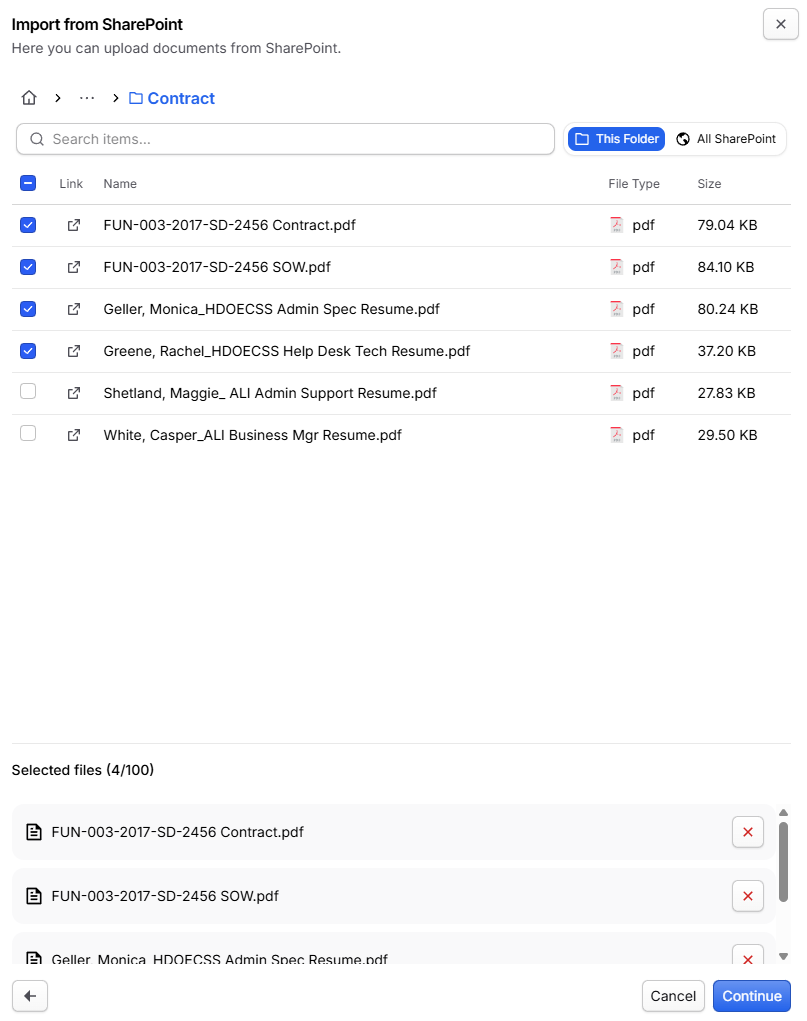
Tracking File Changes
After linking your folder, GovDash will alert you to any changes within the linked folder within SharePoint, whether files are added or removed. You will be notified in-app, as well as a visual notification will show on the Documents tab of the contract.

By clicking the Review button, you can review any new or removed files and quickly add them (or remove old, deleted files) to your opportunity. GovDash will scan for new changes every 5 minutes.
Auto-Syncing New Files
You can enable auto-sync to automatically import Recommended files on synced folders. Recommended files are files that GovDash can make the best use of within your opportunities. Files that are not recommended will need to be manually approved in order to import.
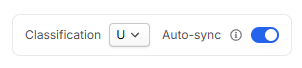
Before setting up auto-sync, you are required to specify what the classification level of every document being added to that SharePoint folder will be. For more granular control of classifications on a document-by-document basis, we do not recommend using auto-sync.
Recommended Document Types
The types of documents that GovDash recommends, and will auto-sync for documents in Capture, are as follows:
Auto-syncing Documents in Capture
RFP
RFI
RFQ
Sources Sought
PWS
SOW
Statement of Objectives
ITO
Questionnaire
TO
Government QA Responses
Wage Determinations
Level of Effort
Shreds
Once your documents are uploaded to an opportunity, you can view full shreds for each document. These shreds provide you with a comprehensive view into solicitation instructions for responses, task area requirements, evaluation criteria, and shall/will/must statements, ensuring your team can save time and quickly identify requirements as part of your go/no-go decision making and overall planning.
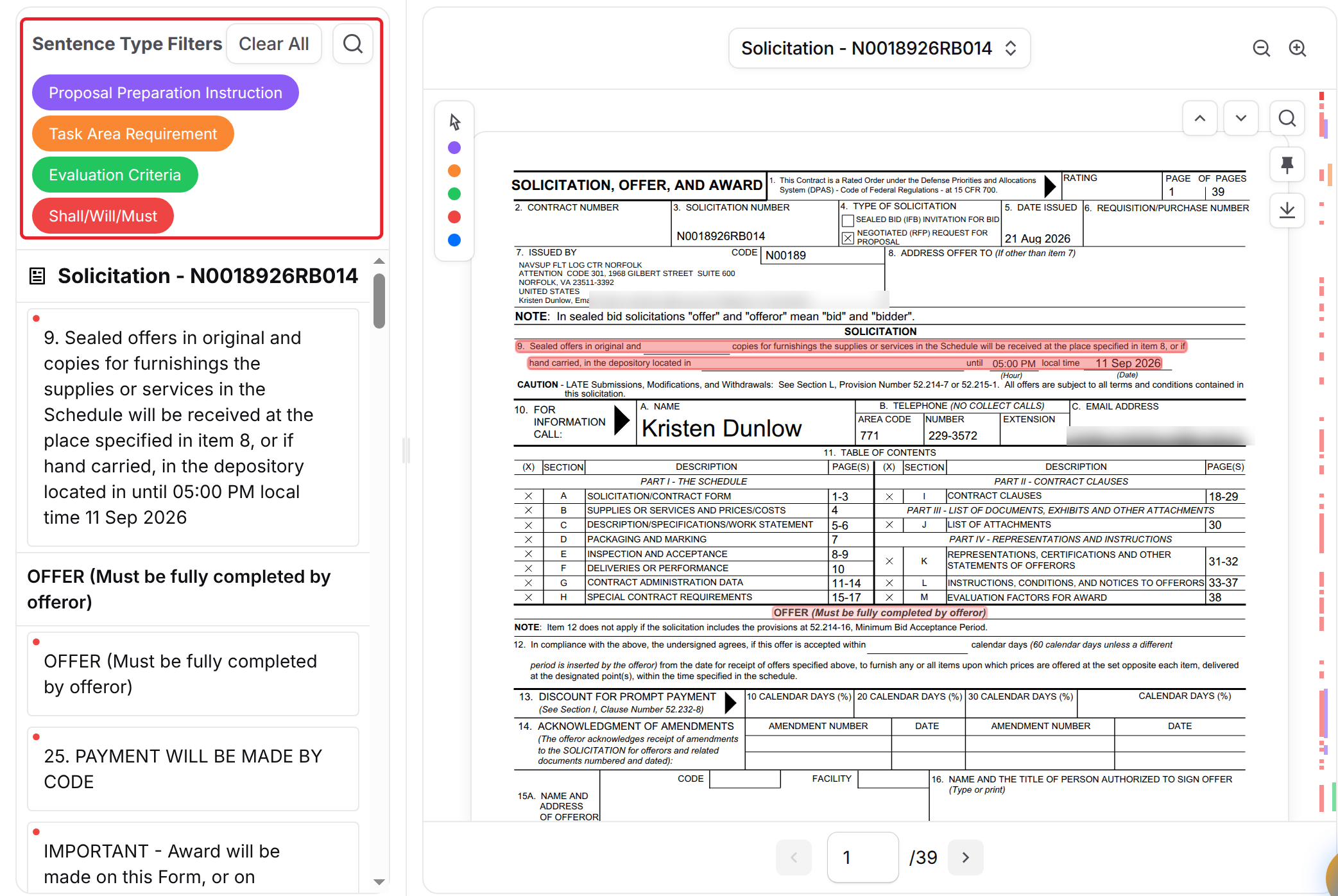
By hovering over one of the extracted excerpts, GovDash will highlight the exact area in the document that it was extracted from complete with color coding to match the classification (such as a task area requirement, as shown above). Use the Sentence Type Filters at the top to highlight only the types you want, and click Clear All to reset them. To switch documents, use the drop down above the document.
FAQ
What types of documents can be added to an opportunity in GovDash?
You can add various types of documents such as RFPs, PWS/SOW, modifications, and agreements to an opportunity in GovDash.
What is the purpose of shreds in GovDash?
Shreds provide a detailed view of solicitation instructions, task area requirements, and evaluation criteria, aiding in decision-making and planning.
Can I delete documents once they are uploaded?
Yes, you can delete uploaded documents by clicking the three dot menu on the document's row and clicking Delete Document.