Overview
As a proposal manager or business development professional, keeping track of all your proposal and contract documents can be a daunting task. With so much to manage, it's easy for files to get lost in the mix. Luckily, file tagging in the GovDash Data Library offers a simple yet powerful way to keep your documents organized, searchable, and easily accessible.
Purpose of Tagging
Tags act like smart labels that help categorize and filter documents in the Data Library. Whether you need to organize capability statements, proposal templates, or resumes, tags make it easy to find what you need in seconds instead of minutes.
A Single Source of Truth: The Data Library keeps everything in one place: key personnel bios, past performance write-ups, compliance certifications, and more.
Faster File Retrieval: Instead of aimlessly searching, just filter by tags and find the exact document you need.
Seamless Team Collaboration: With a structured tagging system, everyone on your team can locate important files quickly, reducing miscommunication and wasted time.
Creating Tags
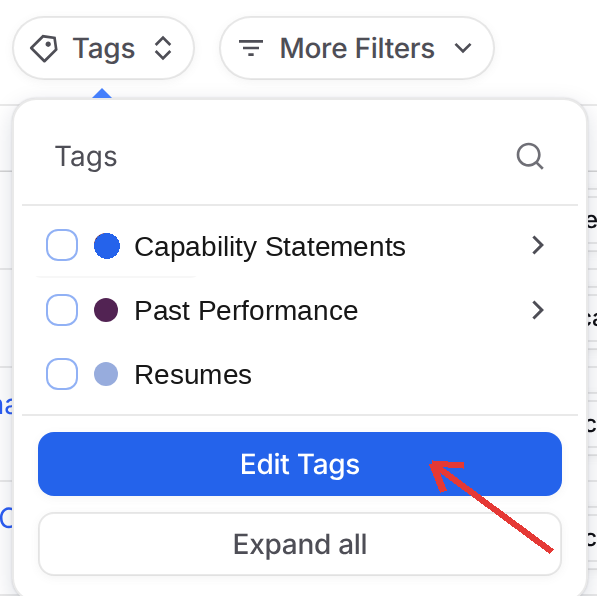
To create tags for your documents, click the Tags drop down on the Documents page of your Data Library, click Edit Tags, and then click Create New Tag.
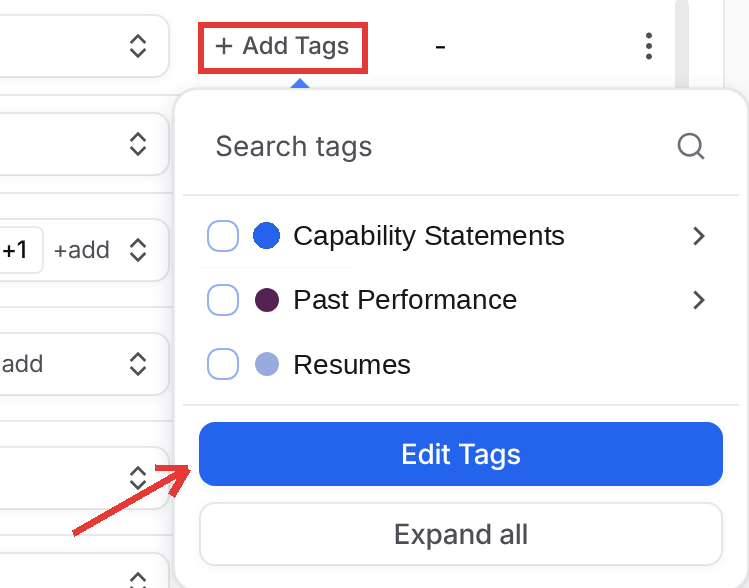
You can also create new tags by clicking + Add Tags in the Tags column of your document list and then clicking Edit Tags.
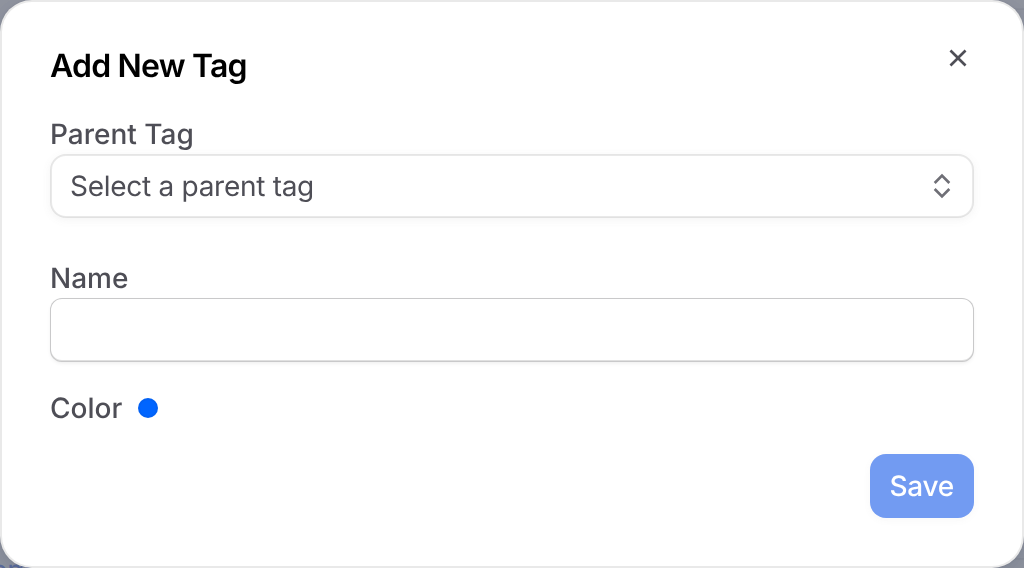
In the Add New Tag window, leave Parent Tag empty to create a top level tag, or pick a parent to create a sub tag under it. Enter a Name, click the Color dot to pick a color, and click Save.
Creating Tags with Dash
You can also ask Dash to create or edit tags for you. Describe the tag you want in the chat box, for example:
"Create a document tag called Past Performance in blue."
"Add a sub-tag named CPARS under the Performance Metrics tag."
"Set up a Contract Type parent tag with Prime Contract, Subcontract, and Task Order as sub-tags."
Dash checks your existing tags first so it does not create duplicates, then creates the tag with the name, color, and parent you asked for. Sub-tags can be nested up to five levels deep, just like tags created from the Edit Tags menu. While it works, Dash shows a Creating document tag step in the chat, followed by Created document tag when it is done.
The new tag is available right away. Open the Tags drop down under the Documents tab and you will see it in your list, ready to assign to documents.
Editing Tags
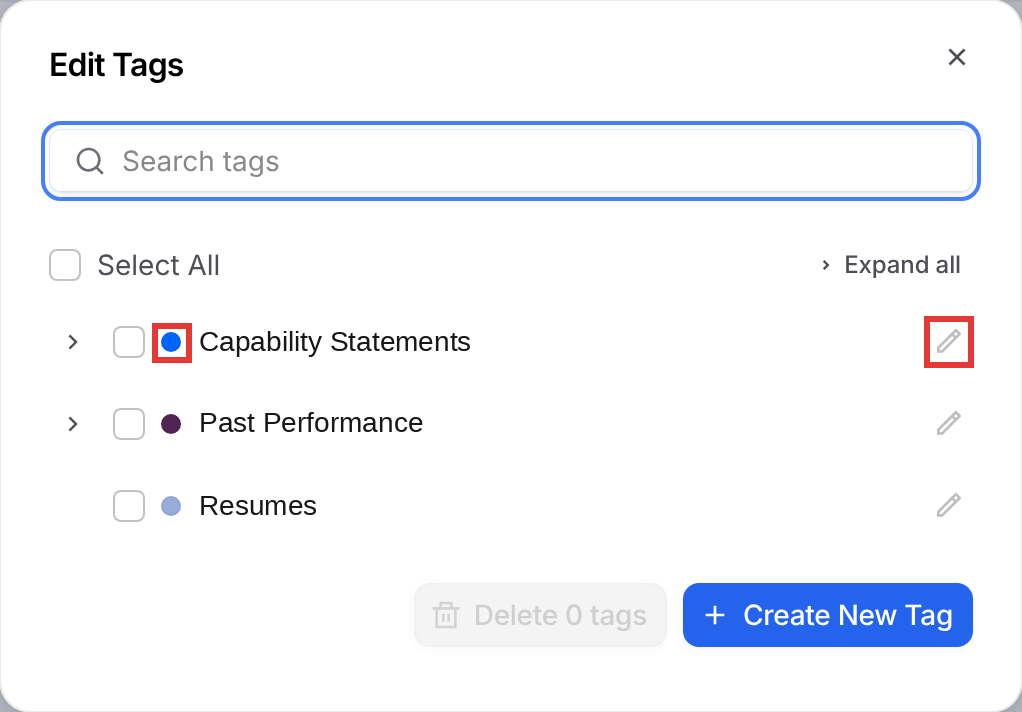
To edit a tag, open Edit Tags. Click the pencil icon next to a tag to rename it, or click its color dot to pick a new color. Use Search tags or Expand all to find sub tags. You can also ask Dash to edit your existing tags.
Deleting Tags
To delete tags, open Edit Tags, select the checkbox next to each tag you want to delete, and click Delete (the button shows how many tags you selected, for example Delete 1 tag). Then confirm. Deleting a tag removes it from all documents, and any sub tags under it are deleted too.
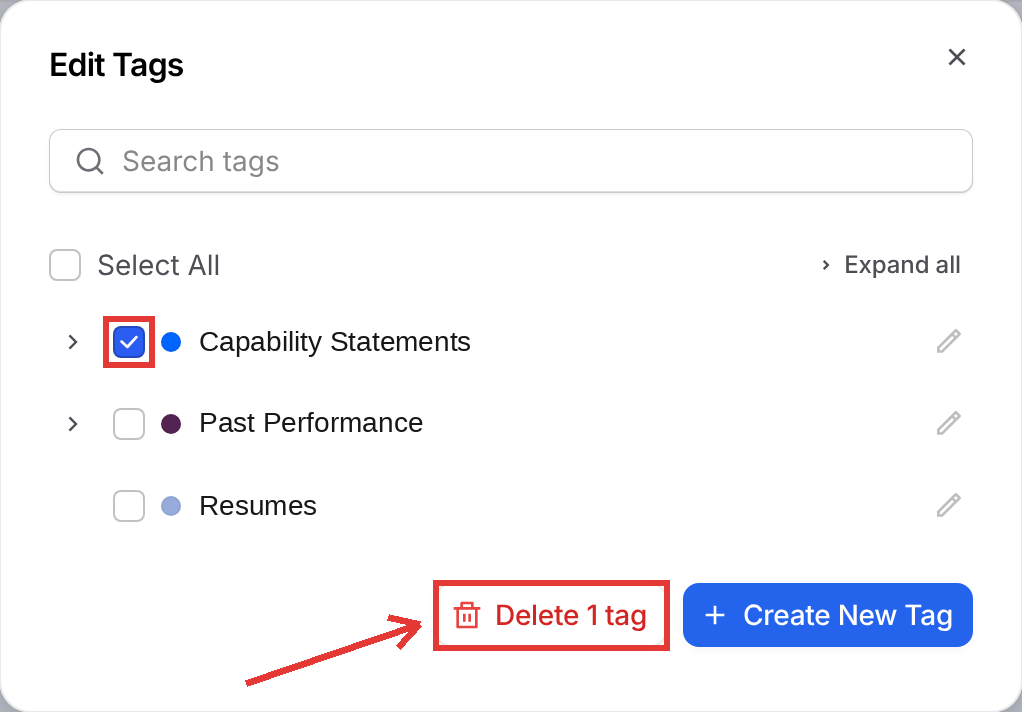
Assigning Tags
To tag one document, click + Add Tags in its Tags column and select the tags you want. To tag several documents at once, select their checkboxes in the document list, click the Add tags icon in the action bar, and choose your tags. The Remove all tags icon next to it removes every tag from the selected documents.
.png)
Tagging Best Practices
To keep things neat and searchable, follow these tips:
Use Consistent Naming Conventions
Define key attributes like service line, document type, or project category.
Standardize capitalization and formatting (e.g., "Cybersecurity" vs. "cyber security").
Leverage Parent-Child Tagging
Think broad parent tags (like “Proposal Documents”).
Use specific sub-tags (such as “Management Approach” or “Quality Assurance Plan”) for better organization.
Keep Tags Descriptive but Concise
Avoid creating duplicate or redundant tags.
Tagging Examples for Your GovDash Data Library
Category | Example Tags |
|---|---|
Capability Statements and Write-Ups on Core Service Offering | Cybersecurity Capability Statement; Cloud Services Capability Statement; Data Analytics Capability Statement; IT Modernization Capability Statement; Program Management Capability Statement |
Marketing Materials | Brochure; One-Pager; Slide Deck; Elevator Pitch; Press Release; White Papers; Newsletters; Social Media Posts about the Company |
Proposal Documents and Boiler Plate Material | Management Approach; Company Overview; Staffing Plan; Past Performance Summary; Security Documentation/Approach; Corporate Commitment Statement; Technical Approach; Quality Assurance Plan; Past Performance Reference; Resumes; Pricing Volume; Executive Summary; Cover Letter; Risk Management Plan; Transition Plan |
Capture Documents | Capture Plan; Customer Intelligence Report; Competitive Analysis; Win Themes Summary; Teaming Strategy Document; Customer Intel; Customer Kudos; SWOT Analysis; Customer Meeting Notes |
Contract Documents | Active Contract; Expired Contract; Subcontractor Agreement; NDA; Teaming Agreement; Task Order; Modification; Deliverable; Contract Closeout Report; Award Fee Documentation |
Company Certifications | Company Awards |
Reporting & Analytics | Win/Loss Analysis Report; Proposal Status Report; Capture Metrics Report; Contract Performance Report; Financial Dashboard; Resource Utilization Report |
Training & Reference Materials | User Guide; Quick Start Guide; Feature Overview; FAQ; Troubleshooting Guide; Video Tutorial Transcript; API Documentation; Integration Guide; Standard Operation Procedures; Best Practices Guide |
Tagging Hierarchy Examples for Your Contract Documents
Contracts (Parent)
Period of Performance (PoP)
Place of Performance
Obligated Amount
Total Value to Date
CLINS
Contract Type
Prime Contract
Subcontract
IDIQ
BPA
Task Order
Delivery Order
Contract Status
Active
Expired
Pending Award
Closed Out
Terminated
Contract Value
<$1M
$1M to $5M
$5M to $10M
$10M+
Performance Work Statement (PWS) (Parent)
Statement of Work (SOW) (Parent)
Rough Order of Magnitude (Parent)
Status Report (Parent)
Deliverables (Parent)
CDRL
GFE List
Performance Metrics (Parent)
CPARS
Milestones
KPI Dashboard
EVM Report
Subcontractor Report
Schedule Variance
Past Performance Writeup
NAICS Code (Parent)
541512
541611
541330
518210
(Add others as needed)
With GovDash’s flexible tagging system, you take control of your document organization. Spend less time searching and more time winning contracts.
FAQ
How can I create tags for my documents?
Click the Tags drop down on the Documents page, click Edit Tags, and then click Create New Tag.
Can I create sub-tags under parent tags?
Yes. Pick a tag in the Parent Tag drop down when you create a new tag. Sub tags can be nested up to five levels deep.
How do I edit existing tags?
Open Edit Tags, then click the pencil icon next to a tag to rename it or click its color dot to change the color.
Can Dash edit my tags for me?
Yes. Ask Dash in the chat box to rename or recolor a tag, for example "Change the color of the CPARS tag to green." Dash changes only the name or color you ask for, and documents keep the tag. To edit tags with Dash, your role needs the Edit Document Tags permission.
Is it possible to delete tags?
Yes. In Edit Tags, select the checkbox next to each tag you want to remove, click Delete, and confirm. The tag is removed from all documents.
How can I assign tags to documents?
Click + Add Tags in a document's Tags column, or select several documents and click the Add tags icon in the action bar.