Overview
Contract serves as a single source of truth that informs all aspects of content generation and pipeline management. GovDash analyzes contract documents to create a detailed past performance record, automatically connecting new documents to existing records as they are uploaded. This comprehensive record goes beyond the PWS, including status reports, deliverables, resumes, CPARS, metrics, and more, ensuring that all relevant information is seamlessly integrated and accessible.
Ensure You Have...
For each contract within GovDash, it's best to have a combination of the following documents uploaded to each contract record if you have them available. Required documents are in bold:
Main contract document
Performance Work Statement/Statement of Work
Award Specific Past Performance Write-ups
Status Reports
Contract Modifications
Deliverables
CPARS
The more information that GovDash has about your contract and the work you performed, the better we'll be able to write to those capabilities in your future proposals, and the better we can match opportunities to your team based on your past performance!
Important: Contract Requirements
Your contracts within GovDash must at least contain the main contract document and PWS/SOW in order to use it as past performance, as without these documents, we cannot create compliant past performance narratives.
Uploading Your Contracts
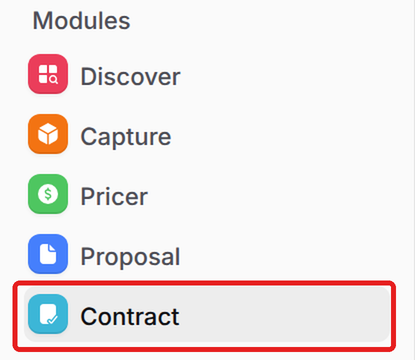
To start uploading your contracts and past performances to GovDash, click Contract under Modules in the left navigation menu.
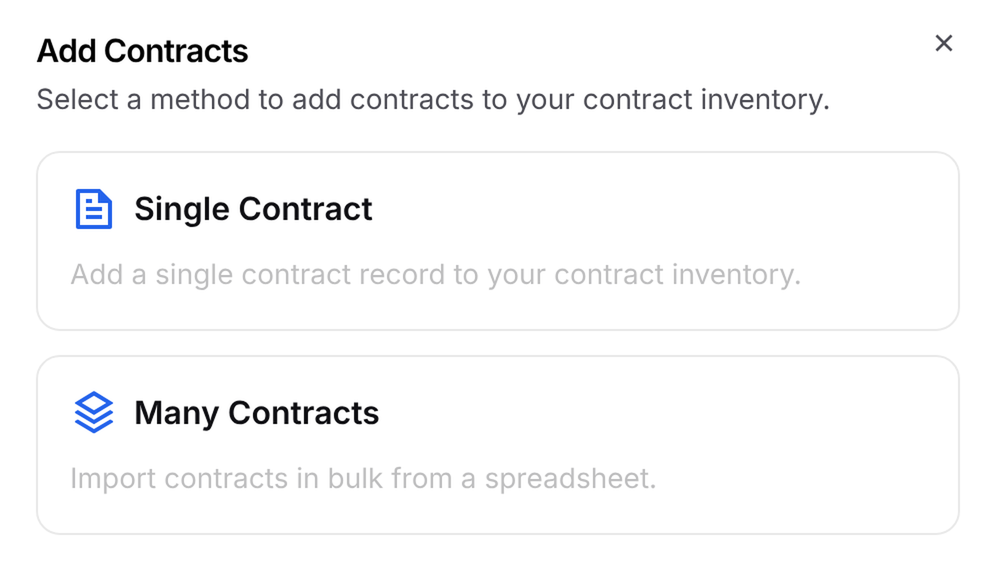
Once inside, click Add Contracts in the top right corner, then choose Single Contract or Many Contracts.
Single Contract
To upload a single contract, choose Single Contract in the Add Contracts window.
Automatic Extraction (Recommended)
To have GovDash automatically extract your contract details from your contract documents when creating your contract:
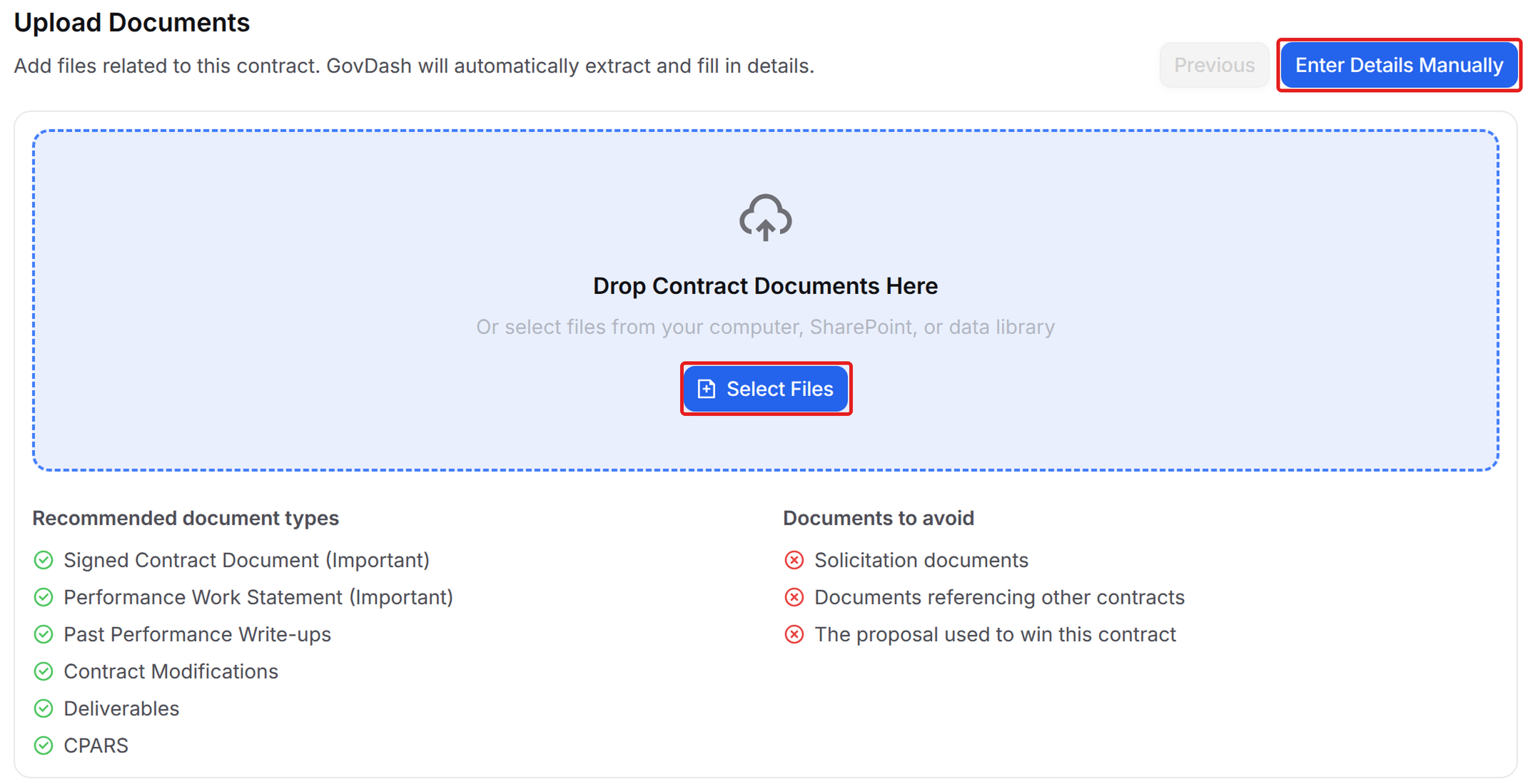
Drag your contract documents into the box, or click Select Files and choose files from Upload (your computer), Data Library, SharePoint or Google Drive. Use the Recommended document types list on the page as a guide, and avoid uploading solicitation documents, documents that reference other contracts, or the proposal you used to win the contract.
(Optional) Click Edit Details Manually if you’d like to enter or change the contract details yourself instead of relying on automatic extraction.
Click Create Contract, and GovDash will process your contract documents and fill in contract-related details automatically.
Manual Creation
To create a contract without uploading documents:
Select Enter Details Manually in the top right of the page.
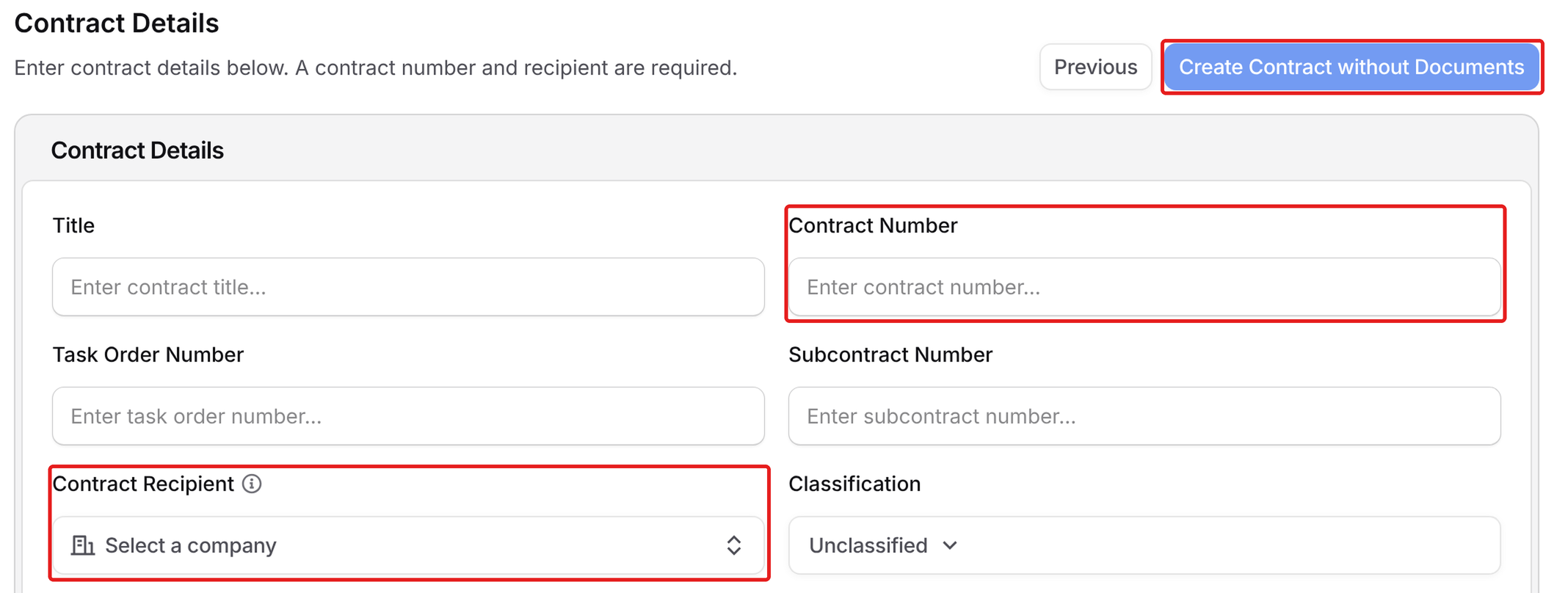
(Required) Enter a Contract Number, and select a Contract Recipient for the award.
(Optional) Enter any additional details you want to include for creating the record.
Click Create Contract without Documents to create the contract. This will leave the contract in an Unprocessed state, which makes it ineligible to use in GovDash until documents are uploaded.
Important: Contract Requirements
Uploading the main contract and PWS/SOW for each contract in your inventory will give you the best results in GovDash when it comes to our ability to write accurate and thorough past performance narratives in your proposals.
These documents are required in order to select the contract as past performance within proposals, as without them, we cannot create compliant past performance narratives.
Bulk Import
To bulk import contracts, choose Many Contracts in the Add Contracts window. Then choose how you want to get started: Import from Spreadsheet, Import from USASpending or Start from Scratch.
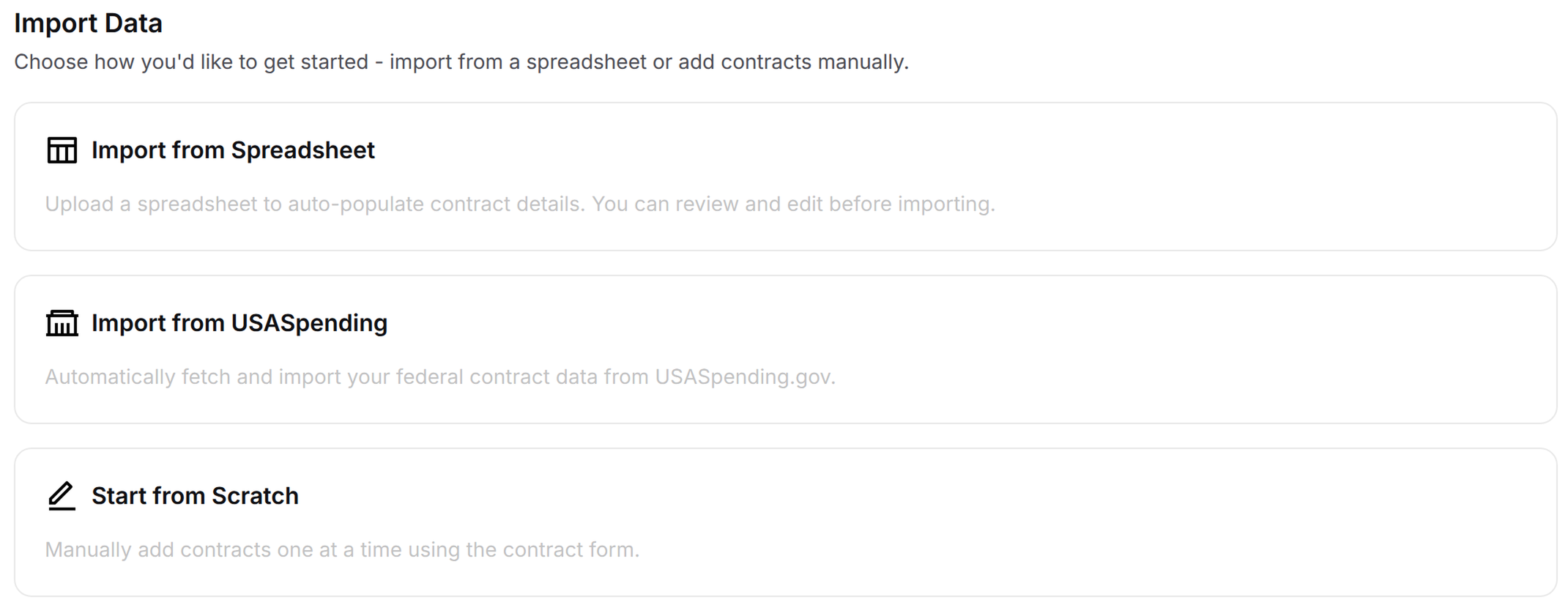
Spreadsheet Import
To import your contracts from a spreadsheet:
Select the Import from Spreadsheet option.
Upload your contract spreadsheet from your local device.
You may optionally click Download Template to get an Excel template with all the fields your team uses (including custom fields). Simply fill in your contracts using the columns in the template.
Next, map your spreadsheet columns to the fields present in GovDash using the Match Columns section. If a field hasn’t been mapped, you can optionally create a custom field at this step to map the spreadsheet column to GovDash.
Click Continue in the top right when you’ve finished mapping your columns.
Next, add your documents using the Add Documents button next to each contract. This menu will also let you manually edit any details of the contract before it’s created. Each contract needs either an uploaded document or a contract number and recipient before you can import.
(Optional) You may add additional contracts to your import using the Add Contract button at any time.
When finished, click Import All Contracts to begin processing your contracts for import. Your contracts will appear in your main Contract Inventory screen (or External Contracts if the selected Contract Recipient is not your team) after they’ve been processed.
Importing From USASpending
Using the Import from USASpending option, you can automatically import your contracts utilizing your UEI, which will pull your federal contract data from USASpending.gov. GovDash will provide you with a list of your contracts to import, which will allow you to select some (or all) to import.
After selecting from the list of contracts to import, GovDash will walk you through uploading your contract related documents before creating the contracts in your inventory. Although this step is optional, you must upload at least the PWS/SOW and main contract award document before being able to utilize the contract throughout GovDash for workflows like capability matrices and past performance in proposal responses.
Manual Bulk Creation
To manually import multiple contracts at once:
Select the Start from Scratch option.
Click Add Contract to start adding your contracts.
Select your contract documents to upload from your computer, the Data Library, SharePoint or Google Drive.
(Optional) You may enter details under Contract Details to override GovDash extracting details from your uploaded contract documents.
When finished, click Import All Contracts. Just like a spreadsheet import, your contracts appear in your Contract Inventory (or External Contracts if the Contract Recipient is not your team) once they’ve been processed.
Review Status
Using the Status column, you may optionally mark your contracts as Reviewed by clicking on the status indicator. This is not required to import your contracts.
SharePoint File Search 
When bulk importing your contracts via either method, using the SharePoint File Search options will allow GovDash to search for your SharePoint for documents that are relevant to the contracts within your import list.
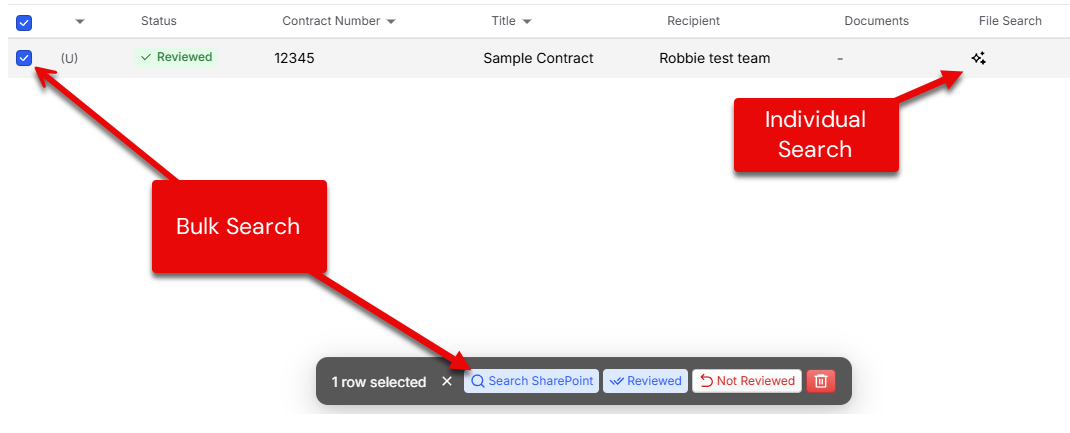
After selecting your tenant and Microsoft account using the SharePoint integration, provide GovDash with instructions on your SharePoint folder structure and it will begin searching for documents related to your uploaded contracts.
Once the search has concluded, the File Search icon will change color to green, and if any documents have been identified, they will display in the Documents column.

If your search did not pull any documents, you can restart the search through the bulk search, or by clicking the three-dot menu and selecting Search SharePoint.
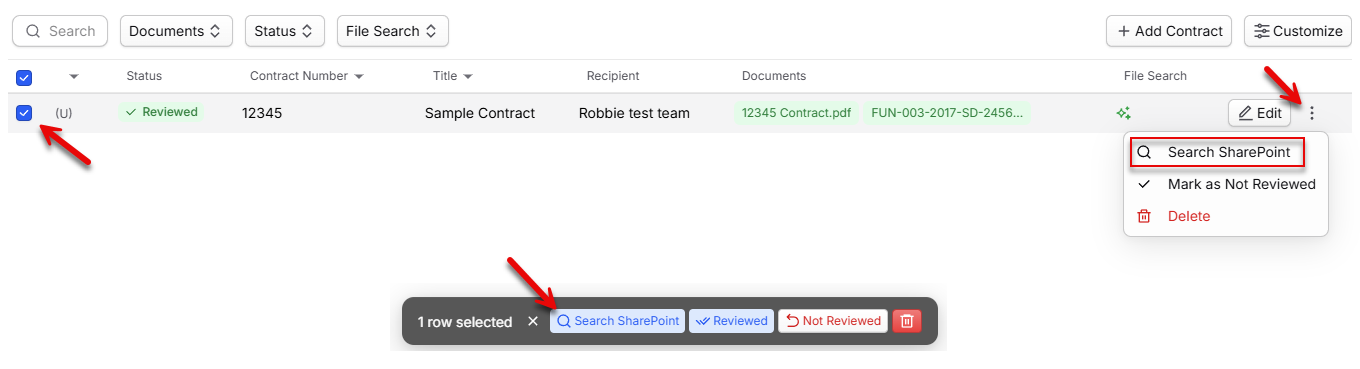
Clicking the File Search icon  after the search has concluded will show the search activity and final results.
Exiting and Resuming Bulk Imports
You can pause and resume the bulk import process as needed. When you exit the bulk import process, you can resume your import by clicking Resume Import from the main Contract Inventory page.
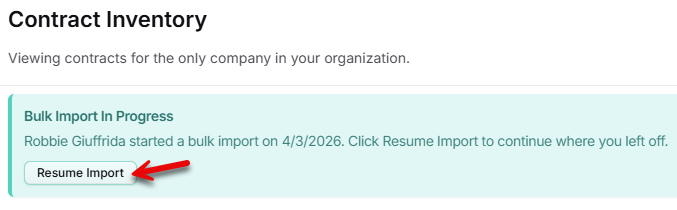
Only one bulk import process can be active at one time. To delete an import you no longer need, click Cancel Import on the Add Documents step.
File Formats
GovDash supports a wide range of file formats for uploading your data and documents. You can confidently upload common file types such as PDF (.pdf), Word documents (.doc, .docx), Excel spreadsheets (.xls, .xlsx), CSV files (.csv), and more.
Whether your file is a PDF or a Word document, GovDash treats both formats equivalently for document handling and processing. There’s no need to convert between file types, simply upload what you have, and we’ll take care of the rest.
For PowerPoint (.ppt, .pptx) file formats, we will extract text from slides, but will not process images.
For image file formats (.png, .jpeg, .tif, etc.) we are able to extract clear text, but not utilize any of the actual image.
If you have questions about a specific file format or run into issues uploading, please contact our support team.
FAQ
What types of documents can enhance my contract records in GovDash?
In addition to the main contract document and PWS/SOW, you can upload status reports, contract modifications, deliverables, CPARS, and award-specific past performance write-ups to enhance your contract records.
How does GovDash connect new documents to existing records?
GovDash automatically connects new documents to existing records as they are uploaded, creating a comprehensive past performance record.
What happens if I don't upload the required documents for a contract?
Without the main contract document and PWS/SOW, you cannot create compliant past performance narratives, making the contract ineligible for use in proposals.
Can I manually enter contract details instead of uploading documents?
Yes, you can manually enter contract details by selecting Enter Details Manually, but the contract will remain in an unprocessed state until documents are uploaded.
Is it possible to import multiple contracts at once?
Yes, you can bulk import contracts using the Many Contracts option, either through a spreadsheet, by importing from USASpending, or by manually adding them.