Overview
GovDash keeps every contract modification linked to the contract, making sure operations, finance, and compliance are all working from the same, current version of reality. Each modification is broken out with full details on what has changed, along with a document preview with the highlighted changes.
How GovDash Processes Modifications
GovDash will automatically scan documents attached to a contract award for modification details. We use the following rules to determine if a document contains modification details:
The assigned document type is Modification
The document contains a Modification Number
These are both requirements for GovDash to create a contract modification automatically from an uploaded document.
Supported Fields for Modification Updates
GovDash can extract and suggest updates for these fields from a modification:
Period of Performance start and end dates
Place of Performance
Obligated Amount
Line items (CLINs and SLINs)
Contract periods
Reviewing Suggested Contract Updates
After GovDash processes a modification, it compares the modification with your current contract record. When it finds changes, a Suggested contract updates are ready to review banner appears at the top of the Modifications tab. Nothing on the contract changes until you accept it.
Review contract values: Opens Review Contract Values, which lists each changed field with its Current Value and Latest Mod Value. Click Accept on each change you want to apply.
Review periods & line items: Opens Review Periods & Line Items, which lists changes to line items and contract periods. Click Accept on a single change, or Accept All Available to apply them all at once. Changes marked Unmatched couldn't be matched to an existing line item or period, so review them before accepting.
Accepted changes update the contract's Overview, Line Items, and Contract Periods tabs. You need permission to edit sensitive details in Contracts to accept changes.
Seeing an Upgrade Modifications banner?
Some contracts have modifications that were processed in an older format. These contracts show an Upgrade Modifications banner instead. Click Reprocess Award to upgrade them to the current format. Reprocessing overwrites any existing modification details, including changes you made by hand.
Viewing a Modification
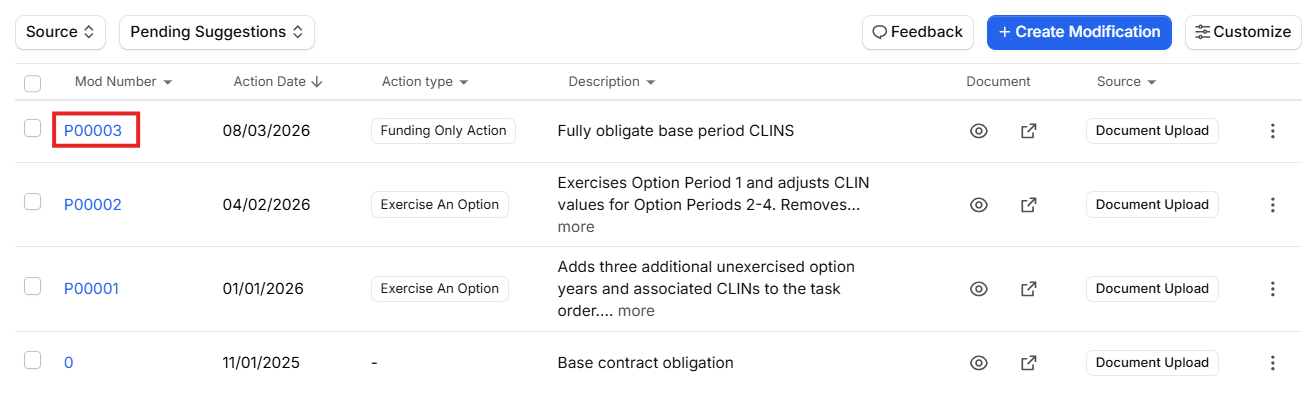
The Modifications tab lists every modification on the contract with its Mod Number, effective date, action type, description, funding change, and document. Use the Action Type filter to narrow the list. Click a Mod Number to open the modification. If a modification doesn't have a mod number, the link reads Untitled modification.
Checking Where a Value Came From
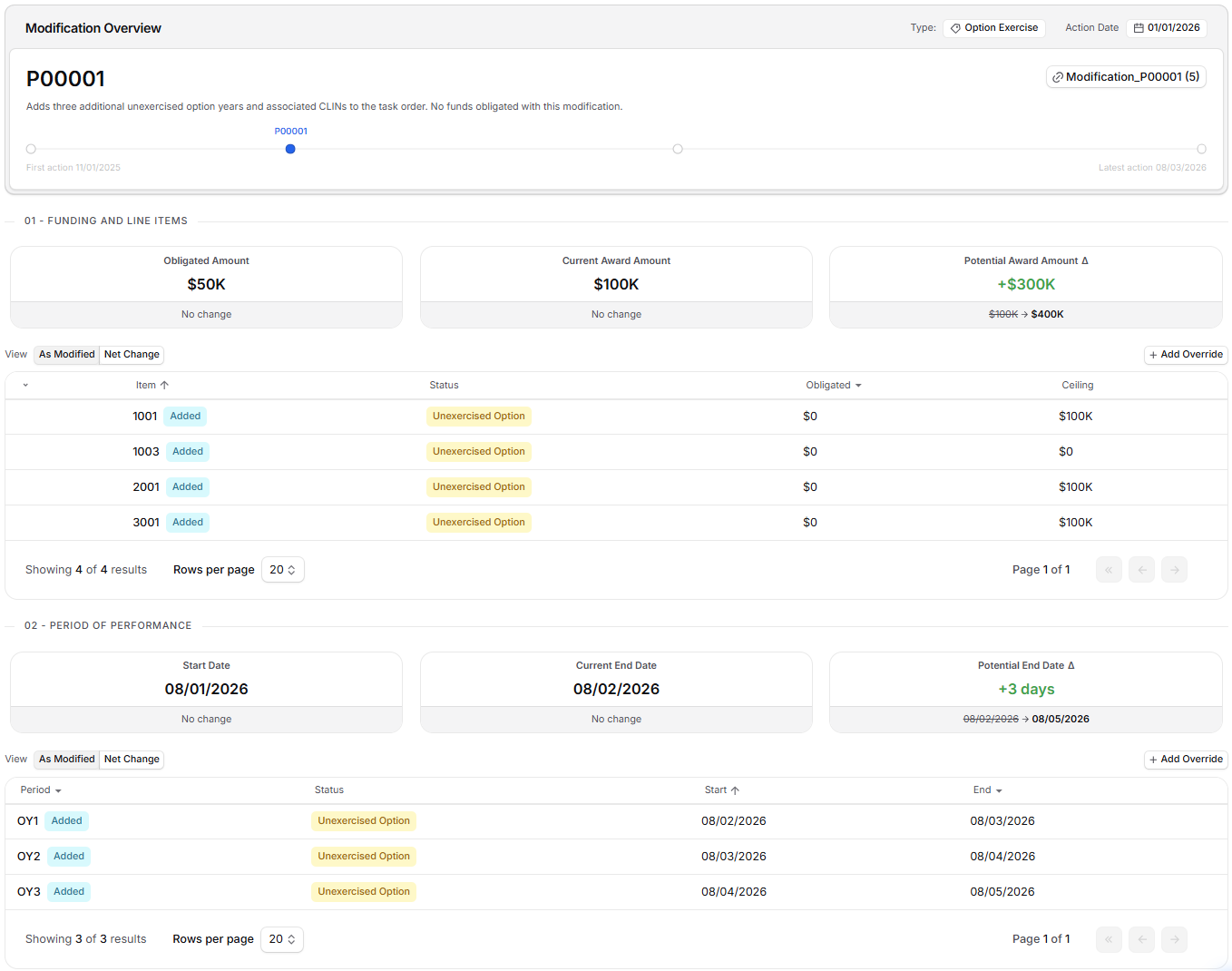
A modification's page shows the Modification Overview card (effective date, action type, description, and attached document) and the Funding and Line Items and Period of Performance sections. Every value GovDash records keeps a link back to where it came from.
In the Modification Overview card, click the attached document name to open the modification document in the document viewer.
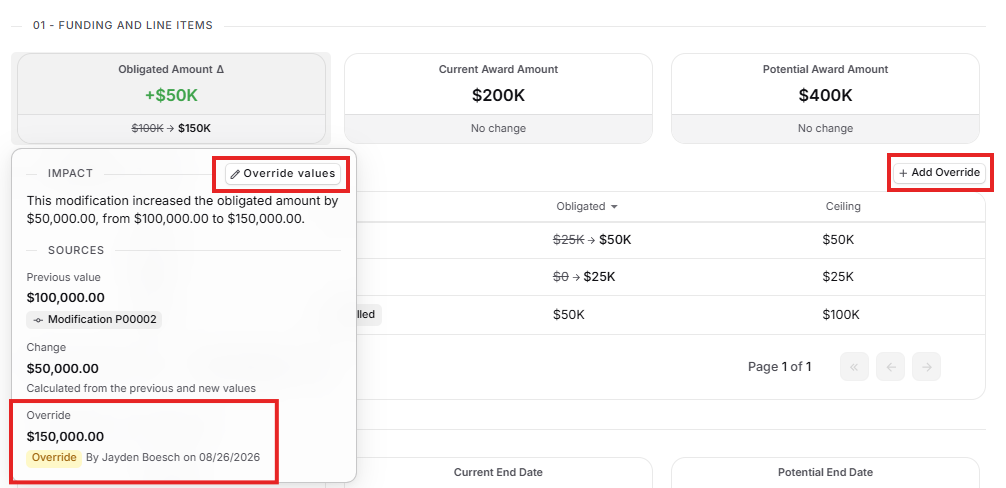
In the Funding and Line Items or Period of Performance tables, click any value to open its source details. You'll see an Impact summary of what the modification did to that value, and a Sources list broken out by Previous value, Change, and New value.
For any source that came from a document, click the document name. The document opens in the viewer, scrolled to the first cited sentence, with every sentence behind that value highlighted.
Editing Modifications
Editing Modification Details
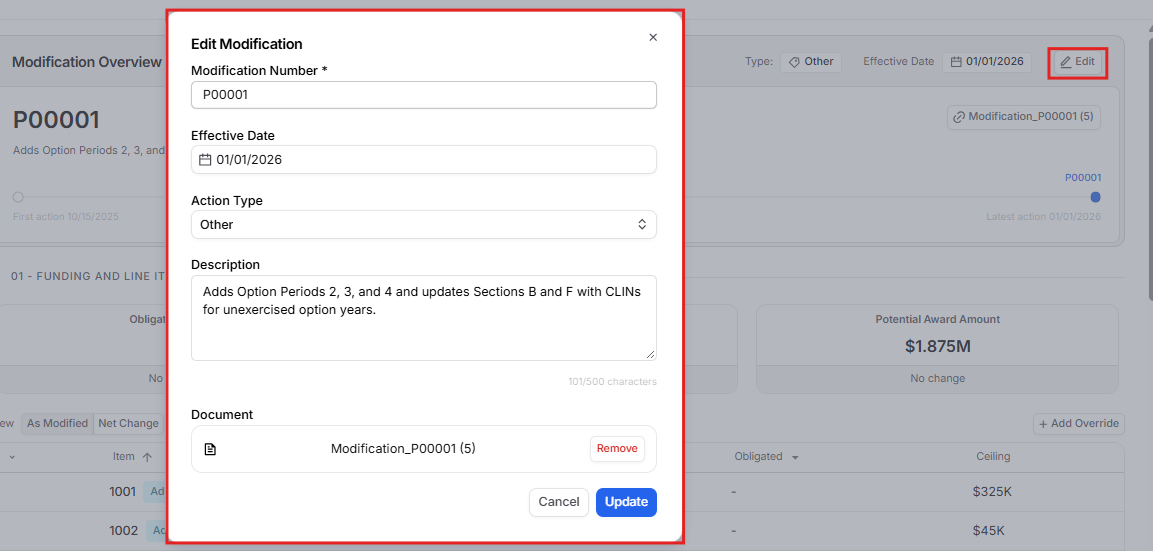
In the top-right corner of the Modification Overview card, click Edit to open the Edit Modification dialog. You can change the Modification Number, Effective Date, Action Type, Description, and attached Document. Click Update to save your changes.
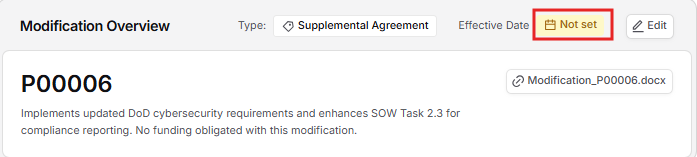
Missing an effective date? A modification isn't included in your contract's running totals until it has an effective date. When the date is missing, the Effective Date field on the Modification Overview card shows a yellow Not set badge and a warning banner appears above the modification details. Click the Not set badge or the Set Effective Date button in the banner, pick the date, and click Update. The badge and banner disappear and the modification is included in your totals.
Overriding Modification Values
GovDash extracts modification values straight from your modification documents, but sometimes you know better than the paperwork. Any value you enter by hand is recorded as an override, clearly labeled with who set it and when, and it can always be rolled back to the value GovDash extracted.
To add an override, click Add Override in the Funding and Line Items or Period of Performance section and enter the values from the modification. Use As Modified and Net Change above each table to switch between each value after the modification and the amount the modification changed it.
Creating and Deleting Modifications
To add a modification by hand, click Create Modification on the Modifications tab. Enter the Modification Number and Effective Date, choose an Action Type, add a Description, and attach the Document, then click Create.
To delete a modification, open the menu at the end of its row and select Delete Modification. To delete several at once, select their checkboxes, click the red trash icon, and confirm.
Uploading Modification Documents
To have GovDash process a modification for you, attach the modification document to the contract from the contract's Documents tab, the same way you add any supporting document. See Uploading Supporting Documents. Make sure its document type is Modification so GovDash recognizes it.
FAQ
Does GovDash change my contract values automatically when I add a modification?
No. GovDash suggests updates and shows a Suggested contract updates are ready to review banner. Click Review contract values or Review periods & line items, then click Accept on each change or Accept All Available. Nothing on the contract changes until you accept it.
Why can't I accept suggested contract updates?
Accepting changes requires permission to edit the contract and to edit sensitive details in Contracts. If Accept is disabled, ask your team admin to update your role.
What's the difference between As Modified and Net Change?
As Modified shows each value after the modification is applied. Net Change shows only how much each value changed with this modification.
GovDash extracted a wrong value from my modification. How do I fix it?
Open the modification and click Add Override in the Funding and Line Items or Period of Performance section to enter the correct value.
What does Reprocess Award do on an older contract?
Contracts processed with an older format show a banner with Reprocess Award. Reprocessing upgrades the modifications to the current format and overwrites any existing modification details.