Line Items
Line items and CLINs are extracted from your primary contract documents (contract award summary and PWS/SOW document types) and displayed within the Line Items tab. GovDash looks for the contract's schedule of supplies or services and prices, such as Section B of a federal contract, and similar pricing tables in subcontracts and state and local contracts.
.png)
Primary Contract Documents
Viewing line items
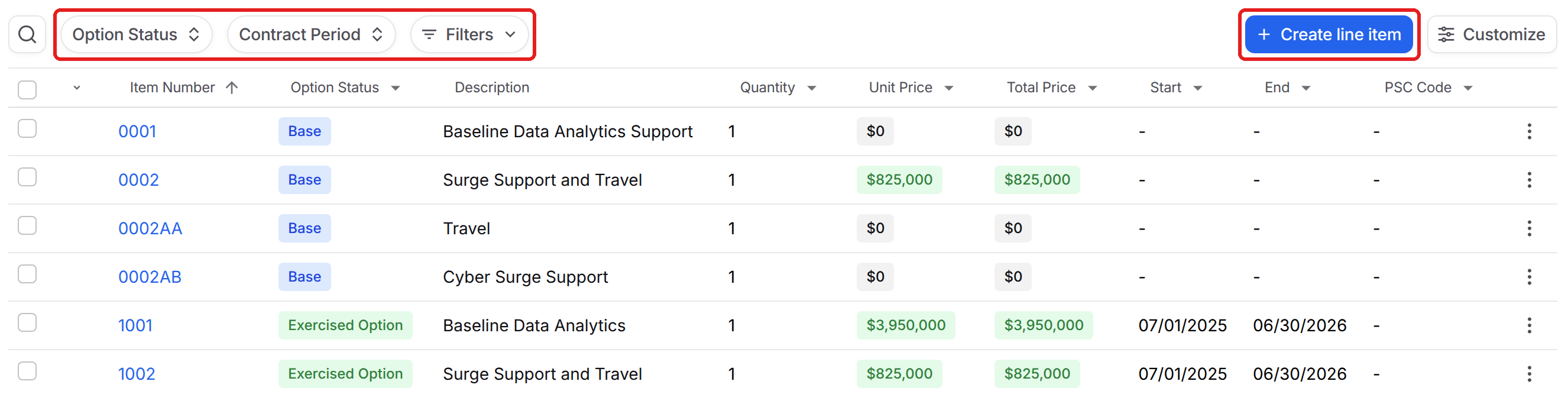
Each row in the Line Items tab shows a line item's Item Number, Option Status, Description, Quantity, Unit Price, Total Price, Start and End dates, and PSC Code, sorted by item number. Option Status is Base, Exercised Option, Unexercised Option, or Cancelled.
Use Option Status and Contract Period to narrow the list, or click Filters to filter by other fields, such as Pricing Type, Category, or Obligated Amount. Click Customize to change which columns appear. Line items marked Not Separately Priced show an NSP badge in that column.
Adding and editing line items
If a line item is missing or you want to track one yourself, click Create line item, fill in at least Item Number and Description, and click Create line item. To change a line item, click its item number to open its page. Changes save as soon as you make them. If Create line item is grayed out, hover over it to see why.
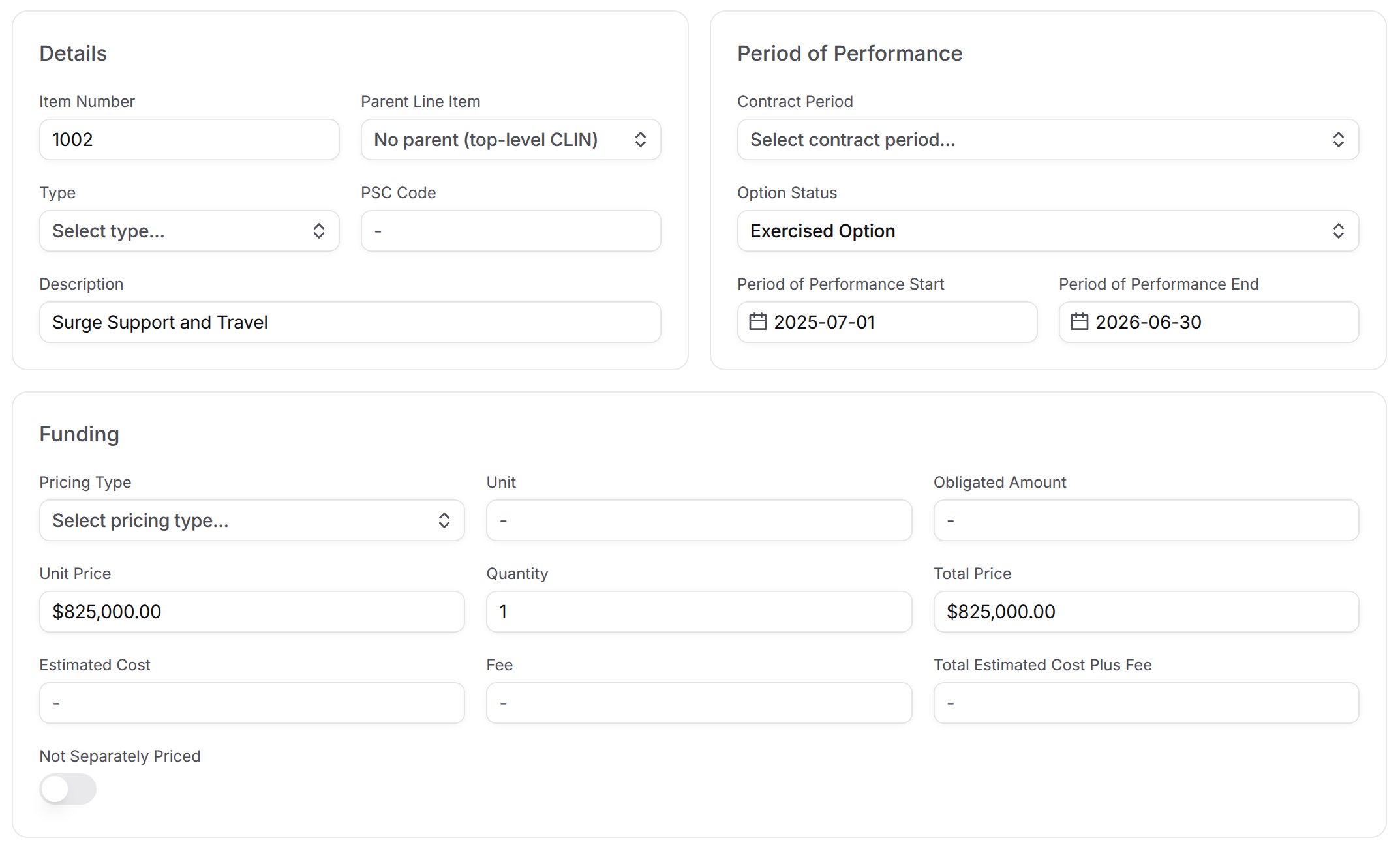
Each line item has three groups of fields:
Group | Fields |
|---|---|
Details | Item Number, Parent Line Item (for sub-line items, such as 0002AA under 0002), Type, PSC Code, and Description |
Period of Performance | Contract Period, Option Status, Period of Performance Start, and Period of Performance End |
Funding | Pricing Type, Unit, Obligated Amount, Unit Price, Quantity, Total Price, Estimated Cost, Fee, Total Estimated Cost Plus Fee, and Not Separately Priced |
To delete a line item, click the ⋮ menu on its row and select Delete line item. To delete several at once, select their checkboxes, click the red trash icon, and confirm.
Assigning line items to contract periods
Use the Contract Period field on a line item to attach it to a period, such as Option Year 1. You can then filter the table by Contract Period, and each period's page lists its line items. To set up periods, see Contract Periods below.
Line items and modifications
When a modification adds, changes, or removes line items or funding, GovDash shows those changes in the modification's Funding and Line Items section. See Contract Modifications.
Using Dash
You can also ask Dash to look up, add, update, or delete line items on a contract.
Contract Periods
Contract periods let you break a contract into its performance segments, such as Base Period, Option Year 1, and Option Year 2, and track the period of performance and option status of each one. Line items are assigned to periods, so you can see which CLINs belong to which year of the contract.
Creating a contract period
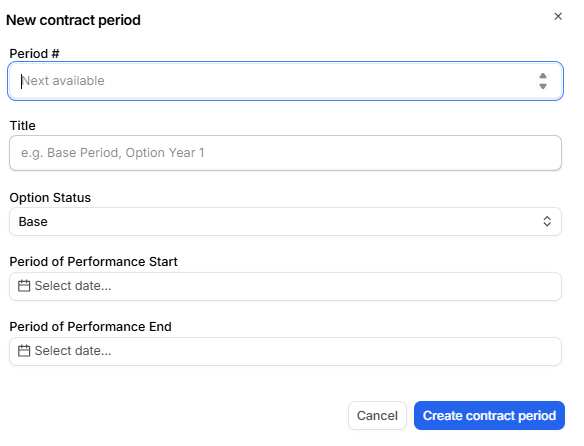
Open a contract, go to the Contract periods tab, and click Create contract period. Each period has five fields:
Period #, the period's number within the contract. Leave it blank to take the next available number, or type a number to choose it yourself
Title, such as Base Period or Option Year 1
Option Status: Base, Exercised Option, Unexercised Option, or Cancelled
Period of Performance Start
Period of Performance End
Each Period # is unique within a contract, and it stays the same even if you delete or renumber other periods, so you can rely on it when referring to a period. If you choose a number that is already taken, GovDash shows a Period #N already exists warning and the period is not saved, pick a different number. Adding periods chronologically starting with your base period keeps the numbering easy to follow.
Editing a period
Click into a period to open its detail page. Period #, Title, option status, and both dates are editable inline and save immediately. The detail page also lists every line item assigned to that period.
Table and Gantt views
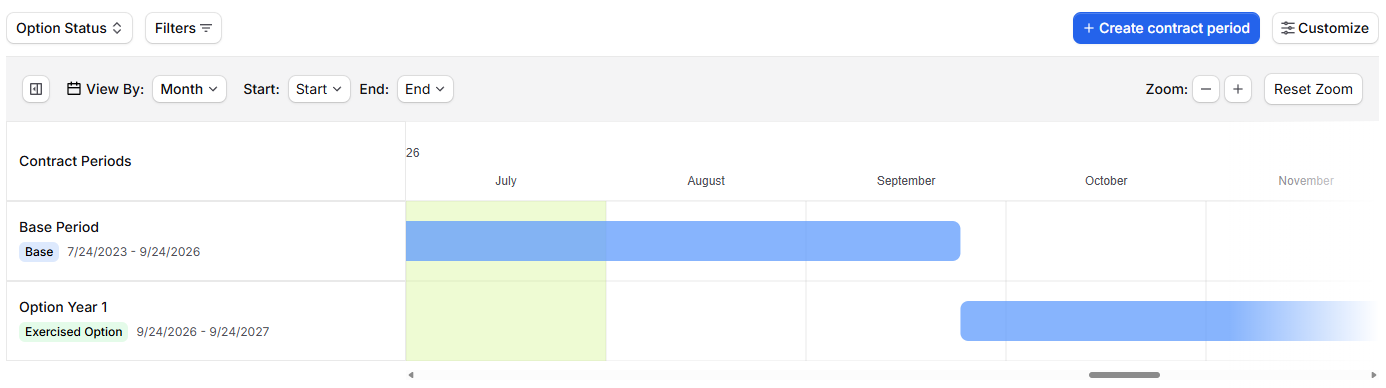
The Contract Periods tab includes a Table and a Gantt view. The Gantt view plots each period across its start and end dates and color codes it by option status, giving you a visual picture of the full contract lifecycle. Click any bar to jump to that period.
You can filter by option status or by start and end date range, and sort by order, title, status, or either date. To remove periods, select them in the table and use the bulk delete action. Remaining periods are re-ordered automatically.
Modifications
When a modification changes a period of performance, the modification's Period of Performance section shows the before and after for each affected period, including old and new dates, status changes, and the net change to the schedule. If a date was entered by hand rather than extracted from the modification document, the value is labeled Override with the teammate who entered it and the date they did, and it can be reverted from the editor.
Tip
Unexercised options with an approaching start date are the ones that need a decision. The Gantt view is the fastest way to spot them.
FAQ
Where does GovDash get line items from?
GovDash extracts line items from the contract's pricing schedule, such as Section B, in your primary contract documents. You can also add them yourself with Create line item.
What does the NSP badge mean?
NSP marks a line item that is Not Separately Priced, so it has no price of its own.
How do I see which line items belong to an option year?
Set the Contract Period field on each line item, then filter the table by Contract Period. Each contract period's page also lists its line items.
Do modifications update my line items?
Yes. When a modification adds, changes, or removes line items, GovDash suggests those updates for you to review. See Contract Modifications.
Can Dash manage line items for me?
Yes. Ask Dash to look up, add, update, or delete line items on a contract.