Overview
The Overview tab is the first tab on every contract. The main column shows Award Details, any custom field cards your team has set up, Pricing Information, and Period of Performance. The right sidebar holds Points of Contact, Notifications, Parent Contracts, Opportunity Tracking, and Key Documents. The contract header shows the contract's classification and the USA Spending pill. To reprocess or delete the contract, click Actions in the top right.
Editing Your Contract Details
If you'd like to make any edits to your contracts after uploading all of your documentation, you can easily edit your contracts by clicking into any of the fields within a contract record.
Award Details includes Contract Number, Contract Recipient, Prime/Sub, Contract Type, Contract Pricing Type, Sector, NAICS Code, PSC Code, Place of Performance, and Description. Pricing Information shows the Base Award Amount, Current Award Amount, Potential Award Amount, and Obligated Amount. Period of Performance shows the Start Date, Current End Date, and Potential End Date. Custom field cards appear below Award Details.
.png)
From here, you can edit things like your contract names, award values, contract numbers, your role, period of performance dates, and more.
You can make edits at any time in the future, and we recommend periodically reviewing your contracts within GovDash to ensure all of your documents are up to date.
Points of Contact
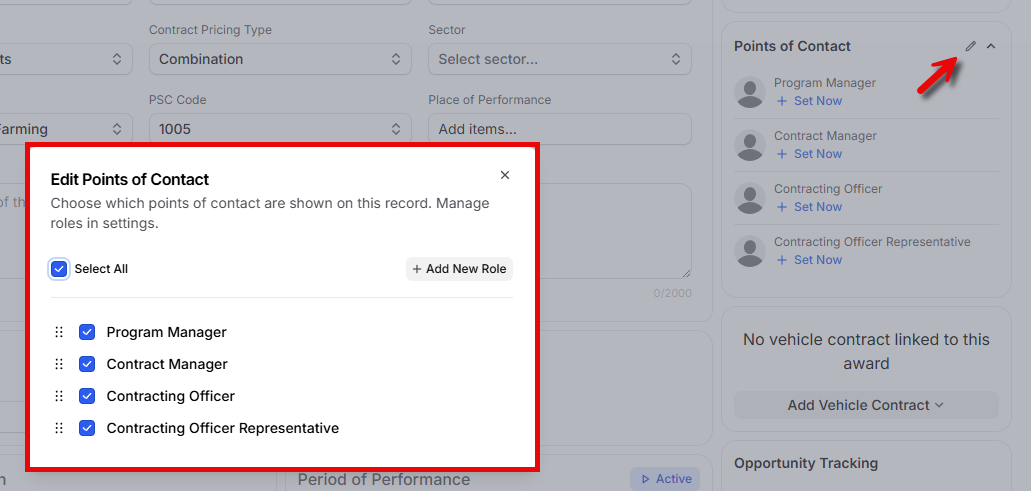
Every contract record includes a Points of Contact box on the Overview tab. This gives you one place to record who owns the contract on your side and who you are working with on the government side.
Four roles are included by default:
Program Manager (internal)
Contract Manager (internal)
Contracting Officer (external)
Contracting Officer Representative (external)
Assigning a Team Member
To assign someone on your GovDash team, click the role and select them from the list of users in your workspace. GovDash sends that person an in-app notification in their Inbox letting them know they were assigned to the role on that contract.
Assigning an External Contact
To point a role at someone outside your organization, select an existing person record from your Data Library. Once assigned, use the shortcut next to their name to jump straight to their record in the Data Library, where you can view or update their details.
You can also quickly add a new person at any time by scrolling to the bottom of the person picker and clicking Add New Person.
Customizing Roles
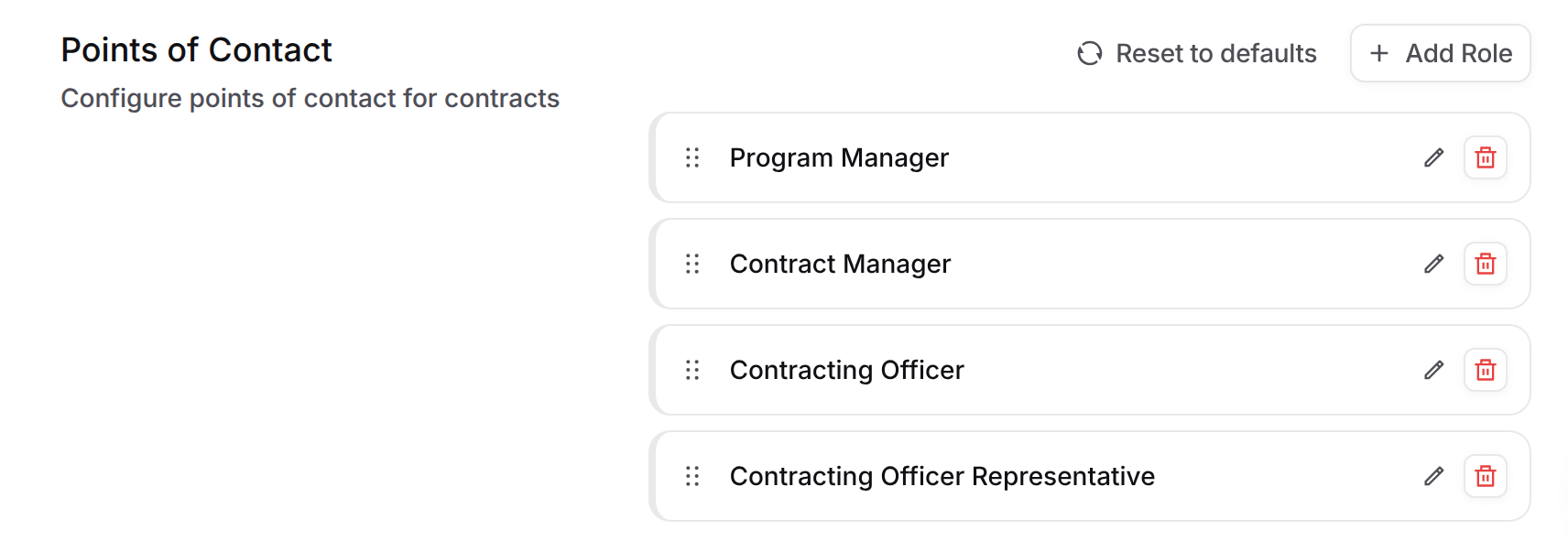
The four default roles are a starting point, not a fixed list. To add, rename, reorder, or remove roles for all of your contracts, go to Settings > Contract > Points of Contact. Click Add Role to create a new role, or click Reset to defaults to go back to the four default roles.
Points of Contact on Company and Agency Records
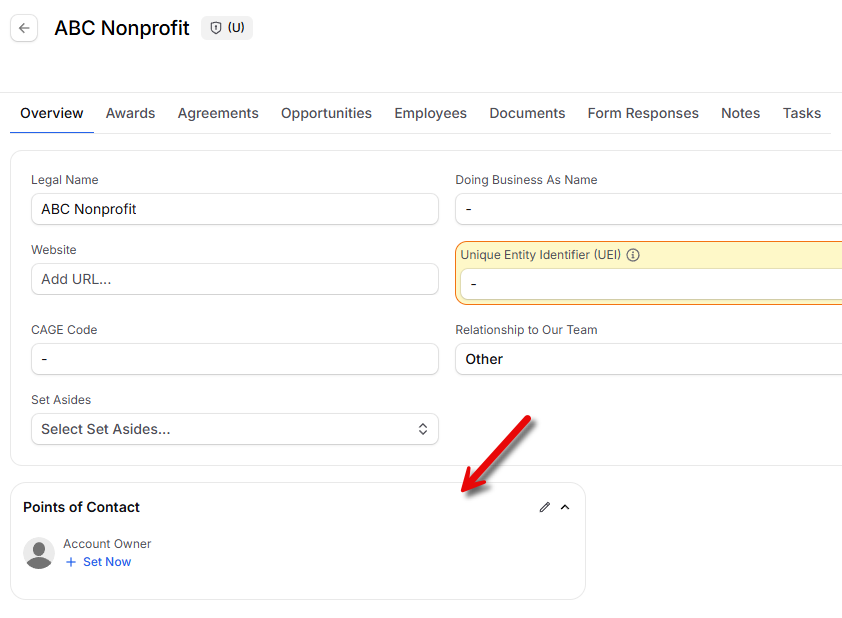
Points of Contact is also available on company and agency records in your Data Library. Both default to a single Account Owner role. Assignment and editing work the same way as they do on contracts, so you can track internal ownership and government contacts consistently across your records.
Linking Capture Opportunities
Linking opportunities to contracts allows your team to quickly track which opportunity in GovDash the work was done on, or allows your team to signal which opportunity will be used to work a potential recompete.
Open the contract from your contract inventory and stay on the Overview tab, then find the Opportunity Tracking card in the right sidebar.
Click Tracked Opportunity Source and pick the opportunity this contract came from. Only opportunities that are not already tied to a contract are listed.
Click Tracked Recompete Opportunity and pick the opportunity you are pursuing to recompete this contract.
Use the arrow button next to either field to jump to the linked opportunity record.
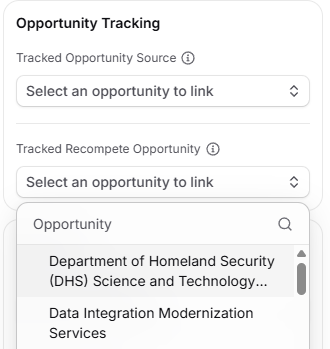
To remove a link, clear the selection in the field. Unlinking only removes the connection, neither the opportunity nor the contract is deleted.
Updating Key Documents
It is critical to keep your contract related documents up to date within Contracts, as these documents form the foundation of how GovDash builds recommendations for opportunities, provides insights into your capabilities, and speaks about your experience within the content it generates.
Replacing Contract or PWS/SOW Key Documents
To designate a document as the main contract award or PWS/SOW, ensure you have uploaded the file. From the main Overview tab, within the Key Documents section, you will be able to upload or attach an existing document if one is missing, or replace a document by clicking the file drop down and choosing Remove document.
.png)
GovDash will then reprocess the file for any changes with the new document(s) and update the contract details as needed. You can keep the previous documents attached to the contract, or you can disconnect them from the contract from the Documents tab. Disconnected documents are still kept in your Data Library, but will no longer be attached to the contract or be used when referencing this contract as past performance.
.png)
Other Sidebar Cards
Notifications: Choose a Slack or Microsoft Teams channel to receive updates about this contract.
Parent Contracts: Link this contract to its vehicle or prime contract. See Vehicle and Prime Contracts.
SharePoint: Open SharePoint folders linked to this contract. See Linking SharePoint Folders.
Legacy Fields: Older fields such as Vehicle Name and Task Order Number, kept for reference.
Comparing Your Contract With USA Spending
USA Spending is the federal government's public record of every prime contract award. GovDash can link each of your unclassified contracts to its official USA Spending award and show you, field by field, where your record and the government's record agree or differ. It's a quick way to catch out-of-date dates, values, or codes before they make their way into your past performance write-ups and proposals.
Checking a Contract's USA Spending Status
Open any contract from your Contract Inventory. In the header, next to the source and procurement identifier pills, look for the USA Spending pill:
A green pill with a filled check means the contract is already linked to a USA Spending award. Hover over it to see Linked to a USA Spending award. Click to compare.
A gray pill with an empty circle means the contract hasn't been linked yet. Hover over it to see Not yet linked to USA Spending. Click to check.
Don't see the USA Spending pill?
The USA Spending pill only appears on contracts marked (U) Unclassified whose Contract Number is a valid federal contract number (PIID). Contracts marked CUI, contracts without a contract number, and task-order-style combined numbers won't show it. If you update a contract's number, GovDash clears any existing USA Spending link so you can check again with the new number.
Linking a Contract to Its USA Spending Award
GovDash automatically looks for a matching USA Spending award when it processes a new contract, so many of your contracts will already be linked. If one isn't:
Click the gray USA Spending pill in the contract header. The USA Spending page opens and shows Not yet linked to USA Spending with a short explanation of the last check (for example, This award hasn't been checked against USA Spending yet.).
Click Check USA Spending. The status changes to Checking USA Spending... while GovDash searches for a matching award. This usually takes just a few seconds.
When a match is found, the page switches to the comparison table automatically and the pill in the header turns green.
If no match is found, the page tells you No matching award was found in USA Spending. Double-check the Contract Number on the contract's Overview tab and try again. If the last check ran into an error, you'll see The last check failed unexpectedly. Try again. Click Check USA Spending to retry.
Reading the Comparison Table
Once a contract is linked, the USA Spending page shows a three-column table: Field, Your award, and USA Spending. Each row compares one of your contract's details with the value USA Spending reports, including:
Contract Number, Prime/Sub, and Award Type
Start Date, Current End Date, and Potential End Date
Obligated Amount, Current Award Amount, and Potential Award Amount
PSC Code, NAICS Code, and Place of Performance
Solicitation number, Recipient (by UEI), and Set-aside
The contract's short description
When a value in Your award doesn't match USA Spending, a warning icon appears next to it. Hover over the icon to see exactly what USA Spending reports (for example, USA Spending reports $1,250,000.00). Fields that USA Spending doesn't report show a dash.
Above the table you'll also find:
A Last updated badge showing when the USA Spending data was last pulled.
A Refresh button that re-checks USA Spending and pulls the latest data for the linked award. While it runs, the badge shows Checking USA Spending....
A View on USA Spending link that opens the official award record on usaspending.gov in a new tab.
Tip
USA Spending only reports what the government has published, and there can be a lag after a modification is signed. A mismatch doesn't always mean your record is wrong, use the View on USA Spending link to confirm before you change anything.
Setting and Managing Award Classifications
When you upload a document into GovDash, you will select its classification as either (U) Unclassified or (CUI) Controlled Unclassified Information. This classification helps your team properly label sensitive data and ensures it is protected on the GovDash platform.
.png)
How Classification Works in GovDash
GovDash uses your document classification to automatically label related information across the platform.
If a document is classified as CUI, GovDash will automatically propagate that classification to items that are derived from that document or created from it. Examples include:
If you upload a CUI focus document to a proposal, the proposal classification will be updated to CUI
If you upload a resume and mark it as CUI, the Key Personnel entity extracted from that resume will also be marked as CUI
This same behavior applies across other connected parts of GovDash as information is extracted and structured from your uploaded files.
.png)
Where You Can Set Classification
Classification is not limited to document uploads. Other areas of GovDash also allow you to set classification, such as when you are creating an opportunity.
GovDash supports classification on the following types of records:
Dash Conversations
Key Personnel
Government officers (rarely used in the UI)
Agencies
Business partners
Capabilities
Forms (such as data calls)
Custom documents
Documents
Awards
Proposals
Opportunities
Updating Classification After Upload
If you need to change a classification after something is already in GovDash, you can update it at any time.
.png)
When you update the classification of a “parent” item (like a document), GovDash will show a popup listing related items that were derived from it. This helps you quickly decide whether you also want to update the classification of those related records.
.png)
Important Note Regarding Classification
Your team is responsible for properly marking your data in GovDash. Correct classification ensures that sensitive information is handled appropriately and that properly labeled, sensitive data is protected on the GovDash platform.
FAQ
Why is it beneficial to keep my contract details updated in GovDash?
Keeping your contract details updated ensures that GovDash can provide accurate content writing and better match opportunities based on your current capabilities.
How can I tell whether my contract details match the government's official record?
Open the contract and click the USA Spending pill in the header. If the contract is linked, you'll see a side-by-side comparison of your record and USA Spending's, with a warning icon next to any field that differs. If it isn't linked yet, click Check USA Spending to find the matching award. See Comparing Your Contract With USA Spending above.
Can I link more than one opportunity to a contract?
Each contract has two links in the Opportunity Tracking card: one Tracked Opportunity Source for the opportunity the contract came from, and one Tracked Recompete Opportunity for the recompete you are pursuing.
What happens when I replace the contract or PWS/SOW document?
GovDash reprocesses the contract using the new document and updates the contract details as needed. The previous document stays in your Data Library.
Where did fields like Vehicle Name and Task Order Number go?
Older fields are shown in the Legacy Fields card in the right sidebar of the Overview tab.